

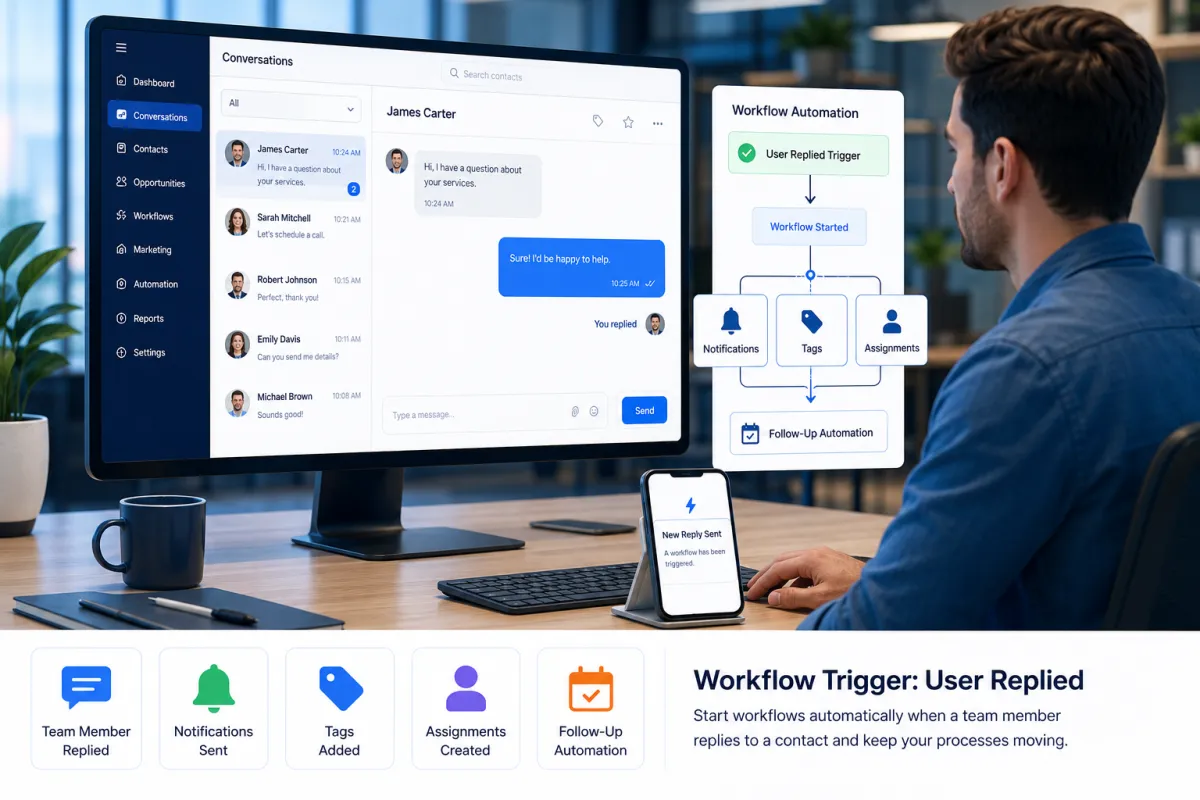
How the User Replied Trigger Works in GoHighLevel
Workflow Trigger: User Replied in GoHighLevel
Introduction
Keeping internal processes moving efficiently is just as important as responding to customers. With the Workflow Trigger: User Replied, GoHighLevel introduces a new automation trigger that starts workflows when a team member sends a reply to a contact.
This update gives businesses another way to automate internal processes based on team activity instead of customer actions. Whether your sales or support team is communicating with contacts, workflows can now continue automatically after a user sends a response.
In this article, we'll explore what the Workflow Trigger: User Replied is, how it works, how to set it up, why GoHighLevel introduced it, and the official examples provided with the update.
What is the Workflow Trigger: User Replied?
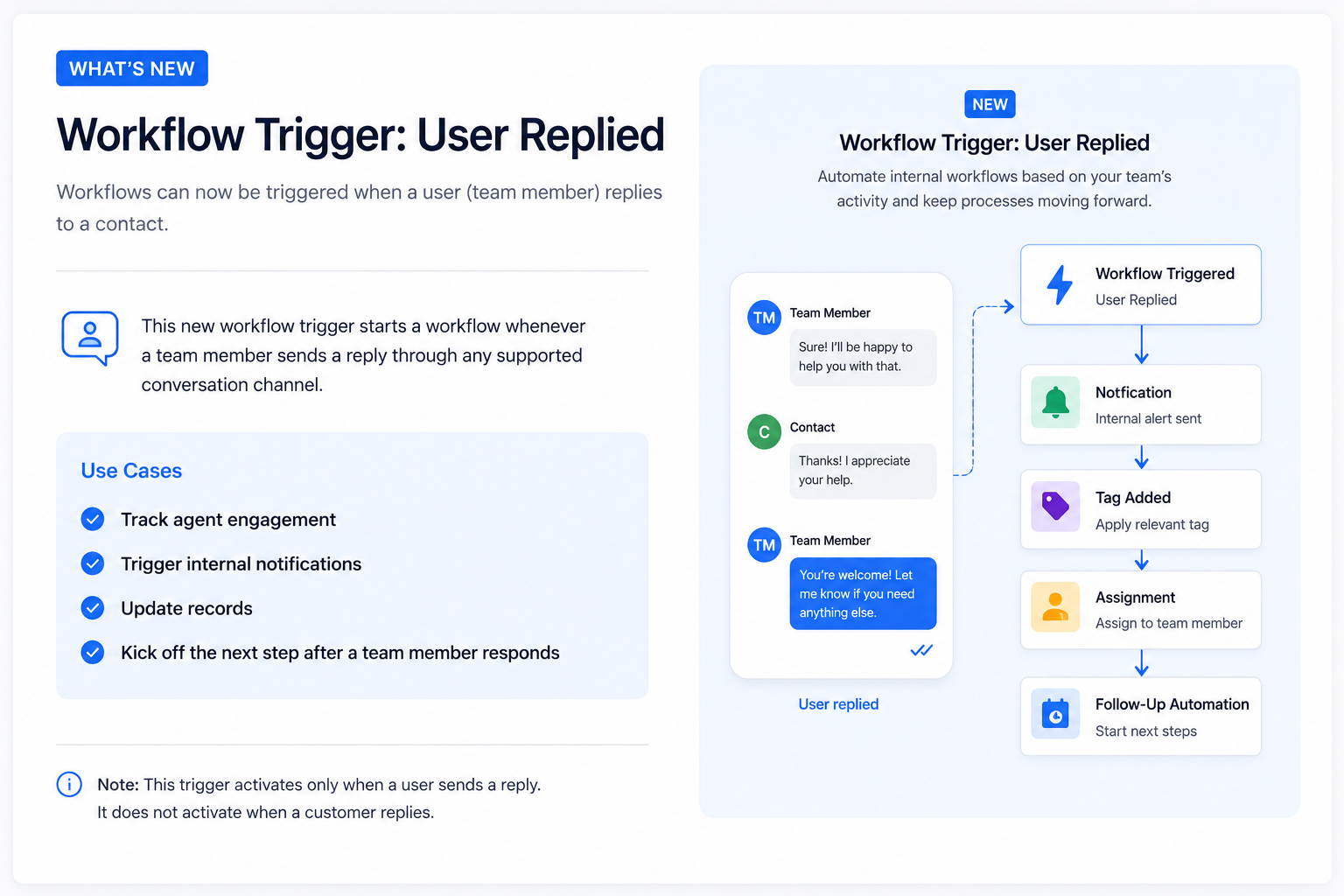
The Workflow Trigger: User Replied is a new GoHighLevel Workflow Trigger that starts a workflow whenever a user (team member) replies to a contact through a supported conversation channel.
Unlike triggers that wait for customer activity, this trigger is designed specifically for internal workflow automation. As soon as a team member sends a reply, the workflow can begin automatically and continue with additional actions based on your configured automation.
According to the official update, workflows started by this trigger can continue with actions such as:
Notifications
Tagging
Assignments
Follow-up automations
This allows businesses to automate internal processes immediately after a team member responds to a contact.
How It Works
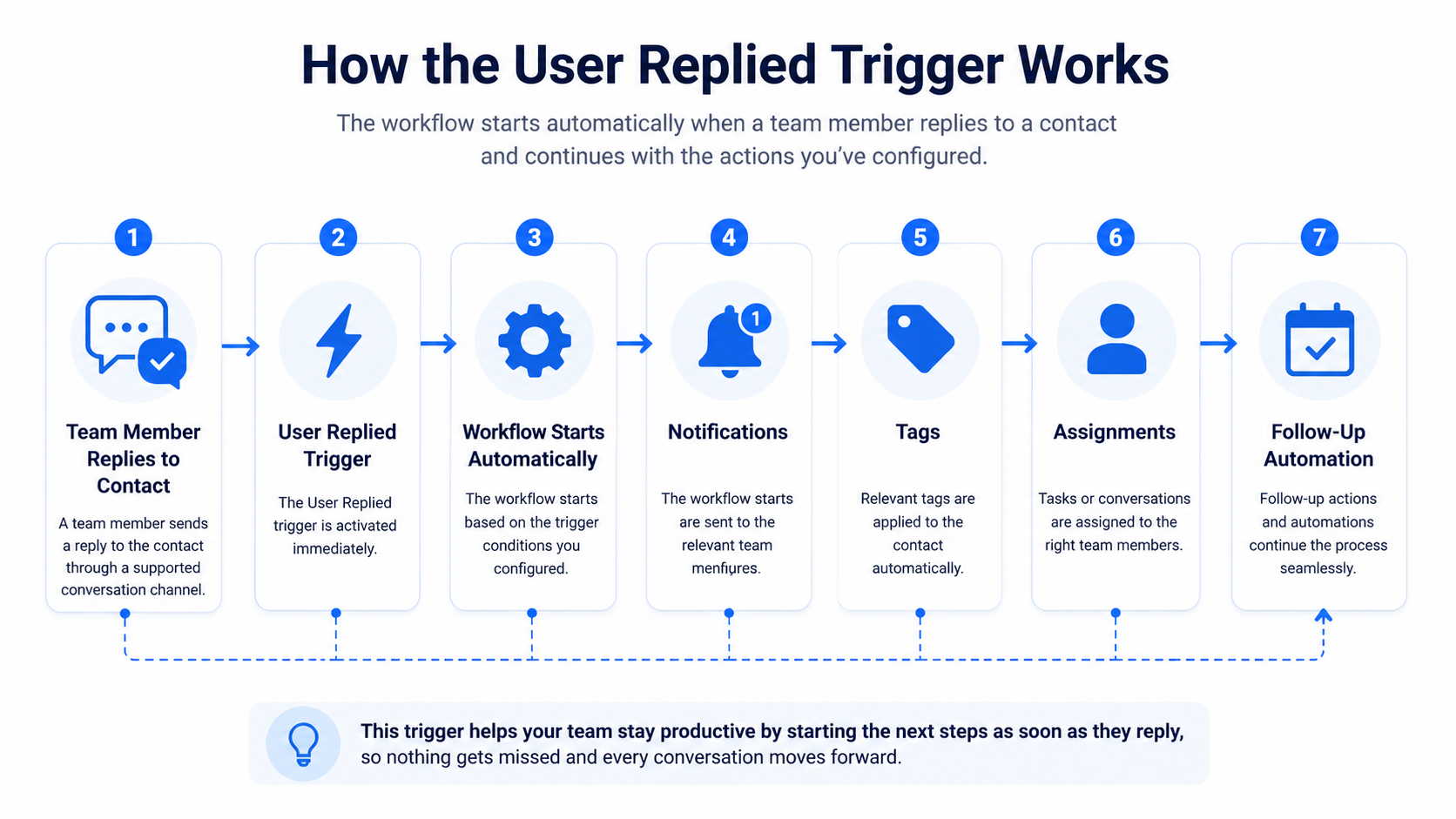
The GoHighLevel User Replied Trigger is simple to use.
After adding the trigger to a workflow, you can define the conditions that should start the automation. Once a user replies to a contact through a supported conversation channel, the workflow starts automatically.
From there, your workflow can continue with the actions you've configured, including:
Sending notifications
Applying tags
Creating assignments
Starting follow-up automations
The automation begins only after the team member sends a reply, helping internal workflows continue without waiting for a customer response.
How to Set Up the User Replied Trigger
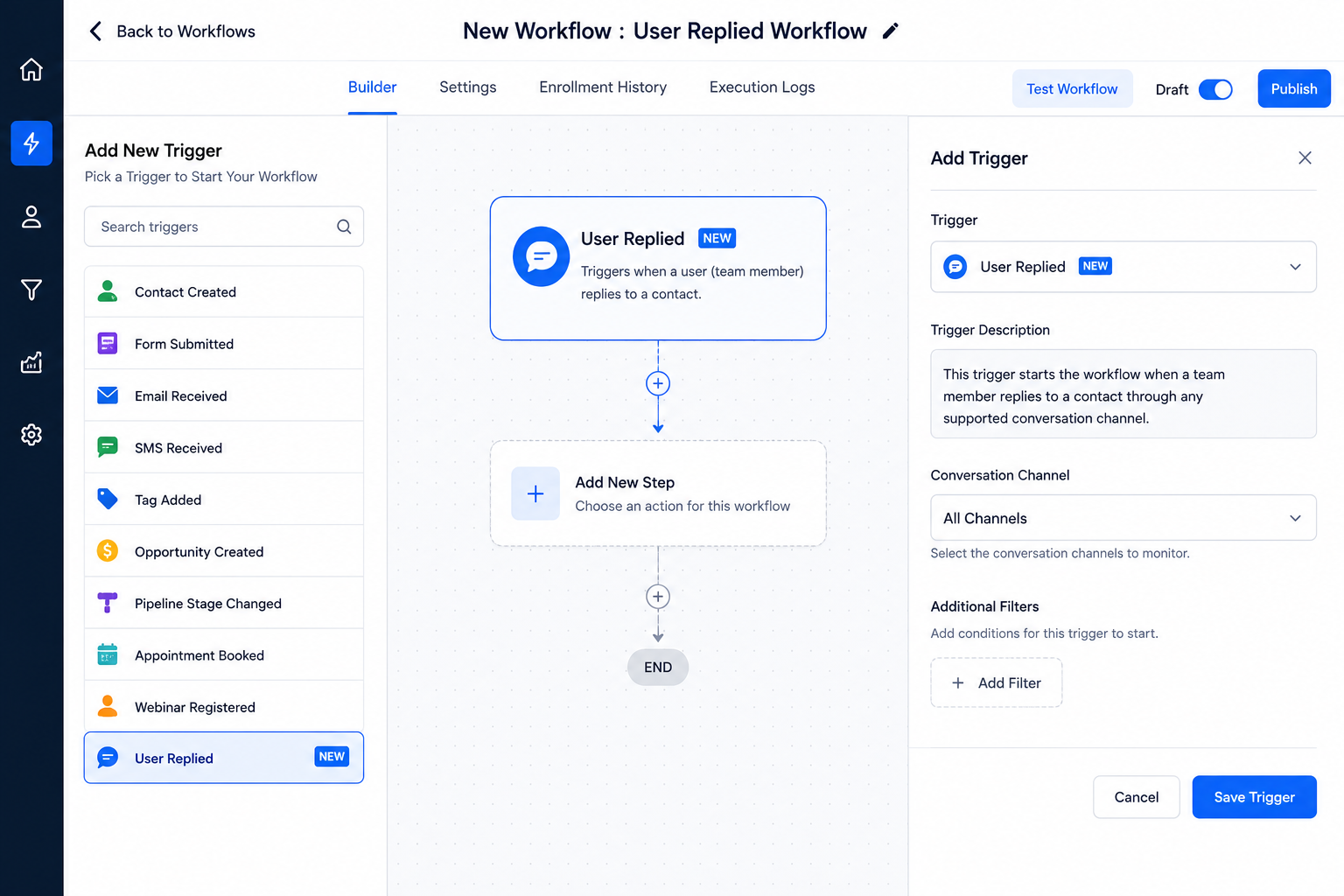
Setting up this GoHighLevel Automation Update requires only a few steps.
Step 1: Open Workflows
Navigate to:
Automations → Workflows
Step 2: Add the Trigger
Create or edit a workflow and add the User Replied trigger.
Step 3: Configure Trigger Filters
Configure any trigger filters required for your workflow.
Step 4: Publish the Workflow
Publish the workflow to automate actions whenever a user replies to a contact.
Once published, the workflow will automatically run according to the trigger conditions you've configured.
Why GoHighLevel Introduced This Feature
According to the official update, many automations need to react to team activity rather than customer activity.
The Workflow Trigger: User Replied was introduced to help businesses build workflows that can:
Track agent engagement
Trigger internal notifications
Update records
Kick off the next step immediately after a team member responds
Instead of waiting for a customer reply, workflows can now begin as soon as a user sends a response, making internal automation easier to organize.
Practical Use Cases
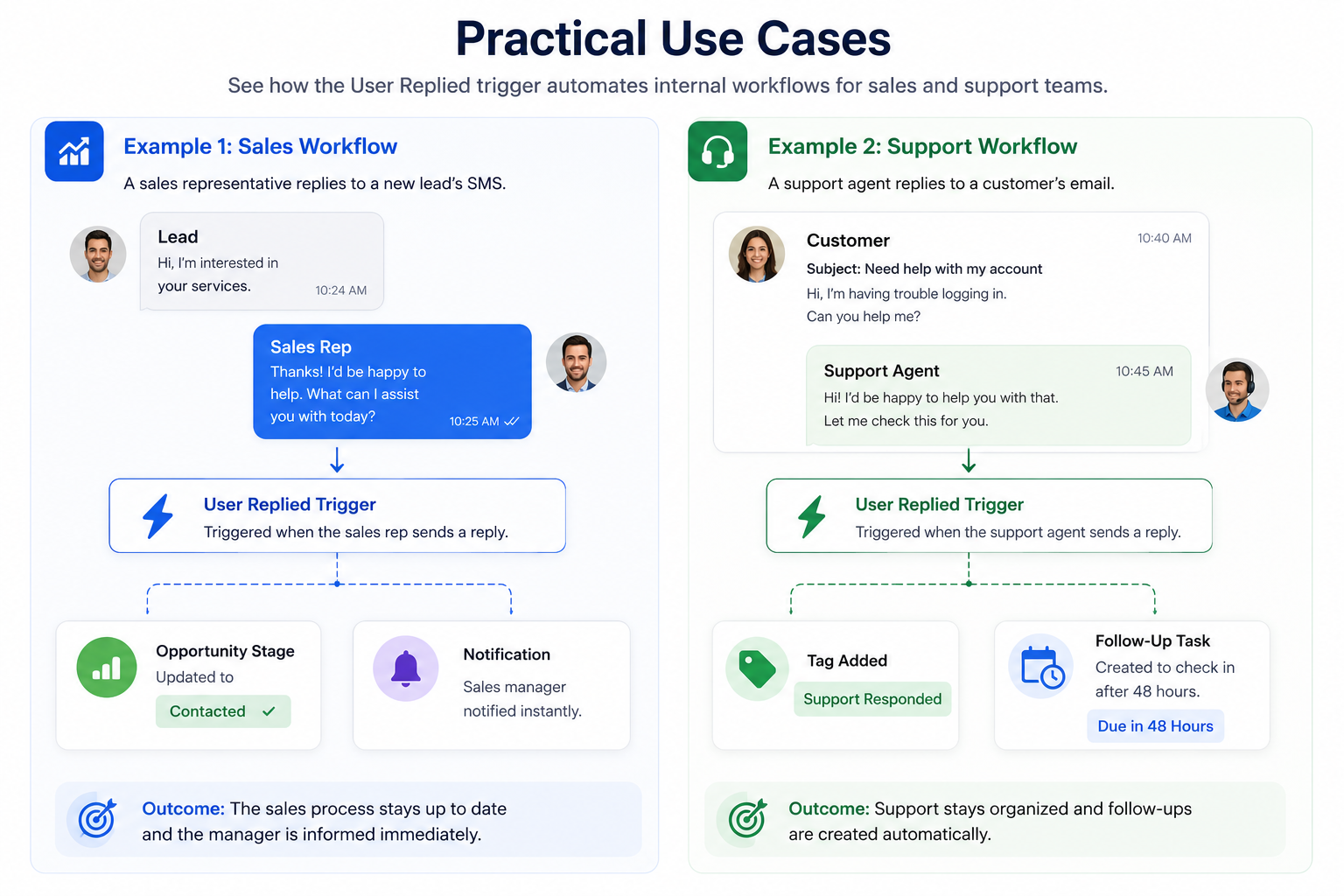
The official announcement includes two examples that demonstrate how this feature can be used.
Example 1: Sales Workflow
A sales representative replies to a new lead's SMS.
The User Replied Trigger automatically:
Updates the opportunity stage to Contacted
Notifies the sales manager
This helps keep the sales process updated immediately after the representative responds.
Example 2: Support Workflow
A support agent replies to a customer's email.
The trigger then:
Adds a Support Responded tag
Creates a follow-up task to check in after 48 hours
This example shows how internal support processes can continue automatically after an agent sends a response.
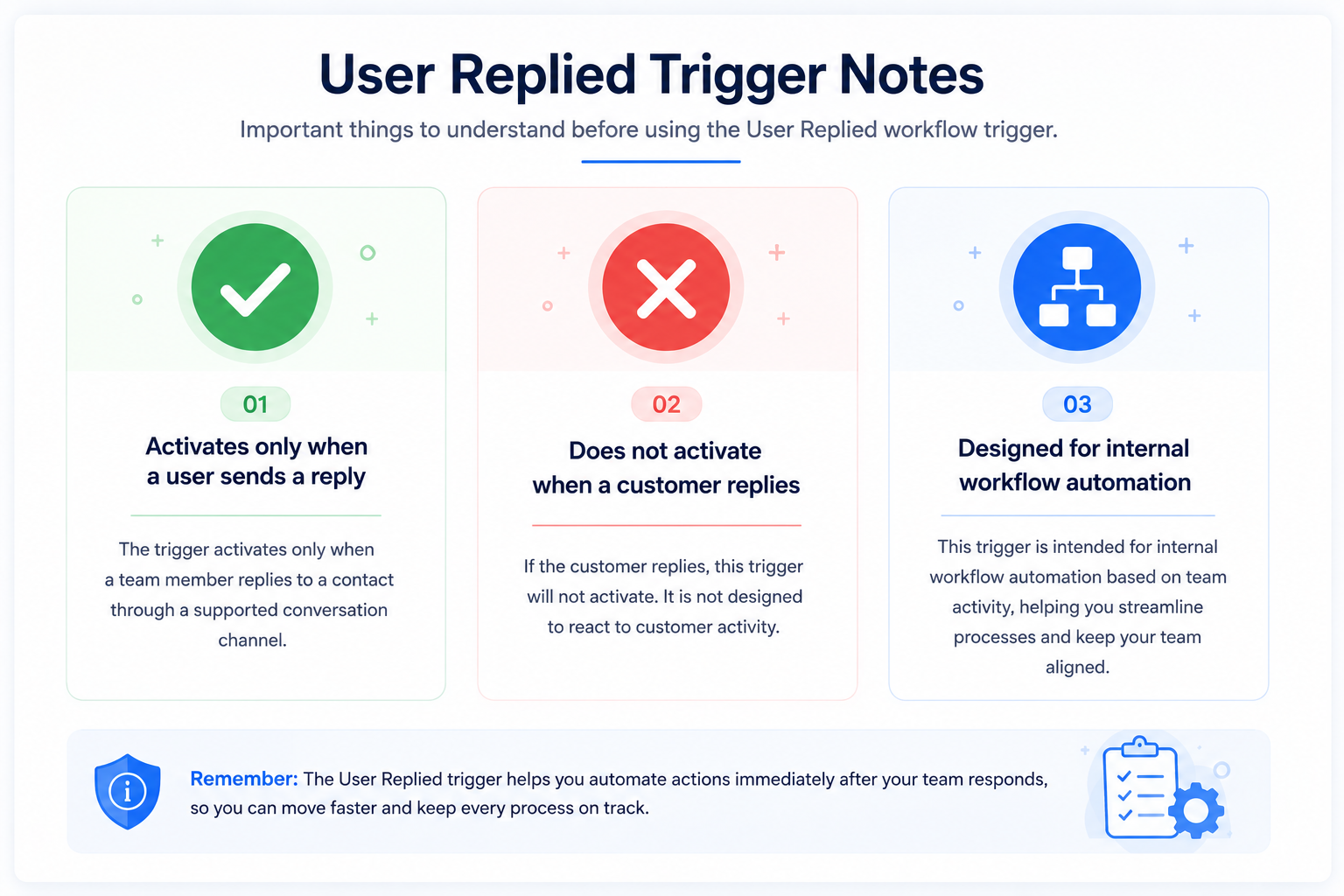
Important Notes
Before using the Workflow Trigger: User Replied, keep these official points in mind:
The trigger activates only when a user sends a reply.
It does not activate when a customer replies.
It is intended for internal workflow automation based on team activity.
Understanding these conditions helps ensure your workflows behave as expected.
Conclusion
The Workflow Trigger: User Replied expands GoHighLevel Workflows by allowing automations to start when a team member replies to a contact. Instead of relying only on customer actions, businesses can now automate internal processes immediately after user activity.
As described in the official update, this trigger can be used to launch workflows that include notifications, tagging, assignments, and follow-up automations. It also supports internal processes such as tracking agent engagement, updating records, and initiating the next step after a response.
If your business relies on CRM Automation to keep internal operations organized, this new GoHighLevel Workflow Trigger provides another way to automate tasks based on your team's actions while keeping workflows aligned with everyday communication.
Frequently Asked Questions (FAQs)
1. What is the Workflow Trigger: User Replied in GoHighLevel?
It is a workflow trigger that starts a workflow whenever a user (team member) replies to a contact through a supported conversation channel.
2. Does the User Replied trigger activate when a customer replies?
No. According to the official update, the trigger activates only when a user sends a reply and does not activate when a customer replies.
3. How do I add the User Replied trigger?
Go to Automations → Workflows, add the User Replied trigger, configure any required trigger filters, and publish the workflow.
4. What actions can a workflow perform after the trigger starts?
The workflow can continue with actions such as notifications, tagging, assignments, or follow-up automations.
5. Why did GoHighLevel introduce the User Replied trigger?
GoHighLevel introduced the feature to help businesses automate internal workflows that react to team activity, including tracking agent engagement, triggering internal notifications, updating records, and starting the next step after a team member responds.
Watch This GoHighLevel Update in Action
Want a quick overview of this new GoHighLevel feature? We’ve created a short video explaining the update, its benefits, and how you can use it effectively.
Click below to watch the video and stay ahead with the latest GoHighLevel updates.
Watch Here
Need Expert Help with GoHighLevel?
New to GoHighLevel and ready to get started? Buy your GoHighLevel account here and launch with confidence.
Already know what you need and want our team to handle everything, from complete setup and customization to funnels, workflows, automations, CRM, and pipelines? Click here.



