

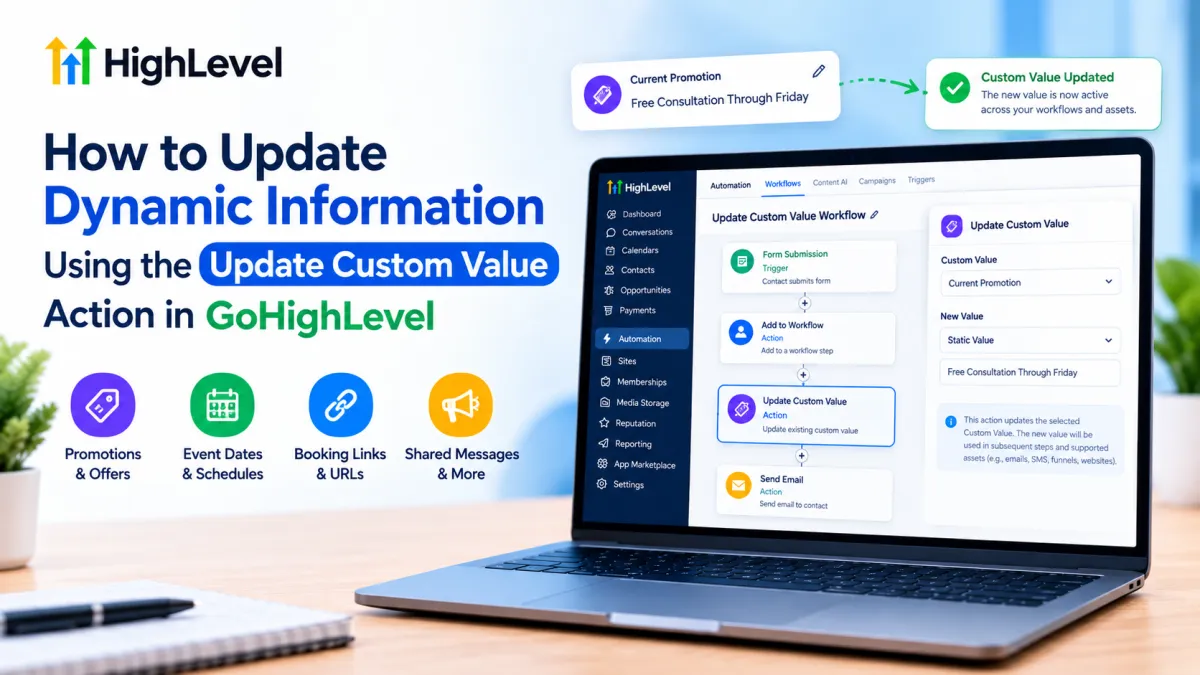
Update Custom Value Action in GoHighLevel
How to Update Dynamic Information Using the Update Custom Value Action in GoHighLevel
A promotion changes. An event date moves. A booking link is replaced. Or a business needs to update a message that appears across several automations.
Without a centralized system, the team may have to open multiple workflows, emails, funnels, or other assets and replace the same information manually. That creates unnecessary work and increases the chance that one outdated value gets missed.
The Update Custom Value Action in GoHighLevel provides a more flexible approach. It allows a workflow to change an existing Custom Value automatically, so subsequent places that reference that Custom Value can resolve to its new value.
What Is a Custom Value in GoHighLevel?
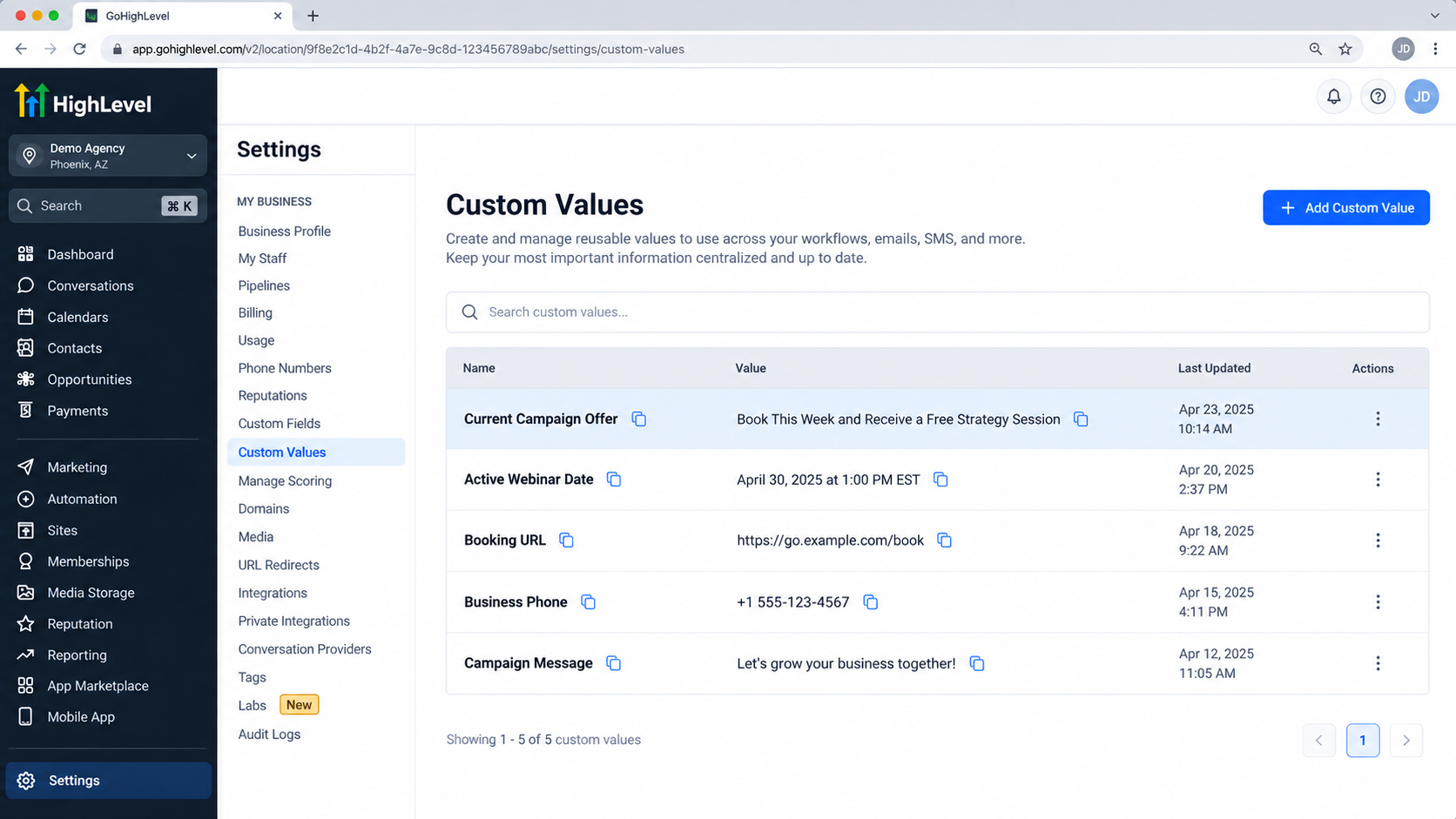
GoHighLevel Custom Values are reusable key-value pairs created at the sub-account level under Settings → Custom Values.
For example, a business might create a Custom Value named:
Current Promotion
with the value:
Free Consultation Through Friday
Instead of repeatedly typing that promotion into every supported asset, the business can reference the Custom Value. HighLevel describes Custom Values as reusable values that can be created once and used throughout the platform.
Custom Values vs. Contact Custom Fields
This distinction is critical.
A Contact Custom Field belongs to an individual contact record. Different contacts can therefore have different values in that field.
A Custom Value, by contrast, is reusable information associated with the sub-account. It is appropriate for shared information such as a promotional message, common URL, campaign identifier, business information, or another value that should be referenced repeatedly.
If you need to change information stored on a particular contact, the appropriate workflow functionality is Update Contact Field, not Update Custom Value.
What Is the Update Custom Value Action?
The Update Custom Value Action in GoHighLevel is a workflow action that changes the value stored against an existing Custom Value.
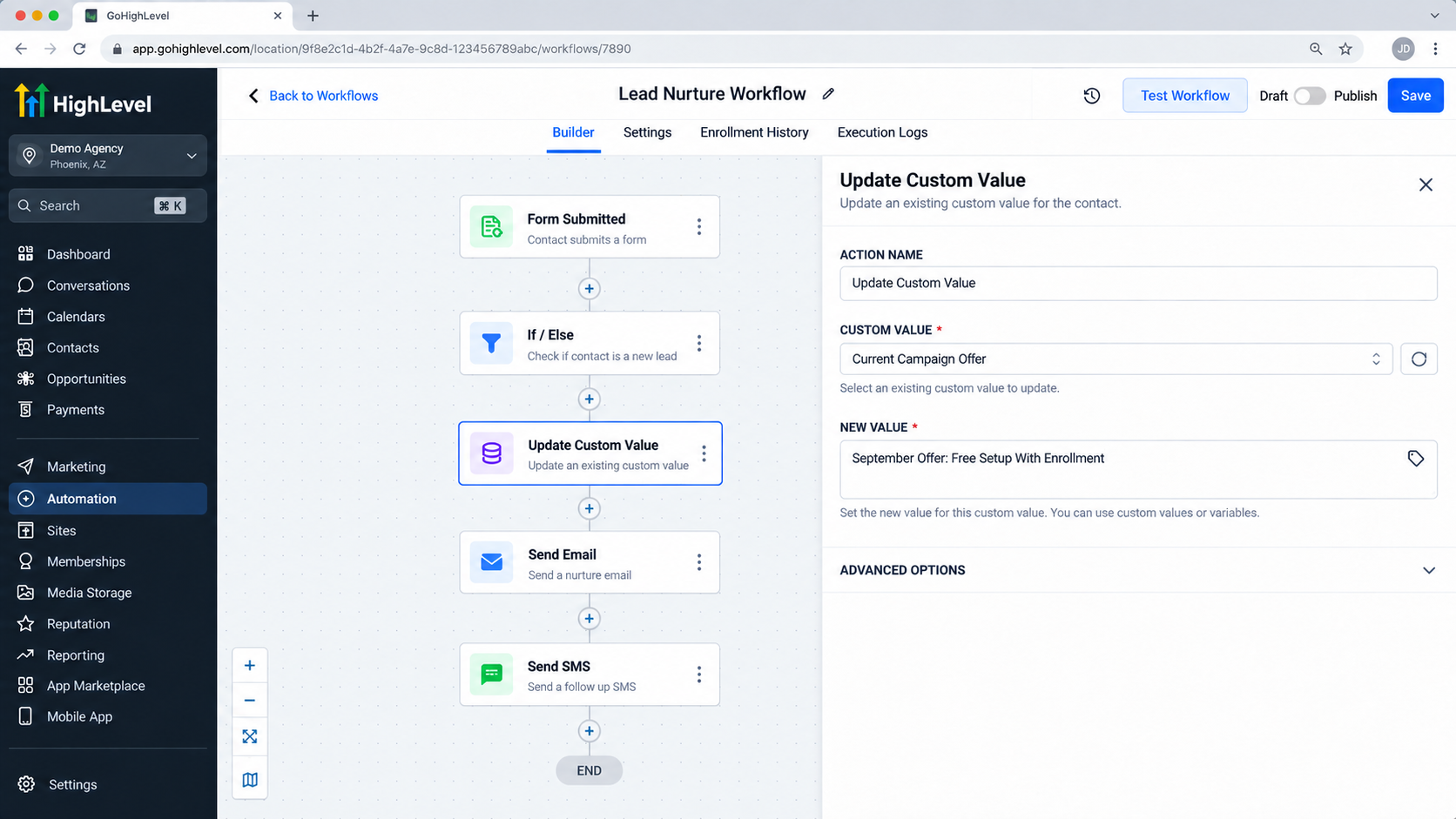
When configuring the action, you select the Custom Value you want to modify and specify its new value. HighLevel's workflow documentation states that the new value can be a static value or a dynamic variable.
Conceptually, the automation looks like this:
Trigger → Workflow Actions → Update Custom Value → Later references use the updated value
Once the update action executes, HighLevel makes the changed value available to subsequent references in the workflow.
This does not mean previously sent emails, previously delivered SMS messages, or already rendered historical content is rewritten. The change matters when the Custom Value is resolved again in a supported context.
Why Dynamic Information Matters
Custom Values are useful even when edited manually, but the workflow action makes them much more adaptable.
Instead of requiring someone to visit Settings whenever shared information changes, a GoHighLevel automation can update the value when the relevant workflow logic reaches that step.
Appropriate examples include:
Changing a reusable promotional message
Updating a shared campaign-related value
Replacing a reusable destination or campaign URL
Updating changing event information
Maintaining a common value referenced by later automation steps
Custom Values are also supported in areas such as workflows, websites, funnels, templates, and other supported HighLevel interfaces, making them useful for information that needs centralized reuse.
Practical Example: Updating a Campaign Promotion
Imagine a company maintains a Custom Value called Current Campaign Offer.
Its existing value is:
Book This Week and Receive a Free Strategy Session
A workflow is designed to switch the business to its next campaign offer when the appropriate automation event occurs.
The logic could work as follows:
A relevant event starts the workflow.
The business uses an appropriate workflow trigger for its campaign process.The automation progresses through its required steps.
The workflow reaches Update Custom Value.
It selects the existing Current Campaign Offer Custom Value.The action writes the new value.
For example:September Offer: Free Setup With EnrollmentSubsequent steps reference Current Campaign Offer.
When a later supported workflow action resolves that Custom Value, it receives the newly stored promotion rather than the previous one.
The major advantage is that downstream automation does not need the promotional wording hard-coded repeatedly.
Static Values vs. Dynamic Values
The New Value in the action does not always have to be manually typed.
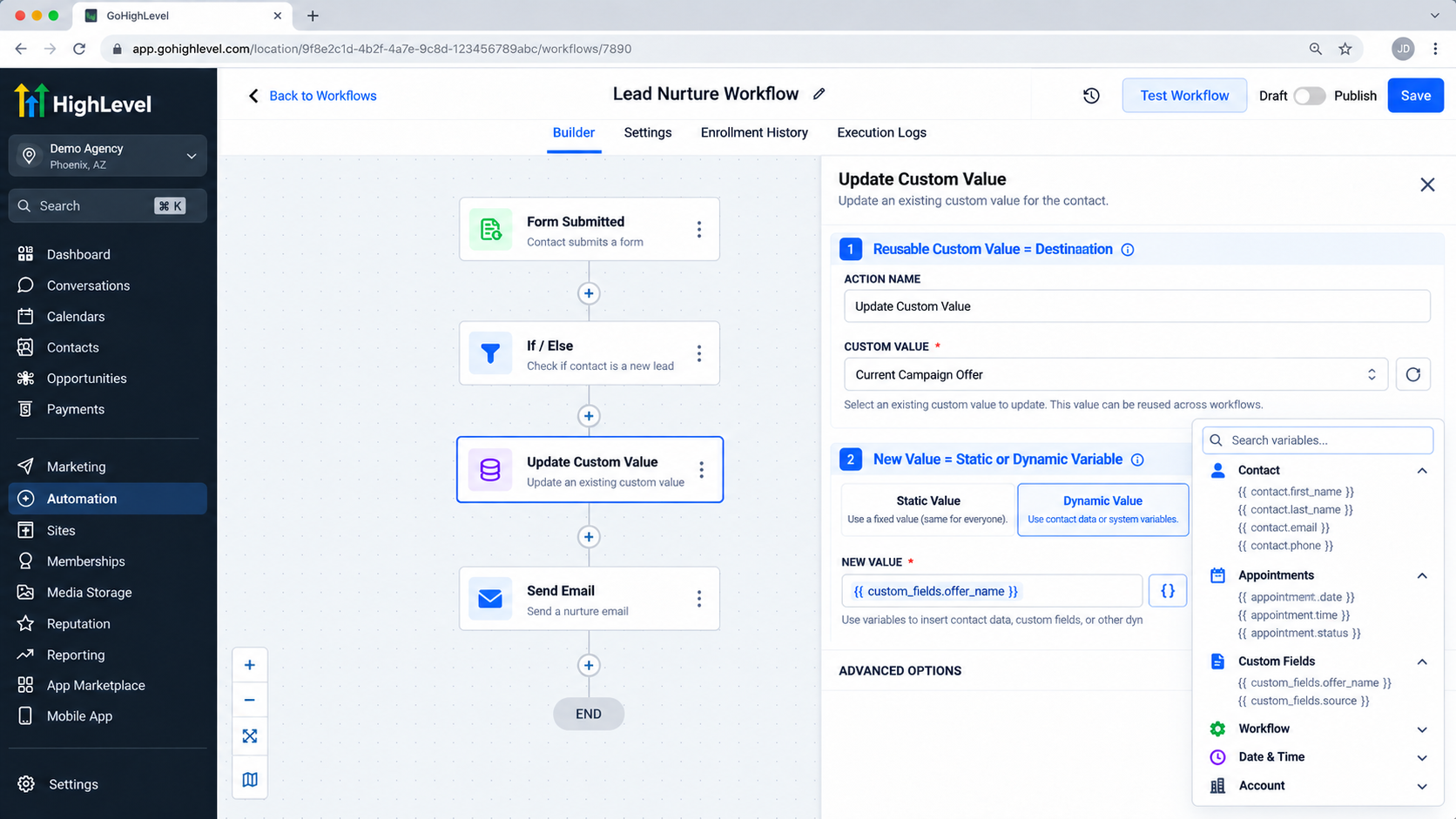
HighLevel documents support for both a fixed value and a dynamic variable in the Update Custom Value action.
A static update is straightforward:
New Value: Registration Closed
A dynamic update instead uses data that is available in the workflow context and supported by HighLevel's variable picker.
The important distinction is that the Custom Value being updated remains the reusable destination. The dynamic source only determines what gets written into it.
Do not assume that every field or previous workflow result is automatically available. Use the variables exposed by HighLevel in the relevant workflow context rather than manually inventing merge-field syntax.
Business Benefits of Update Custom Value
Used correctly, this GoHighLevel workflow action can:
Reduce repetitive editing by changing reusable information centrally
Improve consistency across assets that depend on the same Custom Value
Make campaign automation more adaptable
Reduce hard-coded information inside large workflows
Lower human-error risk when recurring information changes
Support scalable automation architecture by separating reusable configuration from individual workflow content
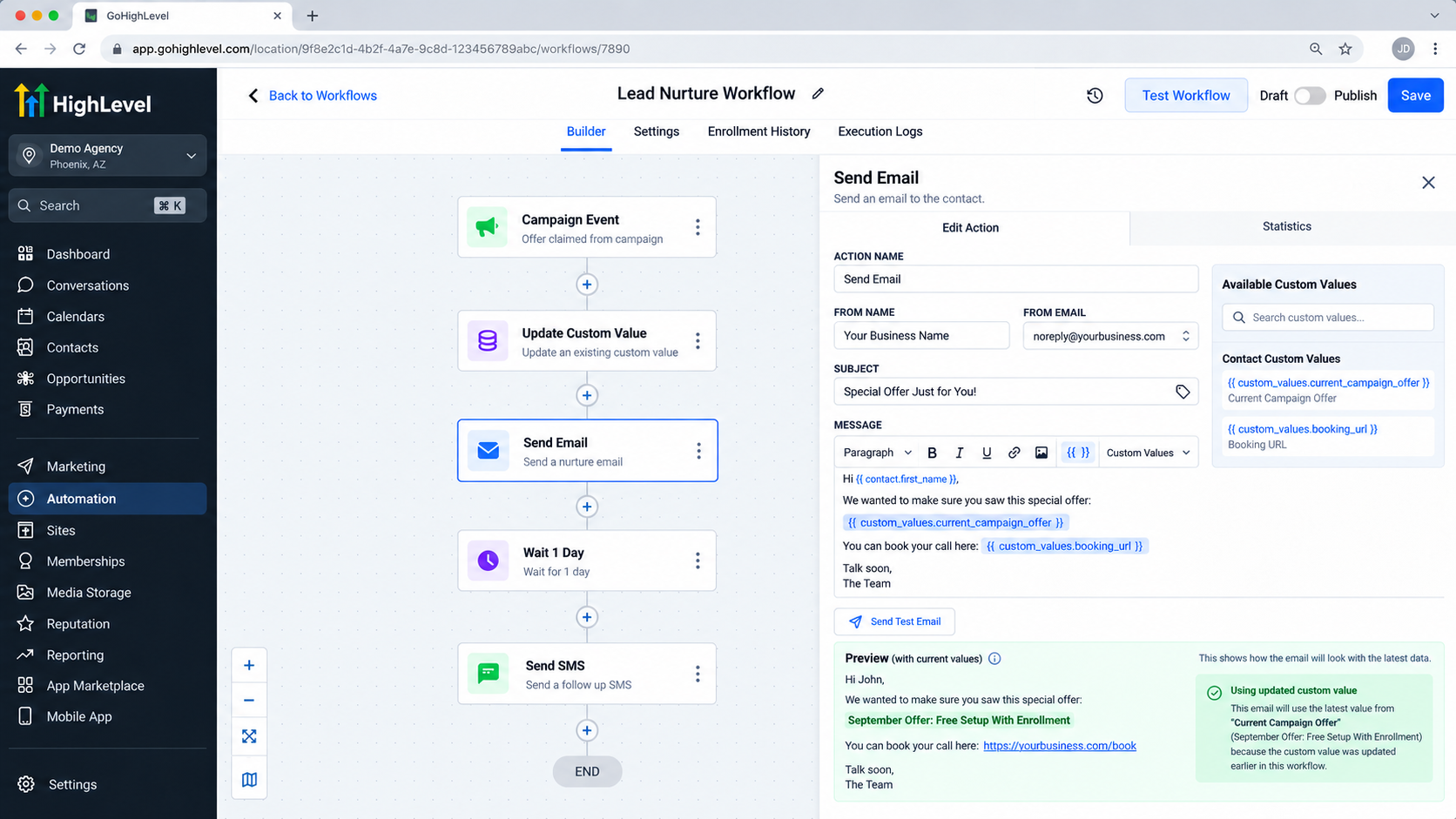
Once the Custom Value is updated, later supported workflow references can use the latest value without hard-coding the promotional message again.
Important Considerations
The most important consideration is scope.
The Custom Value updated by a workflow must belong to the same sub-account as the workflow. One Update Custom Value action updates one Custom Value at a time.
Because Custom Values are shared reusable values rather than per-contact storage, avoid using them as though they were personal variables for every contact entering a workflow. If several workflow executions write different data into the same shared Custom Value, they are modifying the same reusable value.
Also review everything that references a Custom Value before automating changes to it. A modification may affect more than one workflow or asset when that value is resolved later.
Best Practices
For reliable GoHighLevel automation:
Give Custom Values descriptive names such as Active Webinar Date instead of vague names such as Value 1.
Use folders to keep larger Custom Value libraries organized.
Understand every important dependency before automating an update.
Keep contact-specific information in contact fields rather than shared Custom Values.
Test the workflow and confirm the new value resolves correctly in later actions.
Avoid creating multiple values when one clearly defined reusable value will do.
Document workflows that automatically modify important business-wide configuration.
Conclusion
The Update Custom Value Action in GoHighLevel solves a specific but powerful automation problem: changing reusable, sub-account-level information without requiring someone to edit the Custom Value manually every time.
By combining GoHighLevel Custom Values with workflow logic, businesses can make promotions, URLs, campaign information, event details, and other reusable data more adaptable while keeping their automation architecture cleaner.
The key is using the action for what it actually controls: shared reusable Custom Values not individual contact records. Once that distinction is clear, Update Custom Value becomes a valuable building block for scalable and maintainable GoHighLevel Workflows.
Frequently Asked Questions
1. Does Update Custom Value change a contact's Custom Field?
No. The action updates a Custom Value. To modify standard or custom fields stored on a contact record, use the Update Contact Field workflow action.
2. Can the new Custom Value be dynamic?
Yes. HighLevel documents the New Value field as supporting either a static value or a dynamic variable. Use only variables available within the relevant workflow context.
3. When can later workflow steps use the updated value?
HighLevel states that the new Custom Value is available immediately after the Update Custom Value action runs, so subsequent supported references can resolve the changed value.
4. Can one action update several Custom Values?
No. HighLevel states that one Update Custom Value action updates one Custom Value one time. Add additional actions when multiple Custom Values need to be changed.
5. Can a workflow update a Custom Value in another sub-account?
No. The Custom Value being updated must be in the same sub-account as the workflow executing the action.
Need Expert Help with GoHighLevel?
New to GoHighLevel and ready to get started? Buy your GoHighLevel account here and launch with confidence.
Already know what you need and want our team to handle everything, from complete setup and customization to funnels, workflows, automations, CRM, and pipelines? Click here.



