

Decide Exactly When Your AI Should Speak
How to Manage AI Conversations More Effectively Using the Update Conversation AI Bot and Status Action in GoHighLevel
Most people set up one Conversation AI bot, point it at every channel and leave it running. It works for a while. Then the same bot that answers a curious website visitor is also replying to a customer who just paid and a lead who already booked a call. The answers are polite and completely wrong for the moment.
The Update Conversation AI Bot and Status action fixes that from inside a workflow. It picks which bot is assigned to a contact and whether that bot is switched on or off, at the exact point in the journey where the answer should change. Here is what the action holds, how the two fields behave, and what your team can still change by hand once the conversation is live.
What the action actually does
Add it the same way you add any other step. Open Automation, then Workflows, open or build a workflow, click the plus button and search for Update Conversation AI Bot and Status. The panel that opens says it plainly: updates the Conversation AI bot and status for the contact.
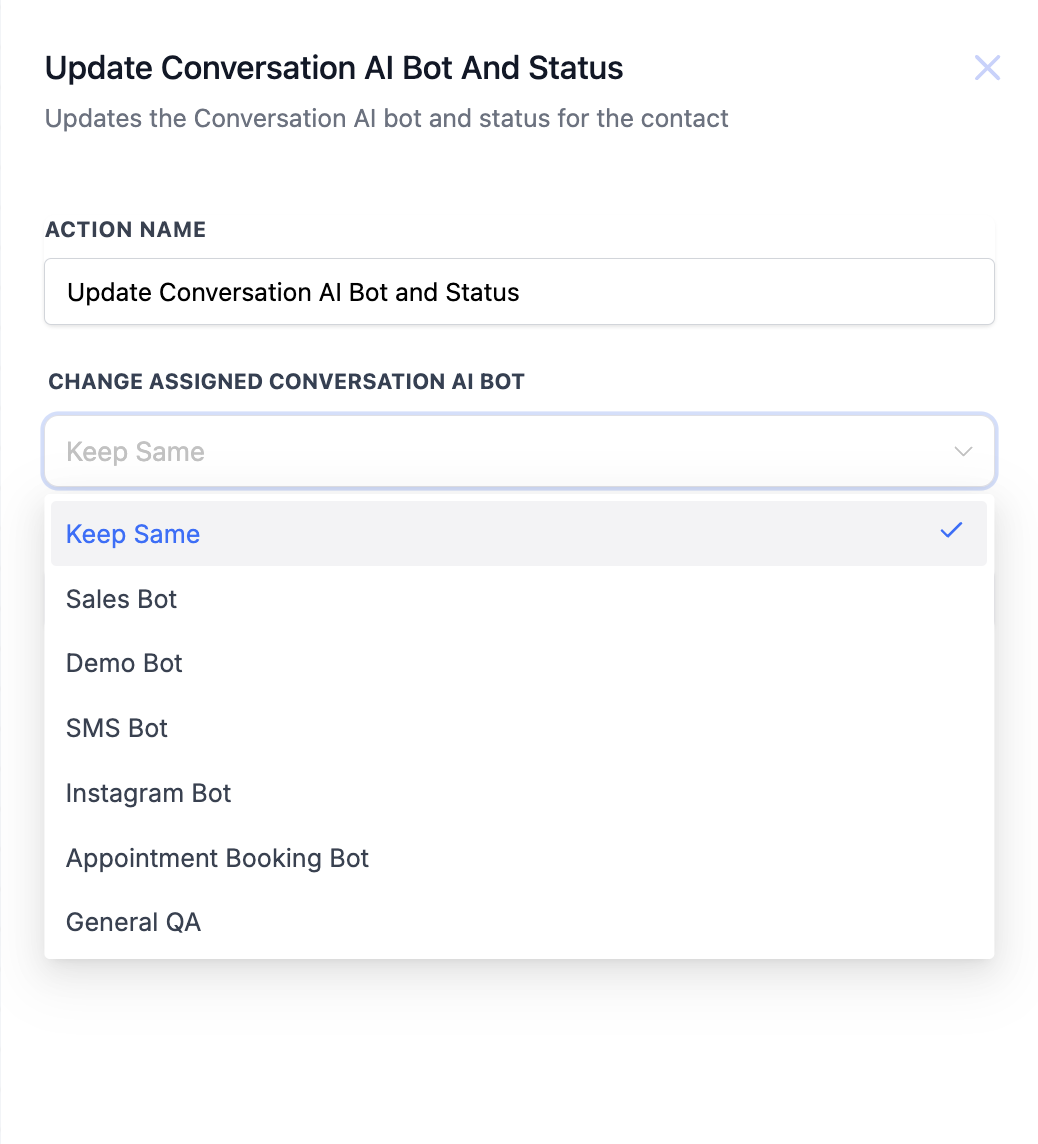
Two things matter here. It works on one contact at a time, the contact currently running through the workflow, not the whole account. And the bot list is whatever exists in your sub account, so if it looks short, go and build the bots first.
Keep Same, and the two statuses
The first field is Change Assigned Conversation AI Bot. Along with every bot you have built, it carries an option called Keep Same, and it means what it says. Nothing changes, the existing bot stays assigned. Use it when the step is only there to switch the status.
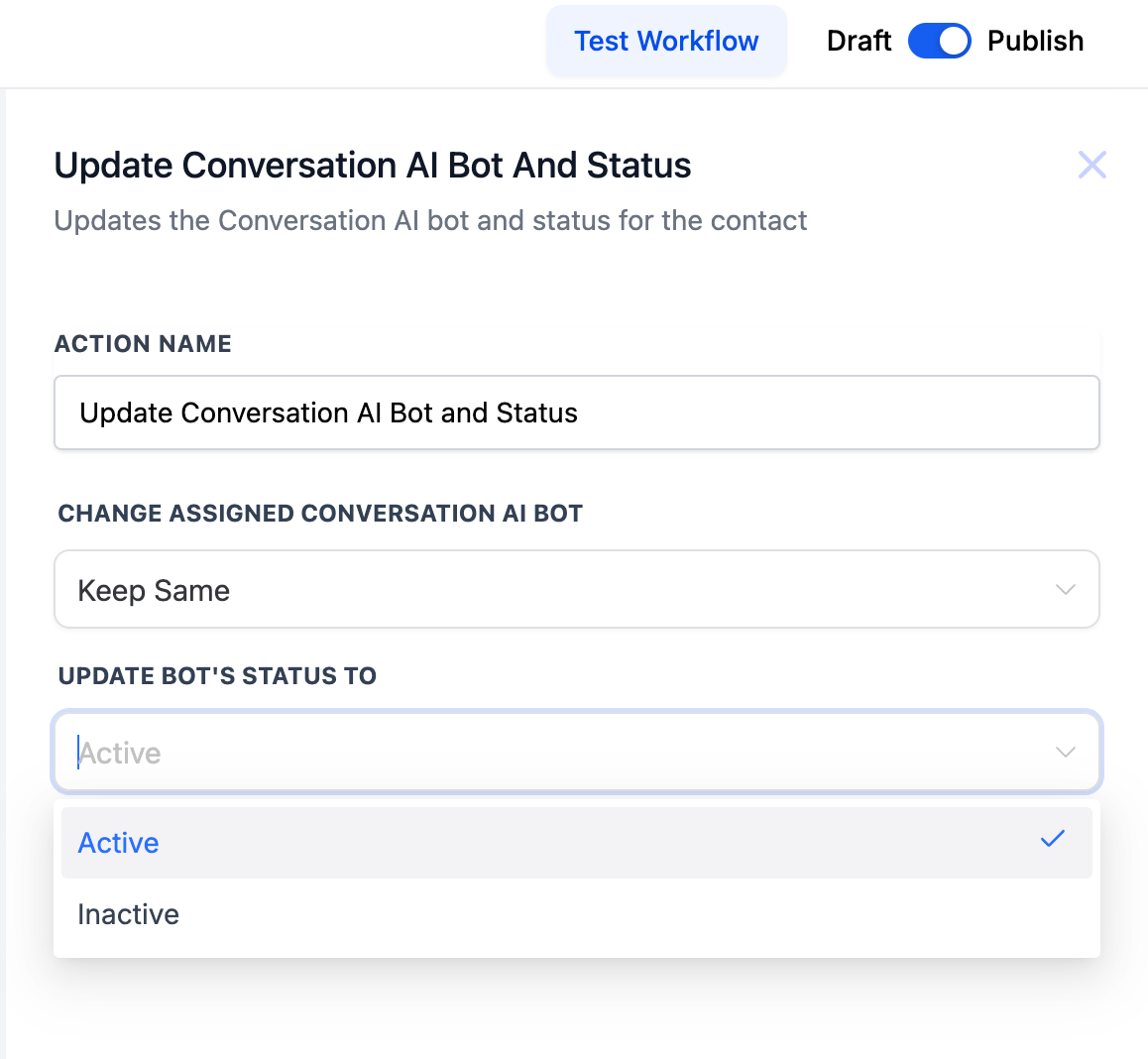
The second field is Update Bot's Status To, and it holds exactly two choices, Active and Inactive. Active means the bot replies to incoming messages from that contact. Inactive means it stays quiet until something turns it back on. There is no timer in the workflow version, so if you want the AI back later, add a Wait step and a second copy of this action set to Active.
A bot per condition, not a bot per account
On its own the action just assigns something. Put a condition in front of it and it starts earning its place. The usual pattern is a trigger, a filter or an if else condition, then this action on the branch that matched.
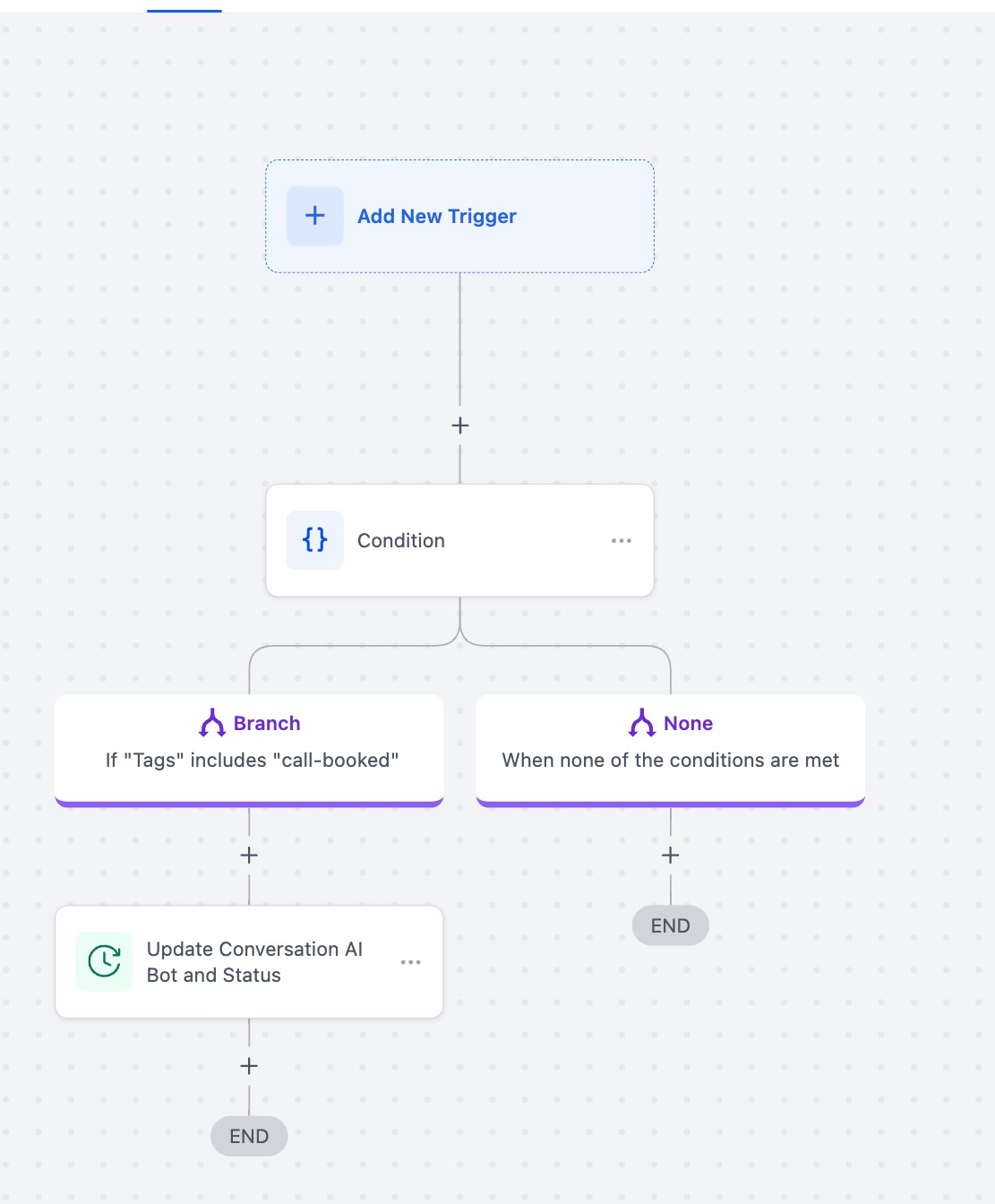
HighLevel's own examples follow that shape. Contacts tagged call booked get a different bot from cold enquiries. A Payment Received trigger switches a customer over to a Sales Bot so only paying customers hear from it. Form submissions and booked appointments work the same way. Anything you can trigger or filter on can decide which bot picks up the conversation.
One bot per channel, including each live chat
The other common use is channels. A bot that sounds right on SMS often sounds wrong in a website chat widget. Because the action runs inside a workflow, you can branch on the channel the contact replied on and assign a bot that was written for it.
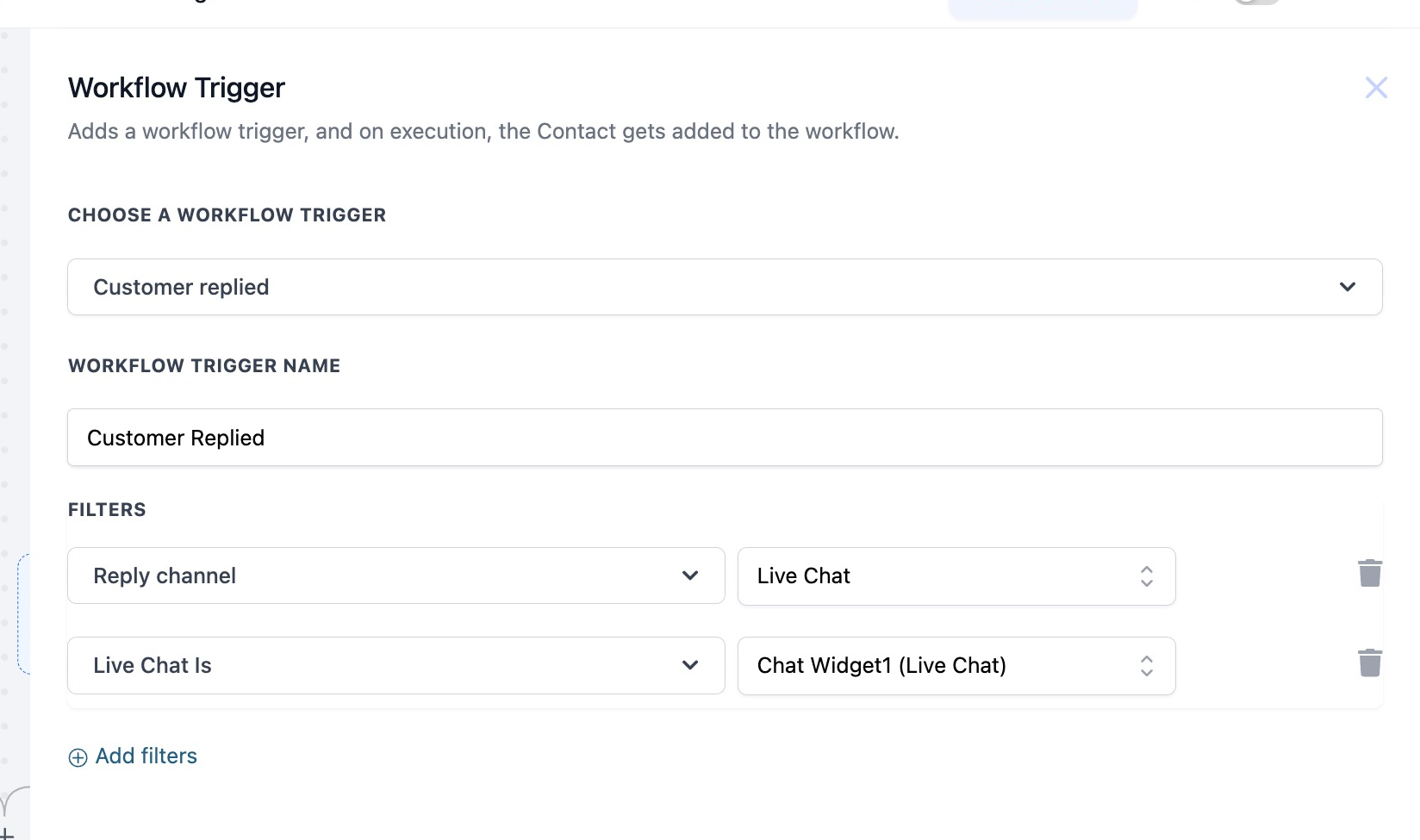
Filter a Customer Replied trigger by reply channel, and for live chat you can go further and filter by the exact chat widget. That is how one sub account runs several live chat channels with a dedicated bot on each one.
One rule decides whether any of it works. The bot you assign has to have that channel enabled in its own settings. Assign a Facebook bot to a contact who only ever texts you and nothing will answer, because the bot was never switched on for SMS.
What your team sees in the conversation
The assignment is not hidden in the workflow logs. Open the contact in Conversations and the Conversation AI panel above the message box shows which bot is attached and what state it is in.
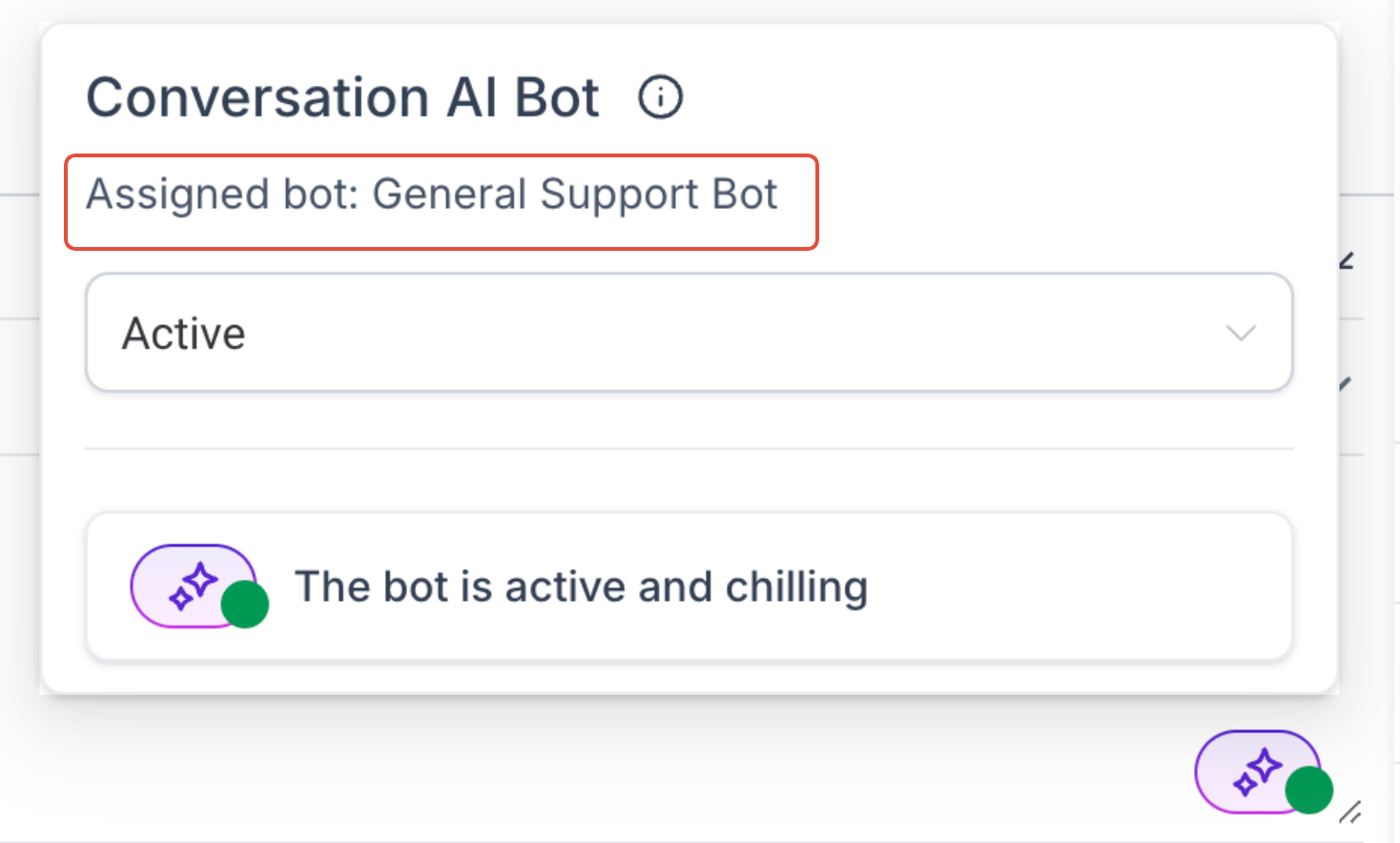
That panel is also a control, not just a label. Anyone with access can change the status for that one contact without touching how the bot behaves for everybody else. A rep who wants to take a difficult thread over by hand sets it to Inactive and starts typing.
Pausing the AI without switching it off
Inside the conversation there is a third state the workflow action does not offer. Set the status to Inactive and you can tick Reactivate bot after, then choose minutes, hours or days. The panel prints the exact time the bot will start answering again.
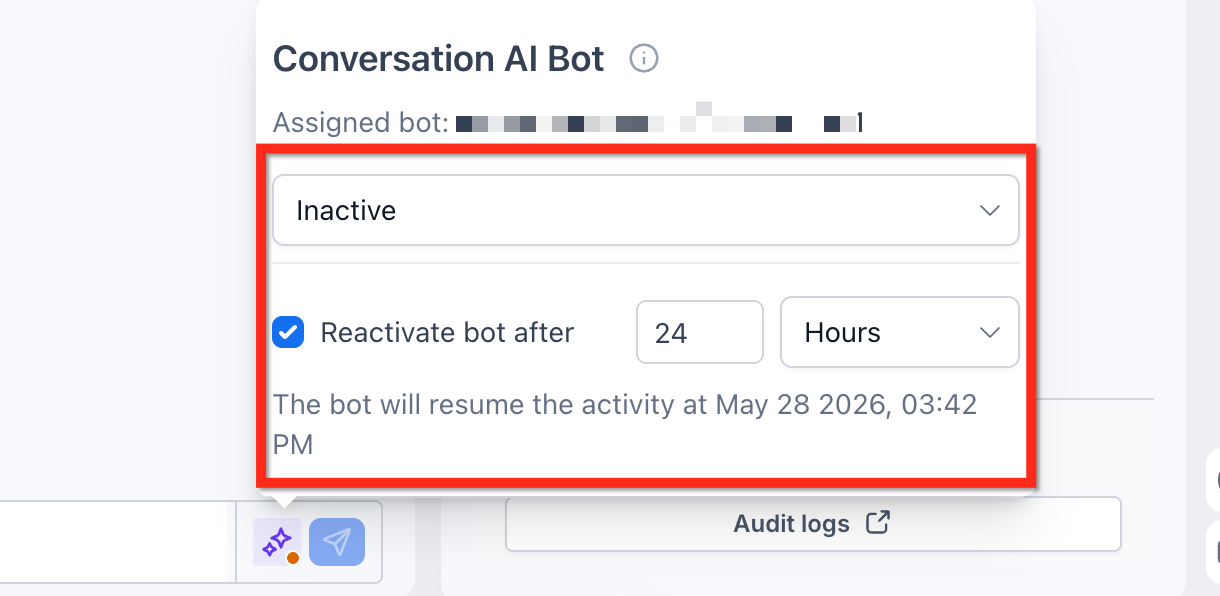
This is the setting worth teaching your team first. Someone snoozes the AI for two hours, handles the customer, and the bot resumes on its own afterwards. Leave the box unticked and the bot stays off for that contact until a person or a workflow reactivates it.
One thing to know before you go looking for it: contact level bot status only appears when the bot is running in Suggestive or Auto Pilot mode. If the icon is missing from the message box, check that Conversation AI is enabled for the sub account and that the bot is in one of those two modes.
When the AI stops on its own
The status can change without anyone touching it, which explains most of the confused support tickets about a bot that suddenly went quiet. Conversation AI can go inactive for a contact when:
The contact replies with an opt out keyword such as STOP.
The bot hits the maximum number of AI messages allowed in one conversation.
A user sends a manual message and the bot is set to sleep after human replies.
A workflow sends a message or updates the bot status, which includes this action.
Advanced settings hand the conversation over to a human.
The message limit and the sleep toggle both live in the Auto Pilot section of the bot's own settings, so check there before assuming something broke.
Limits worth knowing before you build
The action assigns a bot and then branches straight away. It does not wait for the conversation to finish, so do not build the rest of your workflow as if the AI has already replied.
It updates one contact per run. For bulk changes, enrol the contacts into a workflow carrying this action rather than looking for a bulk button.
Contact level Inactive beats the global setting. A bot that is on for the account will still stay silent for a contact marked Inactive until somebody changes it.
Keep Same is a real choice, not a placeholder. Leaving it selected is how you change status without disturbing the bot assignment.
This is not the same action as Conversation AI. That one sends an AI written message, waits for a reply and branches on the answer. This one only decides which bot is attached and whether it is allowed to speak.
A setup that holds up
For a small team running one sub account, this is the version that tends to survive a busy week:
A general bot assigned by default, handling first replies on every channel.
A condition on tags that swaps in a booking bot once somebody shows intent, and a sales bot once a payment lands.
A separate bot on the website chat widget, because visitors there ask different questions from people who text.
A workflow step that sets the status to Inactive the moment a contact is assigned to a human, so the AI does not talk over your rep.
The snooze option taught to everyone who touches the inbox, so pausing never turns into forgetting to switch the bot back on.
Frequently Asked Questions
Does this action change the bot for every contact or just one?
Just the contact running through that workflow. If you need a change across many people, enrol them all in a workflow that carries the action.
What does Keep Same do?
Nothing changes and the bot already assigned to the contact stays in place. Use it when the step is only there to flip the status between Active and Inactive.
Can I pause the AI for a couple of hours instead of turning it off?
Yes, but from the conversation rather than the workflow. Set the status to Inactive in the Conversation AI panel, tick Reactivate bot after, and pick the time. The workflow action itself only offers Active and Inactive.
Why is the assigned bot not replying at all?
The usual cause is a channel mismatch. The bot has to have that channel enabled in its own settings, so a bot built for Facebook will not answer an SMS. Also check whether the contact hit an opt out keyword or the message limit.
Need Expert Help with GoHighLevel?
New to GoHighLevel and ready to get started? Buy your GoHighLevel account here and launch with confidence.
Already know what you need and want our team to handle everything, from complete setup and customization to funnels, workflows, automations, CRM, and pipelines? Click here.



