

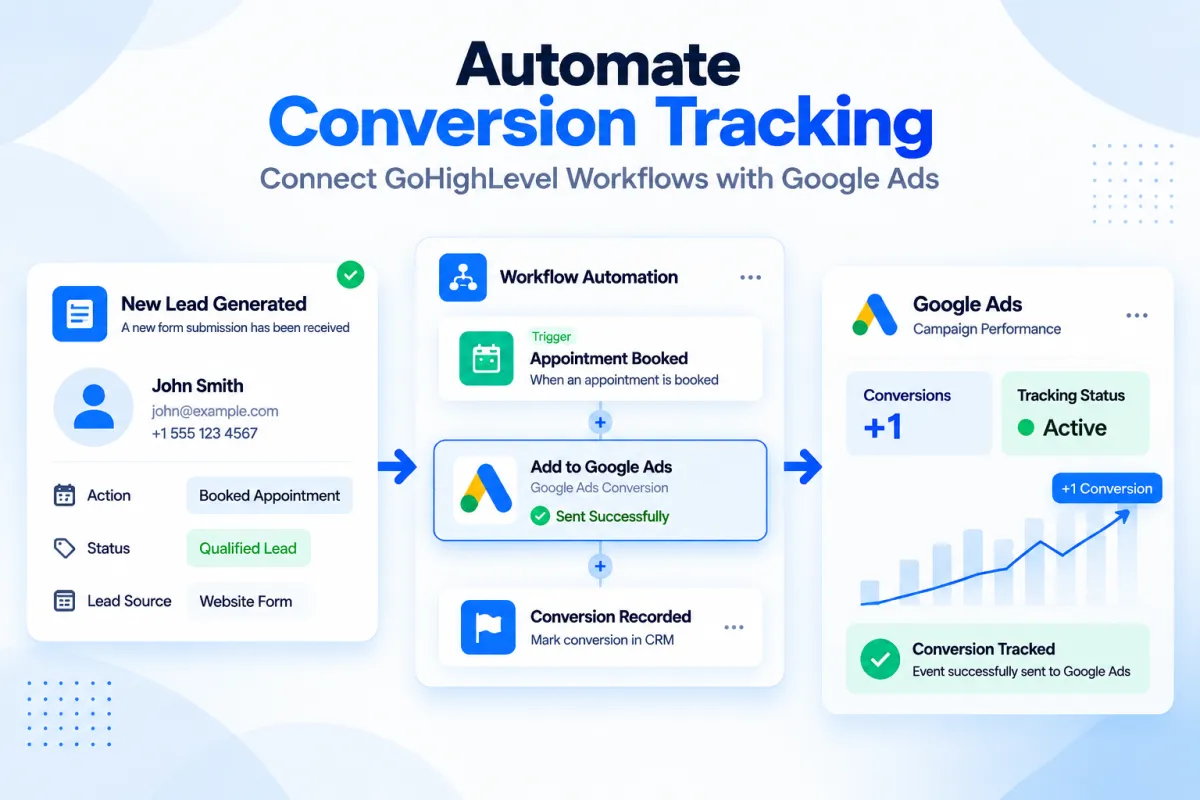
Track Google Ads Conversions Automatically with GoHighLevel Workflows: Step-by-Step Guide
How to Track Conversions Automatically Using the Add to Google Ads Action in GoHighLevel
Introduction
Tracking conversions accurately is one of the biggest challenges for businesses running online advertising campaigns. Without proper conversion tracking, marketers may struggle to understand which leads, campaigns, or customer actions are actually generating results.
Many businesses rely only on basic ad clicks or website visits to measure performance. However, clicks alone do not show whether those visitors became qualified leads, booked appointments, or completed valuable actions.
This is where CRM-based conversion tracking becomes important.
With the Add to Google Ads Action in GoHighLevel, businesses can automatically send conversion events to Google Ads through workflow automation. This helps connect customer actions inside GoHighLevel with advertising performance, allowing businesses to better understand the results of their campaigns.
Instead of manually tracking conversions, teams can create workflows that automatically send conversion information when a contact completes a specific action.
In this guide, we will explain what the Add to Google Ads Action in GoHighLevel is, how it works, how to set it up, practical use cases, and best practices for creating effective conversion tracking workflows.
What Is the Add to Google Ads Action in GoHighLevel?
The Add to Google Ads Action in GoHighLevel is a workflow action that allows businesses to send conversion events to Google Ads when specific customer actions happen inside GoHighLevel.
This action works through the GoHighLevel Workflow Builder and helps connect CRM activity with advertising conversion tracking.
For example:
A lead fills out a form.
↓
Workflow starts.
↓
Google Ads conversion is recorded.
This allows businesses to track meaningful customer actions instead of only measuring clicks.
The action can be useful for tracking events such as:
Lead submissions
Appointment bookings
Customer actions
Sales-related milestones
By connecting GoHighLevel workflows with Google Ads conversion tracking, businesses can create a clearer picture of how their marketing efforts are performing.
Why Google Ads Conversion Tracking Matters
Google Ads campaigns generate valuable traffic, but understanding the quality of that traffic requires proper tracking.
Conversion tracking helps businesses answer important questions:
Which campaigns generate leads?
Which customer actions are producing results?
Which advertising efforts create valuable opportunities?
Without conversion tracking, businesses may make decisions based only on surface-level metrics.
Understand Campaign Performance Better
Tracking conversions allows businesses to measure actions that matter.
For example:
Ad Click
↓
Lead Submission
↓
Appointment Booking
↓
Customer Conversion
Each step provides more insight into the customer journey.
Improve Marketing Decisions
When businesses know which campaigns generate meaningful actions, they can make better decisions about their advertising strategy.
Instead of focusing only on traffic volume, they can focus on actual customer outcomes.
Reduce Manual Tracking
Without automation, teams may need to manually update conversion information.
This can create:
Extra administrative work
Delayed reporting
Incomplete tracking
Automation helps send conversion data at the right moment.
How the Add to Google Ads Action Works in GoHighLevel
The Add to Google Ads Action works inside GoHighLevel workflows.
A typical workflow structure may look like:
Customer Action
↓
GoHighLevel Workflow Trigger
↓
Add to Google Ads Action
↓
Conversion Recorded
The workflow trigger determines when the conversion should be sent.
For example:
A customer books an appointment.
↓
Workflow detects booking.
↓
Google Ads conversion event is sent.
This creates a connection between CRM activity and advertising measurement.
Requirements Before Using Add to Google Ads Action
Before creating conversion tracking automation, businesses should prepare the required settings.
Connect Google Ads Properly
Your Google Ads account needs to be connected and configured correctly before using Google Ads-related workflow actions.
Proper connection ensures conversion information can be sent correctly.
Define Your Conversion Goal
Before creating your workflow, decide what action you want to track.
Examples:
Form submission
Appointment booking
Lead qualification
Customer milestone
A clear conversion goal helps create accurate tracking.
Create a Relevant Workflow Trigger
The workflow should start when the customer completes the action you want to measure.
Examples:
Contact submits a form
Appointment is booked
Opportunity reaches a specific stage
The trigger determines when the conversion event is sent.
Step-by-Step: How to Add Google Ads Conversion Tracking in GoHighLevel
Step 1: Open Workflow Builder
Go to:
Automation → Workflows
Create a new workflow or open an existing workflow where you want to add conversion tracking.
The workflow should represent the customer action you want to measure.
Example:
Appointment Booking Workflow
Step 2: Select Your Trigger
Choose the event that represents a conversion.
Examples:
Form submitted
Appointment booked
Pipeline movement
Contact action
Example:
Customer books a consultation.
↓
Workflow starts.
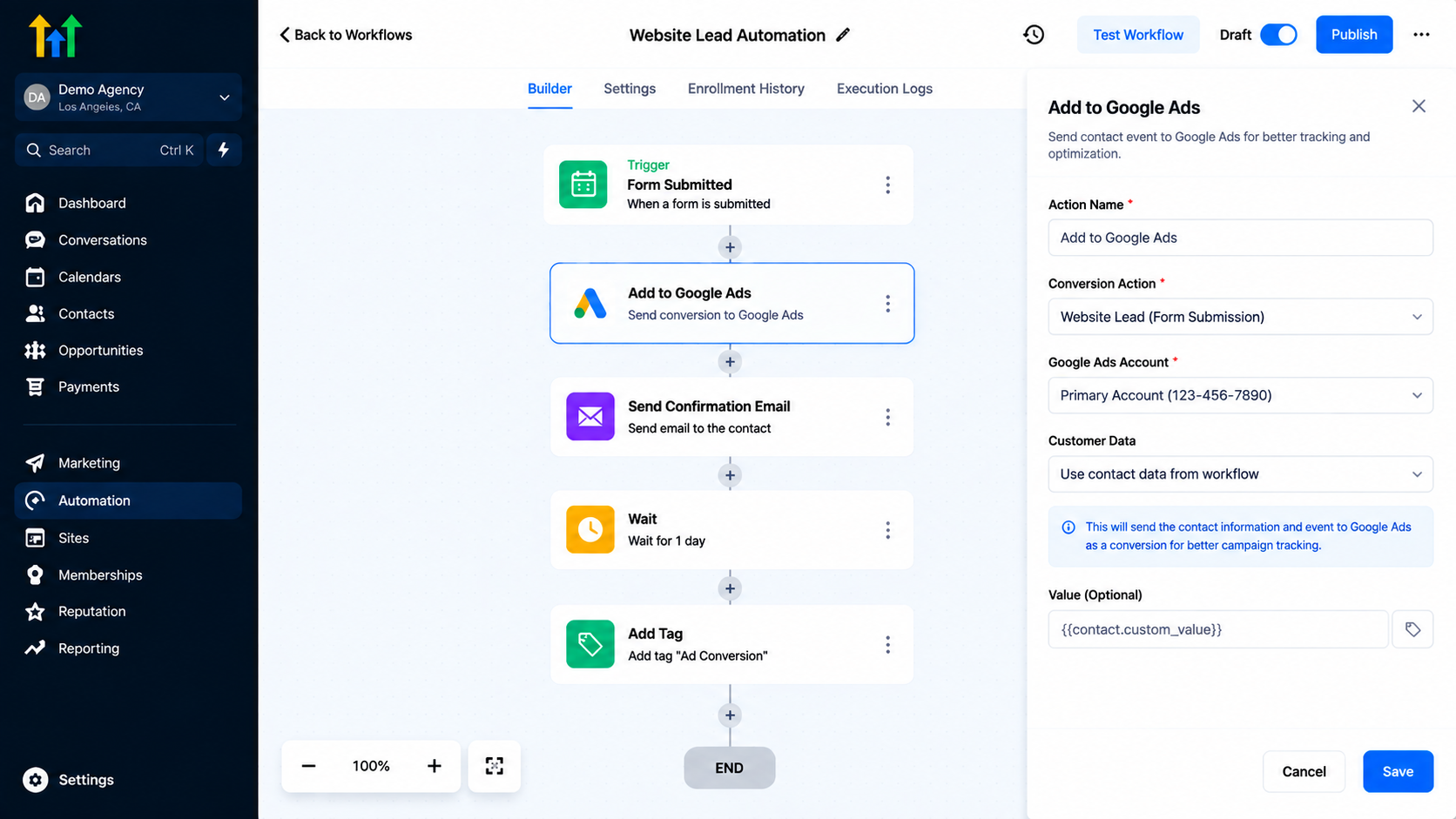
Step 3: Add the Google Ads Action
Inside the workflow:
Click "Add Action"
Search for the Google Ads conversion action
Select "Add to Google Ads"
Configure the required settings
Place this action after the trigger event.
Example:
Appointment Booked
↓
Add to Google Ads
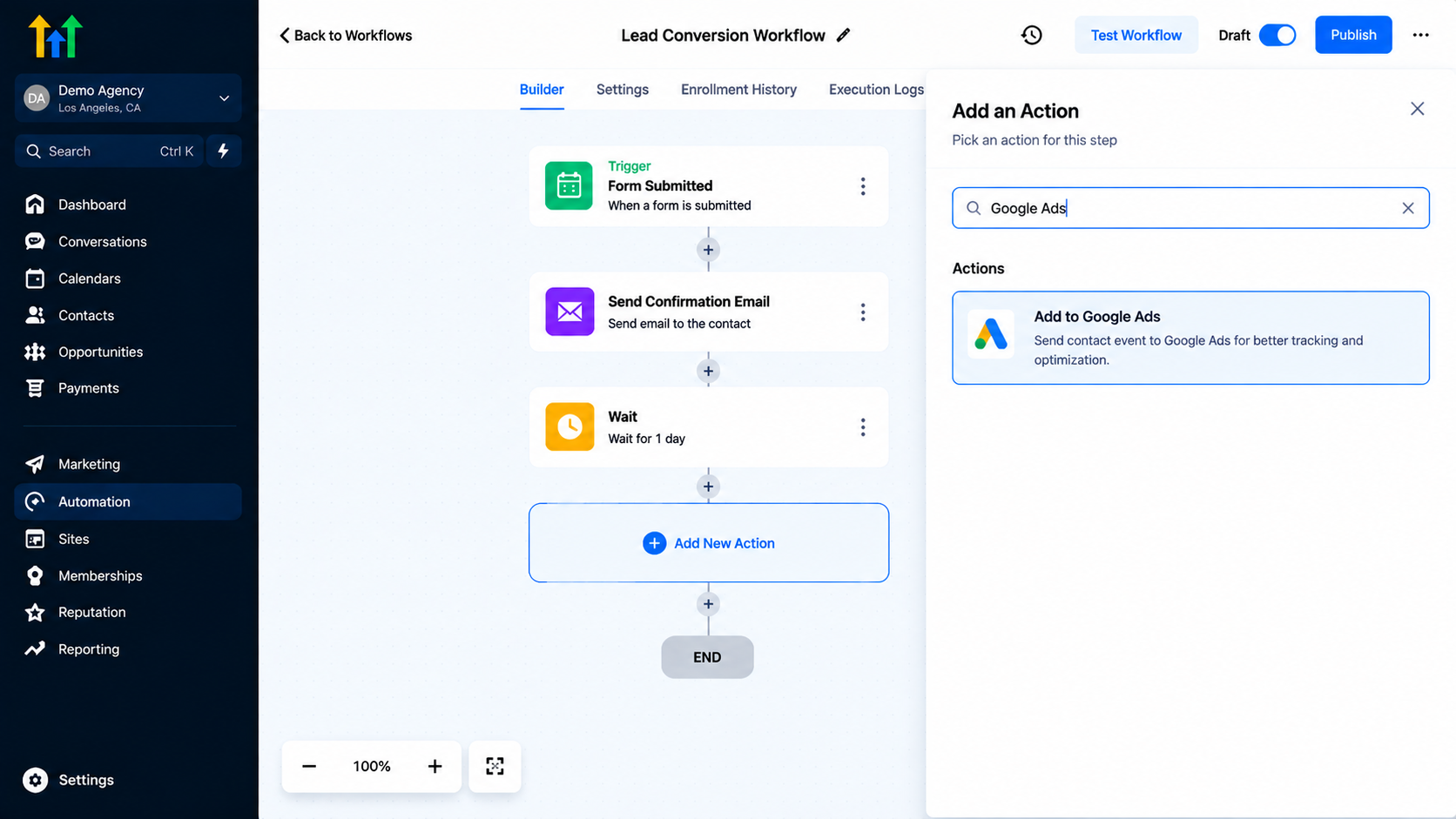
GoHighLevel workflow builder displaying the action menu with a search query for Google Ads to track and optimize lead events
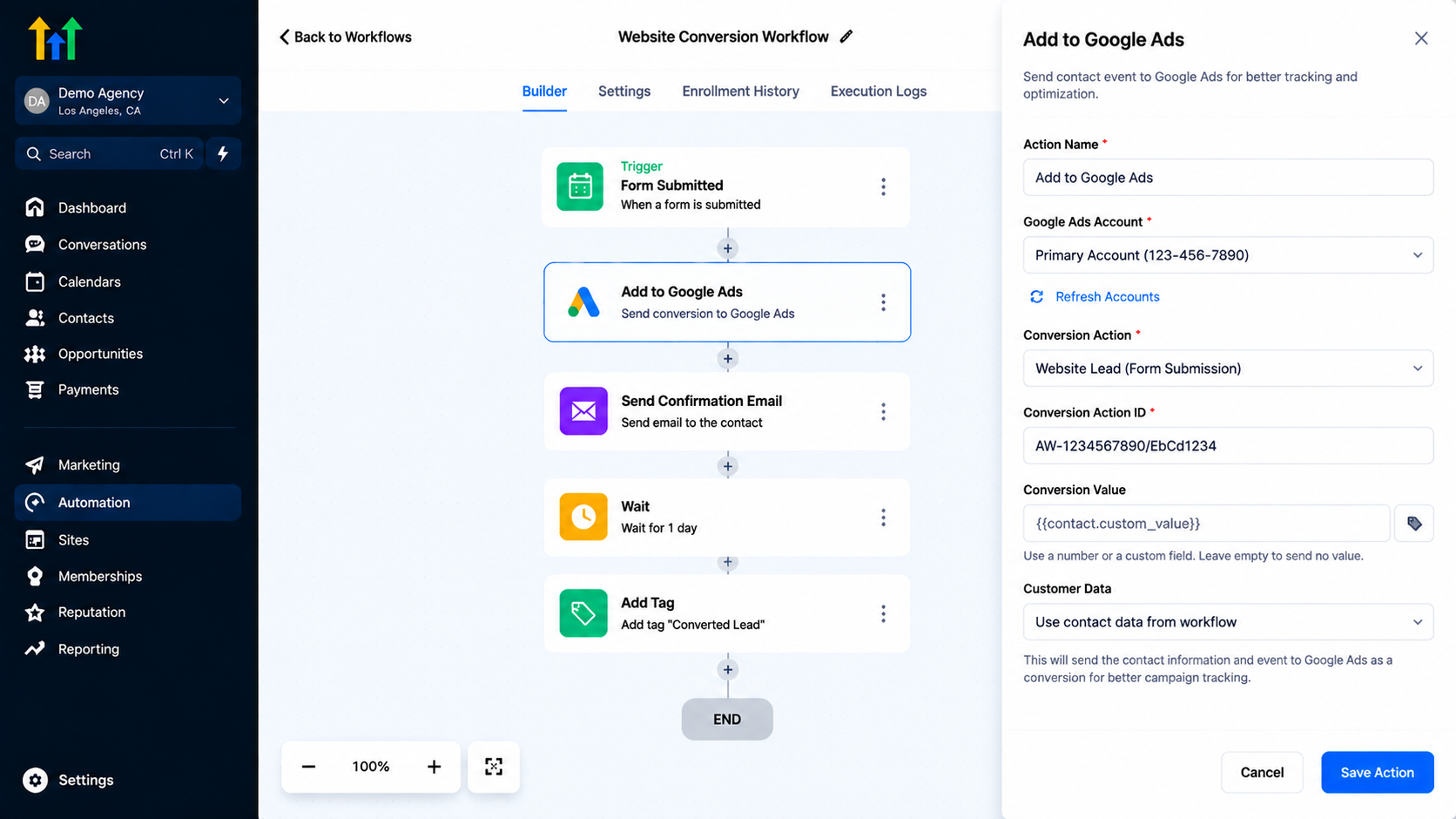
Step 4: Configure Conversion Details
Review the conversion settings carefully.
Make sure:
The correct Google Ads account is connected
The correct conversion goal is selected
The workflow represents the intended customer action
Accurate configuration ensures better tracking quality.
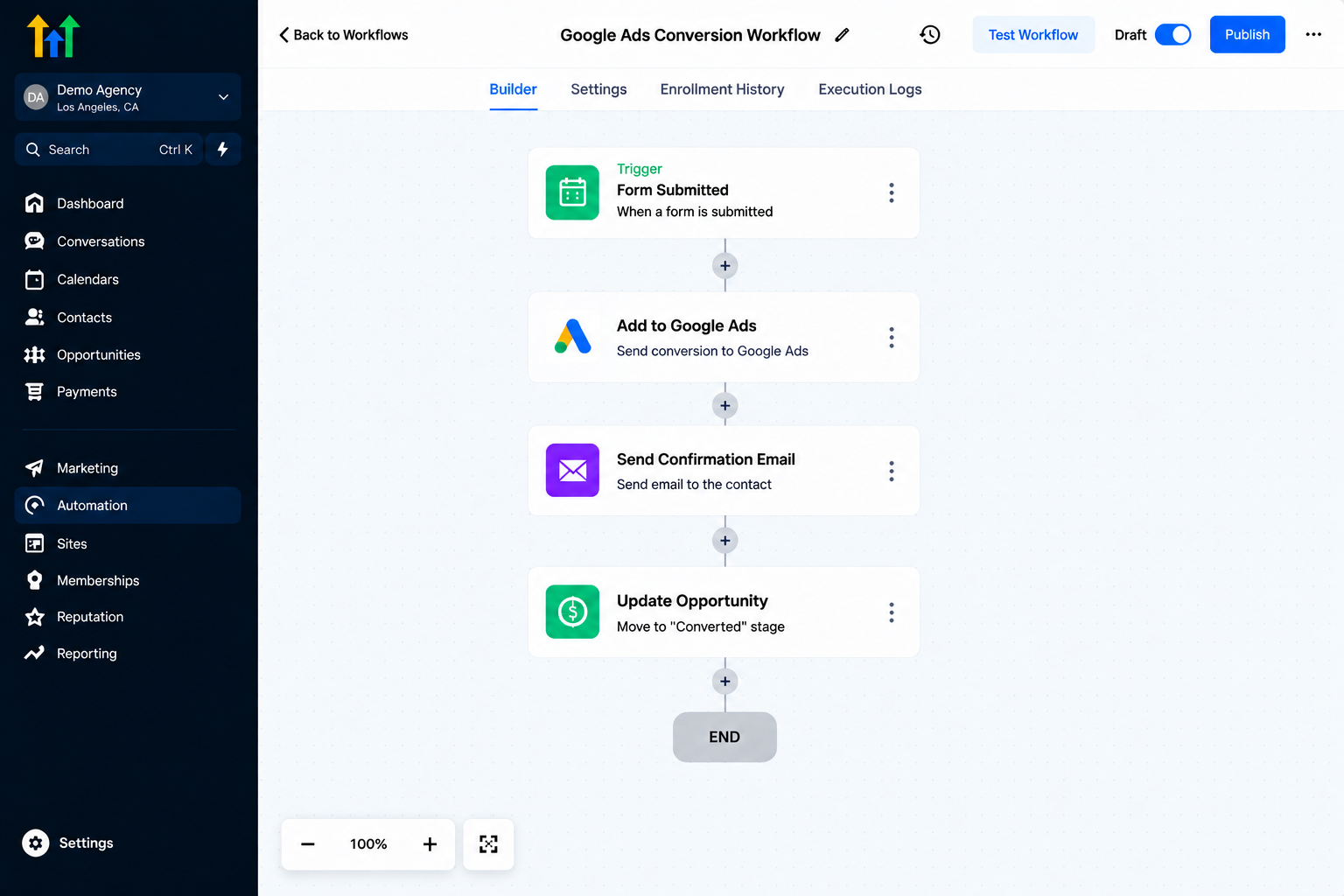
Step 5: Add Additional Workflow Actions
After sending the conversion event, you can continue the customer journey.
Examples:
Send Confirmation Message
Conversion recorded
↓
Send follow-up message
Update CRM Information
Conversion tracked
↓
Update opportunity stage
Notify Team Members
New conversion
↓
Notify sales team
This helps connect advertising data with internal processes.
Step 6: Test Your Workflow
Testing is important before activating conversion tracking.
Review:
Workflow trigger
Google Ads connection
Conversion action
Additional automation steps
Testing helps identify configuration issues before running campaigns.
Step 7: Activate the Workflow
Once everything is verified:
Review workflow settings
Confirm conversion details
Publish the workflow
After activation, contacts who meet the trigger conditions will send conversion information to Google Ads.
Practical Use Cases for Add to Google Ads Action
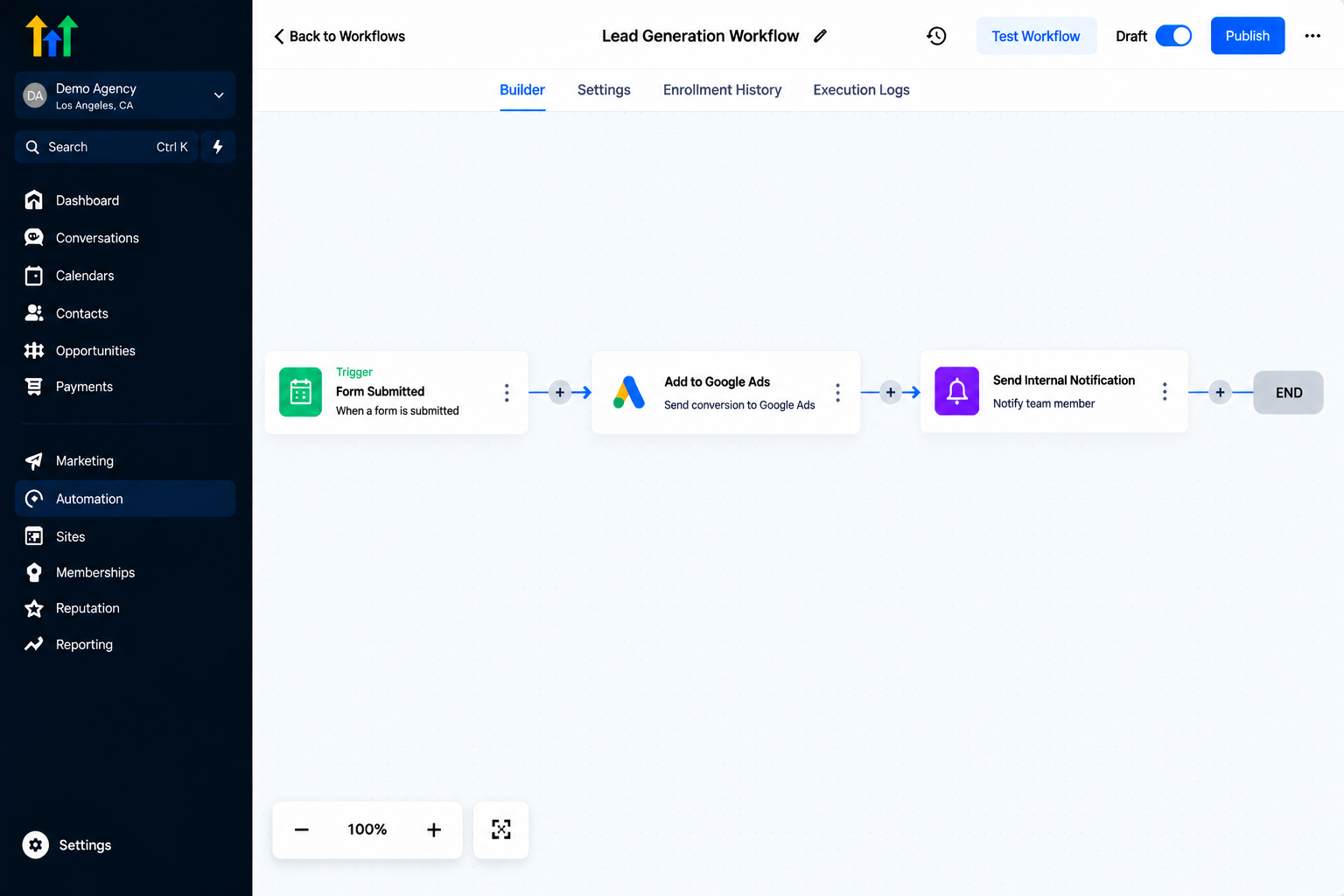
1. Lead Generation Campaigns
Businesses running lead generation ads can track when prospects submit information.
Example:
Facebook/Google Ad
↓
Website Form
↓
GoHighLevel Contact Created
↓
Google Ads Conversion Sent
This helps measure lead generation performance.
2. Appointment-Based Businesses
Businesses that rely on appointments can track booking actions.
Examples:
Consultants
Agencies
Service providers
Local businesses
Workflow:
Appointment booked
↓
Conversion sent to Google Ads
↓
Follow-up process begins
3. Sales Pipeline Tracking
Businesses can track important sales milestones.
Example:
Qualified Opportunity
↓
Conversion Event
↓
Sales Team Follow-Up
This helps connect advertising efforts with CRM progress.
4. Service Businesses
Service businesses can track customer actions beyond website visits.
Examples:
Quote requests
Consultation bookings
Lead qualification
This provides better insight into advertising results.
Best Practices for Google Ads Conversion Tracking
Track Meaningful Actions
Avoid tracking every small activity.
Focus on actions that represent real business value.
Examples:
Qualified leads
Appointments
Sales milestones
Keep Workflow Logic Simple
A clear workflow is easier to maintain.
Example:
Trigger
↓
Add Google Ads Conversion
↓
Follow-Up
Avoid unnecessary complexity.
Verify Tracking Regularly
Review conversion tracking periodically to ensure data is being recorded properly.
Align CRM and Advertising Goals
Your Google Ads conversion tracking should match your actual business objectives.
The most useful conversions are those connected to customer value.
Common Mistakes to Avoid
Tracking the Wrong Actions
Not every customer interaction should be counted as a conversion.
Incorrect Workflow Triggers
A wrong trigger can send inaccurate conversion data.
Not Testing Before Launch
Always test workflows before relying on conversion reports.
Ignoring CRM Data
Advertising data becomes more valuable when combined with CRM information.
Creating Too Many Conversion Events
Too many conversion actions can make reporting difficult.
Frequently Asked Questions(FAQ's)
1. What is the Add to Google Ads Action in GoHighLevel?
It is a workflow action that sends conversion events from GoHighLevel to Google Ads.
2. Why use Google Ads conversion tracking in GoHighLevel?
It helps businesses measure important customer actions instead of only tracking ad clicks.
3. Can I track leads automatically with GoHighLevel and Google Ads?
Yes, workflows can send conversion information when defined customer actions occur.
4. What actions can trigger Google Ads conversions?
Triggers can include customer actions such as form submissions, appointments, or other workflow events.
5. Does conversion tracking improve campaign visibility?
Yes, accurate conversion tracking helps businesses better understand campaign performance and customer actions.
Conclusion
The Add to Google Ads Action in GoHighLevel helps businesses connect their CRM activity with advertising conversion tracking.
Instead of relying only on clicks and traffic data, businesses can track meaningful customer actions through automated workflows.
By setting up the right triggers, configuring conversion settings correctly, and testing workflows before launch, businesses can create a more organized approach to measuring marketing performance.
When CRM automation and advertising data work together, businesses gain better visibility into their customer journey and can make more informed decisions about their marketing efforts.
Need Expert Help with GoHighLevel?
New to GoHighLevel and ready to get started? Buy your GoHighLevel account here and launch with confidence.
Already know what you need and want our team to handle everything, from complete setup and customization to funnels, workflows, automations, CRM, and pipelines? Click here.



