

Turn Your Comment Section Into a Lead List
How to Turn TikTok Video Comments into Leads Using the TikTok Comment Trigger in GoHighLevel
Every business posting on TikTok has the same pile of unanswered comments. People type price, or link, or where are you based, under a video that did well three weeks ago, and nobody replies. Every one of those comments is somebody raising a hand in public.
GoHighLevel closes that gap with a workflow trigger that listens to your TikTok comment section. When a comment matches what you are watching for, a workflow starts. It can reply publicly under the comment, save the commenter as a contact, send a private message and alert a rep, without anyone opening the TikTok app.
What the TikTok comment trigger actually is
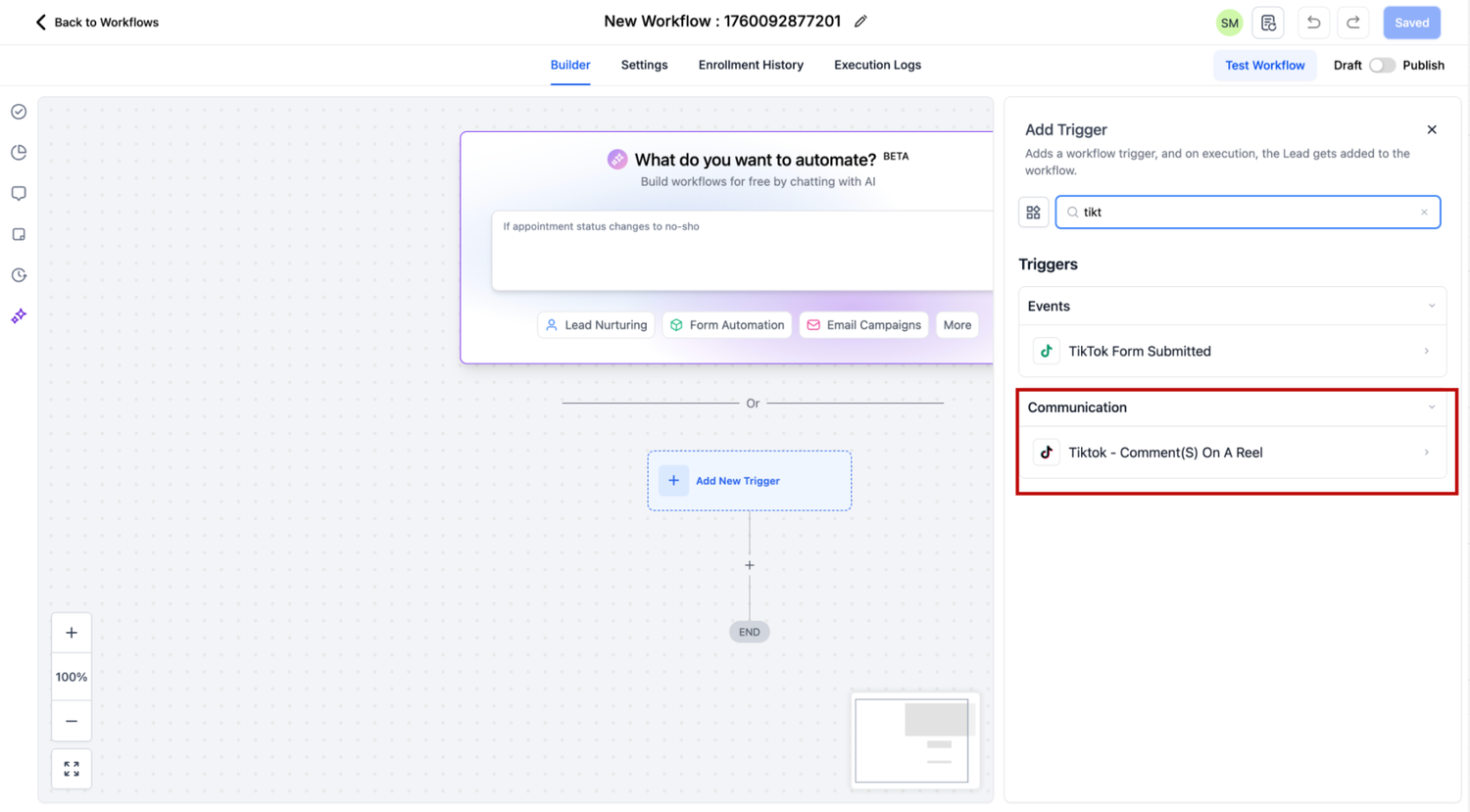
Inside the workflow builder the trigger is labelled Tiktok Comment(s) on a Reel, and HighLevel's documentation also calls it TikTok Comment(s) on a Post. Both point at the same thing: a workflow that starts when a new comment lands on one of your TikTok posts. It sits in the Communicationcategory of the trigger picker, beside the Facebook and Instagram comment triggers.
It is one half of a pair. The other half is the Customer Replied trigger with its Reply Channel filter set to TikTok, which fires on private direct messages rather than public comments. Both land in the Conversations inbox alongside email and SMS.
Connect TikTok Messaging first
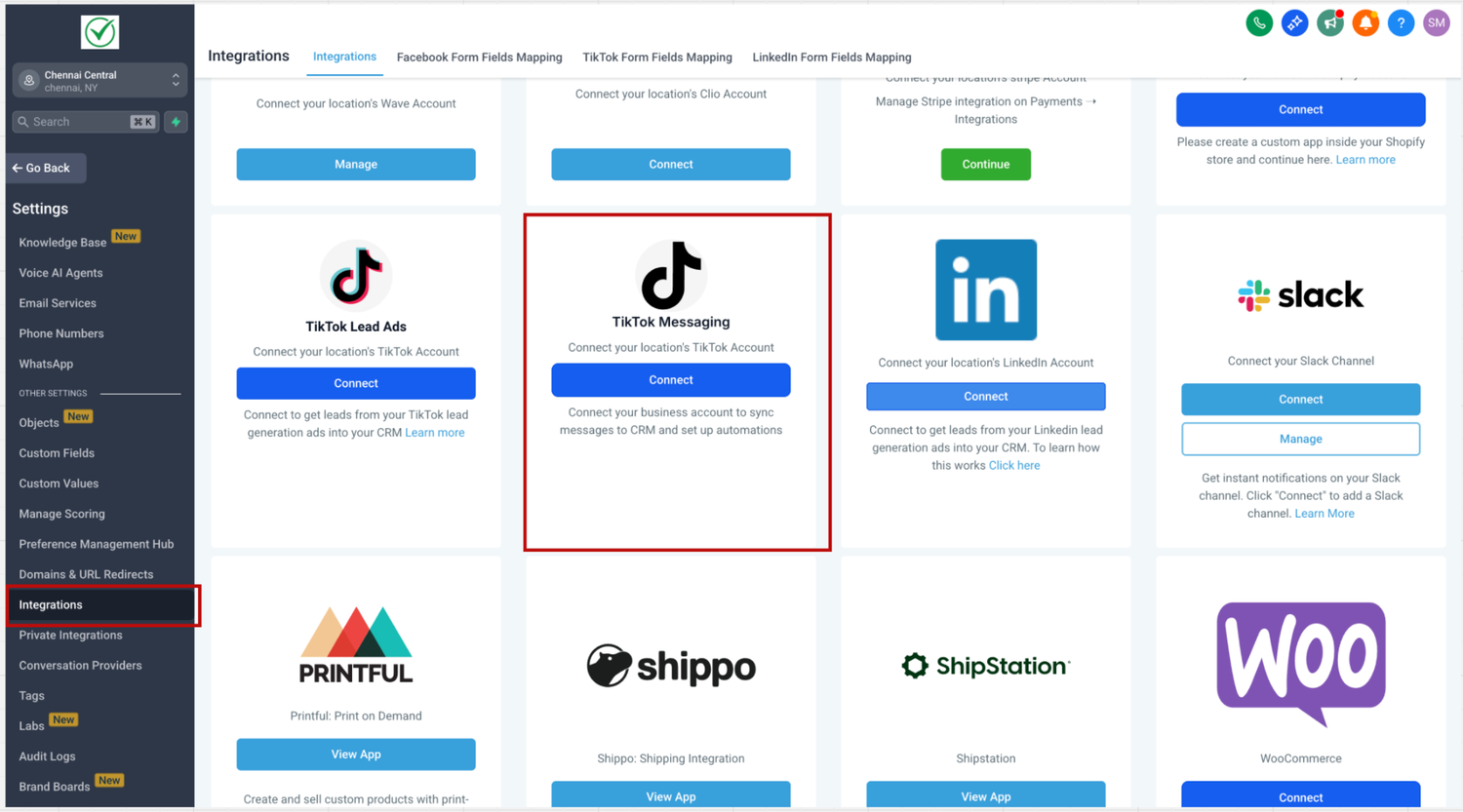
The trigger does not appear until a TikTok account is integrated at the sub account level. Go to Settings and then Integrations, find the TikTok Messaging card and connect the account you post from. It is easy to pick the wrong card, because TikTok Lead Ads sits right beside it and does a different job, feeding lead form submissions into your CRM rather than watching comments.
There is one more check worth making early. HighLevel states that TikTok Messaging and Comment Automation is not yet available in the European Economic Area, Switzerland or the United Kingdom, and that the feature currently supports business accounts registered in the United States. The restriction comes from TikTok's own public APIs, so confirm the account's registration country before you promise anyone this automation.
Building the trigger step by step
Open Automation, create a workflow, click Add New Trigger and choose the TikTok comment trigger. The panel that opens gives you a name field and a stack of filters that narrow the trigger from everything you have posted down to a single video and a single phrase.
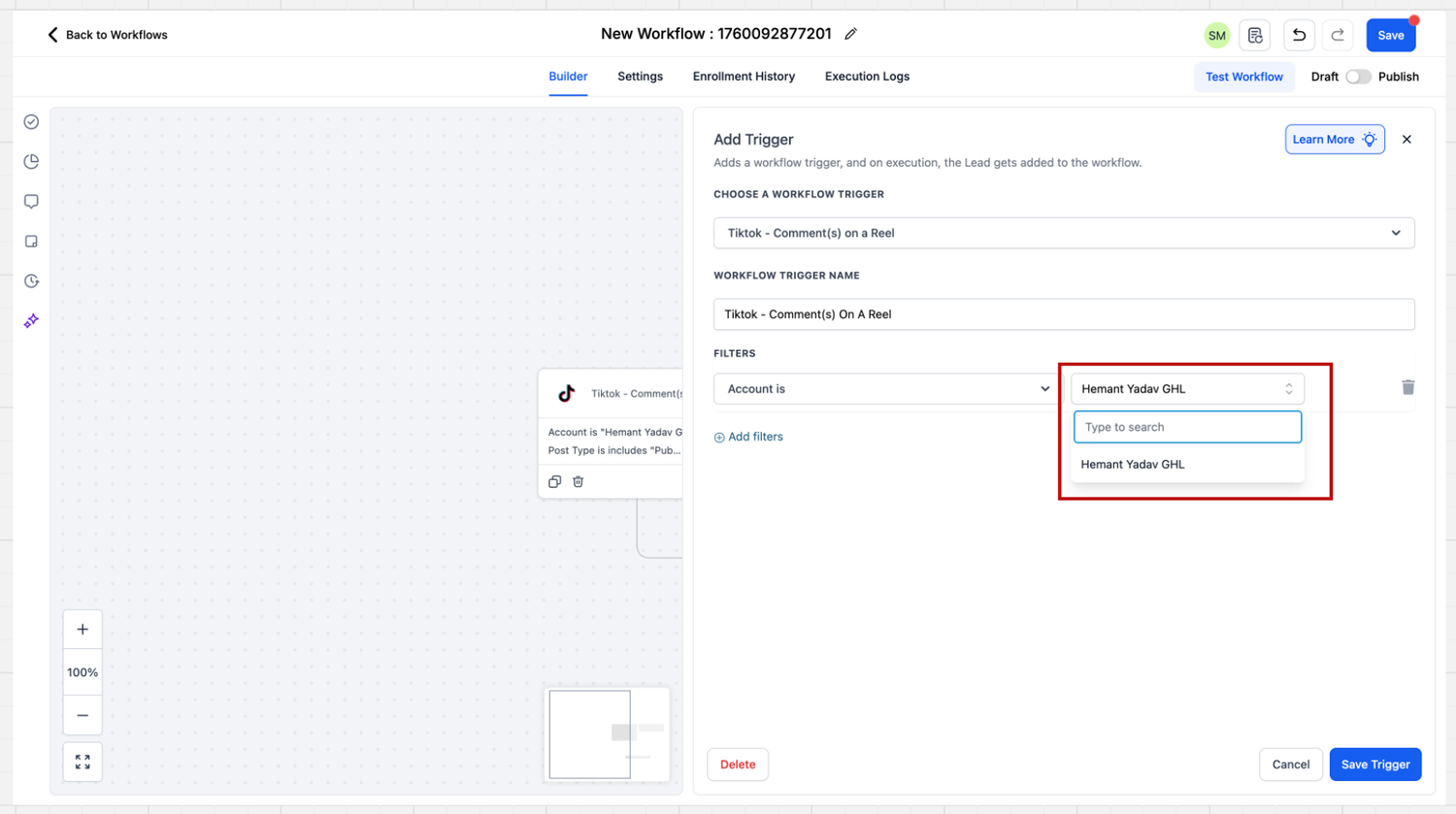
The first filter is Account is. Leave it blank and the system watches every TikTok account integrated at that location. That is a fine default for a single brand and a genuine hazard for an agency sub account that later connects a second handle, because the workflow silently widens to cover it.
Next is Post Type is, offering Published or Custom. Published pulls every post on your business account into a dropdown. Custom lets you paste the URL of a specific post instead, which is the option for a video that has not synced yet.
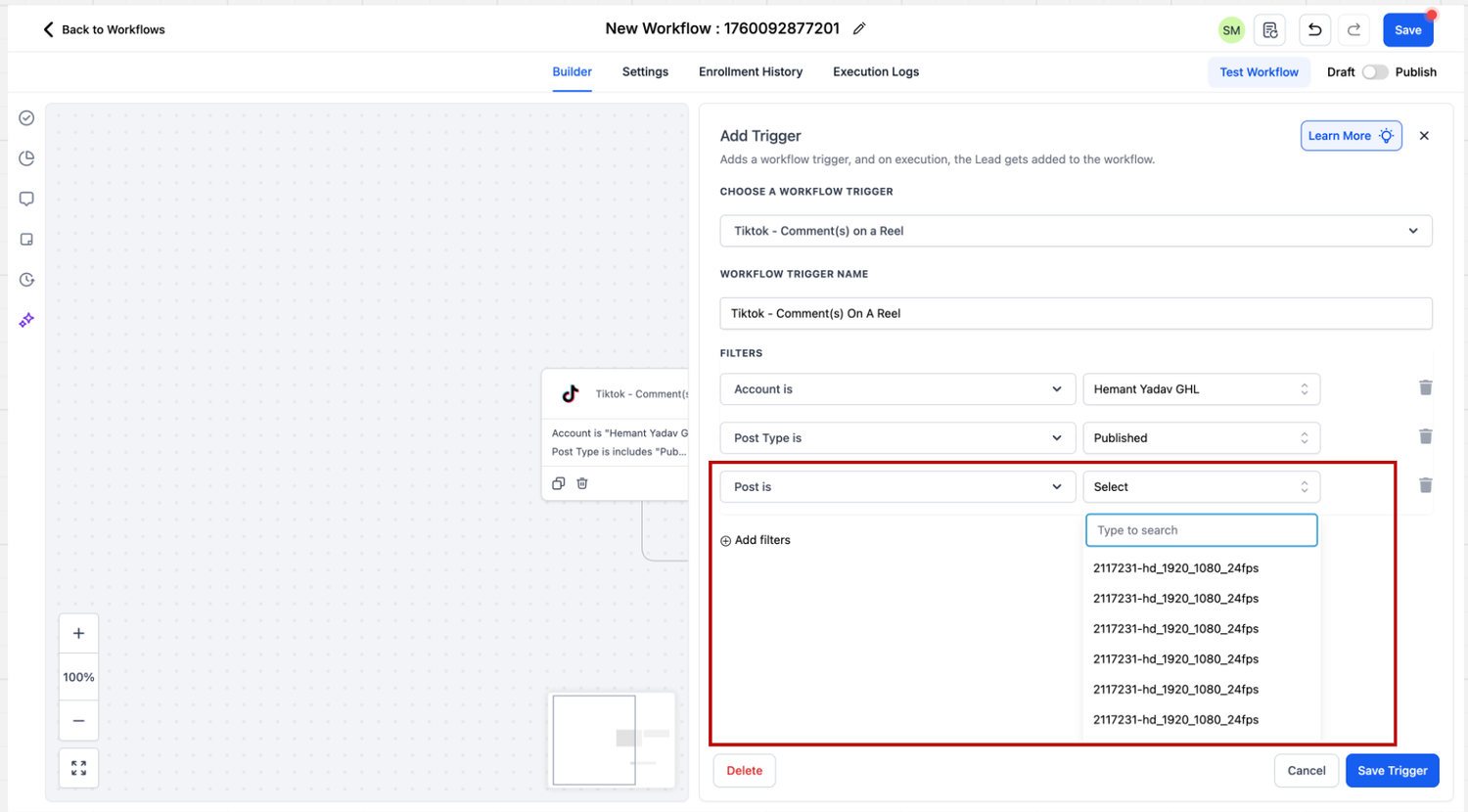
ThenPost is, where you choose the actual video. Leave it empty and the trigger includes every post on the connected account. One useful detail: if a post has no caption, the dropdown shows its post ID and posting date rather than a blank row, so you can still identify the right one.
Matching the comment, and why it matters
The last piece is the phrase you are watching for, and there are two ways to match it: Exact Match and Contains Phrase. The distinction is small on screen and large in practice.
With Exact Match set to Share the Price, a comment reading Share the Price passes, while Please share the Price fails, because the comment has to be the phrase and nothing more. With Contains Phrase set toI bought from you, that comment passes and so does I bought from you yesterday, but I bought one from you fails. Contains Phrase looks for those words in that order with nothing wedged into the middle.
What you actually get when the trigger fires
This is the part most write ups skip, and it changes how you design the workflow. When somebody comes through this trigger, HighLevel saves them as a contact and stores their first name and last name. That is the record. No email address, no phone number, because a public TikTok comment does not carry them.
So the trigger does not hand you a finished lead. It hands you a named person who has publicly raised their hand, plus a channel you can reach them on. The workflow's job is to move them from a public comment into a private conversation where they tell you the rest.
Replying in public with the Reply In Comments action
The first action to add is Reply In Comments, under the Communication group. It posts a reply directly underneath the comment that started the workflow, which answers the person who asked and shows every other viewer scrolling the comments that this account actually responds.
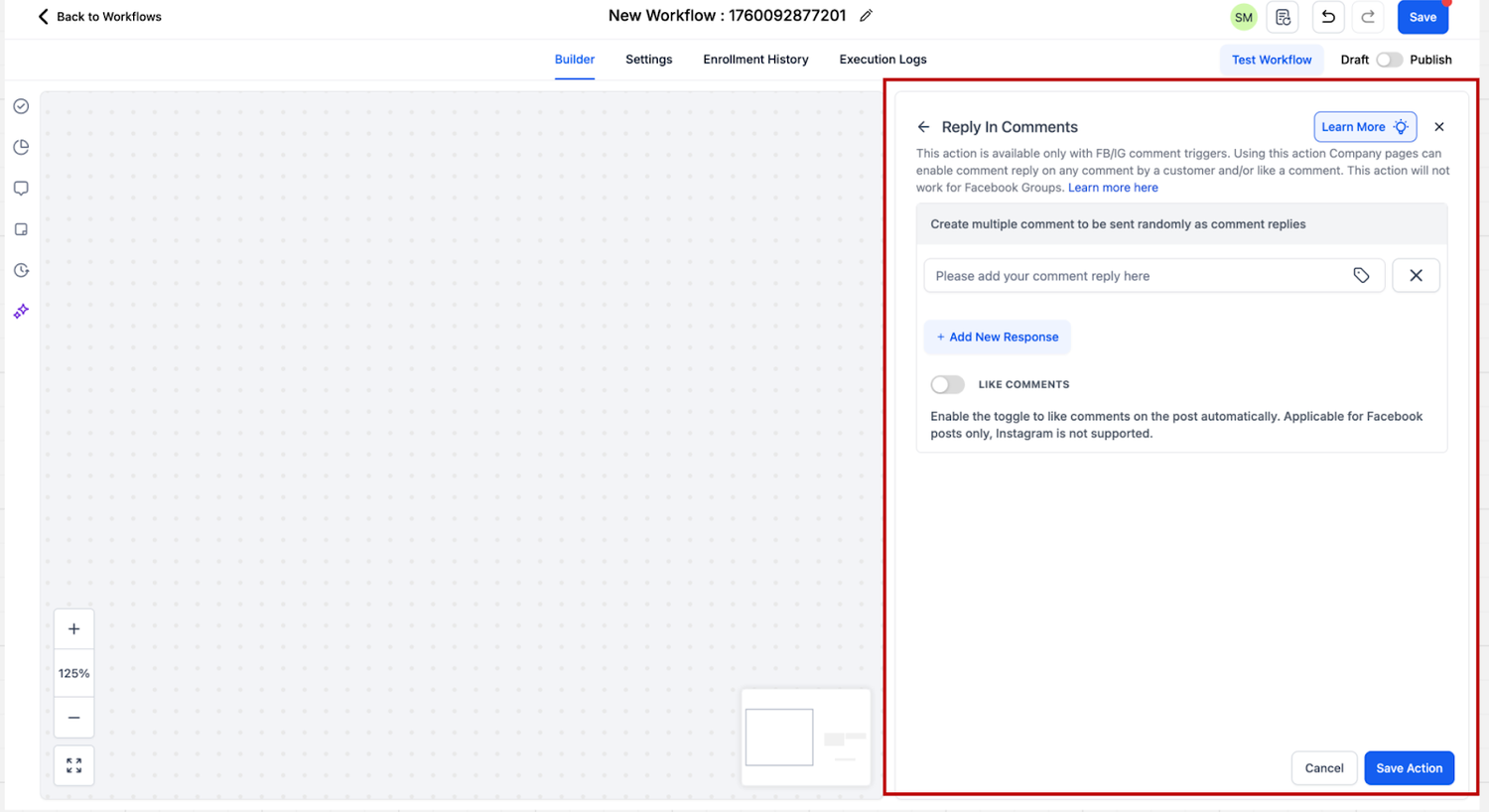
It has two components. Comments holds up to ten different replies and the workflow picks one at random each run, which stops your comment section filling with the same sentence. The tag icon pulls in a custom value or the output of an earlier action, so an AI step can write the reply and this action can post it.Like Comments is a toggle that likes the comment you are replying to.
Two honest cautions. The panel's own description still reads that the action is available only with Facebook and Instagram comment triggers, and the Like Comments text still says liking applies to Facebook posts only, so test both on a real post first. Second, replies are picked at random and cannot be matched to what a specific person wrote. For tailored answers, use an AI action first, an If and Else branch, or separate workflows watching different phrases.
Moving the conversation into the DM
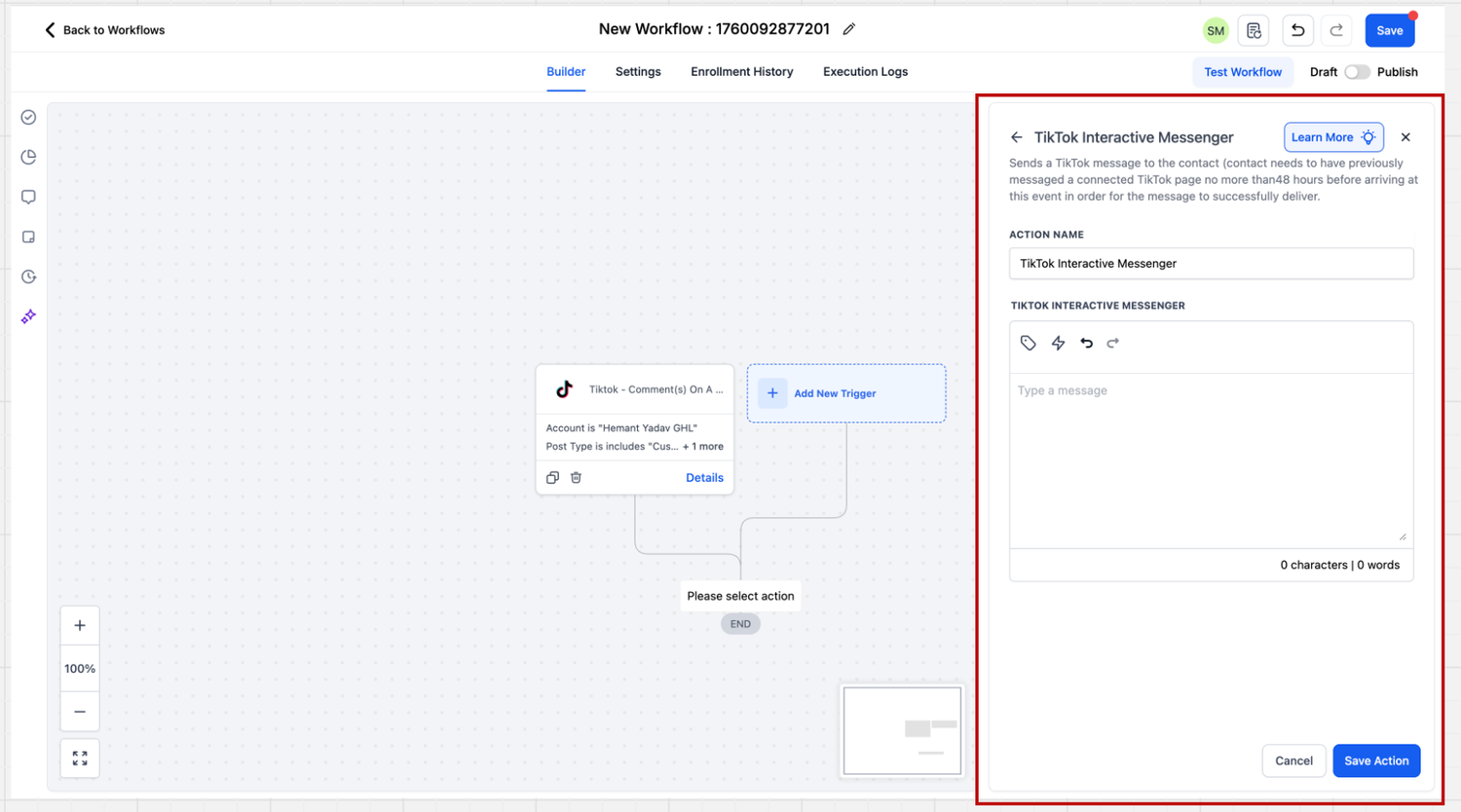
The action that opens the private channel is TikTok Interactive Messenger. You give it the message and save it. That is the whole configuration, and the simplicity is a constraint: HighLevel documents that it does not yet support a Reply Type field, templates, attachments, buttons or quick replies, because TikTok's APIs do not expose them. Plain text has to earn the reply on its own.
The TikTok Interactive Messenger action sends the private message. The trigger card on the canvas shows the filters it is running on, in this case an account and a post type.
Once the person answers, the second trigger takes over. Build another workflow onCustomer Repliedin the Events category and setReply Channelto TikTok. The same Contains Phrase and Exact Match conditions are available there, so a reply containing yes routes differently from a general question. That is where you ask for the email, book the call or hand the thread to a human.
A workflow worth copying
The first workflow uses the TikTok comment trigger with Account set, Post Type set to Published, Post set to your best performing video, and Contains Phrase set to one campaign word you say out loud in the video.
Reply In Comments with eight to ten friendly variations, each telling the person to check their messages.
Wait a minute or two, so the public reply and the private message do not land in the same second.
TikTok Interactive Messenger with a short plain message that delivers what you promised and asks one easy question.
Add Tag such as tiktok comment lead plus the campaign word, so reporting can tell one video from another.
Internal Notification to whoever owns social, because a named contact with no email needs a human sooner than an email lead does.
The second workflow runs on Customer Replied with Reply Channel set to TikTok, and that is where the qualifying happens. Splitting it in two keeps each workflow readable and lets you reuse the reply half across several videos.
Mistakes that cost you leads
Leaving Post is empty on a keyword campaign.The trigger then watches every video you have posted, and an old comment on an unrelated clip pulls someone into a sequence that makes no sense to them.
Choosing Exact Match by habit.Real comments carry emojis, extra words and typos, and Contains Phrase catches far more of them.
Expecting contact details.You get a first name and a last name, so the DM step is where the email arrives, not an afterthought.
Writing one reply instead of ten.An identical public reply under fifty comments reads as a bot to every viewer, which is the opposite of what the automation is for.
Frequently Asked Questions
Does the TikTok comment trigger work on any TikTok account?
Not yet. HighLevel documents that TikTok Messaging and Comment Automation is unavailable in the European Economic Area, Switzerland and the United Kingdom, and currently supports business accounts registered in the United States. The limitation comes from TikTok's public APIs, so check the registration country first.
Do I get the commenter's email address or phone number?
No. Somebody entering a workflow through this trigger is saved as a contact with their first name and last name stored. Everything else has to be collected in the conversation that follows, which is why the private message step matters.
How many different replies can the Reply In Comments action post?
Up to ten, chosen at random each time it runs. You cannot assign a particular reply to a particular comment, so use an AI action beforehand, an If and Else branch, or separate workflows watching different phrases.
Can one workflow cover every video at once?
Yes. Leave Post is empty and the trigger includes every post on the connected account, and leave Account is empty and it covers every TikTok account at that location. Useful for a catch all workflow, risky for a campaign built around one video.
Need Expert Help with GoHighLevel?
New to GoHighLevel and ready to get started? Buy your GoHighLevel account here and launch with confidence.
Already know what you need and want our team to handle everything, from complete setup and customization to funnels, workflows, automations, CRM, and pipelines? Click here.



