

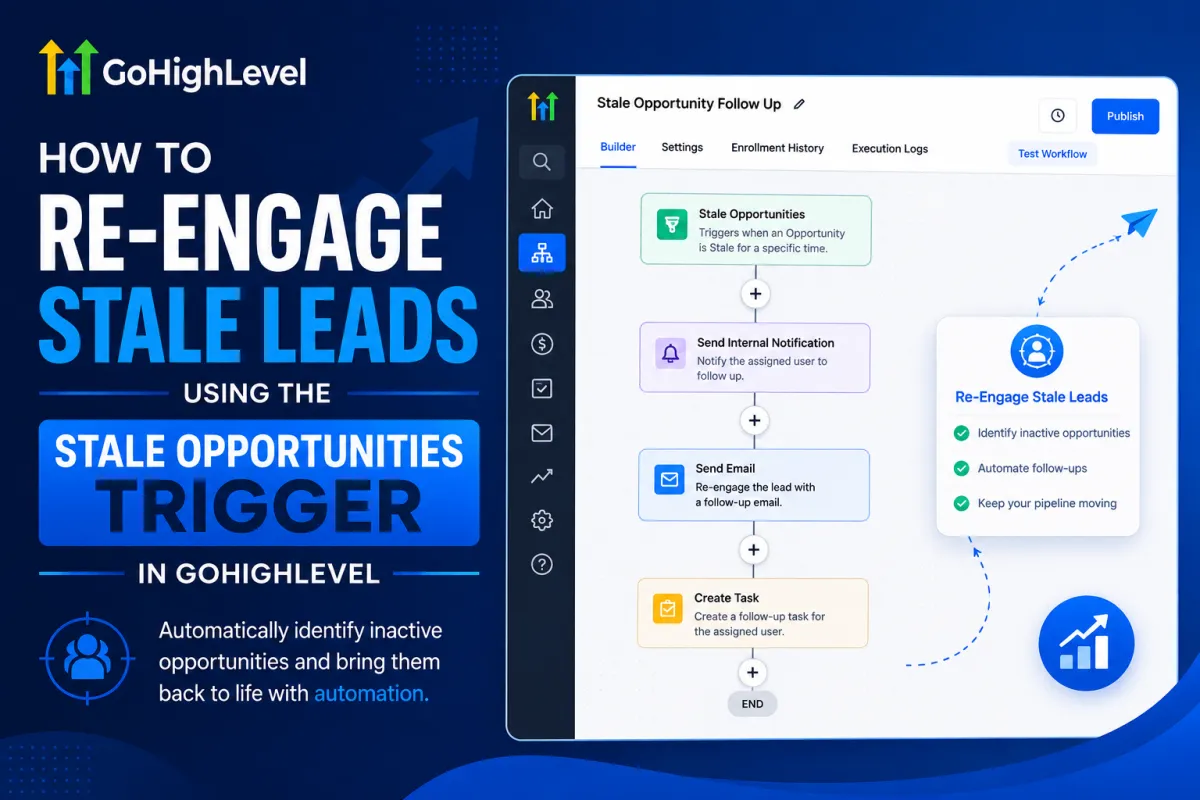
Automate Stale Opportunity Follow-Ups in GoHighLevel
How to Re-Engage Stale Leads Using the Stale Opportunities Trigger in GoHighLevel
Not every lead moves through the sales pipeline at the same speed. Some prospects respond quickly, while others stop progressing after reaching a particular stage. When opportunities remain untouched for several days, they can easily be forgotten by sales teams.
This is where the Stale Opportunities Trigger in GoHighLevel can help. It allows businesses to automatically identify opportunities that have remained inactive for a specified period and start a workflow to bring them back to the team's attention.
Instead of manually checking the pipeline for old opportunities, you can use automation to send reminders, notify sales representatives, or take other actions when an opportunity becomes stale.
What Is the Stale Opportunities Trigger in GoHighLevel?
The Stale Opportunities Trigger starts a workflow when an opportunity has stayed in the same pipeline stage without progress or updates for the configured amount of time. For example, you could configure a workflow to identify opportunities that have remained in the Negotiation stage for five days without activity.
Once the opportunity meets the trigger conditions, GoHighLevel can automatically start the workflow and perform the actions you choose.
This makes the trigger particularly useful for businesses that want to keep their sales pipelines active and make sure potential customers do not get overlooked.
Why Re-Engage Stale Leads?
A stale opportunity does not necessarily mean a lost opportunity. Sometimes a prospect simply needs another follow-up, additional information, or a reminder from the sales team.
Automated re-engagement can help businesses:
Identify inactive opportunities automatically
Remind sales representatives about neglected leads
Improve pipeline visibility
Reduce manual pipeline checking
Create more consistent follow-up processes
Give managers visibility into opportunities that need attention
By responding to stale opportunities earlier, sales teams have a better chance of moving conversations forward.
How the Stale Opportunities Trigger Works
The process is simple.
First, an opportunity enters a pipeline stage such as Negotiation. If there are no qualifying updates for the number of days configured in the trigger, GoHighLevel identifies the opportunity as stale.
The workflow then starts automatically.
For example:
Opportunity enters Negotiation → No progress for 5 days → Stale Opportunities Trigger → Follow-up action → Sales team re-engages the lead
You can also narrow the trigger using filters so that the workflow only applies to the opportunities you want to monitor. HighLevel's current setup includes filters for Duration in Days, Pipeline, and Pipeline Stage.
Step-by-Step: Create a Stale Opportunity Re-Engagement Workflow
Step 1: Open Workflows
From your GoHighLevel dashboard, open Automation and select Workflows.
Click Create Workflow and choose Start from scratch to build your automation.

Step 2: Add the Stale Opportunities Trigger
Click Add New Trigger and search for Stale Opportunities.
Select the trigger and give it a descriptive name, such as:
Stale Opportunity Follow-Up
A clear trigger name makes your automation easier to identify when you have multiple workflows.

Step 3: Configure the Trigger Filters
Next, configure the conditions that determine when an opportunity should be considered stale.
For example, you could set:
Duration in Days: 5
In Pipeline: Sales Pipeline
Pipeline Stage: Negotiation
This means the workflow can focus on opportunities that have remained in the selected stage without progress for the configured period.
Choose the duration based on your normal sales cycle. A business with a short sales cycle may consider an opportunity stale after only a few days, while a business with a longer sales process may need a longer period.

Step 4: Add Re-Engagement Actions
Once the trigger is configured, decide what should happen when an opportunity becomes stale.
You can create actions such as:
Send a reminder email
Send an internal notification
Move the opportunity to another stage
Add the opportunity to another workflow
Notify a sales manager for review
For example, an internal notification could tell the assigned sales representative that an opportunity needs immediate attention.
HighLevel's documentation specifically describes using reminder emails, internal notifications, opportunity-stage changes, and additional workflows as possible follow-up actions.

Step 5: Create a Re-Engagement Message
If you're sending an automated email, keep the message simple and useful.
For example:
Subject: Follow-Up Needed: Stale Opportunity
Hi,
This opportunity has been inactive for several days and may need a follow-up.
Please review the opportunity and take the appropriate next step.
Thank you.
The goal is not to overwhelm your team or prospect with unnecessary communication. Instead, the automation should make sure the opportunity receives timely attention.

Step 6: Save, Test, and Publish
After configuring your trigger and actions, save the workflow.
Use Test Workflow to verify that the automation behaves as expected. Once you are satisfied with the setup, publish the workflow so it can begin running automatically.

Best Practices for Stale Opportunity Automation
Choose the Right Stale Period
Do not automatically use the same number of days for every business. Your ideal duration should reflect your normal sales cycle.
Target Specific Pipeline Stages
Not every stage should necessarily trigger a stale-lead workflow. Focus on stages where inactivity is a strong indication that follow-up is needed.
Avoid Excessive Notifications
Too many reminders can create notification fatigue. Keep your automation focused on opportunities that genuinely need attention.
Give Sales Reps Clear Instructions
A notification should tell the team member what needs to be reviewed and what action is expected.
Review Your Workflow Regularly
Sales processes change over time. Review your stale-opportunity rules periodically and adjust the duration or pipeline filters when necessary.
Common Use Cases
The Stale Opportunities Trigger can be useful across many sales processes.
Sales Follow-Ups
Automatically notify sales representatives when prospects have stopped progressing through the pipeline.
Negotiation Follow-Up
If a deal remains in negotiation for several days, the workflow can remind the assigned salesperson to reconnect with the prospect.
Manager Review
High-value opportunities that become stale can be routed to a manager for additional review.
Pipeline Cleanup
Stale opportunities can be moved into a review stage so the sales team can determine whether they should continue, be nurtured, or be closed.
Common Mistakes to Avoid
Avoid setting the stale duration too aggressively. A legitimate sales opportunity may sometimes need several days before the next step.
You should also avoid applying the workflow to every pipeline stage without considering your sales process. Carefully selected filters make the automation more useful.
Another important point is that the Stale Opportunities Trigger does not work retroactively. The stale duration is calculated after the trigger is added, so existing opportunities should not be expected to immediately enter the workflow simply because they were already inactive.
Conclusion
The Stale Opportunities Trigger in GoHighLevel gives businesses a practical way to identify inactive opportunities and automate the next step. Instead of relying on sales representatives to manually search through the pipeline, you can create a workflow that detects stale opportunities and brings them back to the team's attention.
Whether you use it for sales follow-ups, negotiation-stage deals, manager reviews, or pipeline cleanup, this automation can help reduce forgotten opportunities and create a more consistent sales process.
With the right duration, pipeline filters, and follow-up actions, GoHighLevel can turn stale opportunities into opportunities that receive the attention they need.
Frequently Asked Questions
1. What is the Stale Opportunities Trigger in GoHighLevel?
The Stale Opportunities Trigger starts a workflow when an opportunity has remained inactive in the same stage for the configured period.
2. Can I select a specific pipeline stage?
Yes. The trigger can be configured with a specific pipeline and pipeline stage so the workflow focuses only on relevant opportunities.
3. What actions can I take when an opportunity becomes stale?
You can configure follow-up actions such as reminder emails, internal notifications, moving an opportunity to another stage, or adding it to another workflow.
4. How many days should an opportunity remain inactive before becoming stale?
It depends on your sales cycle. HighLevel recommends choosing a duration based on how quickly opportunities normally progress through your sales process.
5. Does the Stale Opportunities Trigger work retroactively?
No. The stale duration is calculated after the trigger is added, so it does not retroactively trigger for opportunities that were already inactive before the workflow was created.
Need Expert Help with GoHighLevel?
New to GoHighLevel and ready to get started? Buy your GoHighLevel account hereand start building your automated LinkedIn lead follow-up system.
Already know what you need and want our team to handle everything, from complete setup and customization to funnels, workflows, automations, CRM, and pipelines?Click hereto connect with our team.



