

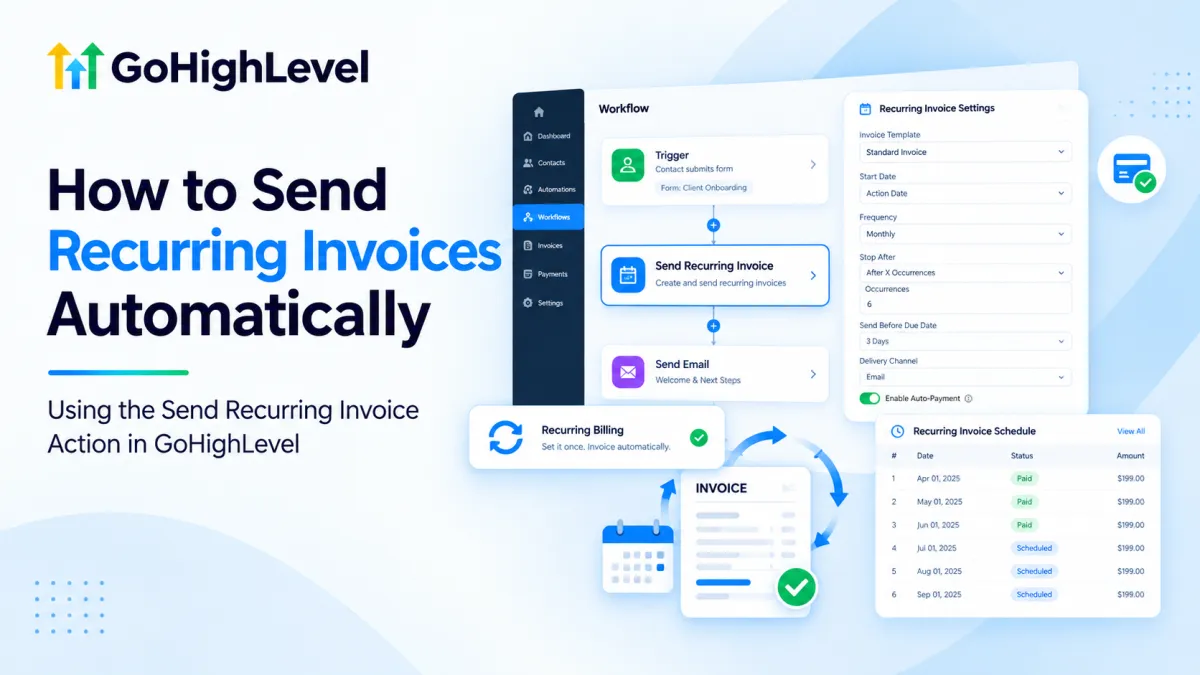
How to Send Recurring Invoices Automatically in GoHighLevel
How to Send Recurring Invoices Automatically Using the Send Recurring Invoice Action in GoHighLevel
Recurring billing can become unnecessarily time-consuming when every invoice has to be prepared and sent manually. Agencies, consultants, membership businesses, and service providers often bill the same customers on a predictable schedule, making manual invoicing repetitive and increasing the chance of missed billing cycles or inconsistent follow-up.
GoHighLevel addresses this through its Send Recurring Invoice Action, which can be added directly to GoHighLevel workflows. Instead of manually creating the recurring billing schedule after a customer reaches a specific stage in the customer journey, a workflow can initiate that process automatically.
What Is the Send Recurring Invoice Action in GoHighLevel?
The Send Recurring Invoice Action is a Payments action available inside the GoHighLevel Workflow Builder. Its purpose is to create a recurring invoice schedule for a contact when the workflow reaches that action.
It is important to distinguish an action from a trigger. A workflow trigger determines what causes a contact to enter a workflow. An action performs something after that trigger has occurred. For example, a contract signing, form submission, or another appropriate workflow event could initiate an automation, while Send Recurring Invoice can appear later as one of the actions executed for that contact.
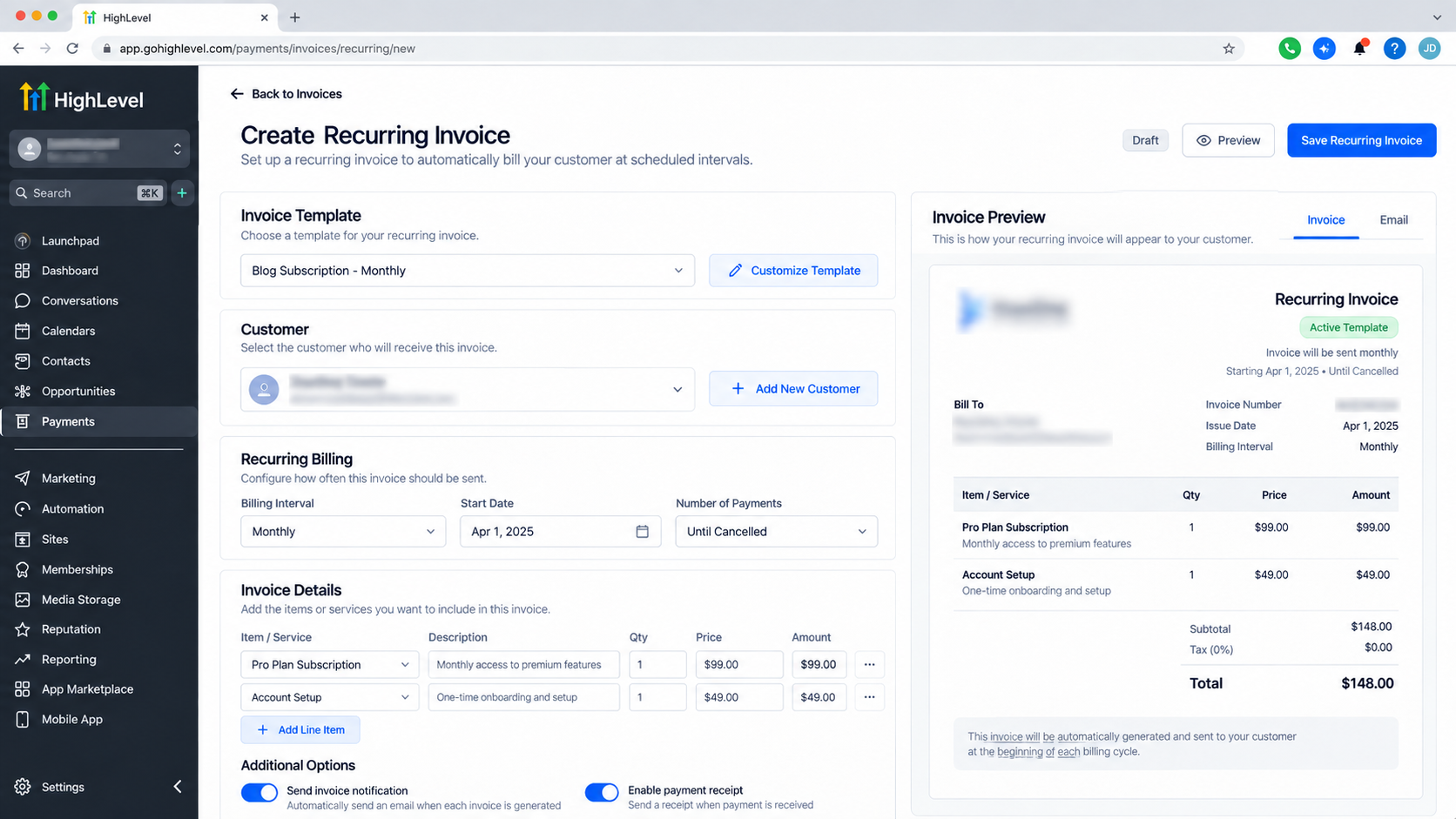
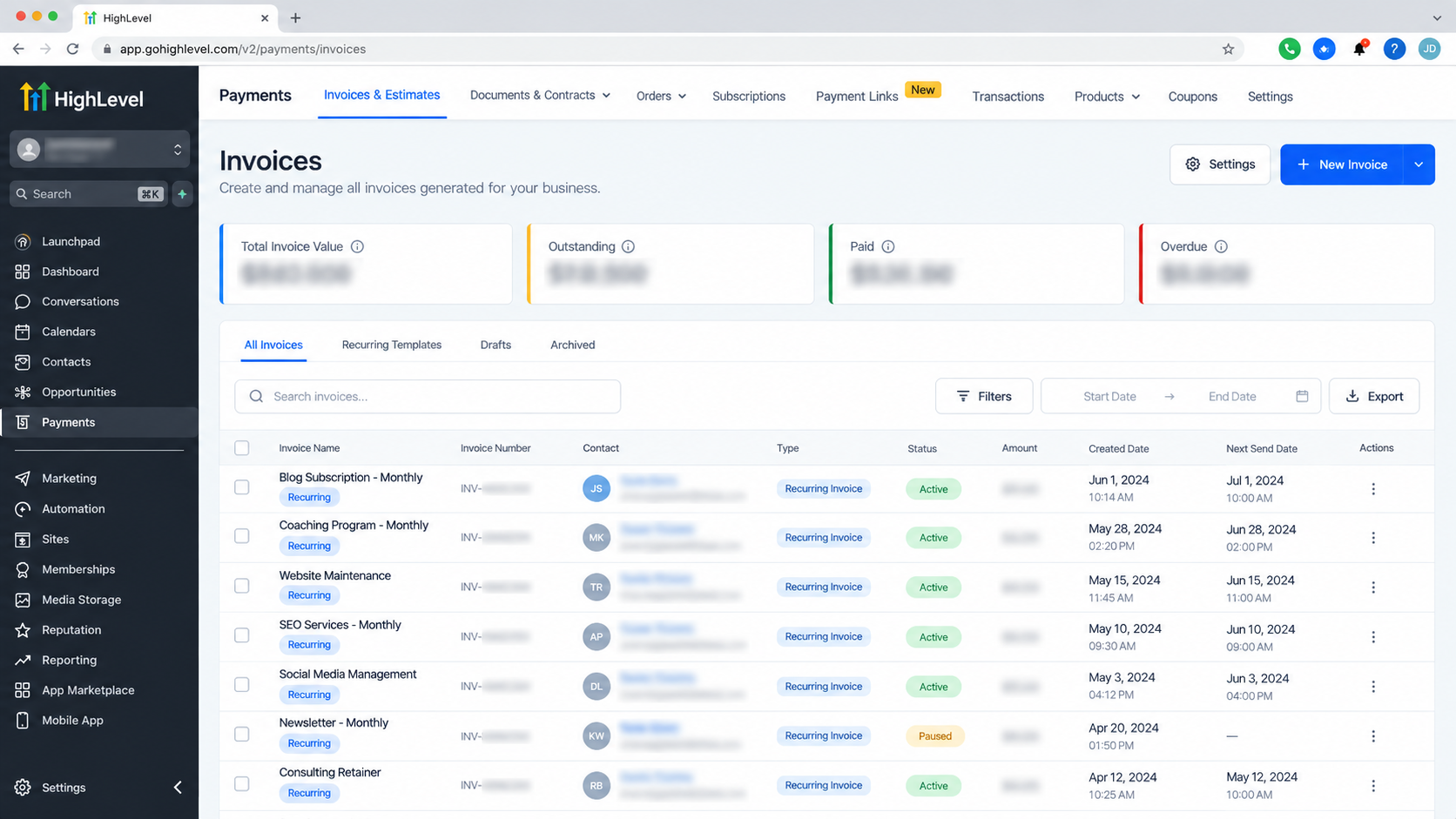
This is different from manually creating a recurring invoice from the Payments area. Manual recurring invoices are configured directly under Invoices & Estimates, whereas the workflow action allows the recurring invoice process to become part of a larger automated customer journey.
How the Send Recurring Invoice Action Works
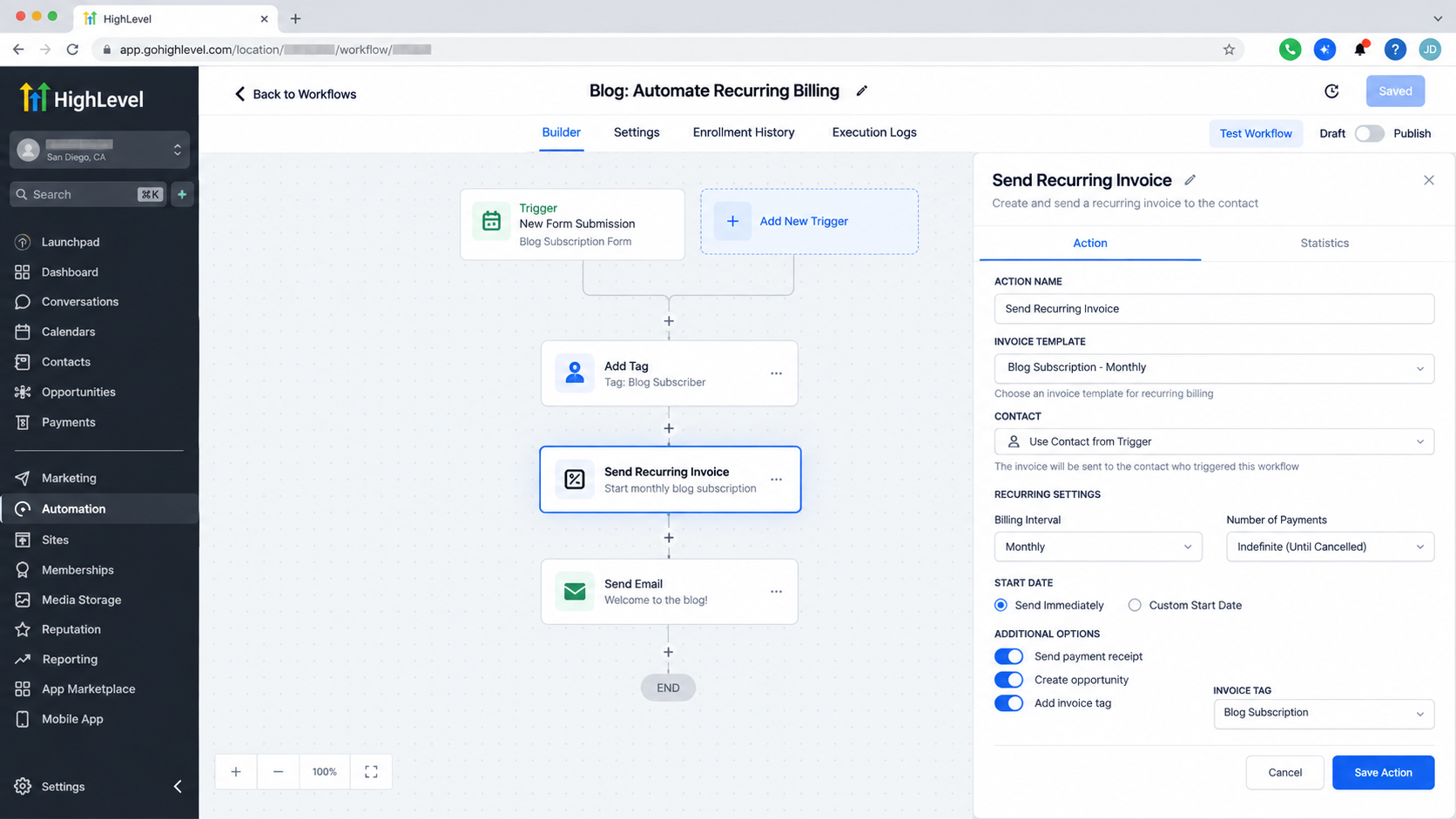
A GoHighLevel workflow begins when its configured trigger conditions are satisfied. The contact then progresses through the workflow actions in the order you have defined.
When the workflow reaches Send Recurring Invoice, HighLevel uses the configuration saved in that action to establish the recurring invoice schedule. The action can specify the invoice template, start timing, recurrence frequency, stopping criteria, delivery timing, and delivery channel.
The important distinction is that you do not need to build separate workflow steps for every future invoice. The recurring schedule itself determines when subsequent invoices are generated.
HighLevel currently documents recurring frequencies including daily, weekly, monthly, and yearly, with additional scheduling options appearing according to the selected frequency. You can also configure the schedule to continue indefinitely or stop after a specified number of occurrences.
How to Set Up the Send Recurring Invoice Action
Before building the automation, prepare the invoice template you intend to use. HighLevel’s documentation also recommends having the appropriate payment integration configured for the billing setup. Payment and auto-payment availability can depend on the connected provider and account configuration.
1. Open the Workflow Builder
Navigate to Automation → Workflows and either create a new workflow or open an existing workflow where recurring billing belongs.
2. Configure the Workflow Trigger
Add the trigger that should place the contact into the automation. Choose a trigger based on the actual business event that should initiate the customer journey.
Do not confuse this trigger with the recurring invoice action. The trigger starts the workflow; Send Recurring Invoice performs the billing-related action afterward.
3. Add Send Recurring Invoice
Click the + where the billing action should occur and locate Send Recurring Invoice under the Payments actions.
Place it only after any required qualification, onboarding, approval, or timing steps have been completed.
4. Configure the Recurring Invoice
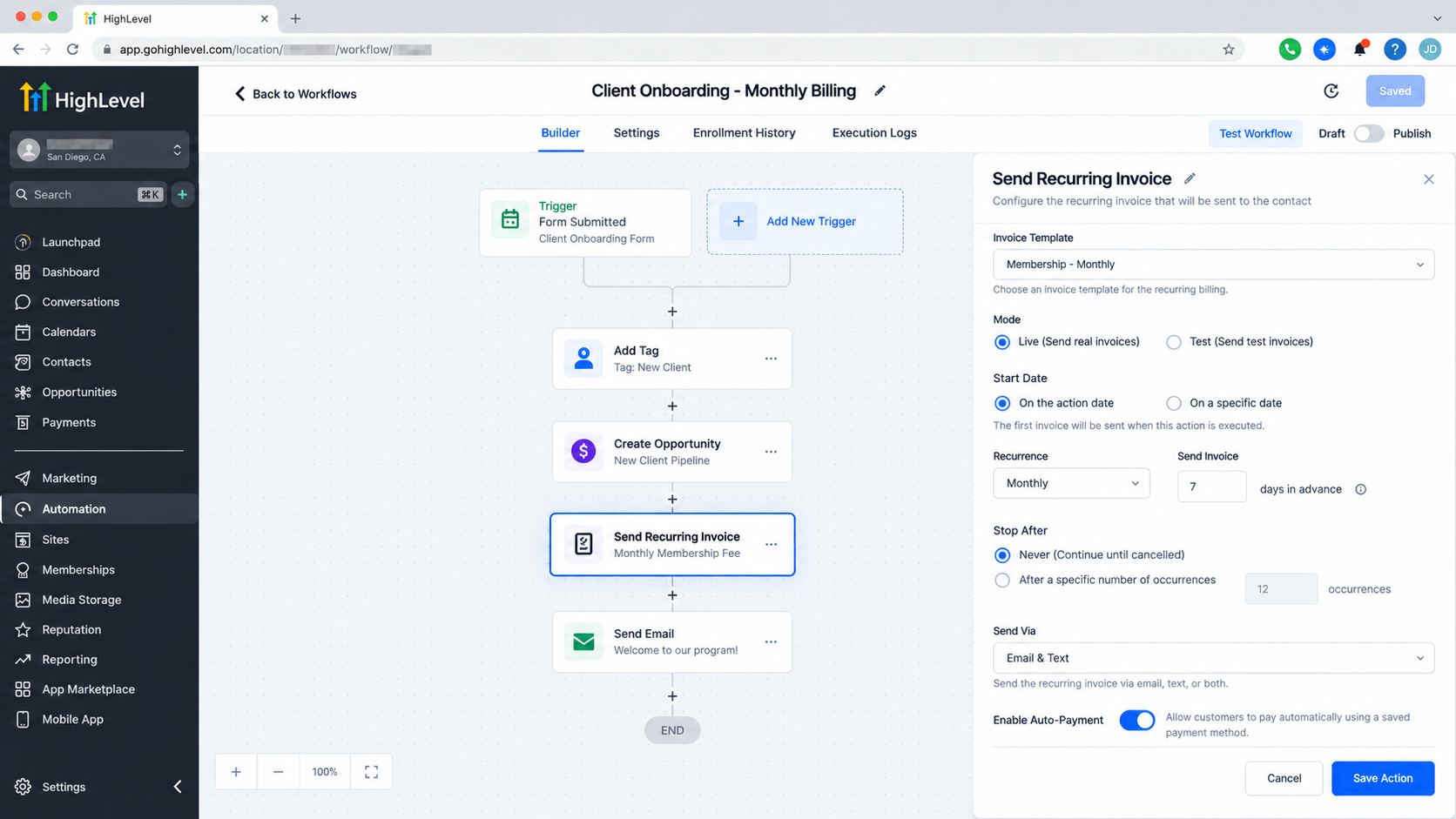
HighLevel currently documents configuration options including:
From User and the appropriate Invoice Template
Test or Live mode
Start Date, including Action Date or a Fixed Date
Stop criteria, such as Never or After X Occurrences
Frequency, including daily, weekly, monthly, or yearly schedules
Days in Advance, controlling how far before the due date the invoice is sent
Delivery Channel, including Email, Text, or Email & Text
Enable Auto-Payment, where applicable to the payment configuration
After configuring the action, save it and review the entire workflow before publishing.
5. Test Before Going Live
Use HighLevel’s workflow testing functionality and verify the invoice configuration carefully before switching from testing to real billing.
Check the selected template, amount, customer information, schedule, frequency, end condition, and communication channel. Billing automations deserve stricter testing than ordinary notification workflows because configuration mistakes can directly affect customers.
Practical Use Cases
A monthly marketing retainer is a straightforward example. Once a client completes the appropriate onboarding event, a workflow can establish the monthly recurring invoice schedule.
A consulting or coaching business could similarly use the action for weekly or monthly recurring services, while a membership business could create a recurring billing schedule after the member completes the required enrollment process.
The action can also support fixed-duration billing arrangements. For example, rather than allowing invoices to continue indefinitely, the recurring schedule can be configured to stop after a defined number of occurrences.
These scenarios differ from a single project fee. If a customer only needs to be billed once, a one-time invoice is generally the appropriate invoice type rather than recurring invoicing.
Best Practices for Recurring Invoice Automation
Keep the billing workflow tied to a clearly defined customer event. A vague or overly broad trigger can cause contacts to enter billing automation when they should not.
Also verify customer details, invoice-template information, pricing, taxes where applicable, billing frequency, and start timing before activation. Use descriptive workflow-action names so team members can understand the billing logic without opening every step.
If using auto-payment, confirm the payment method and provider configuration instead of assuming that enabling the option alone guarantees automatic collection. HighLevel documents different auto-payment behavior depending on whether an eligible saved payment method already exists.
Finally, monitor generated recurring invoices and payment statuses after launch rather than treating automated invoicing as completely unattended administration.
Common Mistakes to Avoid
One common mistake is using Send Recurring Invoice when only one invoice is required. Another is assuming that the action itself starts the workflow instead of understanding that a separate trigger controls workflow entry.
Avoid creating multiple workflows capable of establishing the same recurring billing schedule for the same customer unless that duplication is intentional. Review workflow re-entry behavior as well, particularly when designing automations around events that may occur more than once.
Most importantly, never publish recurring billing automation without testing the template, schedule, frequency, and stopping criteria.
Conclusion
The Send Recurring Invoice Action in GoHighLevel connects recurring billing with the broader capabilities of GoHighLevel workflows. Rather than manually setting up recurring invoices whenever a customer reaches the appropriate stage, businesses can make that process part of an automated customer lifecycle.
Configured carefully, it can support recurring client services, memberships, retainers, and other legitimate repeat-billing arrangements while keeping invoicing logic consistent with the rest of your GoHighLevel automation.
Frequently Asked Questions
What is the Send Recurring Invoice Action in GoHighLevel?
The Send Recurring Invoice Action is a Payments action inside GoHighLevel workflows. When a contact reaches this action, HighLevel can establish a recurring invoice schedule based on the settings configured in the action, such as the invoice template, frequency, start date, stop rule, and delivery channel.
Is Send Recurring Invoice a workflow trigger or an action?
It is a workflow action, not a trigger. A trigger determines when a contact enters a workflow, while the Send Recurring Invoice Action executes later when the contact reaches that step in the workflow.
What billing frequencies are available for recurring invoices?
HighLevel currently supports daily, weekly, monthly, and yearly recurrence options in the Send Recurring Invoice Action. Additional scheduling choices can appear depending on the selected frequency.
Can I stop recurring invoices after a specific number of payments?
Yes. The action allows you to configure the recurring schedule to continue indefinitely or stop after a specified number of occurrences. This can be useful for fixed-term service agreements or installment-style billing arrangements.
Can GoHighLevel automatically charge customers for recurring invoices?
The action includes an Enable Auto-Payment option. HighLevel currently documents this functionality for supported payment configurations, including Stripe-connected sub-accounts, with subsequent automatic charges dependent on a successfully stored payment method.
Can recurring invoices be sent by email and SMS?
Yes. The workflow action currently provides delivery-channel options for Email, Text, or Email & Text, allowing businesses to select how recurring invoices are delivered to customers.
Need Expert Help with GoHighLevel?
New to GoHighLevel and ready to get started? Buy your GoHighLevel account here and launch with confidence.
Already know what you need and want our team to handle everything, from complete setup and customization to funnels, workflows, automations, CRM, and pipelines? Click here.



