

Tell the Right Person Before the Lead Goes Cold
How to Keep Your Team Informed Instantly Using the Send Internal Notification Action in GoHighLevel
A form comes in at half past four. The workflow tags the contact, drops them in a pipeline, sends a polite confirmation email and finishes. Everything worked. Nobody on your team knows it happened, and the person who filled the form is waiting for a human. By the time somebody scrolls past the name on Thursday, they have booked with somebody else.
Automation that only talks to the customer is half a system. The Send Internal Notification action is the other half. It alerts your own people by email, in app notification, SMS or WhatsApp, at the exact point in the workflow where a human needs to know. Here is where it lives, what each channel does, who receives it, and the limits that catch people out.
Where the action sits
Open Automation, then Workflows, and build or edit a workflow. Click the plus button on any step and look through the communication actions for Send Internal Notification.
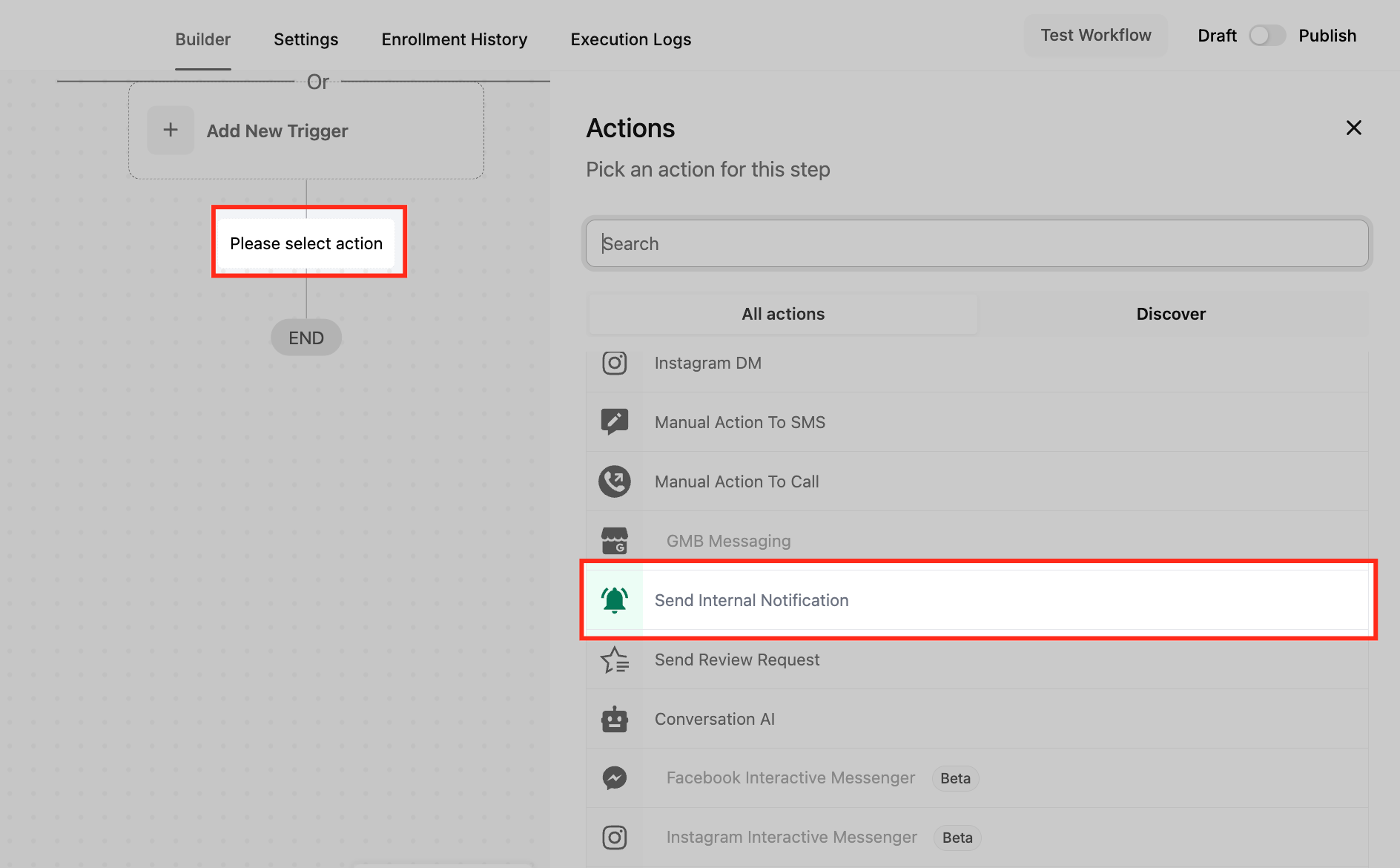
The panel that opens is titled Internal Notification, and its one line of description tells you everything: send a notification to someone other than the contact. Name the action something you will recognise on the canvas later, like Notify Sales Team by Email, because a workflow with four notifications in it gets confusing fast.
Four channels, one action
The Type of Notification dropdown decides how the alert is delivered, and the rest of the panel changes to match your choice.
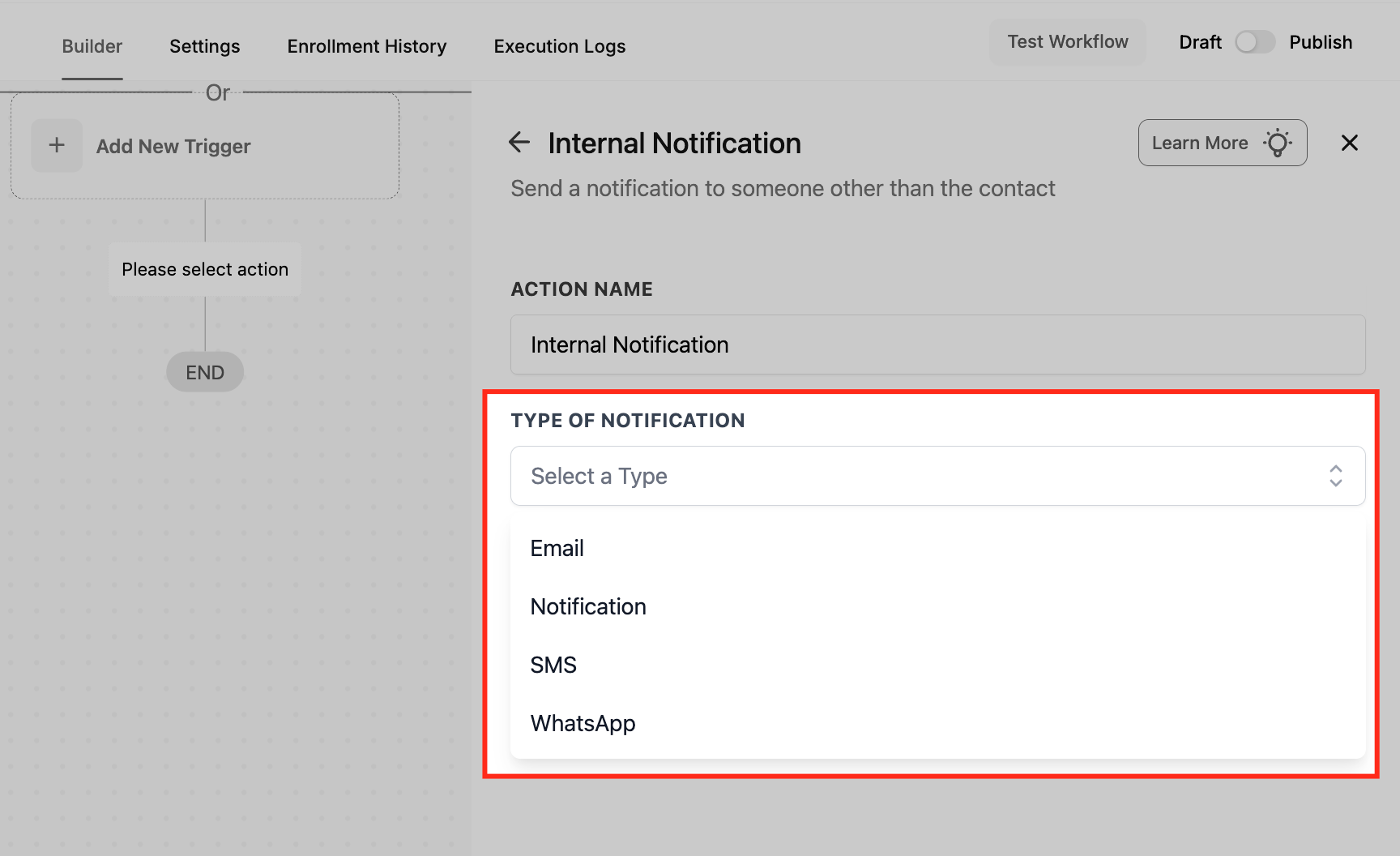
Email for detail. Long context, attachments, several people copied in.
Notification for the in app bell. Quiet, free, and already where your team is working.
SMS for anything genuinely urgent. It gets read in seconds, and it interrupts, so use it sparingly.
WhatsApp for teams who already live in it, which in a lot of markets is most of them.
Nothing stops you sending two. An in app notification for everyone plus an SMS to the one person on call is a sensible pattern.
Email, the one with the most controls
Pick Email and you get the full set of fields.
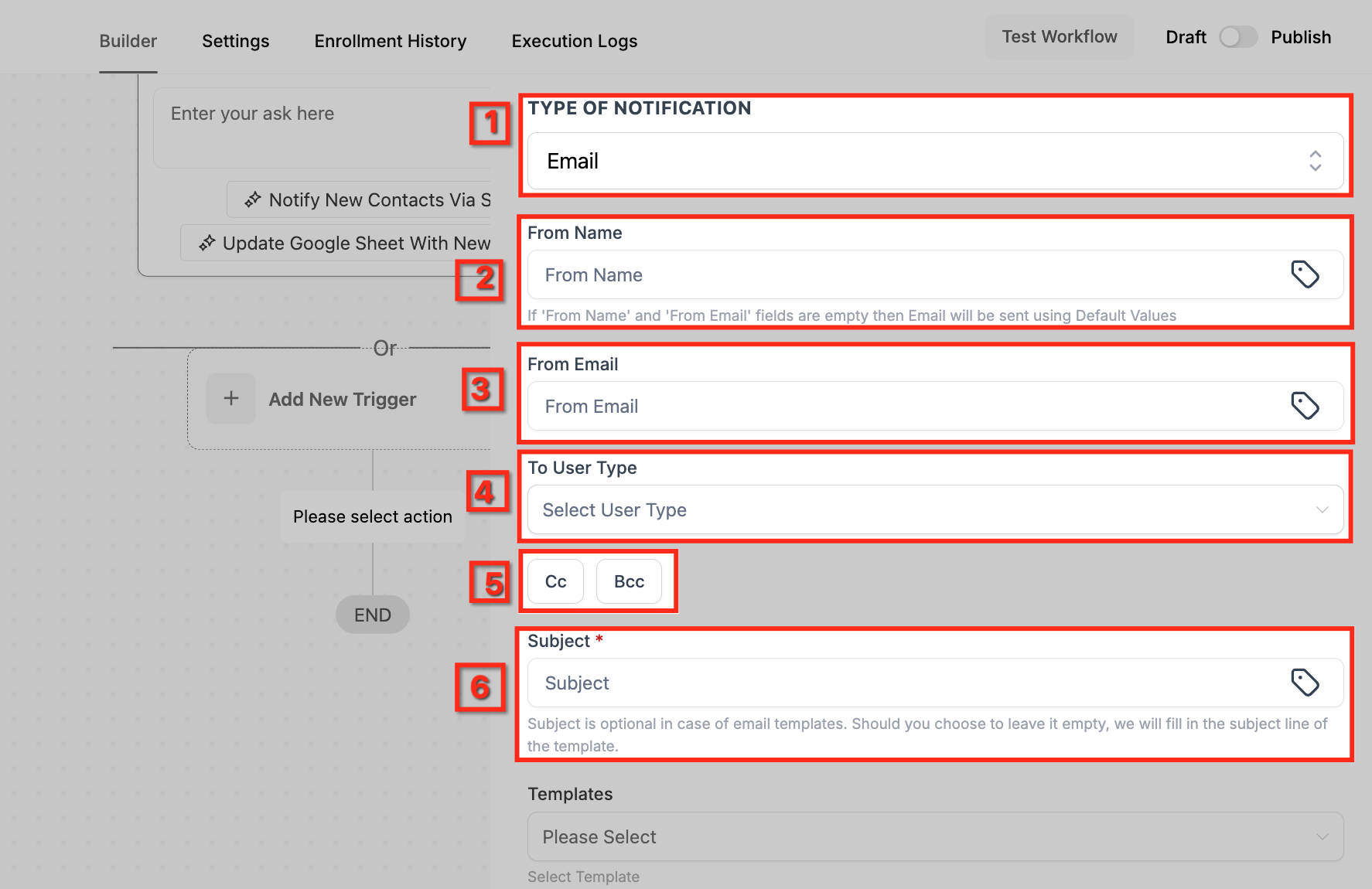
From Name and From Email control what shows in the inbox, and the helper text under them says that if you leave both empty the email goes out using your default values, which for an internal alert is usually fine. To User Type is where you choose who receives it. Cc and Bcc add more recipients, and this part is worth reading twice, because each entry counts as a separate email. Copying five managers on every new lead is five emails against your usage every time.Subjectis marked required, though its own note says you can leave it empty when a template is doing the work.
Below that sit the Templates dropdown, the message editor with a Write with AI button, and Add attachment. The tag icon in the editor inserts custom values, so the notification can carry the contact name, the form answers and the assigned user straight into the body. There is a test email box at the bottom, worth using.
In app notifications, the quiet option
Choose Notification and the alert appears under the bell icon inside GoHighLevel.
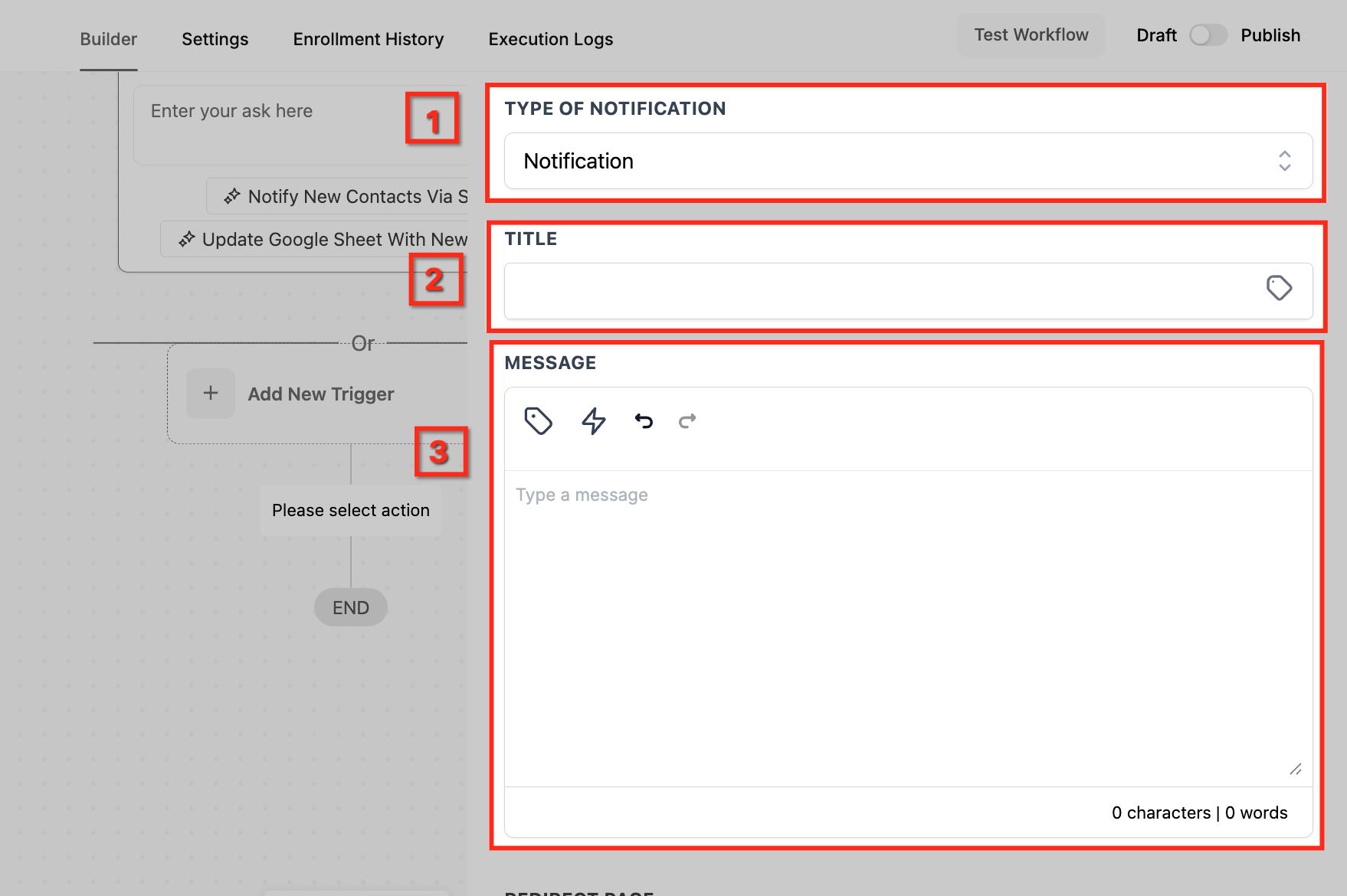
You get a Title and a Message, both of which accept custom values. Keep the title short enough to read at a glance and put the useful part in the message. Scroll down and there is a field the other channels do not have, Redirect Page, which sets where the person lands when they click the notification. Point it at the contact record and your team member goes from bell to the right screen in one click. Under it sits the same To User Type control as everywhere else.
This is the channel to default to. It costs nothing, it does not interrupt anybody's evening, and it is already open on their second monitor.
SMS and WhatsApp, the urgent ones
SMS and WhatsApp share almost the same panel.
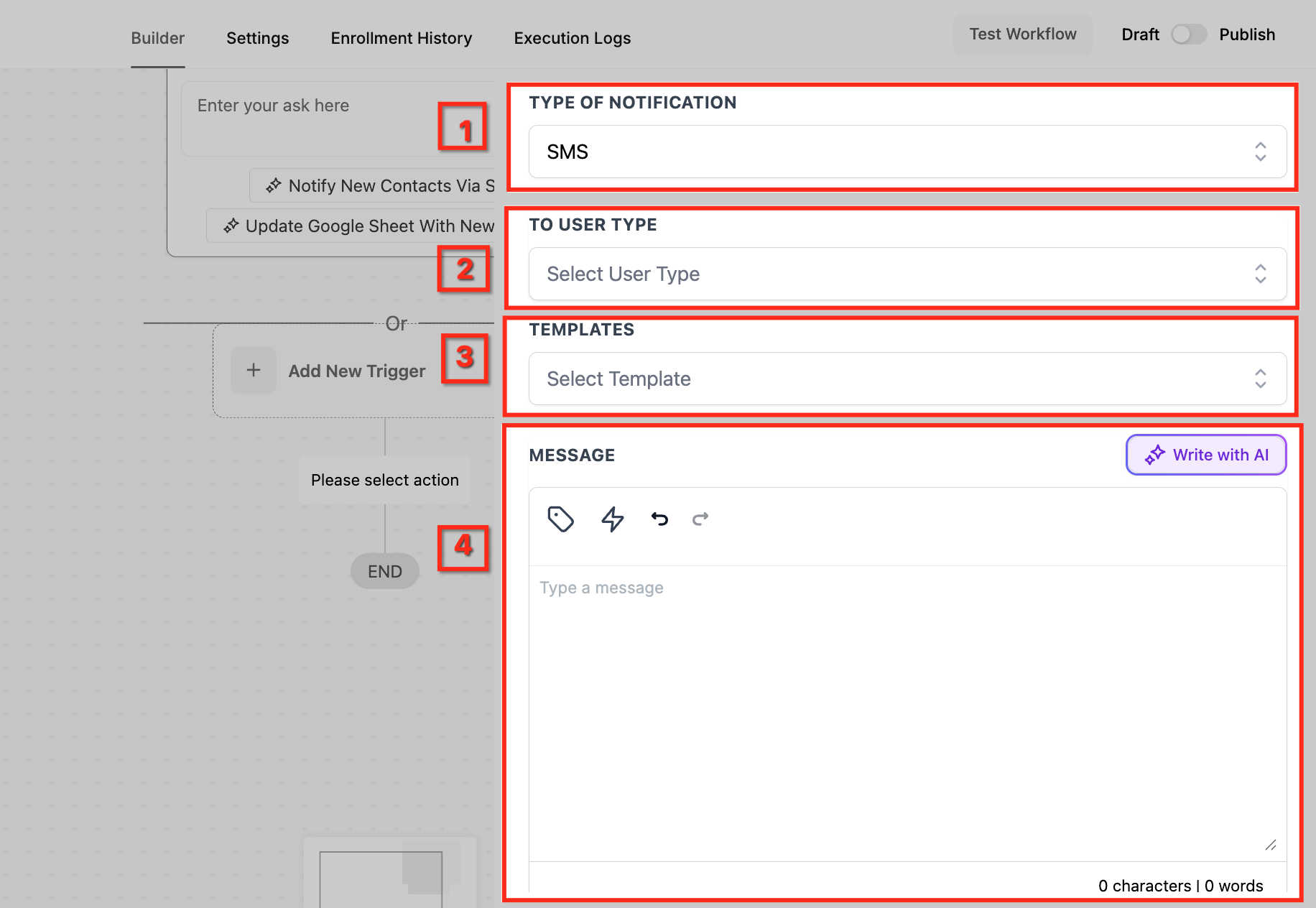
Both give you To User Type, a Templates dropdown and a message editor with custom values and Write with AI. SMS adds two useful extras further down, Add attachment and Add files through URL, plus a Test Phone Numberbox with a Send Test SMS button. The note under it asks for the country code, which people forget constantly. WhatsApp runs off approved templates, so an empty template list means the integration is not finished.
Separately from this action, each user can switch WhatsApp on for their own account alerts under Settings, My Profile, Notifications. Turning on several channels there means several copies of the same alert for that person.
Who actually receives it
Every channel has a To User Type field, and the options behave differently enough to matter:
All Users sends to every user's configured email address or phone number.
Particular Users sends only to the people you pick, which is what most builds should use.
Assigned User sends only when a contact exists, has an assigned user, and, for SMS, that user has a valid phone number. If any of that is missing the step is skipped and the workflow carries on to the next action.
That last one is the quiet failure people report as a bug. The notification never arrives and the workflow shows no error, because a skipped step is not an error. If you notify the assigned user, make sure something earlier in the workflow actually assigns one.
Better news on the other side: HighLevel deduplicates recipients across categories. If the same person is picked as the assigned user, copied on the Cc line and included in a role, they get one notification, not three.
It can run without a contact
This action does not always need a contact record, which makes it useful in webhook driven workflows and internal housekeeping automations that have no lead attached.
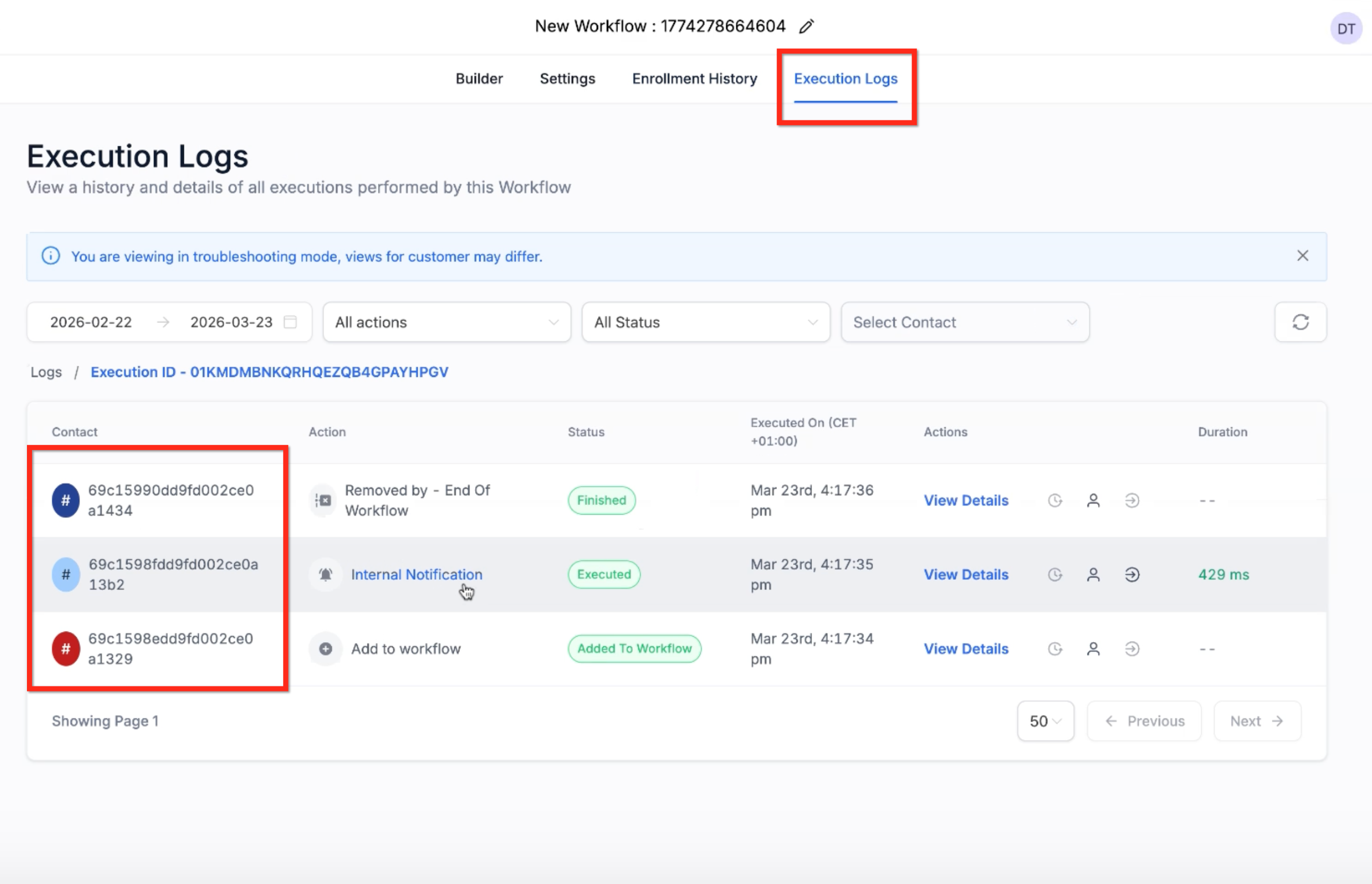
In app notifications run with or without a contact, and any simple internal message that does not depend on contact fields will execute normally. The catch is content that pulls contact data. Assigned user details, contact fields and custom fields do not populate on a contactless run, so you get an alert with blanks in it, and the logs show identifiers rather than a contact profile. Both are expected behaviour rather than a fault.
Limits worth knowing before you build
Rate limit: by default each user can receive up to 500 notifications every 5 minutes across email, SMS and in app. Bulk enrolments above that get queued, and if the workflow conditions expire while they are queued they can be dropped.
Internal only: these go to users inside your account. They are not a way to message a contact.
Cc and Bcc exist only on the email channel, and each recipient adds to your email usage.
Attachments count toward your file storage, and on SMS they are subject to carrier size limits, so an oversized file simply fails to deliver.
If a channel is not set up for a recipient, no phone number for SMS or no WhatsApp connection, that notification fails while the workflow continues to the next step.
If a user swears a notification never arrived but the log says it executed, check whether their profile was ever marked Do Not Disturb. The documented fix is to open the profile, toggle DND off and back on, then test again.
A shape that works
For a small sales team, this is the version that tends to survive contact with reality:
New lead comes in. In app notification to the sales team, redirect pointing at the contact record.
High value trigger, say a quote request over a set amount. SMS to the one person on call, nobody else.
Lead assigned. Email to the assigned user only, with the form answers merged into the body.
Nothing touched after two hours. A second notification, this time to a manager.
Everything else waits for the daily digest. Alerts only work while people still read them.
Frequently Asked Questions
Can I send an internal notification to someone who is not a user in my account?
Not with this action. It targets users inside the account. To reach an outside address, use the Cc or Bcc field on an email notification, remembering each counts as its own email.
Why did the workflow say the notification executed when the user never saw it?
The common cause is a profile that was marked Do Not Disturb at some point. Open the profile, toggle DND off and back on, then run the test again. If the recipient was set to Assigned User, check that a user was actually assigned before that step.
Will the same person get several copies if they match more than one recipient setting?
No. Recipients are deduplicated across categories, so one person receives one notification even if they are named in three places on the same action.
Does this work in a workflow with no contact attached?
Yes for in app alerts and any plain internal message. Content that depends on contact or custom fields will come through with those values empty, so keep contactless notifications generic.
Need Expert Help with GoHighLevel?
New to GoHighLevel and ready to get started? Buy your GoHighLevel account here and launch with confidence.
Already know what you need and want our team to handle everything, from complete setup and customization to funnels, workflows, automations, CRM, and pipelines? Click here.



