

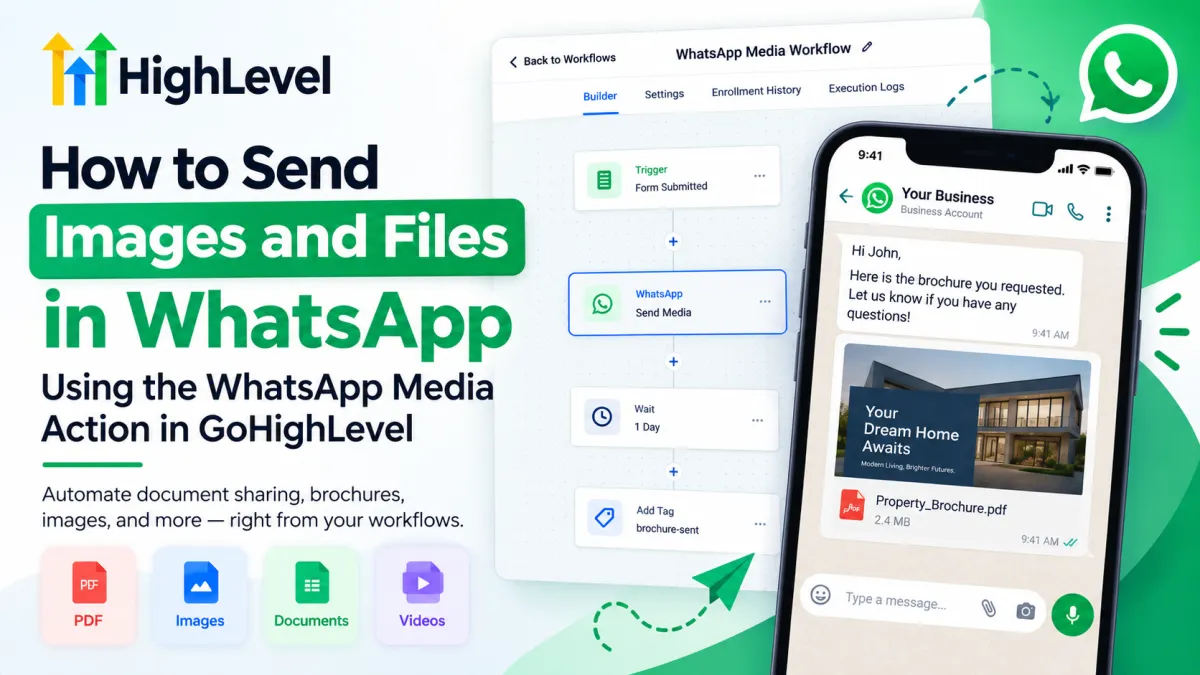
How to Send Images and Files on WhatsApp Using GoHighLevel
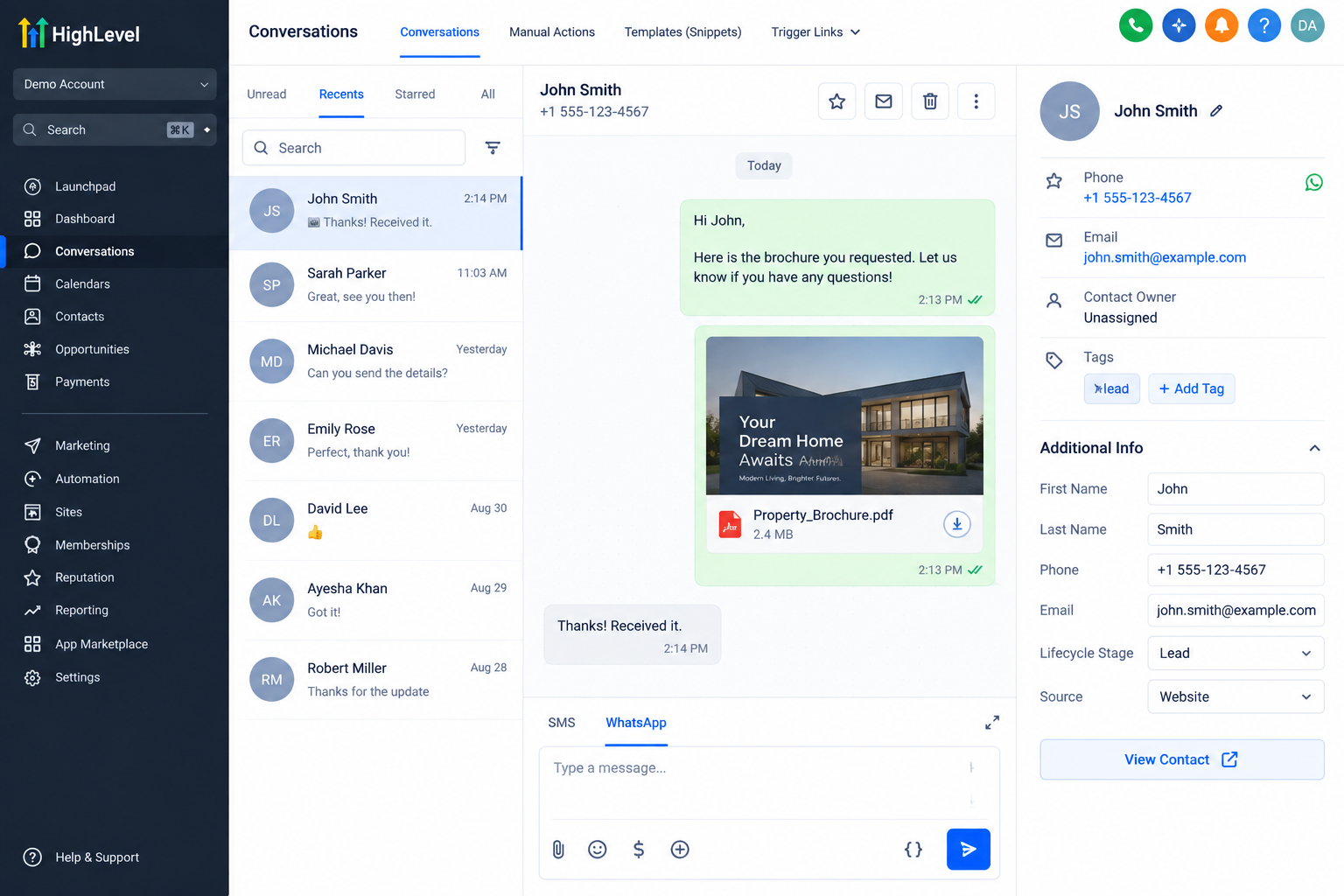
How to Send Images and Files in WhatsApp Using the WhatsApp Media Action in GoHighLevel
Many businesses use WhatsApp automation for one thing: sending text messages. But think about how customers actually communicate. A prospect may need a brochure, a client may want an onboarding guide, or a customer may need a product image or document.
Manually finding and sending those resources every time creates unnecessary work.
With the GoHighLevel WhatsApp Media Action, businesses can build workflows that include relevant media and files as part of automated WhatsApp communication, provided their WhatsApp setup and messaging permissions support the interaction.
The real opportunity is not simply sending a file automatically. It is delivering the right resource at the right moment in the customer journey.
What Is the GoHighLevel WhatsApp Media Action?
The WhatsApp Media functionality in GoHighLevel is designed to let businesses include media-based communication within their WhatsApp workflows rather than relying entirely on plain text.
Inside a workflow, a WhatsApp media action can be placed alongside triggers, conditions, waits, follow-ups, and other automation steps. This makes it possible to build customer journeys where useful visual content or resources are delivered based on a contact's activity or stage.
For example, instead of sending:
“Thanks for your interest. Our information is available upon request.”
A workflow could provide the relevant resource directly through WhatsApp when appropriate.
This is different from SMS/MMS, email attachments, and WhatsApp template messaging. Each communication channel has its own requirements, and WhatsApp messages remain subject to Meta's messaging policies, permissions, templates, and conversation rules where applicable.
Why Sending Media Through WhatsApp Matters
Good automation should remove friction, not simply send more messages.
Using WhatsApp media automation can help businesses provide information faster while reducing repetitive manual tasks for sales and support teams. Visuals and documents can also be more practical than trying to explain everything in a long text message.
Businesses can use media-based workflows to:
Deliver useful resources without repeated manual sending
Make customer communication more visual and informative
Create more consistent lead and customer experiences
Support leads with relevant information during nurturing
Connect resources to specific stages of the customer journey
The key is relevance. A useful document delivered after a customer requests information can improve the experience. Sending unnecessary files simply because automation makes it possible usually will not.
How to Send Images and Files Using a GoHighLevel Workflow
The exact interface can change as GoHighLevel updates its platform, but the overall workflow-building process is straightforward.
1. Create or Open Your Workflow
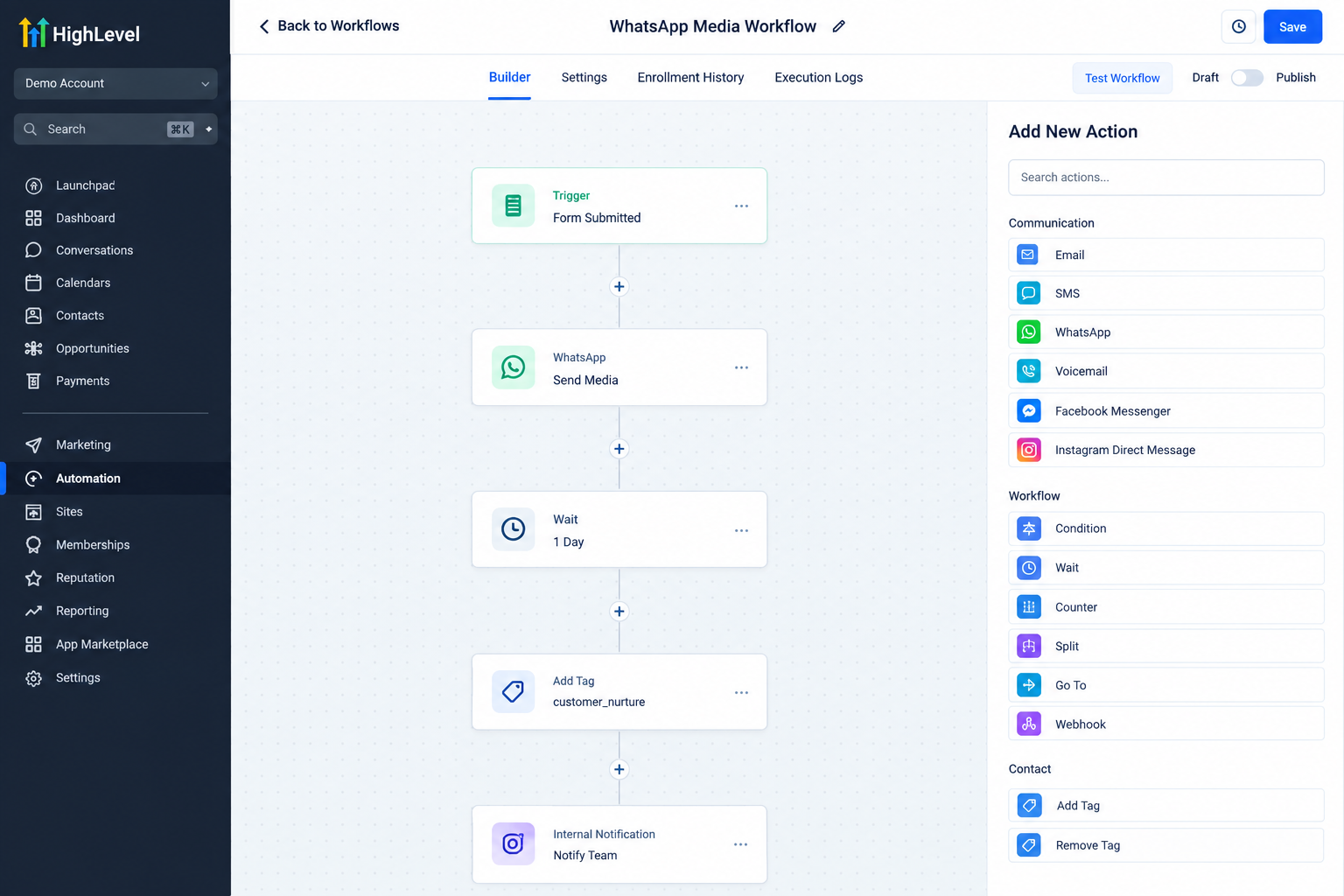
Go to the workflow area in your GoHighLevel sub-account and either create a new workflow or open an existing automation where WhatsApp communication makes sense.
2. Select an Appropriate Trigger
Choose the event that should start the automation. Depending on your use case, this might relate to a form submission, contact activity, pipeline movement, tag, or another supported workflow trigger.
3. Add the WhatsApp Media Action
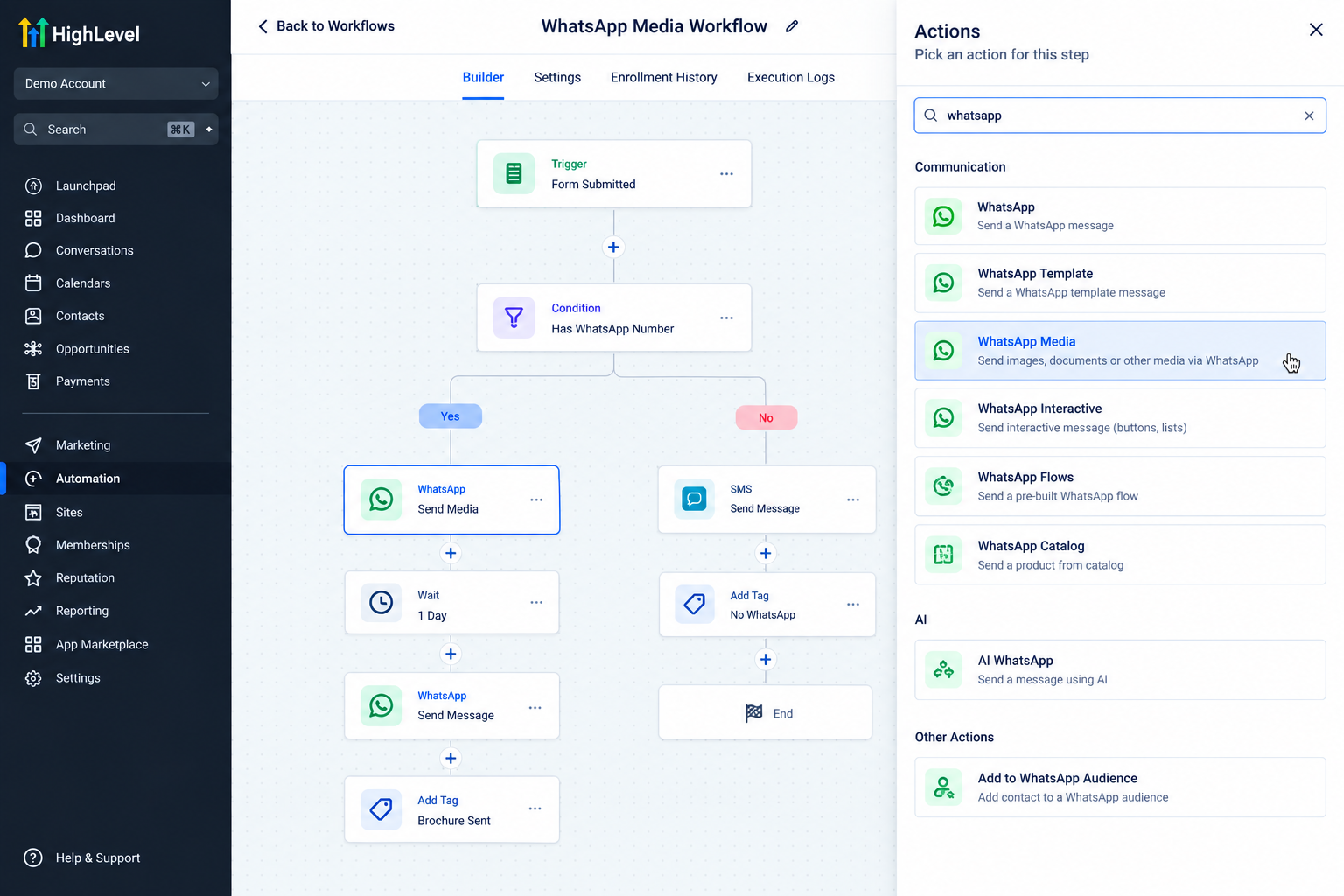
Add the relevant WhatsApp media/message action available in the workflow builder. Configure the required recipient and media settings according to the options currently available in your account.
4. Add the Appropriate Resource
Select or provide the image, document, or other supported media resource you want the contact to receive.
Because supported media types, requirements, and limits can change, confirm the current specifications in GoHighLevel and WhatsApp documentation rather than assuming every file can be sent.
5. Build the Surrounding Automation
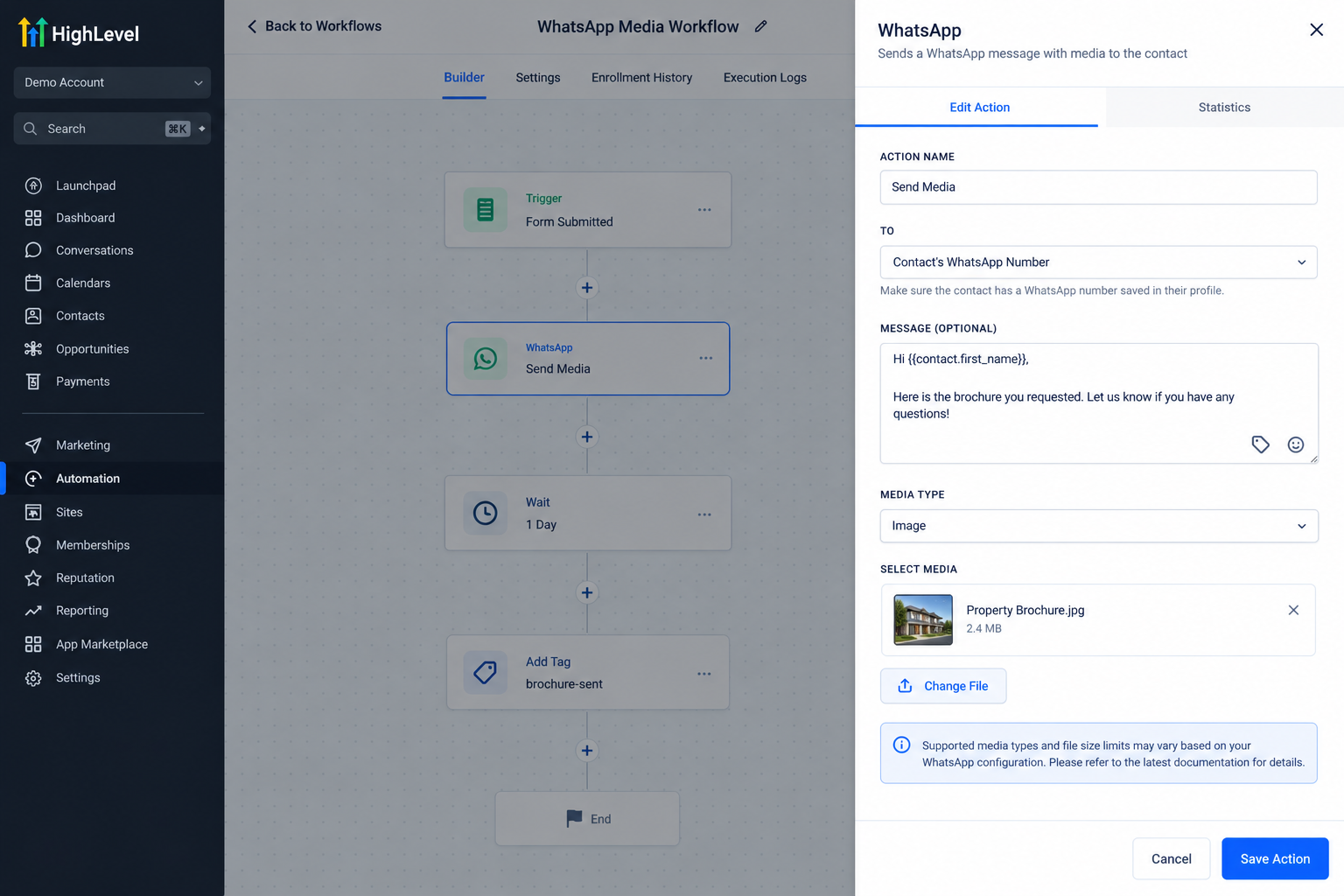
The media message does not have to work alone. You can add conditions, waits, tags, branches, follow-up messages, or sales actions where they improve the customer journey.
6. Test Before Publishing
Test the workflow with an appropriate contact and confirm that the correct resource is delivered as expected. Check the message and media on mobile as well.
Once everything works correctly, publish or activate the workflow.
Practical Ways Businesses Can Use WhatsApp Media Automation
This is where GoHighLevel WhatsApp automation becomes especially useful.
Real Estate: After a lead shows interest in a property, an automation could provide relevant property images or documents, helping the prospect review important information without waiting for an agent to manually send it.
Restaurants: A restaurant could deliver a menu or promotional visual during an appropriate WhatsApp interaction, making information easier for customers to access.
Marketing Agencies: Agencies can use media-based communication to provide onboarding guides, supporting documents, or other resources at specific stages of the client journey.
Home Services: After a booking or qualification step, businesses could provide preparation instructions, visual references, or relevant post-service information.
E-commerce: Businesses can share appropriate product visuals or supporting information when it helps a shopper understand a product or next step.
Coaches and Consultants: A workflow could deliver a worksheet, checklist, guide, or onboarding resource when a client reaches the relevant stage.
Build a Smarter WhatsApp Workflow Around the Media Message
The GoHighLevel WhatsApp Media Action becomes much more valuable when it is part of a thoughtful workflow.
For example:
Lead submits form → Contact enters workflow → Qualification check → WhatsApp communication → Relevant resource delivered → Wait → Follow-up → Sales action
Conditions and workflow branches can help determine which contacts should receive a particular resource. Tags and contact information can provide additional context, while waits and follow-up actions can prevent the automation from feeling rushed.
Not every workflow needs all these elements. The objective is simply to make each step relevant to what the contact needs next.
Best Practices for GoHighLevel WhatsApp Media Automation
Keep media relevant, use clear accompanying copy, and avoid overwhelming contacts with unnecessary resources. Test every workflow before launch and make sure the content is easy to view on mobile.
Most importantly, respect WhatsApp opt-in and messaging requirements. Meta's rules, messaging windows, approved-template requirements, and account configurations can affect how and when businesses communicate.
Before launching an automation, verify current supported media formats, limits, and requirements in the latest GoHighLevel and WhatsApp documentation.
Turn WhatsApp Into a More Useful Customer Journey
The biggest benefit of sending images and files through GoHighLevel is not the media itself. It is the ability to deliver useful information at the moment a lead or customer needs it.
By connecting CRM data, workflows, WhatsApp communication, and follow-up, businesses can create customer journeys that require less repetitive manual work while remaining useful and relevant.
If you already use WhatsApp with GoHighLevel, look at the resources your team repeatedly sends by hand. Those interactions may be the perfect place to start exploring smarter WhatsApp media automation.
Frequently Asked Questions
1. What is the WhatsApp Media Action in GoHighLevel?
The GoHighLevel WhatsApp Media Action allows businesses to include supported media or files in automated WhatsApp communication within workflows. It can help deliver useful resources to leads and customers without requiring a team member to send them manually each time.
2. Can I send images and files automatically through WhatsApp in GoHighLevel?
Yes, GoHighLevel's WhatsApp workflow functionality can support automated media-based communication when your WhatsApp integration, account configuration, and messaging permissions allow it. Always check the latest GoHighLevel documentation for current media requirements and supported formats.
3. What types of businesses can use GoHighLevel WhatsApp media automation?
Many businesses can benefit from it. Real estate companies can share property resources, restaurants can provide menus, agencies can send onboarding materials, home-service businesses can deliver instructions, and coaches or consultants can provide guides, worksheets, or checklists.
4. Can I add the WhatsApp Media Action to an existing GoHighLevel workflow?
Yes, when the relevant WhatsApp action is available for your setup, it can be incorporated into a workflow alongside triggers, conditions, waits, tags, branches, and follow-up actions. This allows the media message to become part of a larger automated customer journey.
5. Do WhatsApp rules still apply when sending media through GoHighLevel?
Yes. Using GoHighLevel does not bypass WhatsApp or Meta messaging requirements. Opt-in requirements, messaging windows, approved templates where required, account configuration, and other applicable WhatsApp policies still need to be followed. Check current GoHighLevel and Meta documentation before launching your automation.
Need Expert Help with GoHighLevel?
New to GoHighLevel and ready to get started? Buy your GoHighLevel account here and launch with confidence.
Already know what you need and want our team to handle everything, from complete setup and customization to funnels, workflows, automations, CRM, and pipelines? Click here.



