

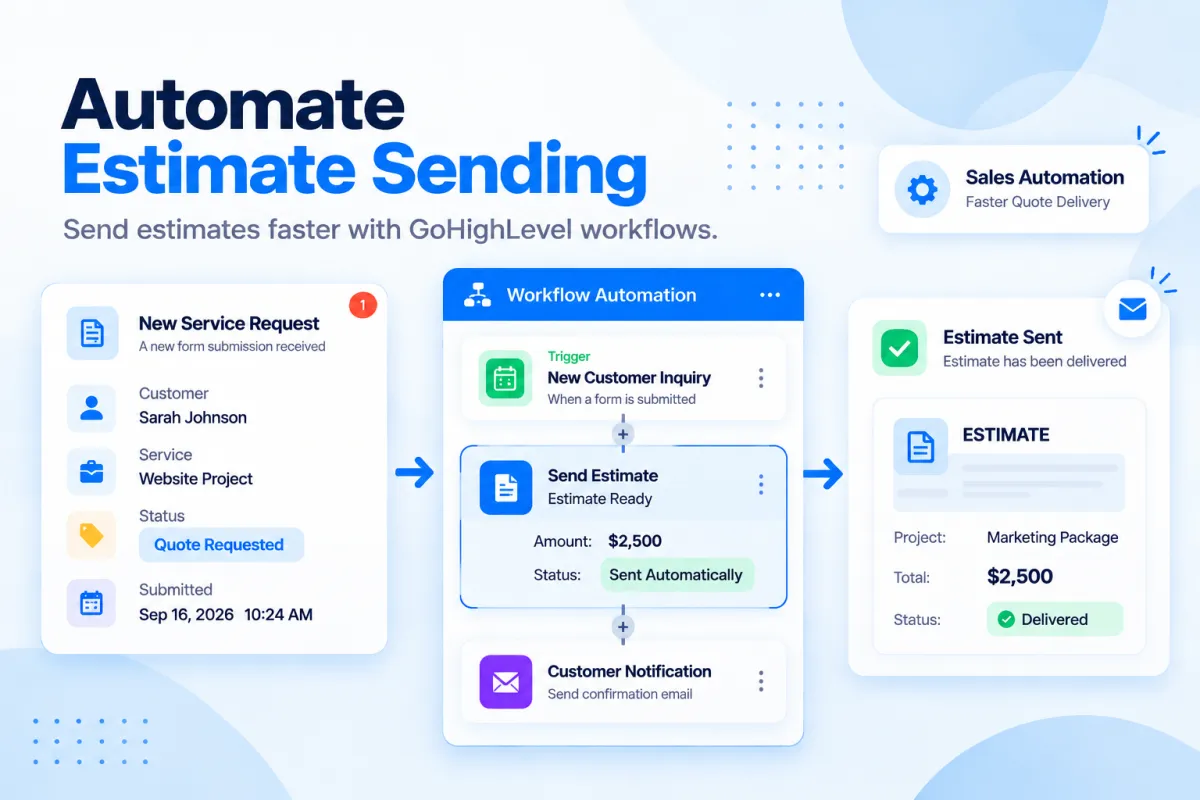
How to Send Estimates Automatically in GoHighLevel: Step-by-Step Guide
How to Send Estimates Automatically Using the Send Estimate Action in GoHighLevel
Introduction
Creating and sending estimates is an important step in many businesses, especially for service providers, agencies, consultants, and companies that provide customized solutions. A slow estimate process can delay decision-making, create unnecessary follow-ups, and make the customer experience feel less organized.
Traditionally, businesses create estimates manually, send them through email, wait for customer responses, and update their CRM records afterward. While this process works, it can become time-consuming when handling multiple leads or customer requests.
GoHighLevel helps businesses simplify this process by connecting estimates with workflow automation. Using the Send Estimate Action in GoHighLevel, businesses can automatically send estimates to contacts when specific workflow conditions are met.
Instead of manually sending every estimate, businesses can create automated workflows that deliver estimates at the right moment in the customer journey.
In this guide, we will explain what the Send Estimate Action in GoHighLevel is, how it works, how to set it up, practical use cases, and best practices for building efficient estimate automation workflows.
What Is the Send Estimate Action in GoHighLevel?
The Send Estimate Action in GoHighLevel is a workflow action that allows businesses to automatically send an estimate to a contact as part of an automation sequence.
This action operates within the GoHighLevel Workflow Builder and allows businesses to connect estimate delivery to various customer events.
For example:
A customer submits a service request.
↓
Workflow starts.
↓
Send Estimate Action runs.
↓
Customer receives the estimate.
This removes the need for a team member to manually create reminders or send estimate notifications every time a customer reaches a specific stage.
The action is useful for businesses that regularly provide pricing proposals, service estimates, or project quotes.
Examples include:
Home service businesses
Marketing agencies
Consultants
Contractors
Professional service providers
Custom project businesses
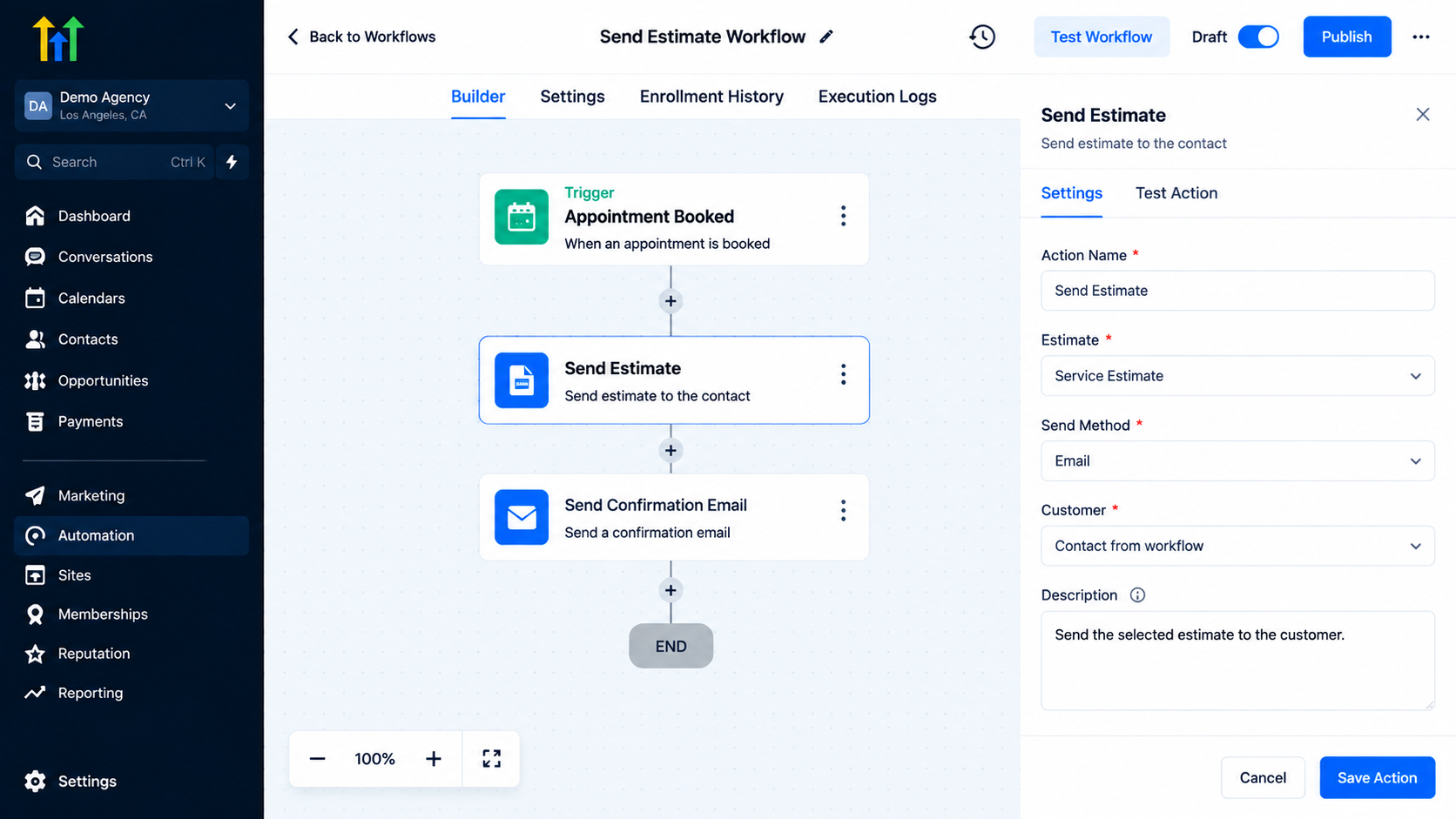
GoHighLevel workflow builder displaying a Send Estimate Workflow that sends a service estimate and confirmation email after an appointment is booked
Why Automate Estimates in GoHighLevel?
Estimates are often one of the first important steps before a customer makes a buying decision. A delayed estimate can slow down the entire sales process.
Automating estimates helps businesses create a faster and more organized customer experience.
Improve Response Time
Customers usually expect quick answers after requesting pricing information.
With automation, estimates can be sent immediately after the required workflow condition is completed.
For example:
Lead submits service request
↓
Estimate automatically sent
↓
Customer reviews pricing
This reduces waiting time and keeps the conversation moving.
Reduce Manual Administrative Work
Without automation, teams often repeat the same tasks:
Create estimate
Find customer details
Send estimate
Follow up manually
Update CRM records
Automation reduces these repetitive steps and allows teams to focus on customer communication and service delivery.
Create Consistent Sales Processes
Every customer can follow the same estimate process.
Instead of depending on different team members to remember each step, workflows ensure that estimates are sent according to your defined process.
Connect Estimates With CRM Automation
One of the biggest advantages of GoHighLevel workflows is that estimates can become part of a larger customer journey.
Example:
Customer inquiry
↓
Estimate sent
↓
Follow-up message
↓
Opportunity updated
↓
Deal progression
This creates a more connected sales and service process.
How the Send Estimate Action Works in GoHighLevel
The Send Estimate Action works as part of a workflow automation.
A basic workflow structure may look like:
Customer Trigger
↓
Send Estimate Action
↓
Follow-Up Actions
The trigger determines when the estimate should be sent.
Possible workflow triggers may include:
Form submissions
Customer actions
Pipeline changes
Other automation events
Once the workflow reaches the Send Estimate Action, GoHighLevel sends the configured estimate to the selected contact.
The exact workflow setup depends on your business process and how your estimates are created.
Requirements Before Using Send Estimate Action
Before creating estimate automation, businesses should prepare a few things.
Create Your Estimate First
Before automation can send an estimate, you need to have the required estimate information available.
Make sure your estimate includes:
Customer information
Products or services
Pricing details
Relevant terms or notes
A complete estimate creates a better customer experience.
Organize Your Customer Journey
Before adding the action, decide when the estimate should be sent.
Examples:
After a consultation request
After a sales qualification step
After a service inquiry
After an opportunity reaches a specific stage
A clear workflow goal makes automation easier to manage.
Step-by-Step: How to Add Send Estimate Action in GoHighLevel
Step 1: Open GoHighLevel Workflow Builder
Navigate to:
Automation → Workflows
Create a new workflow or open an existing workflow where you want to automate estimate delivery.
Your workflow should already have a trigger that determines when the estimate should be sent.
Example:
Trigger: New Service Inquiry
Step 2: Choose Your Workflow Trigger
The trigger decides when the workflow begins.
Examples:
New lead submits a form
Customer enters a pipeline stage
Appointment is completed
Contact receives a specific tag
Choose the trigger that matches your estimate process.
Example:
A customer requests a quote through a website form.
↓
Workflow starts.
↓
Estimate is sent automatically.
Step 3: Add the Send Estimate Action
Inside the workflow builder:
Click the "+ Action" button.
Search for the estimate-related action.
Select "Send Estimate."
Configure the required settings.
Place the action where you want the estimate to be delivered.
Example:
Lead Qualified
↓
Send Estimate
↓
Follow-Up Email
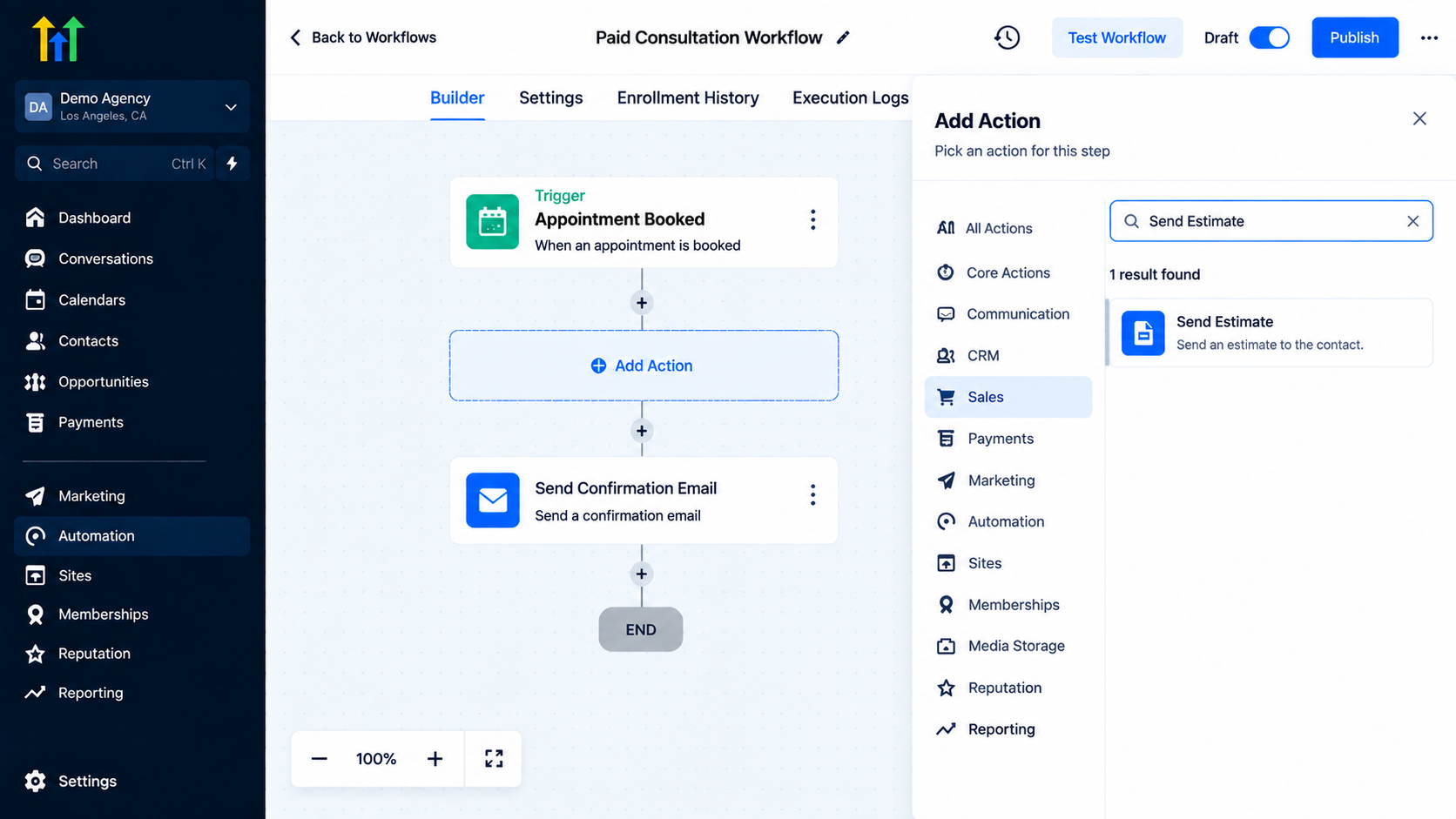
GoHighLevel workflow builder displaying the Add Action panel to select and insert a Send Estimate action into a Paid Consultation Workflow
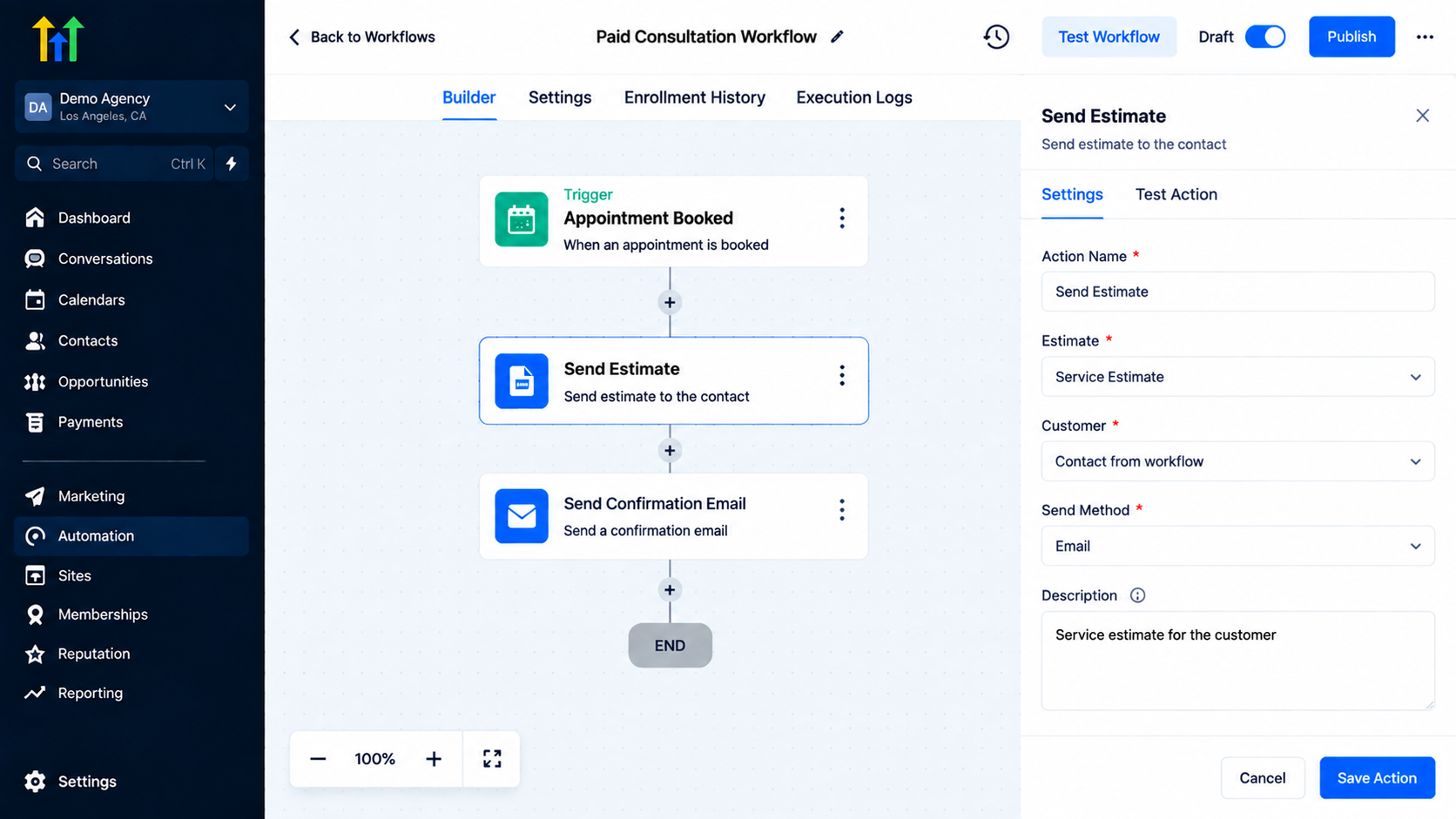
Step 4: Configure Estimate Details
Review your estimate settings carefully.
Make sure:
The correct customer is selected
Estimate information is accurate
Pricing details are correct
The workflow sends the intended estimate
Incorrect estimate information can create confusion and impact customer trust.
Step 5: Add Follow-Up Automation
After sending an estimate, businesses can continue the workflow.
Examples:
Send Reminder Messages
If a customer does not respond:
↓
Send follow-up message
Update Opportunity
After estimate delivery:
↓
Move opportunity stage
Notify Team Members
After estimate is sent:
↓
Notify sales representative
This helps keep the sales process organized.
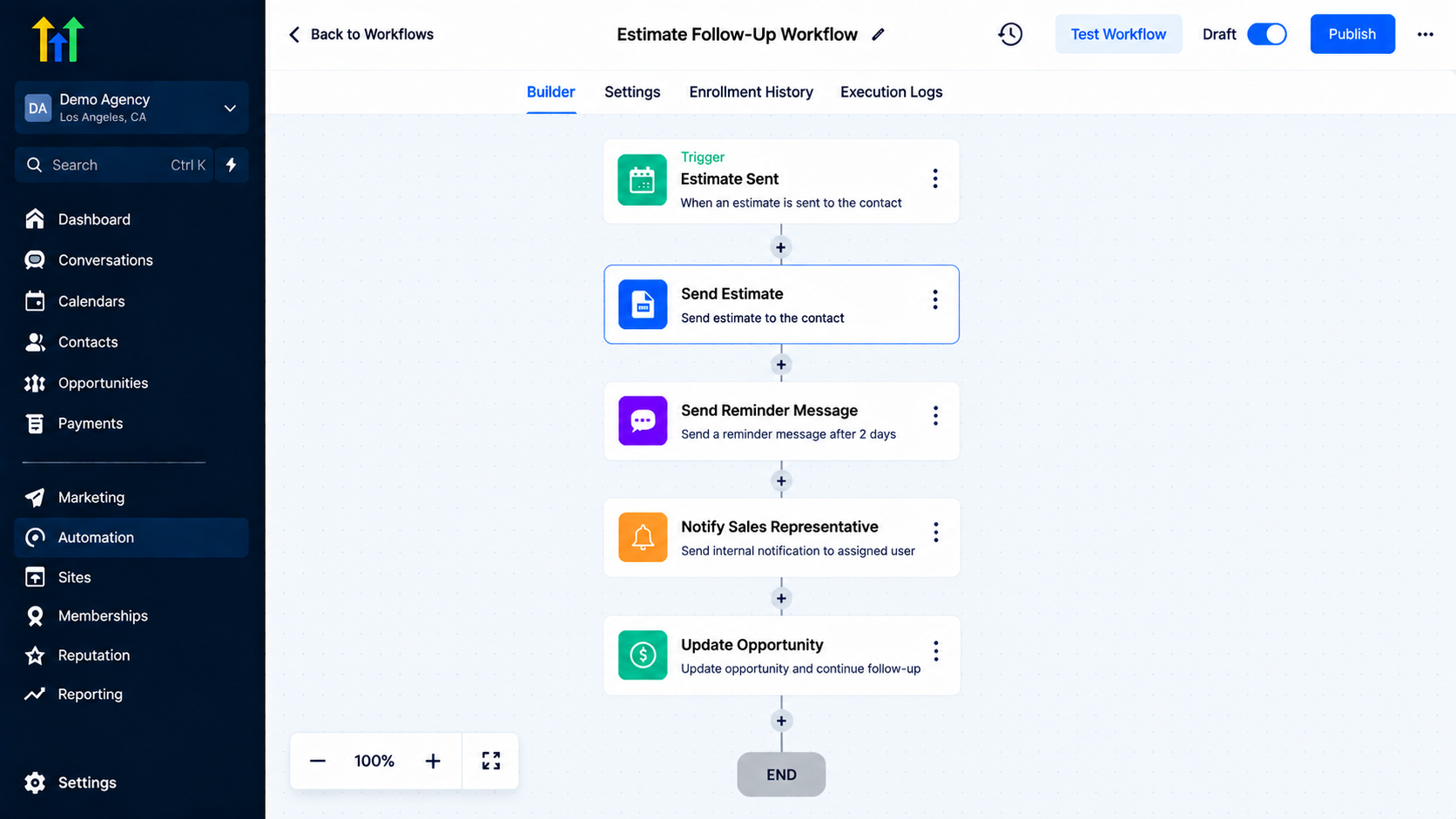
GoHighLevel workflow builder showing an automated Estimate Follow-Up sequence with triggers, reminder messages, and sales notifications
Step 6: Test the Workflow
Before activating the automation, test the complete process.
Check:
Workflow trigger works correctly
Estimate is sent successfully
Customer receives the correct information
Follow-up actions run properly
Testing prevents customer-facing issues.
Step 7: Activate the Workflow
After testing:
Review workflow steps
Confirm estimate settings
Publish the workflow
Once active, contacts who meet the trigger requirements will automatically receive estimates.
Practical Use Cases for Send Estimate Automation
1. Home Service Businesses
Many service businesses send estimates before starting work.
Examples:
Cleaning services
Landscaping companies
Repair services
Contractors
Workflow example:
Customer Request
↓
Estimate Created
↓
Estimate Sent Automatically
↓
Follow-Up Reminder
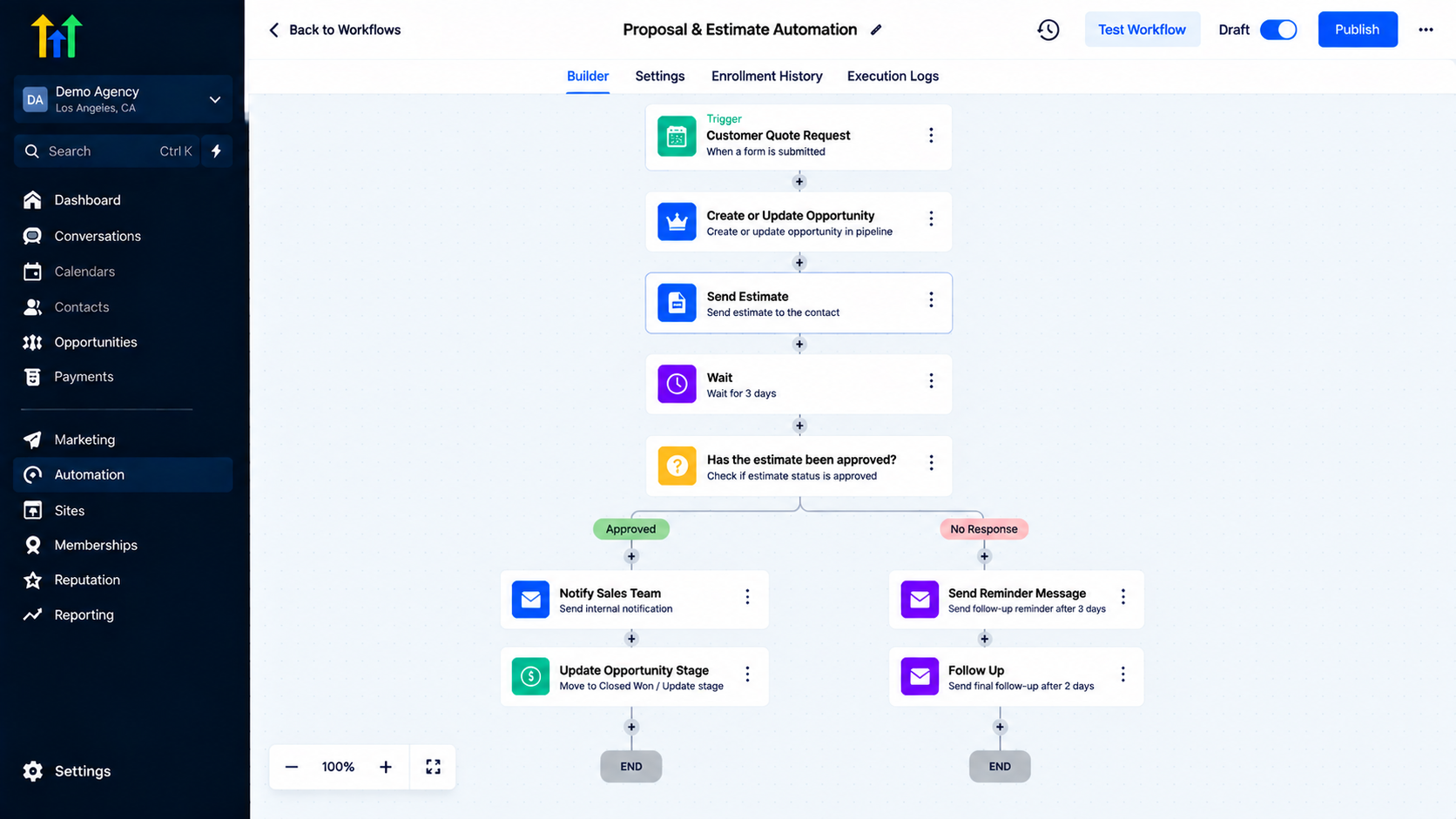
GoHighLevel workflow builder displaying an Estimate and Proposal Automation workflow featuring conditional logic for approvals and follow-ups
2. Marketing Agencies
Agencies often provide customized service packages.
Example:
Lead completes discovery form.
↓
Estimate sent automatically.
↓
Sales team follows up.
This creates a smoother proposal process.
3. Consulting Businesses
Consultants can automate estimate delivery after understanding customer requirements.
Example:
Consultation completed.
↓
Estimate sent.
↓
Client decision process begins.
4. Project-Based Services
Businesses working on custom projects can use estimate automation to improve their sales process.
Example:
Project inquiry
↓
Estimate delivery
↓
Approval process
↓
Project onboarding
Best Practices for Using Send Estimate Action
Keep Estimates Accurate
Always review pricing and service details before sending automated estimates.
Create Clear Workflows
A simple workflow is easier to manage.
Example:
Trigger
↓
Send Estimate
↓
Follow-Up
Avoid unnecessary complexity.
Combine Estimates With Follow-Ups
Sending an estimate is only the first step.
Follow-up automation can help customers remember to review and respond.
Test Before Going Live
Always test your workflow before sending estimates to real customers.
This helps identify errors before they affect your customer experience.
Common Mistakes to Avoid
Sending Incorrect Estimates
Always verify estimate details before automation goes live.
Missing Follow-Up Steps
Customers may need reminders after receiving an estimate.
Creating Complex Workflows
Overcomplicated workflows can become difficult to maintain.
Not Testing Automation
Always test estimate workflows before using them with customers.
Ignoring Customer Experience
The estimate should be clear, professional, and easy for customers to understand.
Frequently Asked Questions(FAQ's)
1. What is the Send Estimate Action in GoHighLevel?
The Send Estimate Action allows businesses to automatically send estimates through workflow automation.
2. Can GoHighLevel send estimates automatically?
Yes, businesses can use workflow automation to send estimates when specific conditions are met.
3. Who can use estimate automation in GoHighLevel?
Service providers, agencies, consultants, and businesses that send pricing estimates can use this automation.
4. Can I add follow-ups after sending an estimate?
Yes, you can continue the workflow with additional automation steps such as messages, notifications, or CRM updates.
5. Why should businesses automate estimate sending?
Automation helps reduce manual work, improve response speed, and create a consistent customer experience.
Conclusion
The Send Estimate Action in GoHighLevel helps businesses simplify the process of delivering estimates by connecting estimate sending with workflow automation.
Instead of manually creating reminders and sending estimates one customer at a time, businesses can build automated processes that deliver estimates at the right moment.
A successful estimate workflow requires accurate pricing information, a clear customer journey, proper testing, and helpful follow-up steps.
When implemented correctly, estimate automation can save time, improve customer communication, and create a more organized sales process inside GoHighLevel.
By combining estimates with CRM workflows, businesses can create a smoother experience from the first customer inquiry to the final purchase decision.
Need Expert Help with GoHighLevel?
New to GoHighLevel and ready to get started? Buy your GoHighLevel account here and launch with confidence.
Already know what you need and want our team to handle everything, from complete setup and customization to funnels, workflows, automations, CRM, and pipelines? Click here.



