

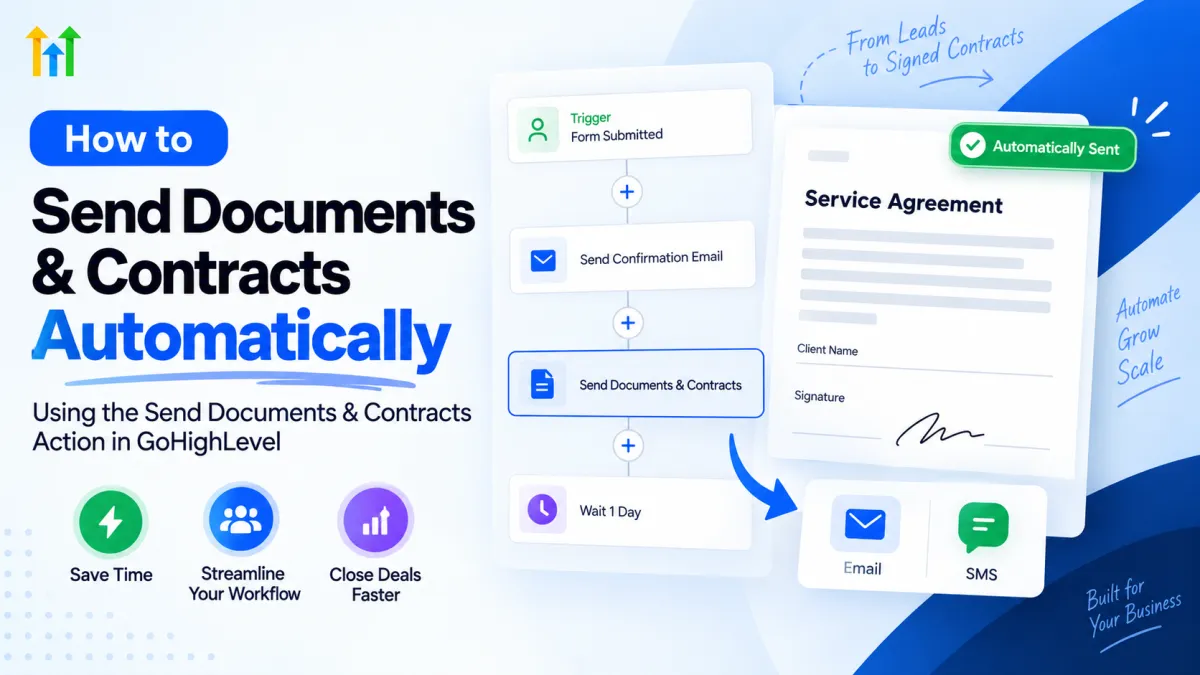
How to Send Documents & Contracts Automatically in GoHighLevel
How to Send Documents and Contracts Automatically Using the Send Documents & Contracts Action in GoHighLevel
A salesperson closes a deal, opens a contract template, checks the client details, selects the right agreement, sends it manually, and then has to remember what happens next.
Doing this once is manageable. Doing it repeatedly across dozens of leads creates unnecessary manual work and increases the chance that an important document is delayed or overlooked.
That is where the GoHighLevel Send Documents & Contracts workflow action becomes useful. Instead of relying on someone to manually prepare and deliver documents every time a predictable event occurs, you can connect document delivery directly to your GoHighLevel workflow.
What Is the Send Documents & Contracts Action in GoHighLevel?
The Send Documents & Contracts action allows a GoHighLevel workflow to use an existing Documents & Contracts template when a contact reaches a specific point in an automated process.
For example, a business may want to prepare or send an agreement after:
A qualification form is submitted
An opportunity moves to a specific pipeline stage
A lead reaches a defined point in a sales or onboarding workflow
Instead of asking a team member to create the document manually each time, the workflow can handle the document step using the template you have already prepared.
This makes document delivery part of the customer journey rather than a separate administrative task.
Why Automate Documents and Contracts?
Document automation is particularly useful when the same type of document is repeatedly required at a predictable stage.
Using GoHighLevel document automation can help businesses:
Reduce repetitive manual work
Create a more consistent process
Send the appropriate document at the correct stage
Reduce delays between a customer action and document delivery
Standardize which document template is used
Keep a human review step when necessary
Automation does not mean every agreement must be sent without human involvement. GoHighLevel provides different sending modes so businesses can decide how much control they want to maintain.
How to Send Contracts Automatically in GoHighLevel
Here is a practical process for setting up the GoHighLevel Send Documents & Contracts action.
1. Prepare Your Document Template
Start by creating and reviewing the required template inside GoHighLevel's Documents & Contracts area.
Make sure your document is ready before connecting it to a live workflow. Review the content and recipient information requirements carefully.
2. Open or Create Your Workflow
Navigate to the workflow responsible for the relevant part of your sales, onboarding, or client-management process.
The workflow should represent the business process in which the document actually needs to be prepared.
3. Choose the Appropriate Trigger
Select a legitimate workflow trigger representing the event that should begin the process.
Depending on your setup, that might involve a form submission, an opportunity or pipeline change, or another supported HighLevel workflow event.
4. Add the Send Documents & Contracts Action
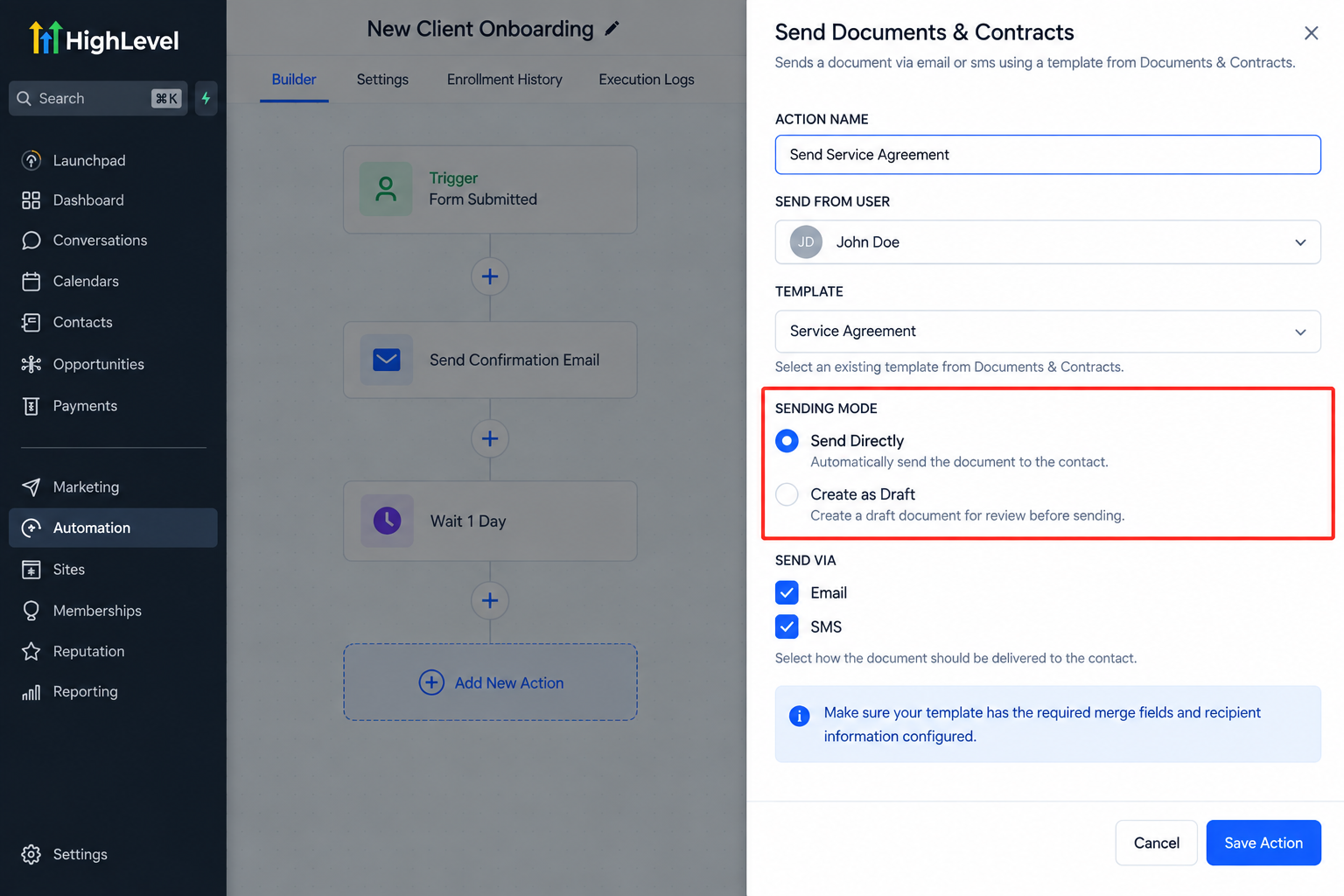
Add the Send Documents & Contracts action to the appropriate point in the workflow and give the action a descriptive name.
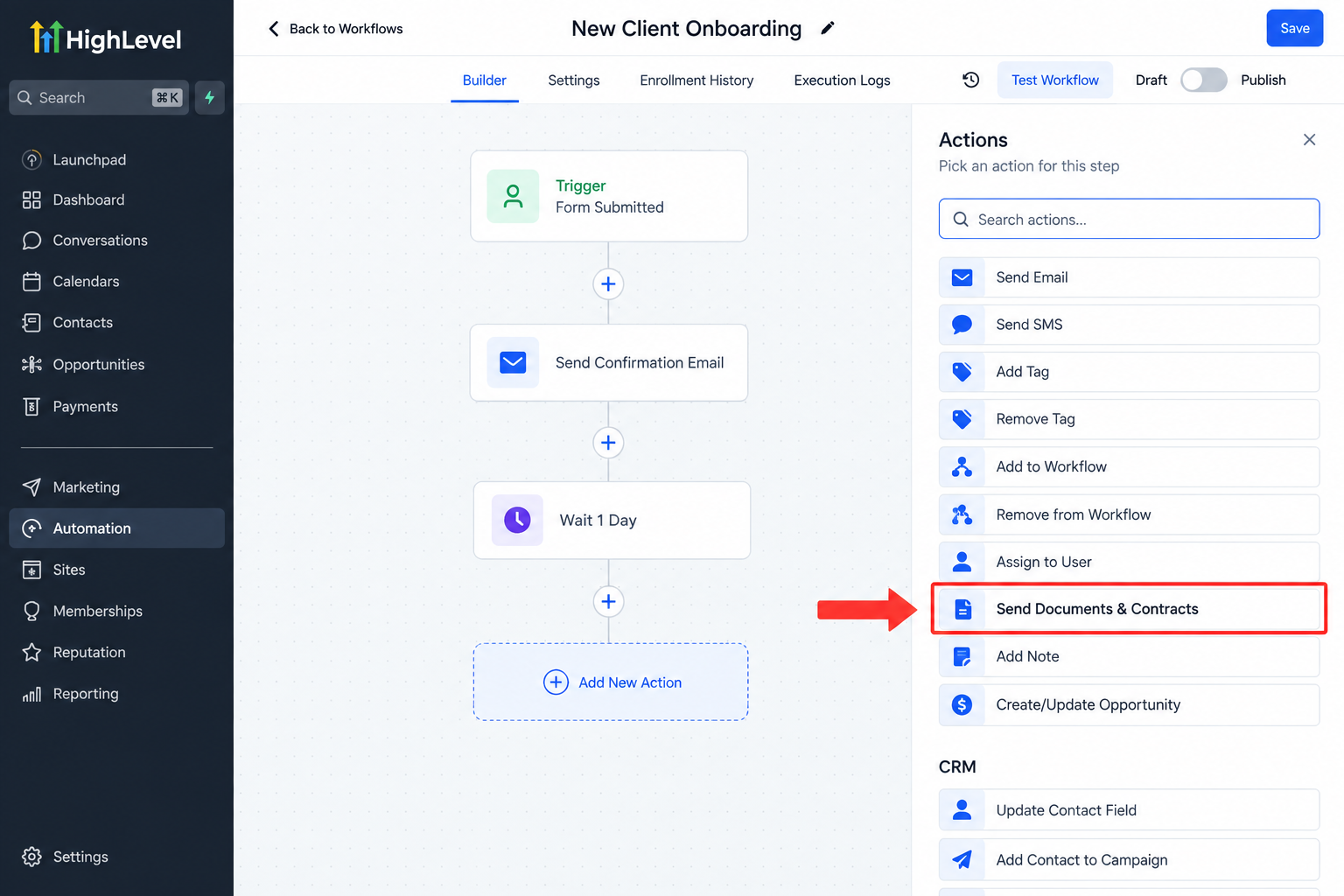
A clear name helps when reviewing larger workflows later.
5. Select the Sender and Template
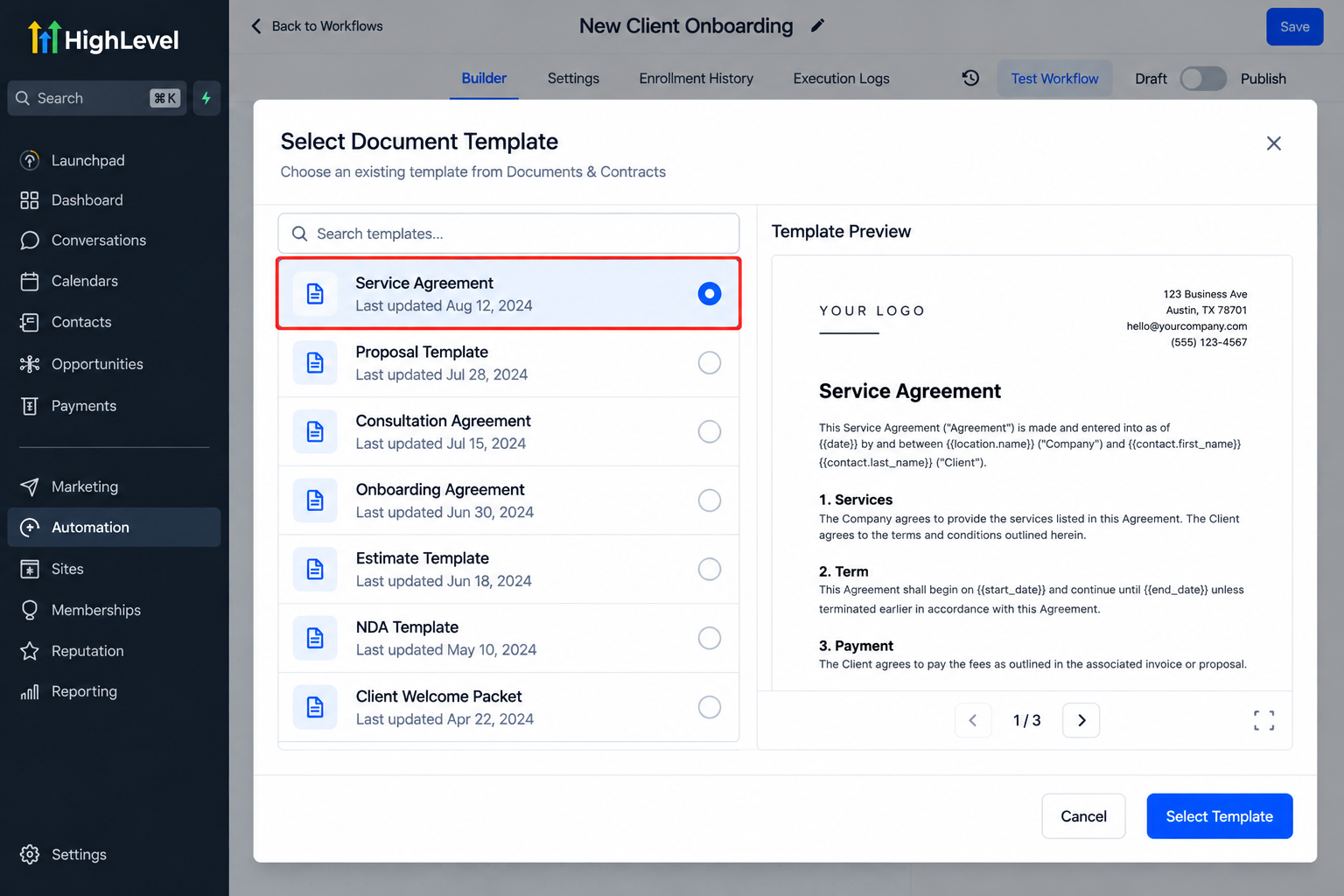
Choose the appropriate user the document should be sent from, then select the saved Documents & Contracts template you want the workflow to use.
6. Choose the Sending Mode
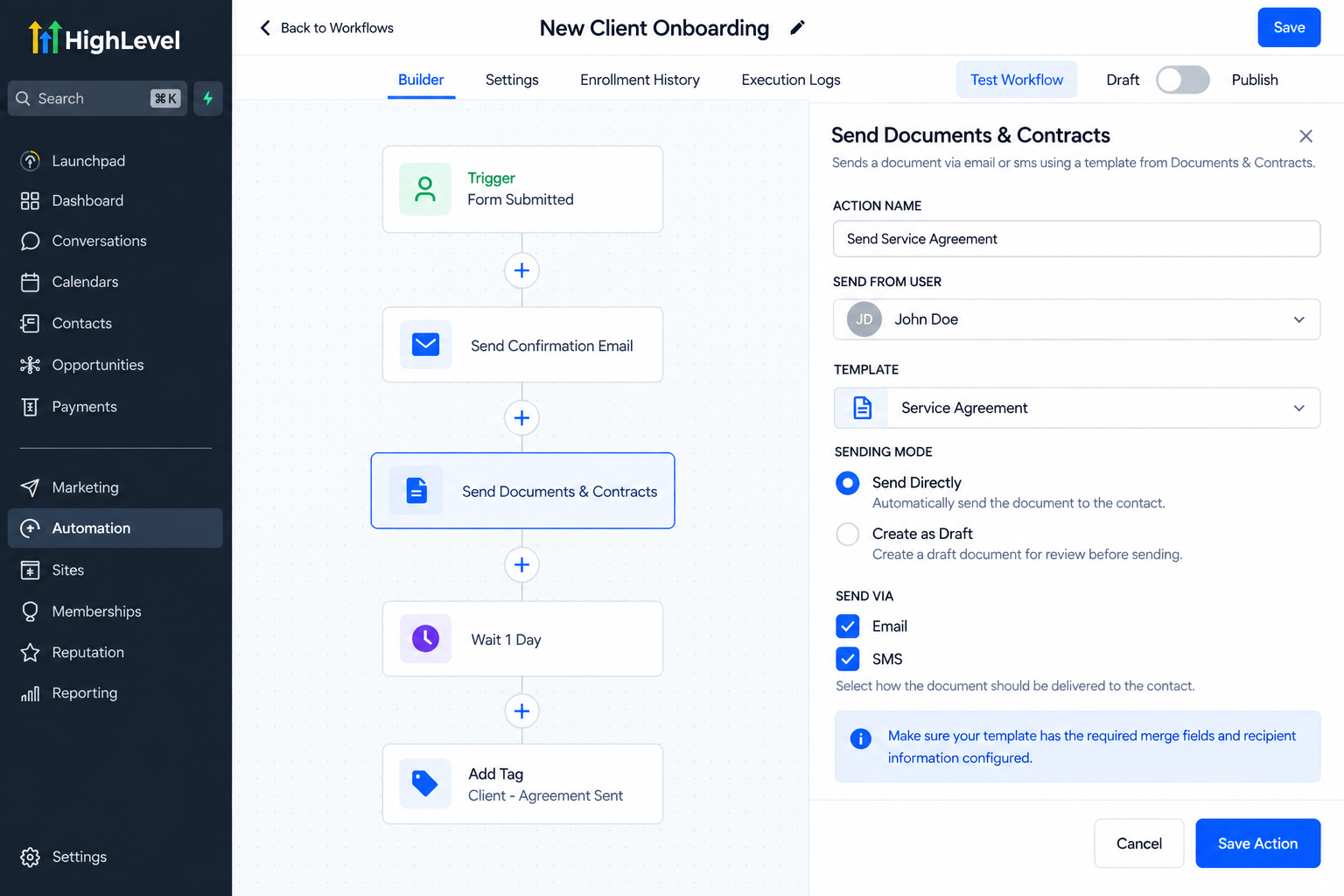
Select whether the document should be sent automatically or created as a draft for review.
Where supported and configured, you can also choose appropriate delivery options such as email, SMS, or both.
7. Save and Test the Workflow
Before publishing, run the process using a test contact.
Check that the correct trigger activates, the correct template is selected, recipient information appears properly, and the workflow behaves as expected.
Send Directly vs Create as Draft
Choosing the correct sending mode is one of the most important parts of your GoHighLevel contract workflow.
Send Directly
Send Directly is useful when the process is standardized and the document should be delivered automatically once the workflow reaches that action.
For example, an agency might send its standard service agreement automatically after an approved opportunity reaches the contract stage.
Create as Draft
Create as Draft is better when someone should review, edit, verify, or personalize the document before delivery.
A consultant preparing a customized proposal, for example, may want the workflow to generate the document but leave final review to a team member.
This option combines automation with human oversight.
Practical GoHighLevel Document Automation Use Cases
The action can fit into many business processes.
A marketing agency could send a service agreement after a deal reaches an approved pipeline stage.
A consultant could generate a proposal after a prospect submits a qualification form.
A home-service business could prepare an estimate or agreement when an opportunity reaches the appropriate stage.
A recruiting company could use document automation during client or candidate onboarding.
A professional services company could generate its standard contract as a new client enters onboarding.
Take the Automation One Step Further
Sending the document does not have to be the final workflow step.
GoHighLevel also provides Documents & Contracts workflow triggers that can be used separately to react to relevant document events or status changes, such as a document being sent, viewed, signed, or completed.
That distinction is important: the Send Documents & Contracts action generates or sends the document, while document-related triggers can start later automation.
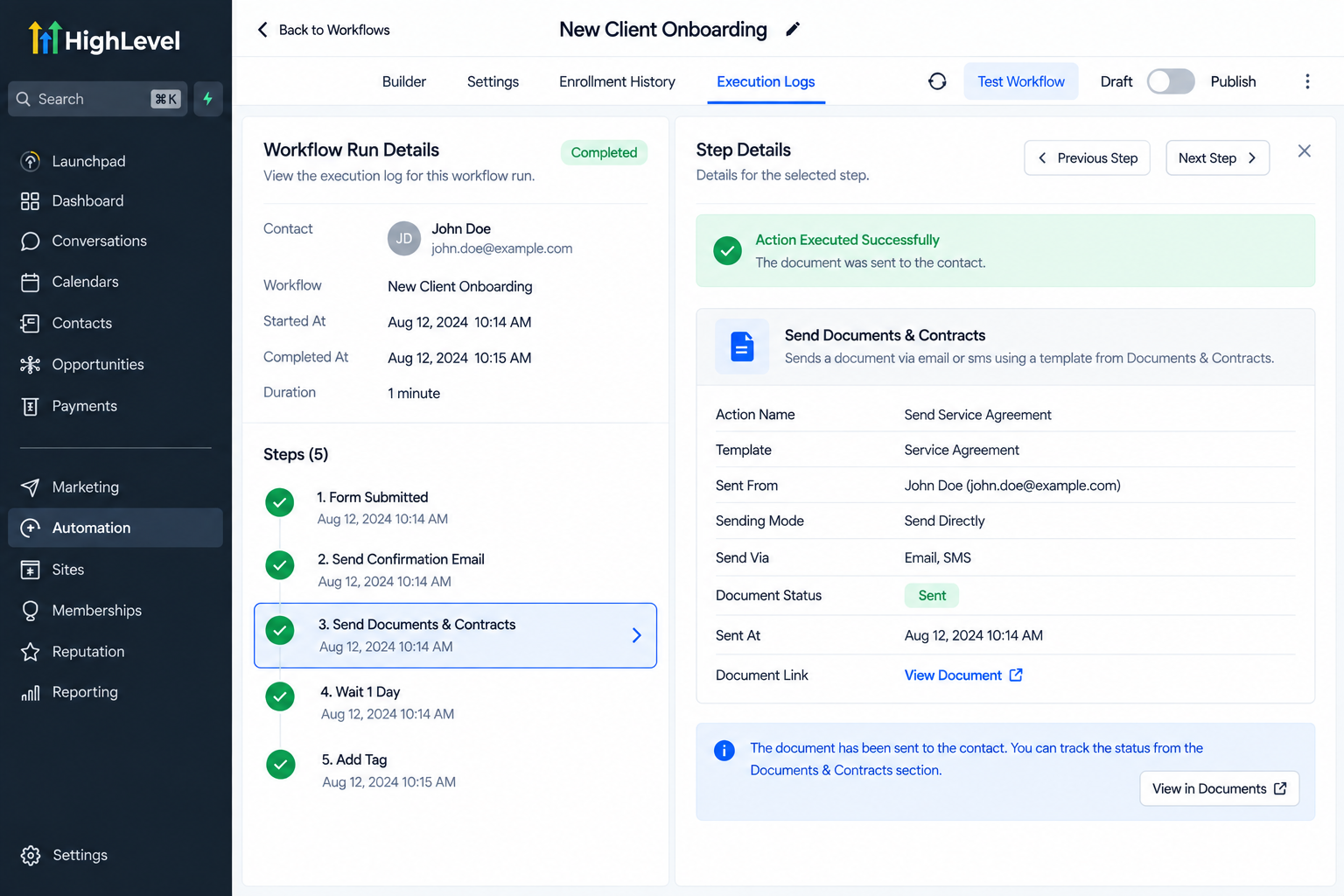
For example, after completion you might notify a team member, update a process, add an appropriate tag, or begin the next onboarding workflow.
Best Practices for GoHighLevel Contract Automation
Before activating your workflow:
Build and test the template first
Verify recipient information
Use descriptive action names
Choose Create as Draft when human review is needed
Test with a sample contact
Make sure the workflow trigger represents the correct business event
Avoid duplicate documents caused by overlapping workflows
Keep follow-up automation organized separately
Conclusion
The real value of GoHighLevel Send Documents & Contracts is not simply sending a contract automatically.
It is connecting document preparation and delivery to the actual customer journey.
When the correct document is prepared or delivered at the correct stage automatically, sales and onboarding processes become more consistent while teams spend less time remembering repetitive administrative steps.
Used thoughtfully, GoHighLevel contract automation turns document delivery into a natural part of your workflow instead of another manual task waiting on someone's to-do list.
Frequently Asked Questions
1. What is the Send Documents & Contracts action in GoHighLevel?
The Send Documents & Contracts action allows a GoHighLevel workflow to use an existing Documents & Contracts template and prepare or send it automatically when a contact reaches a specific step in the workflow.
2. Can GoHighLevel send contracts automatically through a workflow?
Yes. Using the Send Documents & Contracts workflow action, you can configure a document to be sent automatically when the workflow reaches that action, provided the template and required settings are properly configured.
3. What is the difference between Send Directly and Create as Draft in GoHighLevel?
Send Directly is used when the document should be delivered automatically without manual review. Create as Draft prepares the document but allows a team member to review, edit, or verify it before sending.
4. Can GoHighLevel trigger automation after a document is signed or completed?
Yes. GoHighLevel provides separate Documents & Contracts workflow triggers that can be used for follow-up automation based on supported document events or status changes, such as when a document is signed or completed.
5. What types of documents can businesses automate in GoHighLevel?
Businesses can use Documents & Contracts templates for processes involving proposals, service agreements, estimates, onboarding documents, and contracts, depending on how their workflow and document templates are configured.
Need Expert Help with GoHighLevel?
New to GoHighLevel and ready to get started? Buy your GoHighLevel account here and launch with confidence.
Already know what you need and want our team to handle everything, from complete setup and customization to funnels, workflows, automations, CRM, and pipelines? Click here.



