

Send Data to External Apps Using GoHighLevel Webhooks: Step By Step Guide
How to Send Data to External Apps Using the Webhook Action in GoHighLevel
Introduction
Modern businesses rarely operate from a single platform. Your leads might enter through GoHighLevel, customer data may need to reach another CRM, and an external application may handle reporting, fulfillment, or a specialized business process.
The challenge is getting these systems to communicate without manually copying information from one platform to another.
That is where the Webhook Action in GoHighLevel becomes useful.
With an outbound webhook, a GoHighLevel workflow can send information to an external application's webhook URL when a contact reaches a specific step in the workflow. This gives agencies, marketers, and business owners a practical way to extend their GoHighLevel automations beyond the platform itself.
In this guide, you'll learn what the GoHighLevel Webhook Action does, how to configure it step by step, what data can be sent, practical business use cases, and the mistakes you should avoid.
What Is the Webhook Action in GoHighLevel?
A webhook is essentially a way for one application to send information to another application over the web.
In GoHighLevel, the Webhook Action is an outbound workflow action. When a workflow reaches this action, GoHighLevel packages relevant contact and trigger information into a payload and sends it to the external URL you specify.
The basic process looks like this:
"GoHighLevel Workflow → Webhook Action → External Webhook URL → External Application"
For example, imagine a lead submits a form on your website. Your workflow can be configured to send that lead's information to an external system immediately after the form submission.
The external application receives the request and can then process the information according to its own capabilities.
The important point is that GoHighLevel is sending the data. The receiving application must provide a webhook URL or another endpoint capable of accepting the request.
Webhook Action vs. Inbound Webhook
These two concepts are easy to confuse.
An outbound Webhook Action sends information from GoHighLevel to another application.
An Inbound Webhook trigger works in the opposite direction: an external application sends information into GoHighLevel, where it can trigger a workflow. GoHighLevel documents these as separate webhook use cases.
So, if your goal is to send contact data from GoHighLevel to an external system, the outbound Webhook Action is the relevant feature.
Why Use Webhooks in GoHighLevel?
Native integrations are convenient when they support exactly what you need. However, businesses sometimes need to exchange data with a system that does not have a direct native integration for their particular workflow.
Webhooks can provide another way to connect those systems.
For example, you might want to:
Send new lead information to an external CRM.
Pass contact information into a custom business application.
Send workflow data to a database or processing service that accepts web requests.
Connect GoHighLevel to an automation platform that provides a webhook URL.
Trigger an external process after a specific workflow event.
Send additional custom values alongside contact information.
GoHighLevel specifically describes outbound webhooks as a way to extend workflow automation and send data to external applications or services.
The real advantage is flexibility. Instead of forcing every business process to happen entirely inside GoHighLevel, you can pass relevant information to another system when your workflow reaches the appropriate point.
How to Set Up the Webhook Action in GoHighLevel
Before configuring the workflow, you need a destination.
The receiving application or service must provide a webhook URL capable of receiving the request from GoHighLevel.
Once you have that URL, you can configure the workflow.
Step 1: Open the Workflow Builder
Go to the Automation area in your GoHighLevel sub-account and open the workflow where you want to send information externally.
You can create a new workflow or edit an existing one.
Your workflow should already have a trigger that determines when the webhook should run. For example, the workflow might begin when a contact submits a form or receives a particular tag.
GoHighLevel workflows execute actions sequentially after their triggering event occurs.
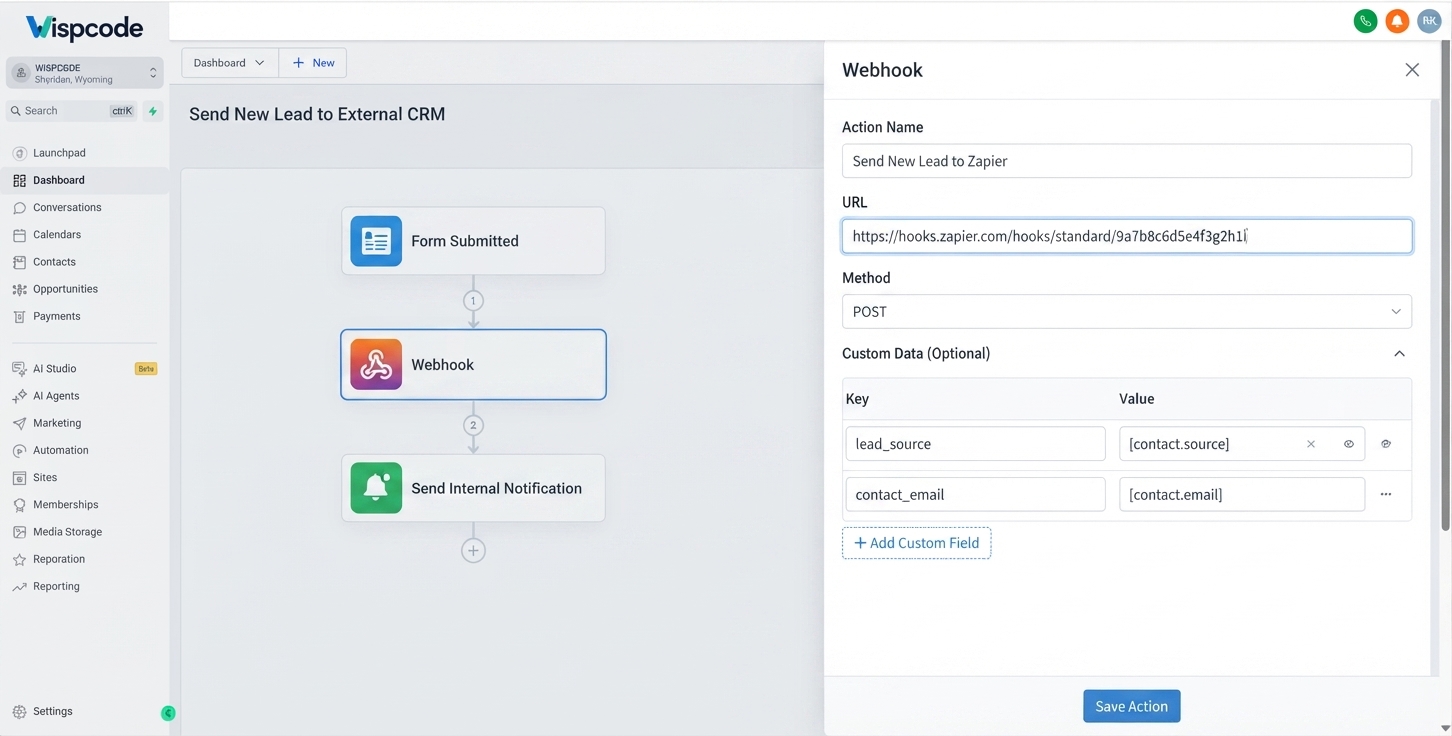
Step 2: Add the Webhook Action
On the workflow canvas, click the + button where you want the external request to occur.
From the Actions panel, search for Webhook and select the Webhook action.
GoHighLevel's current documentation places the Webhook action within the workflow action system and provides configuration options for the outbound request.
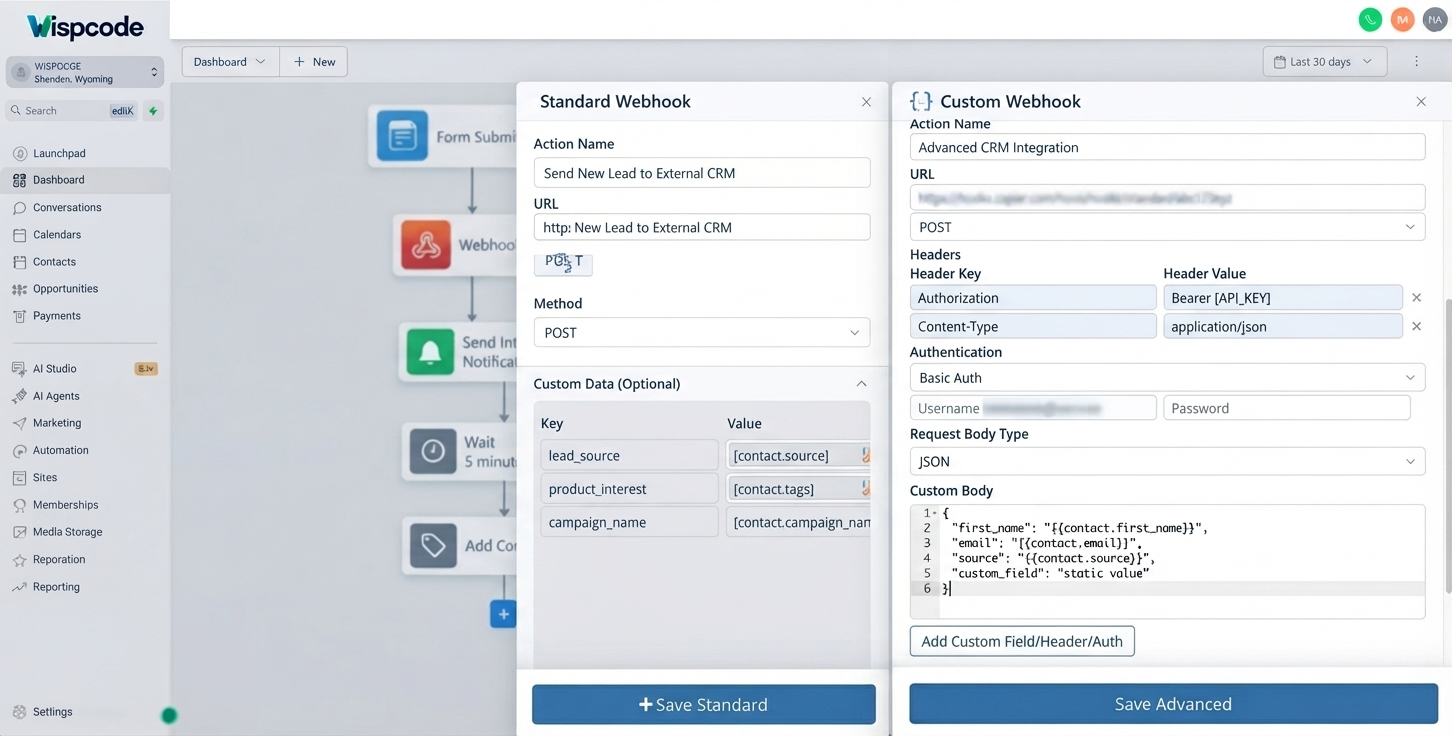
For example, you could structure a simple workflow like:
Form Submitted → Webhook → Send Internal Notification
In this setup, the webhook runs immediately after the contact reaches that point in the workflow.
Step 3: Name the Action
Give the webhook a descriptive name.
Instead of leaving it with a generic label, use something such as:
Send New Lead to External CRM
or
Send Appointment Data to External System
A clear name becomes particularly valuable when a workflow contains multiple integrations or webhook actions.
It also makes future troubleshooting easier.
Step 4: Choose the HTTP Method
The Webhook configuration includes an HTTP method.
For a typical outbound data-sending scenario, POST is commonly used and is the default method documented by GoHighLevel for the Webhook Action.
The correct method ultimately depends on what the receiving application expects.
Always check the receiving application's webhook or API documentation before choosing a method.
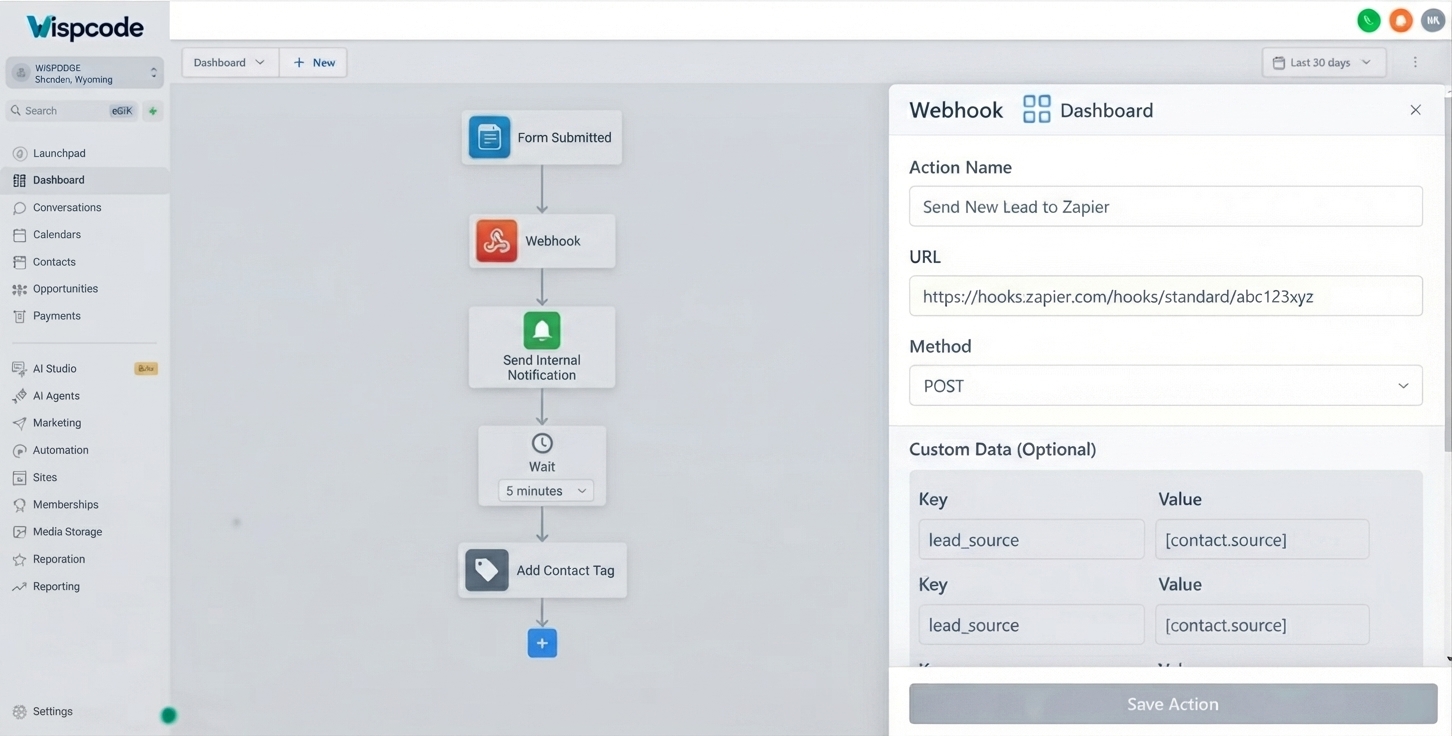
Step 5: Enter the Webhook URL
Next, paste the webhook URL supplied by the external application into the URL field.
This URL is the destination for the request.
Treat the URL carefully. A typo, incomplete URL, or incorrect endpoint can prevent the external system from receiving the expected information.
If the external platform provides separate URLs for testing and production, make sure you are using the appropriate one for your workflow.
Step 6: Add Custom Data When Needed
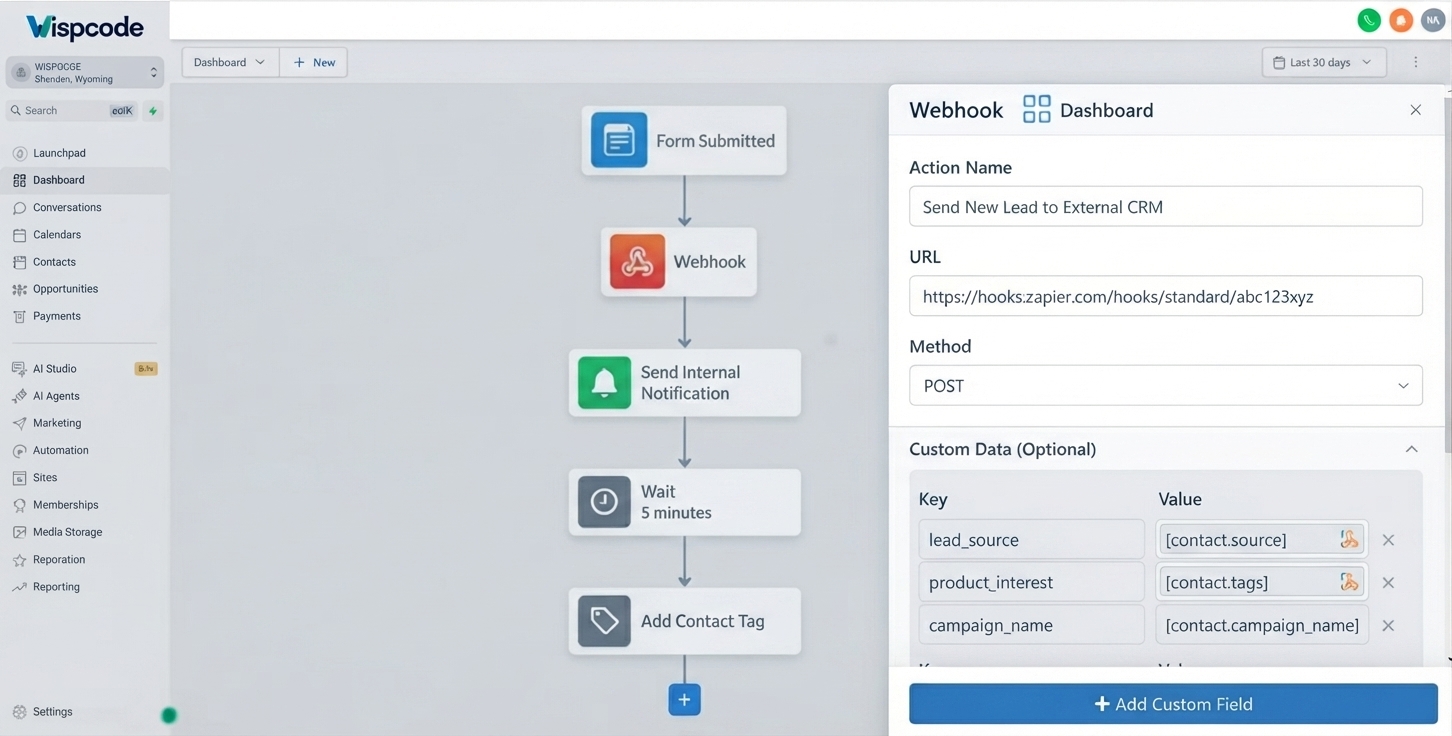
One of the useful features of the Webhook Action is the ability to add custom data.
GoHighLevel allows you to add key-value pairs to the webhook configuration. The key identifies the field, while the value contains the information you want to send. Values can include text or dynamic values from the contact and workflow context.
For example, you might send:
lead_sourceproduct_interestcustomer_typecampaign_name
The values can be populated dynamically using GoHighLevel's available custom values.
This is particularly useful when the receiving system needs more context than the standard contact information alone.
Step 7: Save the Action
After configuring the webhook URL, method, and any required custom data, save the action.
Then review the complete workflow before publishing it.
Make sure:
The correct trigger is configured.
The webhook is positioned at the correct point.
The destination URL is correct.
Custom data uses the intended values.
The external application is ready to receive the request.
Once everything looks correct, publish or activate the workflow according to your normal workflow process.
What Data Does the GoHighLevel Webhook Send?
The webhook payload can contain standard contact information as well as information related to the event that triggered the workflow.
GoHighLevel's documentation states that standard webhook data can include contact information such as:
Full name
First name
Last name
Email
Phone
Address
Tags
Standard contact fields
Custom contact fields
The payload can also contain additional information depending on the workflow trigger. For example, an appointment-related trigger can provide appointment-specific information.
This trigger-dependent behavior is important because the data available to an external application can vary according to the event that started the workflow.
If your external system requires a specific field, verify that the required value is actually available in the workflow context or add it as custom data where appropriate.
Practical GoHighLevel Webhook Use Cases
Send New Leads to an External CRM
Suppose your marketing team uses GoHighLevel to capture leads, but another system handles a specialized sales process.
A workflow could be:
"Form Submitted → Webhook → External CRM"
When a new lead submits the form, GoHighLevel sends the contact information to the external webhook URL.
This eliminates the need for someone to manually copy the lead into another system.
Send Appointment Information to Another System
Appointment-related workflows can also be useful.
For example:
Appointment Booked → Webhook → External Application
Depending on the trigger and available payload data, the external system can receive relevant contact and appointment information.
This can be useful when another platform needs appointment information for an external business process.
Connect GoHighLevel to an Automation Platform
Some automation platforms can receive webhook requests and then use the incoming information to perform additional actions.
In this type of setup, GoHighLevel sends the webhook to the platform's provided URL. The automation platform receives the payload and can continue the process using the tools and actions available there.
GoHighLevel's own documentation discusses using services such as Zapier, Make, and similar automation platforms as bridges when a direct connection is not available.
Send Custom Business Data
Webhooks are not limited to basic contact details.
If your workflow has useful custom fields, you can include relevant dynamic values in the webhook payload.
For instance, a marketing workflow could send a lead's source and selected service along with their contact information.
The receiving application can then use those values according to its own functionality.
Best Practices for GoHighLevel Webhooks
1. Use Clear Action Names
A workflow containing several webhook steps can quickly become difficult to manage.
Use names that explain both the destination and purpose.
Good: Send Qualified Lead to CRM
Less useful: Webhook 1
2. Verify the Receiving Application's Requirements
Do not assume that every external service accepts the same request structure.
Check its documentation for the required URL, HTTP method, fields, authentication requirements, and expected payload format.
Your GoHighLevel configuration needs to match what the receiving system expects.
3. Send Only Relevant Information
More data is not always better.
Only include the information the external process actually needs. This makes your payload easier to understand and reduces unnecessary data transfer.
4. Test Before Relying on the Automation
Do not wait until a real customer enters the workflow to discover that your webhook is incorrectly configured.
Use the receiving platform's testing tools where available and verify that the expected information arrives correctly.
5. Keep Your Workflow Organized
Place the webhook at the logical point in your automation.
For example:
"Lead Qualification → If/Else → Qualified Branch → Webhook"
This is often more useful than sending every contact to the external application regardless of qualification.
Common Webhook Mistakes to Avoid
Using the Wrong URL
A webhook URL is destination-specific. Sending information to the wrong endpoint can result in failed or unexpected requests.
Assuming Every External App Supports Webhooks
The receiving application must provide a suitable way to accept the request. If it does not, you may need another integration approach.
Sending the Wrong Data Structure
Even when the webhook reaches the destination, the external application may not know what to do with unexpected fields or values.
Always follow the receiving application's documentation.
Confusing Inbound and Outbound Webhooks
Remember the direction:
Outbound: GoHighLevel → External Application
Inbound: External Application → GoHighLevel
This simple distinction prevents a lot of configuration confusion.
Ignoring the Custom Webhook Option
GoHighLevel also offers a separate Custom Webhook workflow action for more advanced request configuration. Its current documentation describes options including authentication, headers, query parameters, different HTTP methods, and customized request bodies.
If the standard Webhook Action does not provide the request structure your integration requires, review whether Custom Webhook is the more appropriate option.
Frequently Asked Questions
1. What is the Webhook Action in GoHighLevel?
The Webhook Action is an outbound workflow action that sends information from GoHighLevel to an external webhook URL. The external application receives the request and can process the data according to its own functionality.
2. Can GoHighLevel send contact information through a webhook?
Yes. GoHighLevel's outbound webhook documentation states that standard webhook data can include contact information such as name, email, phone, address, tags, and standard and custom contact fields.
3. What is the difference between an outbound webhook and an inbound webhook?
An outbound webhook sends information from GoHighLevel to an external application. An inbound webhook allows an external system to send information into GoHighLevel and trigger a workflow.
4. Can I add custom fields to a GoHighLevel webhook?
Yes. The Webhook Action allows you to add custom key-value data, and values can use dynamic information available through GoHighLevel's custom values.
5. Do I need a webhook URL from the external application?
Yes. For an outbound webhook, you need a destination URL that can receive the request. The receiving service is responsible for providing or exposing the appropriate endpoint.
Conclusion
The Webhook Action in GoHighLevel gives you a practical way to move workflow data beyond your CRM and connect your automations with external systems.
The concept is straightforward: a workflow reaches the Webhook Action, GoHighLevel prepares the relevant payload, and the request is sent to the external webhook URL.
The real value comes from using it thoughtfully.
Start with a clear business requirement, confirm that the receiving application can accept the request, configure the correct destination and data, and test the connection before putting it into a critical automation.
For straightforward outbound data transfers, the standard Webhook Action may be all you need. When an integration requires more control over authentication, headers, query parameters, HTTP methods, or request bodies, GoHighLevel's Custom Webhook action may be the better fit.
Used correctly, webhooks can turn a GoHighLevel workflow from a self-contained automation into a reliable connection between your CRM and the wider technology stack your business depends on.
Need Expert Help with GoHighLevel?
New to GoHighLevel and ready to get started? Buy your GoHighLevel account here and launch with confidence.
Already know what you need and want our team to handle everything, from complete setup and customization to funnels, workflows, automations, CRM, and pipelines? Click here.



