

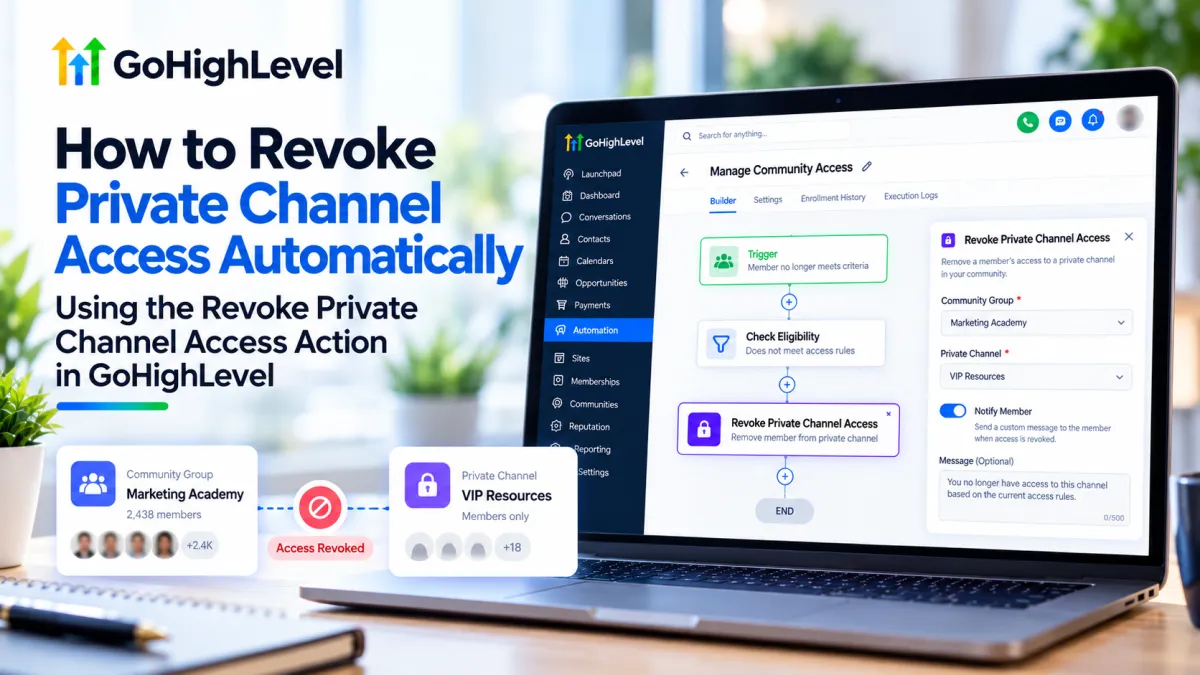
How to Revoke Private Channel Access Automatically in GoHighLevel
How to Revoke Private Channel Access Automatically Using the Revoke Private Channel Access Action in GoHighLevel
Managing a growing online community often means giving different members access to different areas. Some members may belong to premium programs, temporary cohorts, client-only spaces, or specialized discussion channels. When that access needs to end, removing members manually from private channels can quickly become repetitive.
GoHighLevel helps simplify this process with the Revoke Private Channel Access workflow action. Instead of manually checking members and changing their channel permissions one by one, you can include the access change inside an automated workflow.
The important part is understanding exactly what this action does and what it does not do.
What Is the Revoke Private Channel Access Action in GoHighLevel?
The Revoke Private Channel Access action is a GoHighLevel workflow action designed specifically for Communities.
When a contact reaches this action in a workflow, GoHighLevel can revoke that member’s access to a selected private channel within a Community Group. The member can still remain part of the overall Community Group.
That distinction matters.
For example, imagine you operate a Community called Marketing Academy with several channels:
General Discussion
Announcements
Premium Coaching
VIP Resources
A member may still belong in the Marketing Academy Community but no longer qualify for the VIP Resources private channel.
In this situation, Revoke Private Channel Access allows you to remove access specifically from the VIP channel without necessarily removing the member from the whole Community.
HighLevel provides separate workflow options for managing full Community Group access, so Revoke Private Channel Access should not be confused with Revoke Group Access.
When Should You Use Revoke Private Channel Access?
This action is useful whenever access to a particular private area should change while general Community membership should remain intact.
For example, you may use it when a member finishes a limited-duration program and should no longer participate in its private discussion channel.
It can also support tiered memberships. A Community might contain public or general channels available to all members while premium customers receive access to additional private channels. If a member no longer qualifies for a particular tier, a workflow can remove access to the corresponding private channel.
Another practical use case involves temporary cohorts, challenges, masterminds, or client programs. Once the relevant stage ends, the workflow can revoke access without requiring your team to manually update each member.
The workflow action itself does not determine why someone should lose access. Your workflow trigger, conditions, and surrounding automation logic determine when the contact reaches the revoke action.
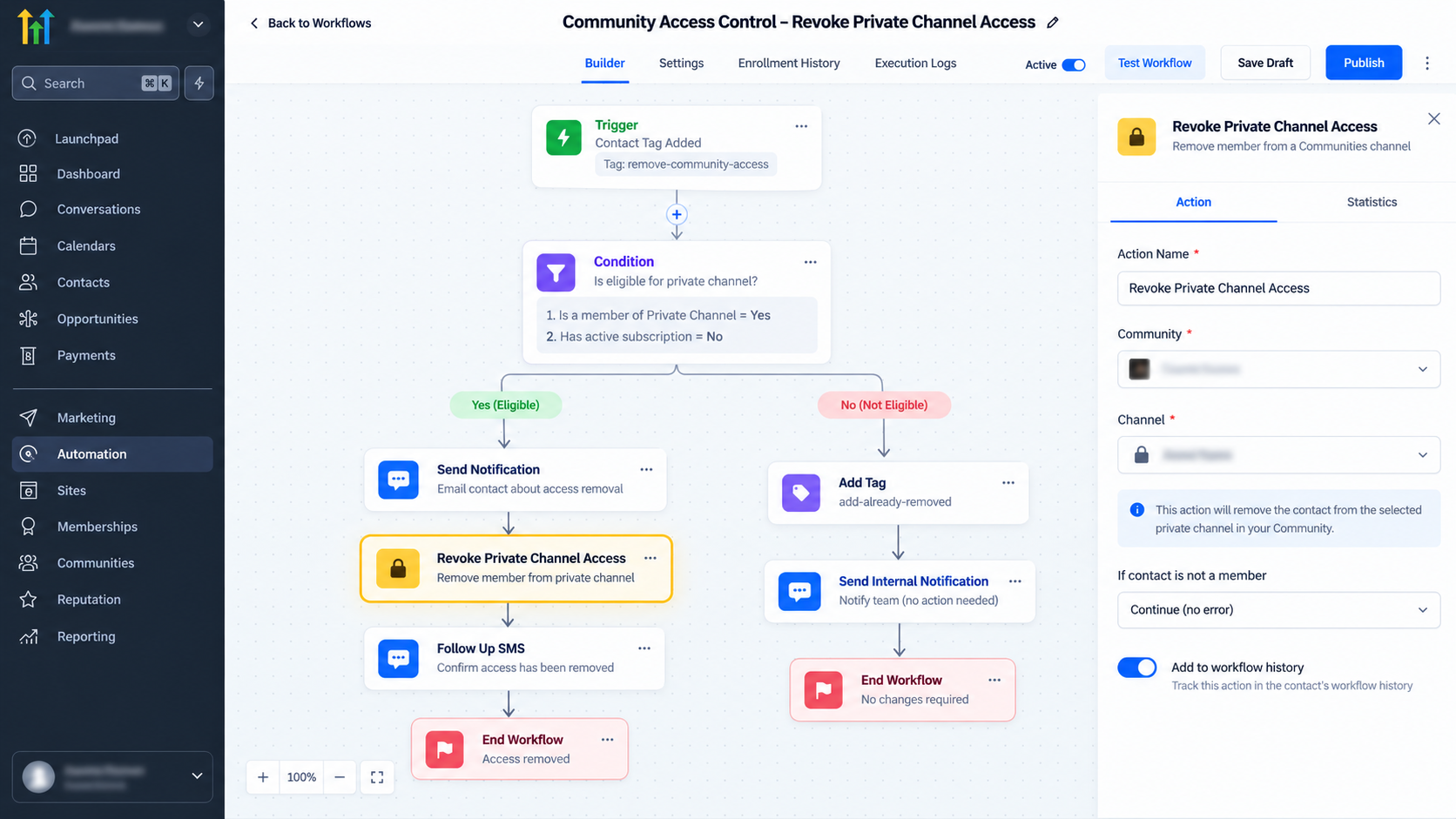
How to Configure Revoke Private Channel Access in GoHighLevel
The setup is relatively straightforward when you already know which Community Group and private channel you want to manage.
1. Open the Workflow Builder
Go to the Automation area inside your GoHighLevel sub-account and open Workflows.
You can create a new workflow or add the action to an existing workflow.
2. Configure Your Workflow Trigger
Choose the event that should cause the contact to enter the workflow.
The correct trigger depends on your business process. The trigger should represent the event that eventually determines whether private-channel access needs to be removed.
Add conditions or branches when necessary so the correct contacts continue toward the access-removal step.
3. Add the Revoke Private Channel Access Action
Click the option to add another workflow action and locate Revoke Private Channel Access.
HighLevel separates private-channel access management from full Community Group access, so make sure you select the private-channel action rather than Revoke Group Access.
4. Select the Community Group
Choose the Community Group containing the private channel you want to manage.
Double-check this selection when you operate multiple Communities.
5. Select the Private Channel
Next, select the specific private channel from which access should be revoked.
HighLevel notes that the relevant private channel must exist for it to be available for selection in the workflow configuration.
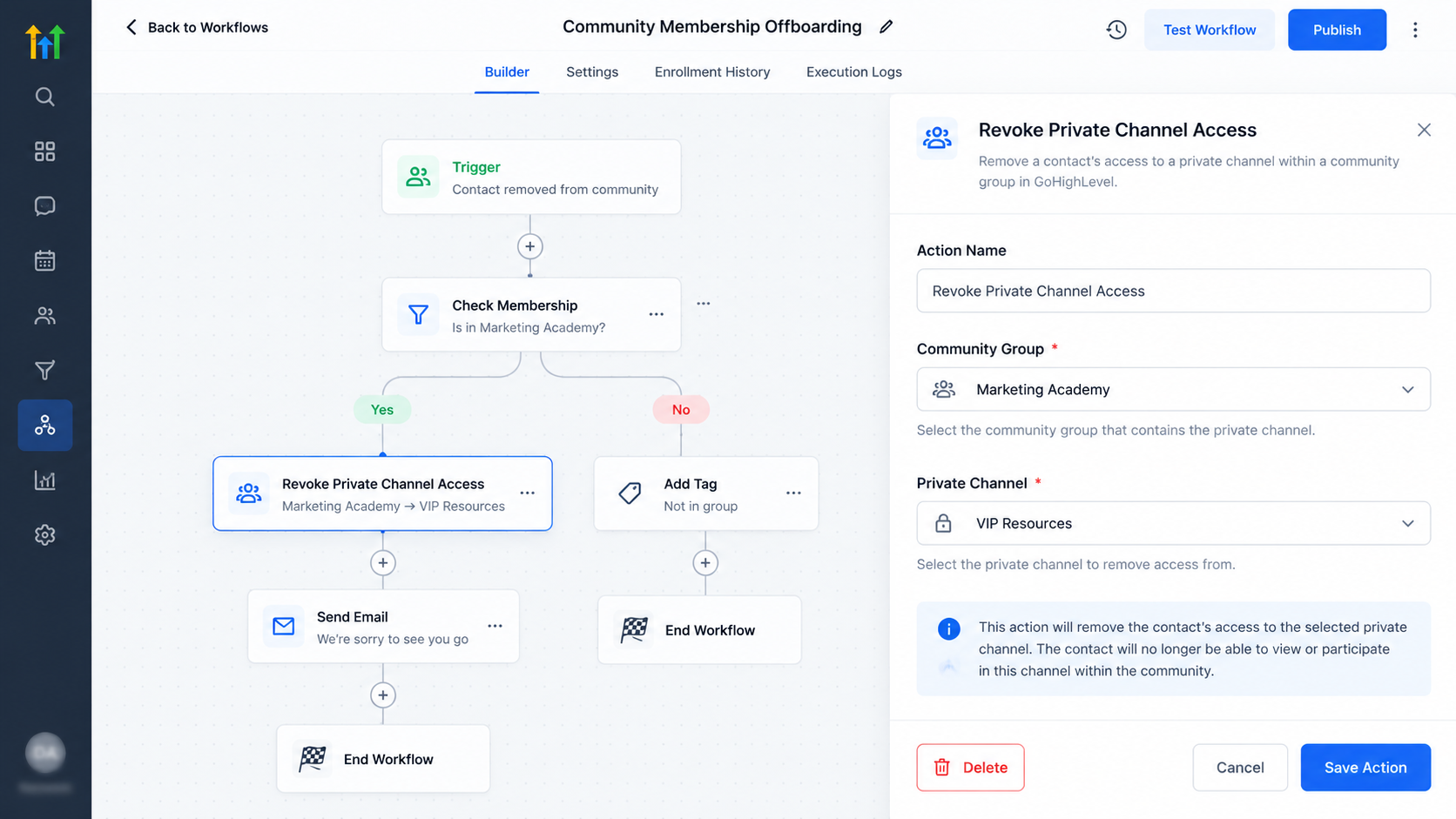
6. Complete and Test the Workflow
Add any remaining workflow actions that should happen after access is revoked.
Then test the workflow using an appropriate test contact or member. Confirm that the intended private-channel access is removed while the member retains any Community access they are supposed to keep.
Once the workflow behaves correctly, review it carefully and publish it.
Example Workflow
Suppose an online coaching company has one main Community Group for all customers.
Inside that Community is a private channel called Advanced Coaching Room, available only to members enrolled in an advanced program.
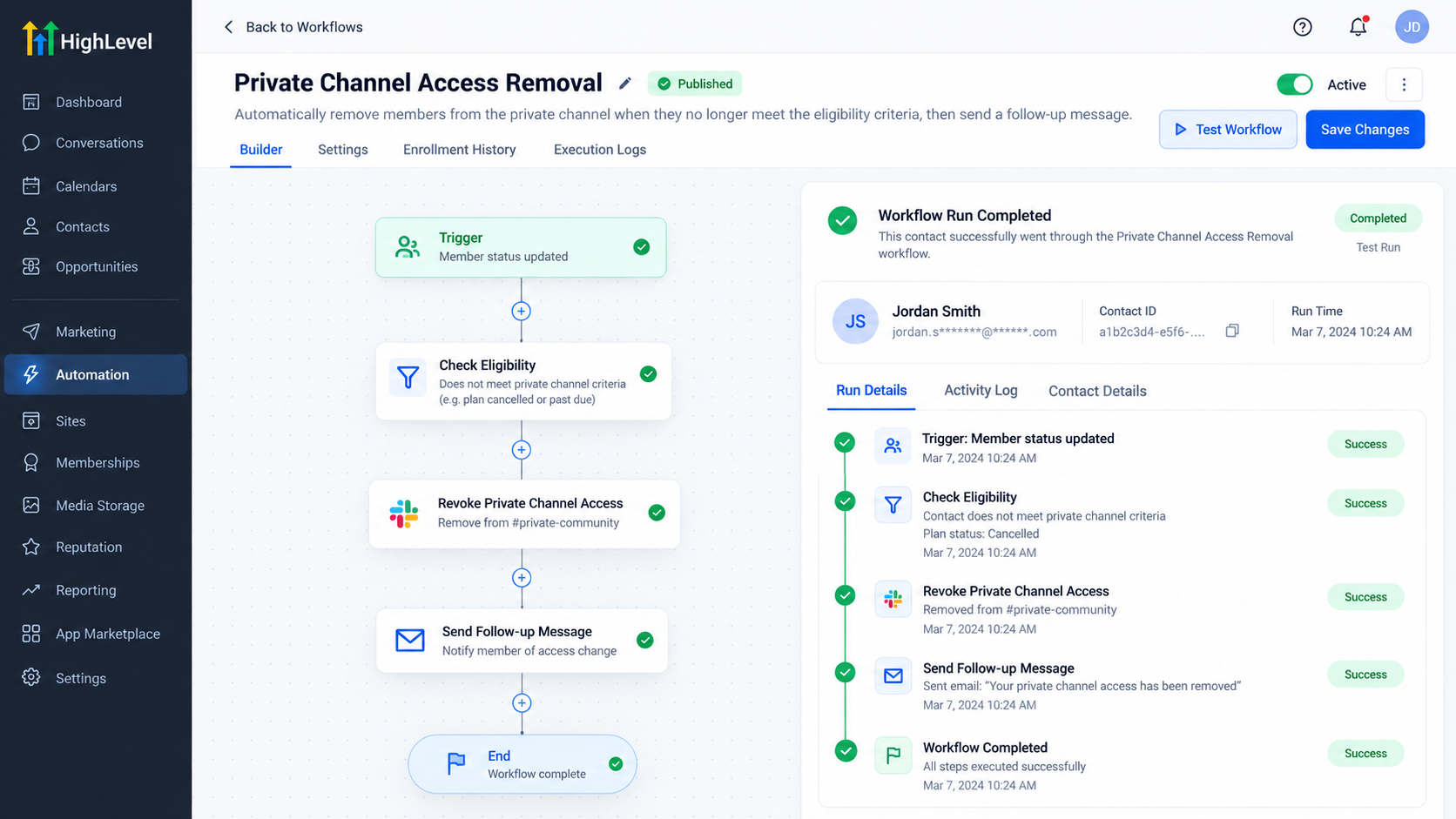
When the company’s workflow logic determines that a member should no longer have access to that program, the automation could follow this structure:
Qualifying Trigger → Eligibility Condition → Revoke Private Channel Access → Follow-Up Communication
When the member reaches the revoke action, their access to the Advanced Coaching Room is removed.
However, they can still remain part of the main customer Community.
This gives the business more precise control than removing Community access entirely.
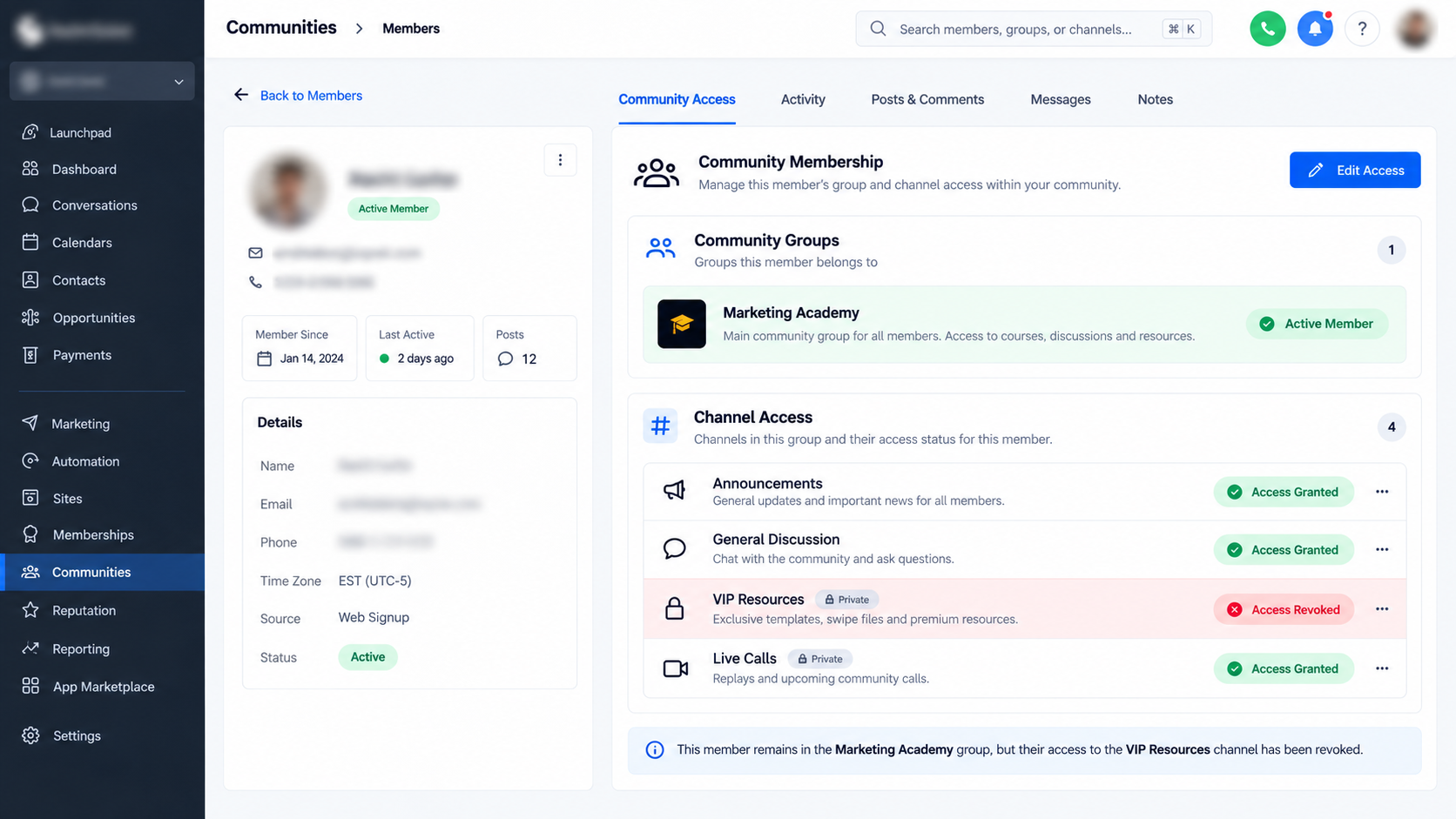
Best Practices for Private Channel Access Automation
Before publishing your workflow, verify the selected Community Group and private channel carefully. A simple configuration mistake could affect access to the wrong area.
Use descriptive workflow names such as Revoke Advanced Coaching Channel Access rather than vague names like “Membership Workflow.”
Your trigger logic also deserves close attention. The revoke action only performs the access change when the contact reaches that step, so the workflow should clearly define who qualifies for removal.
Testing is equally important. Use a representative member and confirm both sides of the result: the member should lose the intended private-channel access while retaining any broader Community access that should remain.
You should also review other workflows that grant private-channel access. Conflicting grant and revoke automations can create confusing member experiences if they are triggered by overlapping conditions.
Important Things to Know
The Revoke Private Channel Access action is designed for private channels not complete Community removal.
If your objective is to remove someone from the entire Community Group, the dedicated Revoke Group Access action is the appropriate workflow component instead. HighLevel intentionally treats group access and private-channel access as separate automation functions.
GoHighLevel may also change workflow layouts or interface placement over time, so the exact appearance of the builder can evolve even when the underlying automation concept remains the same.
Conclusion
The Revoke Private Channel Access action gives GoHighLevel users a precise way to automate access management inside Communities.
Rather than removing someone from an entire Community simply because they should no longer access one restricted area, you can revoke access only to the relevant private channel.
For membership programs, coaching communities, client portals, cohorts, and tiered Communities, this creates a cleaner and more scalable approach to managing who can access specific conversations and resources while keeping broader Community membership intact where appropriate.
Frequently Asked Questions (FAQs)
1. What does the Revoke Private Channel Access action do in GoHighLevel?
It removes a member’s access to a specific private channel inside a GoHighLevel Community while allowing them to remain in the main Community Group.
2. Does Revoke Private Channel Access remove a member from the entire Community?
No. It only removes access to the selected private channel. The member can still remain part of the overall Community Group.
3. What is the difference between Revoke Private Channel Access and Revoke Group Access?
Revoke Private Channel Access removes access to one private channel, while Revoke Group Access is used when you want to remove access to the broader Community Group.
4. Can I automate private channel access removal in GoHighLevel?
Yes. You can add the Revoke Private Channel Access action to a workflow and use suitable triggers, conditions, and automation logic to determine when it should run.
5. Can I choose which private channel access should be revoked?
Yes. When configuring the workflow action, you select the relevant Community Group and the specific private channel.
6. Does the private channel need to exist before I create the workflow?
Yes. The private channel should already exist in the Community so it can be selected when configuring the workflow action.
7. Can I use this action for membership or coaching programs?
Yes. It can be useful for premium memberships, coaching programs, temporary cohorts, client-only channels, challenges, and other access-based Community setups.
Need Expert Help with GoHighLevel?
New to GoHighLevel and ready to get started? Buy your GoHighLevel account here and launch with confidence.
Already know what you need and want our team to handle everything, from complete setup and customization to funnels, workflows, automations, CRM, and pipelines? Click here.



