

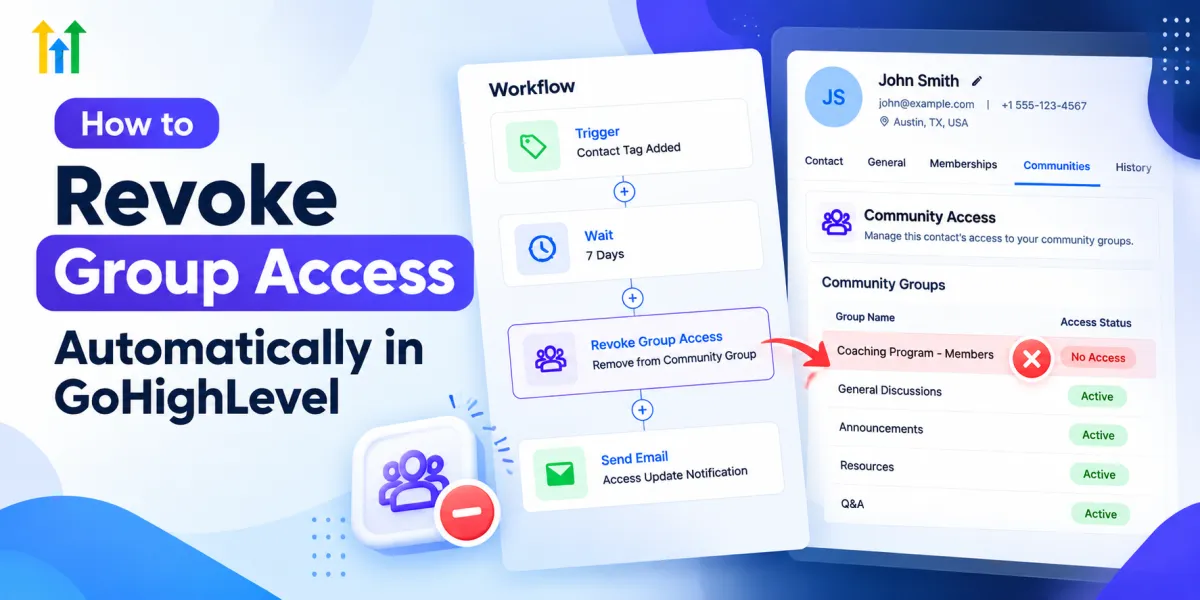
How to Revoke Group Access Automatically in GoHighLevel
How to Revoke Group Access Automatically Using the Revoke Group Access Action in GoHighLevel
Managing a private community is easy when you have a handful of members. But as your coaching program, client community, or customer group grows, keeping track of who should still have access can become another recurring administrative task.
A team member may need to check records, identify contacts whose access should end, find the correct group, and remove them manually. Multiply that process across dozens or hundreds of contacts, and it becomes difficult to manage consistently.
The GoHighLevel Revoke Group Access action provides a more scalable approach. By placing this action inside a workflow, businesses can automatically remove a contact's access to a selected Community group when that contact reaches the appropriate point in an automated process.
What Is the Revoke Group Access Action in GoHighLevel?
The Revoke Group Access Action in GoHighLevel is a Community workflow action that removes a workflow contact's access to a specified Community group.
The distinction between a trigger and an action is important.
A Group Access Revoked trigger starts a workflow after group access has already been removed. The Revoke Group Access action does the opposite from an automation perspective: the contact is already moving through a workflow, and the action performs the access removal.
It is also separate from Course Revoke Offer and other course-access functionality. Revoke Group Access is specifically intended for Community group access.
Instead of having an administrator manually remove each qualifying contact, the workflow can perform that step consistently whenever its configured logic reaches the action.
Why Automate Group Access Revocation?
The biggest advantage is operational consistency.
If access is supposed to end after a particular stage in the customer journey, relying on someone to remember every removal creates unnecessary work. GoHighLevel workflow automation allows that rule to become part of a repeatable process.
This can reduce repetitive administrative tasks, help prevent overlooked access changes, and make customer lifecycle management easier as the number of contacts grows.
Automation is especially valuable when a business manages several programs or Community groups with different access rules.
However, it is important to understand the action's scope. Revoking Community group access should not be treated as automatically canceling a payment, subscription, invoice, course offer, or other unrelated service. Those processes need to be handled separately when applicable.
How the Revoke Group Access Action Works
The basic structure is straightforward:
Workflow Trigger → Conditions/Logic if Required → Revoke Group Access → Next Workflow Steps
First, a supported workflow trigger enrolls the contact in the workflow based on the business process you have designed.
The workflow can then apply any appropriate logic before reaching Revoke Group Access. When the contact reaches that action, GoHighLevel removes their access to the Community group selected in the action's configuration.
Other supported workflow steps can then continue after the access change if the process requires them.
This makes GoHighLevel access management part of a larger automated customer journey rather than an isolated manual task.
How to Set Up Revoke Group Access in a Workflow
1. Open or Create Your Workflow
Navigate to Automation → Workflows in your GoHighLevel sub-account. Open the workflow you want to modify or create a new workflow for the access-removal process.
2. Choose the Appropriate Trigger
Select a supported workflow trigger that represents when your process should begin.
The right trigger depends on your business logic. The important point is that the trigger determines when the contact enters the automation; it does not replace the Revoke Group Access action itself.
3. Add Revoke Group Access
Click the option to add another workflow action and search for Revoke Group Access.
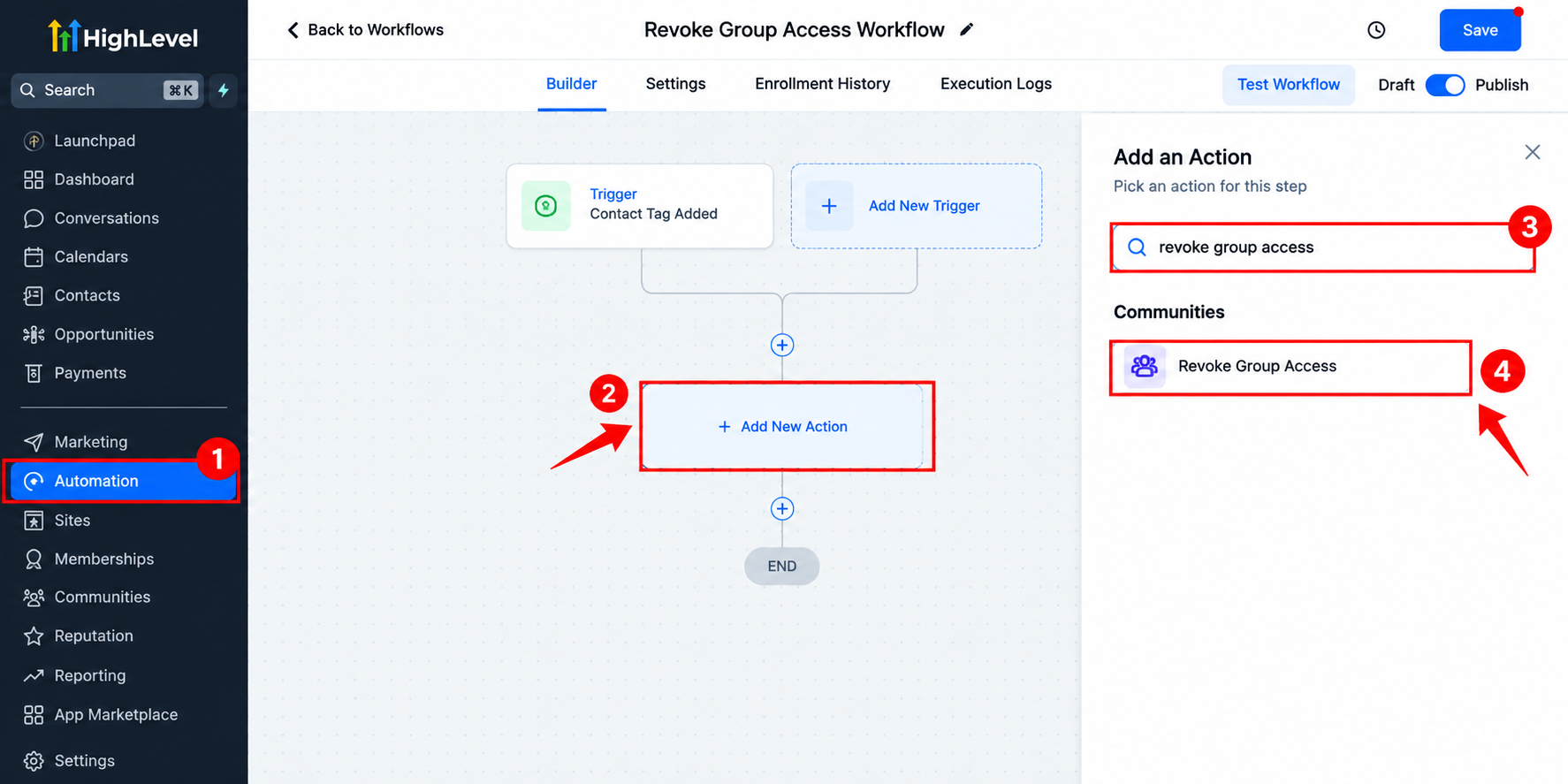
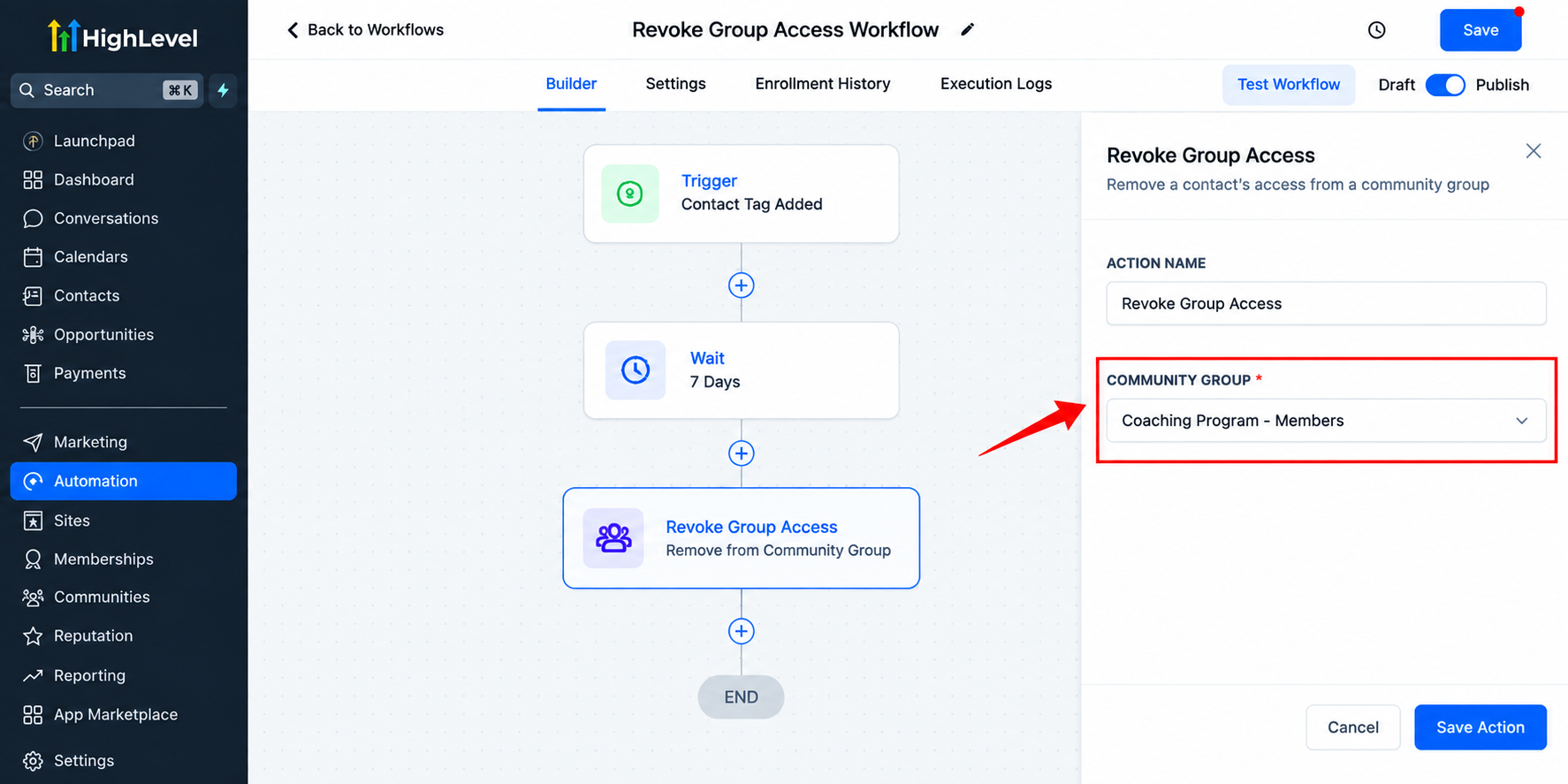
Select the action and choose the Community group from which the workflow should remove access.
Double-check this selection carefully, particularly if your account contains multiple groups.
4. Add Relevant Follow-Up Steps
If your process requires additional supported actions, place them before or after the access-removal step.
For example, your workflow might update internal contact organization or initiate appropriate follow-up communication as part of the broader customer journey.
5. Test and Publish
Before using the automation with real contacts, test the workflow with an appropriate test contact and confirm that access to the intended group is actually removed.
Once everything behaves correctly, publish the workflow so it can run for qualifying contacts.
Real-World Uses for GoHighLevel Group Access
There are several practical ways businesses can revoke group access automatically.
A coaching company might provide access to a private Community group for a defined program period and route participants through an automation when that access period ends.
A service business could remove a former client from a client-only group once its own workflow logic determines that access is no longer appropriate.
Businesses running time-limited programs can also incorporate group removal into their end-of-program workflows.
Another use is lifecycle organization. A business may maintain different Community groups for different stages of a customer journey and use carefully designed Grant Group Access and Revoke Group Access actions to control which groups a contact should access.
In each case, remember that the triggering event and access-removal action are separate parts of the workflow.
Example GoHighLevel Community Automation
Consider a business running a private coaching group with access available for a defined program period.
Its automation could conceptually look like this:
Relevant Trigger → Program-End Logic → Revoke Group Access → Follow-Up Action
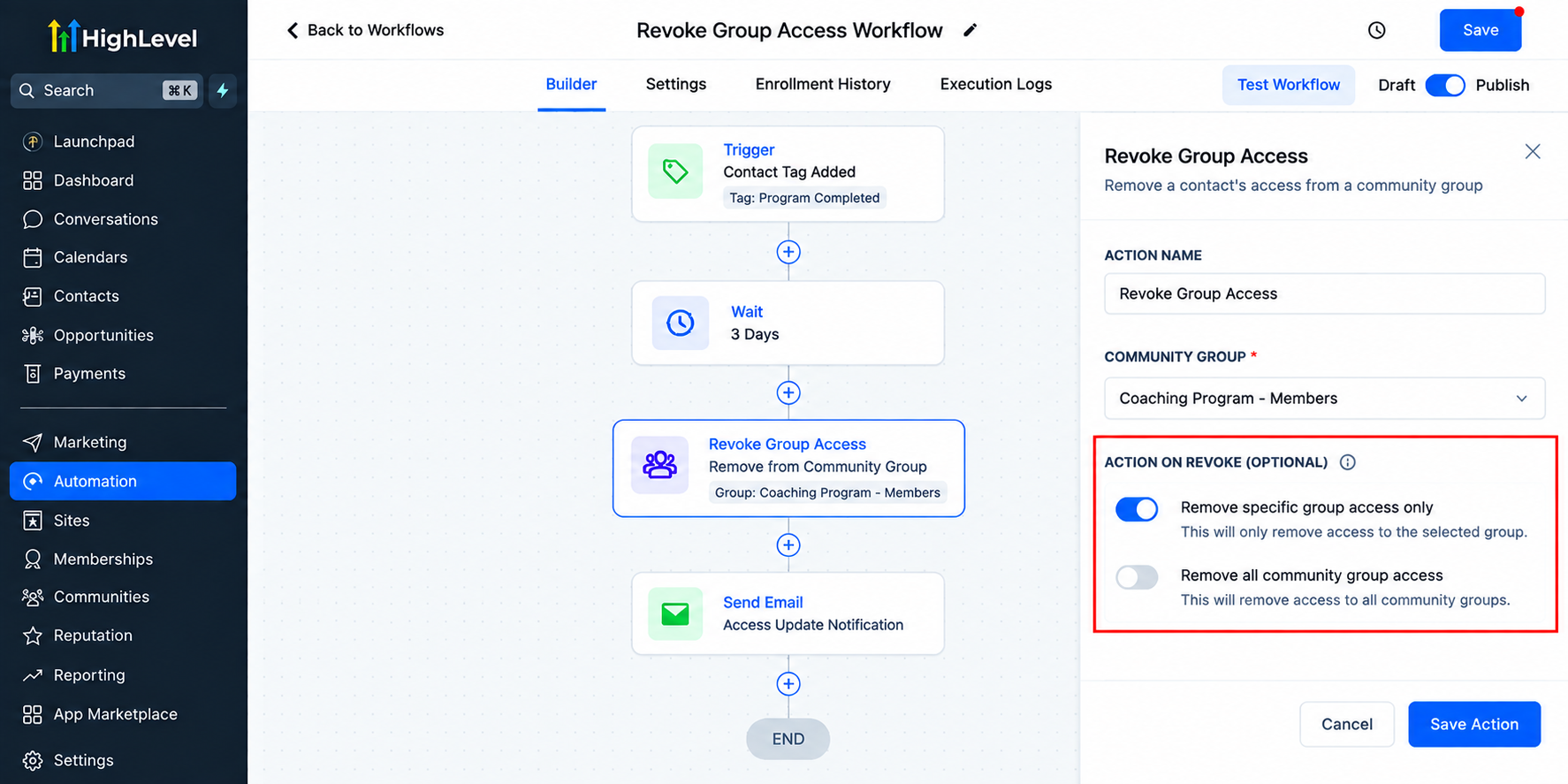
The trigger brings the appropriate contact into the workflow. The workflow logic determines when the contact has reached the point where group access should end.
The Revoke Group Access action then removes access to the selected Community group. A subsequent supported action can handle whatever follow-up the business has designed.
The access action itself is responsible for the Community group change not for canceling billing or removing unrelated products.
Best Practices for Revoke Group Access Workflows
Keep your access logic simple and clearly documented. Define exactly what should cause access to end, choose the workflow trigger carefully, and verify the Community group selected in the Revoke Group Access action.
Test with a representative contact before publishing. If you also use Grant Group Access, review both automations together to prevent conflicting logic or unexpected access changes.
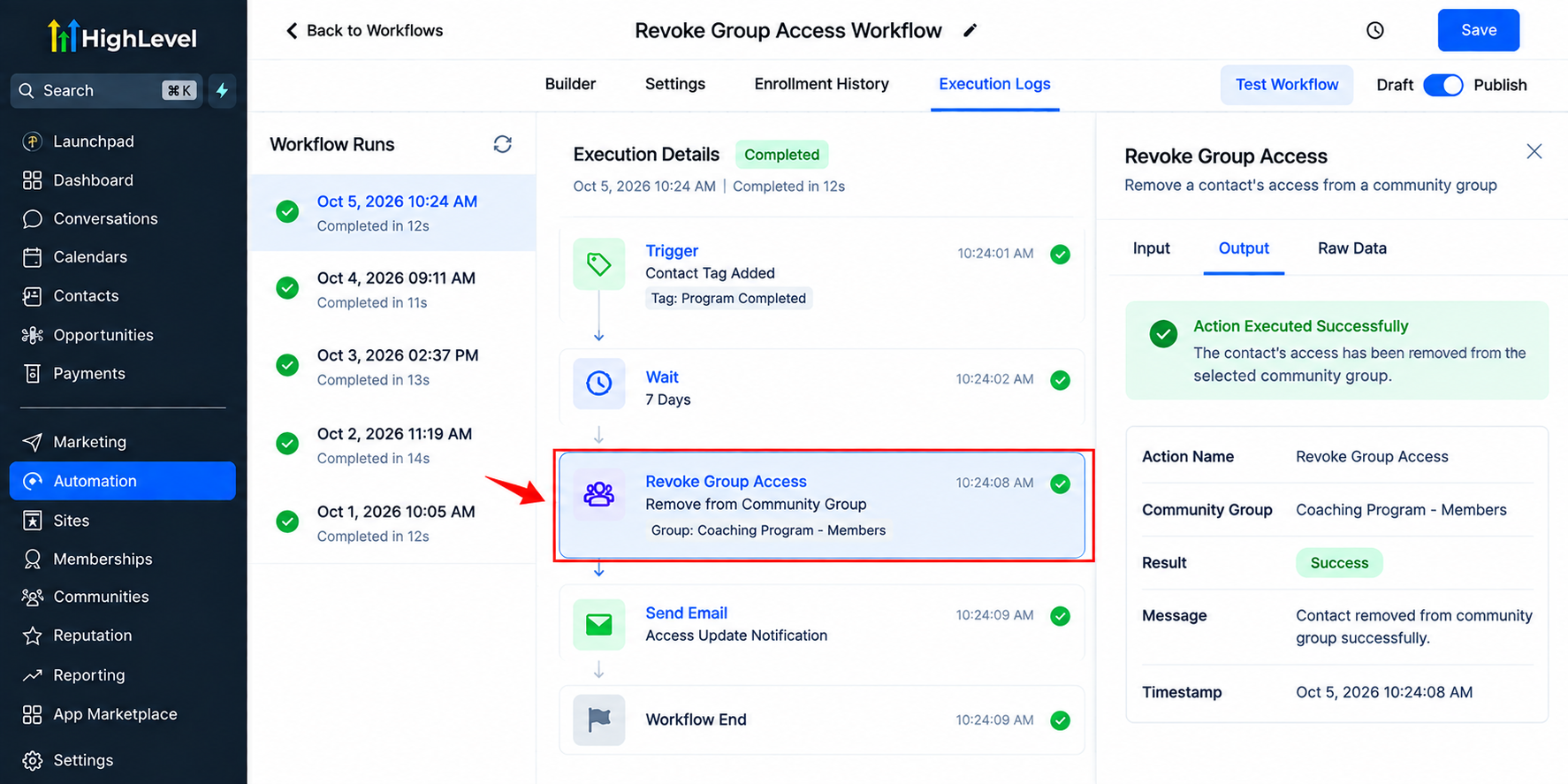
It is also worth reviewing these workflows whenever you restructure your Communities or change how customers move through your programs.
Common Mistakes to Avoid
One common mistake is confusing Group Access Revoked with Revoke Group Access. The former is a trigger that responds to an access change; the latter is the action that performs the change.
Other problems include selecting the wrong Community group, using workflow entry logic that does not represent the intended business rule, or publishing without testing.
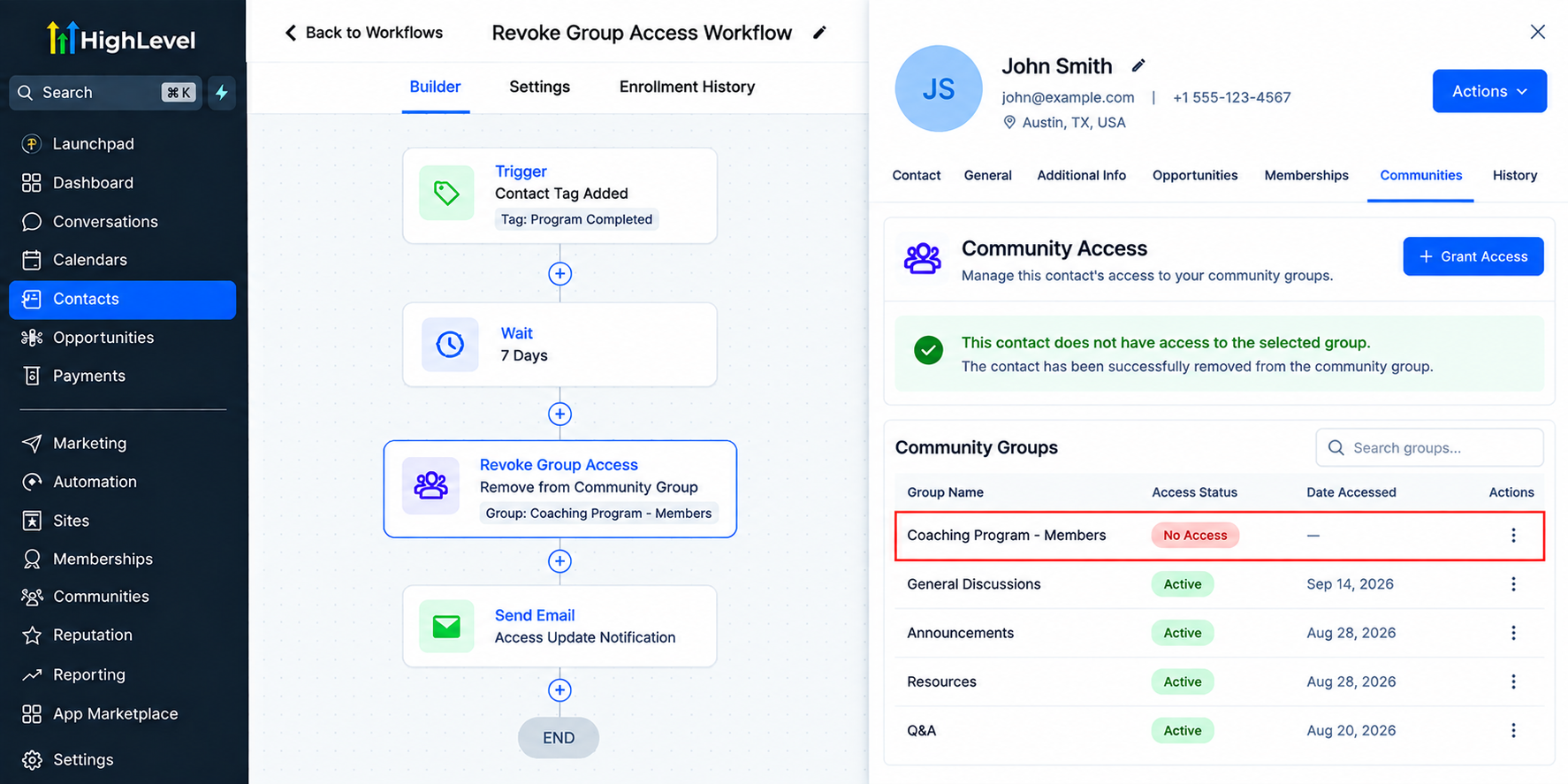
Also avoid assuming that removing Community group access automatically removes course offers, handles payments, or changes unrelated services.
Why This Automation Matters as You Scale
Manual access management may be manageable with ten members. It becomes much less practical with hundreds.
The value of GoHighLevel group access automation is therefore not simply saving a few clicks. It creates a repeatable process that does not depend on someone remembering every individual access change.
As communities, customer programs, and internal processes grow, that consistency can make administration considerably easier.
Conclusion
The GoHighLevel Revoke Group Access action is a focused but useful automation tool. It allows businesses to make Community group access removal part of a structured workflow rather than treating every change as a manual administrative task.
With carefully chosen triggers, clear workflow logic, the correct Community group, and proper testing, businesses can use the Revoke Group Access Action in GoHighLevel to build cleaner, more consistent, and more scalable access-management processes.
Frequently Asked Questions
1. What is the Revoke Group Access Action in GoHighLevel?
The Revoke Group Access Action removes a contact’s access to a selected Community group.
It can be added inside a GoHighLevel workflow as an automated step.
This helps businesses manage group access without removing members manually.
2. Can GoHighLevel revoke group access automatically?
Yes, GoHighLevel can revoke Community group access through workflow automation.
You add the Revoke Group Access Action at the appropriate point in the workflow.
When the contact reaches that step, access to the selected group is removed.
3. Is Revoke Group Access a workflow trigger or an action?
Revoke Group Access is a workflow action, not a trigger.
A trigger determines when a contact enters a workflow.
The Revoke Group Access Action performs the actual group access removal.
4. What is the difference between Revoke Group Access and Group Access Revoked?
Revoke Group Access is an action that removes access to a Community group.
Group Access Revoked is a trigger that can respond after access has been removed.
They serve different purposes within GoHighLevel workflow automation.
5. Does Revoke Group Access remove course access?
No, Revoke Group Access is specifically for GoHighLevel Community groups.
Course or offer access is managed through separate course-access actions.
Businesses should keep group access and course access workflows clearly separated.
Need Expert Help with GoHighLevel?
New to GoHighLevel and ready to get started? Buy your GoHighLevel account here and launch with confidence.
Already know what you need and want our team to handle everything, from complete setup and customization to funnels, workflows, automations, CRM, and pipelines? Click here.



