

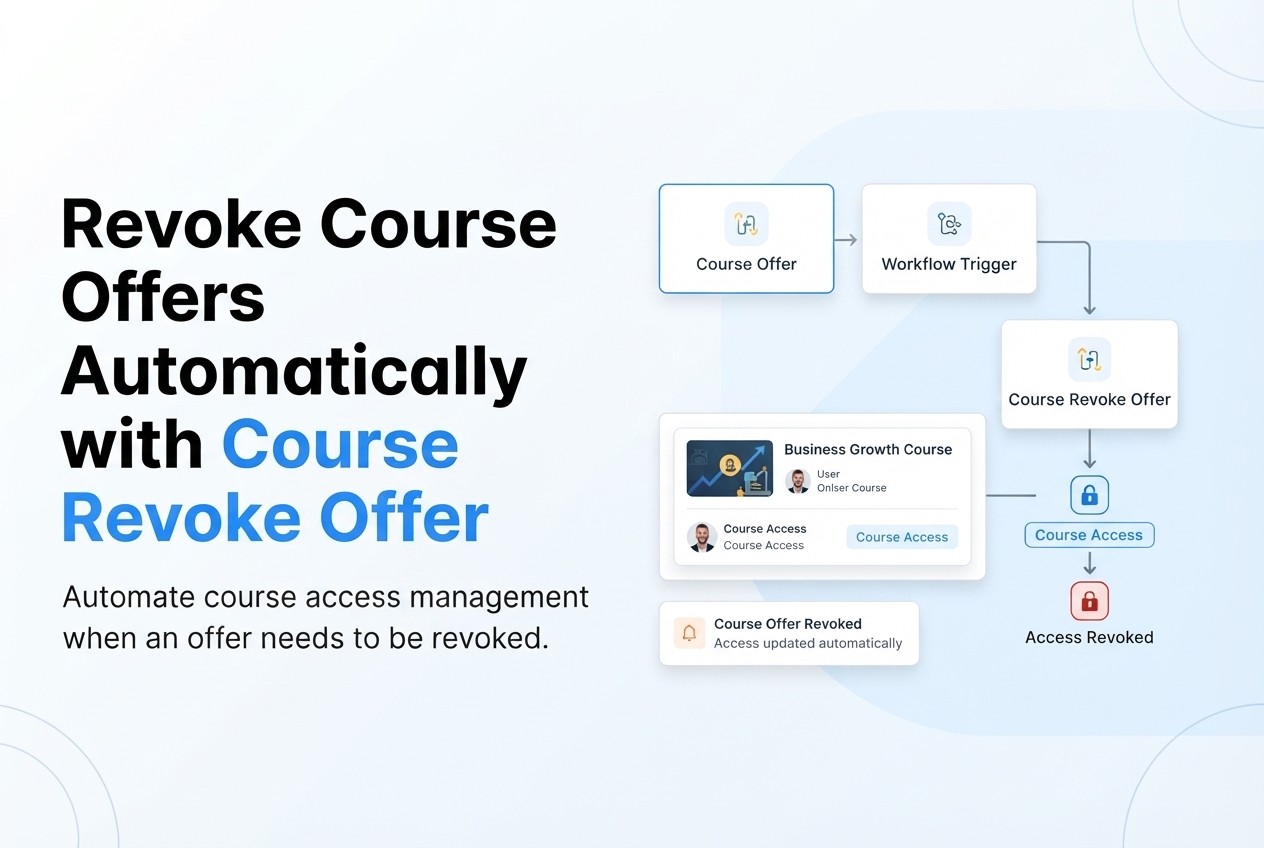
Revoke Course Offers Automatically in GoHighLevel: Step-by-Step Guide
How to Revoke Course Offers Automatically Using the Course Revoke Offer Action in GoHighLevel
Introduction
Managing access to online courses can become difficult when learners have different enrollment conditions, subscription periods, or access rules. When someone should no longer have access to a course, manually removing that access can add unnecessary work for your team.
GoHighLevel provides the "Course Revoke Offer" workflow action to automate this process. The action allows a workflow to revoke a selected course offer from a contact when a defined trigger or condition occurs.
Whether you manage paid courses, memberships, training programs, or educational content, understanding how this action works can help you create more consistent access-management workflows.
What Is the Course Revoke Offer Action in GoHighLevel?
The "Course Revoke Offer" action is a workflow action that automatically removes a contact's access to a specific course offer.
It is available under GoHighLevel's "Courses Actions" within the Workflow Builder. GoHighLevel's workflow action documentation lists both "Course Grant Offer" and "Course Revoke Offer" for managing course access.
The basic automation looks like this:
Trigger → Workflow → Course Revoke Offer → Access Removed
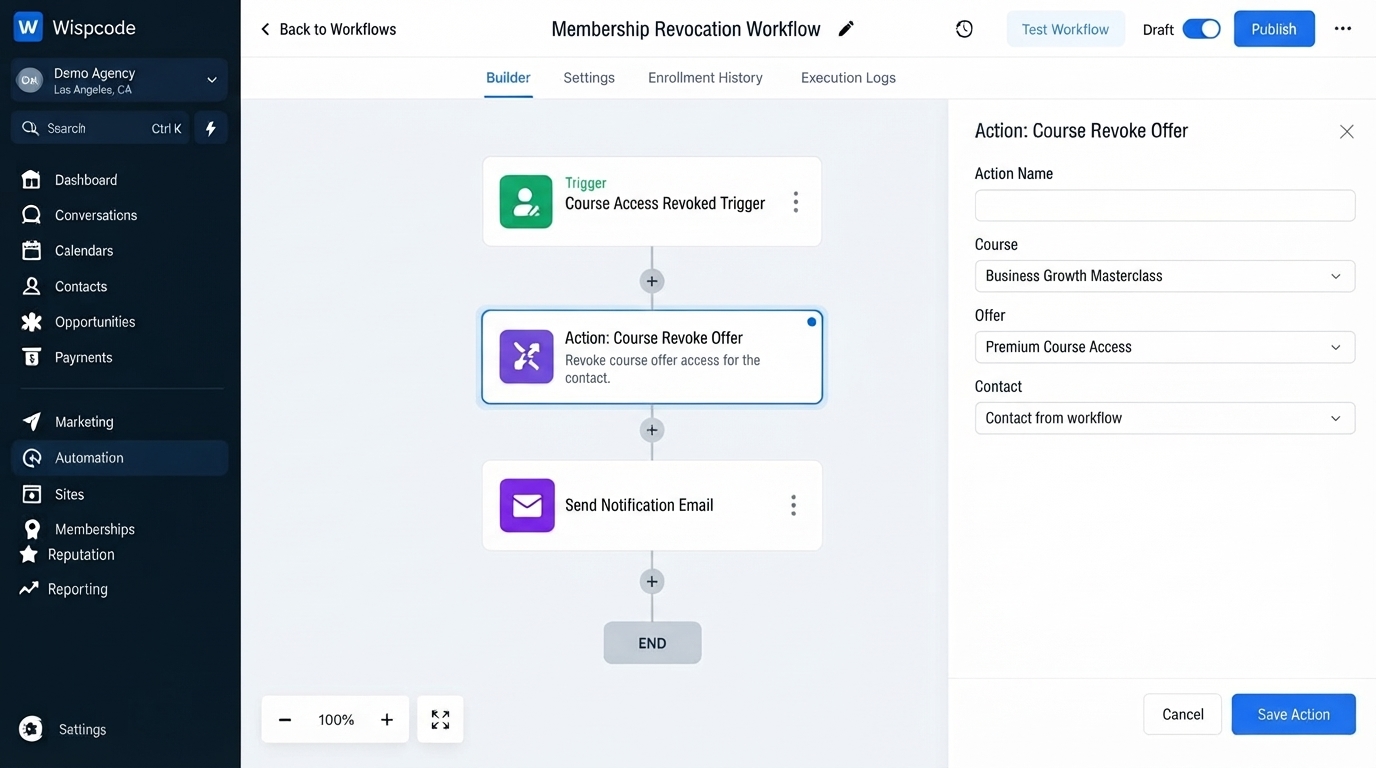
For example, you might have a workflow that starts when a relevant event occurs, such as a subscription ending or another condition defined by your business process. The workflow can then reach the Course Revoke Offer action and remove access to the selected offer.
The important point is that the action works at the offer level. You select the specific offer whose access should be revoked rather than treating the action as a general deletion of the contact or course.
Why Automate Course Access Revocation?
Course access often needs to change as a customer's relationship with your business changes.
Without automation, your team may need to remember when individual learners should lose access. A workflow can make these processes more consistent.
Reduce Manual Administration
When access changes are tied to predictable events, automation can handle the corresponding workflow step instead of requiring someone to update every learner manually.
Keep Access Rules Consistent
A clearly designed workflow gives your team a repeatable process for handling course access.
For example, if a particular offer should no longer be available after a defined business event, you can create a workflow around that event.
Manage Different Offers
A business may have multiple course offers with different access arrangements. Because the Course Revoke Offer action allows you to select an offer, you can build workflows around the specific access level that needs to be removed.
Support Membership and Subscription Processes
GoHighLevel's documentation specifically identifies use cases such as "expired subscriptions", "failed payments", and "course completion" as examples where course access may need to be revoked.
The exact workflow should depend on the access rules and business process you have configured.
How Does Course Revoke Offer Work?
The action follows a simple concept:
A contact enters a workflow.
The workflow follows its configured conditions and actions.
The contact reaches "Course Revoke Offer".
The workflow applies the action to the selected offer.
Access to that offer is revoked.
For example:
Subscription-related trigger
↓
Workflow conditions
↓
Course Revoke Offer
↓
Selected course offer access revoked
This allows course-access management to become part of a larger automated customer journey.
Step-by-Step: Set Up Course Revoke Offer in GoHighLevel
Step 1: Open Workflows
Go to the "Workflows" section of your GoHighLevel sub-account.
You can create a new workflow specifically for course-access management or add the action to an existing workflow.
Start by deciding exactly what event should cause the course offer to be revoked.
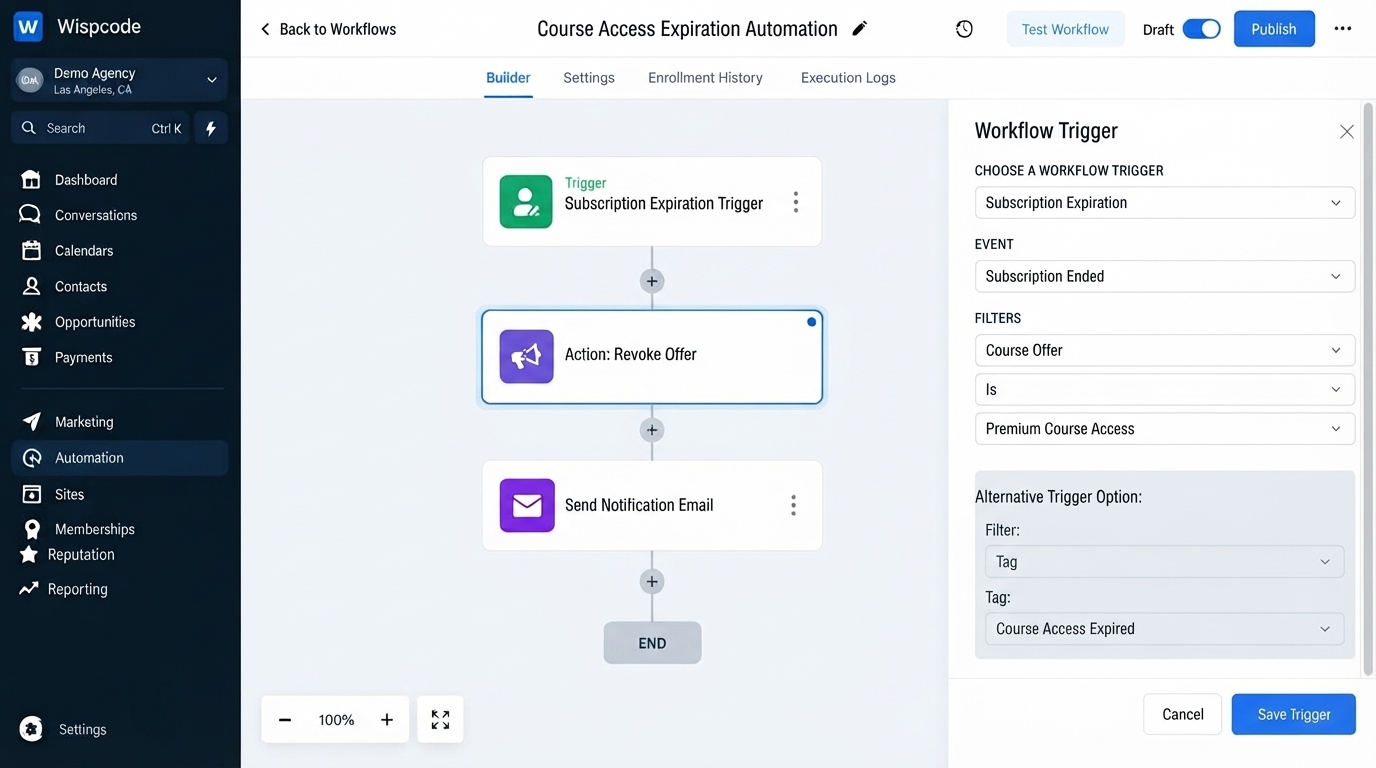
Step 2: Choose the Trigger
Every workflow needs an appropriate trigger to determine when the automation should begin.
The trigger depends on your business model.
For example, a workflow could be designed around an event associated with an expired subscription, a contact tag, or another condition that your access-management process uses.
GoHighLevel's own example demonstrates a workflow beginning with a contact-tag event associated with an expired status.
The trigger should be specific enough that the workflow does not revoke access unexpectedly.
Step 3: Add the Course Revoke Offer Action
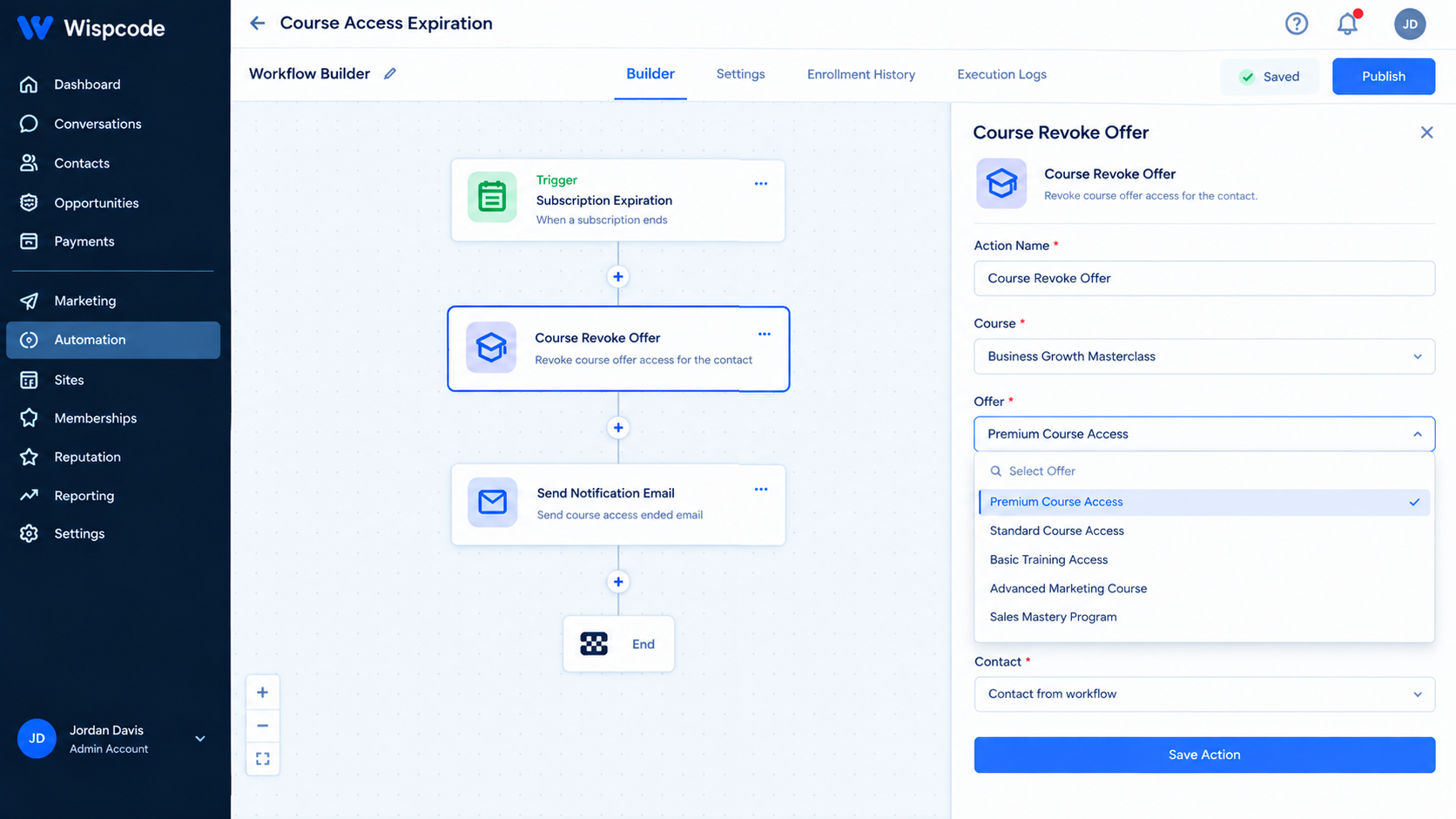
Inside the workflow builder, select "Add Action".
Search for: "Course Revoke Offer"
Then select the action.
GoHighLevel categorizes this action under "Courses Actions".
Step 4: Name the Action
Give the action a descriptive name.
For example: "Revoke Advanced Marketing Course"
A clear action name makes the workflow easier to understand later, particularly if you manage multiple courses or offers.
Step 5: Select the Offer
The Course Revoke Offer action allows you to select the specific offer whose access should be revoked.
For example: "Offer: Advanced Marketing Strategies"
GoHighLevel's documentation instructs users to select the specific offer they want to revoke.
Make sure you select the intended offer before activating the workflow.
Step 6: Review the Workflow Logic
Before publishing, review the complete workflow.
Check:
The correct trigger is selected.
Any filters or conditions are appropriate.
The correct Course Revoke Offer action is present.
The intended course offer is selected.
Any follow-up communication is configured correctly.
This review is particularly important because access changes directly affect the learner's ability to access course content.
Step 7: Test the Workflow
Test the workflow using an appropriate test contact and scenario before putting it into production.
Confirm that the workflow reaches the Course Revoke Offer action under the expected conditions and that the intended offer is affected.
Testing is especially useful when the workflow contains several conditions or actions.
Step 8: Publish the Workflow
Once everything has been reviewed and tested, publish the workflow.
From that point forward, contacts who meet the configured trigger and conditions can move through the workflow and have the selected offer revoked automatically.
Practical Use Case: Expired Course Subscription
Consider an online training business that sells access to a course through a subscription.
A learner has access while their subscription is active. Your business needs a process for handling expired access.
One possible workflow structure is:
Trigger: Subscription-related expiration condition
↓
Course Revoke Offer: Selected offer: Premium Training
↓
Send Email: Notify the learner about their access status
The Course Revoke Offer action handles the access-removal portion of this process.
GoHighLevel specifically identifies expired subscriptions as one potential use case for the action.
Your exact trigger and follow-up actions should reflect how your subscription and customer-management process is configured.
Another Option: Automatic Offer Expiration
It is also important to understand that a workflow is not the only way GoHighLevel can handle time-limited course access.
GoHighLevel supports "offer access duration", allowing course creators to specify a fixed access period. According to GoHighLevel's documentation, an offer can be configured with a specific number of days, after which access is automatically withdrawn.
For example, an offer can be configured for a defined access period such as one week or a specified number of days.
This creates an important distinction:
Offer access duration:
The offer itself controls when access expires.Course Revoke Offer workflow action:
A workflow explicitly revokes the selected offer when the workflow reaches that action.
Choosing between these approaches depends on whether access expiration is simply based on a fixed duration or needs to be part of a broader workflow process.
Course Revoke Offer vs. Course Grant Offer
GoHighLevel provides both "Course Grant Offer" and "Course Revoke Offer" actions.
They serve opposite purposes.
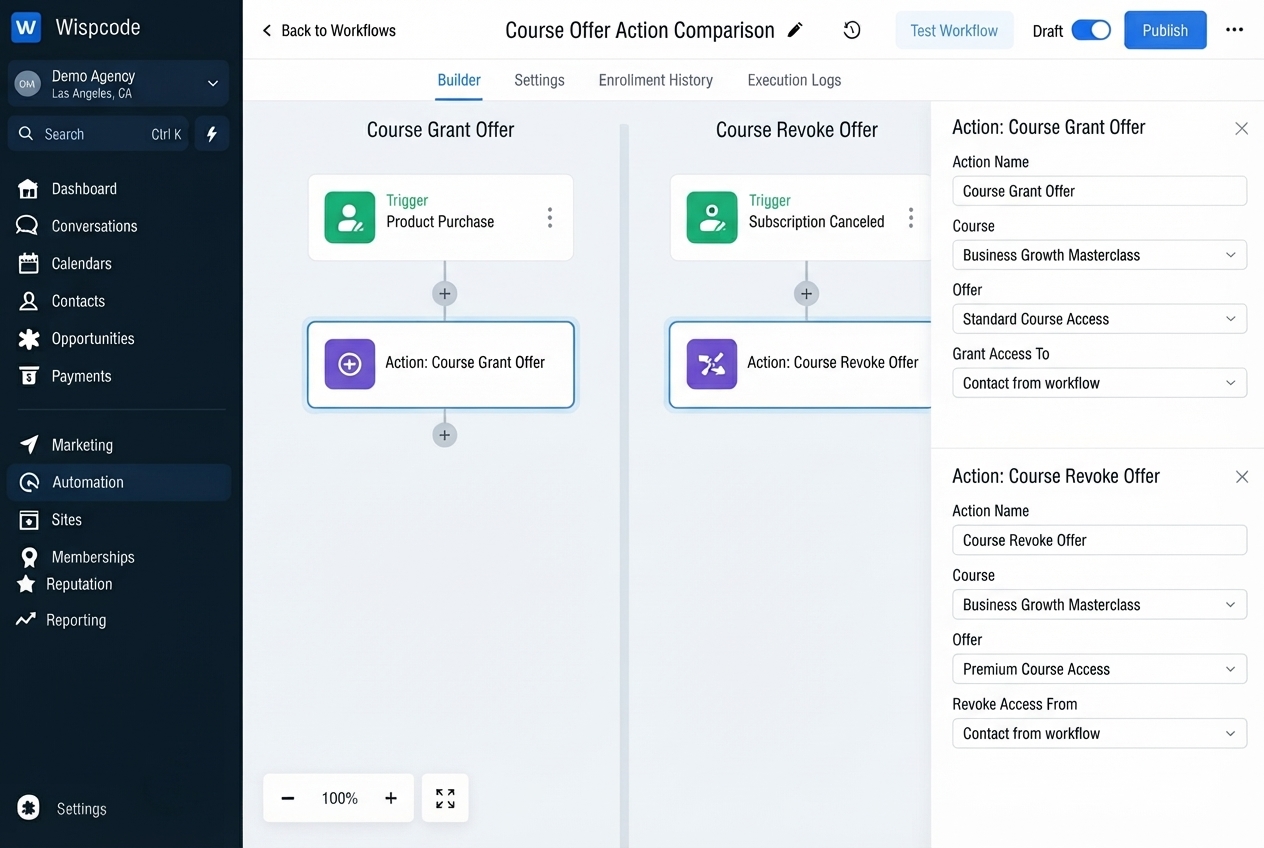
Course Grant Offer
Used when a workflow needs to grant a course offer to a contact.
Course Revoke Offer
Used when a workflow needs to revoke a course offer from a contact.
For example, an onboarding workflow might grant access after a qualifying event, while another workflow could revoke that access when the appropriate condition occurs.
This makes the two actions useful building blocks for managing course-access journeys.
Best Practices for Course Access Automation
Define the Revocation Event Clearly
Before creating the workflow, determine exactly why access should be revoked.
A clearly defined event makes it easier to build reliable automation.
Choose the Correct Offer
If your account contains several course offers, carefully verify which offer the workflow should revoke.
Do not assume that removing one offer automatically represents every type of course access.
Use Descriptive Workflow Names
Names such as "Premium Course – Expired Access" make workflows easier to identify than generic names.
Clear naming is especially valuable when an account contains multiple course-related automations.
Add Appropriate Follow-Up Communication
If learners need to know that their access has changed, consider adding an appropriate communication step after the revocation action.
For example, your workflow could send an email explaining the change and providing relevant next steps.
GoHighLevel's documented example pairs the Course Revoke Offer action with a follow-up email.
Test Before Activation
Always test the complete workflow before publishing it.
A workflow that controls course access should be reviewed carefully because an incorrect trigger or offer selection can produce an unintended access change.
Common Mistakes to Avoid
Revoking the Wrong Offer
Selecting the wrong offer is one of the most important configuration issues to avoid. Review the selected offer carefully.
Using an Overly Broad Trigger
A trigger that captures contacts who should retain access can cause unintended revocations. Make your entry conditions as specific as your process requires.
Confusing Offer Revocation With Contact Deletion
The Course Revoke Offer action is designed to revoke a selected course offer. It is not the same as deleting the contact from GoHighLevel.
Ignoring Built-In Offer Expiration
If your course simply needs access to expire after a fixed period, review whether "Offer Access Duration" already fits your requirements. GoHighLevel supports automatic access withdrawal when a configured offer duration ends.
Skipping Testing
Don't publish an access-revocation workflow without testing its trigger, conditions, selected offer, and resulting behavior.
Frequently Asked Questions(FAQ's)
1. What does Course Revoke Offer do in GoHighLevel?
It automatically revokes a selected course offer from a contact when the workflow reaches the action.
2. Can I automate course access removal?
Yes. You can place Course Revoke Offer inside a workflow and connect it to an appropriate trigger or condition.
3. Can I select a specific course offer?
Yes. The action allows you to select the specific offer whose access should be revoked.
4. Is Course Revoke Offer the same as deleting a contact?
No. It revokes access to the selected course offer; it does not serve as a general contact-deletion action.
5. Can course access expire automatically without a workflow?
Yes. GoHighLevel supports offer access duration settings that can automatically withdraw access after the configured period ends.
Conclusion
Managing course access becomes easier when access changes are connected to clear business rules. The Course Revoke Offer action in GoHighLevel gives you a way to include course-access revocation directly inside your workflows.
The key is to use the action for the right purpose: revoking a specific course offer from a contact when an appropriate workflow event occurs. By choosing a clear trigger, selecting the correct offer, testing the workflow, and adding relevant follow-up steps, you can create a more consistent course-access management process.
For fixed-duration access, GoHighLevel's offer-duration settings may handle automatic expiration without requiring a separate revocation workflow. For more event-driven processes, the Course Revoke Offer action can become an important part of your broader automation strategy.
Need Expert Help with GoHighLevel?
New to GoHighLevel and ready to get started? Buy your GoHighLevel account here and launch with confidence.
Already know what you need and want our team to handle everything, from complete setup and customization to funnels, workflows, automations, CRM, and pipelines? Click here.



