

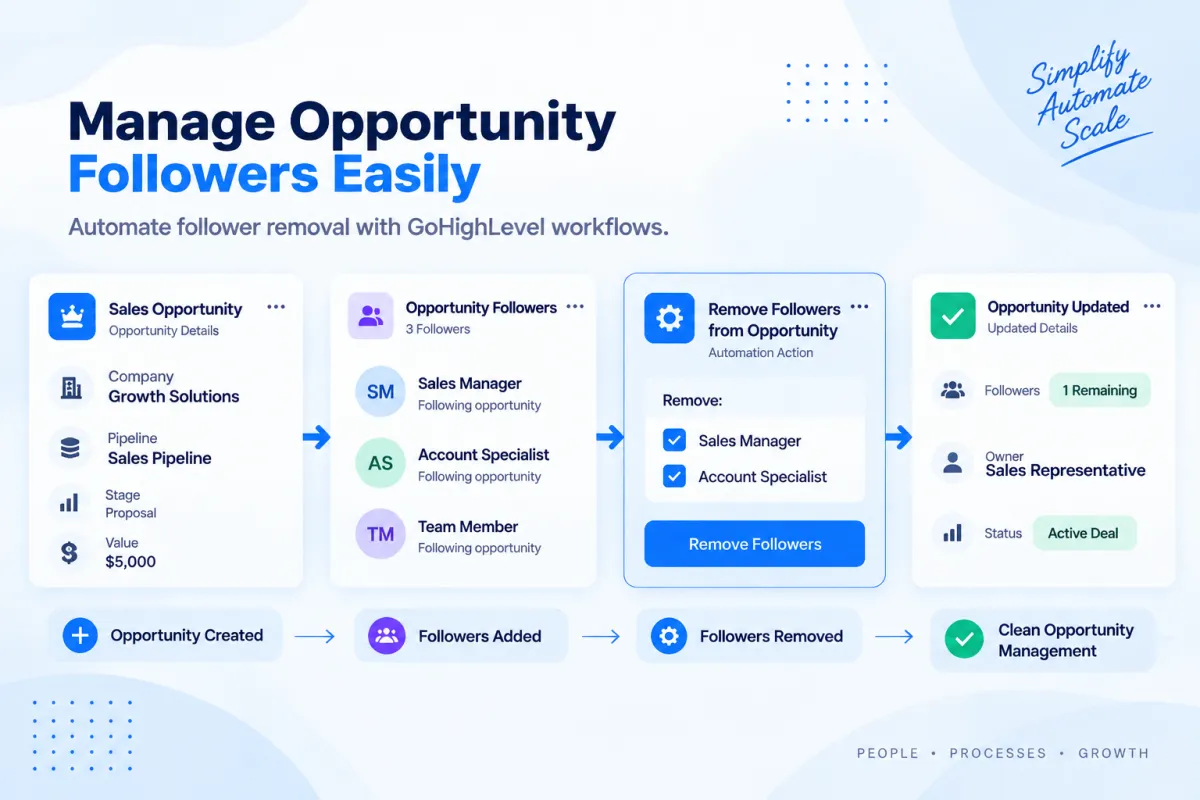
How to Remove Followers from Opportunity in GoHighLevel: Step-by-Step Guide
How to Remove Followers from Opportunities Using the Remove Followers from Opportunity Action in GoHighLevel
Introduction
Managing an opportunity is rarely a one-person job. Sales representatives, managers, specialists, and other team members may need access to the same deal as it moves through the pipeline. GoHighLevel makes this possible with "opportunity followers", allowing multiple users to follow an opportunity and access its information according to their permissions.
But there is another collaboration side: "knowing when someone should stop pursuing an opportunity".
As a deal progresses, team responsibilities can change. A sales specialist may no longer need access after a project is completed, or a temporary group of users may need to be removed once an opportunity reaches a particular stage.
The "Remove Follower(s) From Opportunity" workflow action allows you to automate that cleanup. You can remove specific users from an opportunity's follower list or remove all followers at once.
In this guide, you'll learn what opportunity followers are, how the Remove Followers from Opportunity action works, how to configure it in a workflow, practical use cases, and the mistakes to avoid.
What Are Opportunity Followers in GoHighLevel?
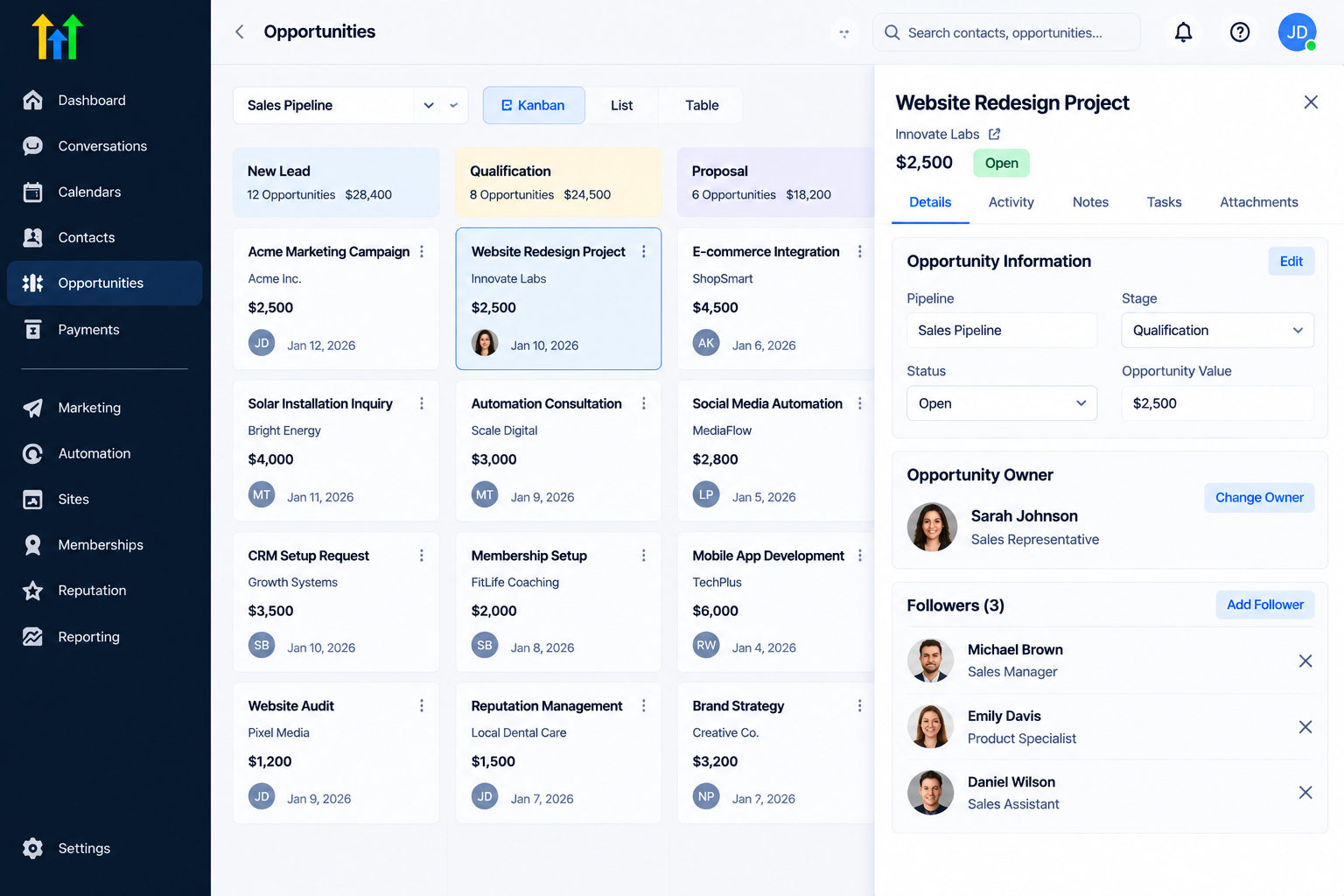
An "opportunity follower" is a user who has been added to an opportunity to access and collaborate on that record.
HighLevel's current documentation explains that followers can help multiple users view and manage the same contact or opportunity. When the "Only Assigned Data" permission is enabled, followers can still access records they follow according to the follower permissions.
Followers are different from the opportunity owner.
The "owner" is responsible for the opportunity, while followers are additional users who need visibility or involvement in the deal. Followers do not become owners simply because they follow an opportunity.
For example, an opportunity could have:
Owner: Sales Representative
Follower: Sales Manager
Follower: Product Specialist
If the product specialist's involvement ends, you can remove that user as a follower without changing who owns the opportunity.
This distinction makes follower management useful for businesses where multiple people collaborate on a single sales opportunity.
What Does the Remove Followers from Opportunity Action Do?
The "Remove Follower(s) From Opportunity" action removes users from an opportunity's follower list.
There are two ways to use it:
Remove Specific Followers
You can select one or more users to remove.
For example:
Remove Followers:
Sales Manager
Product Specialist
If either selected user is not currently following the opportunity, no change is made for that user.
Remove All Followers
You can enable "Remove All Followers" to remove every follower from the opportunity.
When this option is enabled, GoHighLevel ignores the specific users selected in the user list and removes all followers instead.
This gives you two straightforward options:
Specific users → Remove selected followers
Remove All Followers → Clear the entire follower list
Why Automate Opportunity Follower Management?
Follower management can become difficult when opportunities move through different stages or teams.
Without automation, someone may need to manually open an opportunity and remove users whenever their involvement ends.
A workflow can handle that change automatically when a relevant event occurs.
For example:
Opportunity Reaches Closed Stage
↓
Find Opportunity
↓
Remove Follower(s) From Opportunity
↓
Selected Followers Removed
This can help keep opportunity access aligned with your business process.
Keep Collaboration Relevant
Not every team member needs to follow an opportunity throughout its entire lifecycle.
Removing users when their responsibility ends can keep the follower list focused on the people who still need access.
Improve CRM Organization
A clean opportunity record is easier for teams to understand. When outdated followers remain attached to deals, it can become unclear who is still involved.
Automate Team Changes
If your business has predictable handoffs between teams, workflows can automate follower cleanup instead of relying on manual updates.
Support Access Management
HighLevel's follower system is designed to provide additional record access for users who follow a contact or opportunity. Removing unnecessary followers can therefore help keep access aligned with current responsibilities.
How to Use the Remove Followers from Opportunity Action
Step 1: Open Your Workflow
Go to:
Automation → Workflows
Create a new workflow or open an existing workflow where you want to automate follower removal.
First, determine "what event should cause followers to be removed."
For example:
Opportunity Status → Closed
The exact trigger should match your sales process.
Step 2: Make Sure an Opportunity Is in Context
This is an important technical requirement.
The Remove Follower(s) From Opportunity action needs a specific opportunity to work with.
HighLevel states that the action typically follows a "Find Opportunity" step or is used in an opportunity-triggered workflow. If there is no opportunity in context, the action is skipped.
A typical workflow could therefore look like:
Trigger
↓
Find Opportunity
↓
Remove Follower(s) From Opportunity
If the workflow was triggered directly by an opportunity, the opportunity may already be available in context.
If not, Find Opportunity can locate the appropriate opportunity before the follower-removal action runs.
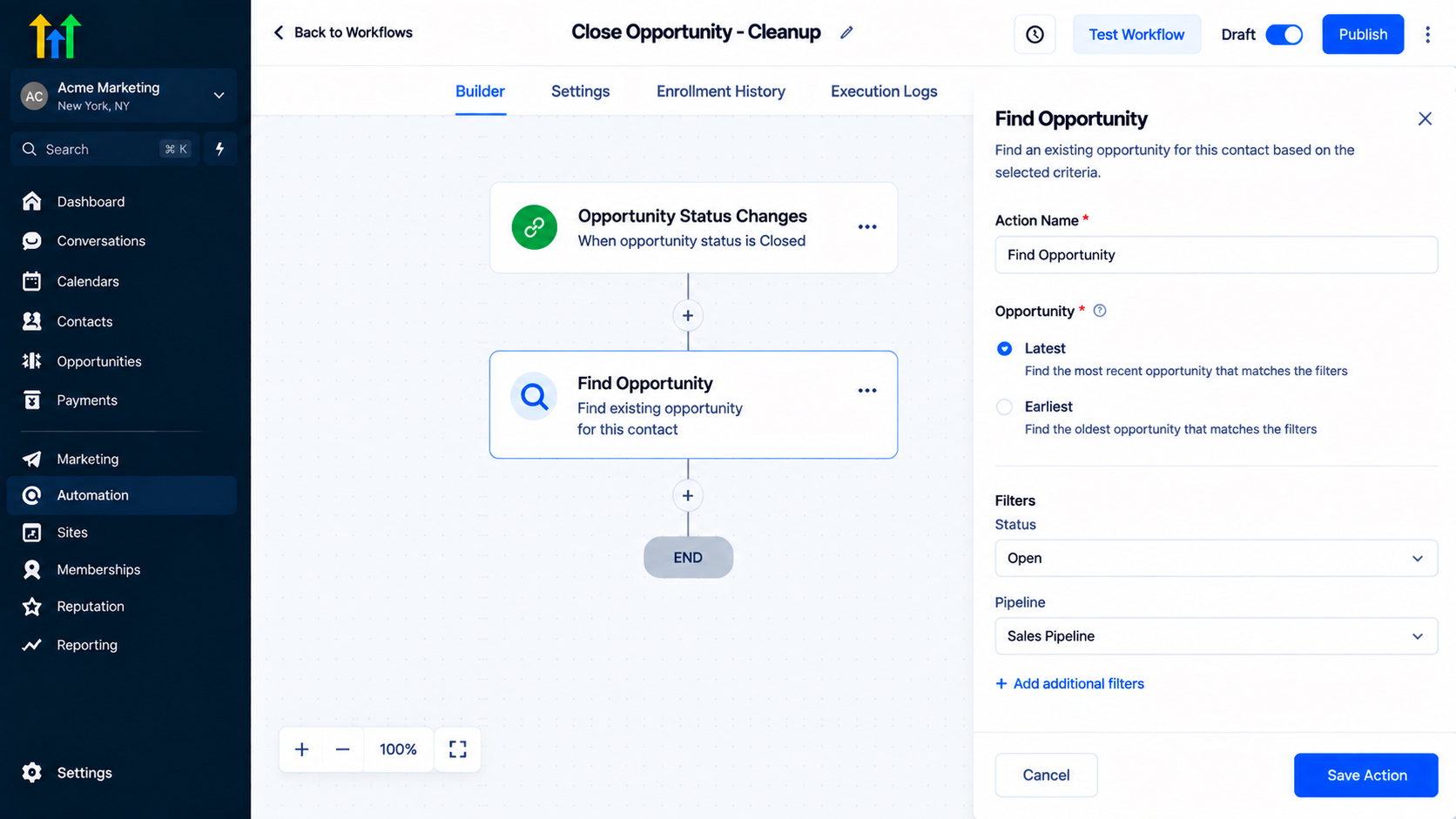
Step 3: Add Find Opportunity When Needed
If your workflow does not already have the correct opportunity available, add:
Find Opportunity
This action searches for an existing opportunity associated with the contact and allows you to select whether to find the "earliest" or "latest" matching opportunity. You can also use filters to narrow the search.
For example, you could configure:
Find Opportunity:
Opportunity: Latest
Status: Open
Pipeline: Sales Pipeline
Once the opportunity is found, it becomes the reference for the subsequent opportunity-based action.
This is particularly important if a contact can have multiple opportunities.
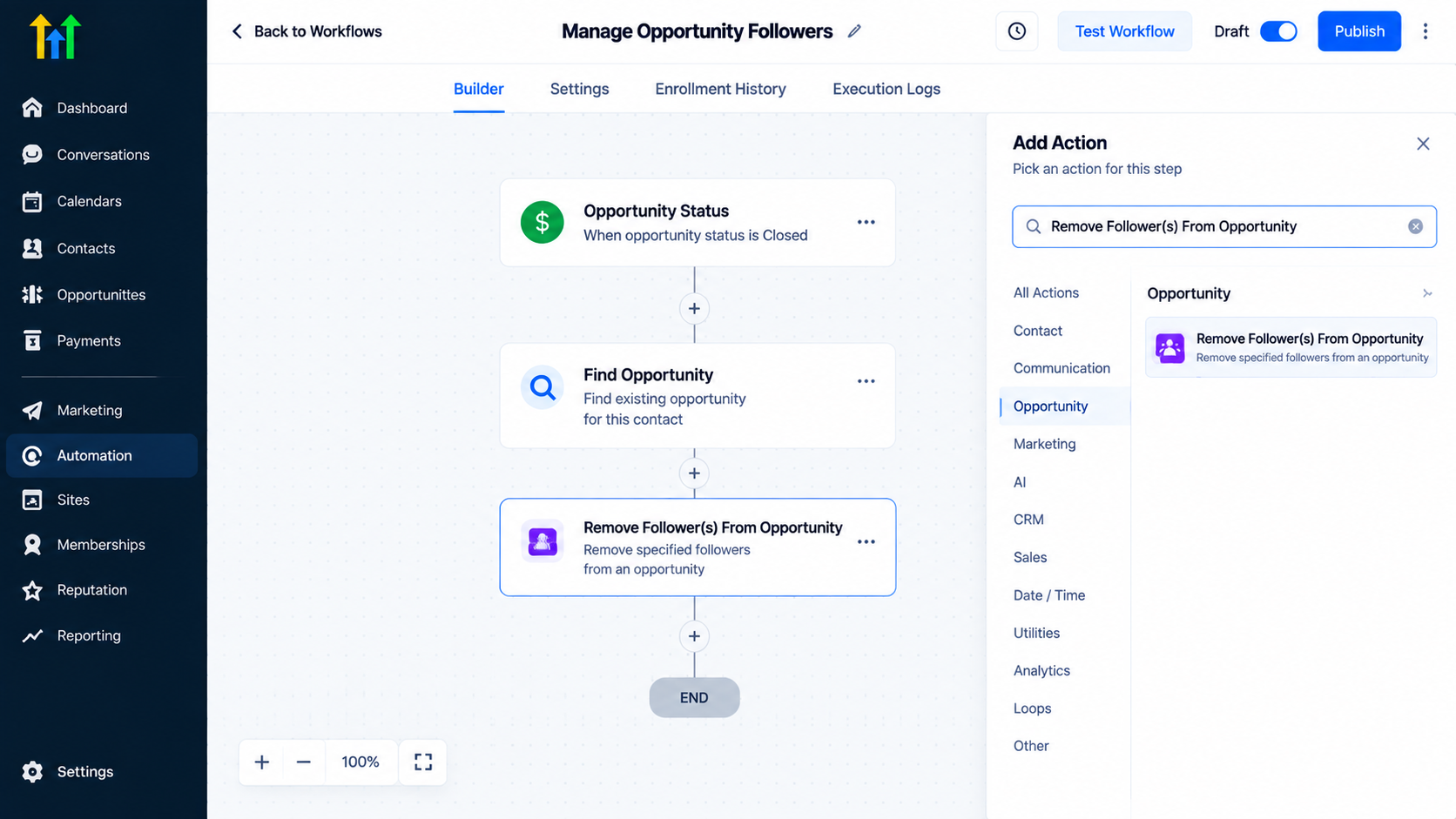
Step 4: Add the Remove Followers Action
Click "+ Action" and search for:
Remove Follower(s) From Opportunity
Select the action.
You'll see options for choosing users and controlling whether all followers should be removed.
Step 5: Give the Action a Clear Name
Use a descriptive action name.
Instead of: "Remove Followers"
You could use:
Remove Sales Team Followers After Close
A clear name makes larger workflows easier to understand later.
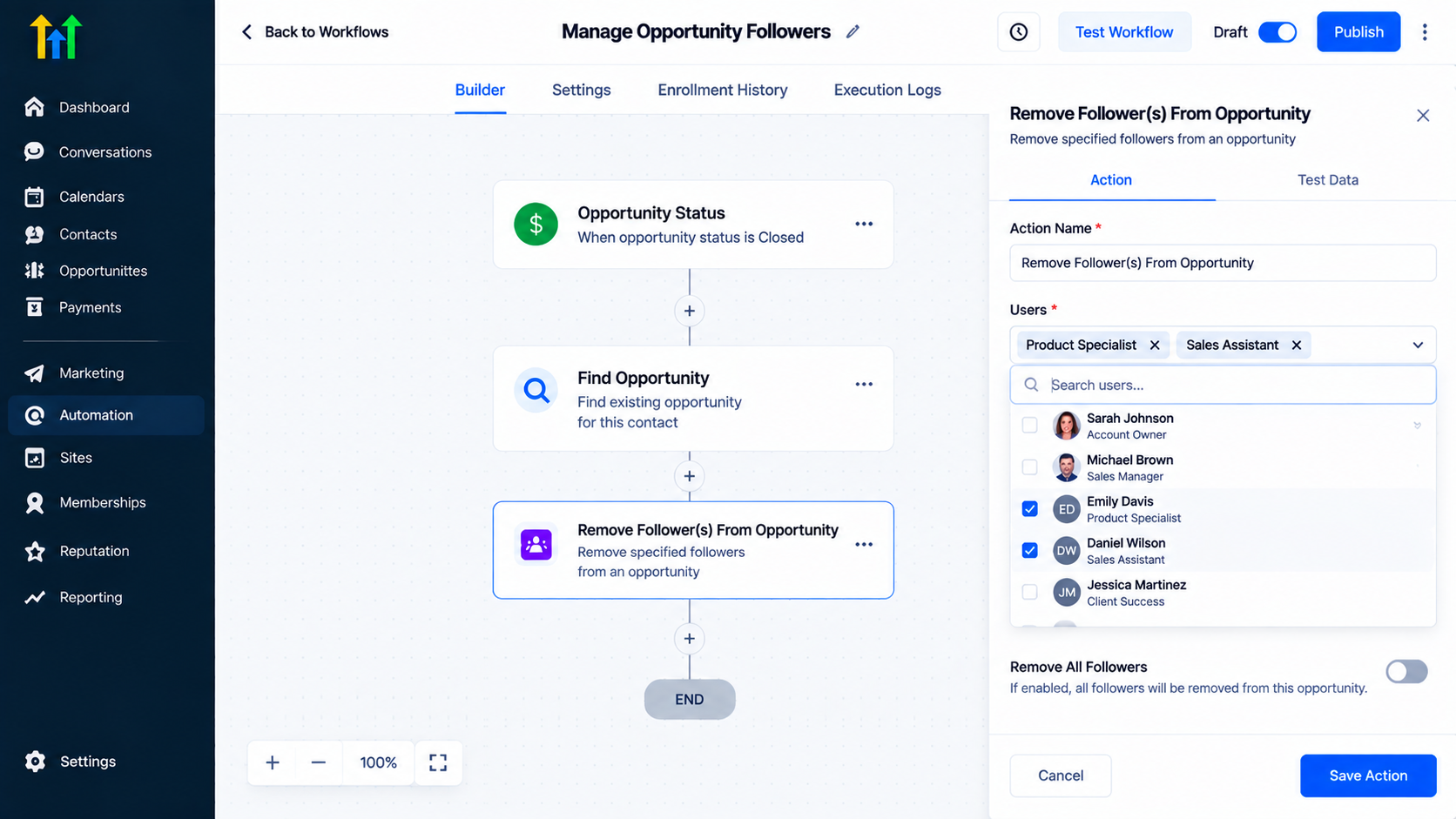
Step 6: Choose Specific Users or Remove Everyone
Now decide which approach your workflow needs.
If only certain users should be removed, select those users.
For example:
Users:
Product Specialist
Sales Assistant
Keep "Remove All Followers" disabled.
If everyone following the opportunity should be removed, enable:
Remove All Followers:
Remember that when this option is enabled, the specific user selection is ignored.
Step 7: Save and Test the Workflow
Before activating the workflow, test it with an appropriate opportunity.
Check that:
The correct opportunity is identified.
The workflow reaches the follower-removal action.
The intended users are removed.
The opportunity owner remains unchanged unless another action changes ownership.
Testing is especially important when a contact can have multiple opportunities.
Practical Use Cases
1. Remove Temporary Team Members After a Deal Closes
Suppose a sales manager and implementation specialist follow an opportunity during the sales process.
Once the deal is closed, the implementation process may have a different team structure.
You could build:
Opportunity Status Changes
↓
Find Opportunity
↓
Remove Follower(s)
This removes the users who no longer need to follow the opportunity.
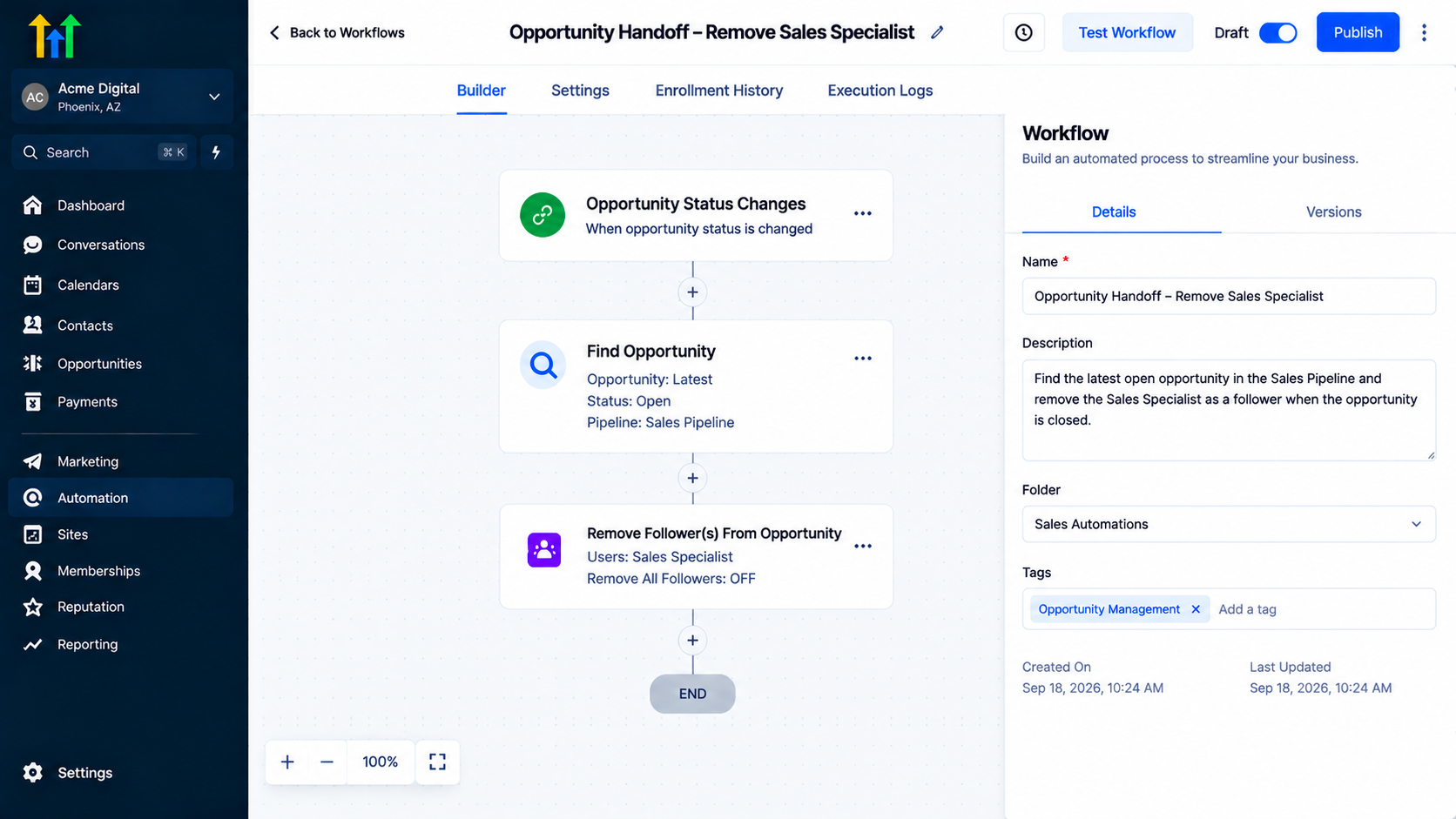
2. Clean Up Followers After a Handoff
Imagine that a lead moves from a sales team to an onboarding team.
The original sales specialist may no longer need to follow the opportunity.
Your workflow can remove that specific user after the handoff.
For example:
Opportunity Moves to Onboarding
↓
Remove Sales Specialist as Follower
This keeps collaboration aligned with the current stage.
3. Remove a Temporary Specialist
Some opportunities require help from a specialist for only one part of the sales process.
Once that work is complete, the specialist can be removed automatically.
This avoids requiring someone to manually revisit every opportunity.
4. Clear All Followers From Completed Opportunities
Some businesses may want completed opportunities to have no additional followers.
In that situation, you can enable "Remove All Followers."
The workflow could be:
Opportunity Becomes Closed
↓
Find Opportunity
↓
Remove All Followers
HighLevel will remove all followers from the opportunity.
5. Manage Followers as Teams Change
Businesses often change responsibilities as opportunities progress.
For example:
Sales Team → Specialist → Account Management
Automating follower changes can help ensure that users who are no longer involved are removed at the appropriate point.
Remove Specific Followers or Everyone?
Choosing between these two options depends on your workflow.
Use Specific Followers When:
Only certain users should leave the opportunity.
The owner should remain unchanged.
Some team members still need access.
You want precise control over collaboration.
Example:
Remove: Sales Assistant
Keep: Sales Manager and Opportunity Owner
Use Remove All Followers When:
Nobody else should follow the opportunity.
The opportunity has been completed.
A temporary collaboration group should be cleared.
You intentionally want to reset the follower list.
The important point is that "Remove All Followers" affects every follower, so use it only when that is the intended result.
Important Difference: Followers vs. Owners
One common mistake is confusing an opportunity follower with an opportunity owner.
They are not the same role.
A follower is an additional user connected to the opportunity for visibility and collaboration. The owner is the user responsible for the opportunity.
HighLevel's follower documentation also notes that followers cannot change ownership themselves.
Therefore, using "Remove Follower(s) From Opportunity" is not the same as removing the opportunity owner.
If your goal is to change who owns an opportunity, you need to use the appropriate owner-management functionality instead.
What Happens If the User Is Not a Follower?
You do not need to build separate logic just to check whether a selected user is already following the opportunity.
HighLevel states that if a specified user is not currently a follower, no change is made for that user.
For example, if your action specifies:
Remove: Product Specialist
but that specialist is not following the opportunity, the action simply makes no change for that user.
This makes the action practical for workflows where follower membership can vary between opportunities.
What If There Are Multiple Opportunities?
This is another important consideration.
If a contact has multiple opportunities, you need to make sure the workflow references the correct one.
HighLevel's "Find Opportunity" action can select either the earliest or latest matching opportunity. If multiple records meet the filters, only one opportunity is returned based on that selection.
For example, if a contact has:
Opportunity A: Older project
Opportunity B: New project
and your workflow should update the newer project, configure Find Opportunity to locate the Latest Opportunity and apply appropriate filters.
This helps prevent follower changes from being applied to the wrong opportunity.
Best Practices for Removing Opportunity Followers
Define When Followers Should Leave
Before building the workflow, decide exactly what event should cause follower removal.
For example:
Deal closed
Opportunity handed off
Project completed
Team responsibility changed
A clear trigger makes the automation easier to maintain.
Use Specific Users When Possible
If only certain team members should be removed, select those users instead of clearing everyone.
This provides more control over the opportunity.
Use Remove All Carefully
Removing all followers is a broad action. Make sure every follower should actually lose their follower status before enabling the option.
Verify Opportunity Context
If the workflow does not have an opportunity in context, the action will be skipped. Use an opportunity trigger or Find Opportunity when necessary.
Test With Different Opportunity Scenarios
If your CRM allows multiple opportunities per contact, test both single-opportunity and multiple-opportunity scenarios.
This helps confirm that the workflow is acting on the intended record.
Common Mistakes to Avoid
Removing the Wrong Users
Always review the selected users before publishing the workflow.
If you only want to remove two followers, do not enable "Remove All Followers."
Confusing Followers With Owners
Removing a follower does not transfer or remove opportunity ownership.
Forgetting Opportunity Context
If there is no opportunity available to the action, HighLevel skips the action.
Ignoring Multiple Opportunities
If contacts can have several opportunities, use Find Opportunity with appropriate filters and earliest/latest selection so the workflow references the intended record.
Automating Without Testing
Follower management affects who can access an opportunity. Always test the workflow before applying it to a large number of records.
Frequently Asked Questions
1. What does Remove Followers from Opportunity do?
It removes selected users from an opportunity's follower list or removes all followers at once.
2. Can I remove only specific opportunity followers?
Yes. You can select one or more specific users to remove from the opportunity.
3. Does removing a follower remove the opportunity owner?
No. Removing a follower does not remove or change the opportunity owner.
4. What happens if I enable Remove All Followers?
GoHighLevel removes every follower from the opportunity, regardless of the users selected in the user field.
5. Does the action work without an opportunity in context?
No. If there is no opportunity in context, the action is skipped. You can use an opportunity trigger or Find Opportunity to provide the required opportunity context.
Conclusion
Keeping opportunity followers accurate is an important part of maintaining an organized CRM. As deals move between sales representatives, specialists, managers, and other teams, some users may no longer need to follow the opportunity.
The "Remove Follower(s) From Opportunity" action gives you a simple way to automate that process. You can remove specific users when their involvement ends or use "Remove All Followers" when the entire follower list needs to be cleared.
The key is to connect the action to the "correct opportunity". If the workflow does not already have an opportunity in context, use "Find Opportunity" to locate the appropriate record before removing followers.
When configured carefully, follower automation can keep opportunity access aligned with your team's responsibilities without changing ownership or requiring repetitive manual cleanup.
The result is a cleaner, more controlled GoHighLevel sales pipeline where the right people have access to opportunities at the right time.



