

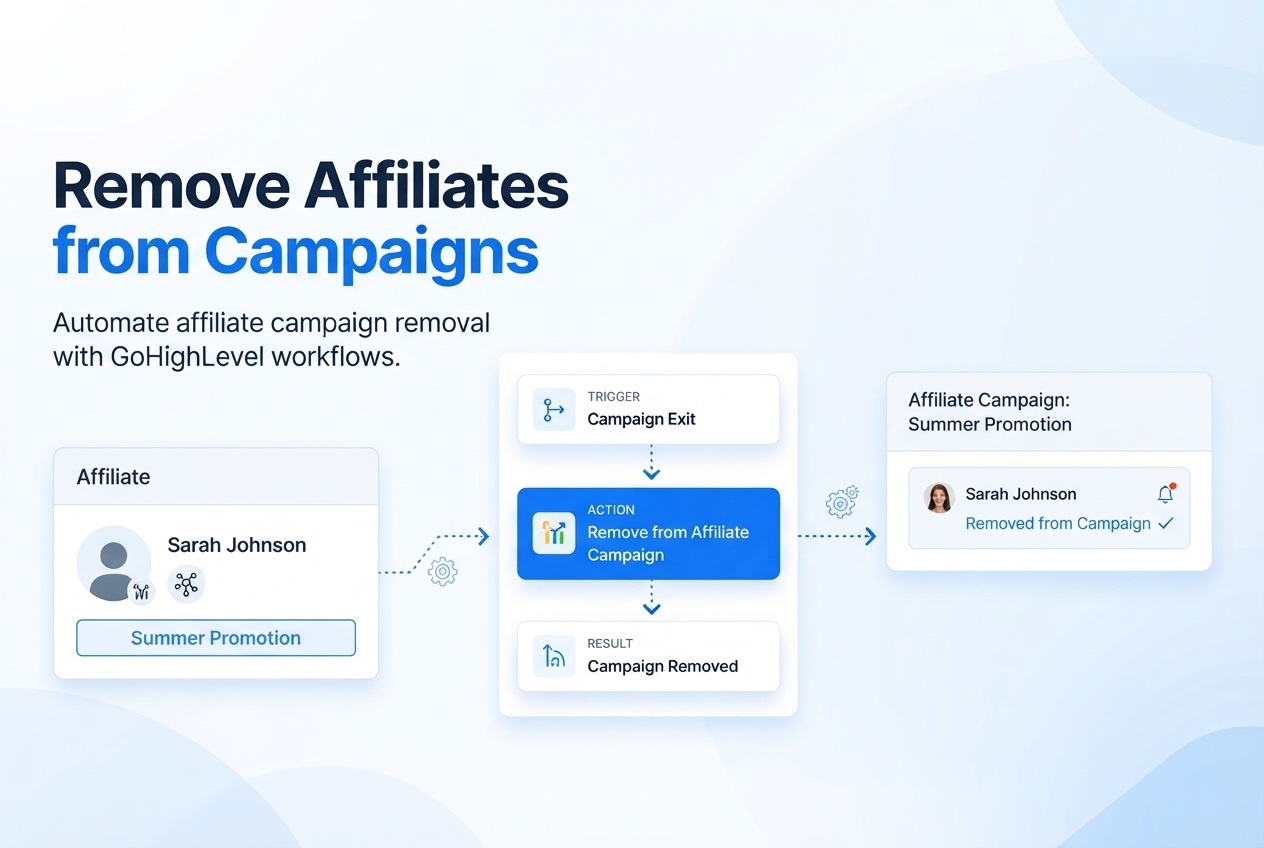
Remove Affiliates from Campaigns in GoHighLevel: Step-by-Step Guide
How to Remove Affiliates from Campaigns Using the Remove from Affiliate Campaign Action in GoHighLevel
Introduction
Managing an affiliate program becomes more complicated as the number of partners grows. Affiliates may join different campaigns, change their eligibility, leave a promotion, or need to be removed from a specific campaign without being removed from the entire affiliate program.
Doing this manually for every affiliate can quickly become repetitive. GoHighLevel provides the "Remove from Affiliate Campaign" workflow action to automate this process. It allows you to remove an existing affiliate from a selected affiliate campaign when a specific workflow trigger occurs.
In this guide, you'll learn what the action does, how to configure it, practical ways to use it, and important points to understand before adding it to your workflow.
What Is the Remove from Affiliate Campaign Action?
The "Remove from Affiliate Campaign" action is a GoHighLevel workflow action designed to remove an existing affiliate from a specific affiliate campaign.
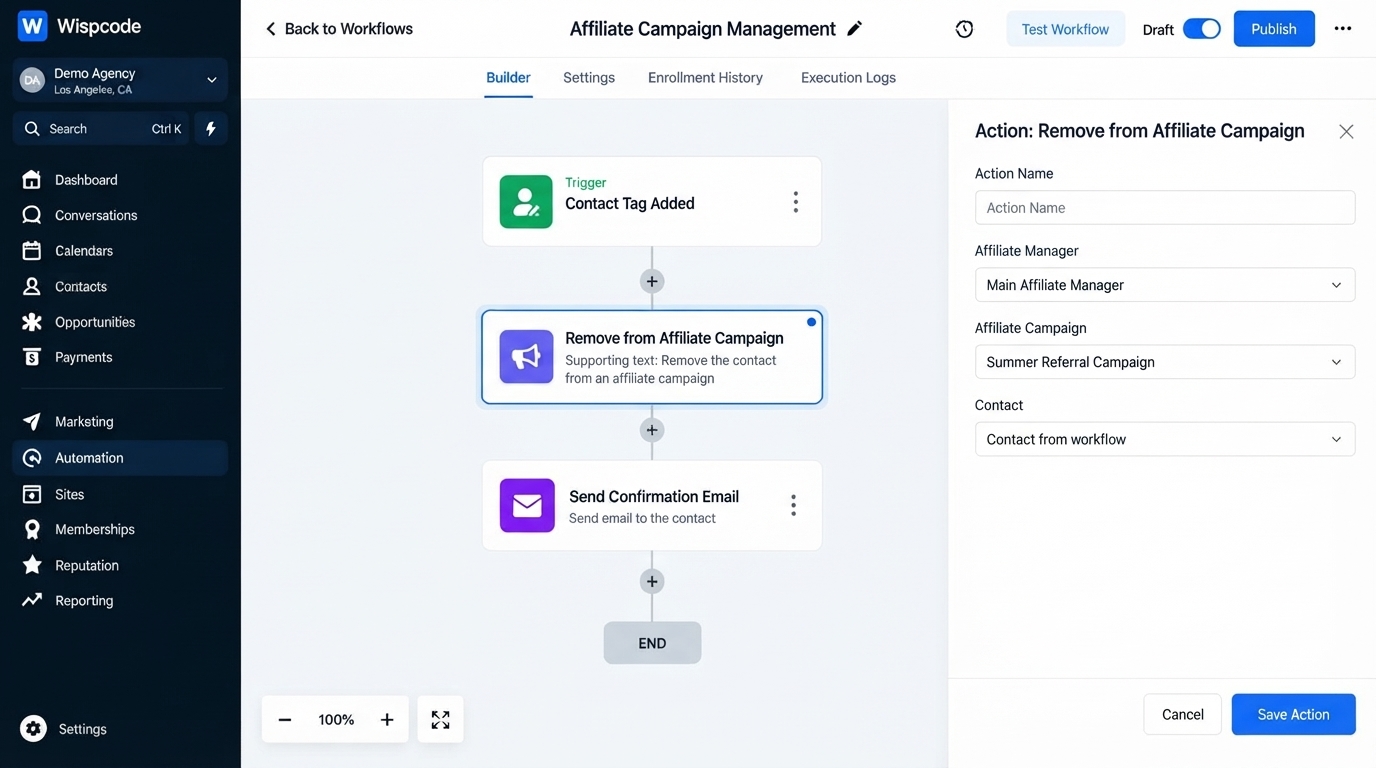
When configuring the action, you select the affiliate campaign from a dropdown. Once the workflow reaches this action, the affiliate is removed from that selected campaign.
This distinction is important: the action is designed to remove the affiliate "from a campaign", rather than simply deleting the affiliate from the Affiliate Manager.
For example, imagine an affiliate is participating in a seasonal promotion. When the promotion ends, or the affiliate submits an exit form, a workflow can automatically remove that affiliate from the relevant campaign.
GoHighLevel lists affiliate-related workflow actions including "Add to Affiliate Manager, Update Affiliate, Add to Affiliate Campaign, and Remove from Affiliate Campaign."
Why Automate Affiliate Campaign Removal?
Without automation, someone may need to regularly review affiliate records and manually update campaign memberships. This becomes harder as your affiliate program grows.
Using a workflow can help make campaign management more consistent.
Keep Campaigns Organized
An affiliate may participate in one campaign but no longer qualify for another. Automating removal helps keep campaign membership aligned with your workflow rules.
Reduce Manual Work
Instead of checking every affiliate individually, you can configure a workflow to perform the removal when a defined trigger occurs.
Respond to Affiliate Changes
If an affiliate submits a form indicating they want to leave a particular campaign, the workflow can use that event to remove them from the appropriate campaign.
Build Repeatable Processes
Once the workflow is configured and published, the same process can be applied whenever the trigger conditions are met.
GoHighLevel describes affiliate automations as a way to manage tasks such as adding and removing affiliates from campaigns through workflows.
How the Remove from Affiliate Campaign Action Works
The basic process is straightforward:
Trigger → Workflow → Remove from Affiliate Campaign → Selected Campaign
The trigger determines when the workflow starts. The action then removes the affiliate from the campaign you selected.
For example:
Affiliate submits exit form
↓
Workflow starts
↓
Remove from Affiliate Campaign
↓
Selected campaign is removed
This approach is useful when your business has a clear event that indicates an affiliate should no longer participate in a particular campaign.
How to Set Up Remove from Affiliate Campaign in GoHighLevel
Step 1: Create or Open a Workflow
Start by opening the "Workflows" area in your GoHighLevel sub-account.
You can create a new workflow or use an existing workflow that already contains the trigger you need.
The workflow needs a trigger because the Remove from Affiliate Campaign action executes when a contact reaches that point in the workflow.
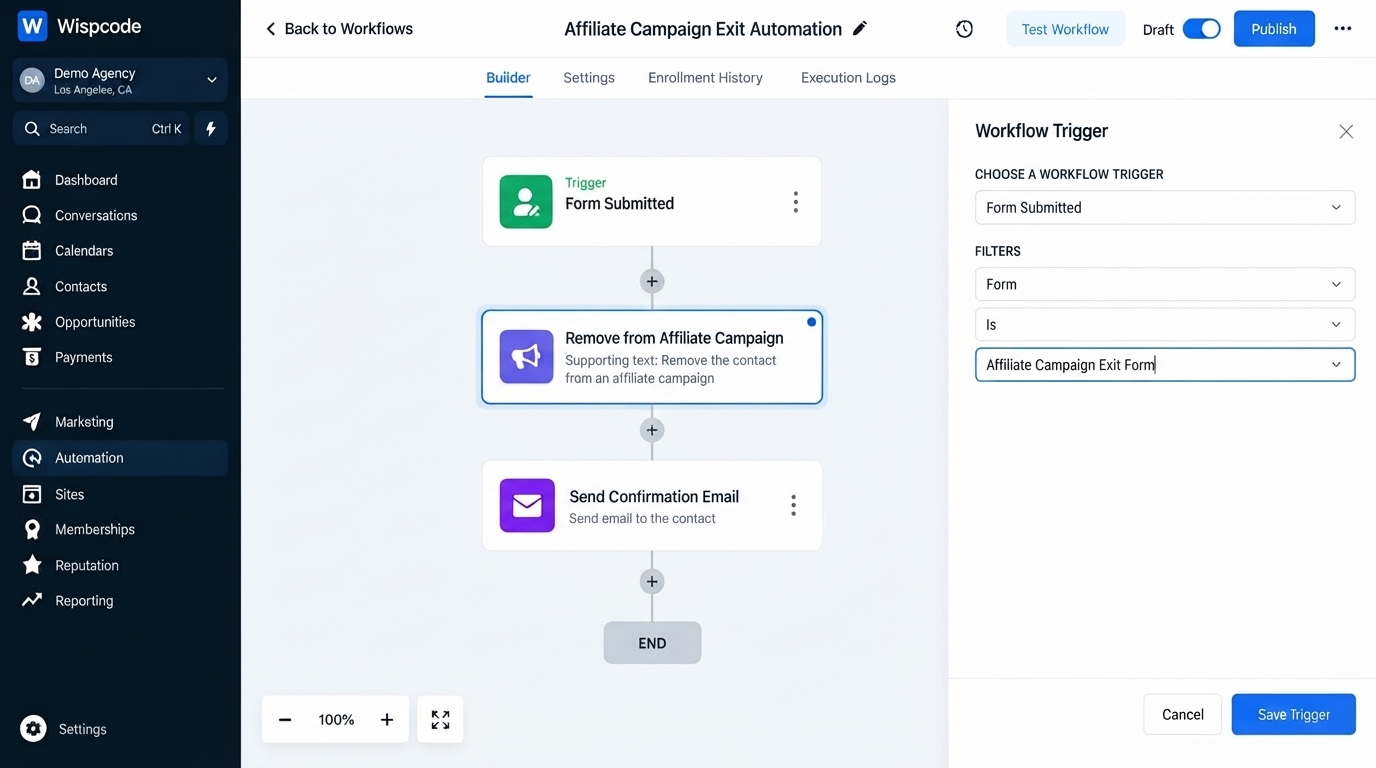
Step 2: Choose Your Workflow Trigger
Select the event that should cause the affiliate to be removed from the campaign.
Your trigger will depend on your business process.
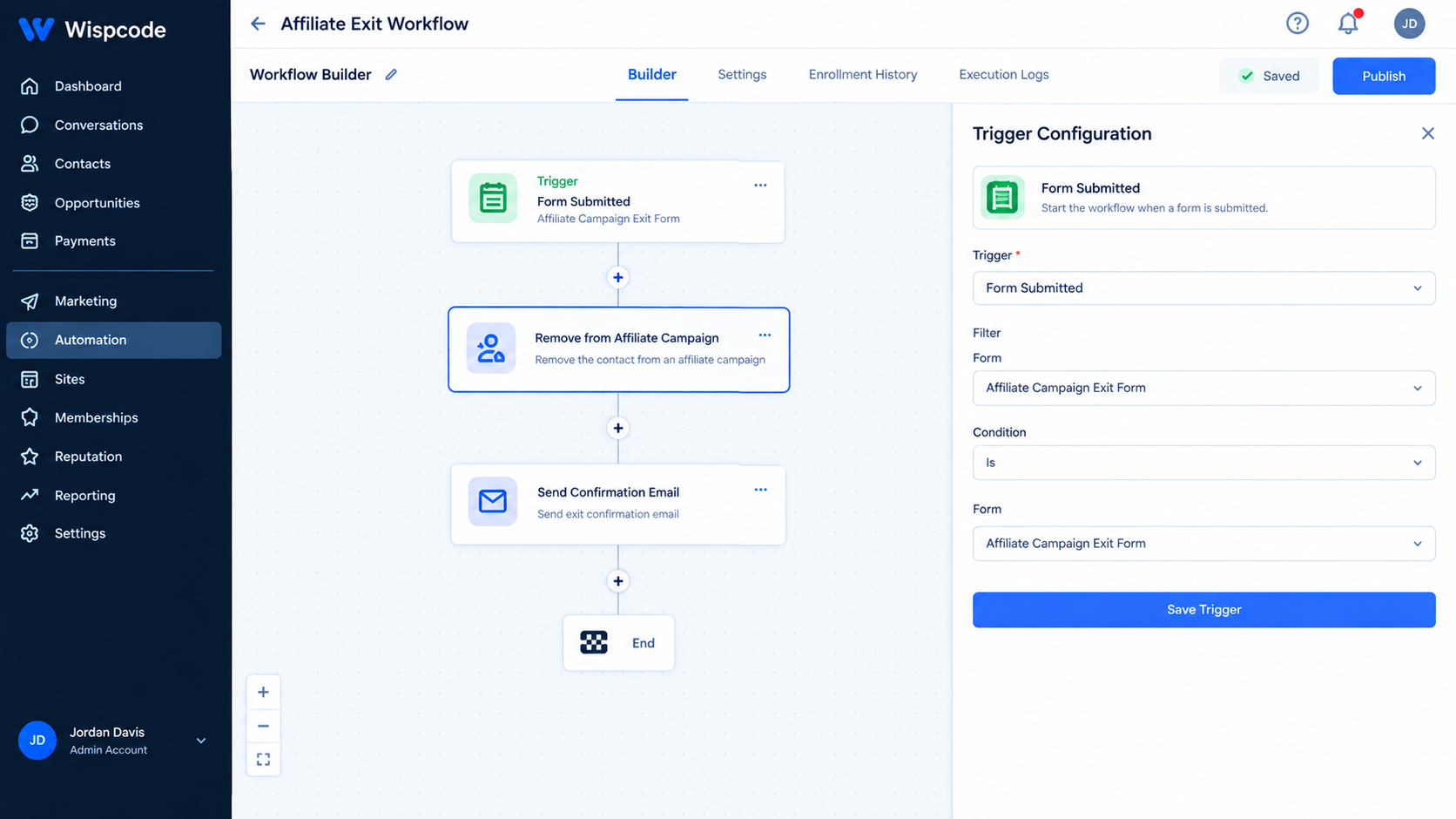
For example, you could build a process around an affiliate exit form. GoHighLevel's official example uses a "Form Submitted" trigger with a specific affiliate exit form.
Your workflow could therefore look like:
Form Submitted
↓
Affiliate Exit Form
↓
Remove from Affiliate Campaign
The important part is making sure that the trigger represents the event that should actually cause the campaign removal.
Step 3: Add the Action
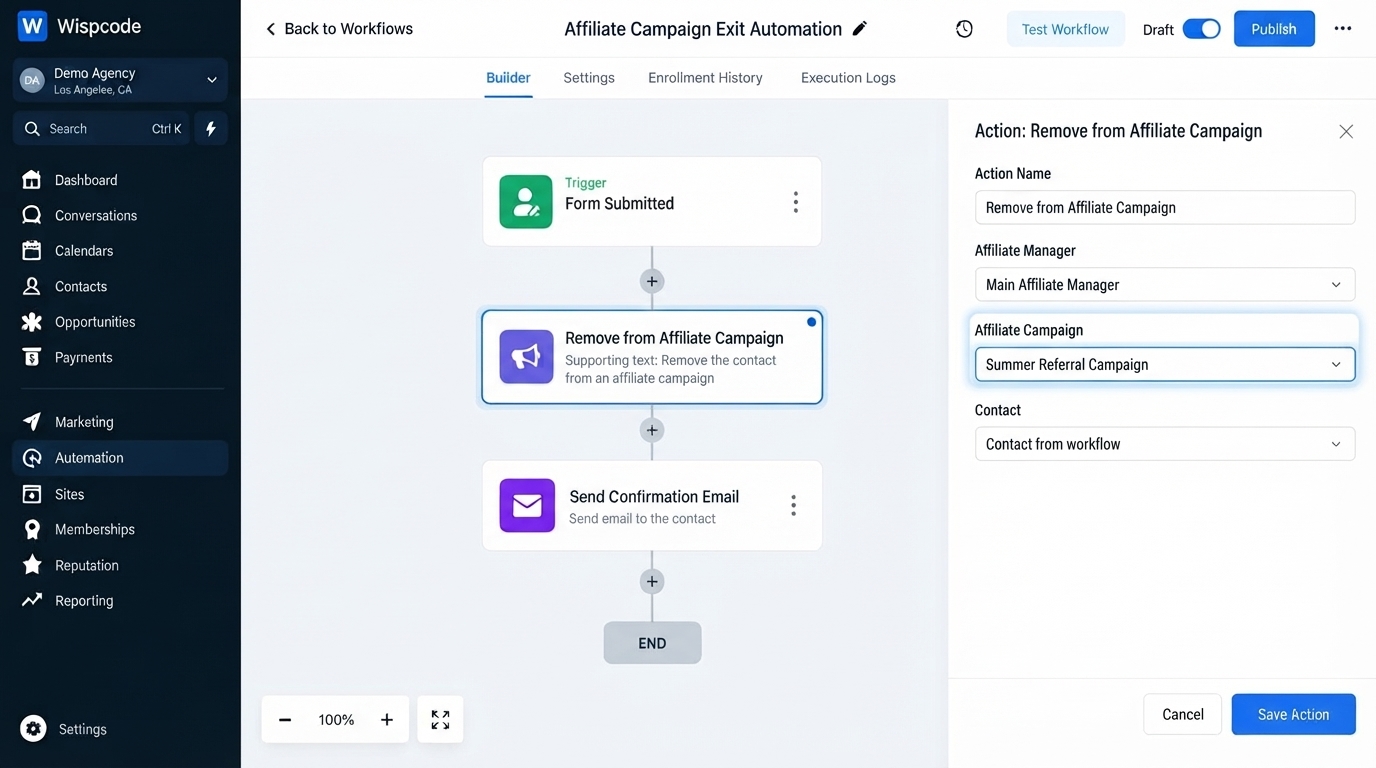
Inside the workflow builder, add a new action.
Search for:
Remove From Affiliate Campaign
Select it from the available workflow actions.
GoHighLevel includes this action within its affiliate workflow actions.
Step 4: Give the Action a Clear Name
Use a descriptive action name so you can understand what it does when reviewing the workflow later.
For example:
Remove from Black Friday Campaign
A clear name is especially helpful when workflows contain multiple affiliate-related actions.
Step 5: Select the Affiliate Campaign
The action allows you to select the affiliate campaign from the available campaign dropdown.
Choose the specific campaign from which the affiliate should be removed.
For example:
Affiliate Campaign: Black Friday Promotion
Once configured, the workflow knows which campaign membership should be removed when the action executes.
Step 6: Save and Test the Workflow
Before publishing the workflow, review the trigger and action configuration.
Check that:
The correct trigger is being used.
The intended affiliate can enter the workflow.
The correct affiliate campaign is selected.
The workflow contains the correct action.
The removal event occurs under the expected conditions.
Testing your workflow before publishing can help prevent unintended campaign changes.
Step 7: Publish the Workflow
Once you have reviewed the configuration, publish the workflow.
When an affiliate meets the trigger conditions, the workflow can execute the "Remove from Affiliate Campaign" action automatically.
Practical Example: Affiliate Exit Form
One of the clearest use cases is an affiliate exit process.
Suppose your company runs a campaign called "Black Friday Affiliate Campaign."
An affiliate decides they no longer want to participate and submits an exit form.
You could configure the workflow like this:
Trigger: Form Submitted
Filter: Affiliate Exit Form
Action: Remove from Affiliate Campaign
Campaign: Black Friday Affiliate Campaign
Result:
When the appropriate affiliate submits the exit form, the workflow reaches the removal action and removes that affiliate from the selected campaign. This is the same general use case documented by GoHighLevel.
This gives your team a repeatable way to process campaign exits without manually opening each affiliate record.
Removing an Affiliate from a Campaign vs. Updating Affiliate Status
These actions should not be confused.
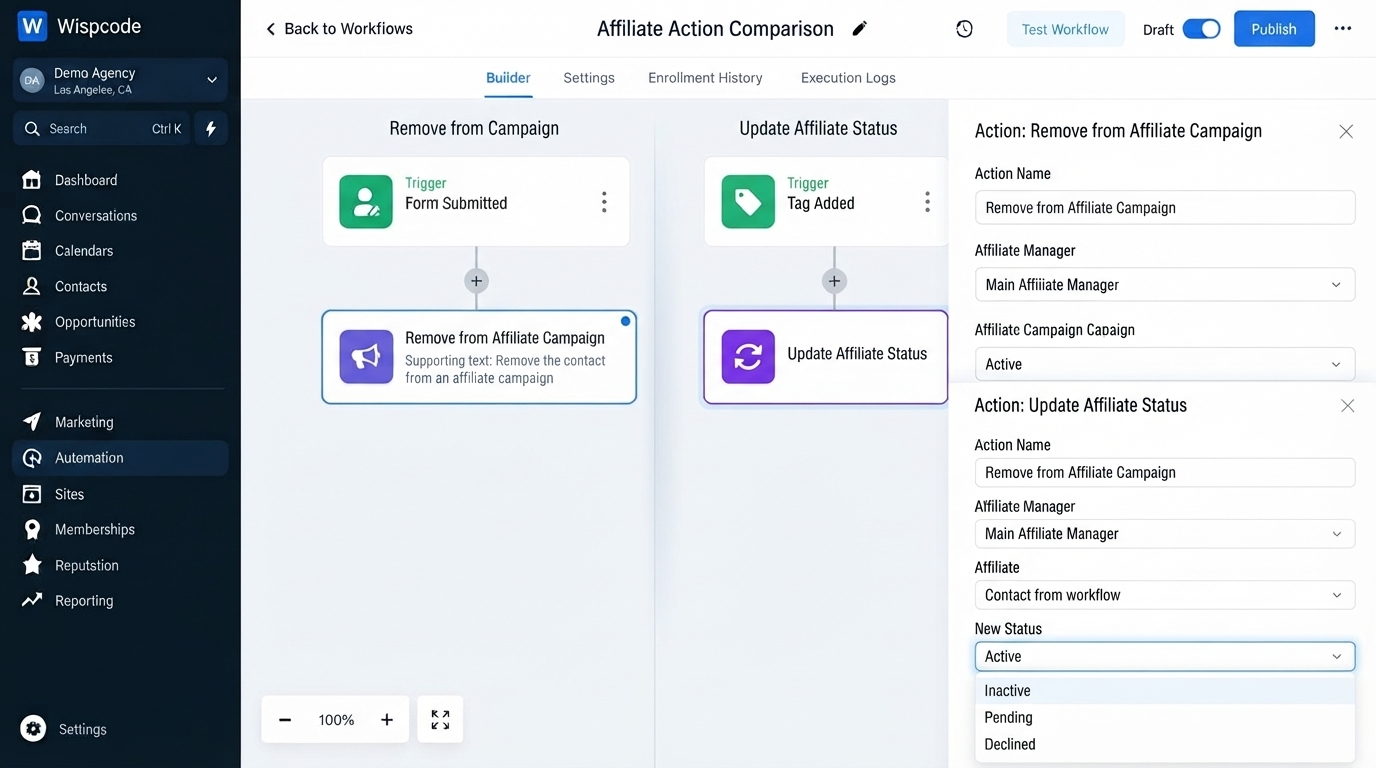
GoHighLevel also provides an "Update Affiliate" action. That action can change an affiliate's status between "active" and "inactive".
The two actions serve different purposes:
Remove from Affiliate Campaign: Removes the affiliate from a selected campaign.
Update Affiliate: Changes the affiliate's status to active or inactive.
For example, if an affiliate should remain part of your affiliate program but should no longer participate in one particular campaign, removing them from that campaign is a different operation from changing their overall affiliate status.
Understanding this difference helps you choose the correct workflow action.
Remove from Campaign vs. Remove from Affiliate Manager
There is another important distinction.
GoHighLevel's affiliate management system supports adding contacts to the Affiliate Manager and managing their campaign participation separately. The documentation describes "Remove from Affiliate Campaign" as removing an affiliate from an existing campaign.
Therefore, don't treat this action as a general "delete affiliate" action.
If your goal is simply to stop an affiliate from participating in one campaign, the campaign-removal action is the relevant workflow action.
Other Ways to Manage Affiliate Campaign Membership
GoHighLevel also provides manual campaign-management options through the Affiliate List.
For example, Quick Campaign Actions can be used to remove an affiliate from a campaign manually by opening the campaign actions menu and selecting "Remove from Campaign."
This gives you two different approaches:
Manual management:
Useful when you need to make an individual change.Workflow automation:
Useful when campaign removal should happen automatically based on a defined event.
The right approach depends on how your affiliate program is structured.
Best Practices for Affiliate Campaign Removal
Use Clear Triggers
Your workflow should have a logical reason for removing someone from a campaign.
An exit form, status change, or another relevant business event can provide a clear starting point.
Select the Correct Campaign
Double-check the campaign selected in the action.
If an affiliate participates in multiple campaigns, removing them from one campaign does not mean the same thing as removing them from every campaign.
Use Descriptive Action Names
Names such as "Remove from Black Friday Campaign" are easier to understand than generic names such as "Remove Affiliate."
This makes future workflow maintenance easier.
Test Before Publishing
Always test the workflow with an appropriate contact or test scenario before activating it.
This helps verify that the trigger and campaign selection work together as intended.
Keep Affiliate Actions Separate
If your workflow also handles affiliate onboarding, status changes, or campaign enrollment, organize the actions clearly.
GoHighLevel supports several affiliate-related workflow actions, including adding affiliates, updating their status, and adding or removing them from campaigns.
Common Mistakes to Avoid while Removing Affiliates from Campaigns
Confusing Campaign Removal With Affiliate Removal
The action removes an affiliate from a selected campaign. It should not be treated as a general affiliate deletion function.
Choosing the Wrong Campaign
Always verify the campaign selected in the action before publishing the workflow.
Using an Unclear Trigger
If the trigger doesn't accurately represent when campaign membership should end, the workflow may not reflect your intended business process.
Skipping Testing
A small configuration mistake can affect campaign membership. Testing before publishing allows you to catch configuration problems.
Confusing Inactive Status With Campaign Removal
Changing an affiliate's status and removing them from a campaign are separate actions. Choose the one that matches the actual outcome you need.
5 Frequently Asked Questions(FAQ's)
1. What does Remove from Affiliate Campaign do?
It removes an existing affiliate from a selected affiliate campaign in GoHighLevel.
2. Does it delete the affiliate from Affiliate Manager?
No. The action is specifically designed to remove the affiliate from a selected campaign.
3. Can I automate campaign removal?
Yes. You can place the action inside a GoHighLevel workflow and use a relevant trigger to determine when it runs.
4. Can I choose which campaign to remove?
Yes. The action provides a campaign selection so you can choose the specific affiliate campaign.
5. Is Remove from Affiliate Campaign the same as Update Affiliate?
No. "Remove from Affiliate Campaign" changes campaign membership, while "Update Affiliate" changes the affiliate's status between active and inactive.
Conclusion
Managing affiliate campaigns manually can become difficult as your program grows. GoHighLevel's "Remove from Affiliate Campaign" action gives you a practical way to automate campaign membership changes based on workflow triggers.
The key is to understand exactly what the action does: it removes an existing affiliate from a "selected affiliate campaign". By pairing the action with a clear trigger, selecting the correct campaign, and testing the workflow before publishing, you can create a more consistent affiliate management process.
For businesses using GoHighLevel to manage affiliate programs, this action can become a useful part of workflows designed to handle campaign exits and other changes automatically.
Need Expert Help with GoHighLevel?
New to GoHighLevel and ready to get started? Buy your GoHighLevel account here and launch with confidence.
Already know what you need and want our team to handle everything, from complete setup and customization to funnels, workflows, automations, CRM, and pipelines? Click here.



