

How to Format and Manage Numbers Automatically Using Number Formatter in GoHighLevel
How to Format and Manage Numbers Automatically Using the Number Formatter Action in GoHighLevel
Numerical data often enters a CRM in inconsistent forms. A price may arrive as “$1,250.00,” a number may need a different decimal or thousands-separator format, or a phone number may need standardizing before another automation step uses it.
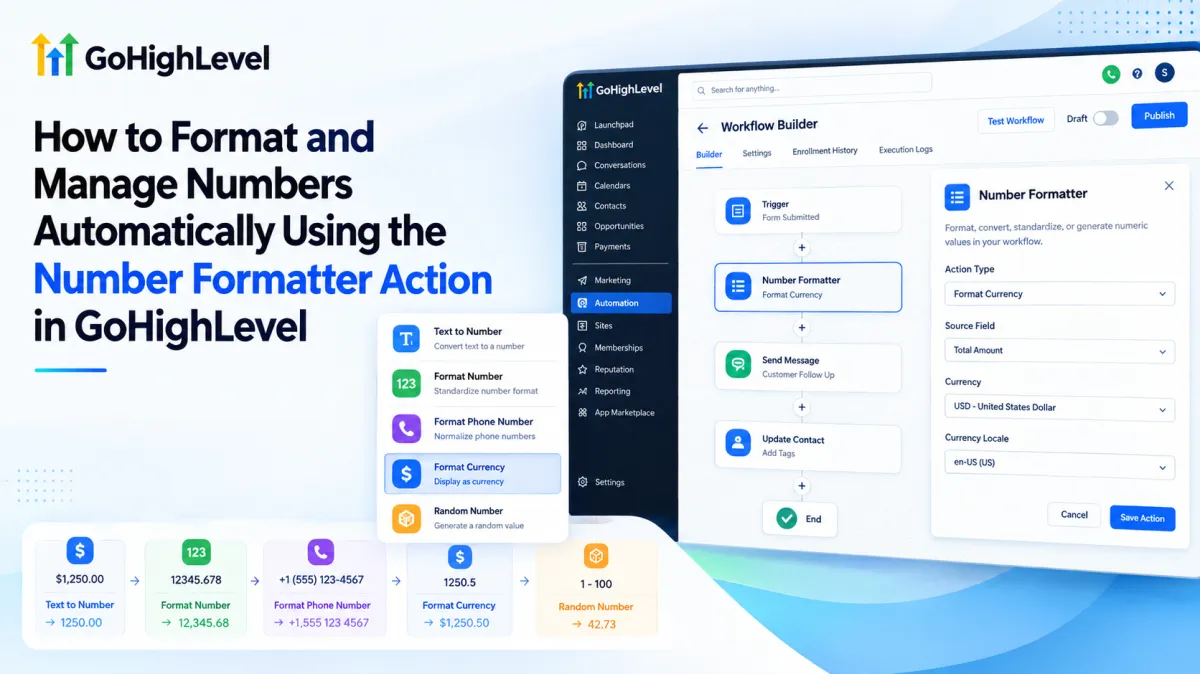
The Number Formatter Action in GoHighLevel solves this inside Workflows. HighLevel currently documents five action types: Text to Number, Format Number, Format Phone Number, Format Currency, and Random Number.
What Is the Number Formatter Action in GoHighLevel?
Number Formatter is a GoHighLevel Workflow Action for formatting, converting, standardizing, or generating numeric and number-like values. Instead of manually cleaning data or sending it elsewhere for basic formatting, you can process it directly inside a workflow.
Its role is data preparation, not general calculation. It can convert a text representation such as “$12,345.67” into numeric form, format a number, standardize a phone number, display a numeric value as currency, or generate a random number within a specified range.
That distinction matters. If your automation needs arithmetic such as addition, subtraction, multiplication, or division, HighLevel provides a separate Math Operation workflow action for that purpose.
Why Use Number Formatter?
Automations work more reliably when downstream steps receive data in a predictable format. A value that looks correct to a person may still contain currency symbols, regional separators, or phone-number formatting that makes it unsuitable for the next step.
The GoHighLevel Number Formatter helps normalize these differences. It is useful when a value captured earlier in a workflow needs to be cleaned or presented consistently before reuse.
Formatting can also improve personalization. For example, a numeric amount can be displayed using an appropriate currency and locale, while a phone number can be standardized into a selected phone format. Importantly, formatting a currency value is not the same as converting currencies.
How the Number Formatter Action Works
Conceptually, the process is simple:
Input value → Number Formatter action type → formatted or generated result → next workflow step
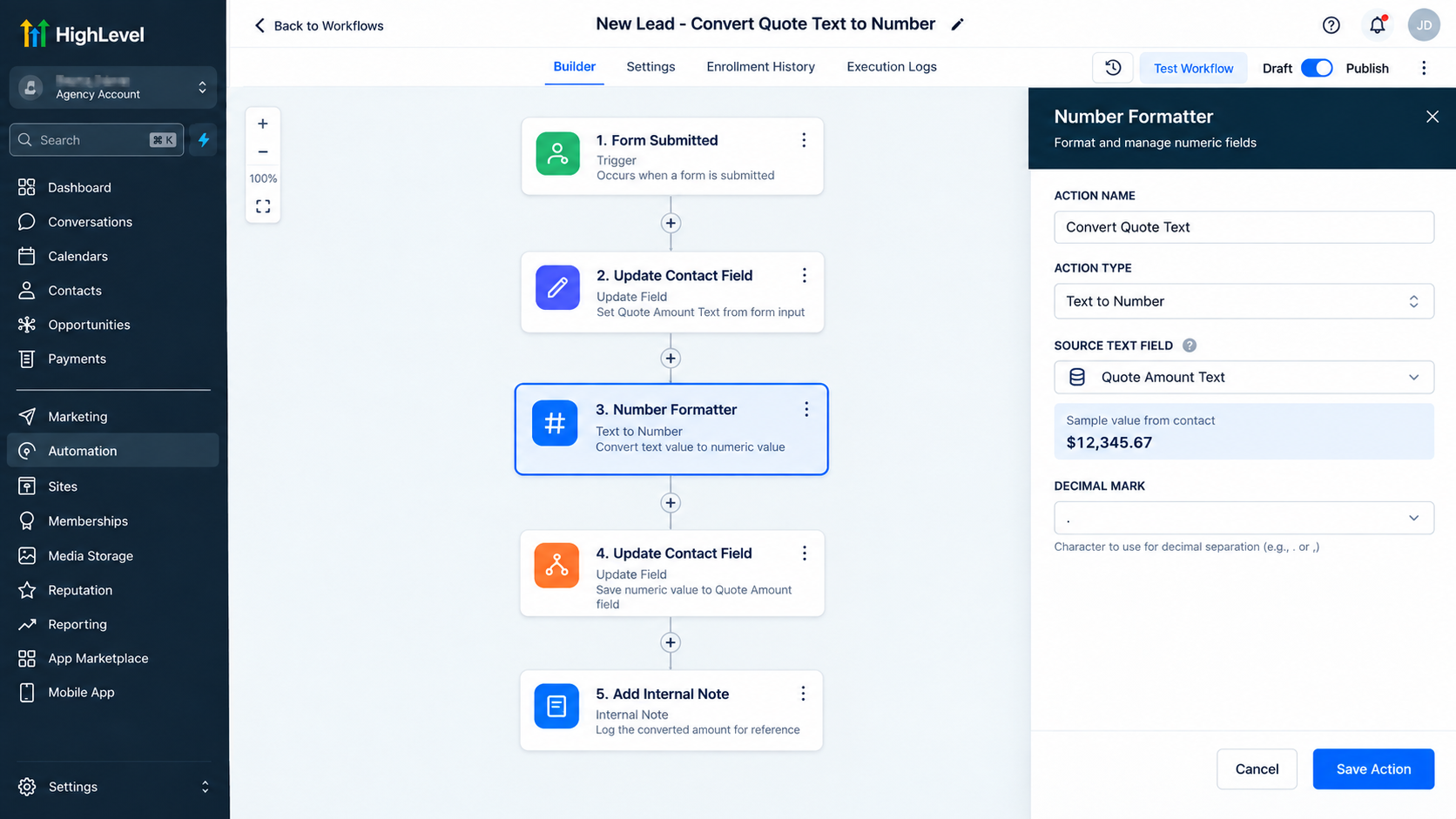
For Text to Number, you select the field containing the text representation and specify its input decimal mark.
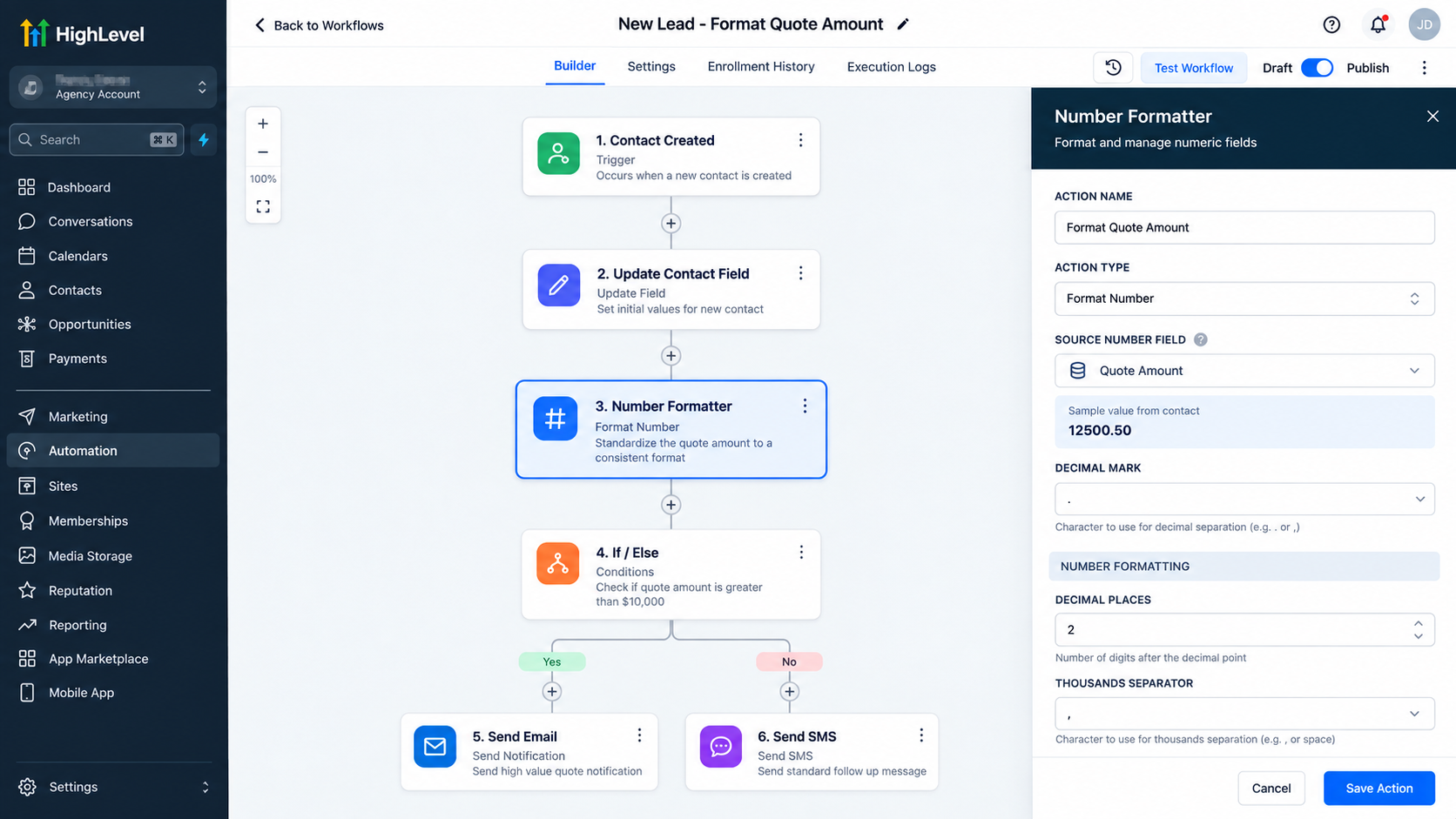
For Format Number, you select the numeric field, define the input decimal mark, and choose the desired output format. HighLevel describes this mode as handling settings such as decimal places and thousands separators.
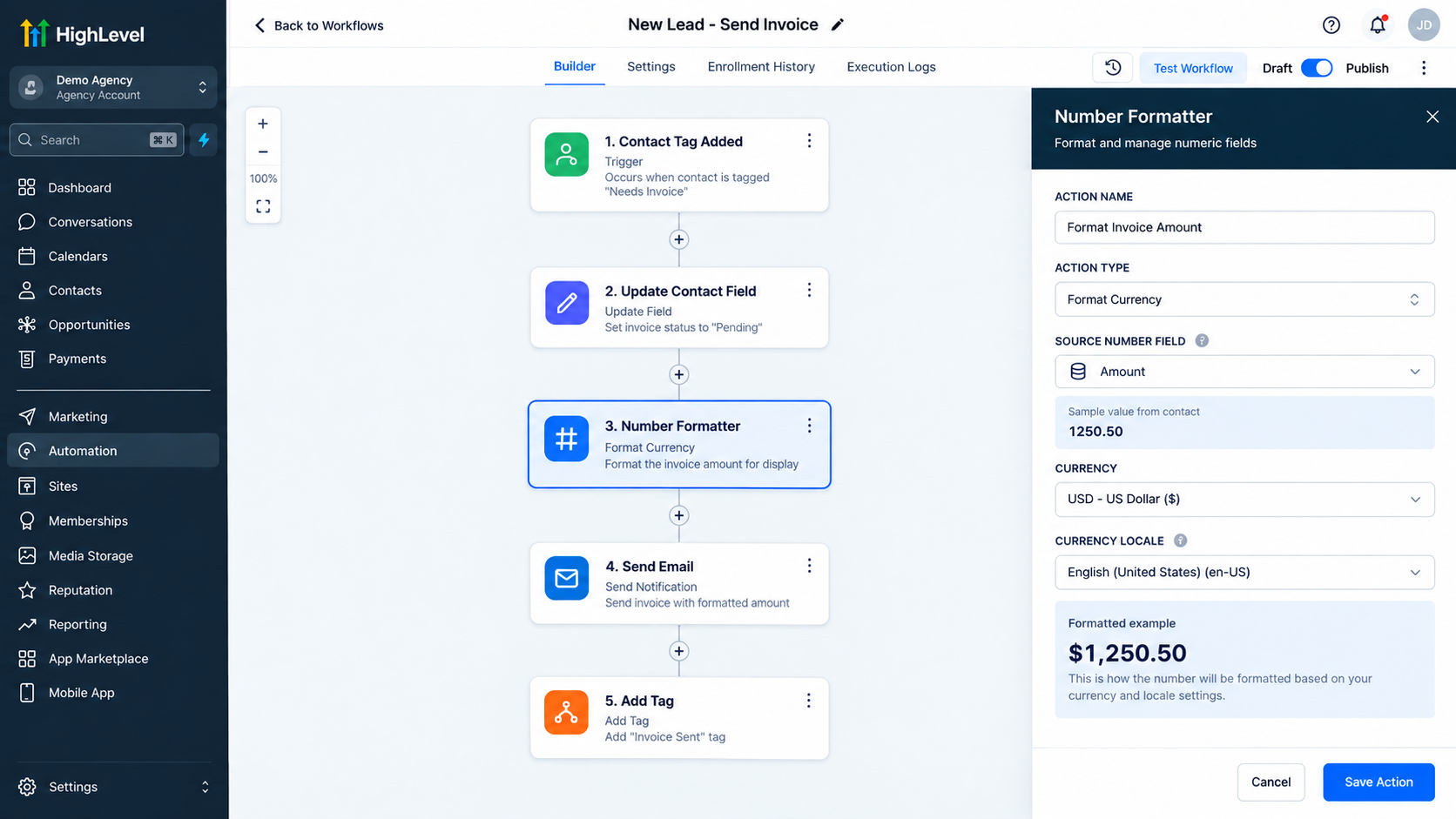
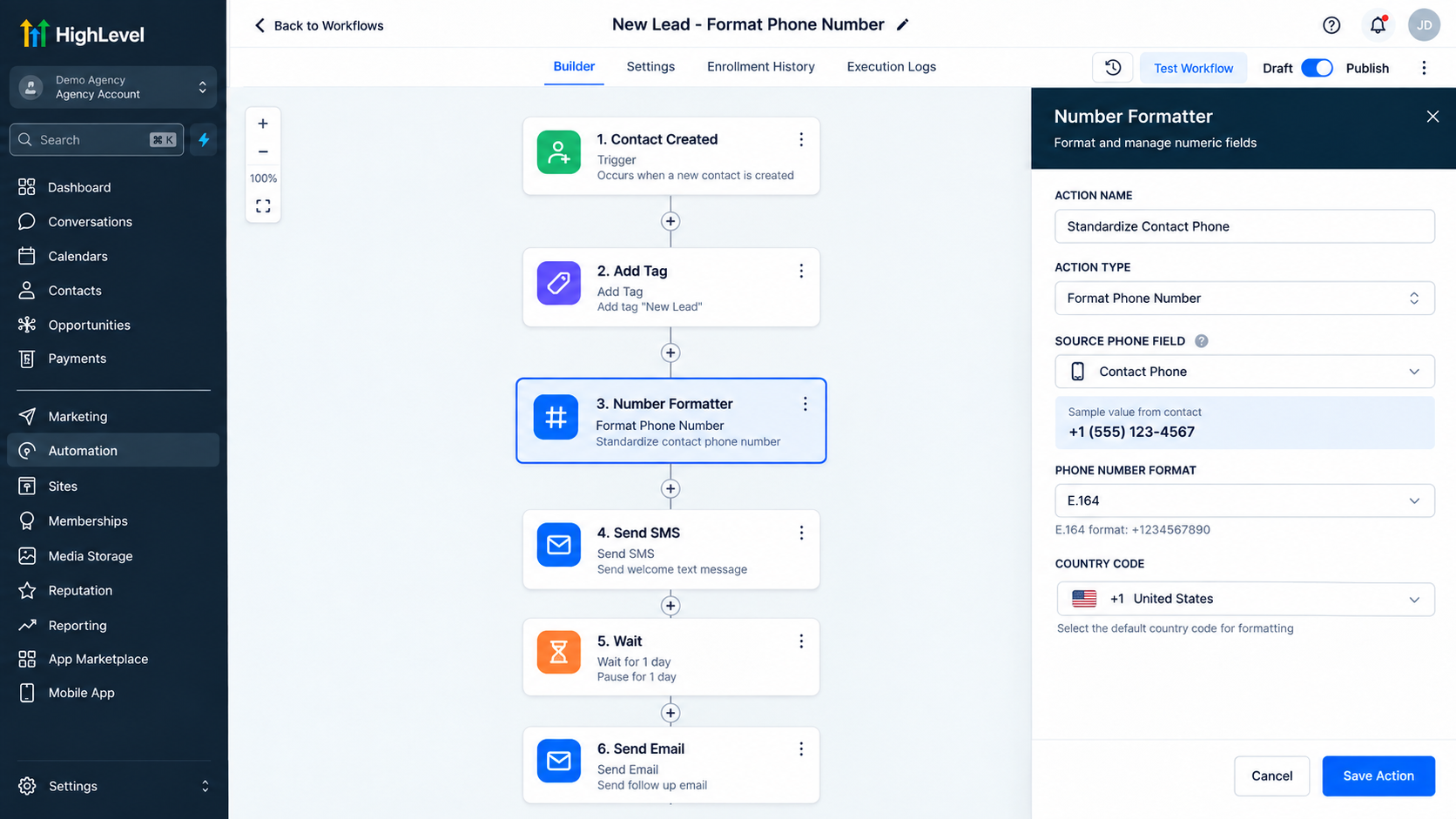
For Format Phone Number, you select a phone field, target format, and country code. Format Currency uses a numeric field, currency, and currency locale. Random Number uses a lower range, upper range, and optional decimal-points setting.
How to Use the Number Formatter Action
Go to Automation > Workflows, then create a workflow or open an existing one. In the current Workflow builder, actions are added from the workflow path using Add Action.
Place Number Formatter after the step where the value you want to process becomes available. Select Number Formatter, give the step a clear name, and choose the required Action Type.
The available configuration fields depend on that action type. For example, Format Currency requires a source field, Currency, and Currency Locale, while Random Number requires Lower Range and Upper Range, with Decimal Points optional.
Select the appropriate source value, configure the displayed settings, save the action, and test the workflow with realistic data before publishing.
Real-World Use Cases
Convert a Price Stored as Text
Input: “$12,345.67”
Number Formatter: Text to Number
Output/Next Use: A numeric representation that can be supplied to a later step expecting numeric data.
This is useful when an incoming source stores a number with display characters rather than as a clean number.
Standardize a Sales Value
Input: A numeric sales or customer value
Number Formatter: Format Number
Output/Next Use: A consistently formatted value for a message, internal notification, or another workflow context.
The action is changing presentation, not recalculating the amount.
Present an Amount as Currency
Input: 1250.5
Number Formatter: Format Currency using the required currency and locale
Output/Next Use: A currency-formatted representation suitable for customer-facing or internal content.
This does not perform exchange-rate conversion.
Normalize a Phone Number
Input: A contact phone number
Number Formatter: Format Phone Number
Output/Next Use: The phone number in the selected target format using the configured country code.
Best Practices and Common Mistakes
Match the source data to the formatter type. Use Text to Number for text that represents a number, Format Phone Number for phone data, and Format Currency for numeric monetary values.
Do not use Number Formatter as a calculator. Use HighLevel’s Math Operation action when the workflow actually needs arithmetic. Also, do not treat currency formatting as currency conversion.
Be careful with decimal marks and regional conventions. Commas and periods can represent different things depending on the source format, so configure the input accurately.
Finally, use descriptive action names and test edge cases before activating the workflow. Clear names such as “Format Quote Amount” or “Normalize Contact Phone” make complex GoHighLevel Workflows easier to troubleshoot and maintain.
Conclusion
The Number Formatter Action in GoHighLevel is valuable when a workflow has a numeric or number-like value that needs cleaning, standardization, presentation formatting, or controlled number generation before the next step.
Used correctly, Number Formatter supports cleaner data, more consistent personalization, and more dependable GoHighLevel automation without confusing formatting with mathematical calculation or currency conversion.
Frequently Asked Questions
What is the Number Formatter Action in GoHighLevel?
The Number Formatter Action in GoHighLevel is a Workflow action designed to process numeric and number-like data. HighLevel currently includes Text to Number, Format Number, Format Phone Number, Format Currency, and Random Number as Number Formatter action types.
Can the GoHighLevel Number Formatter perform mathematical calculations?
No. Number Formatter should not be treated as a calculator. Its purpose is to format, convert, standardize, or generate numerical data. For arithmetic operations such as addition, subtraction, multiplication, or division, you should use HighLevel's dedicated Math Operation workflow functionality instead.
What is the difference between Text to Number and Format Number?
Text to Number converts a textual representation of a number into numeric form. For example, HighLevel documents converting $12,345.67 into 12345.67. Format Number, on the other hand, takes numerical data and applies a selected number format, including settings related to decimal and thousands separators.
Can Number Formatter format phone numbers?
Yes. The Format Phone Number action type can standardize a phone number into a selected target format. Its configuration includes the source field, desired format, and phone-number country code. HighLevel lists formats such as E.164 as an example.
Does Format Currency convert money between currencies?
No. Format Currency formats a numerical value using a selected currency and locale; it should not be confused with exchange-rate conversion. For example, the formatting step can control how a monetary value is represented according to the chosen currency and locale without performing a foreign-exchange calculation.
Can I generate random numbers with Number Formatter?
Yes. The Random Number action type generates a number between a specified Lower Range and Upper Range. HighLevel also provides an optional Decimal Points setting for controlling how many decimal places are allowed in the generated number.
Need Expert Help with GoHighLevel?
New to GoHighLevel and ready to get started? Buy your GoHighLevel account here and launch with confidence.
Already know what you need and want our team to handle everything, from complete setup and customization to funnels, workflows, automations, CRM, and pipelines? Click here.



