

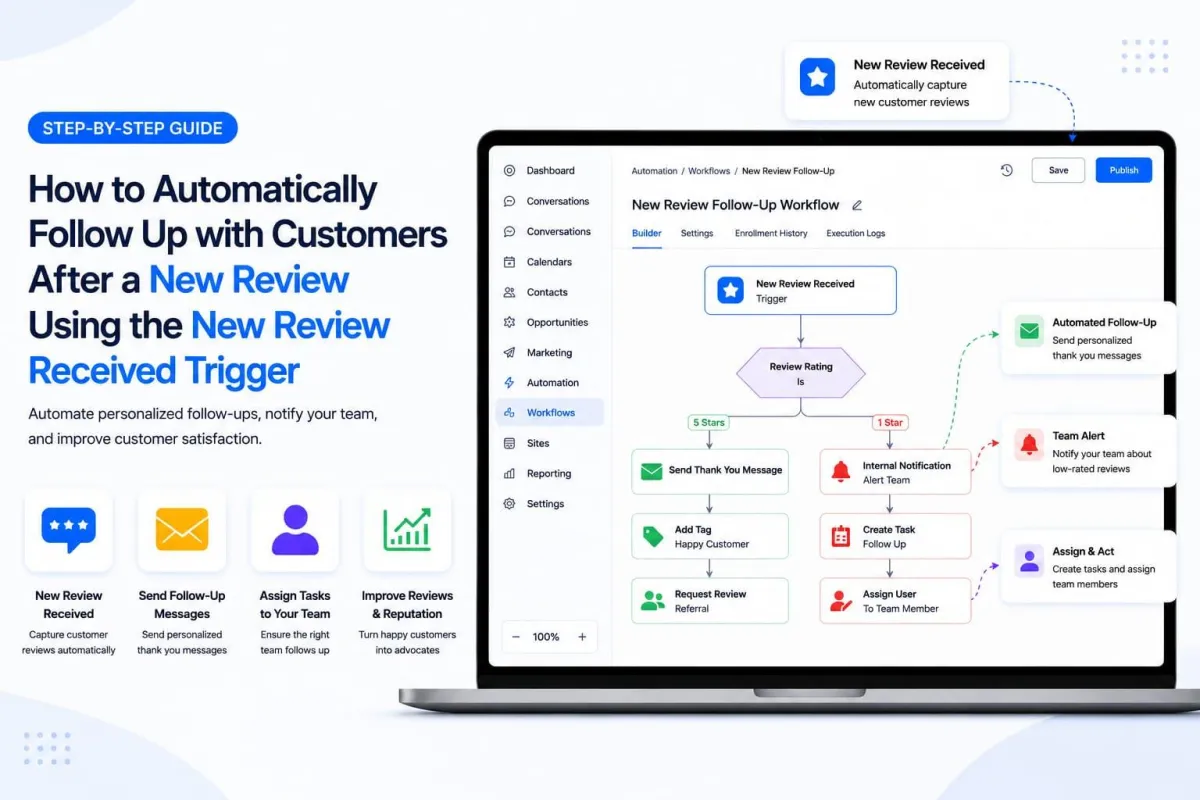
New Review Received Trigger in GoHighLevel: Step by step Guide
How to Automatically Follow Up with Customers After a New Review Using the New Review Received Trigger in GoHighLevel
Introduction
A new customer review is more than feedback; it's an opportunity to continue the conversation. The problem is that manually checking Google or Facebook for every new review quickly becomes repetitive, especially for agencies and businesses managing multiple locations.
With the New Review Received trigger in GoHighLevel, you can start a workflow the moment a review arrives and use the review data to automate what happens next. GoHighLevel currently supports review-based workflow triggers for reviews received through connected Google and Facebook sources, with filters for details like review source, rating, and spam status.
In this guide, you'll learn how the trigger works, how to configure it, how to separate positive and negative reviews, and how to build a practical follow-up process without making unsupported assumptions about the review data.
What Is the New Review Received Trigger in GoHighLevel?
The New Review Received trigger starts a workflow when a new review lands in GoHighLevel's Reviews/Reputation system. HighLevel lists it as an event-based workflow trigger; the review itself is the event that kicks off the automation.
For Google and Facebook reviews, HighLevel provides filters that let you control exactly which reviews enter a workflow:
Review Source: distinguish between Google and Facebook.
Review Rating: targets specific star ratings.
Review SPAM: decide whether spam status should affect the workflow.
This makes it possible to build several different automation paths instead of treating every review the same way.
There's one detail every GHL builder should understand up front: the review trigger is contactless. A review is not automatically treated as an existing CRM contact just because someone left one. That distinction shapes everything about how you should design the follow-up.
Why Automate Review Follow-Up?
Reviews often need a fast response. A five-star review deserves appreciation. A one-star review needs a manager's attention right away. Without automation, your team is stuck doing this manually every time:
Check the review platform.
Notice the new review.
Determine its rating.
Decide who should handle it.
Create a follow-up task.
Contact the right person.
A workflow can automate almost all of this operational overhead.
For example, a dental clinic could run one workflow for five-star reviews and a separate one for one- or two-star reviews. Positive reviews could trigger an internal notification to the marketing team, while negative reviews could create a task for a manager to look into the customer's experience. This keeps reputation management consistent without anyone having to babysit review platforms all day.
How to Set Up the New Review Received Trigger
Start by opening Automations → Workflows in your GoHighLevel sub-account and creating a new workflow.
Add a workflow trigger and select New Review Received. HighLevel's trigger list identifies this as the event for new reviews arriving in Reviews/Reputation.
Give the trigger a descriptive name, something like "New Google Review Received" so it's easy to identify later when you're managing dozens of workflows across sub-accounts.
Then add filters based on the automation you want to build. If the workflow should only respond to Google reviews, use the Review Source filter and select Google. You can also use the Review Rating filter to control which reviews qualify. HighLevel supports filtering across the full one-to-five-star range.
A simple five-star workflow might look like this:
Trigger: New Review Received
Review Source: Google
Review Rating: 5 stars
Save the trigger and continue building out the rest of the workflow.

Create Different Follow-Up Paths for Different Ratings
One of the most useful applications of this trigger is treating positive and negative feedback differently instead of routing everything into a single generic path.
For 5-Star Reviews
A five-star review usually signals a strong customer experience. Your automation can notify the right team member the moment it comes in. Useful actions include:
Sending an internal notification.
Creating a task for the marketing team.
Pushing review information to another system through a webhook.
Continuing the workflow with additional internal processes, such as adding the review to a highlights folder.
HighLevel documents the ability to pass mapped review details directly into workflow actions and to send review data to a webhook or other automated system. That means your marketing team can be notified with the actual review content already attached, rather than a vague "you have a new review" message.

For 1- or 2-Star Reviews
Low ratings generally need a more urgent, more human response. Build a separate workflow or a separate branch that targets one- and two-star reviews specifically. Instead of firing off an automated message to the reviewer, notify the right internal person and create a follow-up task.
A simple structure looks like this:
Trigger: New Review Received Filter: Review Rating = 1 or 2 stars Action: Send Internal Notification Action: Create Task Task: Contact customer and investigate the issue
This gives the business a window to review the situation internally before anyone reaches out externally.

Understand the Contactless Review Trigger
This is arguably the most important detail when building this automation. According to HighLevel's documentation, the Google and Facebook review workflow trigger is contactless. That means you should never design a workflow around the assumption that a reviewer is automatically available as a CRM contact with a usable phone number or email address.
Because of this, the safer approach is to use the review event to notify your team, create an operational follow-up task, or pass the review data to another system, not to fire off a direct message to the reviewer as if they were already in your CRM.
If your business has a separate, supported process for identifying a reviewer and linking that information to a CRM contact, you can layer additional automation on top of that process. But you shouldn't assume a Google or Facebook review by itself gives your workflow access to the reviewer's contact details. This distinction prevents workflows from trying to message nonexistent or mismatched contact records, which is one of the more common mistakes agencies run into when they build review automations too quickly.

Use Review Data to Make Workflows More Useful
HighLevel allows review details to be mapped directly into workflow actions, so your automation doesn't have to settle for a generic notification. A well-built internal notification could include:
Review source
Star rating
Review content
Whatever reviewer information the workflow has access to
Clear instructions for whoever is responsible for follow-up
The exact fields available depend on the specific review event and what HighLevel provides for that event, so it's worth testing your workflow before publishing it rather than assuming every field will be populated.
Test the Workflow Before Turning It On
Testing matters more here than with most workflows, because a misconfigured reputation-management automation can generate unnecessary internal noise or, worse, inappropriate customer communication.
HighLevel recommends testing the review workflow by leaving a review or simulating the event to confirm the automation behaves as expected. Before you activate anything, walk through this checklist:
Does the correct review source trigger the workflow?
Does the rating filter work as intended?
Does the workflow correctly ignore reviews that shouldn't qualify?
Does the internal notification contain the information your team actually needs?
Are tasks being created and assigned to the correct person?
Are downstream actions receiving the review data you expect?
Test with different ratings if you can. A five-star review and a one-star review should never accidentally travel down the same path if your workflow is meant to separate them.

A Practical Review Follow-Up Workflow Example
Picture a local service business that receives reviews through Google. The process could look like this:
New Review Received → Check Rating → Route Follow-Up
For five stars:
Trigger the workflow.
Filter for a five-star rating.
Notify the marketing or reputation-management team.
Record or forward the review information to another system if needed.
For one or two stars:
Trigger the workflow.
Filter for low ratings.
Notify a manager immediately.
Create an investigation task.
Have the team review the customer's history and decide on the right response.
For three or four stars, you could build a third path for routine monitoring and general customer-experience follow-up, rather than treating mid-range reviews the same as either extreme.
It's a simple structure, but it gives your team a repeatable, reliable reputation-management process instead of ad-hoc manual checking.
Common Mistakes to Avoid
Assuming every reviewer is a CRM contact. The review trigger is contactless, so don't assume you can automatically text or email every reviewer just because a review came in.
Using one workflow for every rating. A one-star complaint and a five-star recommendation call for very different responses. Rating filters exist precisely so you don't have to lump them together.
Skipping testing. Always test the trigger, the filters, the mapped review information, and any downstream actions before you publish the workflow live.
Over-automating negative reviews. Low ratings usually need human judgment. Automation should help your team notice and manage the issue quickly — not blindly fire off a generic automated reply to an unhappy customer.
Frequently Asked Questions(FAQ's)
Can the New Review Received trigger work with Google reviews? Yes. HighLevel documents review workflow triggers for both Google and Facebook reviews, including filters for review source and rating.
Can I trigger a workflow only for five-star reviews? Yes. Use the Review Rating filter and configure the trigger to target the rating you want.
Does a review automatically create a CRM contact? No. The Google and Facebook review trigger is contactless, so a new review does not automatically create or link a CRM contact.
Can I separate positive and negative reviews? Yes. Rating filters let you build different workflows or routing logic for different star ratings.
Can review information be passed to another system? Yes. HighLevel documents the ability to map review details into workflow actions and send that data through a webhook or other automated system.
Conclusion
The New Review Received trigger in GoHighLevel gives businesses a practical way to automate what happens after a review comes in. Instead of manually checking review platforms throughout the day, you can use rating and source filters to route feedback into the right workflow automatically.
The most important thing to remember is that Google and Facebook review events are contactless. Use the automation to notify your team, create follow-up tasks, route feedback, or pass review data to supported downstream systems, not to assume every reviewer is instantly available as a CRM contact.
Start with one simple workflow, test it against different ratings, and expand from there once you've confirmed the trigger and the review data are behaving the way you expect. For agencies managing reputation across multiple locations, this small shift turns review monitoring from a manual chore into a consistent, repeatable operational process.
Need Expert Help with GoHighLevel?
New to GoHighLevel and ready to get started? Buy your GoHighLevel account here and launch with confidence.
Already know what you need and want our team to handle everything, from complete setup and customization to funnels, workflows, automations, CRM, and pipelines? Click here.



