

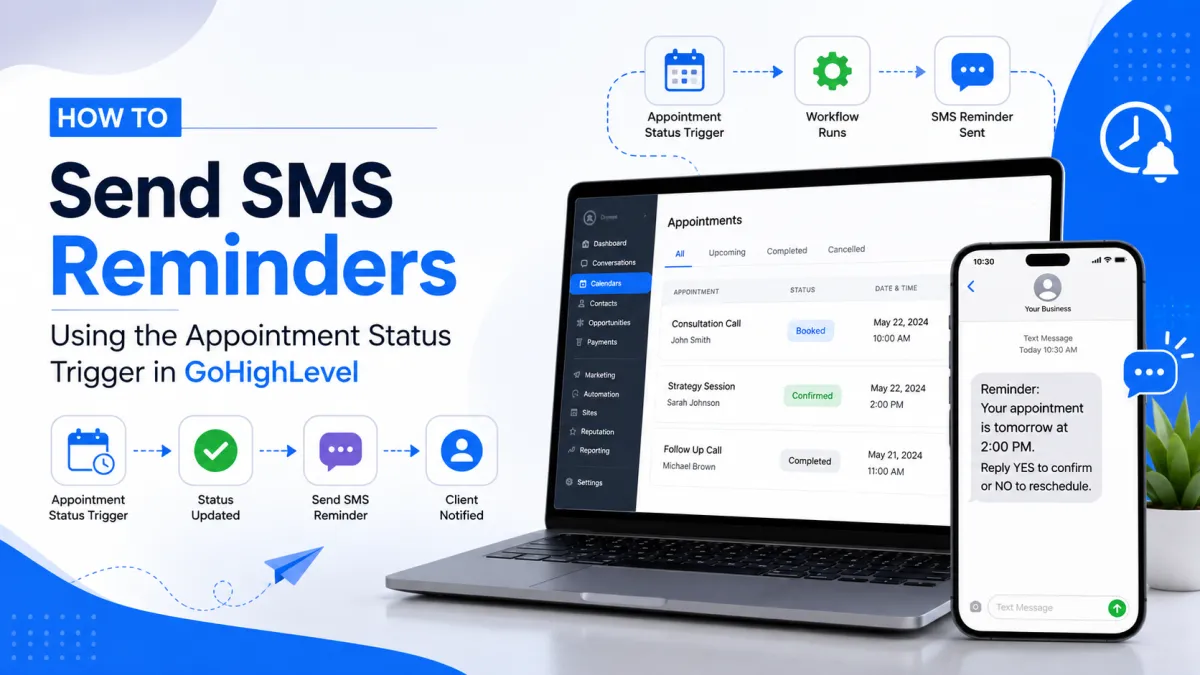
Automated Appointment SMS
How to Send SMS Reminders Using the Appointment Status Trigger in GoHighLevel
Introduction
Imagine this: a customer books an appointment with your business, receives a confirmation email, and then completely forgets about it. On the day of the appointment, no one shows up. Your team has reserved a time slot, your staff is waiting, and valuable business hours are lost. Unfortunately, this is a common challenge for appointment-based businesses.
Whether you operate a medical clinic, dental practice, beauty salon, fitness center, coaching business, or home service company, missed appointments can reduce revenue, disrupt schedules, and negatively impact productivity.
The good news is that many no-shows can be prevented with a simple, well-timed text message.
This is where GoHighLevel's Appointment Status Trigger becomes incredibly valuable. Instead of manually reminding every customer, you can create an automated workflow that sends personalized SMS reminders whenever an appointment reaches a specific status. Once configured, GoHighLevel handles the process automatically, ensuring customers receive reminders at exactly the right moment without requiring any manual effort from your team.
In this guide, you'll learn how the Appointment Status Trigger works, how to build an automated SMS reminder workflow, best practices for maximizing appointment attendance, and real-world automation ideas that can improve customer communication while saving valuable time.
What Is the Appointment Status Trigger in GoHighLevel?
The Appointment Status Trigger is a workflow trigger that starts an automation whenever the status of an appointment changes.
Think of it as an event listener inside your CRM. Instead of checking your calendar every few minutes, GoHighLevel continuously monitors appointment activity. The moment an appointment matches the status you've selected, it automatically launches the workflow connected to that trigger.
For example, you can start a workflow when an appointment is:
Newly booked
Confirmed
Cancelled
Marked as a No Show
Rescheduled
Completed (Showed)
One important thing to understand is that the trigger itself doesn't send text messages. Its only job is to detect the appointment status change and start the automation.
Everything that happens afterward such as sending an SMS reminder, notifying your team, updating contact information, applying tags, or sending emails is controlled by the workflow actions you add after the trigger.
This flexibility allows businesses to automate nearly every stage of the appointment journey.
Why SMS Reminders Matter More Than Ever
Many businesses still rely on phone calls or emails to remind customers about appointments. While these methods have their place, SMS remains one of the fastest and most reliable communication channels.
People may ignore emails for hours, but text messages are usually read within minutes of being delivered. A short reminder sent before an appointment gives customers enough time to prepare, reschedule if necessary, or contact your business if they have questions.
Automating these reminders provides several important benefits:
Reduce No-Shows
Customers often miss appointments simply because they forget. Automated reminders keep appointments fresh in their minds.
Improve Customer Experience
Sending timely reminders shows professionalism and reassures customers that their booking is confirmed.
Save Staff Time
Without automation, team members may spend hours calling customers or sending manual reminder messages. Automated workflows eliminate repetitive tasks.
Increase Revenue
Every appointment that is attended instead of missed contributes directly to your business revenue. Even a small reduction in no-show rates can have a noticeable financial impact over time.
Understanding the Appointment Statuses
The Appointment Status Trigger becomes active whenever an appointment changes to one of the supported statuses you've selected. Choosing the right status is important because it determines when your workflow starts and what actions follow.
Here are the six appointment statuses currently available in GoHighLevel:
1. New
The New status is assigned immediately after an appointment is successfully booked. This is the perfect time to start your first customer communication.
Common automation ideas include:
Send a booking confirmation SMS.
Deliver a confirmation email with appointment details.
Notify your team about the new booking.
Add the contact to your CRM or pipeline.
2. Confirmed
The Confirmed status indicates that the appointment has been confirmed and is ready to proceed.
This is one of the most commonly used statuses for reminder workflows.
Typical automations include:
Send an SMS reminder 24 hours before the appointment.
Send another reminder 1–2 hours before the appointment.
Email appointment instructions or preparation details.
Notify staff that the appointment is confirmed.
3. Cancelled
When an appointment is marked as Cancelled, your workflow can immediately respond without requiring manual follow-up.
For example, you can:
Send a cancellation confirmation message.
Share a booking link so the customer can reschedule.
Notify your team about the cancellation.
Remove the appointment from internal reminder sequences.
4. Showed
The Showed status means the customer attended the appointment successfully.
Instead of ending communication, this is a great opportunity to continue building the relationship.
Your workflow might:
Send a thank-you SMS.
Request a Google review.
Share follow-up resources.
Invite the customer to book another appointment.
5. No-show
A No-show occurs when a customer fails to attend their appointment without cancelling beforehand.
Rather than losing the opportunity, you can automatically begin a recovery workflow.
Common actions include:
Send an SMS asking if they'd like to reschedule.
Create a follow-up task for your team.
Apply a No-show tag for reporting.
Start a re-engagement campaign.
6. Invalid
The Invalid status is used when an appointment cannot proceed because it contains invalid or unusable booking information.
Depending on your workflow, you can:
Notify your internal team to review the appointment.
Alert the customer if additional information is required.
Create a task to verify booking details.
Prevent further appointment reminders from being sent until the issue is resolved.
By using these six appointment statuses strategically, you can automate the entire appointment lifecycle from the moment a booking is created to post-appointment follow-ups while ensuring every customer receives timely and relevant communication.

How the Appointment Status Trigger Powers SMS Automation
Let's look at a simple example.
Suppose a patient books a dental appointment for next Friday.
Initially, the appointment is created and later marked as Confirmed.
Your workflow is configured with the following automation:
Trigger: Appointment Status = Confirmed
Wait: Until 24 hours before the appointment
Action: Send SMS reminder
Wait: Until 2 hours before the appointment
Action: Send another reminder
Without anyone touching the CRM, GoHighLevel automatically delivers both reminder messages at the scheduled times.
Your staff doesn't need to remember who booked appointments, who needs reminders, or when each message should be sent. The workflow handles everything automatically while your team focuses on serving customers.
This is one of the biggest advantages of workflow automation consistency. Every customer receives the same professional communication without the risk of human error.
Building Your First SMS Reminder Workflow
Now that you understand how the Appointment Status Trigger works, it's time to build your automation.
In the next section, we'll walk through the complete setup process inside GoHighLevel, including:
Creating the workflow
Configuring the Appointment Status Trigger
Choosing the correct appointment status
Adding Wait steps for perfectly timed reminders
Creating personalized SMS messages with custom values
Testing your workflow before publishing
Advanced automation ideas for different business scenarios
Step-by-Step: Creating an SMS Reminder Workflow in GoHighLevel
Once you've decided which appointment status should trigger your reminder, building the workflow is straightforward. The key is configuring each step correctly so your customers receive reminders at the right time.
Step 1: Create a New Workflow
From your GoHighLevel dashboard, navigate to Automation > Workflows and click Create Workflow. You can either start from scratch or use a template if one fits your business needs.
Give your workflow a clear name, such as Appointment SMS Reminder – Confirmed Appointments, so it's easy to identify later.
Step 2: Add the Appointment Status Trigger
Select Appointment Status as the workflow trigger.
Next, choose the calendar where your appointments are booked. If your business uses multiple calendars, make sure you select the correct one or configure the workflow to monitor all relevant calendars.
Then choose the appointment status that should activate the workflow. For most businesses, Confirmed is the ideal choice because it ensures reminders are only sent for appointments that are actually scheduled to take place.
Step 3: Add a Wait Step
Sending a reminder immediately after an appointment is confirmed usually isn't helpful. Instead, add a Wait action so the message is delivered closer to the appointment time.
Some common reminder schedules include:
24 hours before the appointment
2 hours before the appointment
30 minutes before the appointment
You can even combine multiple Wait steps within the same workflow to create a complete reminder sequence.

Step 4: Configure the Send SMS Action
After the Wait step, add the Send SMS action.
Write a message that is short, professional, and personalized. GoHighLevel's custom values allow you to automatically insert customer and appointment information into every message.
For example:
Hi {{contact.first_name}}, this is a friendly reminder that you have an appointment with {{location.name}} on {{appointment.start_time}}. If you need to reschedule, simply reply to this message or contact us. We look forward to seeing you!
Personalized reminders feel more professional and help customers quickly recognize which appointment the message refers to.

Step 5: Test Before Publishing
Before making the workflow live, create a test appointment and verify that:
The trigger activates correctly.
Wait steps follow the expected schedule.
SMS messages are delivered successfully.
Personalization fields display the correct information.
Testing helps identify issues before real customers receive your automated messages.
Professional SMS Reminder Templates
A well-written reminder should be clear, friendly, and actionable. Here are a few examples you can customize for your business.
24-Hour Reminder
Hi {{contact.first_name}}, this is a reminder that your appointment is scheduled for tomorrow at {{appointment.start_time}}. We look forward to seeing you. If you need to make any changes, please let us know.
Same-Day Reminder
Hello {{contact.first_name}}, just a quick reminder that your appointment is today at {{appointment.start_time}}. Safe travels, and we'll see you soon!
Rescheduled Appointment
Hi {{contact.first_name}}, your appointment has been successfully rescheduled. Your new appointment time is {{appointment.start_time}}. Thank you, and we'll see you then.
Cancellation Follow-Up
We're sorry to hear you've cancelled your appointment. If you'd like to book another time, simply reply to this message or use our online booking link.
Real-World Automation Ideas
One of the biggest strengths of GoHighLevel is that the same trigger can support completely different workflows depending on your industry.
Healthcare Clinics
A patient books an appointment online.
The workflow automatically:
Sends a booking confirmation.
Sends a reminder 24 hours before the visit.
Sends another reminder two hours before the appointment.
Sends a thank-you message after the appointment is completed.
Salons and Spas
Appointment reminders reduce last-minute cancellations while creating a more professional customer experience.
After the appointment, another workflow can request a review or encourage customers to book their next visit.
Marketing Agencies
Consultation calls are valuable opportunities. Missing even one discovery call can result in lost revenue.
An automated reminder sequence helps ensure prospects remember their scheduled meeting and arrive prepared.
Home Service Businesses
Companies offering HVAC, plumbing, electrical, roofing, or cleaning services can remind homeowners when technicians are scheduled to arrive.
Customers appreciate knowing when to expect a visit, which improves trust and overall satisfaction.
Best Practices for Appointment Reminder Workflows
While creating an SMS reminder workflow is simple, following a few best practices will help you achieve better results.
Keep messages concise. Customers don't want to read long paragraphs in a text message. Focus on the appointment details and any required action.
Personalize every reminder. Including the customer's name, appointment date, and business name creates a more engaging experience.
Use multiple reminders wisely. A reminder one day before and another a few hours before the appointment is often enough. Sending too many messages can become annoying.
Include rescheduling instructions. Customers appreciate knowing what to do if their plans change.
Review workflow performance regularly. Monitor delivery rates, appointment attendance, and customer responses to optimize your automation over time.
Common Mistakes to Avoid
Many users build workflows that technically work but still create a poor customer experience.
Some common mistakes include:
Choosing the wrong appointment status.
Forgetting to publish the workflow after testing.
Scheduling reminders after the appointment has already started.
Sending duplicate reminders through multiple workflows.
Using generic SMS messages without personalization.
Ignoring timezone settings when working with multiple locations.
Forgetting to test custom values before going live.
Avoiding these mistakes will help ensure your automation runs smoothly from day one.
Take Your Workflow Even Further
The Appointment Status Trigger becomes even more powerful when combined with other GoHighLevel workflow actions.
For example, after sending an SMS reminder, you could:
Send an email confirmation.
Notify your staff through an internal notification.
Apply appointment-specific tags.
Update custom fields.
Create follow-up tasks.
Trigger review request campaigns after completed appointments.
Start nurture campaigns for cancelled or missed appointments.
Instead of thinking of appointment reminders as a single SMS, think of them as one step within a complete customer journey.
Conclusion
Automating SMS reminders with the Appointment Status Trigger is one of the easiest ways to improve customer communication while reducing missed appointments.
Rather than relying on staff to manually contact every customer, GoHighLevel allows you to build intelligent workflows that automatically respond to appointment status changes. Whether an appointment is confirmed, rescheduled, cancelled, or completed, you can deliver the right message at exactly the right time.
When combined with Wait steps, personalized SMS messages, emails, internal notifications, and CRM updates, the Appointment Status Trigger becomes far more than a reminder tool it becomes an essential part of your customer experience strategy.
If your business depends on appointments, implementing automated SMS reminders isn't just a convenience; it's a smart investment that helps improve attendance, save time, and create a more professional experience for every customer.
Frequently Asked Questions (FAQs)
1. What does the Appointment Status Trigger do in GoHighLevel?
The Appointment Status Trigger starts a workflow whenever an appointment changes to a selected status, allowing you to automate actions such as SMS reminders, emails, notifications, and CRM updates.
2. Can I send reminders before the appointment starts?
Yes. By adding Wait actions to your workflow, you can schedule reminders to be sent 24 hours, 2 hours, or any custom time before the appointment.
3. Can I send different SMS messages for different appointment statuses?
Absolutely. You can create separate workflows for statuses like Confirmed, Rescheduled, Cancelled, or No Show, each with its own customized SMS message.
4. Can I personalize appointment reminders?
Yes. GoHighLevel supports custom values, allowing you to automatically include the customer's name, appointment date, appointment time, business name, and other relevant details.
5. Which businesses benefit most from SMS reminder workflows?
Any appointment-based business can benefit, including healthcare providers, dentists, salons, spas, coaches, consultants, agencies, fitness centers, and home service companies such as HVAC, plumbing, electrical, and cleaning businesses.
Need Expert Help with GoHighLevel?
New to GoHighLevel and ready to get started? Buy your GoHighLevel account here and launch with confidence.
Already know what you need and want our team to handle everything, from complete setup and customization to funnels, workflows, automations, CRM, and pipelines? Click here.



