

GoHighLevel WhatsApp Conversations: A Complete Customer Service Window Guide
How to Manage WhatsApp Conversations Within the Customer Service Window Using GoHighLevel
Introduction
WhatsApp can be one of the fastest ways for a business to answer questions, support customers, confirm details, and move conversations forward. But there is an important rule that every business using WhatsApp needs to understand: the 24-hour customer service window.
When a customer sends a WhatsApp message to your business, a 24-hour customer service window opens. During that period, your team can respond with regular, free-form WhatsApp messages without needing to use an approved template. When the window closes, however, you generally need an approved WhatsApp template to start or continue a business-initiated conversation.
GoHighLevel makes this easier to manage by giving businesses a WhatsApp Customer Service Window Check action inside Workflows. This lets you determine whether a contact is currently inside the 24-hour window and then route the contact through an appropriate automation path.
In this guide, you'll learn what the customer service window means, how to manage conversations inside it, how to automate the process in GoHighLevel, and how to avoid common WhatsApp messaging mistakes.
What Is the WhatsApp Customer Service Window?
The WhatsApp customer service window is a 24-hour period that starts when a customer sends a message to your business.
For example, imagine a customer sends:
"Hi, I need help with my appointment."
At that point, the 24-hour customer service window opens. Your team can respond with regular WhatsApp messages and continue the conversation.
Importantly, the timer is refreshed when the customer sends another message. So if the customer replies several hours later, the 24-hour period effectively starts again from that latest customer message.
This creates two simple situations:
Window open: You can use free-form WhatsApp messages.
Window closed: You need to use an approved WhatsApp template for a business-initiated message.
Understanding this distinction is essential when building WhatsApp automations in GoHighLevel.
Why the Customer Service Window Matters
The biggest advantage of an open customer service window is flexibility.
Your team isn't limited to predefined messages. You can answer the customer's actual question, provide additional information, send relevant media, and continue a natural support conversation.
GoHighLevel also supports WhatsApp media messages through workflows, including images, videos, audio, and documents, when the customer service window is open.
For example, an auto repair business could receive:
Customer: "Can you send me the inspection report?"
A team member can respond normally within the open window and provide the appropriate document.
The same principle can apply to:
Appointment support
Order questions
Customer service
Product assistance
Service inquiries
Troubleshooting
Sales conversations
Follow-up questions
Instead of forcing every response into a template, the business can have a more natural conversation while the window remains active.
GoHighLevel's WhatsApp Customer Service Window Check
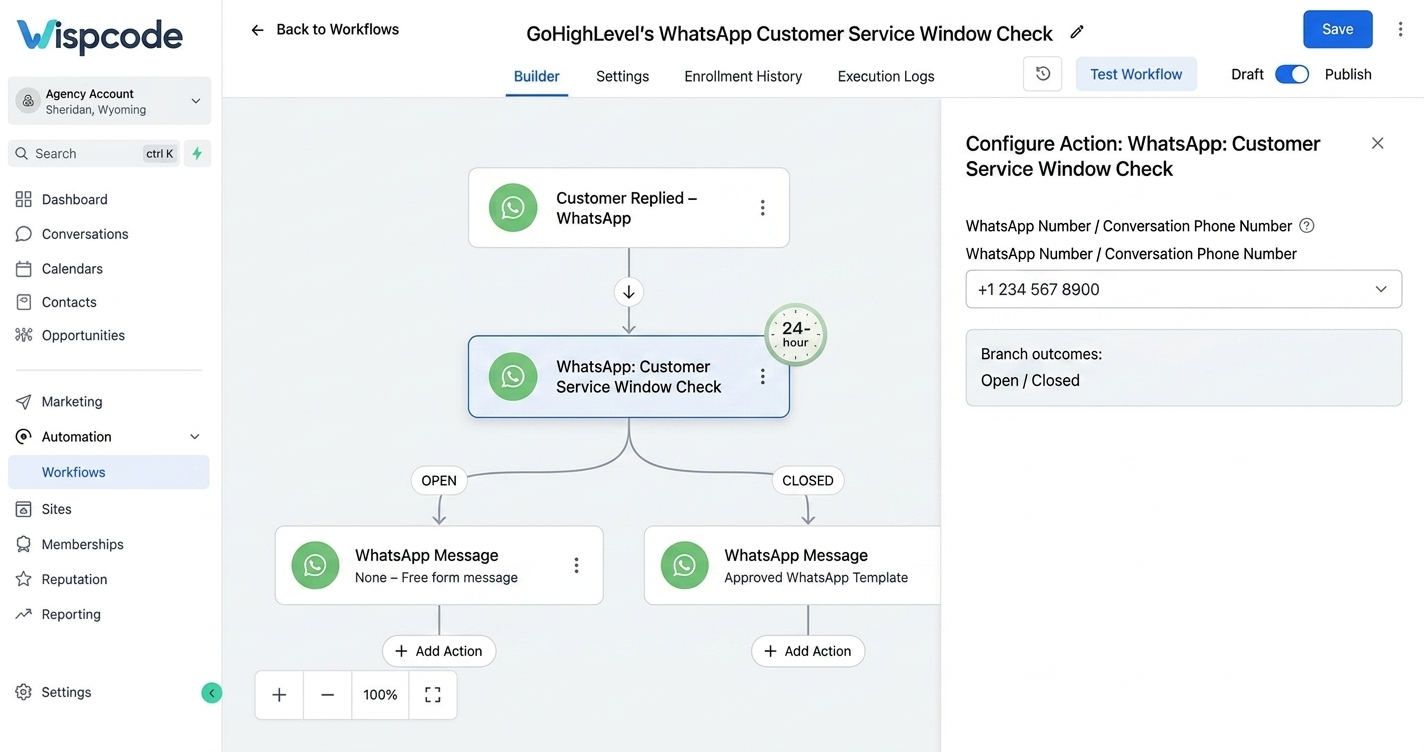
One of the most useful tools for managing this process is the WhatsApp: Customer Service Window Check workflow action.
The action checks whether there is an active 24-hour customer service window between the business and the contact. GoHighLevel then provides two paths:
Open
Closed
This allows you to build different automation logic depending on the contact's current WhatsApp status.
For example:
"Customer Service Window Check"
→ Open → Send free-form WhatsApp message
→ Closed → Send approved WhatsApp template
This simple structure can prevent workflows from attempting to send regular WhatsApp messages when the 24-hour window has already expired.
How to Manage WhatsApp Conversations in GoHighLevel
Step 1: Make Sure WhatsApp Is Enabled
Before building the workflow, WhatsApp needs to be properly subscribed and enabled for the GoHighLevel location.
If you intend to send business-initiated WhatsApp conversations, you should also have an approved WhatsApp template available. GoHighLevel's documentation specifically identifies an approved template as a prerequisite for business-initiated conversations.
Step 2: Create a Workflow
From your GoHighLevel account, navigate to:
"Automations → Workflows → Create Workflow → Start from Scratch"
Your workflow can begin from an event that makes sense for your business.
For example, you could use a customer WhatsApp reply as the starting point. GoHighLevel also documents using the Customer Replied trigger with the reply channel set to WhatsApp when you want an automation to begin after a customer sends a WhatsApp message.
Step 3: Add the Customer Service Window Check
Inside the Workflow Builder, click the + button to add an action.
Search for:
"WhatsApp: Customer Service Window Check"
Select the action and choose the WhatsApp conversation phone number you want to check.
GoHighLevel will create the relevant branches for the workflow, allowing you to handle open and closed windows separately.
Step 4: Configure the Open Branch
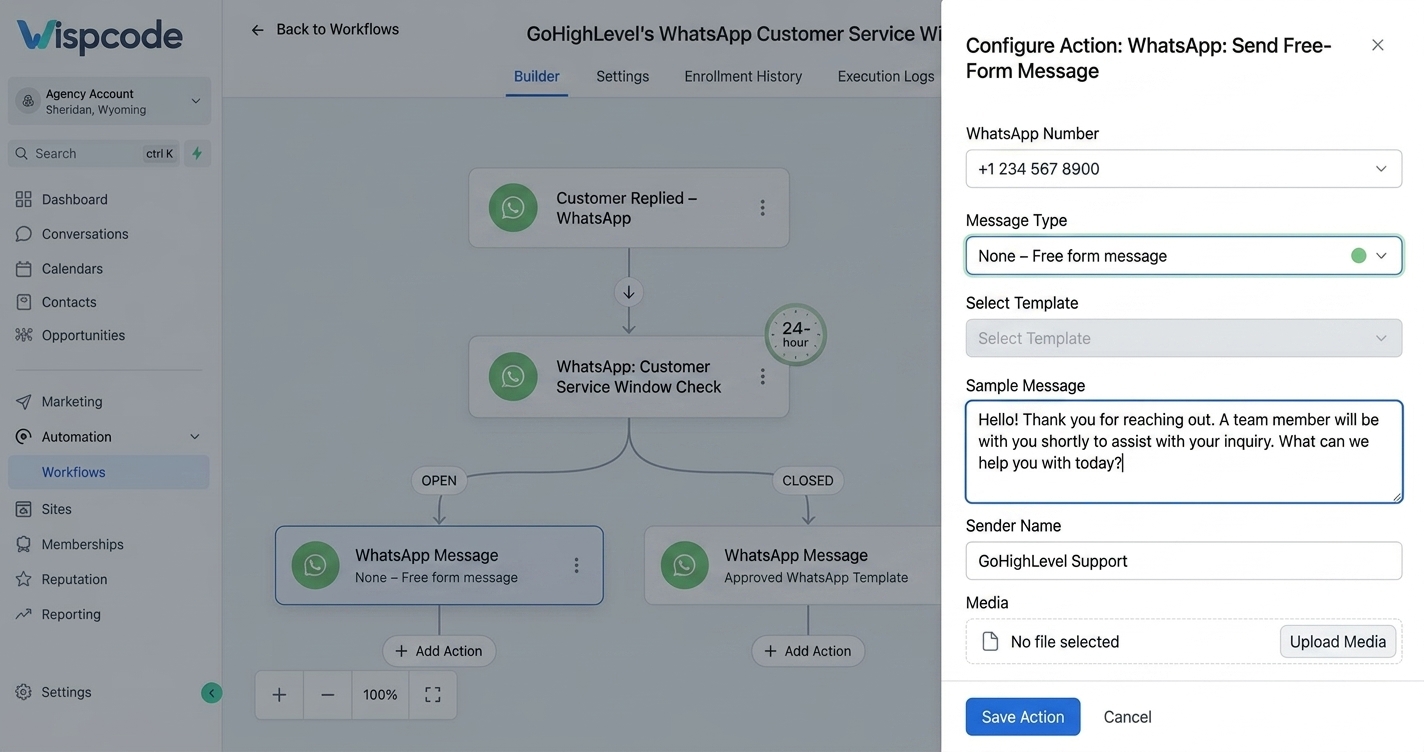
The Open branch is where you can send a free-form WhatsApp message.
Add a WhatsApp action to this branch and select:
"None – Free form message"
You can then write the message you want the customer to receive.
For example:
"Thanks for reaching out! Your request has been received. Our team is reviewing it now and will get back to you shortly."
Because the customer service window is open, the workflow can send the free-form response.
Step 5: Configure the Closed Branch
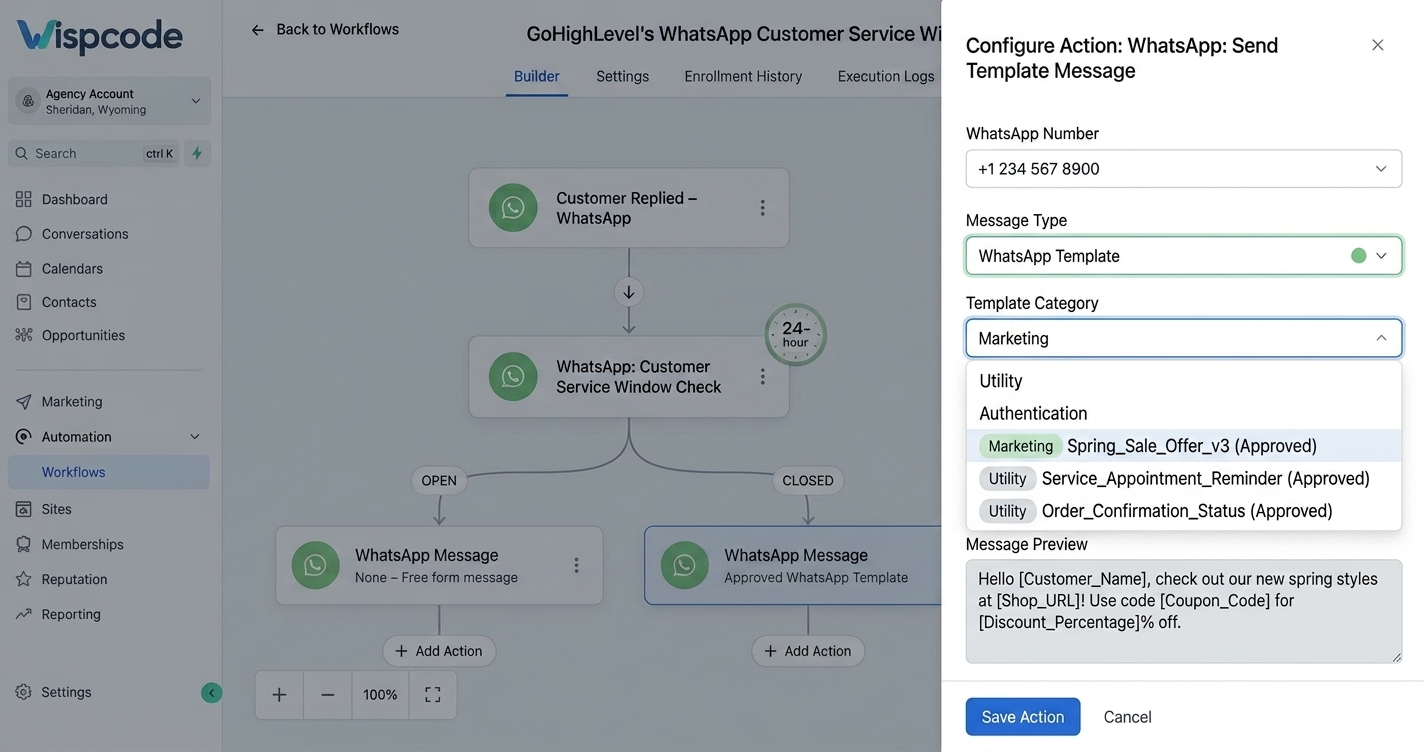
The Closed branch requires different handling.
If the customer hasn't replied within the applicable 24-hour period, a normal free-form WhatsApp message cannot be used to simply continue the conversation.
Instead, use an approved Marketing or Utility template, depending on the purpose of the message and applicable WhatsApp requirements. GoHighLevel specifically recommends using a template when the customer service window is closed.
For example, an appropriate utility message might notify a customer about an appointment or order update when that communication qualifies as utility content.
Once the customer responds, a new 24-hour customer service window can be established.
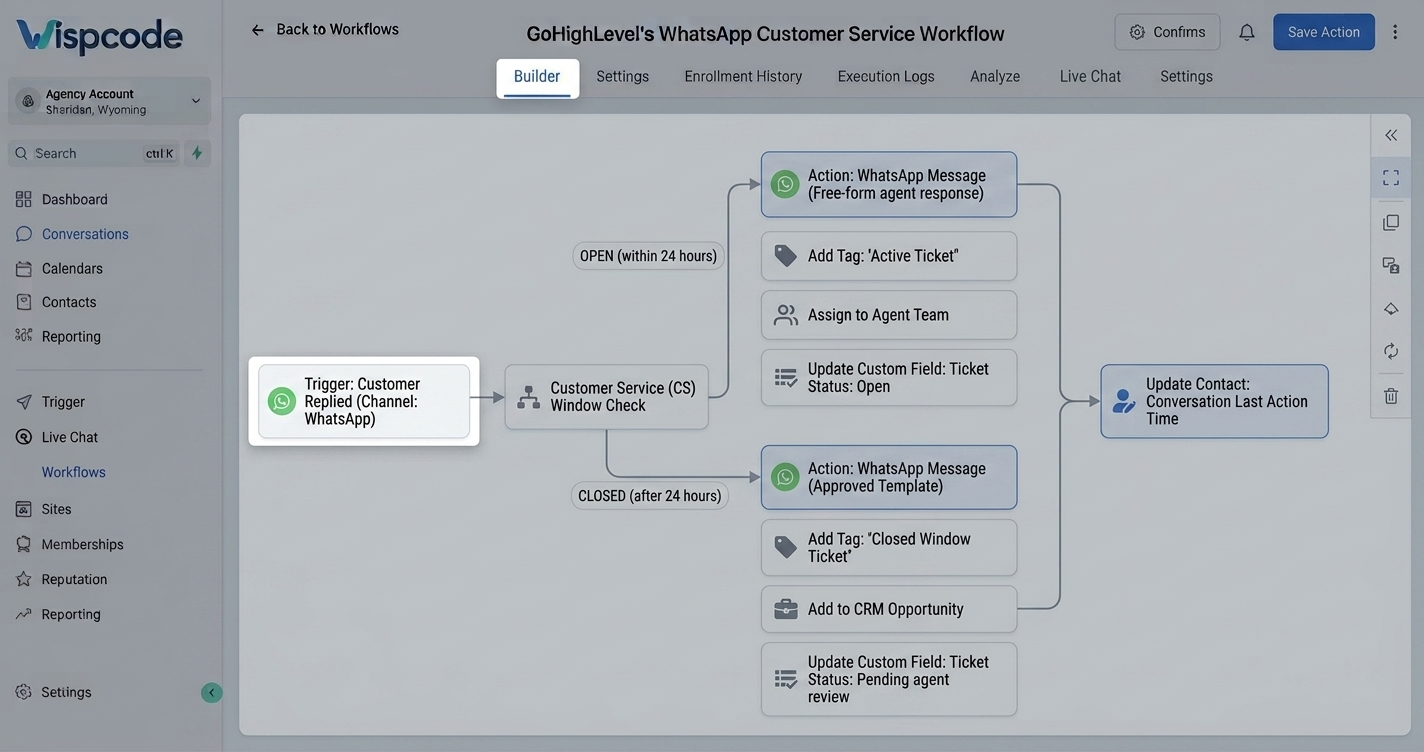
A Practical WhatsApp Customer Support Workflow
Consider a home-services company that receives WhatsApp questions from customers.
A simple automation could look like this:
Trigger: Customer replies through WhatsApp
↓
Customer Service Window Check
↓
Open
→ Send free-form response
→ Notify the assigned team member
→ Continue the support process
Closed
→ Send an approved WhatsApp template when appropriate
→ Wait for customer response
→ Continue the conversation once the customer replies
This structure gives your automation a clear decision point rather than assuming that every contact can receive a regular WhatsApp message.
Example: Appointment Support
Suppose a customer previously contacted a dental clinic through WhatsApp and asks:
"Can I change my appointment to Friday?"
The workflow can identify that the customer service window is open and allow the business to respond naturally.
The team might reply:
"Absolutely. Let me check Friday's availability for you."
The conversation can then continue normally while the window remains open.
If the customer doesn't respond for more than 24 hours, the business shouldn't rely on a regular free-form message to restart the conversation. An approved template may be required instead.
Managing WhatsApp Conversations Directly in Conversations
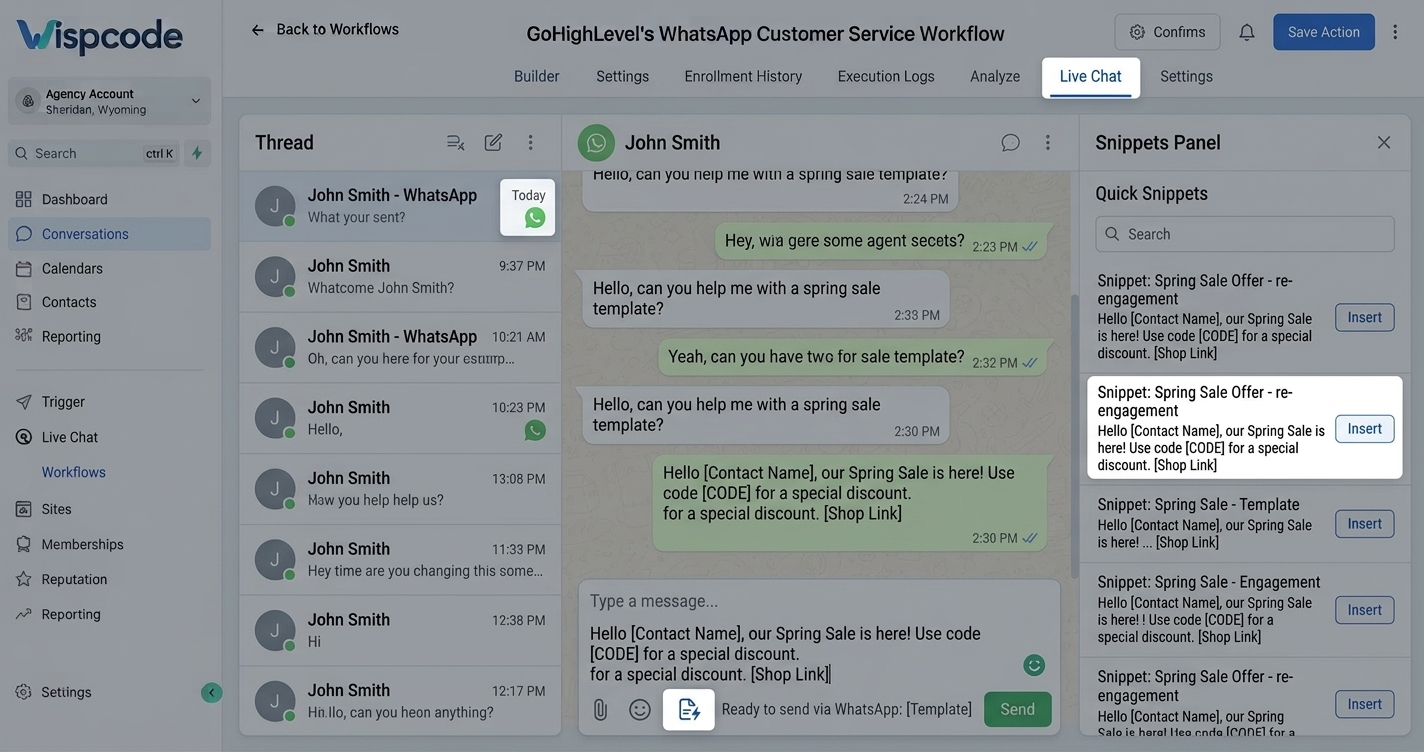
GoHighLevel's Conversations area can also be used for direct WhatsApp communication.
When a customer has an active service window, your team can respond using regular WhatsApp messages. GoHighLevel also supports reusable Snippets that can help agents insert frequently used text or multimedia into active conversations.
This can be useful for repetitive customer-service responses such as:
"Thanks for contacting our support team."
"We're checking that for you now."
"Could you please provide your order number?"
"Your appointment has been confirmed."
"Our team will contact you shortly."
The goal isn't to make every conversation automated. Instead, snippets can reduce repetitive typing while keeping the actual conversation flexible.
Using Templates Outside the Customer Service Window
Templates become particularly important when a customer hasn't messaged your business within the last 24 hours.
WhatsApp templates are pre-approved message formats that can be used to initiate marketing, utility, and authentication conversations according to their respective categories. GoHighLevel notes that templates are the appropriate mechanism when the customer service window is closed.
For example, a business could have approved templates for:
Appointment updates
Order notifications
Customer-requested information
Promotional campaigns
Other qualifying business-initiated communications
The important point is to use the correct template category and approved content rather than attempting to bypass WhatsApp's messaging rules.
Best Practices for Managing WhatsApp Conversations
Respond as Soon as Possible
Although you have a 24-hour window, waiting until the final hours can create unnecessary risk.
A faster response gives your team more time to resolve the customer's issue while the conversation is active.
Use the Customer Service Window Check in Automations
If your workflow sends WhatsApp messages automatically, don't assume the window is still open.
Use the WhatsApp: Customer Service Window Check action to determine which messaging path should be used.
Build Useful Templates in Advance
Businesses should prepare appropriate templates for situations where the customer service window has closed.
Having approved templates ready can prevent delays when a customer needs to be contacted again.
Keep Messages Relevant
An open customer service window doesn't mean every possible message should be sent.
Keep automated responses useful, concise, and relevant to the customer's request.
Pay Attention to the Correct WhatsApp Number
If a business has multiple connected WhatsApp numbers, selecting the correct sender is important. GoHighLevel now provides WhatsApp sender-number selection in Conversations, and the customer service window can depend on the WhatsApp number being used.
This is especially important for agencies or businesses operating multiple brands, locations, or departments.
Common Mistakes to Avoid
Assuming the Window Lasts Forever
The customer service window is not permanent. It is tied to customer activity and closes after the applicable 24-hour period without a new customer message.
Sending Free-Form Messages After the Window Closes
A regular message may fail when more than 24 hours have passed since the customer's last reply. In that situation, use an appropriate approved template instead.
Ignoring the Workflow Branches
If you're automating WhatsApp communication, don't create a workflow that blindly sends free-form messages.
Use the customer service window check and give the automation an Open and Closed path.
Treating Templates and Free-Form Messages as the Same
They serve different purposes.
Free-form messages are intended for conversations inside the active customer service window, while templates are used for qualifying business-initiated communications, including situations outside the window.
Forgetting Media Restrictions
Images, videos, audio, and documents sent through WhatsApp workflows have their own window requirements. GoHighLevel states that WhatsApp media messages can be sent through the media action only while the 24-hour customer service window is open.
Frequently Asked Questions (FAQ'S)
1. What is the WhatsApp customer service window in GoHighLevel?
It is a 24-hour period that begins when a customer sends a WhatsApp message to your business. During the active window, businesses can respond with free-form WhatsApp messages.
2. Does the 24-hour window reset when the customer replies?
Yes. Customer activity refreshes the 24-hour customer service window. This allows the conversation to continue as long as the customer keeps engaging within the applicable period.
3. Can I send a free-form WhatsApp message after 24 hours?
Generally, no. Once the customer service window has closed, a business-initiated message needs to use an appropriate approved WhatsApp template rather than a regular free-form message.
4. What does the WhatsApp Customer Service Window Check do?
It checks whether an active customer service window exists and allows a GoHighLevel workflow to branch into an Open or Closed path.
5. Can I send images and documents during the customer service window?
Yes. GoHighLevel supports WhatsApp media messages, including images, video, audio, and documents, when the customer service window is open.
Conclusion
Managing WhatsApp conversations effectively isn't simply about sending messages whenever a workflow runs. The key is understanding when WhatsApp allows free-form communication and when an approved template is required.
GoHighLevel makes this easier with its WhatsApp: Customer Service Window Check action. By checking the customer's service-window status before sending a message, businesses can create workflows that respond differently when the window is open or closed.
A practical setup is straightforward:
"Customer replies → Check the 24-hour window → Open = free-form response → Closed = appropriate approved template"
Once this logic becomes part of your GoHighLevel workflows, your team can handle WhatsApp conversations more consistently while working within WhatsApp's messaging requirements.
The most important takeaway is simple: don't build your WhatsApp automation around assumptions. Build it around the customer's current conversation status.
Need Expert Help with GoHighLevel?
New to GoHighLevel and ready to get started? Buy your GoHighLevel account here and launch with confidence.
Already know what you need and want our team to handle everything, from complete setup and customization to funnels, workflows, automations, CRM, and pipelines? Click here.



