

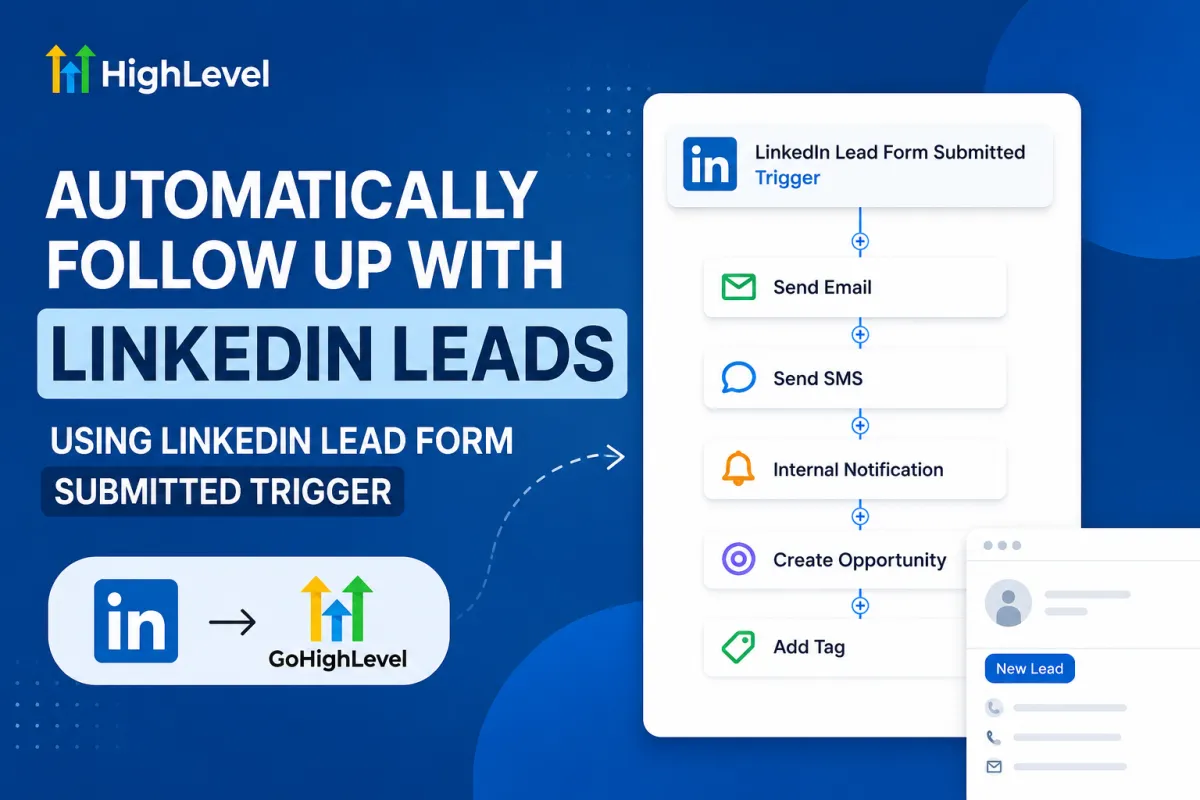
LinkedIn Lead Follow-Up in GoHighLevel
How to Automatically Follow Up with LinkedIn Leads Using the LinkedIn Lead Form Submitted Trigger in GoHighLevel
Getting a lead through LinkedIn is a great first step, but what happens after someone submits your LinkedIn Lead Form is just as important. A new lead can quickly lose interest if they have to wait too long for a response.
This is where automation can make a big difference.
With GoHighLevel, you can use the LinkedIn Lead Form Submitted Trigger to automatically start a follow-up process whenever someone submits a LinkedIn Lead Form. Instead of checking LinkedIn manually and adding new leads to your CRM one by one, you can have GoHighLevel handle the initial steps for you.
From sending a follow-up message to notifying your sales team and creating an opportunity in your pipeline, the trigger can help make your lead management process faster and more organized.
What Is the LinkedIn Lead Form Submitted Trigger in GoHighLevel?
The LinkedIn Lead Form Submitted Trigger is a workflow trigger in GoHighLevel that starts an automation when a prospect submits a LinkedIn Lead Form.
LinkedIn Lead Forms allow advertisers to collect information from people who are interested in their products or services without requiring them to leave LinkedIn. Once someone fills out the form, that lead can be used to start a follow-up workflow in GoHighLevel.
Depending on how you build your workflow, you can use the submission to:
Add or update the contact
Send an email
Send an SMS when appropriate
Notify a salesperson
Add a tag
Create an opportunity
Assign the lead to a team member
Start a lead nurture sequence
Move the lead into a specific pipeline stage
This makes it easier to turn a LinkedIn form submission into an actual sales follow-up process.
Why Automate LinkedIn Lead Follow-Up?
One of the biggest problems with lead generation is the delay between receiving a lead and contacting that person.
If someone submits a form because they are interested in your service, waiting several hours or even a day to follow up may mean losing their attention. At the same time, manually monitoring LinkedIn for new submissions is not always practical, especially when you are running multiple campaigns.
Automation helps remove that delay.
Once the LinkedIn lead enters GoHighLevel, your workflow can immediately take the actions you have configured. Your team can be notified while the prospect receives an initial response, giving you a better chance of continuing the conversation while the lead is still interested.
How the LinkedIn Lead Form Submitted Trigger Works
The process starts when a prospect interacts with your LinkedIn advertisement and submits the associated Lead Form.
GoHighLevel uses that submission to trigger the workflow you have created. From there, you decide what should happen next.
For example, you could configure the workflow to add the contact to your CRM, apply a LinkedIn-specific tag, notify a sales representative, and send a confirmation email.
You can keep the workflow simple or build a more detailed follow-up sequence depending on your sales process.
The important part is that the LinkedIn form submission becomes the starting point for your automation.
How to Set Up the LinkedIn Lead Form Submitted Trigger
Setting up the trigger starts inside the GoHighLevel Workflow Builder.
1. Create a New Workflow
Log in to your GoHighLevel account and open the Workflows section.
Create a new workflow and choose a blank workflow if you want to build the automation from scratch.
Give the workflow a clear name so your team knows what it is used for. Something like "LinkedIn Lead Follow-Up" makes it easy to identify later.
2. Add the LinkedIn Lead Form Submitted Trigger
Add a new workflow trigger and look for LinkedIn Lead Form Submitted.
Select the trigger to tell GoHighLevel that this workflow should start when a LinkedIn Lead Form is submitted.
If you are using multiple LinkedIn campaigns or forms, make sure you configure the trigger according to the leads you want this particular workflow to handle.

3. Configure Your Trigger
Once the trigger has been added, review the available settings and filters.
This is particularly useful if you have different forms for different services or campaigns.
For example, you might have separate LinkedIn forms for:
Free consultations
Demo requests
Service inquiries
Webinar registrations
Content downloads
Keeping these leads organized from the beginning can make the rest of your automation much easier to manage.
4. Decide What Should Happen First
After setting up the trigger, choose the first action in your workflow.
For many businesses, sending a confirmation email is a good starting point. The email can thank the prospect for getting in touch and explain what they can expect next.
You can also notify the appropriate sales representative at this stage so they know a new lead has come in.
Automatically Send an Email to New LinkedIn Leads
Email is one of the easiest ways to acknowledge a new lead.
For example, if someone submits a LinkedIn form asking for more information about your service, your workflow can send an email thanking them for their interest.
Depending on the purpose of the form, the email might include:
A short introduction
Information about the service
A useful resource
A link to book a call
Details about what happens next
Contact information for your team
Try to keep the first email relevant to the form the person submitted. A personalized message will generally feel more natural than a generic automated email.

Send an SMS Follow-Up When Appropriate
If your LinkedIn Lead Form collects a phone number and you have the appropriate permissions and messaging setup, you can also include SMS in your workflow.
A short message can let the prospect know that their request has been received and that someone from your team will be in touch.
For example, you might use SMS to provide a booking link or simply confirm that the inquiry has reached your team.
However, SMS automation should always be used responsibly. Make sure your form, messaging practices, and workflow comply with the applicable consent and communication requirements.

Notify Your Sales Team Automatically
Automating the customer-facing response is useful, but your internal team also needs to know when a new lead arrives.
GoHighLevel can send an internal notification to the appropriate salesperson or team member after a LinkedIn form submission.
The notification can help your team quickly see that a new lead needs attention.
Depending on your setup, the notification can include information such as the lead's name, contact details, source, and other information collected through the form.
This can be especially helpful for businesses where leads need to be contacted personally rather than handled entirely through automation.

Create an Opportunity in Your Pipeline
Another useful step is creating an opportunity automatically when a new LinkedIn lead comes in.
Instead of leaving the lead as a contact that someone needs to process later, you can place it directly into your sales pipeline.
For example, you could create a new opportunity under a stage such as New Lead.
From there, your sales team can move the opportunity through stages such as:
New Lead
Contacted
Qualified
Appointment Booked
Proposal Sent
Won
Lost
The exact stages will depend on how your business handles leads.
The main advantage is that your LinkedIn leads become part of the same sales process as your other leads.

Use Tags to Keep LinkedIn Leads Organized
Tags can also make it easier to identify where your contacts came from.
For example, you might add a tag such as LinkedIn Lead whenever someone submits a LinkedIn Lead Form.
You could also create more specific tags based on the campaign or offer, such as:
LinkedIn Demo
LinkedIn Consultation
LinkedIn Webinar
LinkedIn Campaign
These tags can later be used for segmentation, reporting, or additional automation.
If you are running several LinkedIn campaigns, this type of organization can save your team a lot of time.

Build a Follow-Up Sequence Instead of Sending One Message
You do not have to stop the automation after the first email or SMS.
The LinkedIn Lead Form Submitted Trigger can be used to start a longer follow-up sequence.
For example, you could send an initial confirmation shortly after the form is submitted. A day later, you might send a helpful resource related to the prospect's request. A few days later, you could follow up again and invite them to book a call.
The exact timing and number of messages should depend on your offer and audience.
The goal is not to send as many messages as possible. It is to stay helpful and relevant without making the follow-up feel excessive.
Personalize Follow-Up Based on the Lead's Information
Not every LinkedIn lead has the same needs.
If your Lead Form collects information about the prospect's interests, company size, service requirements, or another qualifying detail, you can use that information to make your workflow more relevant.
For example, someone who requests a demo may need to be contacted by a salesperson right away, while someone who downloads an educational resource may be better suited to a longer nurture sequence.
Using conditions within your workflow allows you to create different follow-up paths without treating every lead exactly the same way.
Know When to Stop the Automation
A good follow-up workflow should also know when to step aside.
Once a lead responds, books an appointment, or enters an active sales conversation, continuing to send the same automated messages may create a poor experience.
Consider adding appropriate conditions or workflow removal rules so that leads can leave the nurture sequence when they take the next step.
For example, if a LinkedIn lead books a meeting with your sales team, there may be no reason for that person to continue receiving the general follow-up sequence.
This keeps your automation useful without allowing it to become intrusive.
Track LinkedIn Leads Inside GoHighLevel
One of the biggest benefits of connecting LinkedIn lead generation with GoHighLevel is having your leads and follow-up activity in one place.
Your team can use the CRM to see where leads came from and what happened after they submitted the form.
Depending on your setup, you can track things such as:
New LinkedIn leads
Contact attempts
Conversations
Appointments
Opportunities
Pipeline stages
Closed deals
This makes it easier to manage LinkedIn leads alongside contacts coming from other marketing channels.
A Simple LinkedIn Lead Follow-Up Workflow
A straightforward workflow can be enough to get started.
When a LinkedIn Lead Form is submitted, the workflow can first create or update the contact and add a LinkedIn-related tag.
Next, it can notify the appropriate salesperson and create an opportunity in the CRM.
An email can then be sent to the prospect confirming that their request has been received.
After a suitable delay, the workflow can check whether the lead has responded or booked an appointment. If they have, the automated nurture can stop. If they have not, the workflow can continue with another relevant follow-up message.
This approach gives your team a consistent process without making the automation unnecessarily complicated.
Best Practices for LinkedIn Lead Follow-Up
Respond Quickly
Try to acknowledge new leads as soon as possible. An immediate response can help maintain the interest that led someone to submit the form in the first place.
Keep the Follow-Up Relevant
Your messages should match the reason the person submitted the LinkedIn form. Someone requesting a consultation should receive different messaging from someone downloading a guide.
Give Your Sales Team the Right Information
Internal notifications should provide enough context for the salesperson to understand who the lead is and why they reached out.
Keep Your Pipeline Organized
Use clear pipeline stages so your team can quickly understand the status of every LinkedIn lead.
Avoid Sending Too Many Messages
Automation should make follow-up easier, not annoying. Give leads enough time between messages and make sure every follow-up provides a reason for the prospect to continue the conversation.
Test Everything Before Launching
Before sending real leads through the workflow, test the trigger and each action. Make sure contacts are being created correctly, notifications are reaching the right people, and follow-up messages are being sent as expected.
Why This Automation Is Useful for LinkedIn Advertisers
Generating leads through LinkedIn is only valuable if those leads are actually followed up with.
Without a clear process, new submissions can sit in a dashboard waiting for someone to notice them. By connecting LinkedIn Lead Forms with GoHighLevel workflows, businesses can create a more reliable process for handling those leads.
The automation can take care of repetitive tasks while the sales team focuses on conversations that require a human touch.
It also makes the overall process easier to manage. Instead of manually moving every LinkedIn lead into the CRM, applying tags, notifying team members, and sending initial messages, much of that work can happen automatically.
Conclusion
The LinkedIn Lead Form Submitted Trigger in GoHighLevel gives businesses a practical way to automate what happens after a prospect submits a LinkedIn Lead Form.
You can use it to send timely follow-up messages, notify your sales team, organize contacts, create pipeline opportunities, and build longer nurture sequences.
The best workflow does not need to be complicated. Even a simple setup that acknowledges the lead, alerts the right salesperson, creates an opportunity, and follows up when necessary can make your lead management process much more consistent.
For businesses using LinkedIn Ads to generate leads, connecting those submissions with GoHighLevel automation can help reduce manual work and make sure new prospects do not get overlooked.
Frequently Asked Questions
What is the LinkedIn Lead Form Submitted Trigger in GoHighLevel?
The LinkedIn Lead Form Submitted Trigger starts a GoHighLevel workflow when someone submits a LinkedIn Lead Form.
Can GoHighLevel automatically follow up with LinkedIn leads?
Yes. You can use the trigger to start automated emails, SMS messages when appropriate, internal notifications, lead nurturing, and other workflow actions.
Can I create an opportunity automatically from a LinkedIn lead?
Yes. You can configure the workflow to create an opportunity and place the lead into a specific pipeline and stage.
Can I notify my sales team when someone submits a LinkedIn Lead Form?
Yes. An internal notification can be added to the workflow so the appropriate team member knows when a new lead arrives.
Need Expert Help with GoHighLevel?
New to GoHighLevel and ready to get started? Buy your GoHighLevel account here and start building your automated LinkedIn lead follow-up system.
Already know what you need and want our team to handle everything, from complete setup and customization to funnels, workflows, automations, CRM, and pipelines? Click here to connect with our team.



