

How to Use Invoke Managed Agent in GoHighLevel
How to Automate AI Agent Tasks Using the Invoke Managed Agents Action in GoHighLevel
Some workflow steps are easy to define: wait, check a condition, or send a message. Others require reviewing context, classifying information, or drafting a response that fits a particular contact. GoHighLevel’s Invoke Managed Agent action lets a Workflow hand off one of those tasks to a configured AI agent, then continue using the agent’s response.
The action works alongside a Workflow trigger and other automation steps. It does not start the Workflow or configure the agent by itself. Instead, it calls an eligible, published Managed Agent at the point where the Workflow reaches that action.
What Is the Invoke Managed Agent Action in GoHighLevel?
Invoke Managed Agent is a Workflow action that sends a contact and configured context to a Managed Agent. The agent processes the task using its configured instructions, tools, and CRM capabilities, then returns a response the Workflow can use in later actions.
A trigger determines when a Workflow starts; an action tells it what to do after it starts. Invoke Managed Agent is the handoff between a specific Workflow step and a Managed Agent configured separately in AI Agents → Agent Studio → Managed Agents.
That distinction helps keep responsibilities clear: the Workflow controls when the task runs and what happens next; the Managed Agent handles the task it has been given.
How Invoke Managed Agent Fits Into a Workflow
A typical flow might look like this:
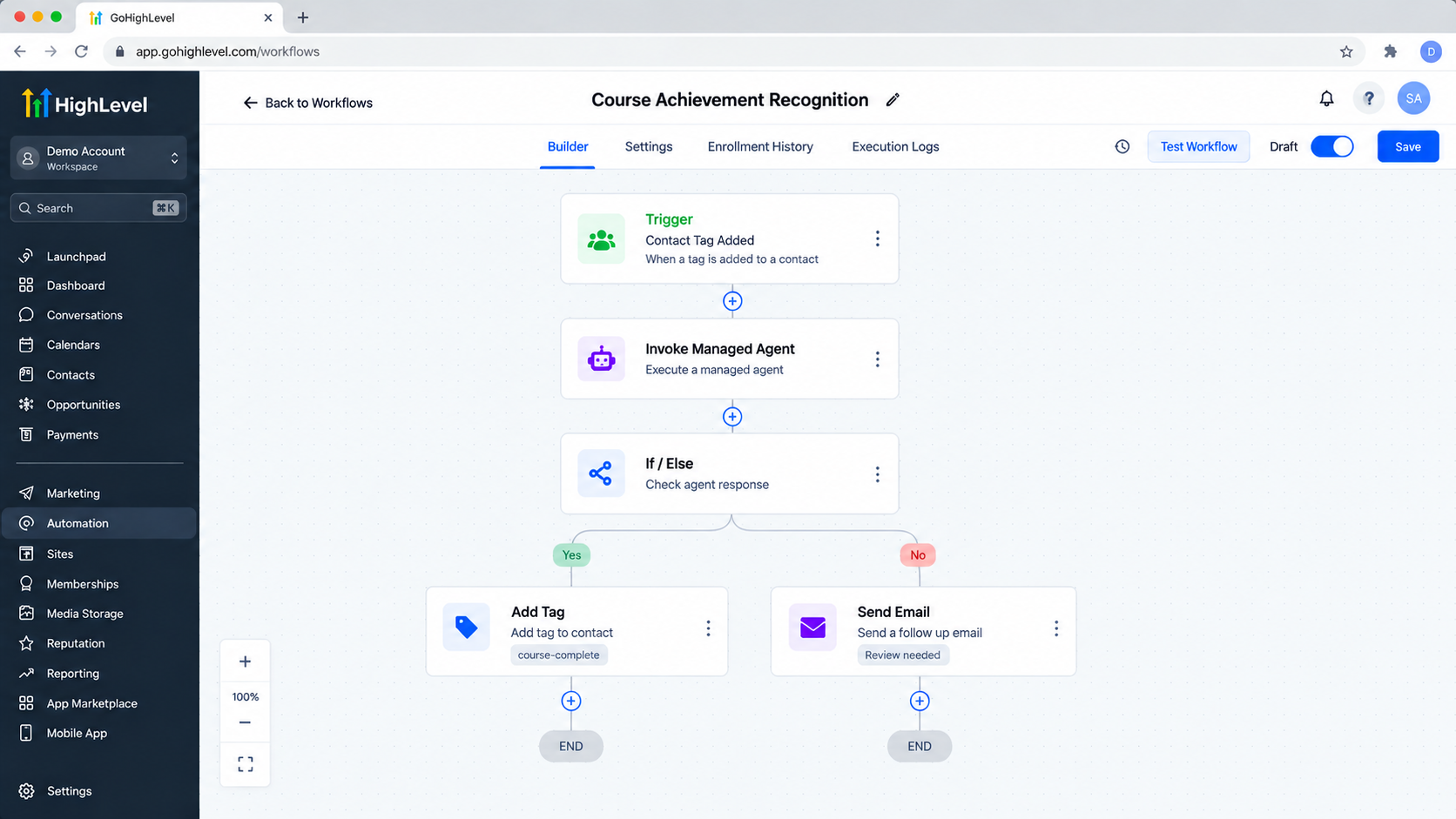
Trigger → Conditions or other Workflow steps → Invoke Managed Agent → Later actions
When a contact reaches the action, HighLevel sends the selected contact and configured Workflow context to the selected agent. That context can include dynamic data and relevant attachments. The agent works from its published configuration and returns a response. The Workflow then continues, using the response where appropriate.
This setup combines structured Workflow steps with AI reasoning. For example, a Workflow can use fixed conditions to decide when to ask an agent to review contact context, then use the result in a later branch.
How to Set Up Invoke Managed Agent
Prepare and publish the Managed Agent before adding it to a Workflow.
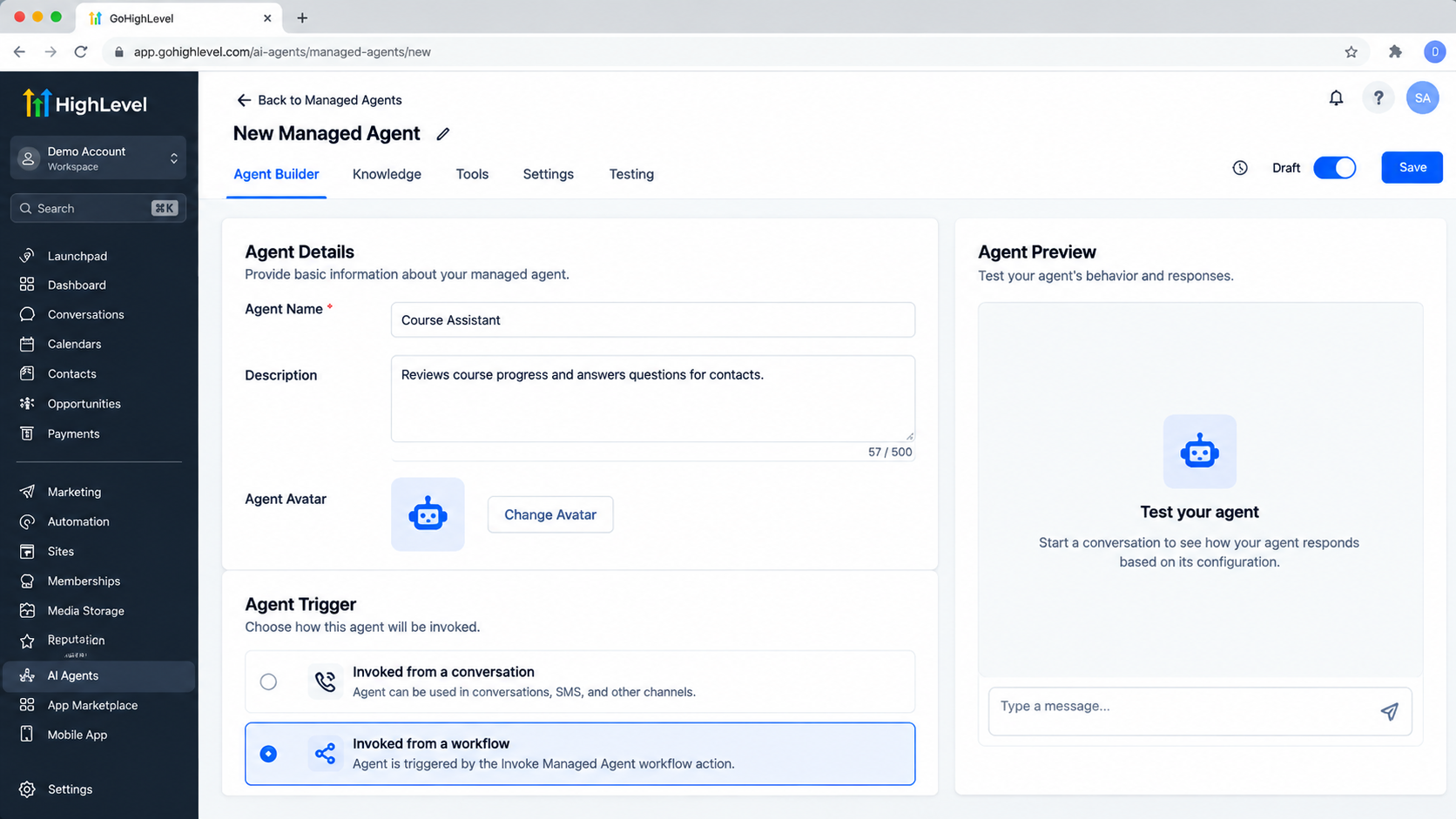
Configure the Managed Agent.
Go to AI Agents → Agent Studio → Managed Agents and create or open the agent you plan to use. Configure its instructions and any tools, Knowledge Base access, or CRM capabilities it needs.Add the required trigger.
In the agent’s trigger configuration, add Invoked from a workflow. Test the Managed Agent, then publish it.Open a Workflow.
Go to Automation → Workflows and create a Workflow or open an existing one. Choose where the agent should run.Add the action and select the agent.
Click + Add Action, select Invoke Managed Agent, and choose the published Managed Agent you configured.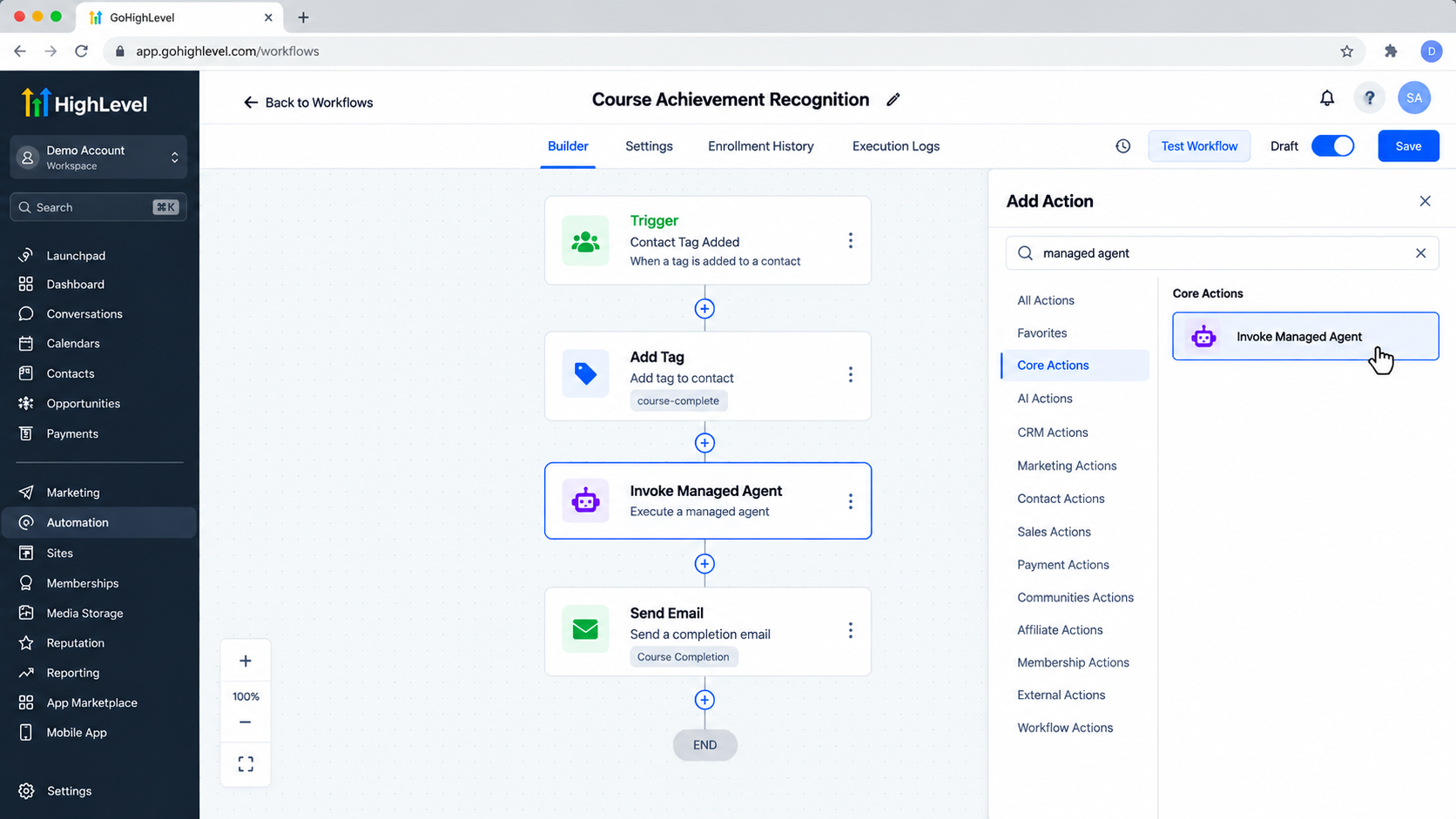
Add the Invoke Managed Agent action inside your Workflow Builder to connect your automation with a published AI agent. Write the instruction.
Describe the task and include relevant contact or Workflow data. Add attachment context if the agent needs to review a file provided through the Workflow.Use the response downstream.
Add the later Workflow actions that should use the response. Test the complete sequence with representative contact data before publishing the Workflow.
Writing a Useful Agent Instruction
A good instruction tells the agent what to do, supplies the context it needs, and describes the expected result. Use dynamic values when relevant information changes between contacts or Workflow executions. Keep the context focused on the task.
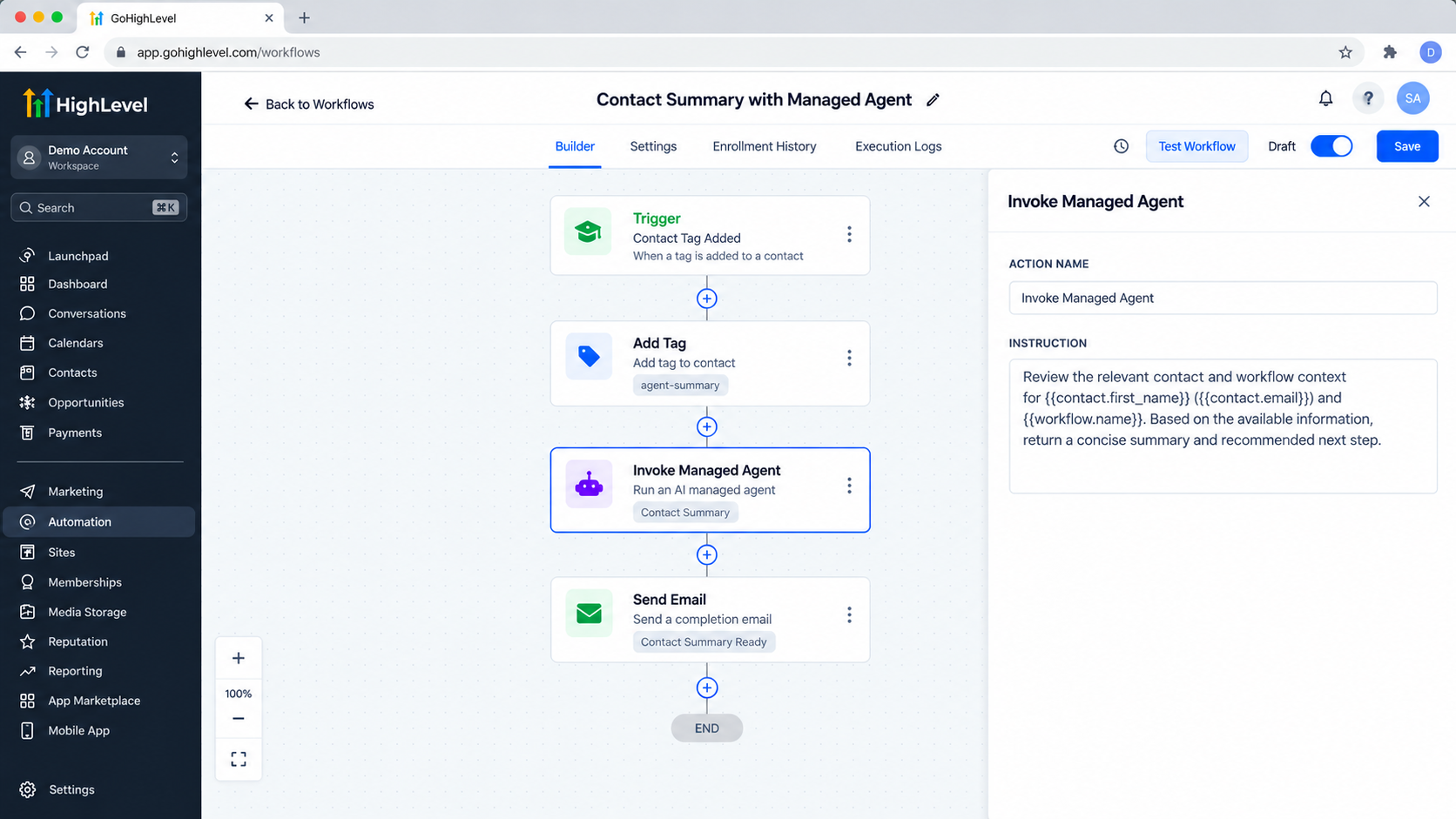
Example instruction
Review the contact information and recent context provided by this Workflow: [insert relevant dynamic contact or Workflow data]. Summarize the main need and suggest a relevant next step. Return a concise explanation for the following Workflow steps.
Adapt this example to your process and available data. It is a starting point, not a guarantee of a particular response. Attachments may be passed when they are relevant and available to the Workflow.
Practical Use Cases
Invoke Managed Agent can help when a Workflow step calls for interpretation or content generation. For example, an agent could:
Summarize available contact or CRM context.
Classify or evaluate information to support a Workflow decision.
Generate personalized text for a later communication.
Review an attachment made available through the Workflow.
Return information that a later action can use to update a record or choose a branch.
The agent’s response can be selected as dynamic data in later actions. Depending on the automation, those actions can update CRM records, branch the Workflow, populate a message, or pass the information into another automation step. Plan how the response will be used, then check that the downstream steps handle it as intended.
Best Practices for Workflow Automation
Keep the Managed Agent’s task clear and provide only the context it needs. Test both the agent and the surrounding Workflow with representative data. Verify that the agent receives the expected information and that later steps use the response correctly.
Keep predictable sequencing and fixed business rules in the Workflow where possible. Use the agent for tasks that benefit from interpretation, reasoning, or flexible content generation. This makes the overall process easier to follow and maintain.
If the Managed Agent does not appear in the selector, confirm that it has the Invoked from a workflow trigger and has been published.
Conclusion
The Invoke Managed Agent action connects a Workflow to a separately configured, published Managed Agent. The Workflow decides when to make the handoff; the agent processes the assigned task and returns a response for later steps.
For reliable automation, prepare and test the agent first, provide clear instructions and relevant context, and verify how the Workflow uses the response. Keep fixed rules in the Workflow and place the agent where context-sensitive work is useful.
FAQs
Why doesn’t my Managed Agent appear in the selector?
Check that it has the Invoked from a workflow trigger and is published. Those are required for it to be eligible for this Workflow action.
Is Invoke Managed Agent the same as Invoke Agent Studio Agent?
No. They are separate Workflow actions with separate configuration experiences. Invoke Managed Agent calls an eligible published Managed Agent; Invoke Agent Studio Agent is for a separate flow-based Agent Studio experience.
Can I use the agent’s response in later Workflow steps?
Yes. The response can be used in later actions, such as updating a CRM record, branching the Workflow, preparing message content, or passing information to another automation step.
Can the Managed Agent review attachments?
Attachments may be passed when they are relevant and available to the Workflow. Include attachment context in the instruction when the agent needs to review a file.
Should the Workflow or the agent handle fixed business rules?
Keep predictable sequencing and fixed conditions in the Workflow where possible. Use the Managed Agent for tasks that need interpretation, reasoning, or flexible content generation.
Need Expert Help with GoHighLevel?
New to GoHighLevel and ready to get started? Buy your GoHighLevel account here and launch with confidence.
Already know what you need and want our team to handle everything, from complete setup and customization to funnels, workflows, automations, CRM, and pipelines? Click here.



