

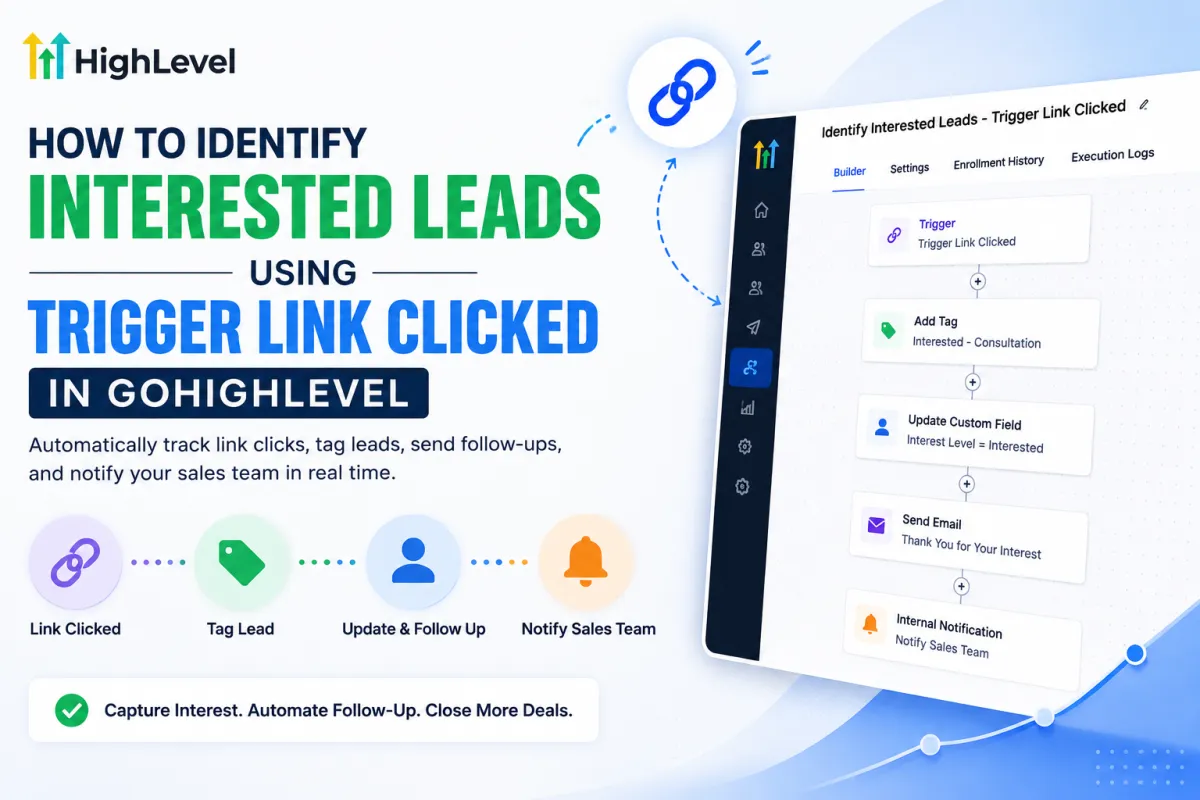
Identify Interested Leads with Trigger Link Clicked in GoHighLevel
How to Identify Interested Leads Using the Trigger Link Clicked Trigger in GoHighLevel
Not every lead who receives your marketing message is genuinely interested in your offer. Some contacts open emails, some read SMS messages, and others may simply ignore your communication. But when a lead clicks a specific link, it can be a much stronger signal of engagement.
With GoHighLevel's Trigger Link Clicked trigger, you can identify contacts who interact with specific links and automatically take action based on their behavior. This makes it easier to separate engaged leads from less-interested contacts and create more targeted follow-up campaigns.
In this guide, we'll explain how the Trigger Link Clicked trigger works, how to set it up, and how you can use it to identify interested leads.

What Is a Trigger Link in GoHighLevel?
A Trigger Link is a trackable link that you can use in your GoHighLevel messages. Instead of sending a standard URL, you can create a Trigger Link and use it in emails, SMS messages, or other supported communications.
When a contact clicks the link, GoHighLevel can recognize the interaction and use it as a trigger for automation.
For example, suppose you send an email that says:
“Interested in learning more? Click here to schedule a consultation.”
If the scheduling link is configured as a Trigger Link, clicking it can automatically start a workflow for that contact.
This gives you a useful behavioral signal: the contact took an action that indicates interest.
Why Track Trigger Link Clicks?
Tracking link clicks can help you understand which leads are engaging with your marketing.
Instead of treating every contact in the same way, you can use their behavior to determine the next step.
For example, a clicked link could indicate that a lead:
Wants more information
Is interested in a particular service
Wants to book an appointment
Is considering an offer
Wants to view pricing
Is ready to speak with your team
You can then use this information to create personalized follow-up actions.
This is especially useful when you're managing a large contact database and don't want your sales team spending time manually checking every lead.
How the Trigger Link Clicked Trigger Works

The process is straightforward:
Create Trigger Link → Add Link to Message → Lead Clicks Link → Workflow Starts → Contact Is Identified as Interested
When the contact clicks the tracked link, the Trigger Link Clicked trigger can activate the workflow.
From there, you can configure actions such as:
Adding a tag
Updating a custom field
Sending an SMS
Sending an email
Assigning the contact to a user
Moving the contact through a pipeline
Creating a task
Starting another automation
This allows you to turn a simple click into an actionable lead-management process.

Step 1: Create a Trigger Link
First, create the Trigger Link you want to track.
Choose the destination URL that you want the contact to visit. This could be a:
Booking page
Product page
Service page
Pricing page
Lead magnet
Application form
Consultation page
The destination should match the action you're trying to measure.
For example, if your goal is to identify leads interested in booking a consultation, your Trigger Link could point to your appointment booking page.
Step 2: Create a Workflow
Next, create a new workflow in GoHighLevel.
Add the Trigger Link Clicked trigger as the workflow's starting trigger.
Configure the trigger to respond to the specific Trigger Link you want to monitor.
This means the workflow will activate when a contact clicks that particular link.
For example:
Trigger: Trigger Link Clicked
Trigger Link: Book a Free Consultation
Now, whenever a contact clicks that link, the workflow can take the actions you've configured.
Step 3: Tag the Interested Lead
One of the simplest ways to identify interested leads is by adding a tag.
For example, you could create a tag such as:
Interested - Consultation
Then add an Add Contact Tag action to the workflow.
Your automation would look like this:
Trigger Link Clicked → Add Tag → Interested - Consultation
Now you can easily identify contacts who clicked the link by filtering your contacts using that tag.
This can also help your sales team quickly recognize engaged leads.

Step 4: Update a Custom Field
Tags aren't the only way to track interest.
You can also use a custom field to store information about the contact's behavior.
For example, you could create a custom field called:
Interest Level
Then configure your workflow to update the field when the contact clicks a specific Trigger Link.
You could use values such as:
Interested
Highly Interested
Consultation Requested
Pricing Interested
This can provide more structured information about a contact than tags alone.
Step 5: Notify Your Sales Team
Once a lead clicks an important link, you may want your sales team to know immediately.
For example, if someone clicks “Book a Consultation,” you could automatically send an internal notification to the assigned team member.
Your workflow could look like:
Trigger Link Clicked → Add Interested Tag → Notify User
The notification could tell the salesperson that the contact has shown interest and may be ready for follow-up.
This reduces the chance of missing a high-intent lead.
Best Practices for Using Trigger Link Clicks
1. Use Meaningful Link Names
Give your Trigger Links descriptive names so you know what each one represents.
Instead of generic names, use names such as:
Consultation Booking
Pricing Page
Demo Request
Service Information
This makes your workflows easier to manage.
2. Match the Automation to the Intent
Not every click represents the same level of interest.
Someone clicking a blog article may have lower buying intent than someone clicking a “Book a Call” link.
Use different follow-up strategies depending on the action.
3. Avoid Over-Messaging
A click is a useful engagement signal, but sending too many automated messages immediately afterward can overwhelm the lead.
Make your follow-up relevant to the action they took.
4. Use Tags and Custom Fields Together
Tags can make it easy to filter contacts, while custom fields can store more structured information.
Using both can give you better visibility into lead behavior.
5. Connect Click Data to Your Sales Process
Don't let engagement data sit unused.
If a lead demonstrates strong interest, consider moving them into the appropriate sales stage, assigning a task, or notifying a salesperson.
Conclusion
The Trigger Link Clicked trigger in GoHighLevel provides a practical way to identify leads based on their actual behavior.
Instead of relying only on contact information or campaign delivery statistics, you can use link clicks as engagement signals. By connecting Trigger Link clicks with tags, custom fields, notifications, Smart Lists, and follow-up workflows, you can automatically identify contacts who are showing interest.
Whether you're tracking pricing-page visits, consultation requests, service information, or demo requests, Trigger Links can help turn engagement into actionable lead data.
The key is to build the tracking into your automation from the beginning. Once the workflow is configured, GoHighLevel can help your team recognize engaged leads and respond to them at the right time.
Frequently Asked Questions (FAQs)
1. What is the Trigger Link Clicked trigger in GoHighLevel?
The Trigger Link Clicked trigger allows you to start a workflow when a contact clicks a specific Trigger Link. It can be used to track engagement and identify leads who have shown interest in a particular offer, service, page, or action.
2. How can I identify a lead who clicked a Trigger Link?
You can create a workflow using the Trigger Link Clicked trigger and then add an action such as Add Contact Tag. For example, you can apply a tag like Interested Lead whenever a contact clicks the link.
3. Can I see which contact clicked a Trigger Link?
Yes, when the Trigger Link is connected to an appropriate workflow, you can use the click event to take an action on the contact, such as adding a tag, updating a custom field, or sending a notification. This makes it easier to identify individual contacts who engaged with the link.
4. Can I use Trigger Link clicks to notify my sales team?
Yes. You can configure a workflow to send an internal notification when a contact clicks an important Trigger Link. For example, clicking a Book a Consultation link could notify the assigned salesperson so they can follow up promptly.
5. Can I add a tag when someone clicks a Trigger Link?
Yes. This is one of the simplest ways to track interested leads. Create a workflow with the Trigger Link Clicked trigger and add an Add Contact Tag action. The tag can then be used to filter and organize engaged contacts.
Need Expert Help with GoHighLevel?
New to GoHighLevel and ready to get started? Buy your GoHighLevel account here and launch with confidence.
Already know what you need and want our team to handle everything, from complete setup and customization to funnels, workflows, automations, CRM, and pipelines? Click here.



