

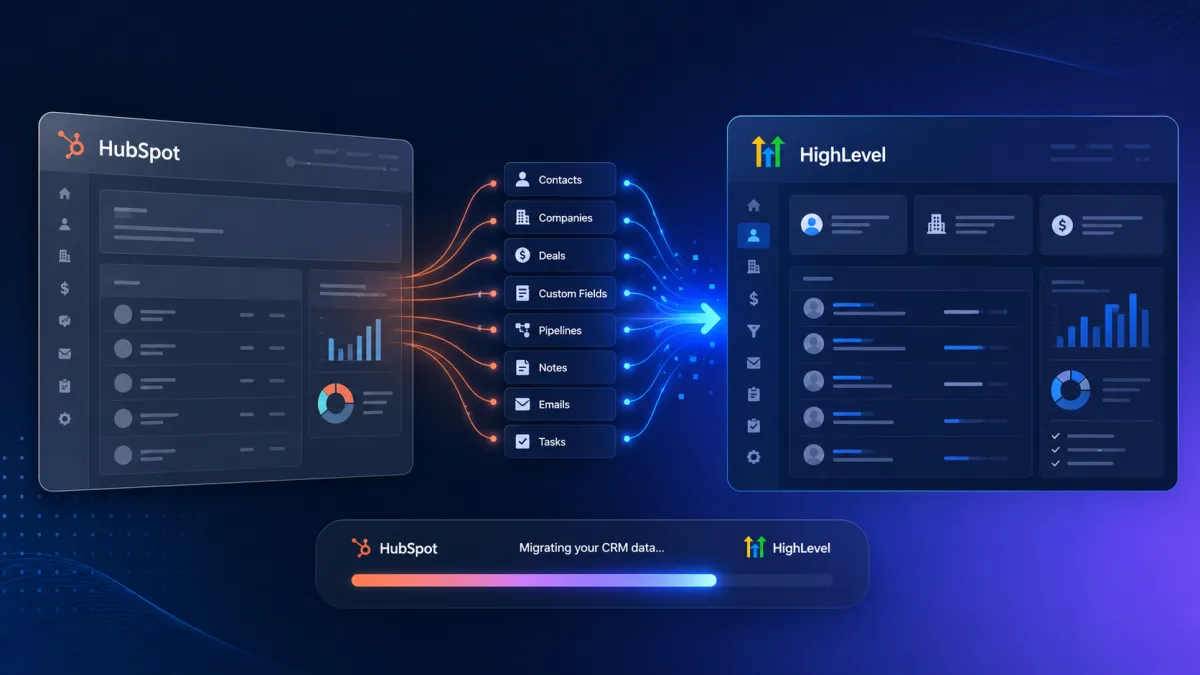
HubSpot to GoHighLevel Migration
Moving from HubSpot to HighLevel Just Got Easier
Moving CRM data from one platform to another can involve much more than simply transferring a list of contacts. Important records, custom properties, pipelines, activities, and relationships between data all need to be considered during a CRM migration. For businesses moving from HubSpot to HighLevel, GoHighLevel has introduced a new HubSpot Importer for HighLevel designed to make that process more direct.
The new importer lets users connect their HubSpot account and bring supported CRM data directly into HighLevel without depending on manual CSV exports. Instead of handling the migration entirely through exported files, users can select the information they need, start the import, and monitor the results from within HighLevel.
What Is the HubSpot Importer?
The HubSpot Importer is a new HighLevel feature that connects directly to a user's HubSpot account for importing supported CRM data.
The process begins from areas users may already work with in HighLevel. Users can go to Contacts, Companies, or Opportunities, select Import, and then choose Connect HubSpot. After signing in to HubSpot, they can select which objects and data they want to bring into HighLevel.

This gives users more control over their HubSpot migration to HighLevel while reducing the need to manually prepare and transfer CSV files.
What HubSpot CRM Data Can You Import?

The importer supports several important types of HubSpot CRM data. This includes:
Contacts
Deals as Opportunities
Companies
Contact, Company, and Deal properties as Custom Fields
Pipelines and stages
Notes
Emails
Tasks
Supported associations
This means a HubSpot import is not limited to contact records alone. Supported properties can become HighLevel custom fields, while HubSpot deals can be brought over as Opportunities. Pipelines and stages can also be imported, helping preserve supported CRM organization during the migration.

Users can also select specific properties when configuring an import, giving them the ability to choose the data they actually want to bring into HighLevel.
How the HubSpot to HighLevel Migration Works
Starting an import is designed to be a straightforward process.
First, go to Contacts, Companies, or Opportunities inside HighLevel and click Import. Select Connect HubSpot, then sign in to the HubSpot account you want to use.
Once connected, HighLevel allows you to select the objects and data you want to import. Before starting, you can review record counts and choose specific properties where needed.
When everything is ready, click Confirm and start import.

The import then continues running in the background. You do not have to remain on the import page while the process runs, so you can leave the page and return later to check its progress.

Track Your Import Results
A useful part of the new HubSpot Importer is what happens after the import starts. HighLevel provides an Import History table where users can track import progress and review completed imports.
After an import finishes, users can see totals for:
Successful records
Skipped records
Failed records
Records with warnings
Results can also be reviewed by object or by individual record. Filters allow users to narrow results by object and status, making it easier to identify specific records that need attention.

If something goes wrong, the importer provides clear error messages. Users can also download the import results as a CSV for further review.
This gives the migration process a clearer review stage instead of leaving users to determine whether the import worked without detailed results.

Why This Update Matters
For users preparing a HubSpot to HighLevel migration, the main benefit of this update is having a direct way to bring supported CRM information into HighLevel.
The importer can reduce manual work while allowing users to choose what they want to transfer. It also supports important CRM structures such as pipelines and stages, along with supported properties, notes, emails, tasks, and associations.
Just as importantly, the Import History tools make it easier to identify successful, skipped, failed, and warning records after an import. That can help users quickly find issues and review what happened during the migration.
Important Things to Know Before Importing
There are several important considerations to keep in mind before starting a HubSpot import.
First, existing matching records are not overwritten. Imported HubSpot emails are also read-only.
Deals require their associated contacts to be imported as Opportunities, so users should account for that relationship when selecting data for migration.
GoHighLevel also recommends testing the import in a new or non-production sub-account first. This provides a way to review the process and results before using the importer in a production environment.
A More Direct Way to Move CRM Data
The new HubSpot Importer gives users a more direct option for moving supported HubSpot CRM data into HighLevel. From contacts and companies to opportunities, custom fields, pipelines, activities, and supported associations, the importer brings several important parts of the CRM migration process into one workflow.
With selectable data, background importing, and detailed Import History results, the feature can make a HubSpot to HighLevel migration easier to manage while reducing the manual work involved in transferring CRM data.
Need Expert Help with GoHighLevel?
New to GoHighLevel and ready to get started? Buy your GoHighLevel account here and launch with confidence.
Already know what you need and want our team to handle everything, from complete setup and customization to funnels, workflows, automations, CRM, and pipelines? Click here.
New to GoHighLevel and ready to get started?Buy your GoHighLevel account hereand launch with confidence.
Already know what you need and want our team to handle everything, from complete setup and customization to funnels, workflows, automations, CRM, and pipelines?Click here.



