

How to Use the Note Added Trigger in GoHighLevel
How to Automatically Notify Your Team When a Note Is Added in GoHighLevel: Step-by-step Guide
Introduction
Keeping your team informed is essential when managing leads, customers, and ongoing projects. One simple way to improve internal communication is by using the Note Added Trigger in GoHighLevel. Whenever someone adds a note to a contact, this GoHighLevel workflow trigger can automatically start a workflow that alerts the right team members, assigns follow-up tasks, or performs other workflow actions.
Notes are one of the most underused resources inside a CRM. Sales reps, support agents, and account managers all leave valuable information behind after calls, meetings, and support tickets. Without automation, that information often stays buried inside a contact record until someone happens to scroll through it. The GoHighLevel Note Added Trigger solves this problem by turning every note into a potential trigger for action.
In this guide, you'll learn what the Note Added Trigger is, when to use it, how to configure it step by step, and practical automation ideas to help your team respond faster without constantly checking contact records manually.
What Is the Note Added Trigger in GoHighLevel?
The Note Added Trigger is a GoHighLevel workflow trigger that starts a workflow whenever a new note is added to a contact. It's one of the simplest ways to connect human input — a note typed by a real person — with automated business logic inside your CRM. You can find the official trigger documentation on the HighLevel Support Portal if you want to reference GoHighLevel's own configuration notes alongside this guide.
A note can contain important information such as:
Customer feedback
Sales updates
Appointment summaries
Support conversations
Follow-up instructions
Instead of relying on team members to manually inform each other about what was discussed or agreed upon, the workflow can automatically continue with the next steps as soon as the note is created. This is what makes GoHighLevel automation so powerful; it removes the dependency on someone remembering to forward information to the right person.
Because contact notes in GoHighLevel are already part of the daily workflow for most sales and support teams, this trigger doesn't require teams to change how they work. It simply adds automation on top of a habit they already have.
Why Use the Note Added Trigger?
Businesses often depend on notes to share important information between team members. Without automation, valuable updates can easily be missed, especially when teams are handling a high volume of leads and customers at the same time. This is exactly the gap the Note Added Trigger in GoHighLevel was built to close.
Using the Note Added Trigger helps you:
Improve internal communication
Reduce manual follow-ups
Ensure important notes receive attention
Keep sales and support teams aligned
Standardize your internal processes
For agencies managing multiple clients, this automation also helps ensure that no customer update goes unnoticed. When you're running CRM automation across dozens of client accounts, you can't rely on manual check-ins to keep everyone on the same page. A single missed note can mean a missed follow-up, a delayed response, or a lost sale.
This is also where workflow automation becomes a competitive advantage. Teams that automate their internal communication respond faster, close more deals, and provide better customer support than teams that rely purely on manual coordination.
How to Set Up the Note Added Trigger
Setting up this GoHighLevel Note Added Trigger tutorial is straightforward, even if you're new to building GoHighLevel Workflows. The process only takes a few minutes once you know where to look, and configuring the Note Added Trigger in GoHighLevel correctly the first time will save you from troubleshooting later. Follow the steps below to get it running in your own account.
Step 1: Open the Workflows Section
To begin, log in to your GoHighLevel account and navigate to Automation > Workflows from the left-hand menu. This is where you create and manage all your automation workflows. If you're setting up the Note Added Trigger for the first time, this is the starting point for building a workflow that automatically performs actions whenever a new note is added to a contact.

Step 2: Create a New Workflow or Edit an Existing One
You can either start a brand-new workflow from scratch or add this trigger into a workflow you already use for lead or customer management. Starting fresh is usually easier if this is your first time working with the Note Added Trigger, since it lets you test the automation without affecting existing processes.

Step 3: Click Add Trigger
Inside the workflow builder, click Add Trigger to open the list of available triggers. GoHighLevel offers many trigger options, so it helps to know exactly what you're looking for before scrolling through the list.

Step 4: Select Note Added from the Available Workflow Triggers
Search for and select Note Added from the trigger list. This tells GoHighLevel to watch for new notes being added to contacts and to start the workflow whenever that happens.

Step 5: Configure Trigger Filters
If needed, set up trigger filters to control when the workflow should run. Filters help ensure the automation only starts for contacts or situations that match your specific criteria, preventing unnecessary workflow executions. For example, you might only want the workflow to run for contacts in a specific pipeline stage or with a specific tag.

Step 6: Add Workflow Actions
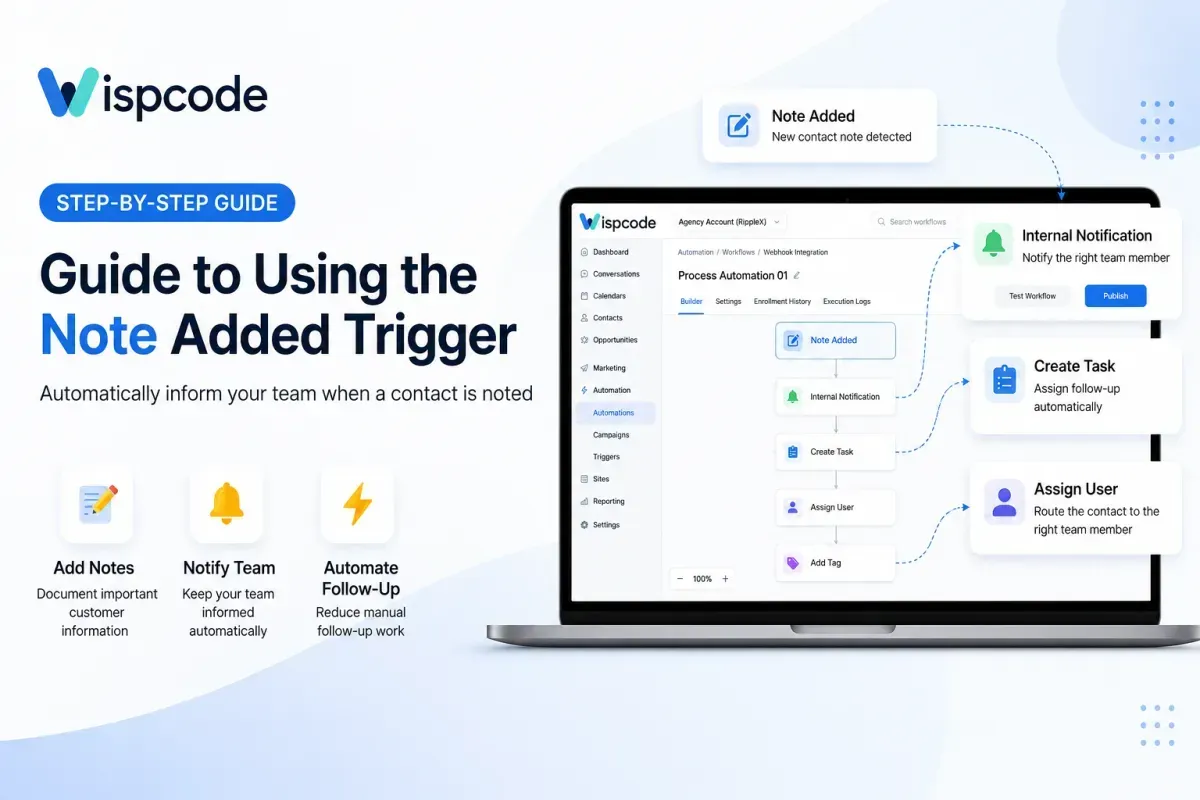
Next, add the workflow actions you want GoHighLevel to perform after a new note is added. For example, you can send an internal notification, create a task, assign the contact to a team member, or add a tag based on your workflow needs. This is where the real value of GoHighLevel workflow actions comes into play, since you can chain together multiple steps to build a complete internal process.

Step 7: Publish the Workflow
Once you've configured the trigger and added your actions, publish the workflow. Unpublished workflows will not run, so this step is easy to forget but essential.
Once the workflow is active, every qualifying note will automatically start the workflow, and your team will begin benefiting from automated internal communication immediately.

Ways to Notify Your Team
After the trigger starts the workflow, you can add different workflow actions depending on your business process. This flexibility is one of the main reasons the Note Added Trigger works well across different industries and team structures.
Some common examples include:
Send an internal notification
Create a task for a team member
Assign the contact to another user
Update contact information
Add tags for tracking
Add the contact to another workflow if appropriate
The exact notification method depends on the workflow actions available in your GoHighLevel account and how your business is organized. Some teams prefer task-based follow-ups, while others rely more heavily on tagging and Internal Notifications GoHighLevel offers for internal task management. Whichever method you choose, the goal is the same: make sure the right person sees the right update at the right time.
Practical Use Cases
The Note Added Trigger in GoHighLevel works well across almost any industry, but it's especially useful in sales, support, and client management, where fast, accurate follow-up matters most. Below are a few real-world examples of how teams put it to use.
Sales Team Follow-Up
A salesperson adds a note after speaking with a lead. The workflow can immediately:
Create a follow-up task
Assign the lead to another sales representative if needed
Update the contact's stage or add a tracking tag
This reduces the chance of forgetting important next steps and supports better lead management across your sales pipeline. When every note automatically triggers a next action, reps spend less time on administrative follow-up and more time actually selling.
Customer Support
A support agent documents an issue inside a contact's notes. The automation can:
Create a task for the technical team
Add a support-related tag
Start another internal workflow for issue resolution
This keeps everyone informed without sending manual messages, which is especially valuable for customer support teams handling a high volume of tickets. Instead of support agents pinging technical staff directly, the workflow handles the handoff automatically and consistently every time.
Client Account Management
Marketing agencies frequently leave notes after strategy meetings or client calls. Using the Note Added Trigger helps ensure that account managers, fulfillment teams, and project coordinators all stay aligned with the latest customer information through automated workflow actions. This kind of team collaboration is difficult to maintain manually once an agency scales past a handful of clients, which is exactly where this trigger proves most useful.
Best Practices
To get the most value from the Note Added Trigger in GoHighLevel, follow a few simple guidelines.
Write meaningful notes. Avoid vague comments like "Called client." Instead, write something more useful:
Client approved website design
Requested campaign launch next Monday
Waiting for final invoice approval
Clear notes make automated processes more valuable, since the workflow actions that follow are only as useful as the information behind them.
Avoid unnecessary workflows
Only automate actions that provide real business value. Too many notifications can overwhelm your team and cause people to start ignoring alerts altogether, which defeats the purpose of the automation.
Use filters when appropriate
If your workflow only applies to certain contacts or pipelines, configure filters so the automation runs only when necessary. This keeps your CRM workflow clean and prevents irrelevant notifications from cluttering your team's inbox.
Test before publishing
Always create a test contact, add a note, and verify that every workflow action behaves as expected before rolling it out to your entire team.
Common Mistakes to Avoid
When setting up the Note Added Trigger in GoHighLevel, many users create workflows but forget to test real-world scenarios. Watch out for these common issues:
Workflow is unpublished
Trigger filters are too restrictive
Team members are not assigned correctly
Duplicate workflows create repeated actions
Notes are too vague to support effective follow-up
Review your workflow periodically to ensure it still matches your business process. As your team grows or your contact management process changes, the workflow actions you set up initially may need adjustments to stay effective.
Frequently Asked Questions
Here are answers to the most common questions teams have about the Note Added Trigger in GoHighLevel before they set it up.
1. What starts the Note Added Trigger?
The workflow starts whenever a new note is added to a contact that matches the trigger conditions.
2. Can I use multiple actions after the trigger?
Yes. A workflow can include multiple actions after the trigger, allowing you to automate several follow-up steps in sequence.
3. Does the trigger work for existing notes?
No. It activates when a qualifying new note is added, not for notes that already existed before the workflow was enabled.
4. Can I combine this trigger with other workflow conditions?
Yes. You can add conditions and filters within your workflow to control when subsequent actions should occur.
5. Is this useful for agencies?
Absolutely. Agencies can use the Note Added Trigger to standardize internal processes and improve collaboration across teams, especially when managing multiple client accounts at once.
Conclusion
The Note Added Trigger in GoHighLevel is a simple but effective way to automate internal processes whenever important information is added to a contact record. It's one of the easiest GoHighLevel Workflows to set up for teams that want an immediate improvement in internal communication. Instead of depending on manual communication, you can automatically start workflows that create tasks, update records, assign contacts, or send internal notifications based on your workflow configuration.
If your team regularly documents conversations inside contact notes, this GoHighLevel internal workflow automation can help improve consistency, reduce missed follow-ups, and keep everyone working from the latest customer information. Setting it up takes only a few minutes, but the impact on your team's responsiveness and business process automation can be significant over time.
Need Expert Help with GoHighLevel?
New to GoHighLevel and ready to get started? Buy your GoHighLevel account here and launch with confidence.
Already know what you need and want our team to handle everything, from complete setup and customization to funnels, workflows, automations, CRM, and pipelines? Click here.



