

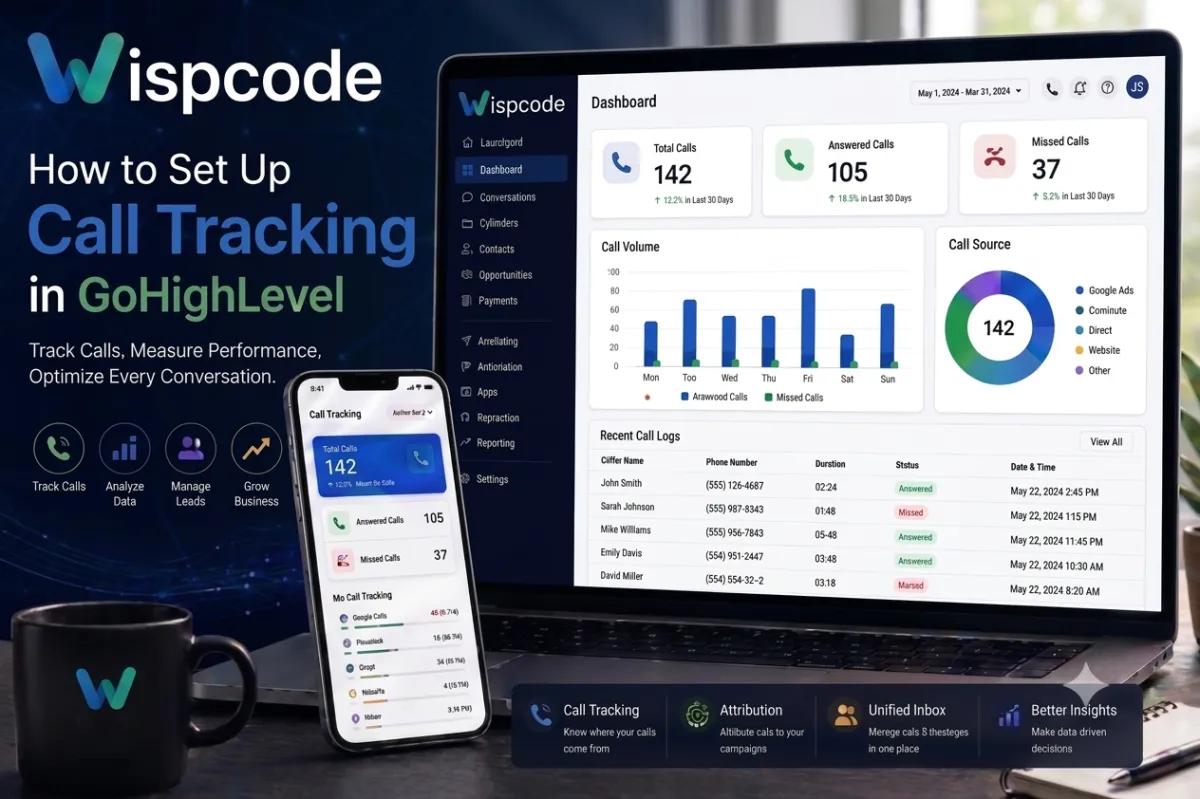
GoHighLevel Call Tracking Guide
How to Set Up Call Tracking in GoHighLevel
Introduction
Tracking business calls is essential for understanding how leads interact with your business, improving customer service, and measuring the effectiveness of your marketing efforts. Whether you're running a digital agency, managing a sales team, or operating a local service business, every customer call contains valuable information that can influence your sales process and overall customer experience.
GoHighLevel simplifies business communication by bringing calls, messages, emails, and customer records into one centralized CRM. With its built-in phone system, using LeadConnector Phone or Twilio, depending on your account configuration, you can manage inbound and outbound calls, view call history, and keep every customer interaction connected to the appropriate contact record.
In this guide, you'll learn how to Set Up Call Tracking in GoHighLevel, understand why it matters, and discover best practices for managing business calls efficiently.
What Is Call Tracking in GoHighLevel?
Call Tracking in GoHighLevel refers to managing and monitoring business phone calls directly within the platform. Instead of handling calls separately from your CRM, GoHighLevel records call activity within the customer's contact profile, making it easier to review communication history and follow up effectively.
Depending on your account setup, businesses can use either LeadConnector Phone or a connected Twilio phone number to place and receive calls.
When a customer calls your business:
The call is associated with the matching contact whenever possible.
Call activity appears within Conversations.
Call details are stored in the customer's Contact Record.
Teams can review communication history from one centralized location.
This unified approach helps businesses avoid scattered communication and ensures every interaction is documented within the CRM.
Why Call Tracking Matters
Effective communication plays a major role in converting leads into customers, and every phone call can provide valuable insights into a prospect's needs and buying journey. GoHighLevel Call Tracking helps businesses manage these interactions from one centralized platform, making it easier to monitor conversations, organize customer information, and improve response times. Whether you're running a marketing agency, a local service business, or a growing sales team, having complete visibility into your business calls can improve both efficiency and customer satisfaction.
Better Visibility Into Customer Interactions
Every inbound and outbound call is linked to the appropriate contact record whenever possible, giving your team quick access to previous conversations and communication history. Instead of searching through multiple platforms, staff can review past interactions before answering a call, allowing for more informed and personalized customer conversations.
Improved Lead Follow-Up
Missed calls can easily turn into missed sales opportunities if they are not addressed promptly. With GoHighLevel Call Tracking, businesses can identify missed calls, review call activity, and use Workflows to automate follow-up actions such as sending SMS messages, emails, or internal task reminders. This helps ensure that potential customers receive timely responses.
Centralized Communication History
GoHighLevel keeps phone calls, text messages, emails, and other customer interactions together within the CRM. Having a centralized communication history makes it easier for team members to understand the complete customer journey without switching between multiple applications or losing important information.
More Accurate Sales Tracking
Sales representatives benefit from having detailed communication records available throughout the sales process. Reviewing previous call activity helps them understand customer requirements, continue conversations without repeating questions, and manage opportunities more effectively within the CRM.
Better Customer Experience
Customers value fast, consistent, and personalized communication. When your team has immediate access to previous call history and contact details, they can provide quicker assistance and more relevant responses. This creates a smoother customer experience and helps build long-term trust with your business.
Improved Team Accountability
A centralized call history makes it easier for managers to monitor customer interactions and ensure that leads are being handled consistently. Teams can review completed calls, follow up on missed opportunities, and maintain high communication standards across the organization, resulting in a more organized and efficient sales process.
How to Set Up Call Tracking in GoHighLevel
Setting up Business Call Tracking in GoHighLevel is a straightforward process when your phone system is configured correctly. Whether you're using LeadConnector Phone or a connected Twilio account, proper setup ensures that inbound and outbound calls are tracked accurately within your CRM. Following the steps below will help you organize customer communication, improve lead management, and make the most of GoHighLevel's built-in calling features.
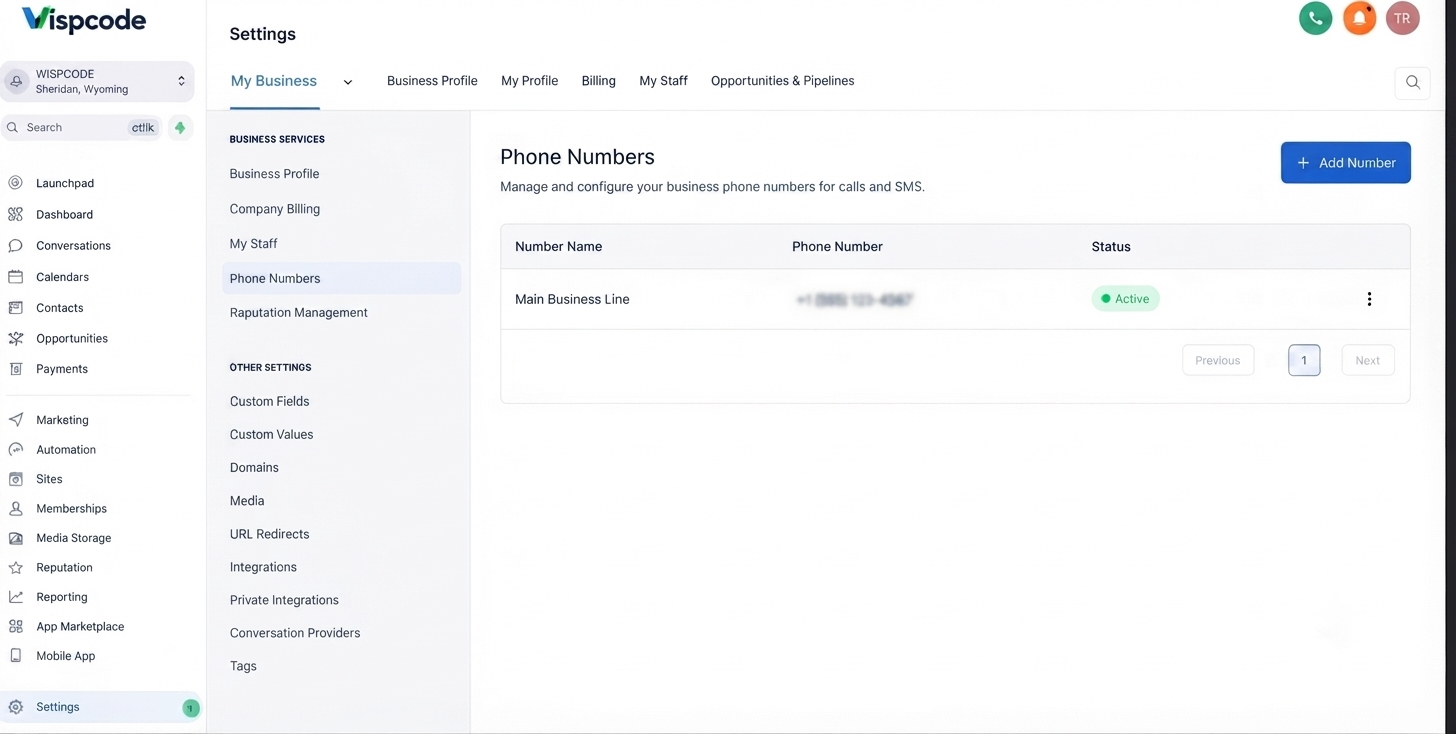
1. Connect or Purchase a Business Phone Number
The first step is to connect a business phone number to your GoHighLevel location. Navigate to your location's phone settings, where you can either purchase a LeadConnector Phone number or connect an existing Twilio number, depending on your account configuration.
Using a dedicated business phone number helps keep business and personal communication separate while ensuring that customer calls are routed through your CRM. It also allows call activity to be associated with contact records whenever possible, creating a more organized communication history.
2. Configure Phone Settings
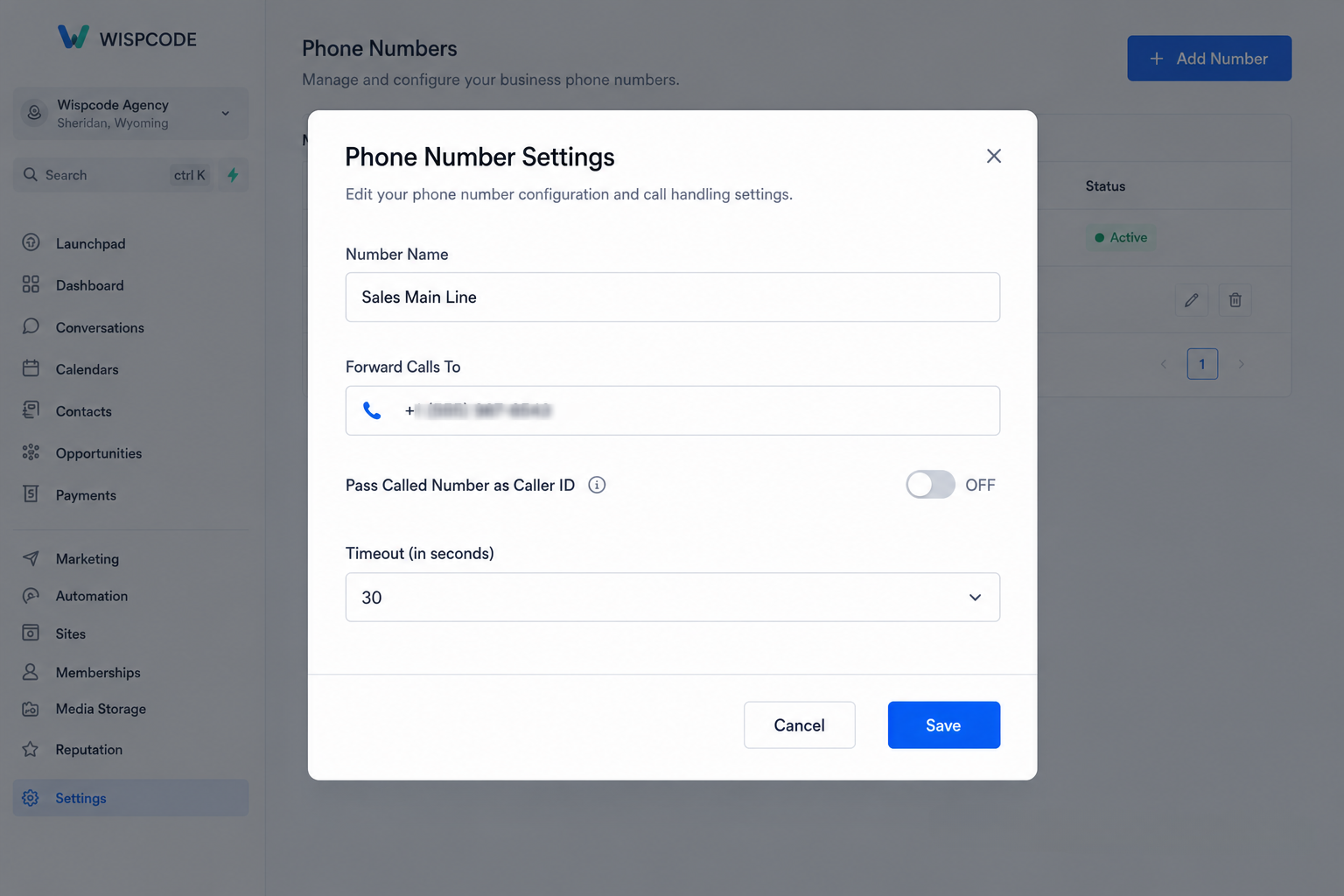
Once your phone number has been connected, review your phone settings to ensure everything is configured correctly. Proper configuration helps prevent calling issues and ensures your team can communicate with customers without interruption.
Verify that:
The business phone number is active.
Calling permissions are configured correctly.
Inbound and outbound calling is available for your account.
Keep in mind that some calling features may vary depending on whether you're using LeadConnector Phone or Twilio, as well as your account configuration.
3. Assign the Number to the Correct Location
If you manage multiple locations or client accounts, confirm that the phone number is assigned to the correct GoHighLevel location. This step is especially important for agencies that manage several businesses from a single account.
Assigning the correct number ensures that customer calls, contact records, conversations, and related activities remain organized within the appropriate workspace, making it easier for your team to manage communications.
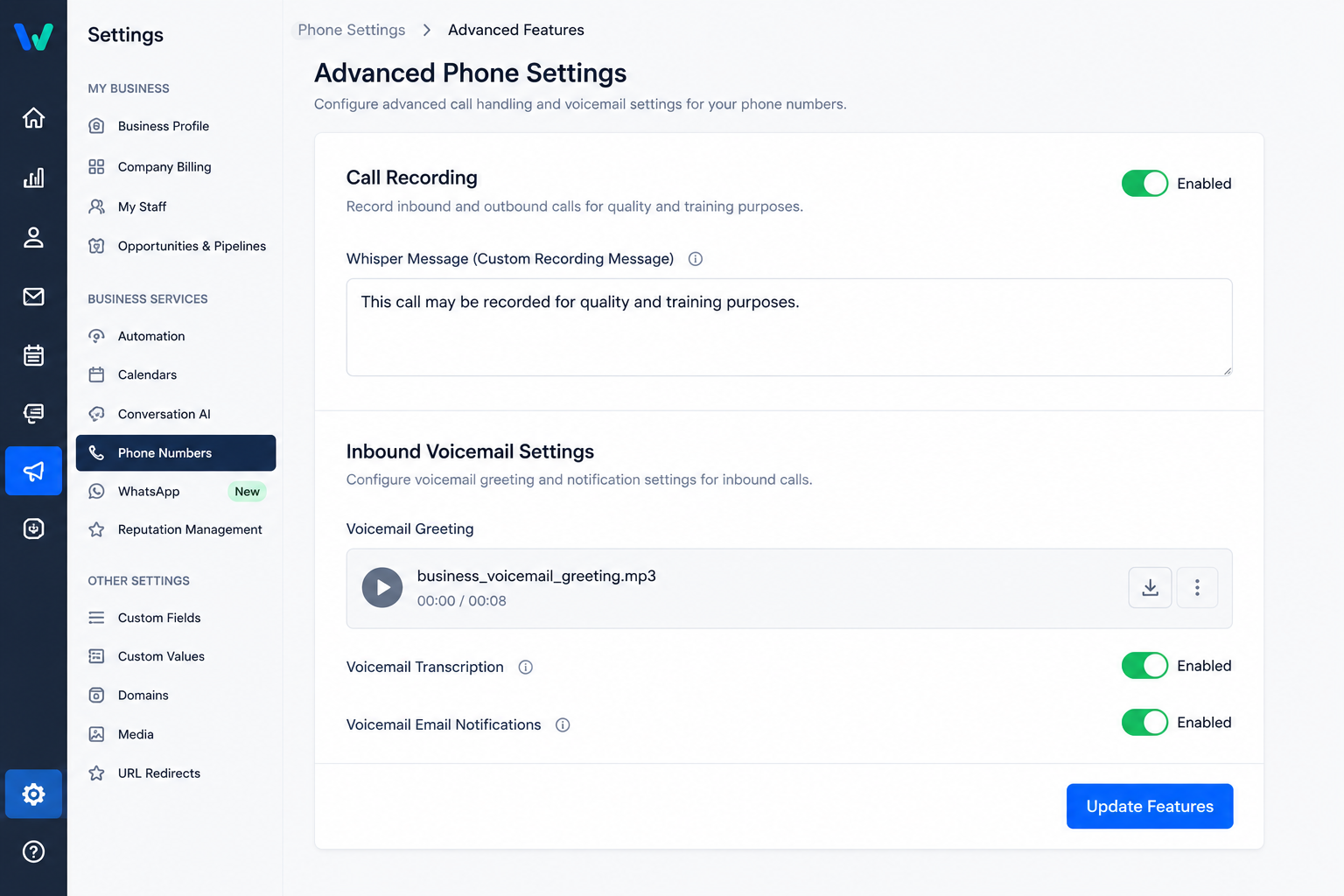
4. Enable Supported Call Handling Features
After configuring your phone number, enable the call handling features that best suit your business requirements. Depending on your account configuration, supported features may include:
Receiving inbound calls
Making outbound calls
Call recording (where available and legally permitted)
Voicemail functionality
If your business uses call recording, always comply with local laws and regulations by informing callers whenever required.
5. Test Inbound and Outbound Calling
Before using your phone system for daily business operations, perform several test calls to verify that everything is functioning correctly. Testing allows you to identify and resolve configuration issues before customers experience them.
During testing, confirm that:
Incoming calls reach the intended destination.
Outbound calls connect successfully.
Contact records are updated after each call whenever applicable.
Call activity appears correctly within Conversations.
A few minutes spent testing can help prevent missed opportunities and ensure a smooth customer experience.
6. Verify Conversations and Contact Records
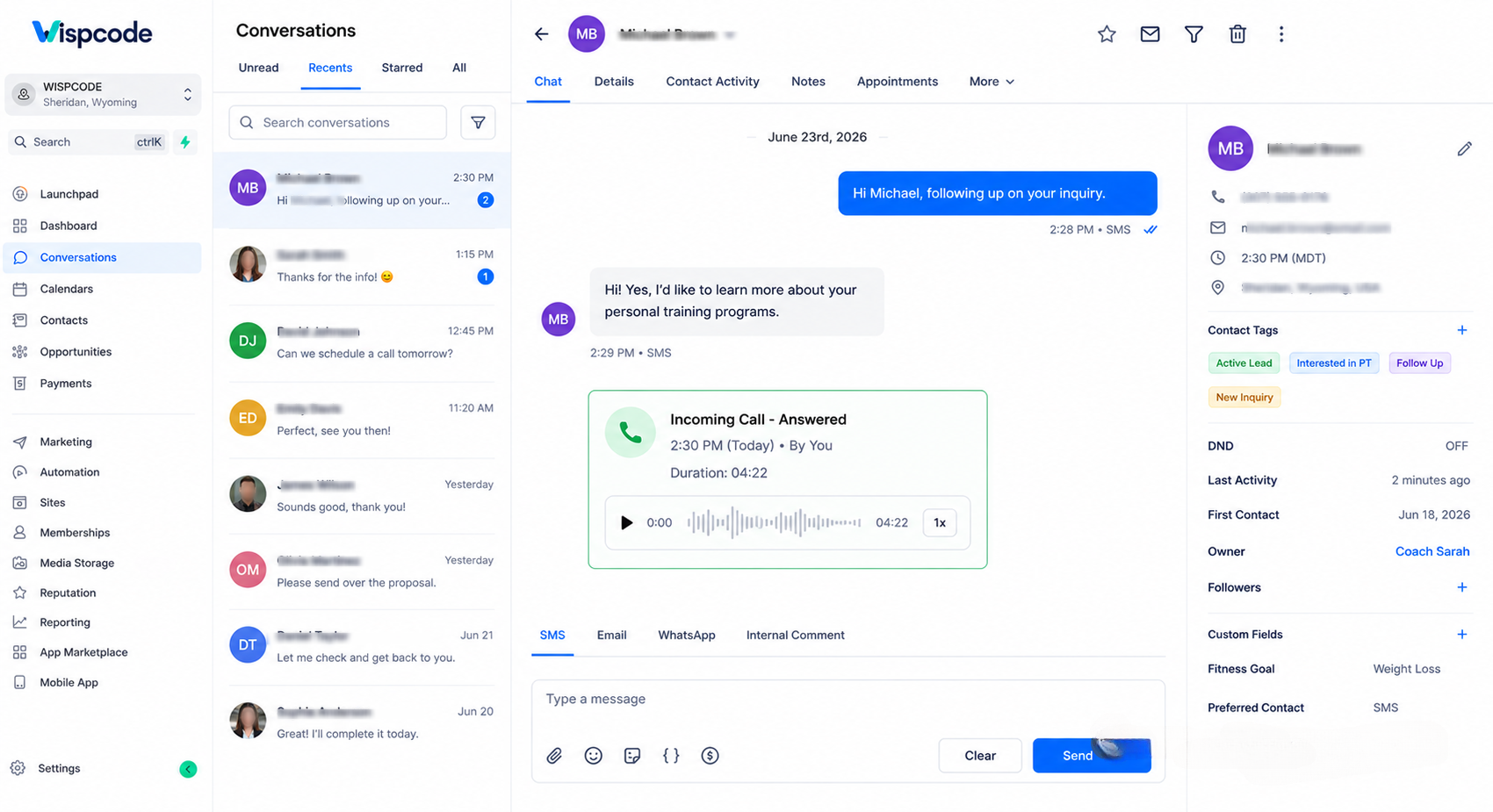
After completing your test calls, review the related customer profile inside GoHighLevel. Every successful call should appear within the customer's communication history whenever possible.
Check that:
The call is visible inside Conversations.
The Contact Record reflects the latest call activity.
Communication history is complete and easy to review.
Keeping customer interactions organized within the CRM allows your team to provide faster, more informed support during future conversations.
7. Automate Follow-Ups Using Workflows
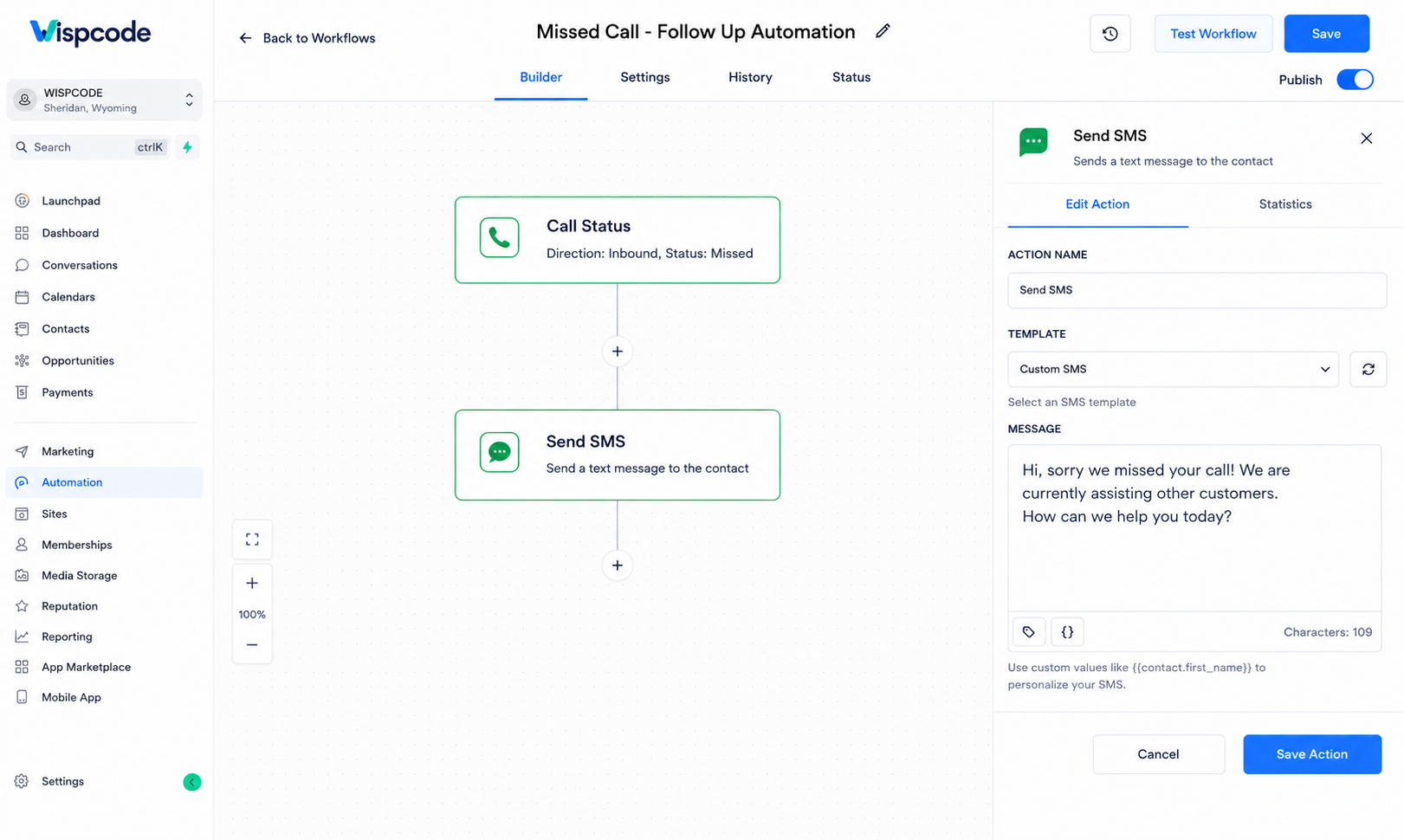
One of the biggest advantages of GoHighLevel is its powerful Workflow Automation. Instead of manually following up after every customer call, you can automate routine tasks to save time and improve response consistency.
After a completed or missed call, Workflows can automatically:
Send follow-up SMS messages
Send personalized emails
Create internal tasks for team members
Update pipeline stages
Assign contacts to the appropriate user
Automating these processes helps ensure that every lead receives timely attention while reducing manual work for your team.
8. Monitor Call History and Reporting
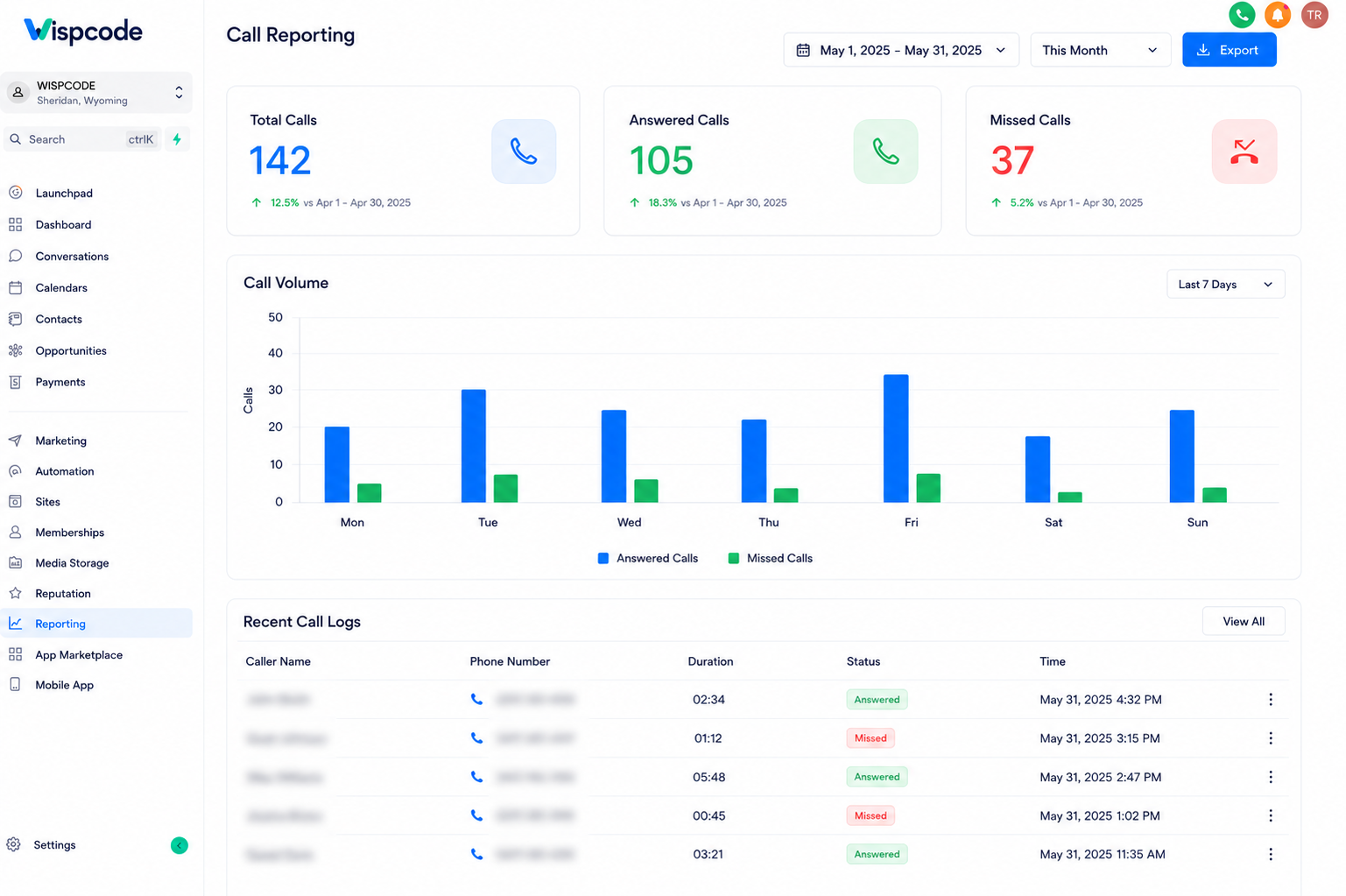
Once your call tracking system is fully configured, regularly review your Call Logs, Conversations, and any available reporting tools within GoHighLevel. Monitoring call activity helps you identify missed calls, evaluate communication performance, and maintain consistent customer follow-up.
By reviewing call history regularly, businesses can improve team accountability, identify communication gaps, and continuously optimize their customer engagement strategy.
Real Business Example
A local HVAC company uses GoHighLevel to manage customer inquiries from its website and advertising campaigns.
The business purchases a dedicated business phone number and routes customer calls through GoHighLevel. Every incoming call is automatically associated with the customer's contact record whenever possible, allowing office staff to view previous conversations before answering.
When a customer misses a call after business hours, a workflow sends a follow-up text message acknowledging the inquiry and creates a task for the team to return the call the next morning.
By keeping calls, messages, and customer history inside one CRM, the company stays organized and reduces the chances of overlooking potential customers.
Best Practices
For the best CRM Call Tracking experience, follow these recommendations:
Use a dedicated business phone number for all customer communication.
Test inbound and outbound calls after every major configuration change.
Keep contact records updated with accurate customer information.
Review missed calls regularly and respond promptly.
Automate follow-up tasks using Workflows whenever appropriate.
Train team members to manage calls consistently within GoHighLevel.
Review communication performance periodically to identify opportunities for improvement.
Common Mistakes to Avoid
Avoid these common setup mistakes when configuring GoHighLevel Communication tools.
Using an Unconfigured Phone Number
An inactive or improperly configured phone number can prevent calls from functioning correctly.
Forgetting to Test Calls
Skipping testing may leave unnoticed issues that affect customer communication.
Ignoring Missed Calls
Missed calls represent missed business opportunities if they aren't reviewed and followed up promptly.
Failing to Automate Follow-Ups
Without automation, important leads may be forgotten during busy periods.
Not Reviewing Call Logs Regularly
Regularly checking Call Logs helps identify communication gaps and ensures customer inquiries receive attention.
Poor Contact Management
Incomplete or outdated contact information makes it more difficult to maintain an organized communication history.
Assuming Every Feature Is Available
Some phone capabilities, including call recording and other advanced features, depend on your account configuration, phone provider, and applicable regional regulations. Always verify feature availability before relying on them.
Frequently Asked Questions (FAQs)
1. Does GoHighLevel have built-in call tracking?
Yes. GoHighLevel supports business call management through LeadConnector Phone or a connected Twilio account, depending on your account configuration. Call activities are recorded within the CRM and linked to contact records whenever possible.
2. Where can I view call history in GoHighLevel?
You can view call history in the Conversations tab and within each Contact Record, where previous calls and other communication activities are stored.
3. Can I automate follow-ups after a phone call?
Yes. Using GoHighLevel Workflows, you can automate follow-up actions such as sending SMS messages, emails, creating tasks, or updating pipeline stages after a call.
4. Do I need Twilio to use GoHighLevel calling?
Not always. Many accounts can use LeadConnector Phone, while others may use Twilio depending on their setup and available phone services.
5. Why should I test call tracking after setup?
Testing ensures that inbound and outbound calls are working correctly, call activities appear in the CRM, and customers receive a smooth communication experience from the start.
Conclusion
Learning how to Set Up Call Tracking in GoHighLevel is an important step toward improving customer communication, organizing lead management, and creating a more efficient sales process. By connecting a business phone number, verifying call activity within Conversations and Contact Records, and using Workflows to automate follow-ups, businesses can manage customer interactions from one centralized platform.
Whether you're a beginner or an experienced GoHighLevel user, taking the time to configure your phone system correctly helps your team stay organized and responsive. Review your phone setup regularly, monitor call activity, and continue optimizing your communication workflows to deliver a more consistent and professional customer experience.
Need Expert Help with GoHighLevel?
New to GoHighLevel and ready to get started? Buy your GoHighLevel account here and launch with confidence.
Already know what you need and want our team to handle everything, from complete setup and customization to funnels, workflows, automations, CRM, and pipelines? Click here.



