

Automate Data Management Using the Google Sheets Action in GoHighLevel: Step By Step Guide
How to Automate Data Management Using the Google Sheets Action in GoHighLevel
Introduction
Managing customer and business data manually can quickly become a bottleneck. A lead submits a form, a sales representative updates a spreadsheet, an appointment is booked, and someone has to remember to update another record. As the number of contacts grows, this process becomes harder to maintain and easier to get wrong.
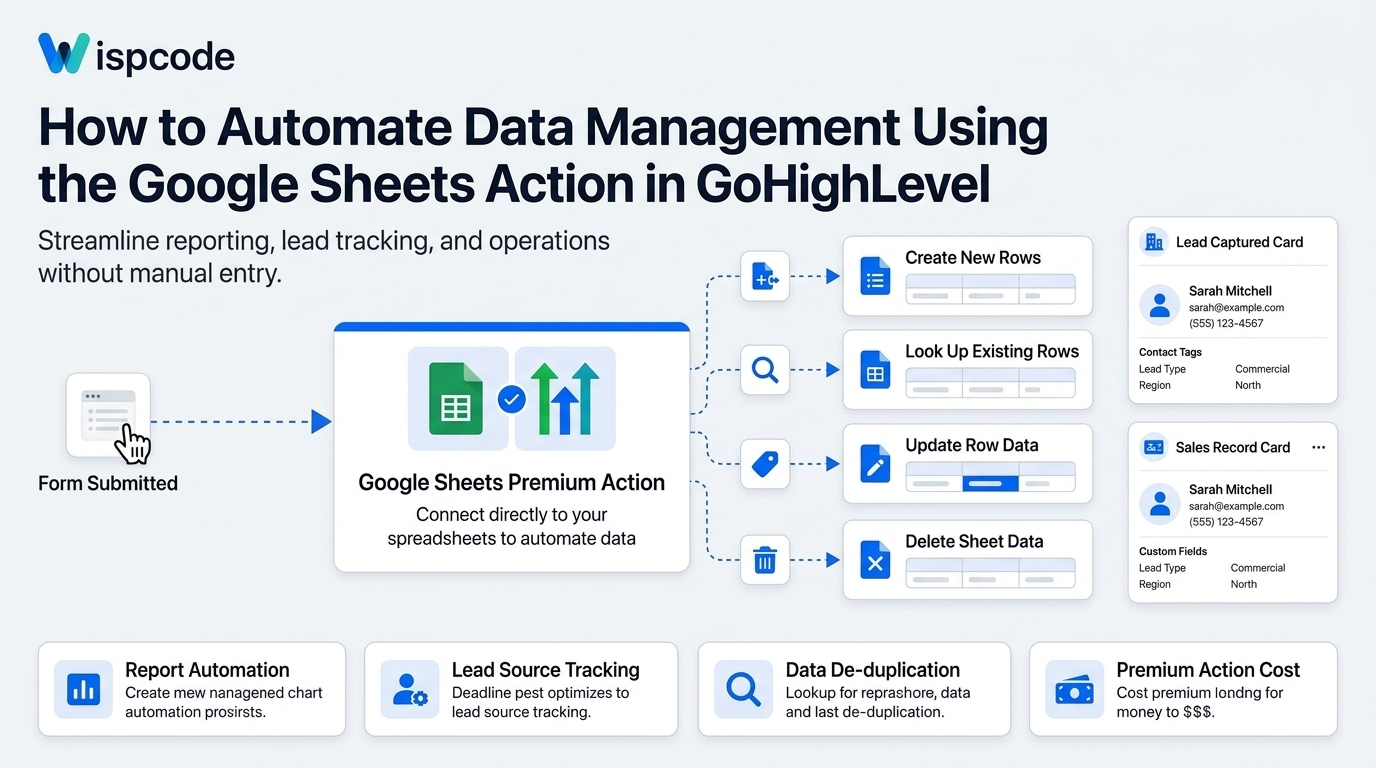
GoHighLevel can reduce much of this manual work by connecting Google Sheets directly to workflows. The Google Sheets Premium Workflow Action allows you to create, look up, update, and delete spreadsheet rows as part of an automated workflow, without requiring a separate third-party integration for these tasks.
In this guide, you'll learn how the Google Sheets Action in GoHighLevel works, how to configure it, practical ways businesses can use it, and the mistakes to avoid when building automated data-management workflows.
What Is the Google Sheets Action in GoHighLevel?
The Google Sheets Premium Workflow Action lets a GoHighLevel workflow interact directly with a Google Spreadsheet.
Instead of manually copying information from your CRM into a spreadsheet, your workflow can automatically send relevant information to a selected worksheet when a specific event occurs.
Depending on the function you choose, you can:
Create a new spreadsheet row
Create multiple spreadsheet rows
Look up a spreadsheet row
Look up multiple rows
Update a specific row
Update multiple rows
Update a row using a lookup
Delete spreadsheet data using a lookup
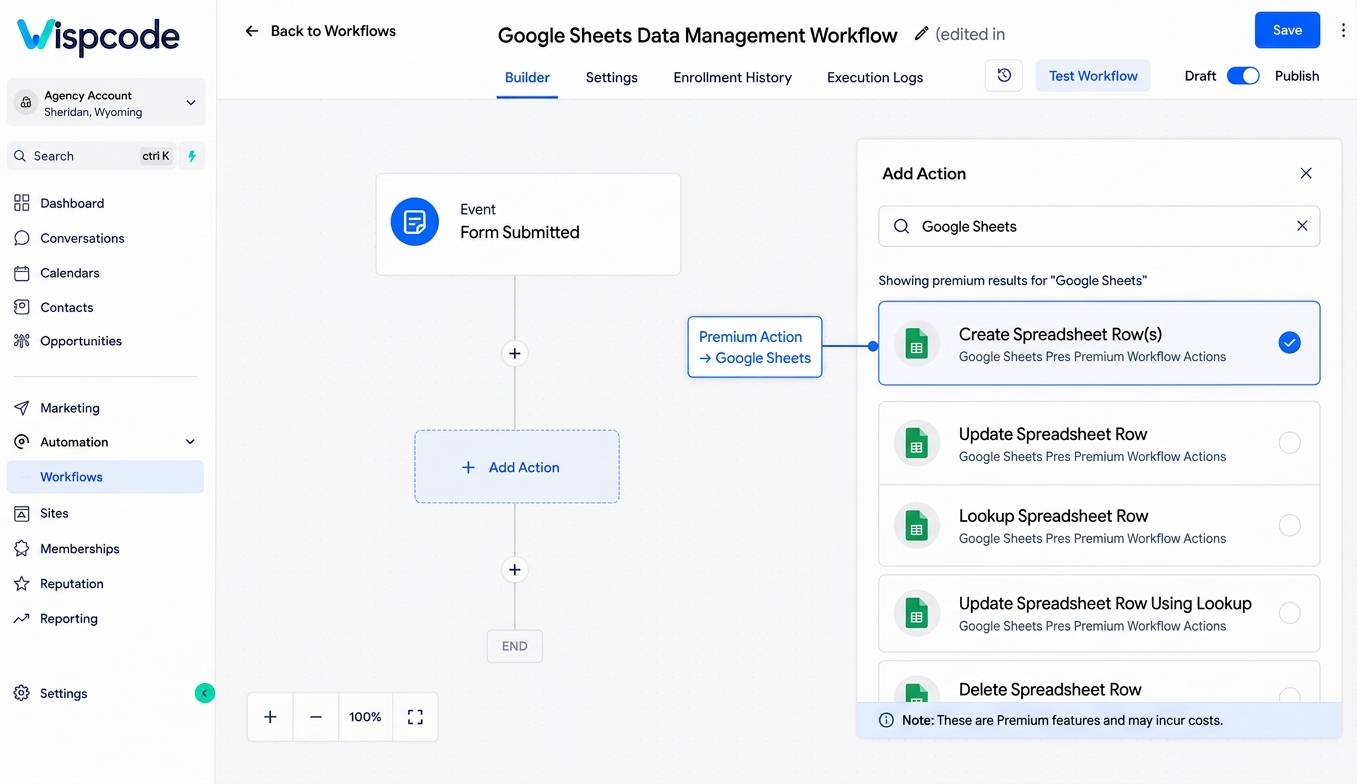
GoHighLevel's current documentation identifies Google Sheets as a Premium Workflow Action, so availability and execution costs depend on your account's Premium Features configuration.
This makes Google Sheets useful as an automated reporting, tracking, and data-management layer alongside the CRM.
Why Automate Google Sheets Data Management?
Google Sheets is commonly used by teams for reporting, internal tracking, lead lists, and operational records. The problem is that manually maintaining those spreadsheets takes time.
Automation changes the process.
For example, imagine a lead submits a form on your website. Instead of having an employee copy the lead's name, email address, phone number, and source into a spreadsheet, the workflow can automatically create a new row.
The basic process can look like this:
Lead submits form → Workflow starts → Google Sheets Action → New row created
This can help businesses:
Reduce repetitive data entry
Keep spreadsheet records more consistent
Reduce copy-and-paste errors
Maintain operational logs automatically
Keep selected spreadsheet records synchronized with workflow activity
GoHighLevel specifically describes the Google Sheets action as a way to automate structured data management and reporting.
What You Need Before Setting Up the Integration
Before building the workflow, prepare your Google Sheet and GoHighLevel account.
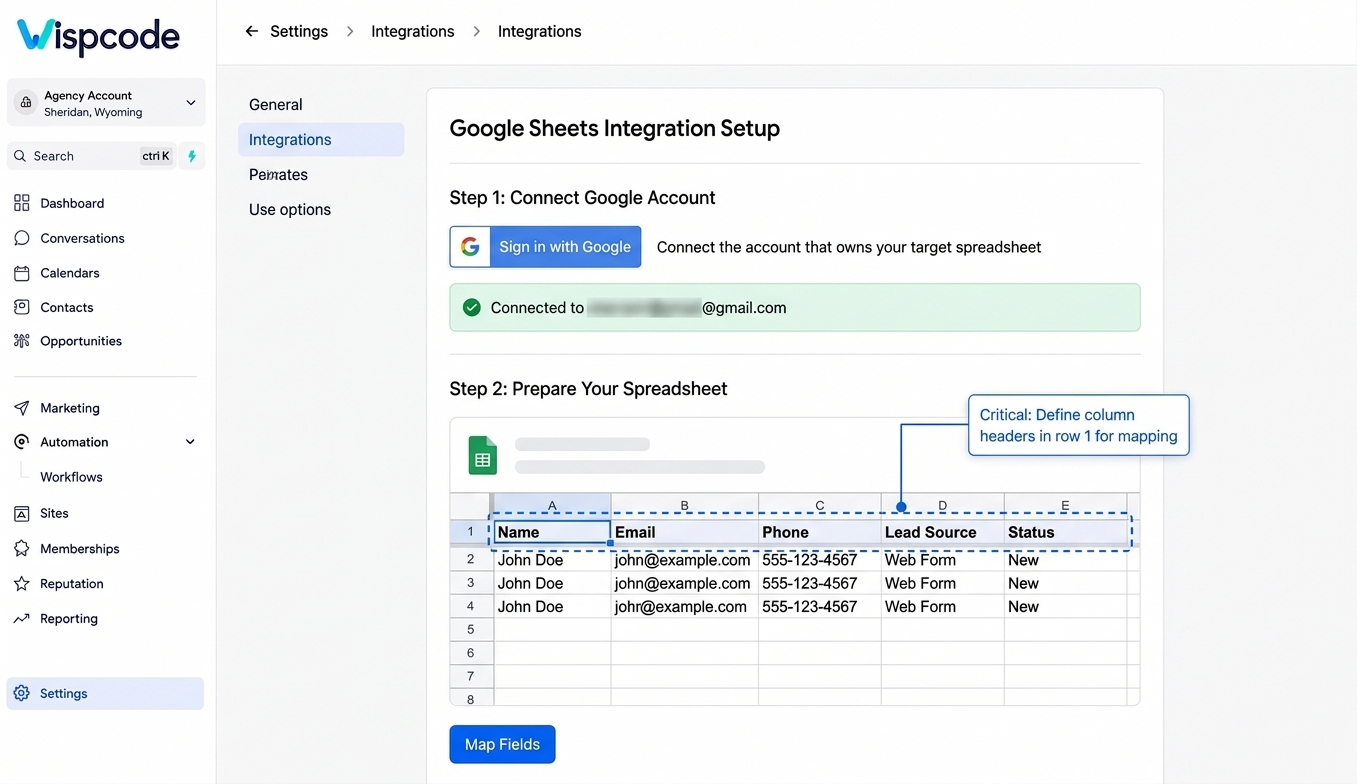
1. Connect Your Google Account
Your Google account needs to be integrated with the relevant GoHighLevel sub-account before the workflow can access your spreadsheets.
2. Prepare Your Spreadsheet
Create the spreadsheet and organize the worksheet you want to use.
Most importantly, use the first row for clear column headers.
For example:
Name | Phone | Lead Source | Status | |
|---|---|---|---|---|
GoHighLevel uses the worksheet's first row as the header row when mapping data. If you later change the headers, refresh the headers inside the Google Sheets action so the workflow can use the updated structure.
3. Confirm Premium Workflow Access
Google Sheets is part of GoHighLevel's Premium Workflow Actions. Your agency or sub-account needs the appropriate Premium Features configuration to use it.
How to Set Up the Google Sheets Action in GoHighLevel
Let's build a simple lead-management workflow.
Step 1: Create or Open a Workflow
Inside your GoHighLevel account, go to Automations → Workflows.
Create a new workflow or open an existing one where you want to manage spreadsheet data.
Your trigger could be something such as a form submission, contact-related event, order event, or another supported workflow trigger.
For example: "Trigger: Form Submitted"
This means the workflow starts when a contact submits the selected form.
Step 2: Add the Google Sheets Action
Click the + button in the workflow builder and search for Google Sheets.
Select the Google Sheets Premium Workflow Action.
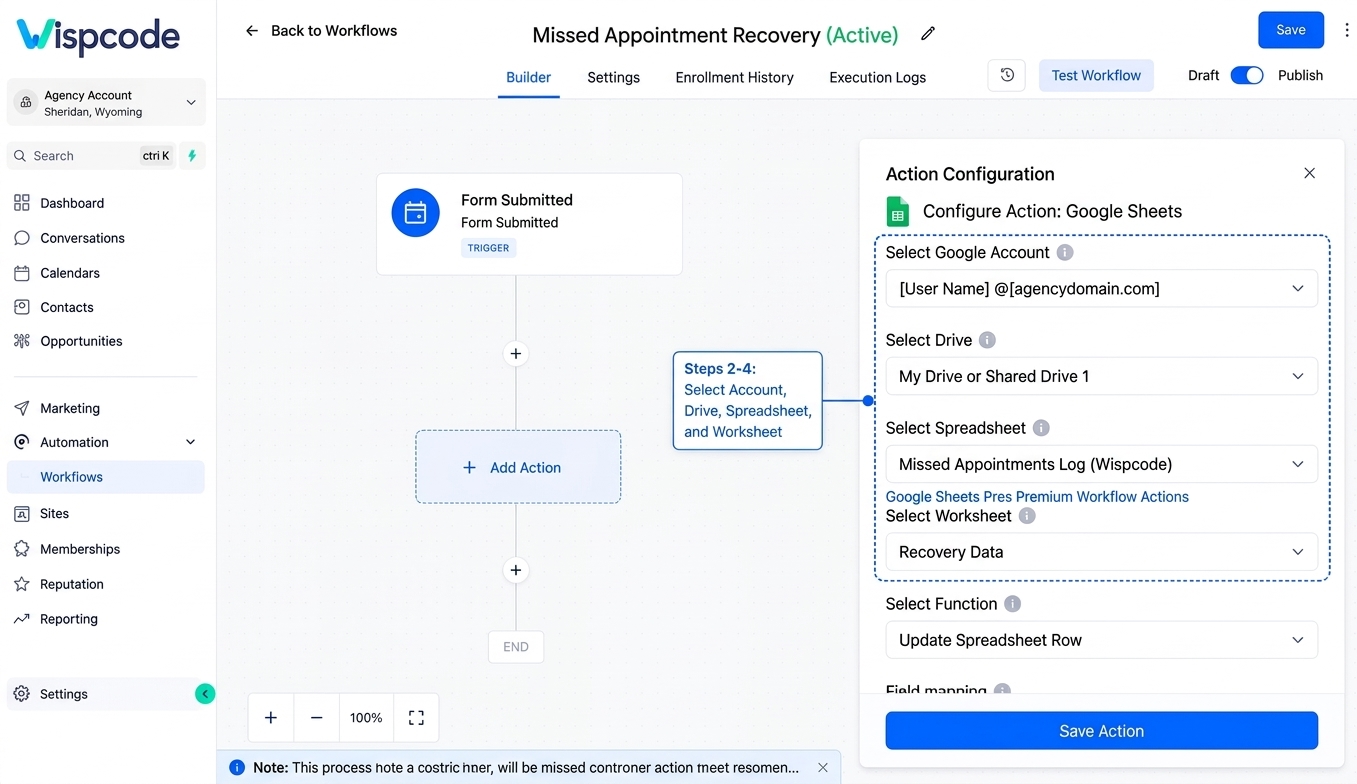
GoHighLevel then allows you to select the Google account, Drive, spreadsheet, and worksheet you want to work with.
Step 3: Select Your Google Account
Choose the Google account connected to your GoHighLevel sub-account.
If you have multiple integrated Google accounts, make sure you select the account that has access to the spreadsheet you intend to use.
Step 4: Select the Drive and Spreadsheet
After selecting the Google account, choose the appropriate Drive.
Then select the spreadsheet containing the worksheet you want to update.
Finally, select the specific worksheet.
Keeping your spreadsheets and worksheets clearly named can make this setup much easier, especially when an account contains many files.
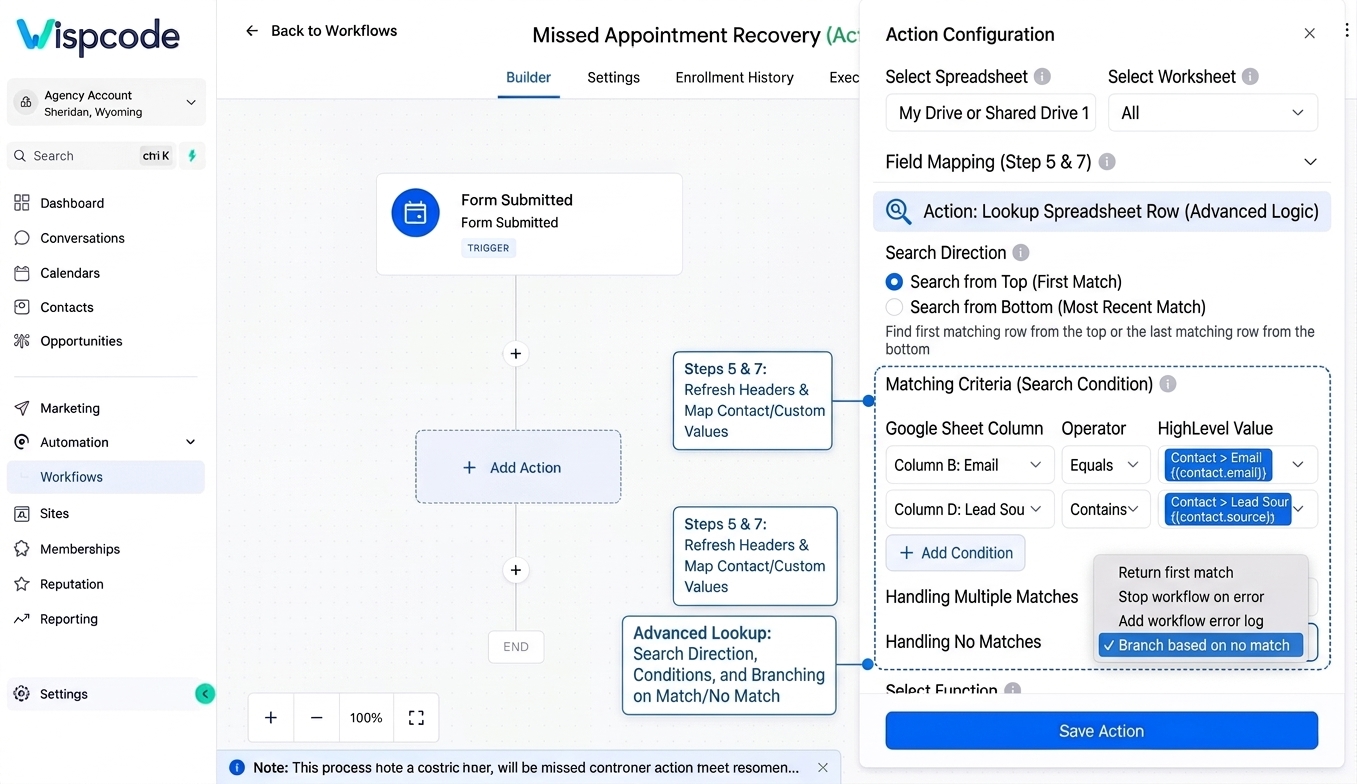
Step 5: Refresh the Headers
GoHighLevel reads the first row of your worksheet as the column headers.
If you've recently added, renamed, or reordered columns, use Refresh Headers before mapping your workflow data. This helps ensure the workflow is working with the latest spreadsheet structure.
Step 6: Choose the Appropriate Function
The correct Google Sheets function depends on what you want your workflow to accomplish.
For a new lead, use Create Spreadsheet Row.
For an existing record, you may use Lookup Spreadsheet Row followed by an update function.
For larger sets of data, GoHighLevel also supports multiple-row functions.
Step 7: Map Your Workflow Data
Now map your GoHighLevel information to the appropriate spreadsheet columns.
For example:
Google Sheet Column | GoHighLevel Data |
|---|---|
Name | Contact first/last name |
Contact email | |
Phone | Contact phone |
Lead Source | Lead source/custom value |
Status | Workflow-defined value |
This is where the automation becomes useful. Instead of manually entering the information, the workflow supplies the values when it runs.
Step 8: Test the Workflow
Before relying on the automation for live data, test it with a controlled record.
Submit a test form or perform whatever event starts the workflow.
Then check your Google Sheet.
Confirm that:
The correct worksheet was updated
A row was created or updated as expected
The information appears in the correct columns
No important fields are missing
Your headers still match the workflow mapping
Once everything looks correct, publish the workflow.
Practical Use Cases for Google Sheets Automation
The Google Sheets Action becomes particularly useful when a business needs a simple operational record outside its primary CRM.
Lead Tracking
Suppose a marketing agency receives leads through a website form.
The workflow can automatically add the lead to a spreadsheet containing:
Name
Email
Phone
Lead source
Lead status
This creates an automated lead log without requiring staff to enter every submission manually.
Sales Tracking
A sales team can use Google Sheets to maintain a lightweight record of important sales events.
For example:
"Opportunity milestone → Workflow → Create or update spreadsheet row"
The spreadsheet can then provide an additional operational view for team members who need the information in tabular form.
Customer Support Logs
Businesses can also use spreadsheets to maintain structured operational records related to customer support.
For example, when a relevant workflow event occurs, the automation can add information to a support-tracking worksheet.
This can be useful when a team needs a simple spreadsheet-based view alongside its CRM.
Order Data
Google Sheets can also be used to record information associated with orders.
GoHighLevel's documentation provides an example where an Order Submitted workflow creates a Google Sheets row containing customer information and purchased products. Product information can be formatted using workflow helpers such as pluck and join.
This can be useful when you need a readable operational record rather than manually compiling order information.
Using Lookup to Manage Existing Data
Creating rows is only one part of data management.
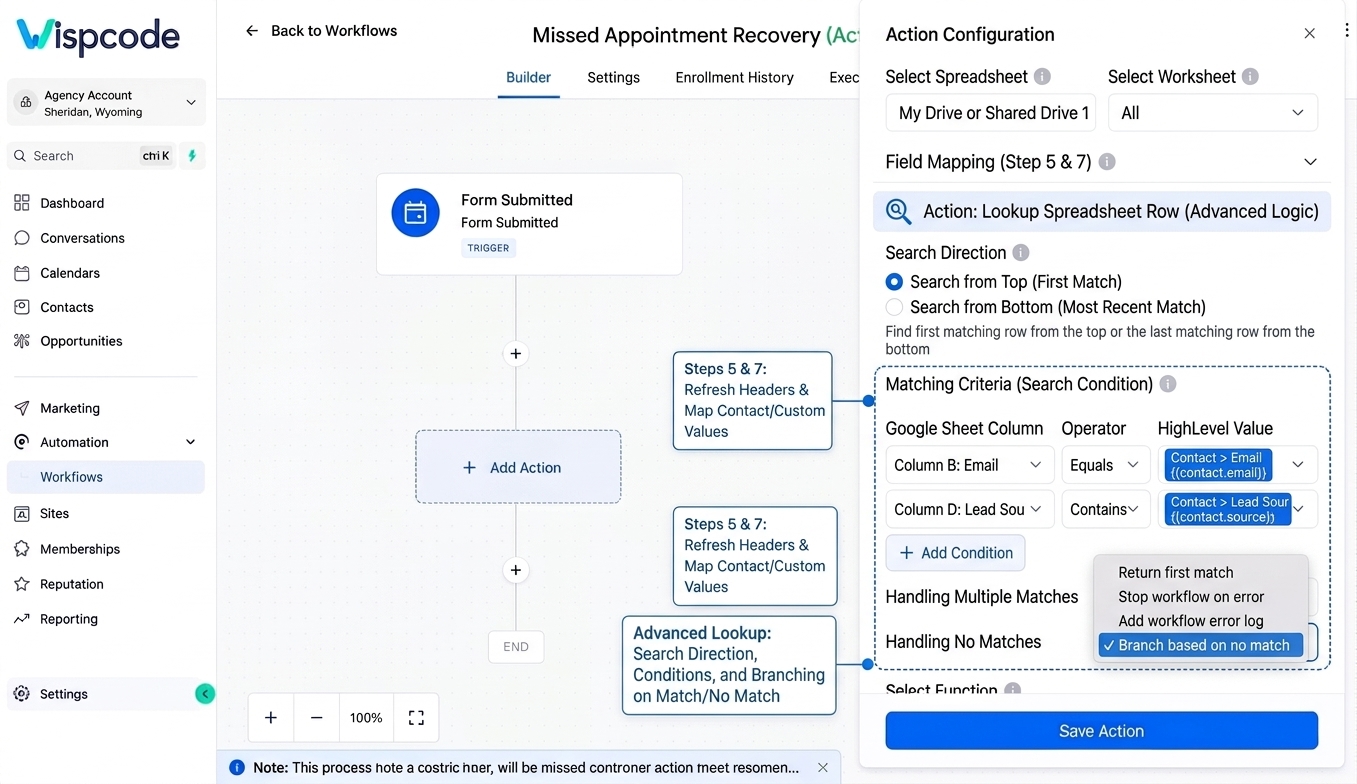
Sometimes you don't want to create another row. You first need to determine whether a matching record already exists.
That's where Lookup Spreadsheet Row becomes useful.
For example, imagine your spreadsheet uses an email address as a matching value.
A workflow can:
Search the spreadsheet for the email address.
Return the matching row.
Use the result in a subsequent workflow step.
Update the appropriate row when necessary.
GoHighLevel supports searching from the top or bottom of the worksheet. The top search returns the first matching row, while searching from the bottom can return the most recent matching row.
You can also configure additional lookup criteria when needed.
This is particularly useful when your goal is to update existing spreadsheet data instead of continuously creating duplicate rows.
Create and Update Multiple Rows
For workflows that need to handle grouped or repeated records, GoHighLevel also provides multiple-row Google Sheets actions.
Create Multiple Spreadsheet Row(s) can add multiple rows during a single workflow action.
Update Multiple Spreadsheet Row(s) can modify multiple spreadsheet values within a defined range.
These functions are useful when the workflow is working with multiple related pieces of structured data rather than a single simple record.
However, don't use multiple-row functions simply because they're available. Choose them when your actual workflow requires multiple spreadsheet records.
Best Practices for Google Sheets Automation
Keep Your Headers Simple and Consistent
Use clear column names such as:
Name, Email, Phone, Status, Source
Avoid frequently renaming columns after your workflow has been configured.
If you do change them, refresh the headers inside the Google Sheets action.
Use a Dedicated Worksheet
Avoid turning one worksheet into an unstructured database for every process in your business.
Instead, organize worksheets according to the purpose of the data.
Decide Whether You Need Create or Update
Before adding the action, ask:
Am I creating a new record or changing an existing one?
If you're creating a new record, use a create function.
If you're maintaining an existing record, consider using a lookup and an appropriate update function.
This simple decision can prevent unnecessary duplicate rows.
Test With Realistic Data
Don't test only with a name and email address.
Use realistic test data that resembles what your actual customers will submit. This helps identify mapping problems before the workflow goes live.
Monitor Your Premium Actions
Because understand how Premium Workflow execution is configured for their account and sub-accounts.
Common Mistakes to Avoid
Changing Headers Without Refreshing Them
Changing spreadsheet headers after creating the workflow can cause mapping problems.
Creating Rows When You Should Update Them
If the workflow creates a new row every time an existing contact changes, your spreadsheet can quickly become cluttered with duplicates.
Selecting the Wrong Worksheet
A spreadsheet can contain multiple worksheet tabs. Make sure you're writing to the intended one.
Ignoring Google Account Permissions
If the spreadsheet isn't available, check that the connected Google account has appropriate access and that you're using the correct account in GoHighLevel. GoHighLevel's troubleshooting guidance specifically recommends checking the account and permissions when a spreadsheet doesn't appear.
Treating Google Sheets Like a Full CRM
Google Sheets can be extremely useful for structured tracking and reporting, but it shouldn't automatically replace your CRM architecture.
Use the spreadsheet for the specific operational purpose your workflow requires.
Frequently Asked Questions(FAQ'S)
1. Can GoHighLevel automatically add contacts to Google Sheets?
Yes. The Google Sheets Premium Workflow Action can create a spreadsheet row and map workflow data into the worksheet's columns.
2. Can GoHighLevel update an existing Google Sheets row?
Yes. GoHighLevel provides update functions, including Update Specific Spreadsheet Row and Update Spreadsheet Row Using Lookup.
3. Do I need Zapier to connect GoHighLevel to Google Sheets?
Not for the Google Sheets workflow functions covered by GoHighLevel's native Premium Workflow Action. GoHighLevel provides direct Google Sheets functionality within workflows.
4. Is the Google Sheets Action free?
Google Sheets is categorized by GoHighLevel as a Premium Workflow Action, so Premium Feature configuration and execution charges may apply. Check your current agency and sub-account configuration before deploying high-volume workflows.
5. What happens if I change my Google Sheet headers?
If you add, rename, or change columns, refresh the headers in the Google Sheets action so GoHighLevel can retrieve the current worksheet structure.
Conclusion
The Google Sheets Action in GoHighLevel gives businesses a practical way to automate structured data management without manually moving information between their CRM and spreadsheets.
Instead of asking a team member to repeatedly copy lead, customer, order, or operational information into Google Sheets, you can build a workflow that handles the process automatically.
The key is to design the workflow carefully: prepare clear spreadsheet headers, select the correct Google account and worksheet, choose the right create, lookup, or update function, map your fields accurately, and test the automation before putting it into production.
Used properly, Google Sheets becomes more than a place to store manually entered information. It becomes a useful part of an automated GoHighLevel data-management process.
Need Expert Help with GoHighLevel?
New to GoHighLevel and ready to get started? Buy your GoHighLevel account here and launch with confidence.
Already know what you need and want our team to handle everything, from complete setup and customization to funnels, workflows, automations, CRM, and pipelines? Click here.



