

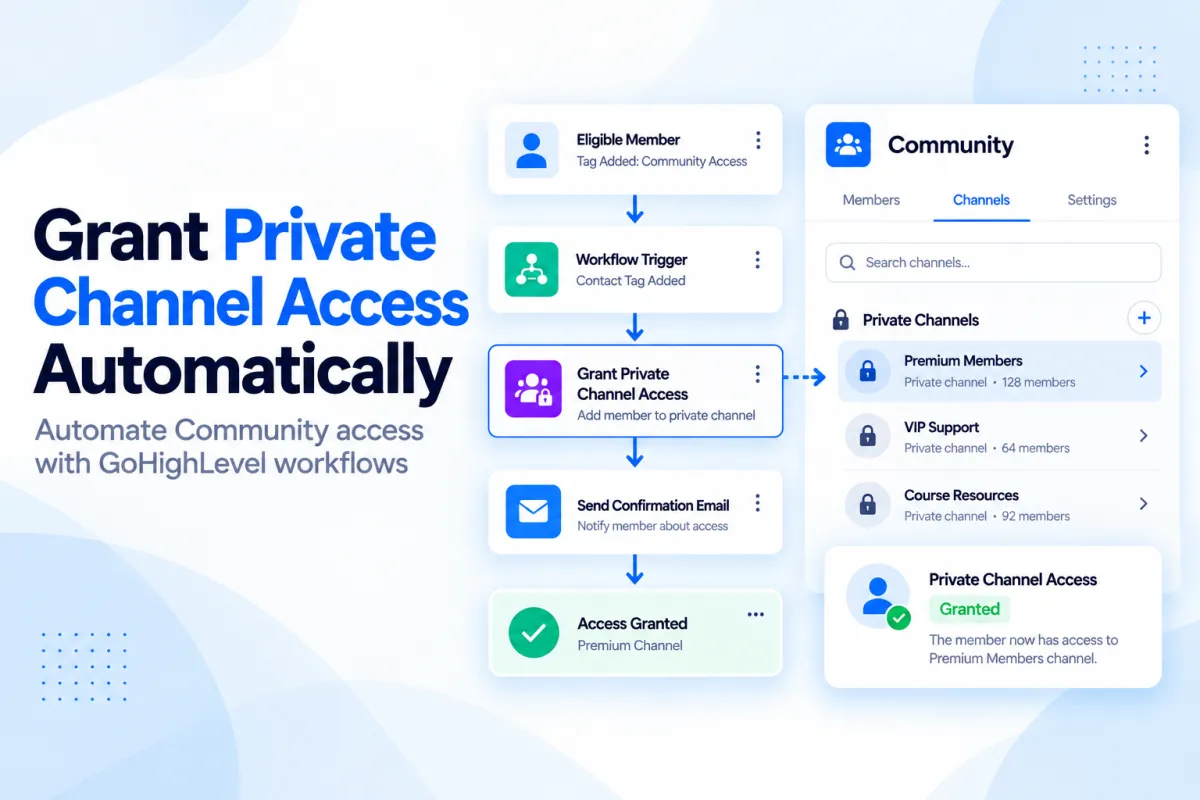
Grant Private Channel Access Automatically in GoHighLevel: Step-by-Step Guide
How to Grant Private Channel Access Automatically Using the Grant Private Channel Access Action in GoHighLevel
Introduction
Managing access to exclusive community content can become difficult when every new member has to be added manually. If your business uses GoHighLevel Communities and has private channels for premium members, customers, students, or specific groups, you can automate this process with the "Grant Private Channel Access" workflow action.
Instead of manually finding a member and giving them access to a private channel, a workflow can grant access when a specific event occurs. HighLevel also supports dedicated private-channel access triggers, making it possible to build follow-up automation around access changes.
In this guide, you'll learn what the "Grant Private Channel Access action" in GoHighLevel does, how to configure it, practical use cases, and best practices for managing private Community access.
What Is the Grant Private Channel Access Action in GoHighLevel?
The "Grant Private Channel Access" action is a workflow action that gives a contact access to a specific private channel inside a GoHighLevel Community group.
It is designed for situations where access should be granted automatically as part of a workflow.
For example, imagine you have a Community with:
A general member area
A private channel for premium customers
A private channel for advanced training
A private channel for VIP members
When a contact meets the conditions you define in your workflow, the "Grant Private Channel Access" action can give that member access to the appropriate private channel.
One important detail is that the action can also add the person to the Community group if they are not already a member. HighLevel's documentation explains that if a member is not already part of the selected group, they will be added to the group and then granted access to the selected private channel.
Why Automate Private Channel Access?
Private channels are useful when different members should receive different Community experiences.
Manually managing access may work for a small community, but it becomes harder as membership grows. Automation provides a consistent process for granting access based on the workflow logic you have already created.
Reduce Manual Access Management
Without automation, an administrator may need to:
Identify the new member.
Open the Community.
Find the correct group.
Locate the private channel.
Grant access manually.
A workflow can handle the access step automatically when the appropriate trigger occurs.
Give Members Access at the Right Time
Private channels can contain exclusive discussions, resources, training, or other Community content. Automating access helps ensure that qualified members receive access as part of their customer journey.
Keep Access Rules Consistent
A workflow follows the same configured process for each contact who enters it. This can make access management easier to maintain than relying entirely on manual decisions.
Grant Private Channel Access vs. Grant Group Access
It's important not to confuse "private channel access" with "Community group access".
HighLevel provides separate workflow actions for these purposes.
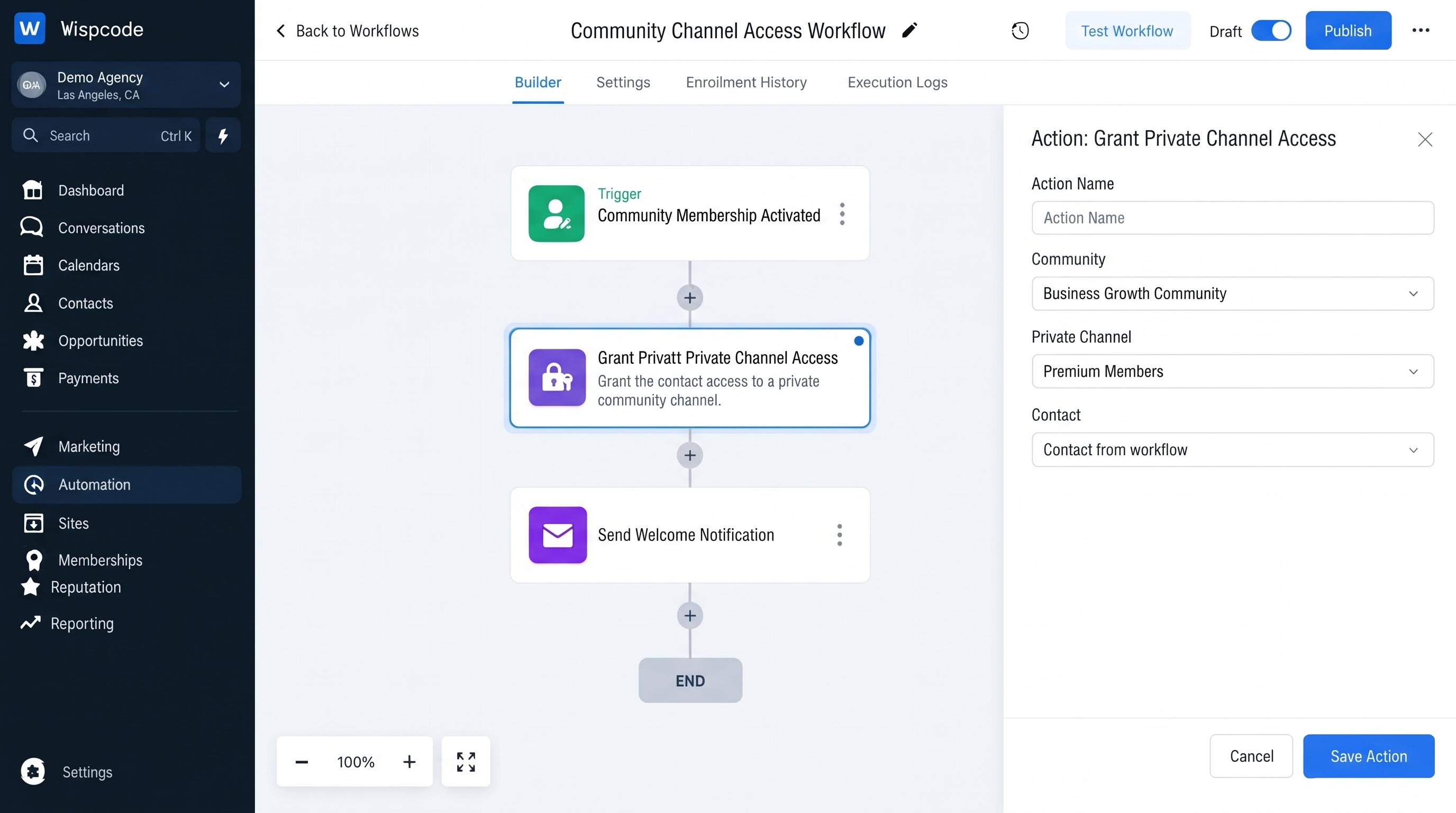
"Grant Group Access" gives a contact access to a selected Community group.
"Grant Private Channel Access" gives a member access to a specific private channel within a Community group. If the person is not already part of the group, HighLevel's documentation states that they will also be added to the group as part of this action.
The distinction matters because you may want someone to belong to a Community group while only having access to certain private content.
How to Set Up Grant Private Channel Access in GoHighLevel
Before building the workflow, make sure you have the Community group and private channel you want to use.
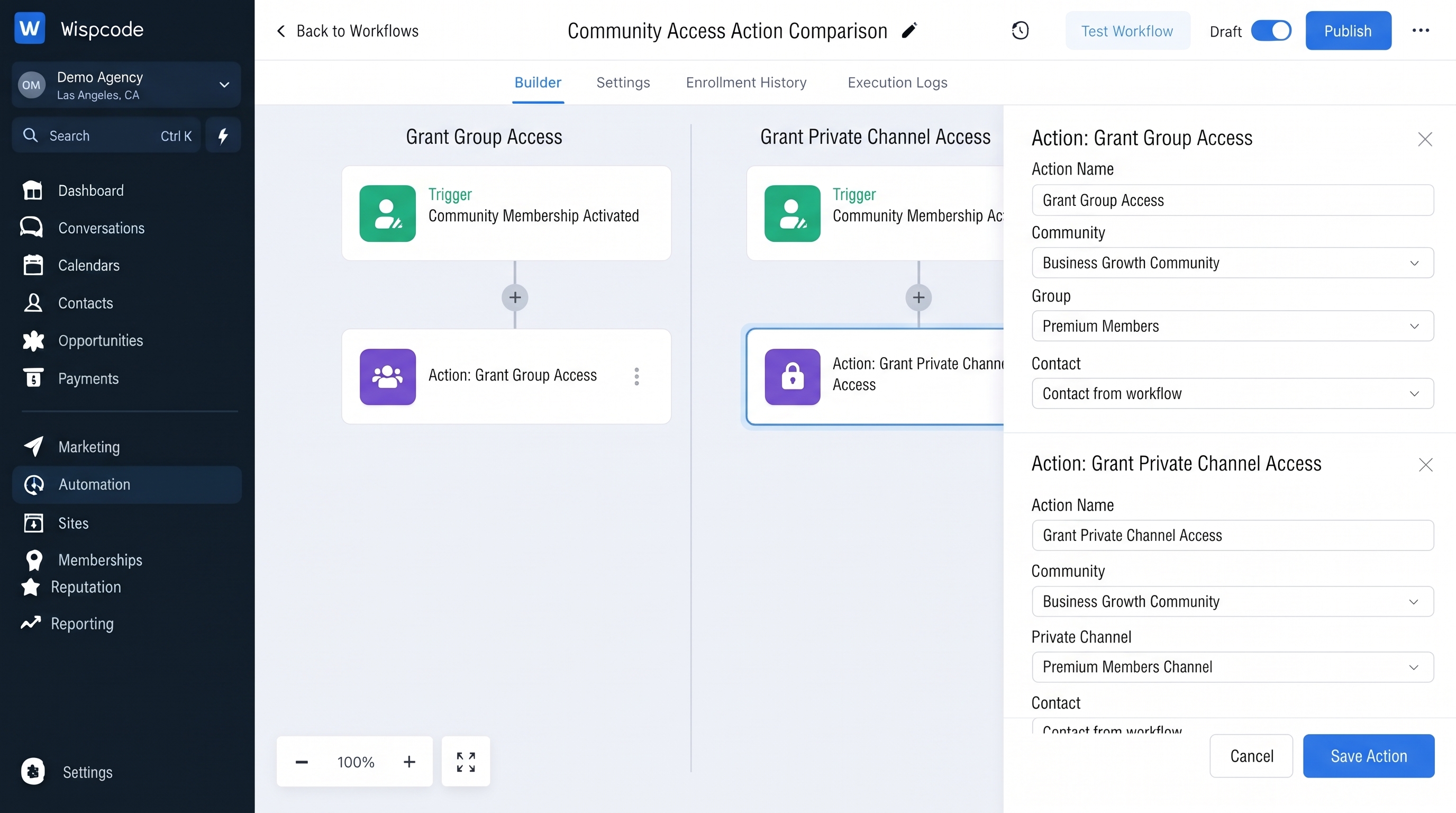
GoHighLevel's documentation states that the workflow action allows you to select the relevant group and private channel, and only private channels are available for selection.
Step 1: Open Workflows
From your GoHighLevel sub-account, open the "Workflow Builder".
Create a new workflow or open an existing workflow where you want to automate Community access.
The workflow needs a trigger that determines when the contact should receive private channel access.
Step 2: Choose Your Workflow Trigger
The trigger depends on your business process.
For example, the workflow could begin after an event that indicates the contact is eligible for a particular Community experience.
The important concept is simple:
Trigger → Grant Private Channel Access → Continue the Workflow
The trigger determines when the workflow runs. The private channel action determines what access change should occur.
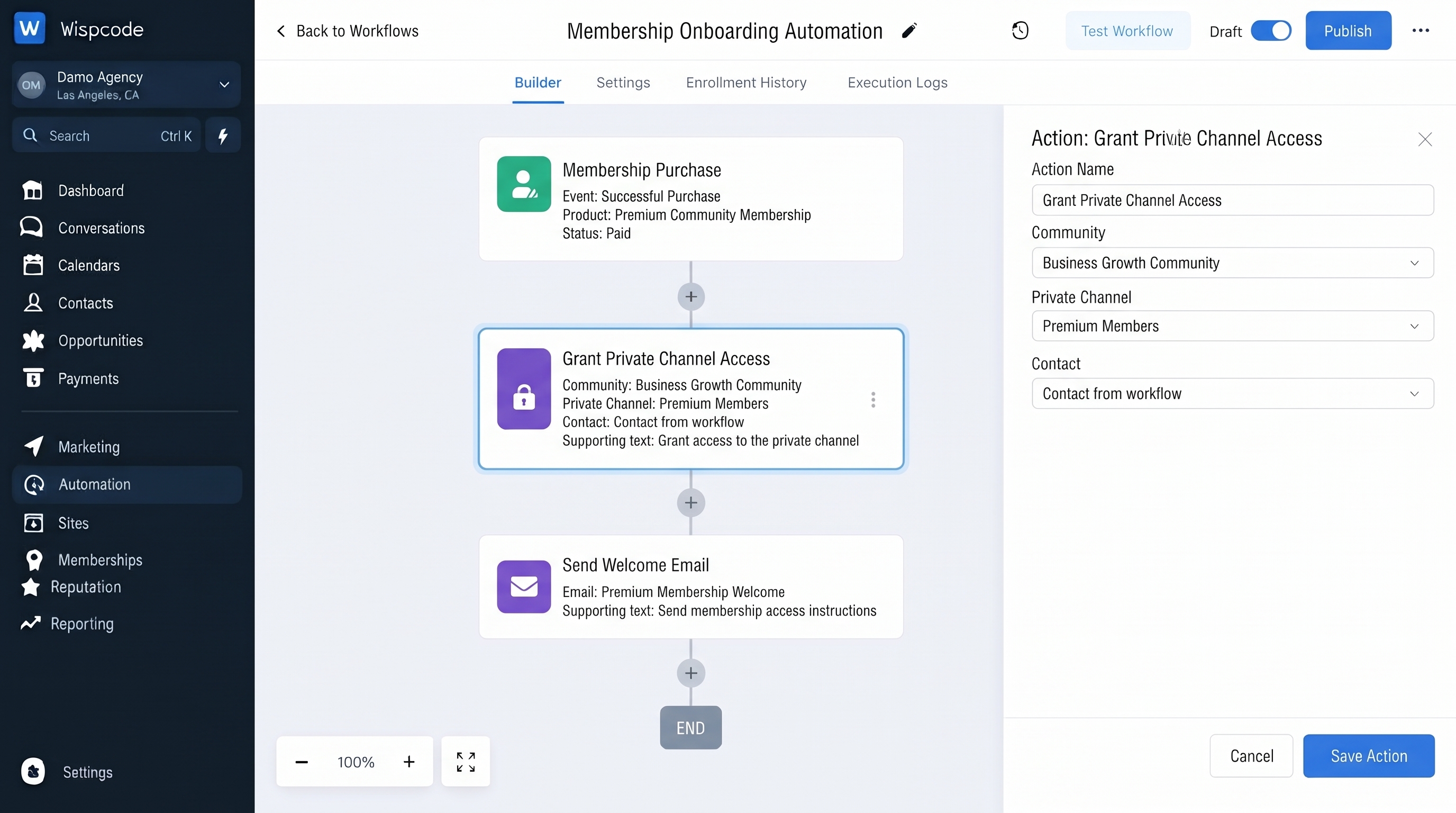
Step 3: Add the Grant Private Channel Access Action
After configuring your trigger:
Add a new workflow action.
Search for "Grant Private Channel Access"
Select the action.
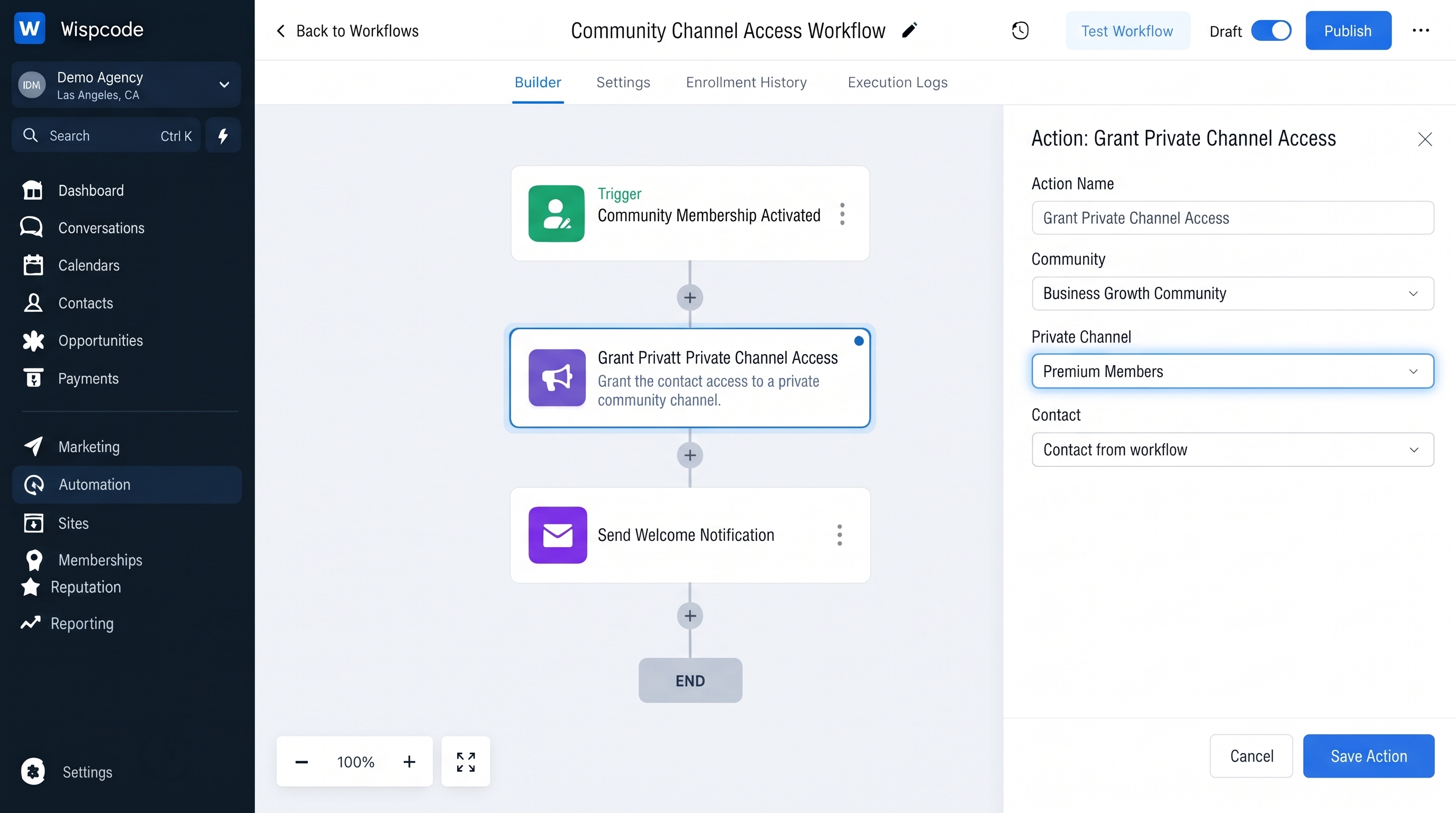
Choose the appropriate Community group.
Select the private channel.
Save the action.
HighLevel specifically notes that the private channel must already be available in the relevant Community group for selection.
Step 4: Add Any Follow-Up Actions
Once private channel access has been granted, you can continue the workflow with other actions that fit your customer journey.
For example, your workflow could continue with an appropriate communication or internal process.
The exact steps after the access action should depend on what you want to accomplish rather than adding unnecessary automation.
Step 5: Test the Workflow
Before making the workflow active, test it with a representative contact.
Check that:
The correct Community group is selected.
The correct private channel is selected.
The contact receives the expected access.
The workflow continues as intended.
Existing Community membership behaves as expected.
Testing is particularly important when the workflow is connected to customer purchases, memberships, or other automated processes.
Step 6: Publish the Workflow
Once the workflow has been tested and the access behavior is correct, activate or publish it so qualifying contacts can enter the automation.
Remember that creating or saving a workflow does not mean you have finished configuring the automation. Review the complete workflow before making it live.
Practical Use Cases for Private Channel Access
The action can support several Community management scenarios.
Premium Customer Communities
Suppose your business has a Community for customers and a private channel containing premium resources.
After a customer completes the appropriate qualifying process, your workflow can grant access to that private channel.
This allows the private channel to remain focused on the members who should have access.
Paid Memberships
A membership business could use private channels to separate different member experiences.
For example:
General members → Standard Community access
Premium members → Premium private channel
VIP members → VIP private channel
The workflow can grant access to the appropriate private channel based on the process you have designed.
Course Communities
Private channels can also be useful around educational communities.
For example, students participating in an advanced program could receive access to an exclusive channel for advanced discussions or resources.
This can make the Community easier to organize because members can access the areas relevant to their experience.
Exclusive Customer Support Areas
A business may create a private Community channel for a specific customer group.
Instead of manually adding every eligible person, the business can use workflow automation to grant access when the appropriate event occurs.
Internal or Specialized Communities
Private channels can also help organize specialized groups inside a larger Community.
For example, different channels could be used for specific member groups, programs, or Community initiatives.
The important principle is to define clearly who should receive access and why before creating the automation.
Private Channel Access Triggers
GoHighLevel also provides separate workflow triggers for private channel access.
The documented triggers include:
Private Channel Access Granted
Private Channel Access Revoked
These triggers are different from the corresponding actions. An action changes access, while a trigger starts a workflow based on an access event.
This distinction is useful when building multi-step Community automation.
For example:
Workflow A: Qualifying event → Grant Private Channel Access
Then:
Workflow B: Private Channel Access Granted → Follow-up automation
This allows the access event itself to become part of a broader workflow strategy.
Best Practices for Automating Private Channel Access
Choose the Correct Channel
Before publishing the workflow, verify that you selected the intended private channel.
An incorrect channel selection can give members access to content they were not supposed to receive.
Use Clear Workflow Names
Use descriptive names such as:
Grant Premium Channel Access – New Members
This makes the automation easier to understand later, especially when managing multiple Community workflows.
Keep Access Logic Simple
Only grant access when the contact meets your defined eligibility criteria.
Avoid adding unnecessary conditions that make the workflow difficult to troubleshoot.
Test With a Realistic Contact
Use a test contact that represents the situation your workflow is designed to handle.
This helps you confirm that the selected group, private channel, and workflow sequence behave as expected.
Keep Private Channel and Group Access Separate
If the goal is to manage an entire Community group's membership, use the appropriate group-access workflow action.
If the goal is to manage access to a specific private channel, use the dedicated "Grant Private Channel Access" action. HighLevel documents private-channel access as a separate workflow capability from group access.
Common Mistakes to Avoid
Selecting the Wrong Private Channel
When multiple private channels exist, it's easy to choose the wrong one. Always check the selected group and channel before publishing.
Assuming Group Access and Channel Access Are the Same
They are separate concepts in HighLevel. Group access controls access to the Community group, while private channel access controls access to a specific private channel.
Skipping Testing
A workflow can look correct in the builder but still produce unexpected results if the configuration is not tested.
Test the complete process before using it with your broader audience.
Creating Conflicting Automations
If several workflows manage Community access, review how they interact. One workflow may grant access while another workflow could later change access based on a different event.
Clear automation rules help prevent confusing member experiences.
Frequently Asked Questions(FAQ's)
1. What does Grant Private Channel Access do in GoHighLevel?
It automatically grants a contact access to a selected private channel inside a Community group. If the contact is not already part of the group, HighLevel can add them to the group as part of the process.
2. Can I choose which private channel the contact receives?
Yes. When configuring the action, you select the relevant Community group and private channel. Only available private channels can be selected.
3. Is Grant Private Channel Access the same as Grant Group Access?
No. "Grant Group Access" manages access to a Community group, while "Grant Private Channel Access" manages access to a specific private channel within that group.
4. Can private channel access trigger another workflow?
Yes. HighLevel provides a "Private Channel Access Granted" trigger that can start another workflow when private channel access is granted.
5. Do I need to create the private channel first?
Yes. HighLevel's documentation indicates that you need a relevant private channel available in the Community group before you can select it in the workflow action.
Conclusion
The "Grant Private Channel Access action in GoHighLevel provides a practical way to automate Community access rather than managing each member manually.
By connecting a qualifying workflow event to a specific Community group and private channel, you can create a more consistent access-management process. The key is to keep your eligibility rules clear, select the correct channel, test the workflow carefully, and understand the difference between group access and private channel access.
When used properly, private channel automation can help you deliver more organized and targeted Community experiences while reducing repetitive administrative work.
Need Expert Help with GoHighLevel?
New to GoHighLevel and ready to get started? Buy your GoHighLevel account here and launch with confidence.
Already know what you need and want our team to handle everything, from complete setup and customization to funnels, workflows, automations, CRM, and pipelines? Click here.



