

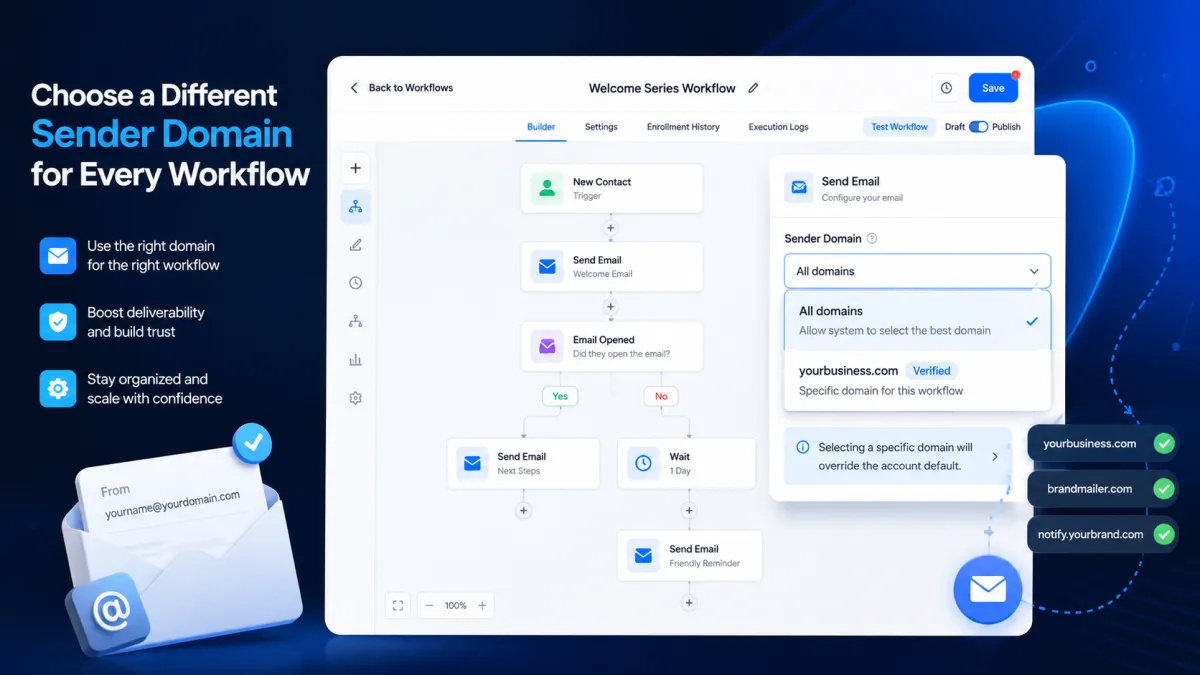
GoHighLevel Workflow Sender Update
GoHighLevel Workflow Sender Domain: Choose a Different Email Domain for Every Workflow
Email workflows often serve very different purposes. Appointment reminders, receipts, promotional campaigns, and outreach messages may all run from the same GoHighLevel sub-account, but that does not mean they need to use the same sending domain.
GoHighLevel has introduced a new way to manage this with workflow-level sender domain selection. The new Sender domain setting in Workflow Settings allows users to choose which verified dedicated domain should be used for emails sent by a particular workflow.
This gives users more control over their GoHighLevel workflow sender domain without having to apply one sending domain across every workflow in a sub-account.
What’s New in the GoHighLevel Workflow Builder?
The new Sender domain dropdown is available inside Workflow Settings, under Sender details.
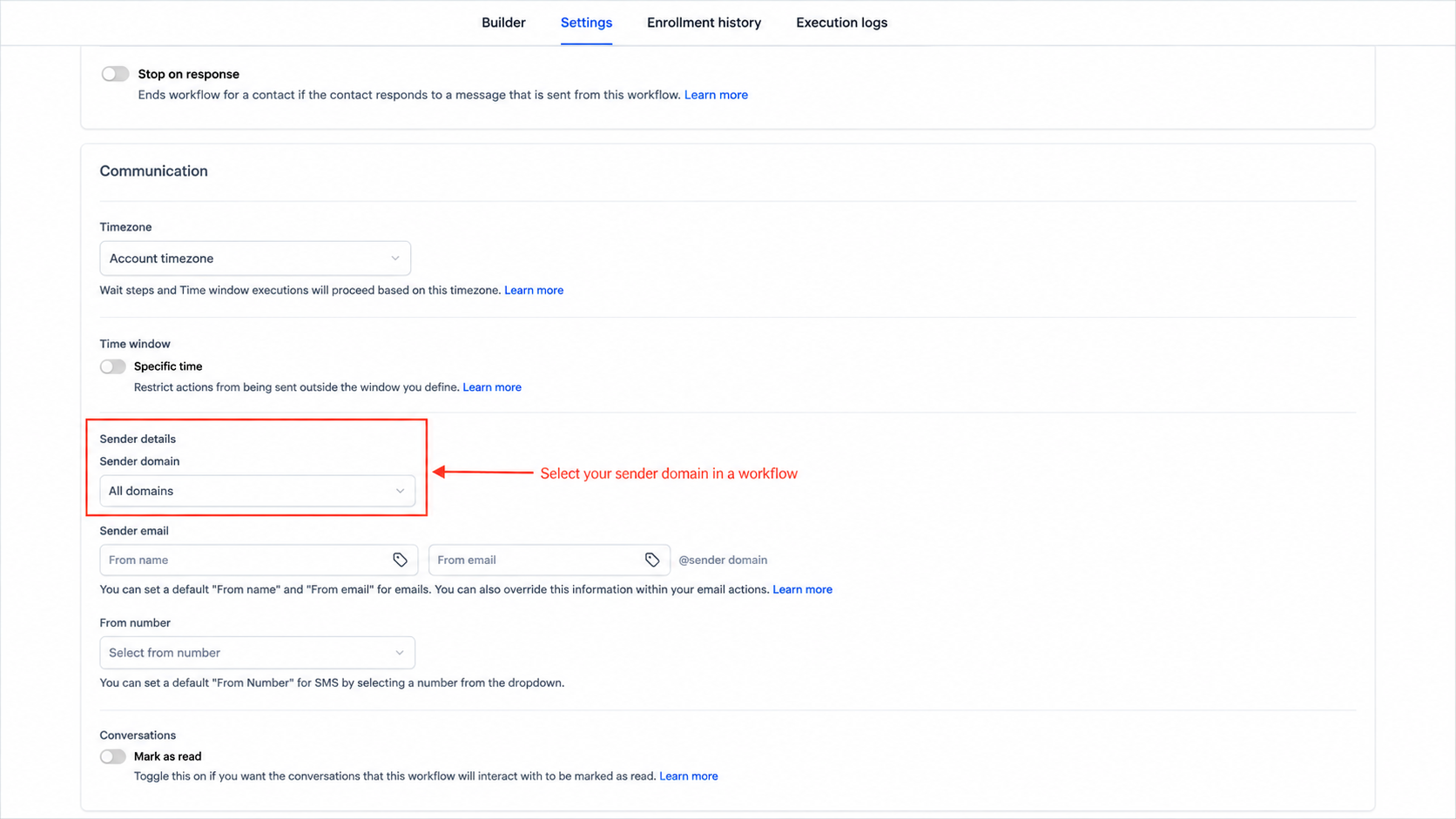
From there, users can select any verified dedicated domain configured on the sub-account. Once selected, the domain applies to email actions within that workflow, similar to the domain selection available in Email Campaigns.
If the sub-account does not have any dedicated domains configured, the Sender domain dropdown will not appear.
The available options include all verified dedicated domains on the sub-account, along with an All domains option.
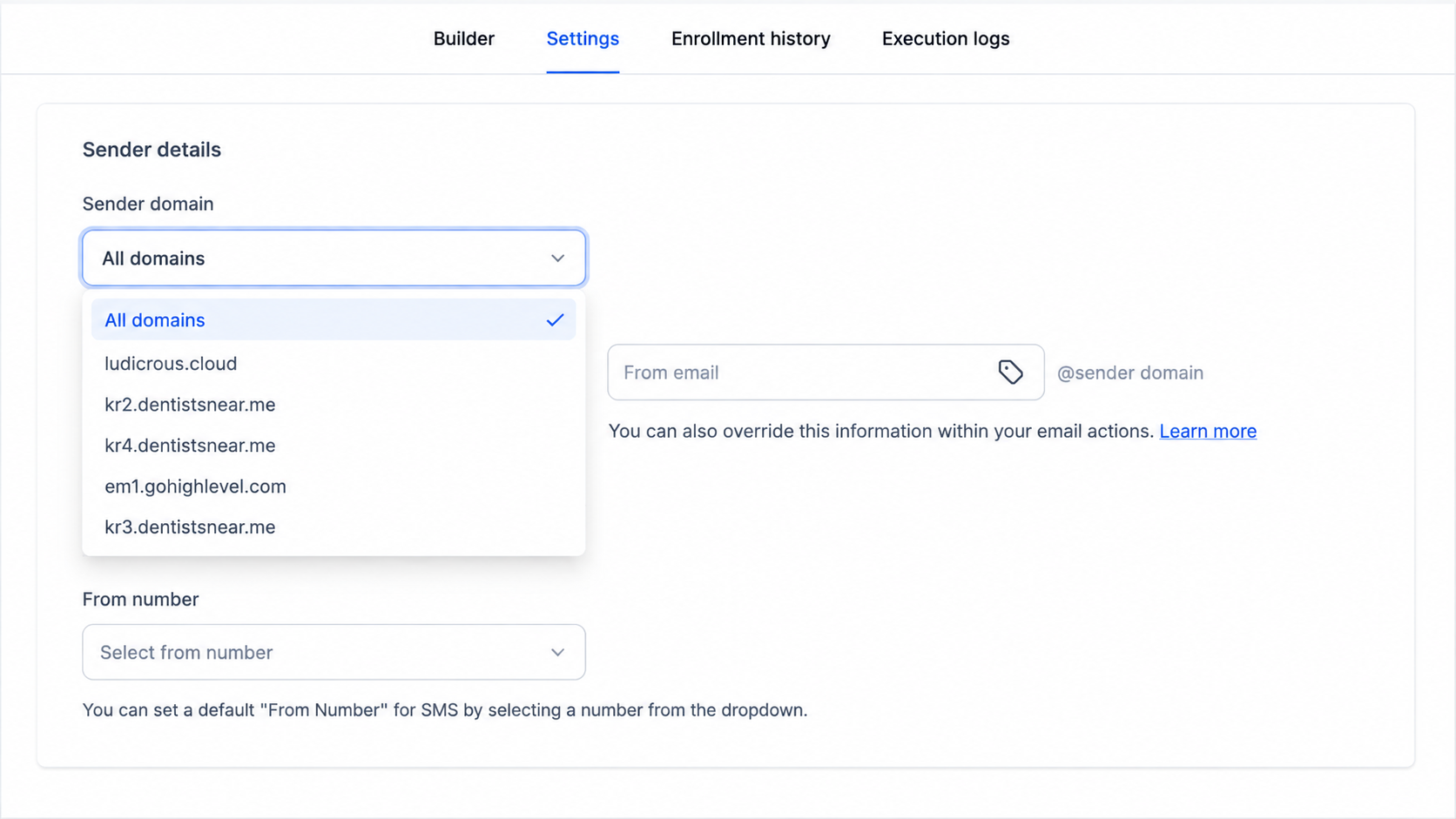
How Does GoHighLevel Sender Domain Selection Work?
There are two main choices when configuring the GoHighLevel email sender domain for a workflow.
All Domains
When All domains is selected, users can enter the sender name and email prefix, such as:
marketing
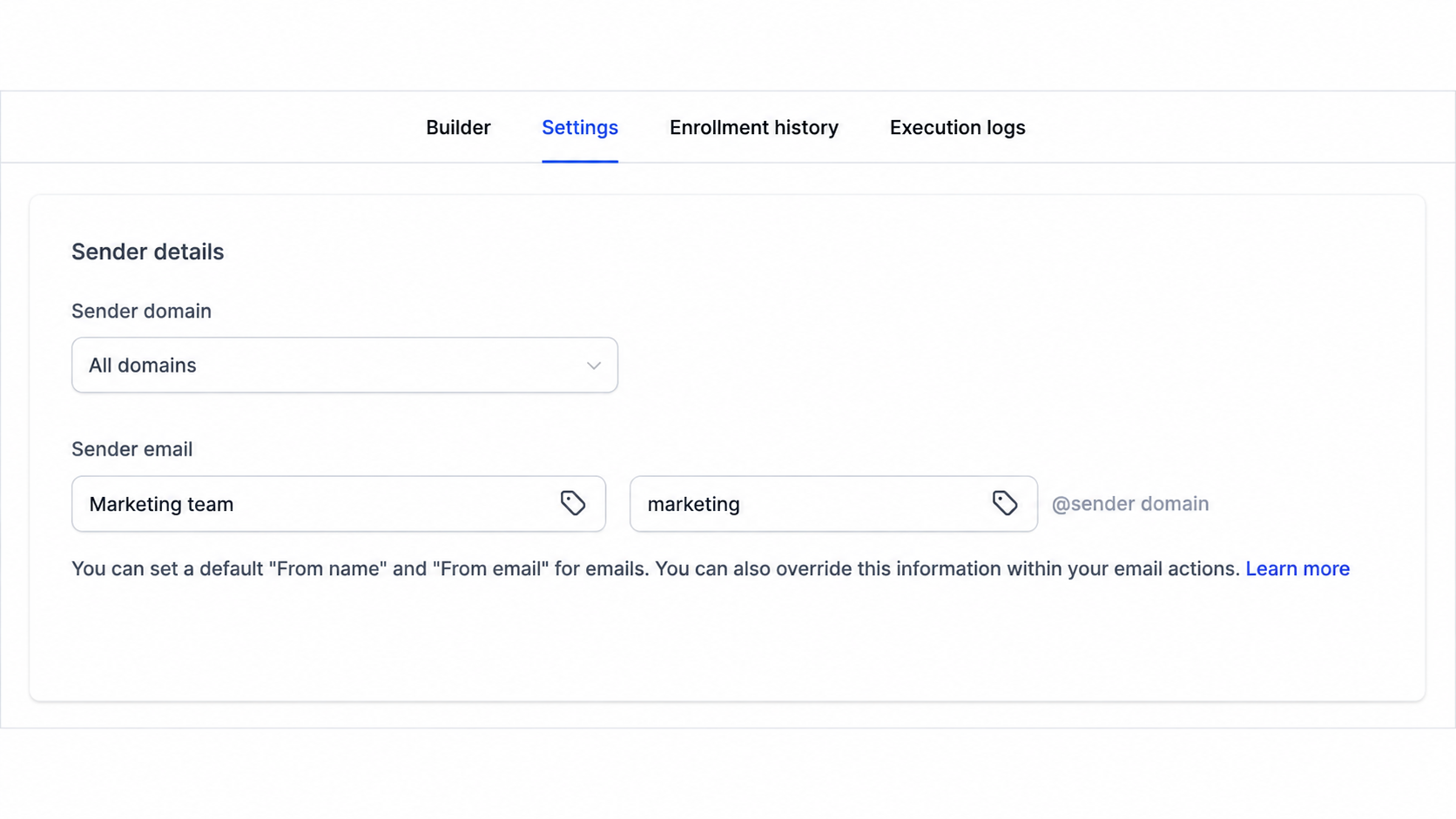
Emails will continue to send across the configured domains using the weighted distribution configured in the sub-account.
This keeps the existing domain distribution while allowing the workflow to use the configured sender details.
Selecting a Specific Domain
Users can also choose one specific verified dedicated domain.
For example, if the email prefix is:
marketing
and the selected domain is:
example.com
the resulting sender email will be:
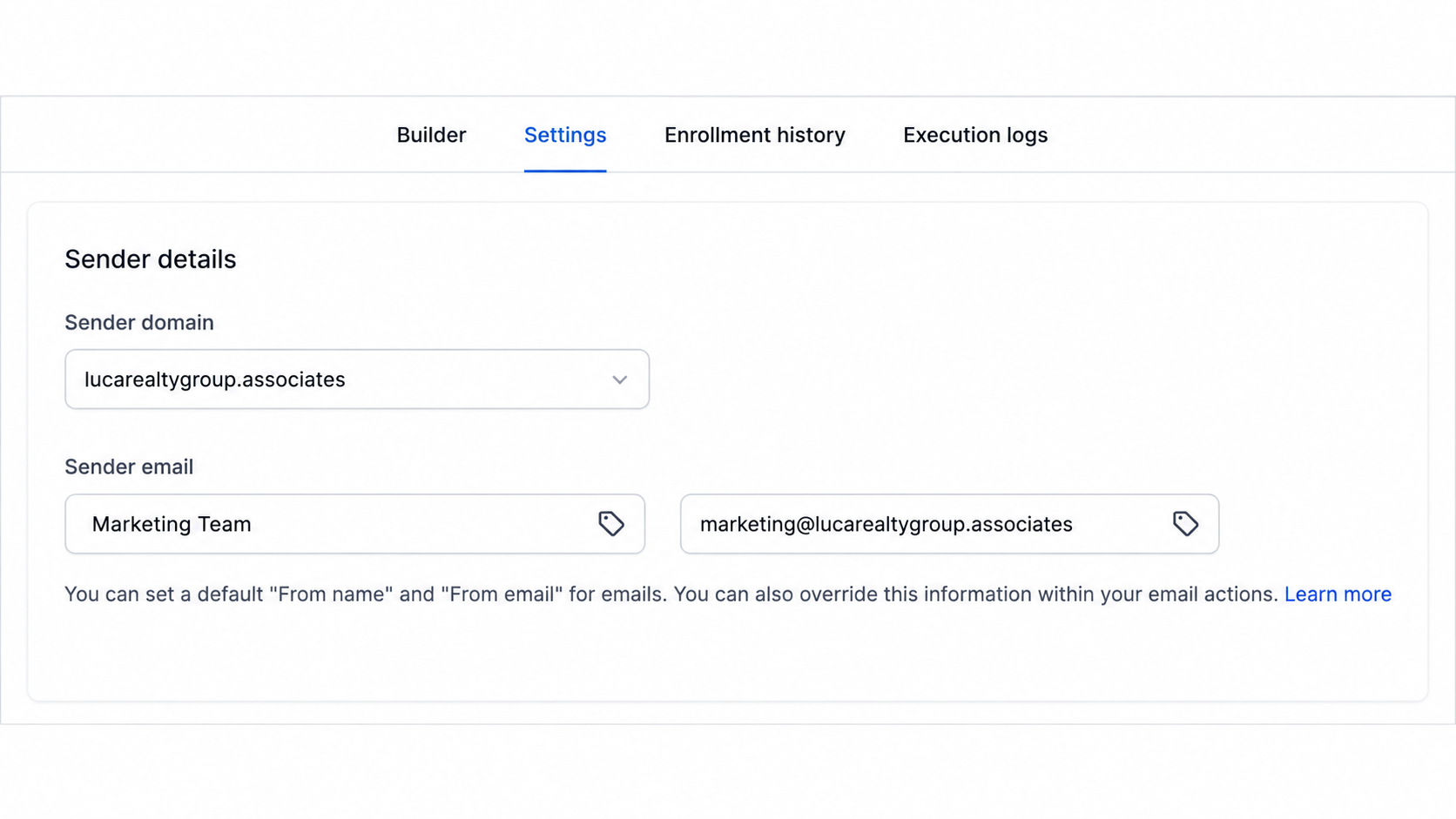
This makes it possible to assign a particular sending domain to an individual GoHighLevel workflow rather than relying on the broader domain configuration.
What Happens When the Sender Domains Don't Match?
There is an important detail to understand when configuring the workflow email settings.
If a user enters a complete sender email address belonging to a different domain, that sender email overrides the selected domain.
For example, even if one domain has been selected at the workflow level, entering a complete sender address from another domain takes priority.
In this situation, GoHighLevel displays a Sender domain mismatch warning because mismatched domains may affect deliverability.
The warning helps identify that the complete sender email does not match the domain selected in the workflow settings.
How to Set a Sender Domain for a Workflow
Setting up a workflow-level sender domain requires a verified dedicated domain.
Follow these steps:
Add and verify your domain under Email Services → Dedicated Domains.
Open the desired workflow.
Go to Settings.
Find Sender domain under Sender details.
Select the desired verified domain.
Set the From name and From email.
Save the settings.
After saving, email actions in that workflow inherit the workflow-level sender settings.
Workflow Settings vs. Individual Email Actions
One of the most important details of this update is how different sender settings interact.
The workflow-level configuration provides the default sender settings for the workflow's email actions. However, sender details configured inside an individual email action have the final preference over the workflow-level settings.
That means an individual email action can override the sender details configured for the workflow, including the domain.
GoHighLevel also notes that email headers configured in the dedicated email settings take priority over settings configured at the workflow level.
Understanding this priority is important when a workflow does not appear to be using the sender configuration expected from its Workflow Settings.
Why Did GoHighLevel Build This?
Previously, workflows within a sub-account went out using the same domain.
Users could change the From address on a workflow, but that only changed the sender information people saw; it did not change the actual sending domain.
As a result, different types of workflow emails could share the same sending domain. Promotional emails and booking confirmations, for example, could use the same domain even though they served very different purposes.
The new functionality introduces domain selection workflow by workflow.
This means users can configure different workflows with different verified dedicated domains. For example:
Reminders and receipts can use one domain.
Promotional emails and cold outreach can use another.
A workflow can be tested on a new domain without moving other workflows to that domain.
The purpose is straightforward: give users more control over which domain each workflow uses.
Practical Example: Acme Clinic
Consider a sub-account that manages email communication for a clinic.
The clinic sends appointment reminders and payment receipts using:
mail.acmeclinic.com
At the same time, it runs a monthly promotional nurture workflow using:
news.acmeclinic.com
With workflow-level sender domain selection, those workflows can use their respective domains.
The promotional email activity can therefore build reputation on its own domain, while appointment reminders remain separate.
This example shows how the new GoHighLevel workflow sender domain setting can be used to organize different types of email activity across separate workflows.
Final Takeaway
The new Sender domain option gives GoHighLevel users more control over their workflow email settings.
Instead of relying on one sending domain across workflows in a sub-account, users can select a verified dedicated domain for each workflow. The All domains option continues to use the configured weighted distribution, while selecting a specific domain allows the workflow to use that domain.
The key is to remember the configuration priority: sender details inside an individual Email action take final preference over workflow-level settings.
For businesses managing different types of email communication, this update provides a clearer way to control which dedicated domains in GoHighLevel are associated with individual workflows.
Frequently Asked Questions
1. What is the GoHighLevel Sender domain feature?
It lets users select a verified dedicated domain for emails sent from a specific workflow.
2. Where can I select a workflow sender domain?
Go to Workflow Settings → Sender details → Sender domain.
3. What is the All domains option?
All domains sends emails across configured domains using the sub-account’s weighted distribution.
4. What is a Sender domain mismatch warning?
It appears when the complete sender email uses a different domain than the selected workflow domain.
5. Can an individual email action override the workflow sender domain?
Yes. Sender details configured inside an individual email action take final preference over workflow-level settings.
Need Expert Help with GoHighLevel?
New to GoHighLevel and ready to get started? Buy your GoHighLevel account here and launch with confidence.
Already know what you need and want our team to handle everything, from complete setup and customization to funnels, workflows, automations, CRM, and pipelines? Click here.



