

How to Track a Contact’s Journey in GoHighLevel Workflow Maps
GoHighLevel Workflow Maps: View a Contact’s Journey Across Workflows
A contact receives an unexpected SMS, but you are unsure which automation triggered it. Another lead appears to be waiting somewhere in your qualification process, and checking individual workflows does not immediately explain what happened. These situations can make it difficult to understand the complete automation journey of a single contact.
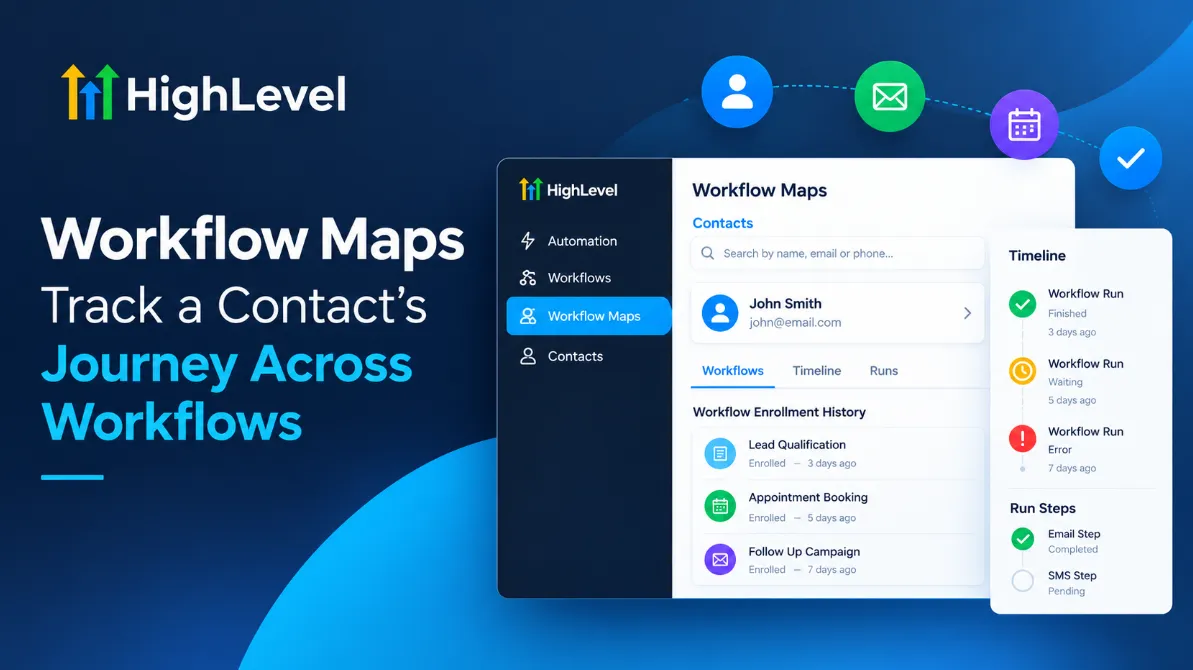
The latest update to GoHighLevel Workflow Maps introduces a contact journey view that brings together information about an individual contact’s workflow activity. You can find a contact, review the workflows they entered, inspect execution history, and examine individual runs and their steps.
Instead of looking at workflow activity without the contact’s broader history, eligible users can investigate how that contact moved across workflows and identify the relevant execution details.
What’s New in GoHighLevel Workflow Maps?
GoHighLevel now allows users to follow an individual contact’s journey across workflows directly from Workflow Maps.
The new functionality is available through the Contacts section in the left rail. After finding and selecting a contact, you can focus on their workflow journey and examine the available history.
Two areas provide different perspectives on that journey:
Workflows tab: Review the contact’s enrollment history to understand which workflows they entered.
Timeline: Examine workflow runs, their timestamps, and their execution statuses. Selecting a particular run reveals its steps, allowing you to open a relevant step for further investigation.
This distinction is important. The Workflows tab provides an overview of enrollment history, while the Timeline helps you inspect individual executions. Together, these views provide context for investigating a contact’s activity across multiple workflows.
Why This Update Matters
When several workflows are involved in a contact’s experience, understanding one message or execution may require looking beyond a single automation.
For example, if a contact receives an unexpected email, knowing their workflow history can help you identify which workflows they entered. You can then review the timeline, examine the relevant run, and inspect its steps to investigate the execution.
The same approach applies when a contact appears to be waiting in an automation. Reviewing their runs and execution statuses gives you information to investigate where their journey currently stands.
This update also helps make the relationship between different workflow enrollments easier to examine. Rather than considering qualification, booking, and follow-up activity as isolated events, you can review the available history in the context of one contact.
Workflow Maps does not automatically resolve workflow issues. Instead, it provides a more focused way to inspect the information available about a contact’s journey.
How to View a Contact’s Journey Across Workflows
Follow these steps to access the new functionality.
1. Open Workflow Maps
In GoHighLevel, navigate to:
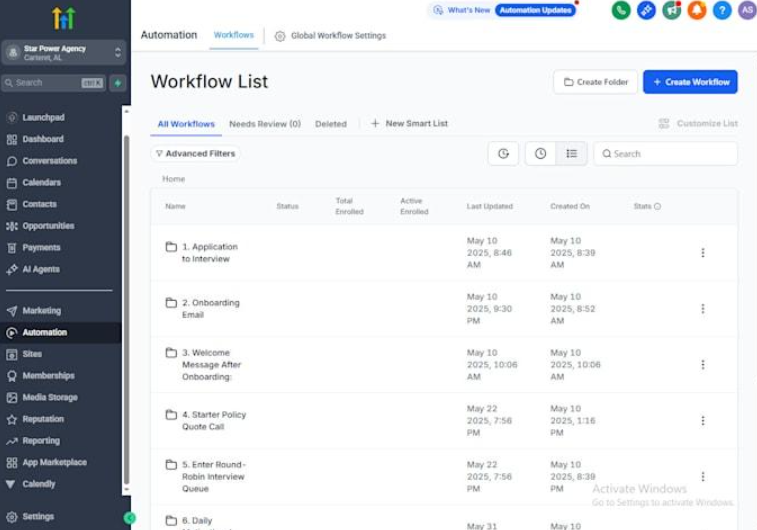
Automation > Workflows > Workflow Maps
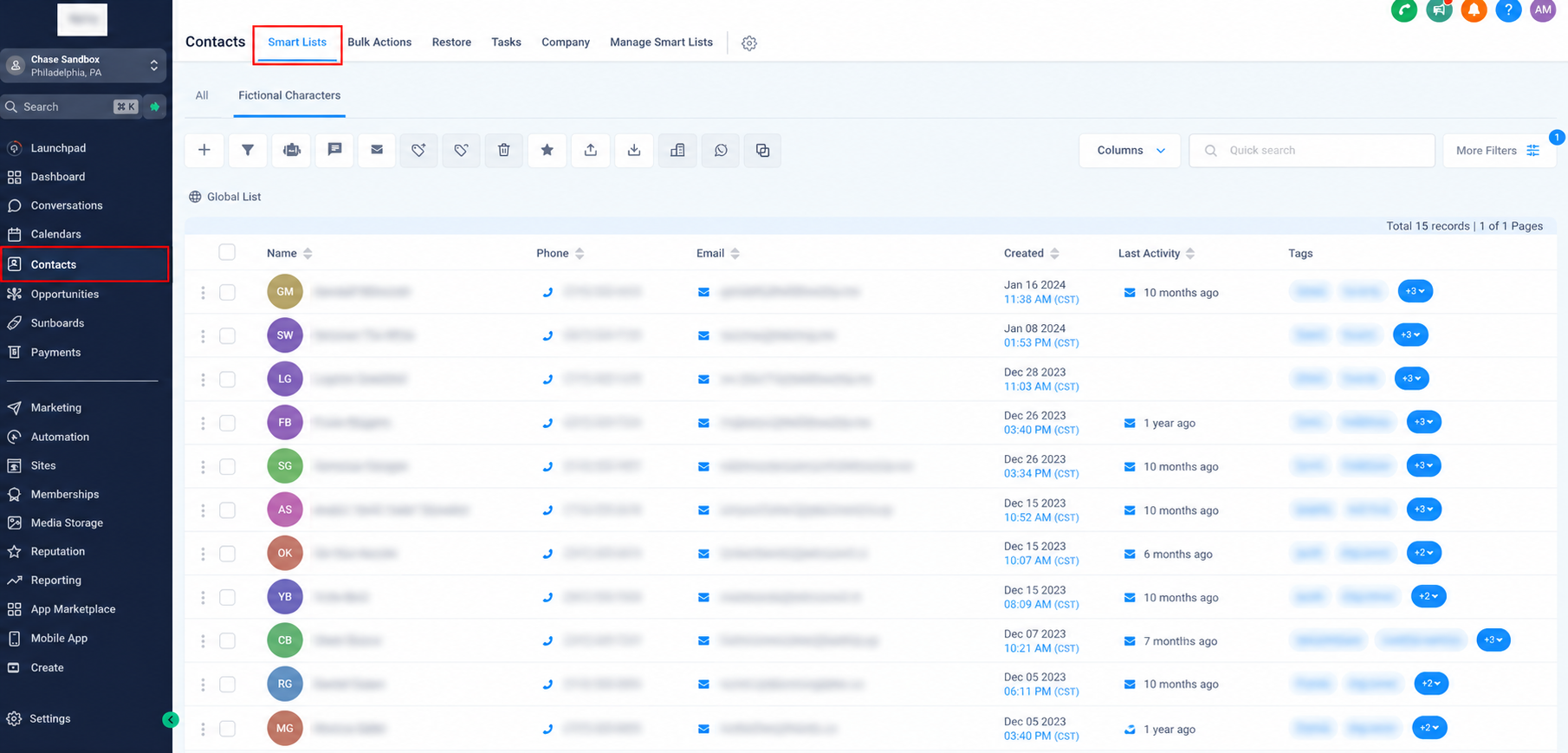
Open Contacts in the left rail to access the contact journey view.
2. Find the Contact
Search for the contact using their name, email address, or phone number. Select the relevant contact to focus on their workflow journey.
3. Review Workflow Enrollment History
Open the Workflows tab. Here, you can inspect the contact’s enrollment history and see the workflows associated with their journey.
This provides a starting point for identifying which workflow activity may be relevant to your investigation.
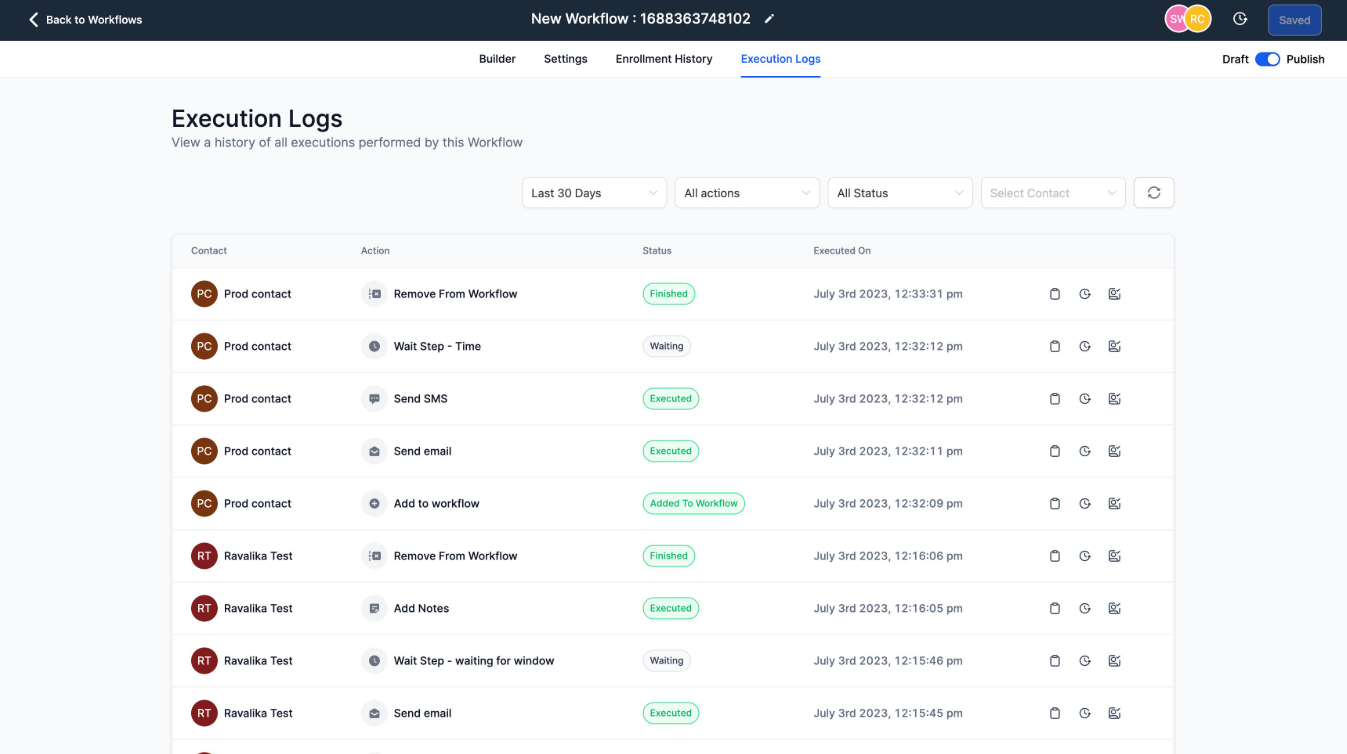
4. Examine the Timeline
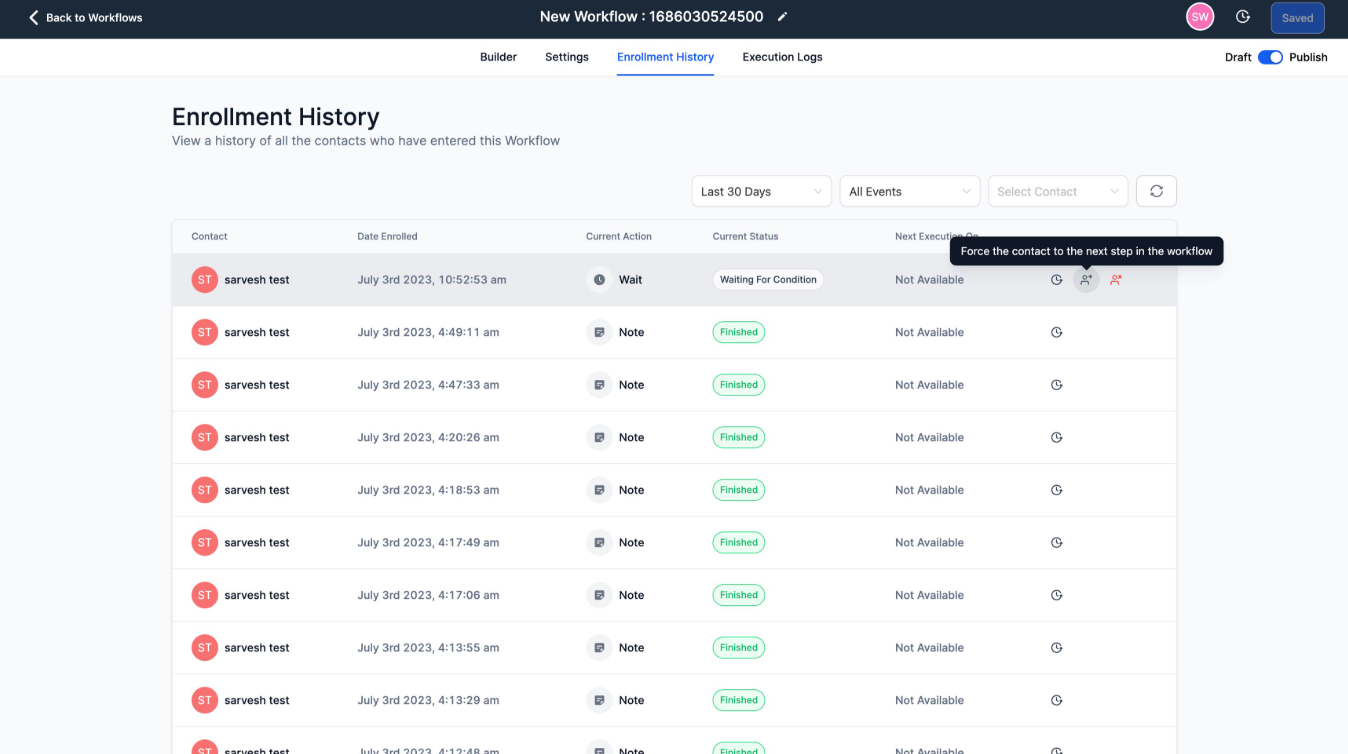
Open Timeline to review workflow runs, timestamps, and execution statuses.
Use this information to understand the recorded execution history and identify runs that may require closer inspection.
5. Inspect a Specific Run and Its Steps
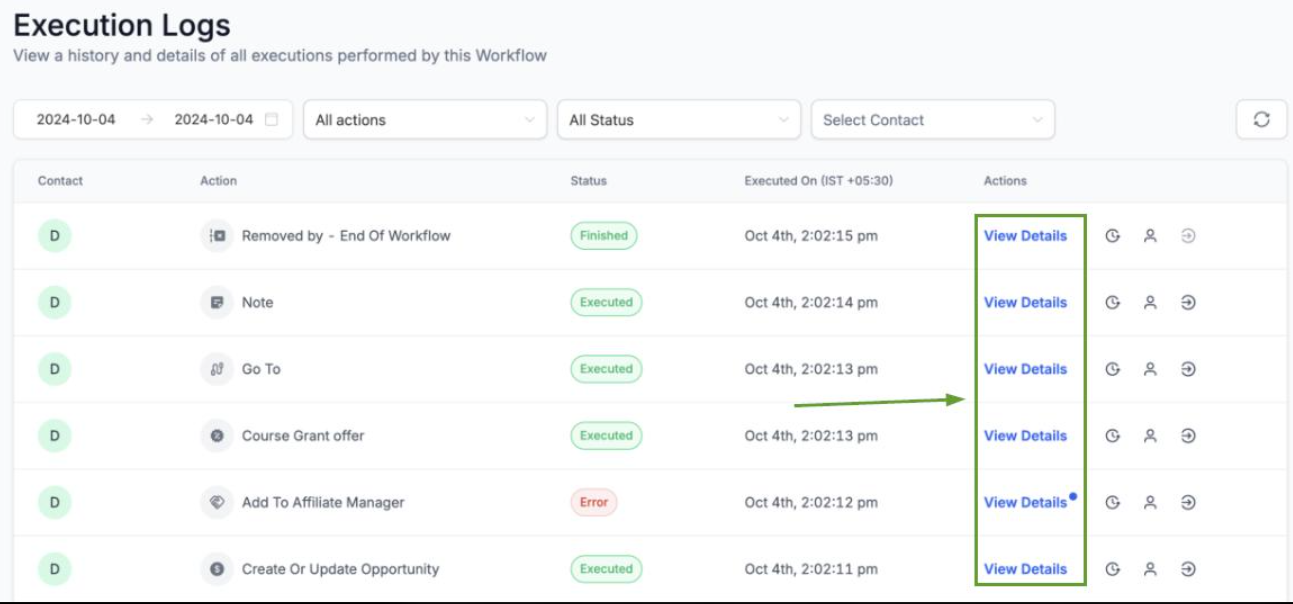
Select a run to view its steps. Then open the relevant step to investigate that particular execution.
This lets you move from the contact’s broader workflow history to the details of a specific run without losing sight of the contact you are investigating.
Practical Use Cases for Contact Journey Tracking
The new contact journey functionality can support several common workflow troubleshooting situations.
Investigating an Unexpected Email or SMS
Suppose a contact receives a message that your team did not expect. You can find the contact in Workflow Maps, review their enrollment history, and inspect the relevant runs and steps to investigate the message's context.
The feature helps you examine the available execution history rather than assuming which workflow was responsible.
Finding Where a Contact Is Waiting
If a contact appears to be stuck in an automation, review their Timeline and look for runs identified as waiting. Open the relevant run and inspect its steps to investigate the recorded execution.
This provides information for troubleshooting, although it does not automatically identify or fix the underlying cause.
Understanding a Lead’s Journey
A lead might enter a qualification workflow before moving through booking and follow-up processes. Reviewing the contact’s workflow enrollment history and timeline helps you examine their recorded activity across these workflows.
This can be useful when you need to understand the sequence of a lead’s interactions with your automation processes.
Important Limitations and Access Requirements
Before relying on the contact journey view, keep three important details in mind.
Contact history covers the last 60 days. The feature does not provide unlimited historical contact records. Investigations involving activity outside this window may require other available information.
The timeline identifies three execution conditions: finished, waiting, and error. These conditions help you understand the recorded state of a workflow run. Do not assume the timeline provides additional statuses beyond those specified in the update.
Access is restricted at launch. Workflow Maps contact journey functionality is available only to agency users and agency admins. The update does not establish access for sub-account users or clients, so availability should not be assumed for those roles.
These limitations define the scope of the new functionality and should be considered when using it for workflow investigations.
Frequently Asked Questions
1. What is the new contact journey feature in GoHighLevel Workflow Maps?
It allows users to follow an individual contact’s journey across workflows, review enrollment history, and inspect runs and their execution steps.
2. How can you find a contact’s workflow journey?
Navigate to Automation > Workflows > Workflow Maps, open Contacts, and search by name, email address, or phone number.
3. How far back does contact journey history go?
The contact history covers the last 60 days.
4. Which workflow execution conditions can users identify in the timeline?
The timeline identifies runs that are finished, waiting, or in error.
5. Who can access Workflow Maps at launch?
At launch, the contact journey functionality is available only to agency users and agency admins.
Conclusion
The GoHighLevel Workflow Maps contact journey update gives eligible users a more contextual way to investigate individual contacts across workflows. By reviewing enrollment history, examining timeline entries, and inspecting specific runs and steps, agency users and agency admins can better understand the recorded history behind unexpected messages, waiting contacts, and multi-stage lead journeys.
The 60-day history window and launch access restrictions remain important considerations. Within those boundaries, the feature provides a focused way to examine contact activity and investigate workflow execution.
Need Expert Help with GoHighLevel?
New to GoHighLevel and ready to get started? Buy your GoHighLevel account here and launch with confidence.
Already know what you need and want our team to handle everything, from complete setup and customization to funnels, workflows, automations, CRM, and pipelines? Click here.



