

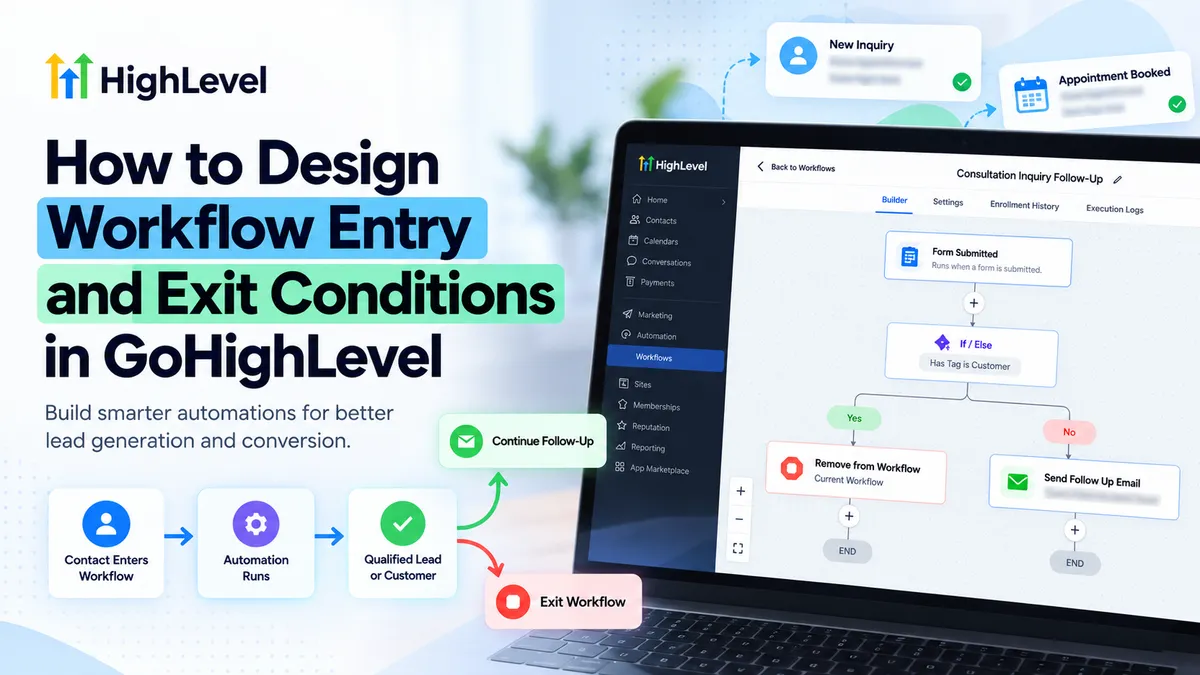
GoHighLevel Workflow Entry & Exit Conditions Guide
How to Design Workflow Entry and Exit Conditions in GoHighLevel
Imagine a prospect submits an inquiry form, receives an automated follow-up, and books a consultation. Two days later, another message arrives asking whether they are still interested in scheduling.
The problem isn't necessarily the message. It's the workflow logic.
Poorly configured GoHighLevel workflow entry and exit conditions can keep contacts in irrelevant sequences, create duplicate follow-ups, and disrupt customer conversations. Designing reliable automations requires controlling not only who enters a workflow but also when and how their journey ends.
Understanding Workflow Entry and Exit Conditions
Entry conditions determine when a contact qualifies to enter a workflow. They consist of an enrollment trigger, such as a form submission, and optional filters that narrow eligibility.
A trigger identifies the event. Filters establish which instances of that event qualify.
Exit conditions describe when workflow execution should end. Unlike enrollment, termination isn't controlled by one universal exit-condition setting.
A contact may leave through:
Natural completion of the configured workflow path.
A Remove from Workflow action.
An applicable Stop on Response setting.
Conditional routing that leads to completion or explicit removal.
An If/Else action evaluates conditions when execution reaches that step. It doesn't continuously monitor contacts or automatically remove them when their information changes.
How to Configure Workflow Entry and Exit Conditions in GoHighLevel
Step 1: Define Your Automation Objective
Before opening the workflow builder, identify four requirements: the intended audience, qualifying enrollment event, desired conversion, and termination criteria.
For example, a consultation follow-up workflow might enroll new inquiries and stop prospecting communications after an appointment is booked.
Defining these rules beforehand prevents contradictory automation paths.
Step 2: Create or Open Your Workflow
Navigate to Automation > Workflows in your GoHighLevel account.
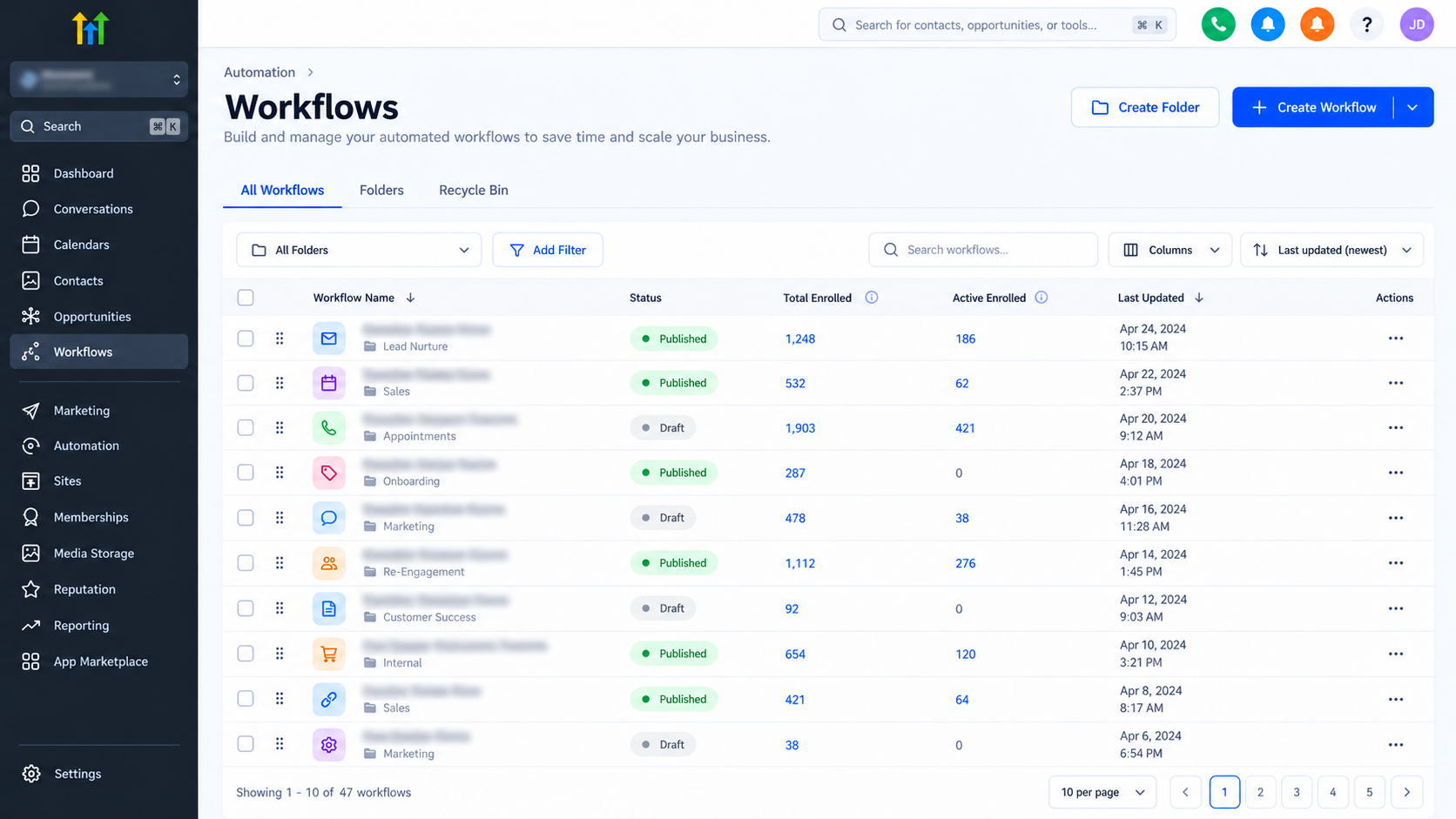
Open an existing workflow or create a new one. Give it a descriptive name, such as "Consultation Inquiry Follow-Up."
Locate the workflow trigger area, where enrollment events are configured.
Step 3: Configure the Entry Trigger
Select Add New Workflow Trigger and choose an event matching your objective.
For an inquiry campaign, select Form Submitted.
This trigger starts enrollment when a qualifying form submission occurs. However, without appropriate filtering, submissions from unintended forms may also qualify.
Choose triggers according to actual business events rather than using broad enrollment criteria unnecessarily.
Step 4: Apply Trigger Filters
Within the trigger configuration, add the relevant filters.
For example, select the specific consultation inquiry form rather than allowing submissions from every form.
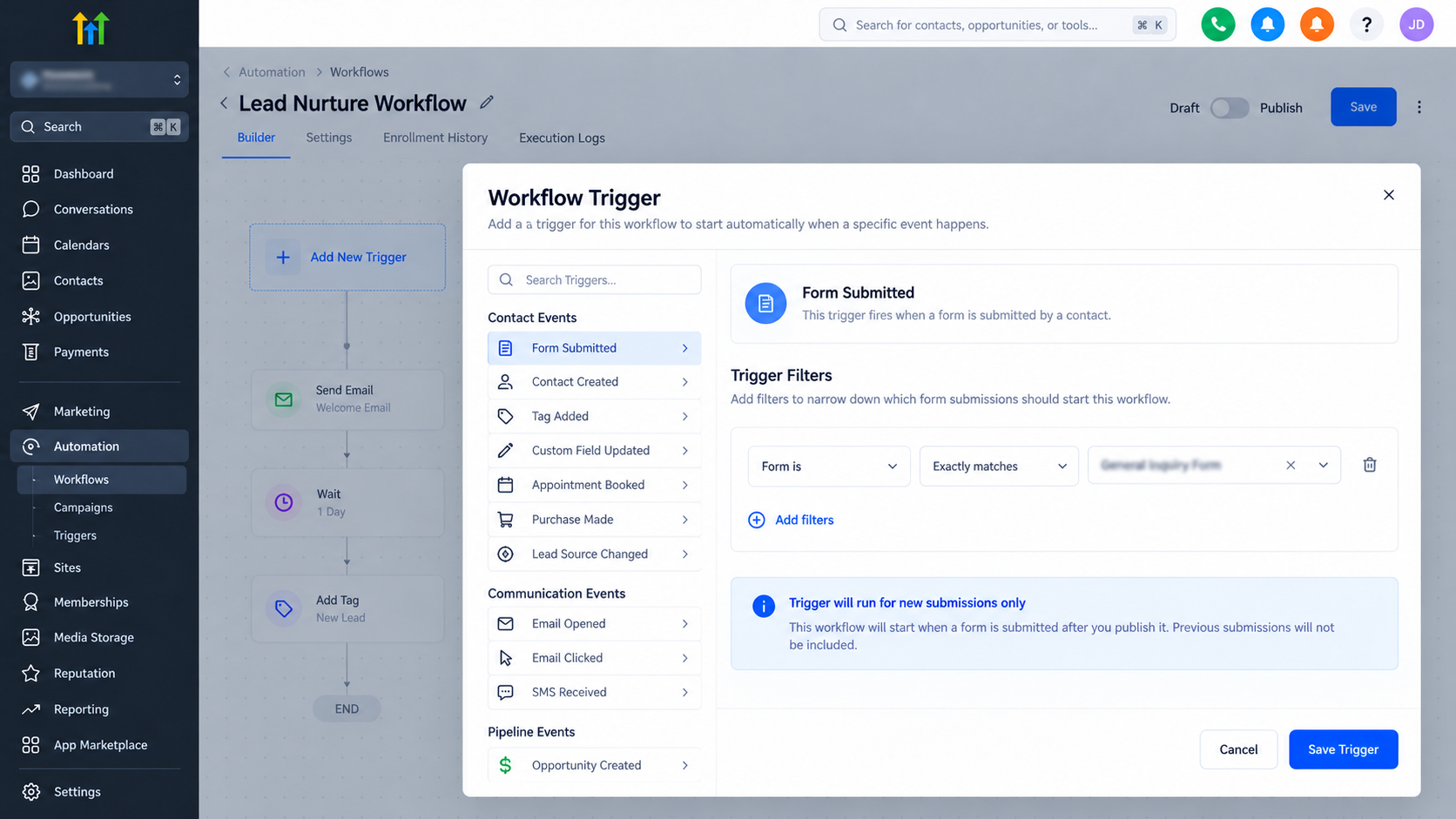
This restricts enrollment to the intended campaign.
Review every filter carefully. An overly restrictive configuration can exclude legitimate leads, while insufficient filtering can enroll unrelated contacts.
Save the trigger after verifying its configuration.
Step 5: Configure Allow Re-entry
Open the workflow's Settings tab and locate Allow Re-entry.
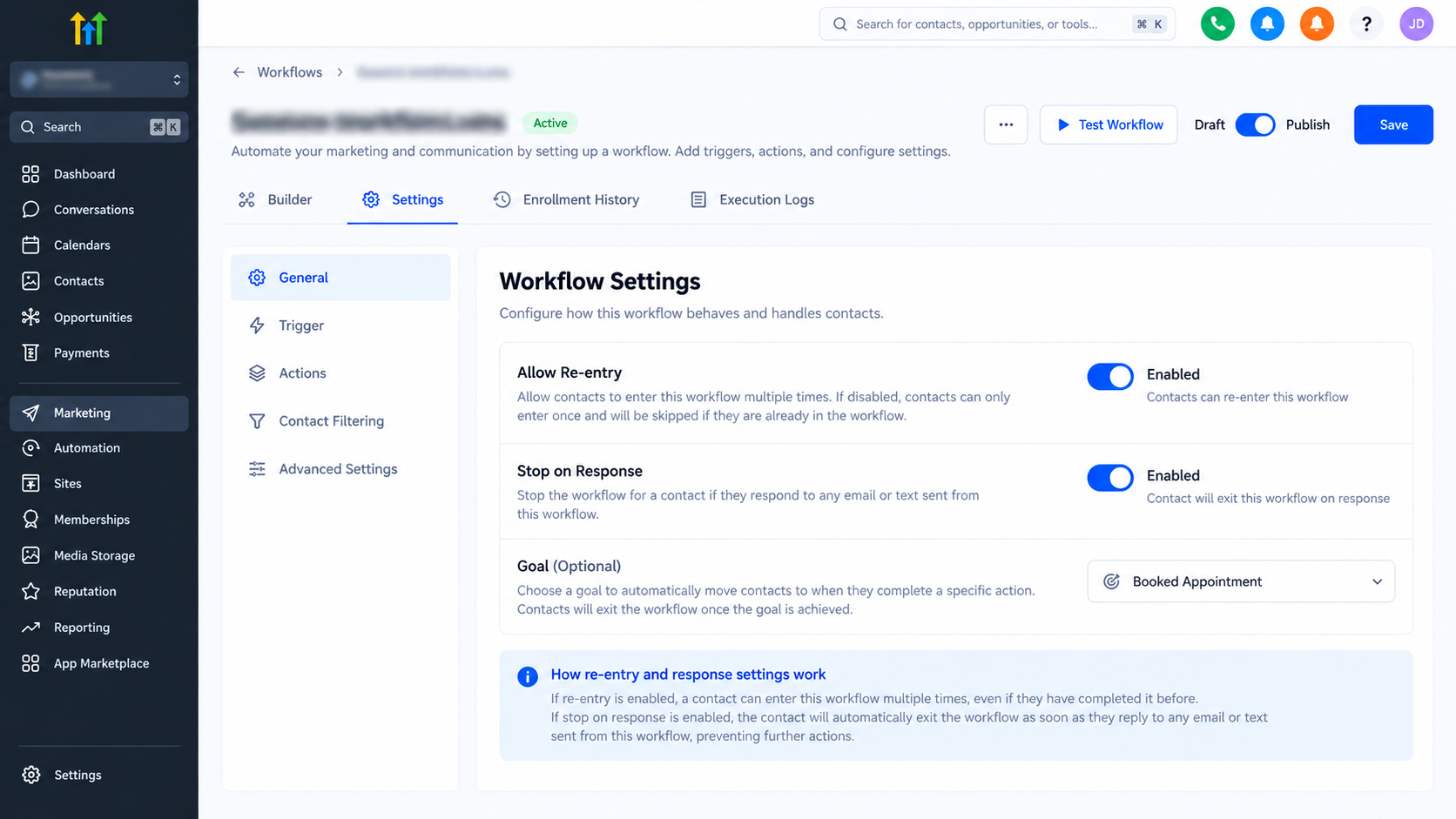
When disabled, contacts generally cannot complete and subsequently enroll in the same workflow again.
When enabled, contacts can normally re-enter after completing the workflow or being removed, but not while still active.
Appointment- and invoice-based triggers have documented re-entry exceptions.
For one-time welcome sequences, disabling re-entry may prevent unnecessary repetition. For recurring inquiries, enabling it may be appropriate.
Step 6: Design Conditional Paths
Add an If/Else action where contact qualification needs evaluation.
For example, check whether a contact has a designated customer tag before sending another prospecting message.
Route customers toward an appropriate completion path and unconverted prospects toward continued follow-up.
Remember that conditions are evaluated when contacts reach the action. Changes occurring afterward won't retroactively alter a previously selected branch.
Step 7: Implement Workflow Exit Logic
Add a Remove from Workflow action when a contact must be explicitly removed.
Available removal scopes include:
Current Workflow
Another Workflow
All Except Current Workflow
All Workflows
Select the narrowest scope that satisfies the requirement. Removing contacts from every workflow can unintentionally interrupt onboarding or service communications.
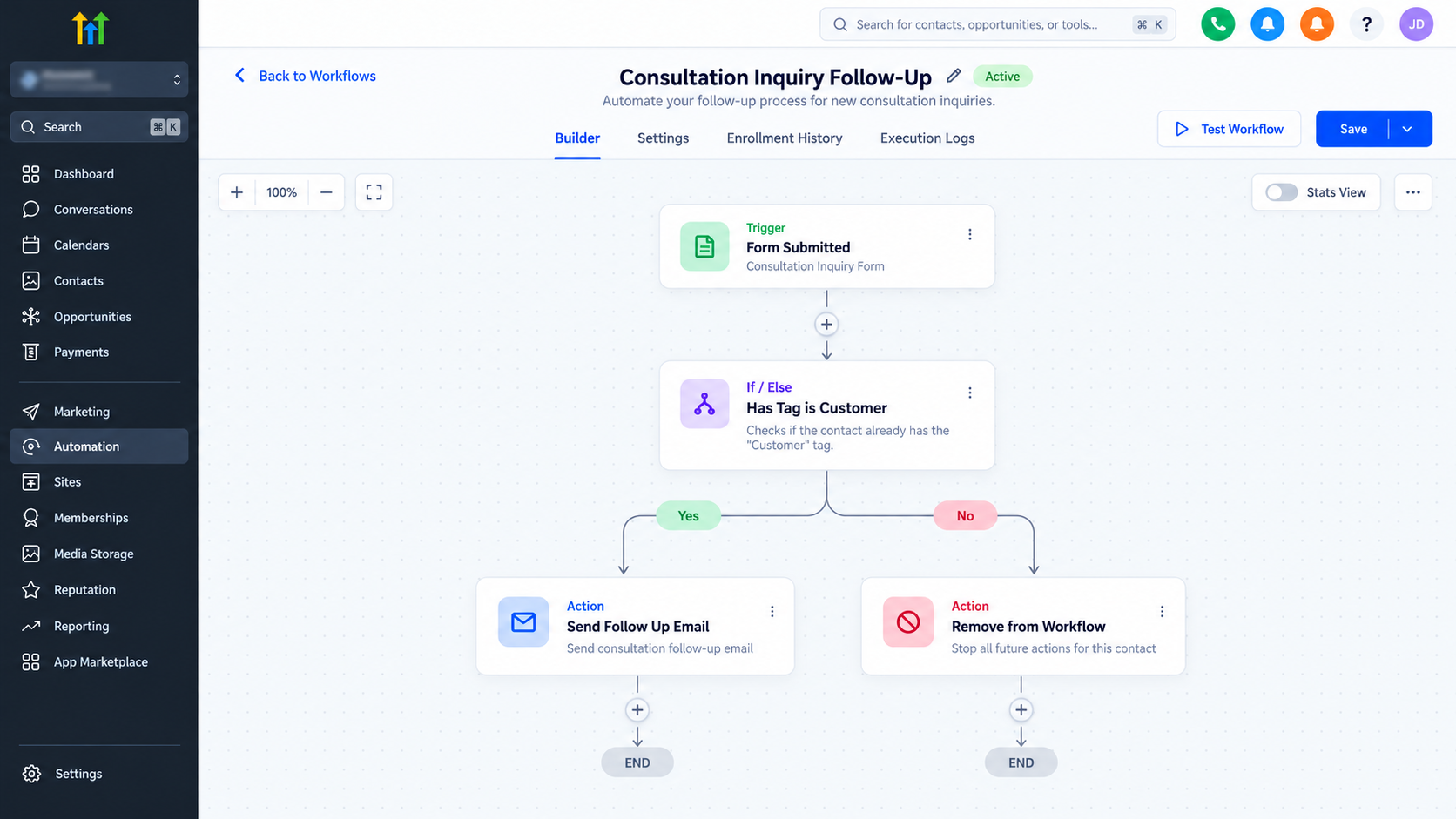
Alternatively, enable Stop on Response in workflow settings when a response to communication from that workflow should terminate the contact's enrollment.
This setting does not universally react to messages from unrelated workflows or manually initiated conversations.
Step 8: Test Before Publishing
Test with fresh contacts that satisfy your entry filters and separate contacts that should be excluded.
Verify conditional branches, removal actions, and re-entry behavior.
Review Enrollment History and Execution Logs for skipped actions, unexpected enrollment, or execution errors.
Finally, publish the workflow after validating its intended behavior.
Practical Example: Preventing Follow-Ups After Conversion
Consider a business using GoHighLevel to manage consultation requests.
A prospect submits its inquiry form and enters a workflow that sends an acknowledgment followed by scheduled reminders.
Before subsequent prospecting messages, an If/Else action checks whether the contact has a designated conversion tag.
Converted contacts follow a completion path; others continue receiving appropriate reminders.
However, if someone books an appointment while waiting between actions, an existing branch won't automatically reconsider its decision.
For immediate removal, a separate appointment-triggered workflow can use Remove from Workflow, targeting the specific prospecting workflow.
This makes termination responsive to conversion events rather than relying exclusively on periodic condition checks.
Common Mistakes and Advanced Best Practices
Reliable workflow architecture depends on preventing predictable configuration errors.
Avoid unrestricted triggers. Apply relevant filters to prevent unrelated contacts from entering.
Plan re-entry intentionally. Repeated enrollment should reflect legitimate business requirements, not accidental configuration.
Never treat If/Else as continuous monitoring. Use event-driven removal when immediate termination is necessary.
Limit removal scope. Target specific workflows instead of interrupting unrelated automations.
Test conversion scenarios. Confirm what happens when contacts respond, book appointments, or change qualification status during active sequences.
Most importantly, design enrollment and termination together. A workflow isn't reliable merely because contacts enter correctly.
Final Thoughts
Designing effective GoHighLevel workflow entry and exit conditions is essential for building reliable, conversion-focused automations. Every workflow should have clearly defined enrollment criteria, appropriate conditional logic, and a deliberate strategy for ending communications when they are no longer relevant.
By configuring triggers, filters, re-entry settings, and removal actions correctly, businesses can prevent unnecessary follow-ups, reduce automation conflicts, and create more consistent customer experiences.
Frequently Asked Questions (FAQs)
1. What are workflow entry and exit conditions in GoHighLevel?
Workflow entry conditions determine when a contact enters an automation based on specific triggers and filters. Exit conditions define when execution should end, whether through natural completion, conditional routing, a Remove from Workflow action, or applicable workflow settings. Proper configuration prevents unnecessary follow-ups and improves automation reliability.
2. How do I prevent contacts from entering the same GoHighLevel workflow multiple times?
Navigate to the workflow's Settings tab and review Allow Re-entry. Disabling this setting generally prevents contacts from enrolling again after completing the workflow. However, certain triggers have specific re-entry behaviors, so review their requirements before publishing.
3. Can GoHighLevel automatically remove a contact from a workflow after booking an appointment?
Yes. You can create a separate workflow using an appropriate appointment-related trigger and configure a Remove from Workflow action to remove the contact from an existing follow-up sequence. This helps prevent unnecessary prospecting messages after an appointment is booked.
4. What is the difference between If/Else conditions and workflow exit actions in GoHighLevel?
If/Else conditions evaluate specified criteria and direct contacts into different workflow branches. They do not automatically terminate enrollment. Exit actions, such as Remove from Workflow, explicitly remove contacts from selected workflows. If/Else logic can guide contacts toward an exit, but the branch must be configured appropriately.
5. How can I test workflow entry and exit conditions before publishing?
Use test contacts to simulate different enrollment and conversion scenarios. Verify that triggers and filters enroll only eligible contacts, If/Else conditions route contacts correctly, and removal actions stop the intended workflows. Review Enrollment History and Execution Logs to identify unexpected behavior before publishing.
Need Expert Help with GoHighLevel?
New to GoHighLevel and ready to get started? Buy your GoHighLevel account here and launch with confidence.
Already know what you need and want our team to handle everything, from complete setup and customization to funnels, workflows, automations, CRM, and pipelines? Click here.



