GoHighLevel Workflow Documentation: Complete Guide
How to Create Workflow Documentation for Large GHL Projects
Managing a few GoHighLevel workflows is usually straightforward. But when an agency handles dozens of automations across multiple pipelines, calendars, and client accounts, even a small change can create confusion. A team member might modify a trigger without realizing another workflow depends on it. Someone troubleshooting a failed follow-up may struggle to understand the original setup.
This is where GoHighLevel workflow documentation becomes essential. A clear documentation system helps teams understand automation logic, track dependencies, troubleshoot issues, and maintain reliable processes as projects grow. Here's how to build one that remains practical and easy to maintain.
Why Workflow Documentation Matters in Large GHL Projects
Large GoHighLevel projects often involve interconnected workflows that support lead management, appointment scheduling, customer communication, and sales operations.
Without documentation, teams may struggle to identify which automation controls a particular process.
Well-maintained documentation helps businesses:
Understand dependencies: Identify workflows that share tags, custom fields, calendars, or pipeline stages.
Prevent conflicts: Recognize overlapping triggers and follow-up sequences before making changes.
Improve collaboration: Give team members a shared understanding of automation responsibilities.
Simplify troubleshooting: Locate relevant conditions and actions without reviewing every workflow.
Support client handovers: Explain how systems operate when transferring responsibility.
These benefits become increasingly important when multiple specialists maintain the same automation environment.
Identify and Organize Every Workflow
The first step in GoHighLevel workflow documentation is creating a complete inventory of existing automations.
Open the Workflows area under Automation in the relevant GoHighLevel sub-account and review the workflows used by the business.
For each workflow, record its name, purpose, enrollment trigger, major actions, responsible team member, and current status.
Also identify connected resources, including pipelines, calendars, tags, and custom fields.
A consistent naming convention makes workflows easier to recognize.
For example:
LEAD-01 | New Inquiry | Initial Follow-Up
This is an internal naming example, not a required GoHighLevel format.
Organize your inventory by business function, such as lead nurturing, appointment management, customer onboarding, or internal notifications.
A shared spreadsheet works well for maintaining this information.
Document Triggers, Actions, and Decision Paths
Understanding how to document GoHighLevel workflows requires looking beyond workflow names.
Each workflow should have a clear explanation of what starts it, what happens afterward, and which conditions influence its behavior.
Record the Workflow Trigger
Document the enrollment trigger and any filters that determine which contacts qualify.
For example, a workflow might begin when a new opportunity is created in a particular pipeline.
Explain Actions and Conditions
Describe important actions in execution order, including:
Email or SMS follow-up messages.
Wait actions and their timing.
If/Else branches and decision criteria.
Contact field or tag updates.
Opportunity stage changes.
Appointment-related actions and notifications.
Also explain how contacts reach the end of the workflow or are removed when applicable.
Include a Practical Example
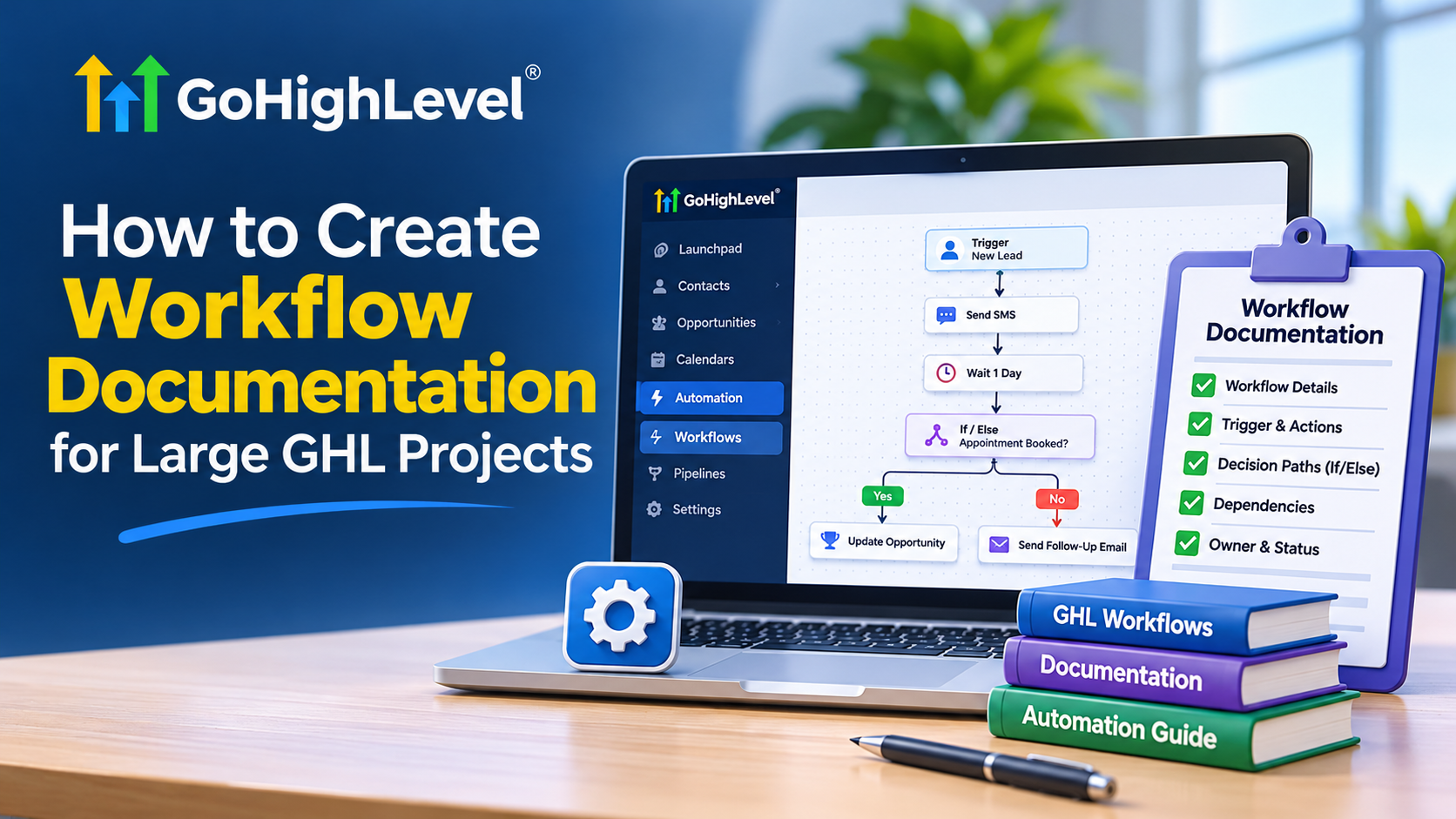
Consider a new lead entering a sales pipeline.
The workflow sends an introductory message, waits for a defined period, and checks whether an appointment has been booked.
If the booking condition is satisfied, the documented process directs the contact toward appointment-related communication. Otherwise, the follow-up path continues.
Document the exact conditions and workflow connections used to implement this behavior.
This makes troubleshooting easier when a contact follows an unexpected path.
Create Visual Workflow Maps
Written instructions explain individual actions, while visual diagrams help teams understand the entire automation structure.
A workflow map should illustrate the starting trigger, major actions, conditional branches, connected workflows, manual intervention points, and completion paths.
For complicated projects, create separate diagrams for individual workflows and broader business processes.
External tools such as Lucidchart, Miro, or diagrams.net can help create these maps.
These are documentation tools, not native GoHighLevel workflow documentation features.
Keep diagrams simple enough that another team member can understand the process without requiring a lengthy explanation.
Track Dependencies, Exceptions, and Changes
Complex automations depend on more than their visible workflow steps.
A workflow might reference a specific tag, custom field, calendar, or pipeline stage. Changing one of these resources can affect the intended process.
Document these relationships alongside important exceptions.
For example, explain what the team should investigate when an expected appointment notification does not occur.
Include relevant trigger filters, conditional branches, testing observations, and manual troubleshooting procedures.
Maintain a separate change log recording:
What was changed.
Why the change was necessary.
Who made the update.
When the update occurred.
This should be maintained through your documentation process rather than assumed to be automatically generated by GoHighLevel.
Build a Repeatable Documentation Template
A standardized template makes documenting complex GHL automations more manageable.
Every workflow record should contain these essential fields:
Workflow Name | Purpose | Trigger | Key Actions | Conditions | Dependencies | Owner | Testing Notes | Last Updated
Use the purpose field to explain the business outcome. Record important branching rules under conditions and list connected resources under dependencies.
Testing notes should describe the scenarios checked and their observed results.
Store the template in Google Docs, Notion, or a shared spreadsheet so team members can access consistent information.
Keep Documentation Updated as Projects Grow
Documentation loses value when it no longer reflects the actual automation setup.
Assign an owner to each important workflow and require documentation updates whenever significant changes occur.
After modifying automation logic, test relevant scenarios and update both written instructions and diagrams.
Schedule periodic reviews for critical workflows, especially those handling bookings, customer communication, or operational handovers.
Keep documentation in a shared location with appropriate access permissions.
The goal is not excessive paperwork. It is maintaining enough reliable information for another qualified team member to understand and support the system.
Conclusion
Effective GoHighLevel workflow documentation makes large automation projects easier to understand, maintain, and expand. By organizing workflows, recording decision paths, mapping dependencies, and tracking changes, businesses can reduce operational confusion and improve collaboration.
GoHighLevel provides tools for building sophisticated automation processes, while structured external documentation helps teams manage those processes responsibly.
Start by reviewing your most important workflows and identifying what information is currently missing. A consistent documentation approach today can make future troubleshooting, updates, and client handovers significantly easier.
Frequently Asked Questions
1. Does GoHighLevel automatically generate workflow documentation?
GoHighLevel provides a visual workflow builder, but teams should not assume it automatically produces complete technical documentation. External tools such as Google Docs, Notion, and spreadsheets can be used to maintain detailed records.
2. What should be included in GHL workflow documentation?
Documentation should include the workflow's purpose, triggers, actions, conditions, dependencies, responsible team member, testing notes, and update history. Complex workflows may also benefit from visual diagrams.
3. How often should GoHighLevel workflow documentation be updated?
Update documentation whenever important workflow logic, triggers, dependencies, or configurations change. Periodic reviews help ensure the information remains accurate.
4. What is the best tool for documenting large GoHighLevel projects?
There is no single best tool. Google Docs works well for written instructions, spreadsheets for workflow inventories, and tools such as Lucidchart or diagrams.net for visual process maps. Teams can combine these tools based on project complexity.
Need Expert Help with GoHighLevel?
New to GoHighLevel and ready to get started? Buy your GoHighLevel account here and launch with confidence.
Already know what you need and want our team to handle everything, from complete setup and customization to funnels, workflows, automations, CRM, and pipelines? Click here.