
How to Manage Conflicting GoHighLevel Workflow Conditions
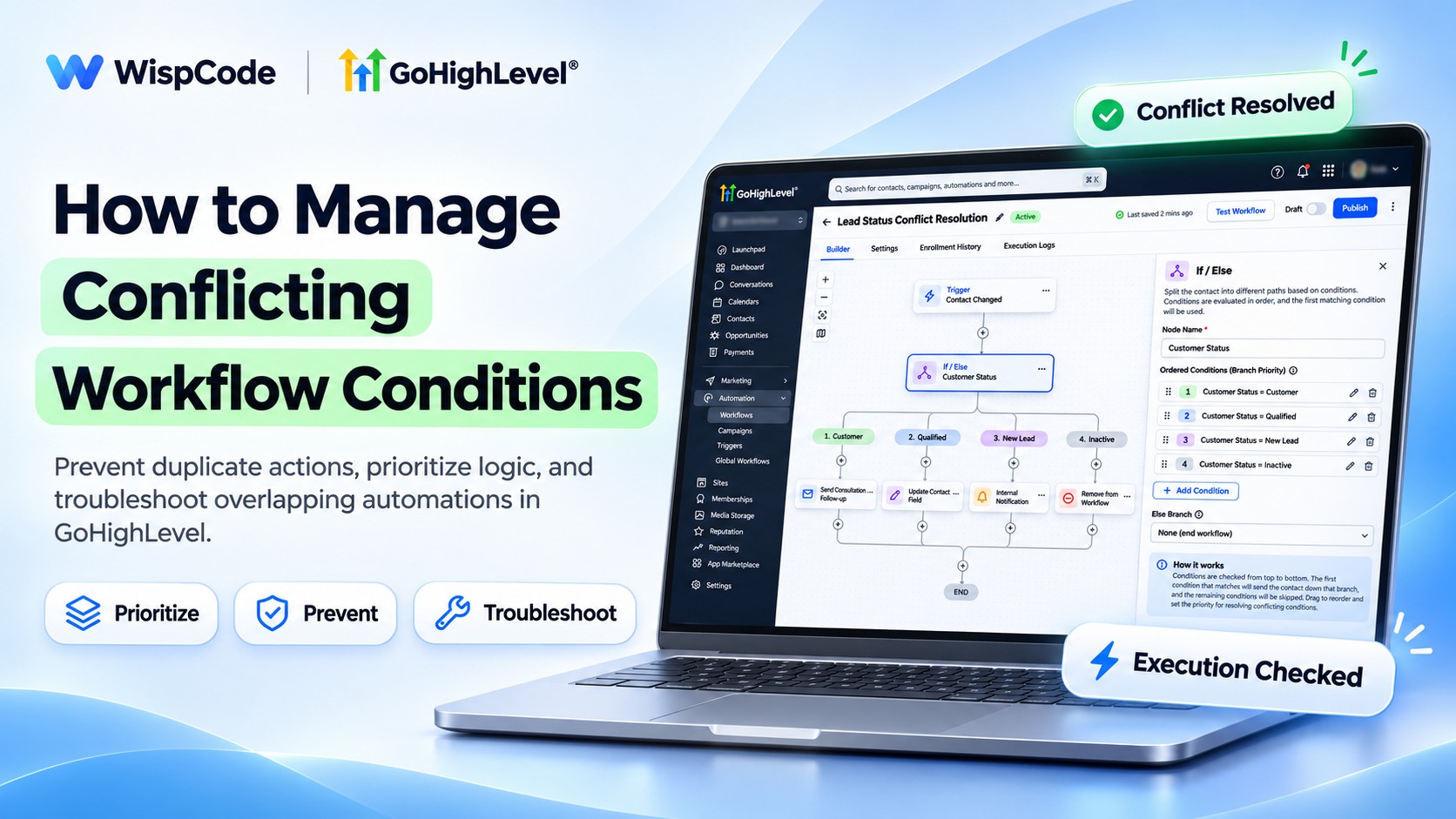
How to Manage Conflicting Workflow Conditions
A sales team updates a lead's status to Qualified, but the customer receives two different follow-up messages. One workflow schedules a consultation, while another starts a re-engagement campaign.
Both automations are working, but their conditions overlap.
These conflicts can create duplicate notifications, incorrect CRM updates, and confusing customer experiences.
GoHighLevel helps businesses manage these situations through workflow conditions, branch priorities, re-entry settings, and execution logs.
With properly configured rules, teams can prevent conflicting actions and keep their automations running consistently.
How Conflicting Workflow Conditions Work in GoHighLevel
Workflow conflicts occur when multiple conditions or automations apply to the same contact and produce competing actions.
For example, a contact might have both "Qualified Lead" and "Inactive Lead" tags, triggering different follow-up processes.
GoHighLevel's If/Else action evaluates conditions and directs contacts through the first matching branch.
The Router action works differently because it can execute multiple matching branches.
Conflicts can also happen when separate workflows update the same CRM field or enroll the same contact.
Understanding these differences helps businesses choose the correct workflow structure.
What You Need Before Resolving Workflow Conflicts
Before making changes, ensure you have:
Access to the appropriate GoHighLevel sub-account.
Permission to view and edit workflows.
Clearly defined contact statuses and tags.
Knowledge of workflows sharing the same triggers.
Documented priorities for competing business rules.
Test contacts representing different customer scenarios.
These requirements help identify conflicts without disrupting important automations.
How to Manage Conflicting Workflow Conditions in GoHighLevel
Follow these six steps to identify overlapping rules and prevent unwanted actions.
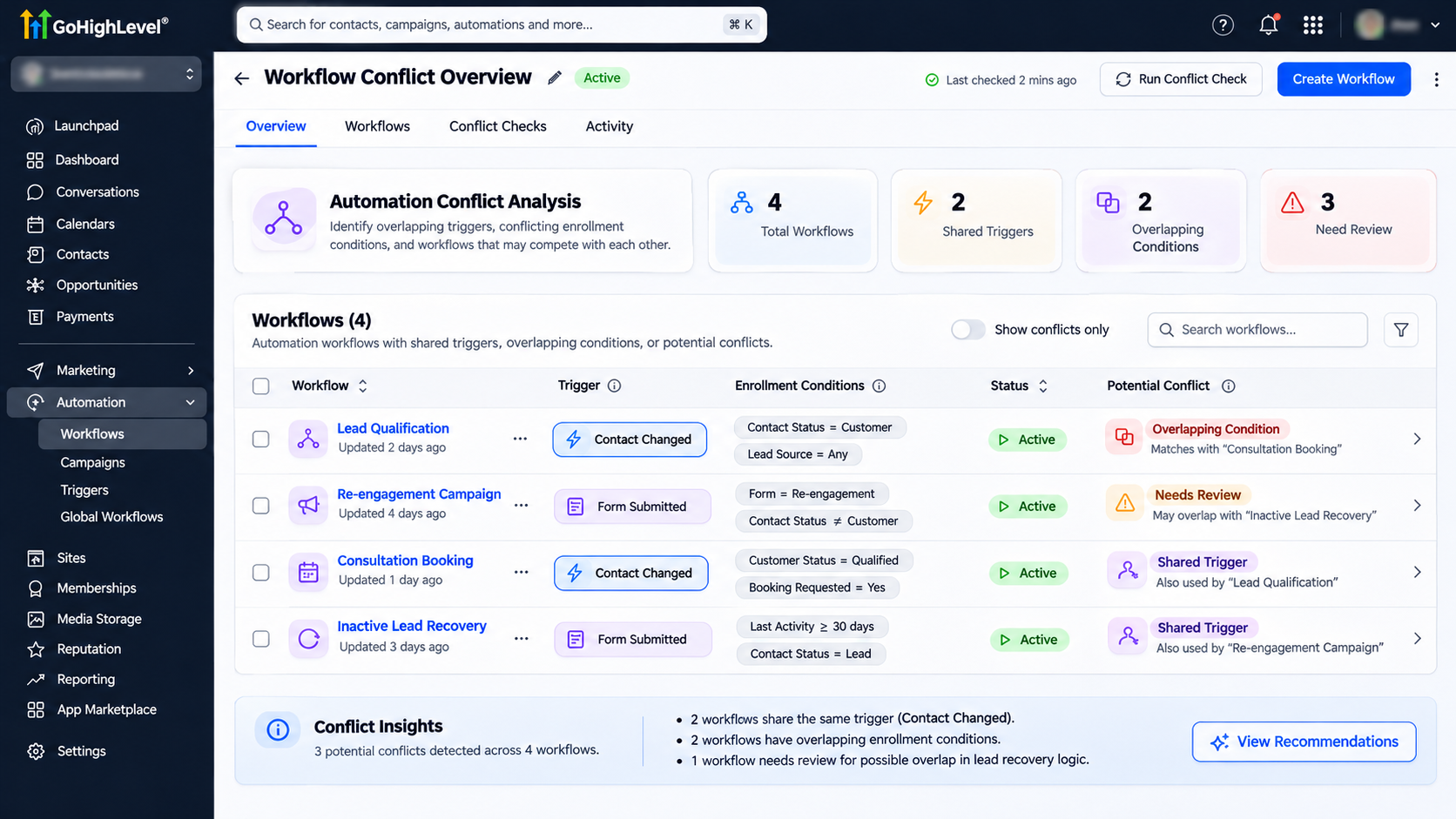
Step 1: Identify Workflows With Overlapping Triggers
Navigate to Automation → Workflows.
Review workflows responsible for customer communication, lead assignments, and CRM updates.
Identify automations using similar triggers, such as Form Submitted, Contact Changed, or Pipeline Stage Changed.
For example, a lead qualification workflow and a re-engagement workflow might both react to the same contact update.
Check their trigger filters and actions to determine whether they can run simultaneously.
Document workflows that modify the same fields or send competing messages.
Step 2: Define Clear Condition Priorities
Decide which business rules should take priority when a contact qualifies for multiple conditions.
For example, a sales business might prioritize:
Existing Customer
Qualified Lead
New Lead
Inactive Lead
An existing customer should not receive a new-lead introduction simply because an outdated tag remains on the contact.
Use one authoritative status field where practical.
Keep status values consistent and establish which automation is responsible for updating them.
This reduces ambiguity when evaluating customer information.
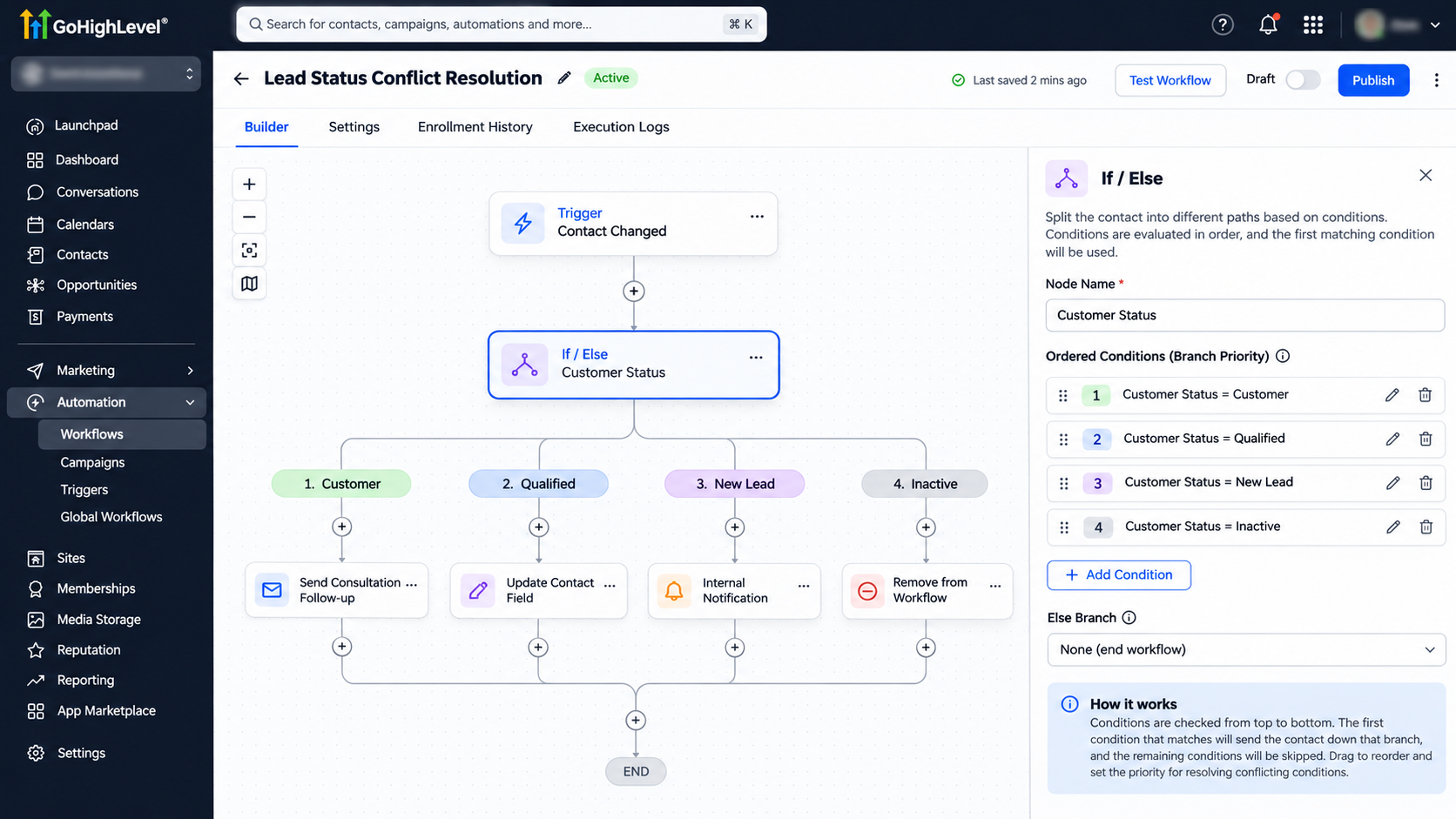
Step 3: Configure If/Else Branches Correctly
Open the relevant workflow and click the plus icon.
Select If/Else.
Create branches using clearly defined CRM conditions.
For example:
Customer Branch: Customer Status equals Customer.
Qualified Branch: Customer Status equals Qualified.
Inactive Branch: Customer Status equals Inactive.
Arrange branches according to your business priorities.
GoHighLevel evaluates If/Else branches in order and follows the first matching branch.
Use the fallback branch for contacts that do not meet the configured conditions.
Choose the Router action only when you intentionally want multiple matching branches to run.
Step 4: Prevent Conflicting CRM Updates
Check whether different workflows update the same contact field, tag, or opportunity.
For example, one workflow might mark a contact as Qualified while another changes the status to Inactive.
Use the Update Contact Field action carefully and define which workflow owns each important status.
Add conditions that verify the current field value before updating it.
For conflicting campaigns, consider using Remove from Workflow to stop an incompatible automation when a contact enters a new lifecycle stage.
Do not assume removing a contact from one workflow automatically stops every other workflow.
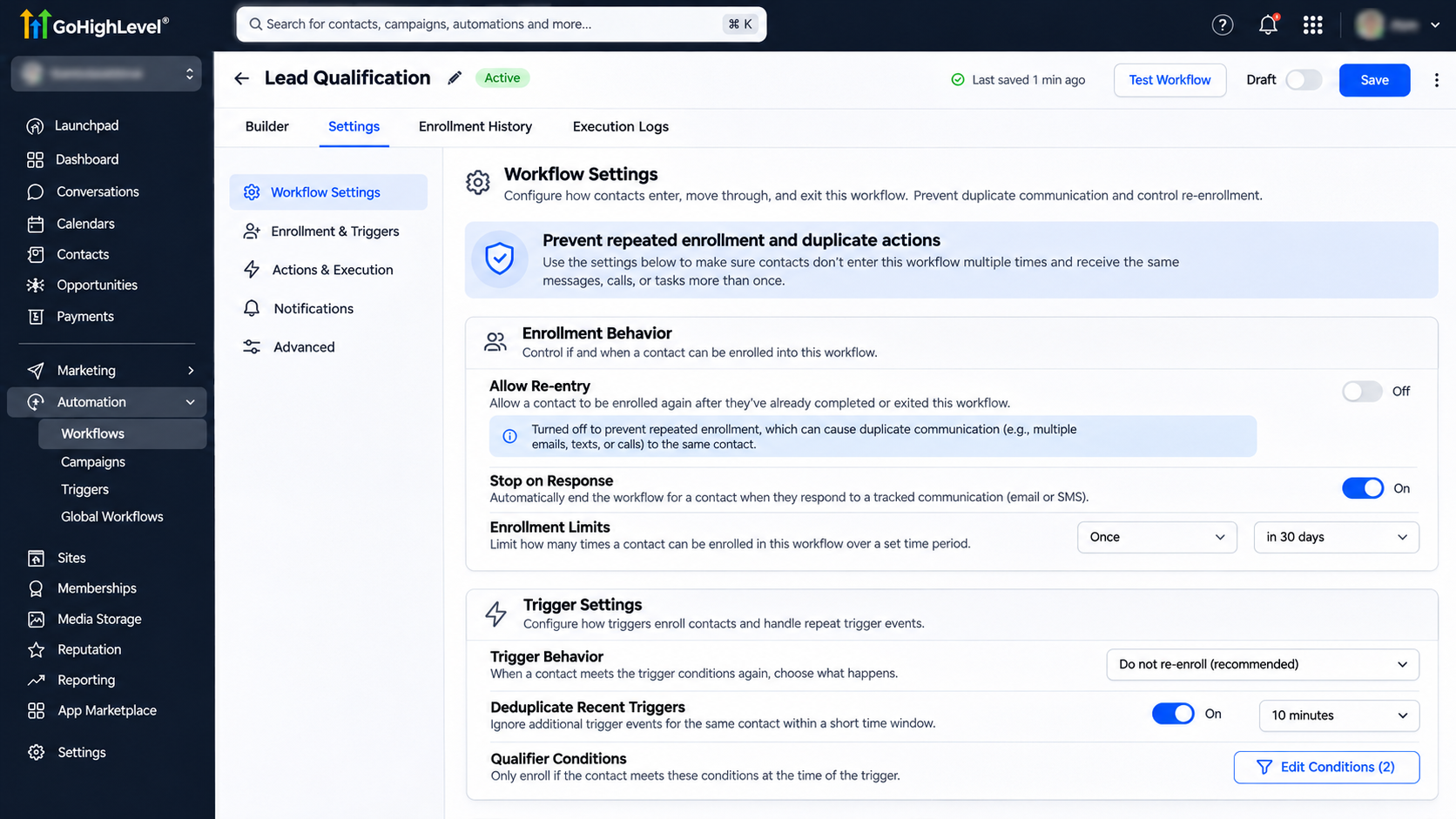
Step 5: Review Workflow Re-Entry Settings
Open the workflow's Settings tab.
Review Allow Re-entry and other settings relevant to repeated enrollment.
Repeated triggers can cause duplicate communications or unnecessary CRM updates.
Disable unnecessary re-entry where appropriate, and use additional conditions to prevent repeated actions.
Some appointment- and invoice-based workflows have special enrollment behavior, so review their trigger-specific rules.
Step 6: Monitor Execution Logs for Conflicts
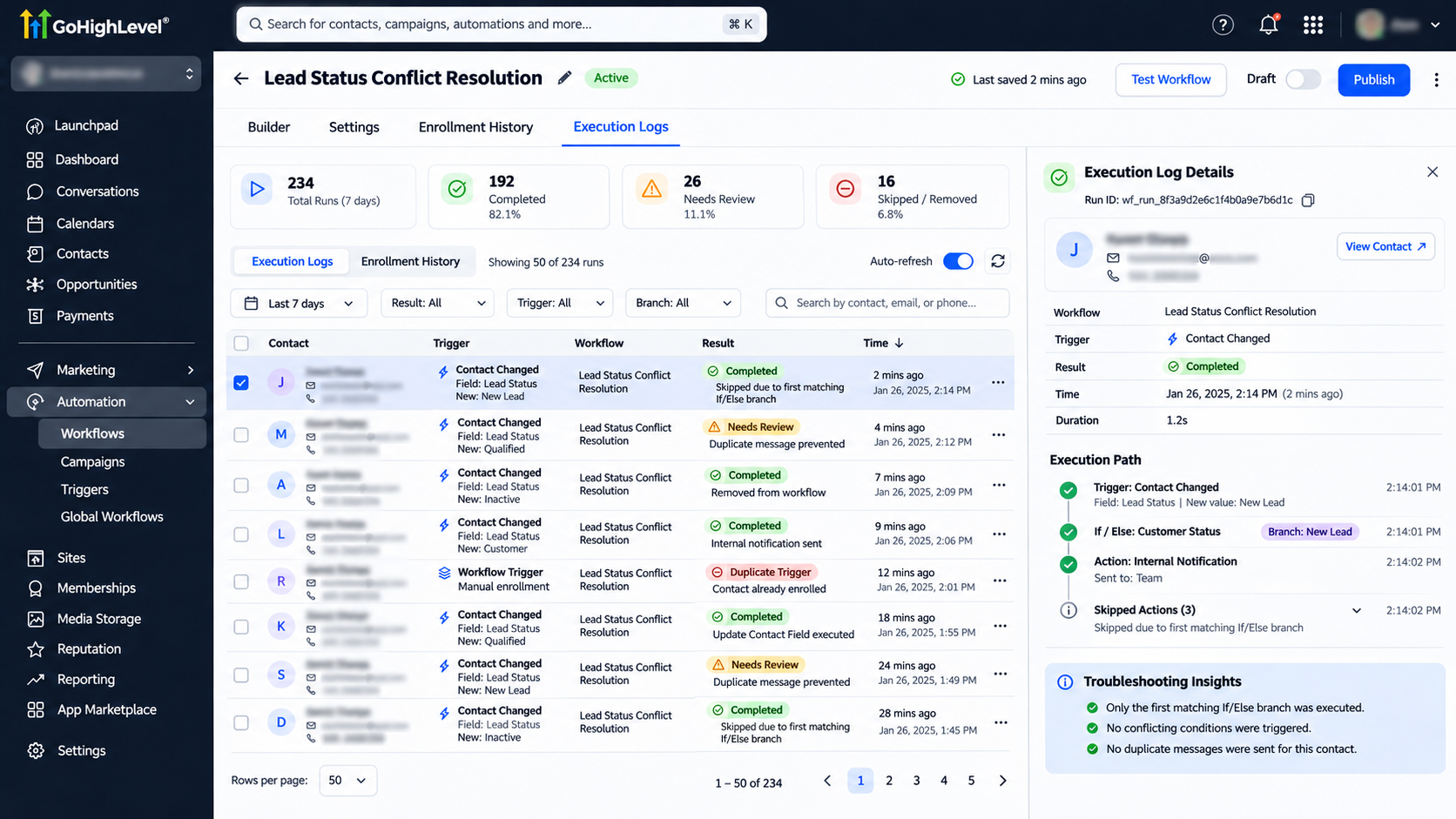
Open the workflow and select Execution Logs or Enrollment History.
Review the affected contact's execution details.
Check which trigger started the workflow, which conditions matched, and which actions executed.
Compare timestamps across related workflows to identify competing updates.
For example, if a contact receives two messages, inspect both workflow histories to determine which automation sent each message.
Correct the conflicting rules and retest the complete process.
Test Your Workflow Conditions
Create test contacts with different combinations of tags and statuses.
Verify that each contact follows the intended If/Else branch.
Test contacts that match multiple conditions and those that match none.
Also test simultaneous triggers, repeated enrollment, and conflicting field updates.
Check the actual CRM records and message history rather than relying only on successful workflow execution.
Common Workflow Conflicts and Fixes
Duplicate messages: Review overlapping triggers and workflow re-entry settings.
Incorrect routing: Check branch order and matching conditions.
Unexpected CRM updates: Identify workflows modifying the same field.
Multiple branches executing: Confirm whether you used Router instead of If/Else.
Repeated automation: Review enrollment settings and existing contact conditions.
Best Practices for Reliable Workflow Conditions
Use consistent customer statuses, prioritize critical rules, and document workflow responsibilities.
Avoid unnecessary overlapping triggers and regularly review workflows that share CRM fields.
Test important automation changes before publishing them.
Conclusion
Managing conflicting workflow conditions helps businesses reduce duplicate actions, maintain accurate CRM information, and improve customer communication.
GoHighLevel provides conditional logic, workflow controls, and execution logs to support more reliable automation.
Need help organizing your GoHighLevel workflows? WispCode provides CRM automation, workflow optimization, and troubleshooting solutions to help businesses build efficient, dependable processes.
Frequently Asked Questions (FAQs)
1. Can multiple GoHighLevel workflows run for the same contact?
Yes. A contact can qualify for multiple workflows when their respective trigger and enrollment conditions are satisfied.
2. How does GoHighLevel handle overlapping If/Else conditions?
The If/Else action follows the first matching branch according to the configured branch order.
3. What is the difference between If/Else and Router?
If/Else selects the first matching branch, while Router can execute multiple matching branches.
4. How can I prevent duplicate workflow messages?
Review overlapping triggers, re-entry settings, contact conditions, and unnecessary parallel automations.
5. How can I identify conflicting workflow actions?
Use Execution Logs and Enrollment History to examine contact activity and compare actions across related workflows.
Need Expert Help with GoHighLevel?
New to GoHighLevel and ready to get started? Buy your GoHighLevel account here and launch with confidence.
Already know what you need and want our team to handle everything, from complete setup and customization to funnels, workflows, automations, CRM, and pipelines? Click here.