

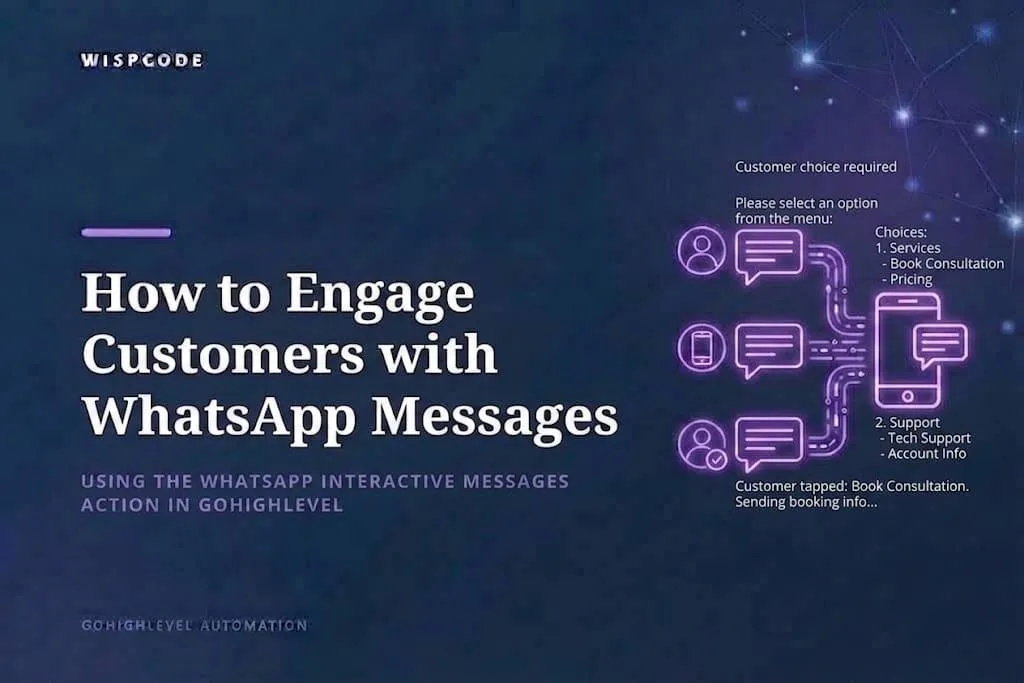
GoHighLevel WhatsApp Interactive Messages Action
How to Engage Customers with Interactive WhatsApp Messages Using the WhatsApp Interactive Messages Action in GoHighLevel
Introduction
WhatsApp can become much more useful when customers can interact with a message instead of simply reading it and typing a response. GoHighLevel's WhatsApp Interactive Messages action allows businesses to add interactive elements such as quick-reply buttons, lists, locations, contact cards, and website call-to-action buttons to WhatsApp messages sent through workflows.
This gives businesses a way to create smoother customer journeys directly inside WhatsApp. Instead of asking a customer to type “Yes” or “No,” for example, a workflow can present predefined options that the customer can tap.
These interactions can also make CRM data cleaner because predefined responses reduce typing mistakes and make customer choices easier to organize.
What Is the WhatsApp Interactive Messages Action?
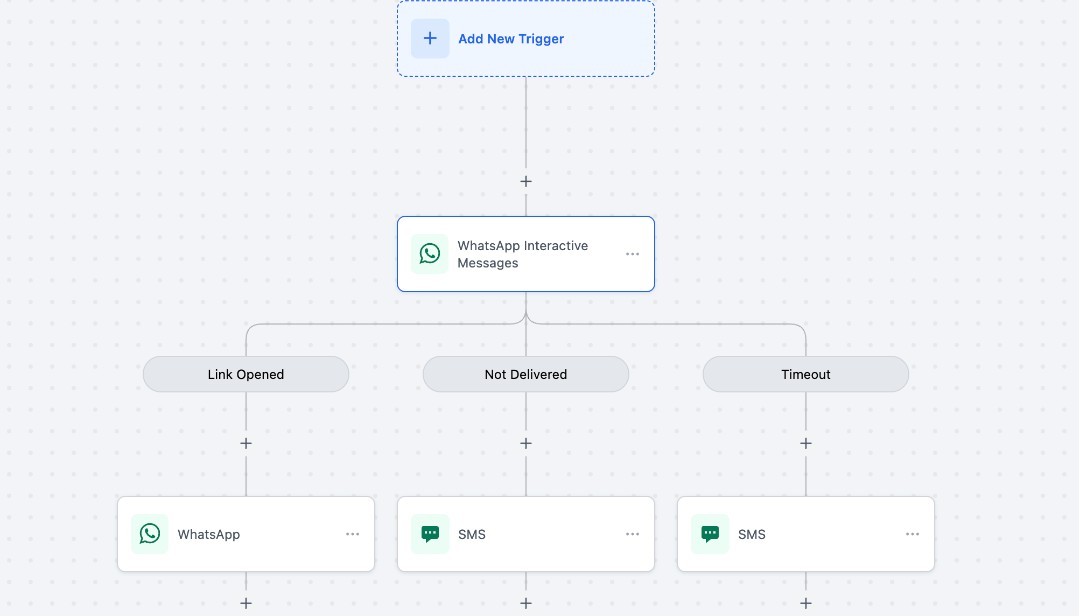
The WhatsApp Interactive Messages action is a workflow action that allows businesses to send interactive WhatsApp experiences directly from GoHighLevel workflows.
Instead of sending only plain text, you can configure different interactive message types depending on what you want the customer to do.
GoHighLevel currently supports Quick Reply Buttons, Location, Contact, List, and Visit Website CTA interactive messages through this action.
For example, a business could send:
How would you like to continue?
Book Appointment | Ask a Question | View Services
The customer can simply tap the appropriate option rather than typing a response manually.
This can make conversations faster and easier to manage while giving the business clearer information about what the customer wants.
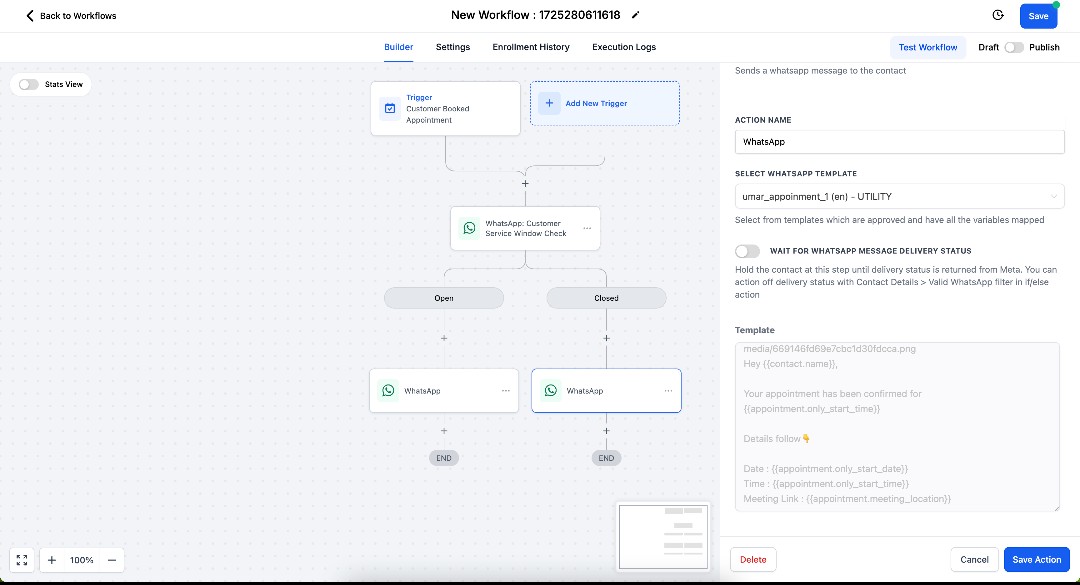
Check the WhatsApp Customer Service Window
Before sending an interactive WhatsApp message, it is important to check whether the 24-hour Customer Service Window is open.
When a WhatsApp user sends a message to your business, a 24-hour customer service window begins. During this window, interactive WhatsApp messages can be sent as part of the service conversation.
GoHighLevel provides two ways to handle this.
You can use the Customer Replied trigger with the reply channel set to WhatsApp, or you can use the WhatsApp: Customer Service Window Check action before sending the interactive message.
If the window is closed, the appropriate Marketing or Utility Template should be used to reopen communication rather than simply attempting to send an interactive service message.
How to Add the WhatsApp Interactive Messages Action
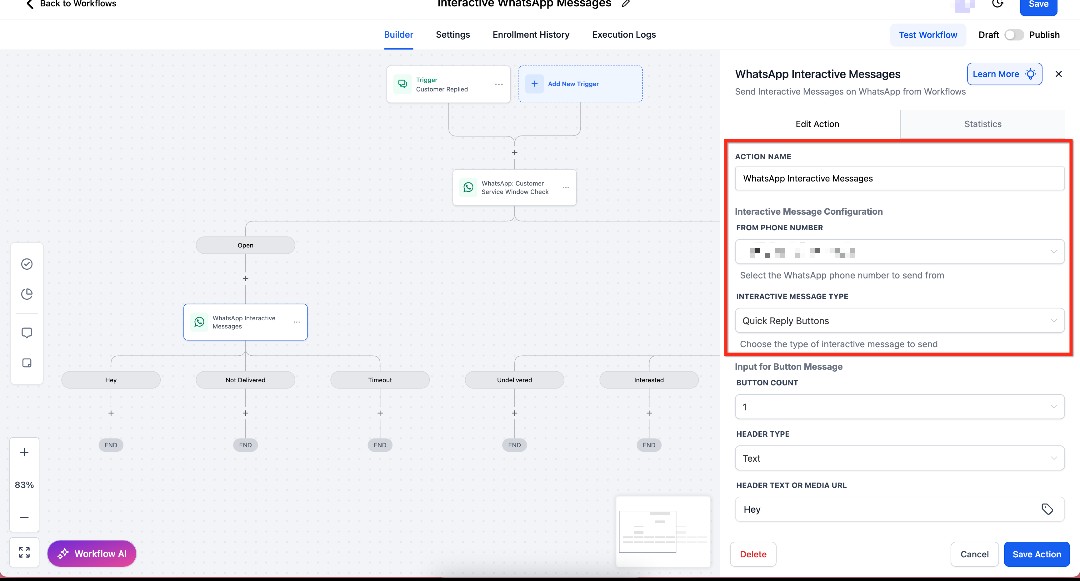
Open your GoHighLevel workflow and choose where the interactive message should be sent.
Click the plus (+) button to add a workflow action and select WhatsApp Interactive Messages.
You can rename the action to make the workflow easier to understand.
Next, select the From Phone Number and choose the interactive message type you want to use. GoHighLevel provides several interactive options depending on the customer experience you want to create.
The message type you choose will determine the configuration fields available inside the action.
Use Quick Reply Buttons for Simple Choices
Quick Reply Buttons are useful when you want customers to choose from a small number of predefined responses.
GoHighLevel allows up to three quick-reply buttons in an interactive message.
For example:
Would you like to book a consultation?
Yes, Book It
Maybe Later
Talk to Someone
Each response can then be connected to a different workflow branch.
This is useful for lead qualification, appointment booking, customer support, event confirmation, and similar processes.
Use List Messages for Multiple Options
List Messages are useful when customers need to choose from several options. Instead of displaying several separate messages, you can organize choices into sections and rows.
For example, a business could send:
What would you like help with?
Services
* Book a Consultation
* View Pricing
* Ask a Question
Support
* Existing Order
* Technical Support
GoHighLevel allows multiple sections and rows to be configured within a List message. Each selection can then lead to a different workflow branch.
This makes List Messages particularly useful for service menus, product categories, appointment options, and customer support journeys.
Send Locations Directly Through WhatsApp
The Location message type can be useful when customers need to find a business, event venue, office, or other physical location.
You can configure the location using the business name, address, latitude, and longitude. WhatsApp then presents the customer with a location card and map preview.
This can be especially helpful after an appointment is booked or when a customer asks where an event or meeting will take place.
Always verify the latitude and longitude before publishing the workflow because incorrect coordinates can place the map pin in the wrong location.
Add a Website Call-to-Action
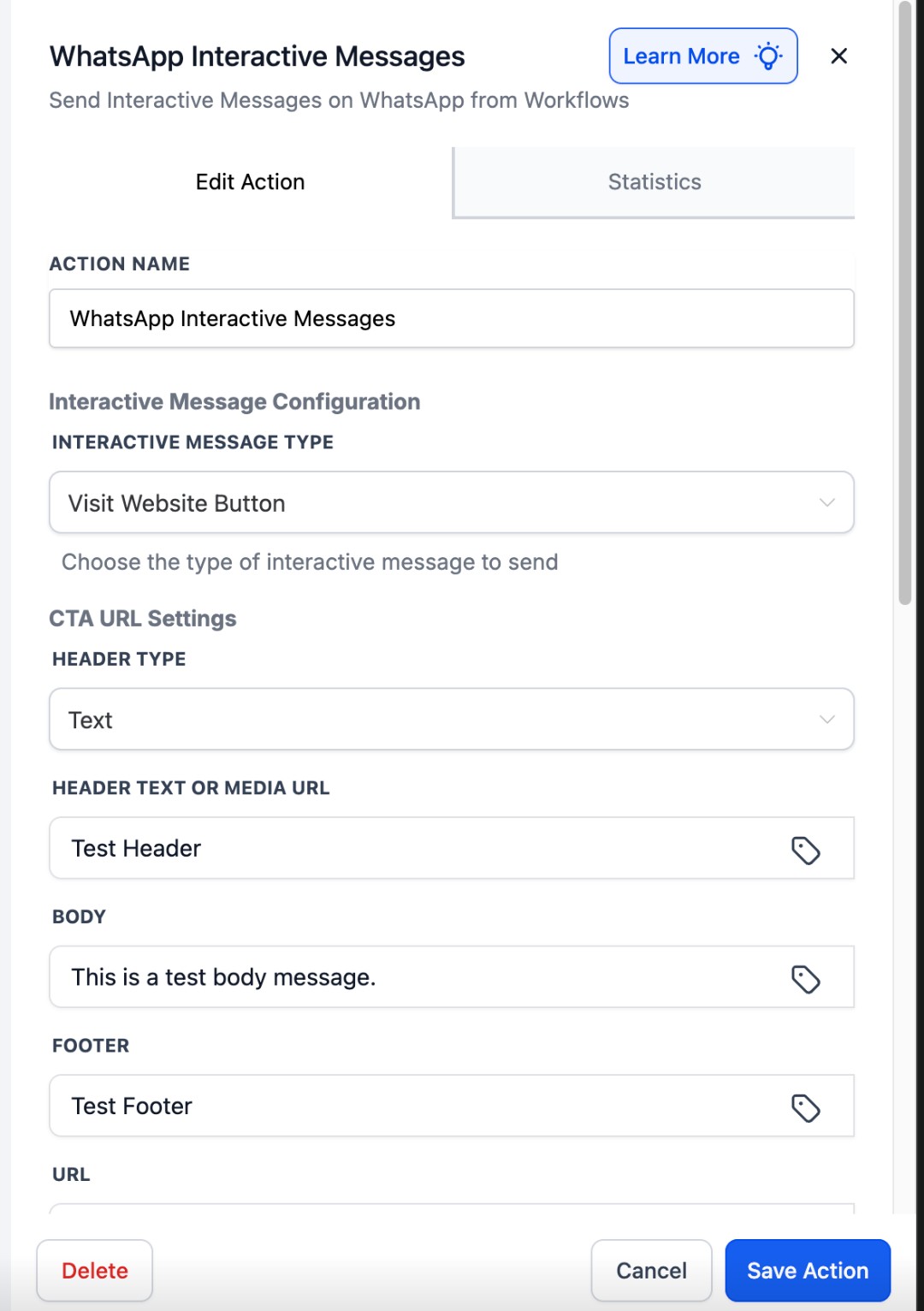
The Visit Website Button provides another way to move customers from WhatsApp to a website or landing page.
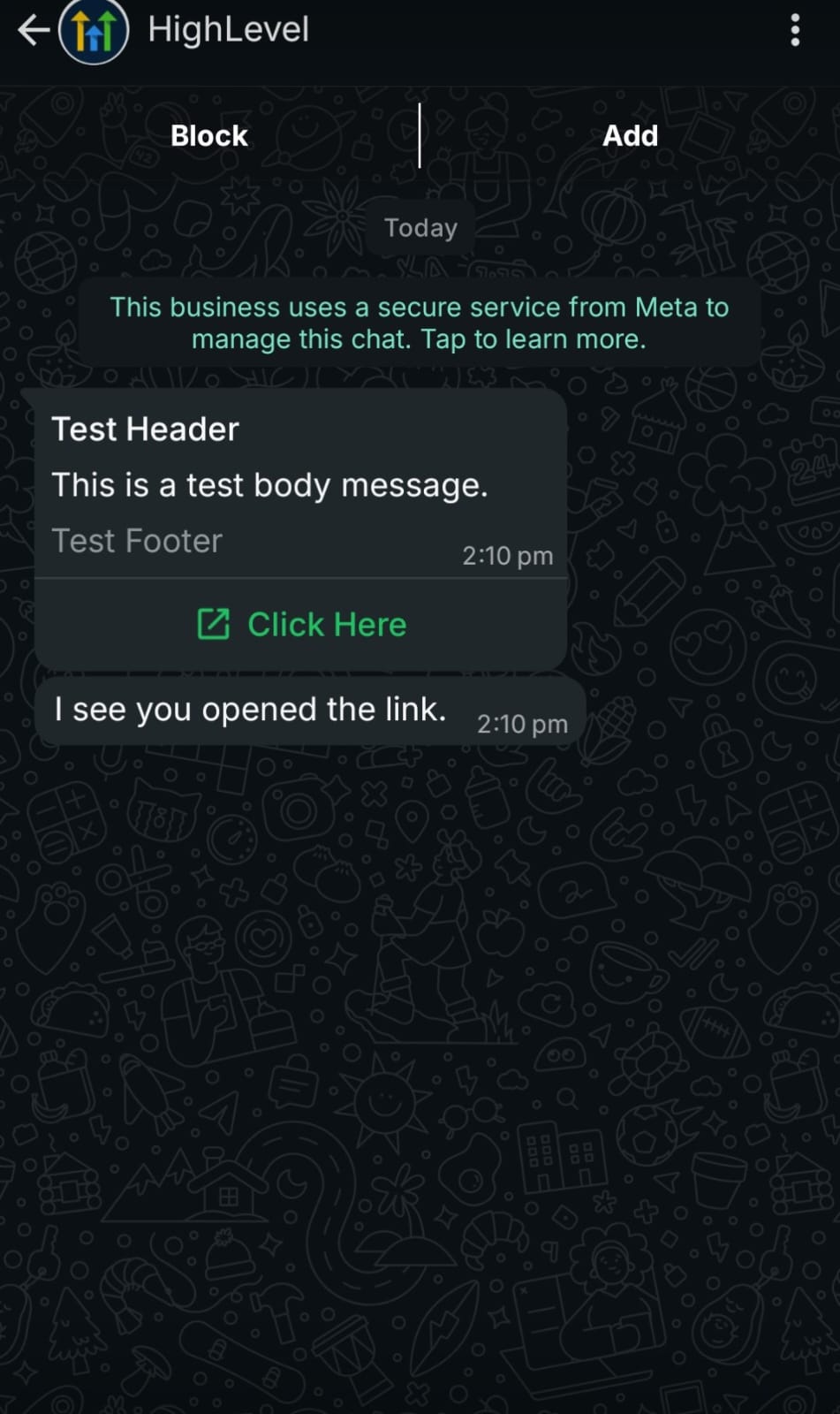
You can configure a header, message body, footer, destination URL, and button text. The button opens the specified URL in the customer's default browser.
For example:
Ready to book your consultation?
Tap below to choose your time.
[Book Now]
You can also personalize URLs using CRM variables. HighLevel provides examples where contact information and custom values are dynamically inserted into a URL.
Test Before Publishing
Before activating your workflow, send a test message and verify the complete customer experience.
Check that:
* The correct WhatsApp number is being used.
* The message content is accurate.
* Buttons and list options display correctly.
* Links open the correct destination.
* Location coordinates point to the correct place.
* Contact information is correct.
* Timeout settings work as intended.
* Workflow branches lead to the correct next steps.
HighLevel specifically recommends saving and testing interactive messages before putting the workflow into use.
Best Practices for Interactive WhatsApp Messages
Keep the message body concise so customers can easily see the interactive options.
Use Quick Reply Buttons when there are only a few choices.
Use List Messages when customers need to choose from several organized options.
Use Location messages when directions or a physical venue are important.
Use Contact messages when a customer needs a representative's information.
Use Visit Website buttons when you want to send customers to booking, payment, or other web pages.
Use CRM variables when a URL or message needs to be personalized.
Always use the Customer Service Window Check when appropriate and make sure the required 24-hour WhatsApp window is open. If it is closed, HighLevel says a Marketing or Utility Template should be used to reopen the conversation.
Conclusion
The WhatsApp Interactive Messages action gives GoHighLevel users a more engaging way to communicate with customers through automated workflows.
Instead of relying only on text replies, businesses can provide quick buttons, structured lists, locations, contact cards, and website CTAs. These options can make customer interactions faster while also giving workflows clearer information about what each customer wants.
The key is to choose the interactive message type that matches the customer journey. Keep the choices simple, test every branch, and make sure your WhatsApp customer service window and messaging setup are configured correctly.
Frequently Asked Questions
1. What interactive message types are available?
GoHighLevel supports Quick Reply Buttons, Location, Contact, List, and Visit Website Button message types.
2. How many Quick Reply Buttons can I add?
You can add up to three Quick Reply Buttons in an interactive message.
3. Can I send a location through WhatsApp?
Yes. The Location message lets you provide a business name, address, latitude, and longitude.
4. Can interactive messages contain website links?
Yes. The Visit Website Button allows customers to tap a button that opens a specified URL in their browser.
5. How long can an interactive message remain active?
The available timeout range is generally 5 minutes to 2 days, depending on the interactive message type.
Need Expert Help with GoHighLevel?
New to GoHighLevel and ready to get started? Buy your GoHighLevel account here and launch with confidence.
Already know what you need and want our team to handle everything, from complete setup and customization to funnels, workflows, automations, CRM, and pipelines? Click here.



