

User Reply Automation
GoHighLevel Wait Step Now Supports User Replies for Smarter Workflow Automation
Introduction
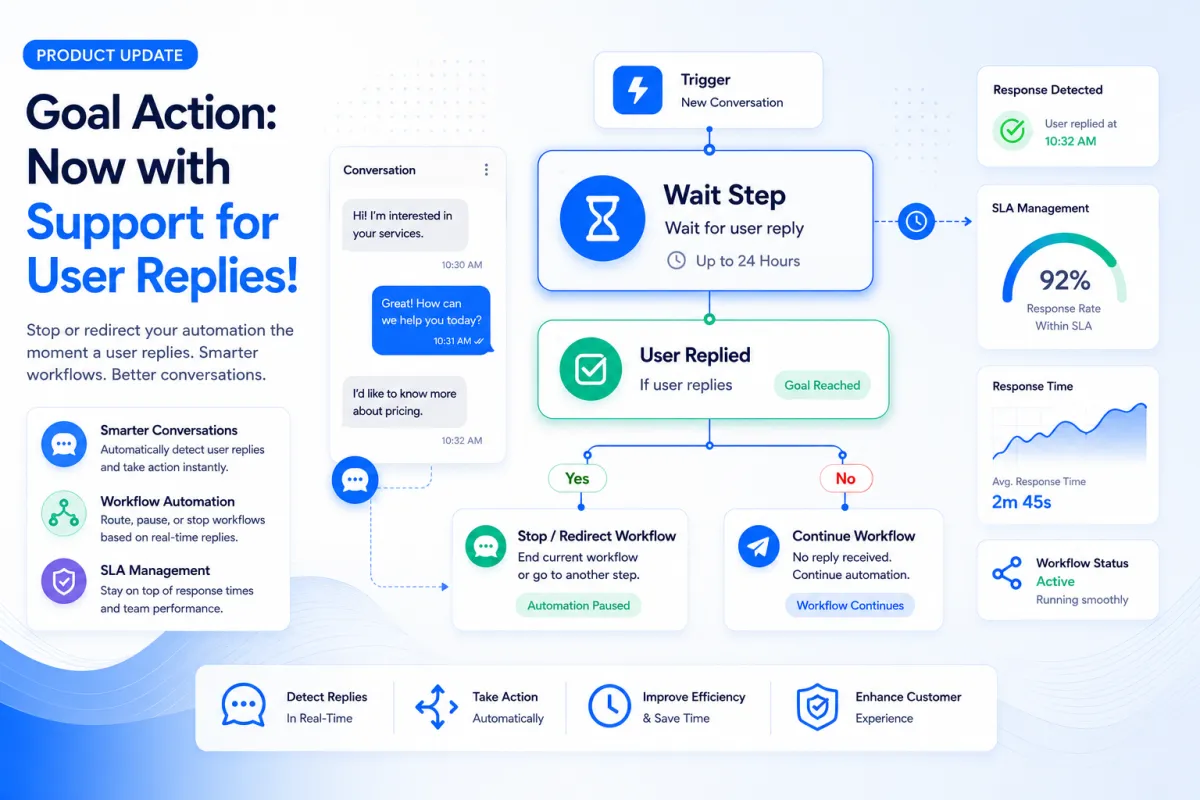
GoHighLevel continues to improve its Workflow Automation capabilities with a practical enhancement to the Wait Step. This latest GoHighLevel Update introduces support for User Replied as a new wait condition, giving businesses more control over how workflows progress based on team responses.
For sales and support teams, response time plays an important role in delivering a smooth customer experience. Keeping track of whether a team member has responded can often require manual monitoring or additional workflow logic. With this new improvement, GoHighLevel makes it easier to automate response tracking and keep workflows moving at the right time.
In this article, we'll explore what's new, how the feature works, how to use it, why it was introduced, and the official examples shared by GoHighLevel.
What's New?
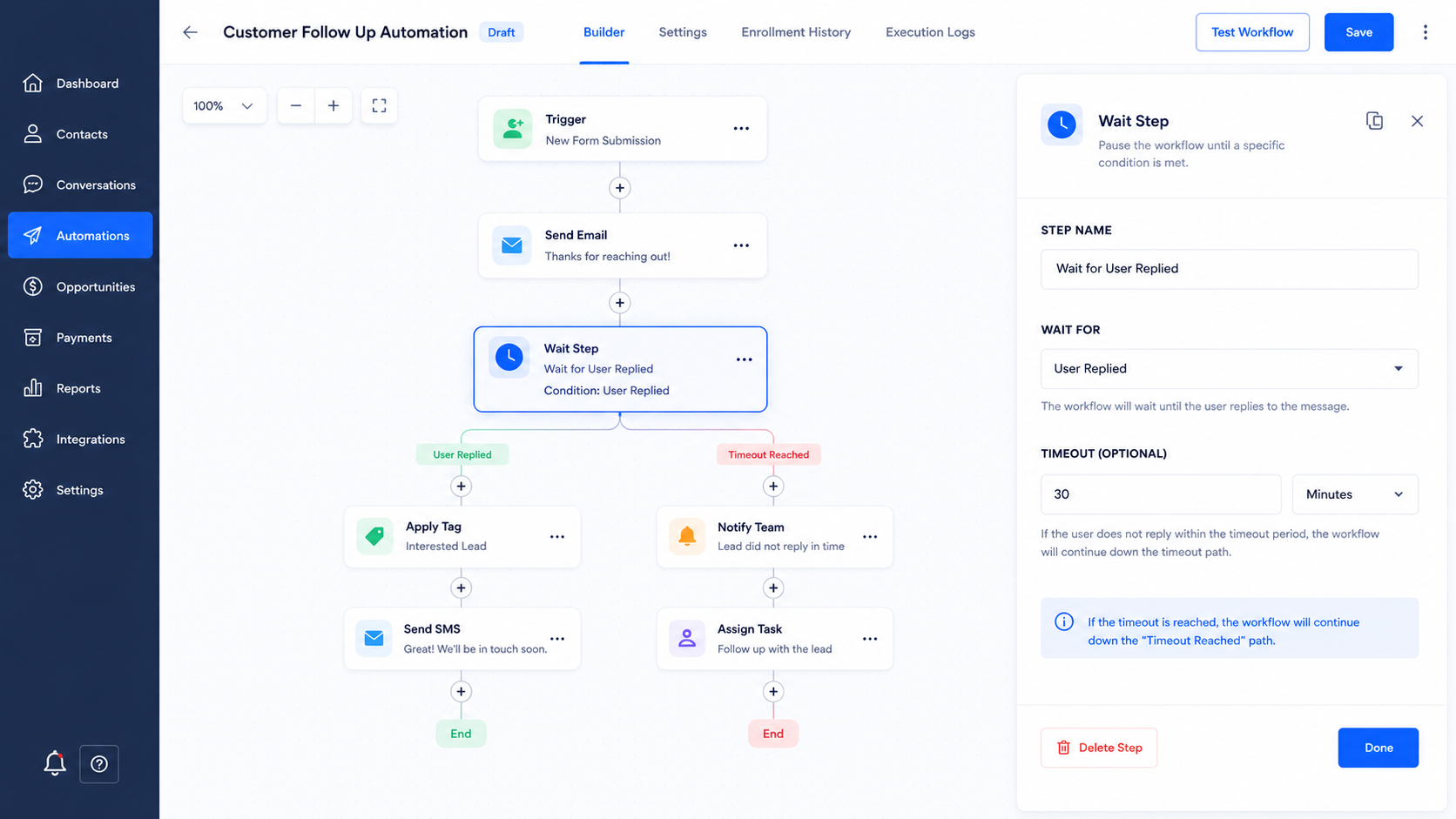
The Wait Step in GoHighLevel Workflow Automation now supports User Replied as a wait condition.
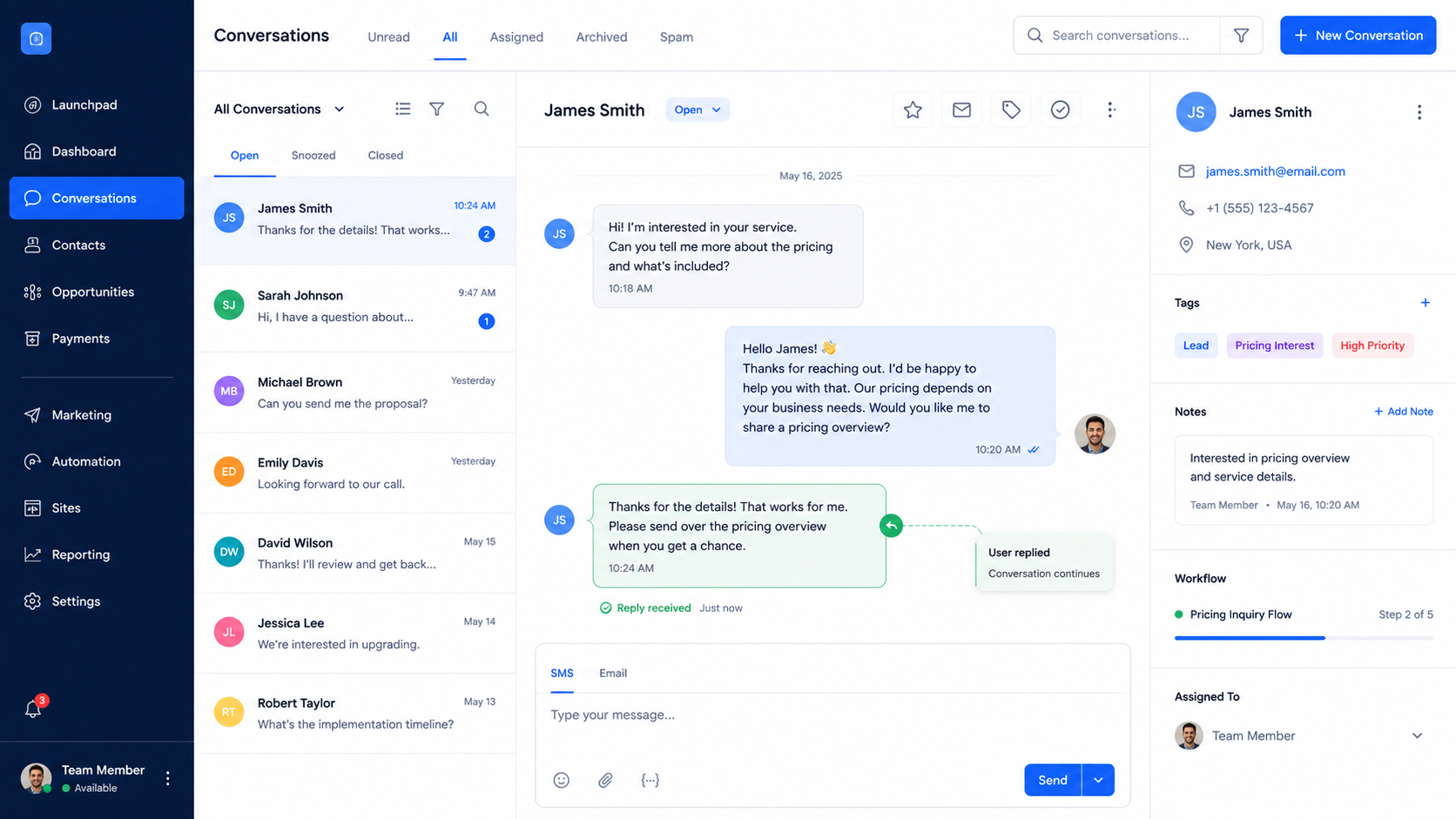
Previously, workflows could wait for a contact to reply before continuing. With this enhancement, workflows can also pause until a team member (user) replies to the conversation.
This allows workflow progress to depend on an internal user response rather than only a contact response. When combined with the optional timeout setting, the Wait Step can also support response-time tracking by allowing workflows to continue through escalation actions if a user reply is not sent within the configured time.
This update gives businesses a more streamlined way to manage response-based automations while reducing the need for more complex workflow configurations.
How It Works
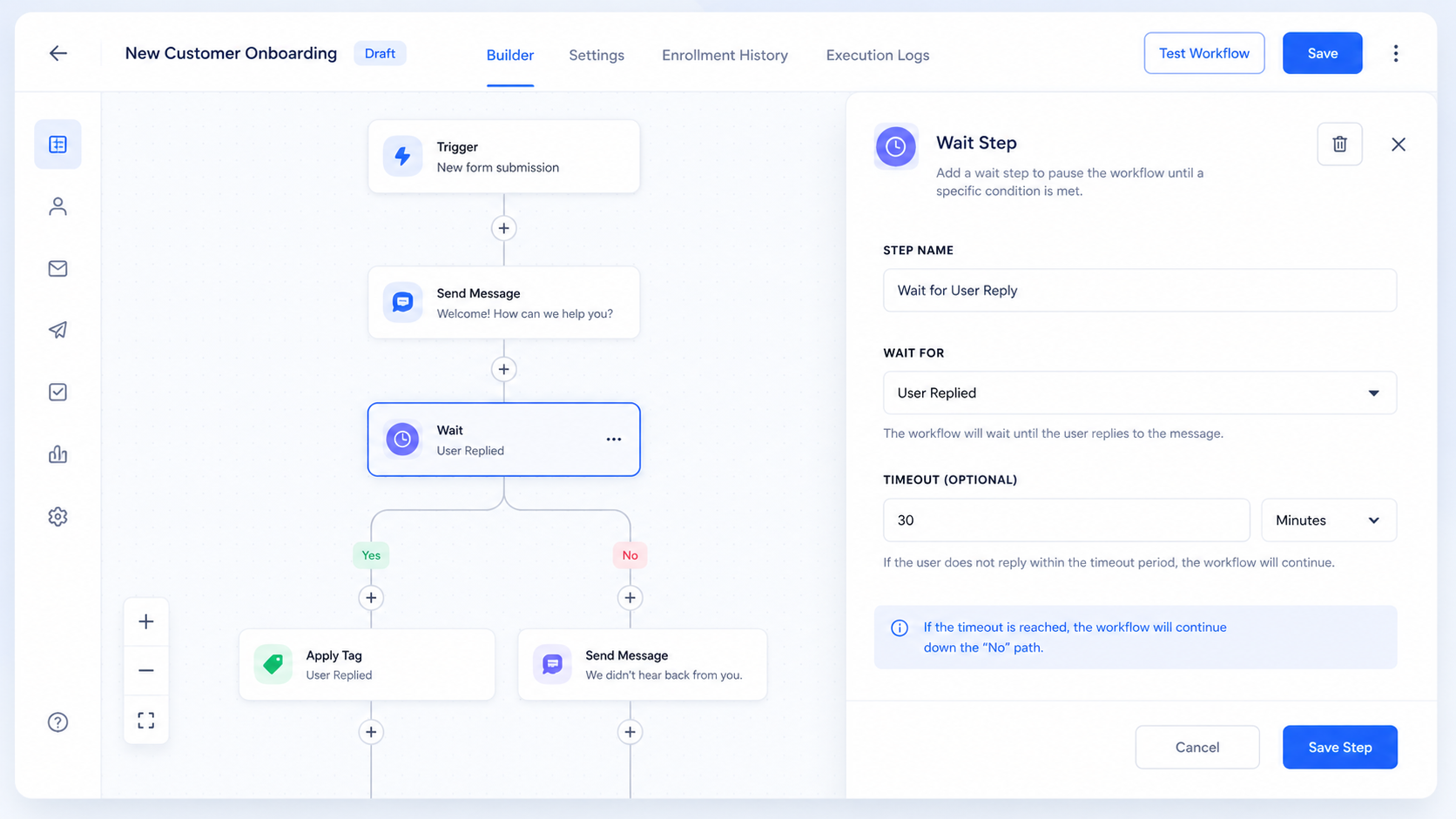
Using the new User Replied condition is straightforward within a GoHighLevel workflow.
Start by configuring a Wait action in your workflow. Then select User Replied as the wait condition. If needed, you can also configure an optional timeout.
Once configured, the workflow pauses and waits for one of two events:
A user replies to the conversation.
The configured timeout is reached.
If a user reply is detected before the timeout expires, the workflow immediately continues to the next step.
If the timeout happens first, the workflow can continue through escalation actions such as notifications, reminders, or reassignment.
This behavior makes it easier to automate response tracking while allowing workflows to handle missed response targets automatically.
How to Use It
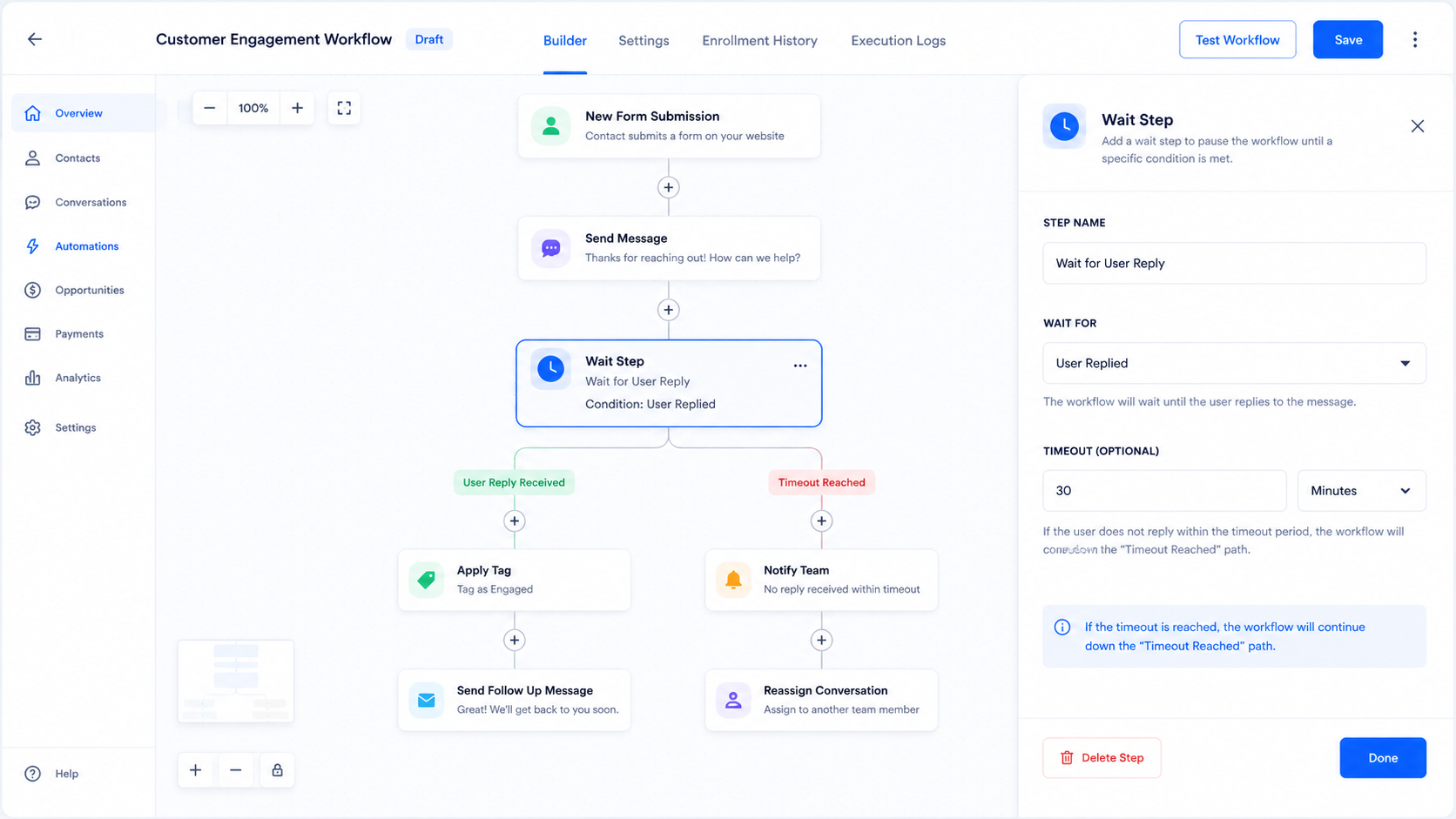
Setting up the feature follows a simple process within GoHighLevel Workflow Automation.
Add a Wait action to your workflow.
Select User Replied as the wait condition.
Configure an optional timeout if required.
Decide what should happen after either:
A user replies, or
The timeout expires.
This flexible setup allows workflows to continue immediately after a user response or follow a separate path if the configured response time is exceeded.
Why GoHighLevel Introduced This Update
According to the official update, this enhancement was designed to help sales and support teams manage first response SLAs more effectively.
The new User Replied wait condition helps by:
Automating response tracking.
Reducing manual monitoring.
Automatically escalating conversations when response targets are missed.
Eliminating the need for complicated workflow logic.
Instead of relying on additional workflow steps or manual checks, teams can allow the Wait Step to monitor user responses and continue the workflow based on the configured conditions.
This creates a simpler and more efficient approach for organizations that want to automate response-time management within their workflows.
Practical Use Cases
GoHighLevel provided two official examples that demonstrate how the new Wait Step enhancement can be used.
Support Example
A support workflow waits up to 30 minutes for User Replied.
If an agent replies within the defined SLA, the workflow continues normally.
If the timeout is reached before a user reply is detected, the workflow alerts a supervisor and reassigns the conversation.
This example demonstrates how Support Automation can help manage first-response SLAs while automatically handling conversations that exceed the target response time.
Sales Example
A sales workflow waits 15 minutes for a representative to reply to a new lead.
If no reply is sent before the timeout expires, the workflow creates an urgent task and notifies the sales manager.
This example shows how Sales Automation can help monitor response targets and trigger follow-up actions whenever the expected response window is missed.
Additional Notes
There are a few important behaviors to understand when using this update.
When a user reply is sent, the contact immediately resumes through the workflow without waiting any longer.
Similarly, if a timeout has been configured and that timeout is reached first, the workflow also resumes immediately and follows the actions configured after the timeout.
If no timeout is configured, the workflow simply waits until a user reply is received before continuing.
According to the official update, this enhancement is particularly well suited for:
First-response SLAs
Escalation workflows
Internal response-time automations
These scenarios benefit from having workflows automatically monitor user responses and continue based on either the reply or the configured timeout.
Conclusion
The latest GoHighLevel Update adds valuable flexibility to the Wait Step by introducing support for User Replied as a wait condition. With this enhancement, GoHighLevel Workflow Automation can pause until a team member responds or until an optional timeout is reached, allowing workflows to continue based on clearly defined conditions.
By automating response tracking, reducing manual monitoring, supporting automatic escalation when response targets are missed, and simplifying workflow logic, this update helps sales and support teams manage first-response SLAs more efficiently. Whether used for SLA Automation, Support Automation, or Sales Automation, the new User Replied condition provides a straightforward way to build response-aware workflows using the functionality described in the official GoHighLevel update.
Watch This GoHighLevel Update in Action
Want a quick overview of this new GoHighLevel feature? We’ve created a short video explaining the update, its benefits, and how you can use it effectively.
Click below to watch the video and stay ahead with the latest GoHighLevel updates.
Need Expert Help with GoHighLevel?
New to GoHighLevel and ready to get started? Buy your GoHighLevel account here and launch with confidence.
Already know what you need and want our team to handle everything, from complete setup and customization to funnels, workflows, automations, CRM, and pipelines? Click here.



