

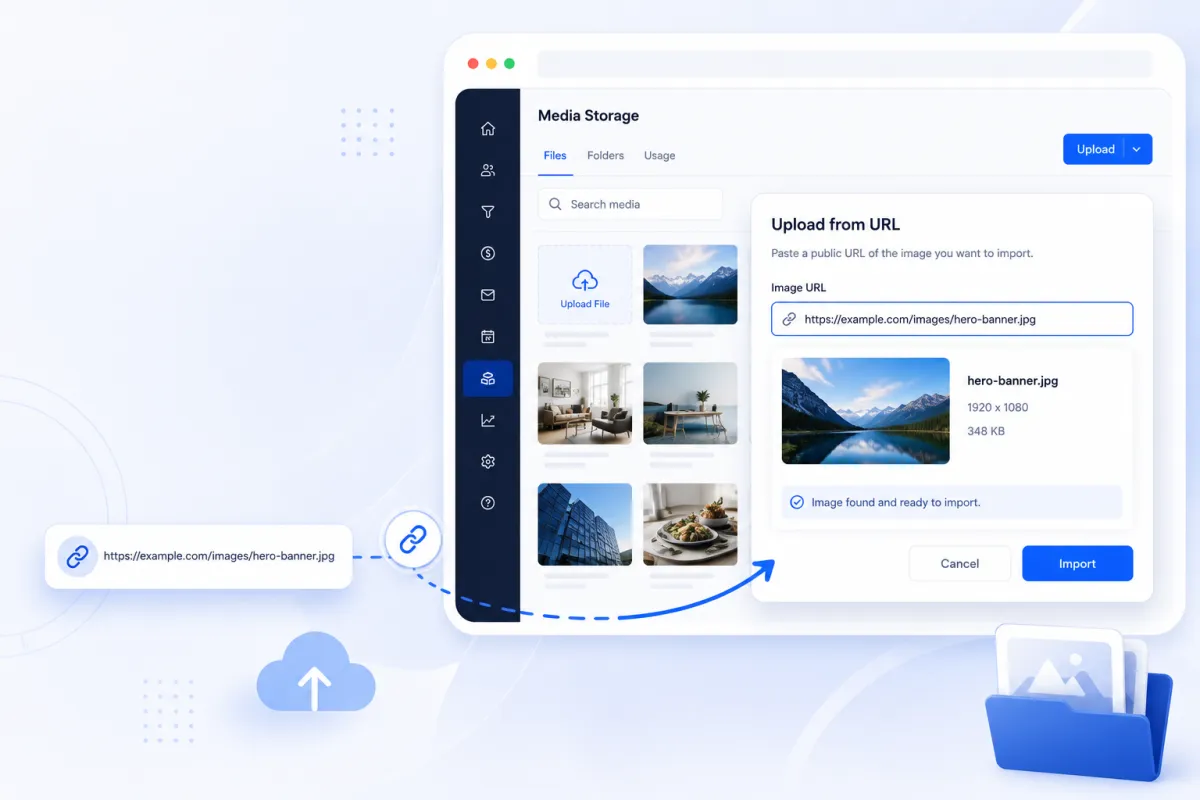
URL Image Upload
GoHighLevel Update: Upload Images Directly From URL to Media Storage
Simplify Your Workflow with GoHighLevel's New Upload from URL Feature
Managing images is a routine part of building funnels, websites, email campaigns, and other marketing assets inside GoHighLevel. Until now, adding an image from another online source required an extra step, you had to download the image to your computer before uploading it into GoHighLevel Media Storage.
The latest GoHighLevel update removes that unnecessary step with the new Upload Images Directly From URL feature. Instead of downloading image files first, users can now import images directly into their Media Storage using a publicly accessible image URL.
Whether you're a marketing agency managing multiple client assets, a funnel builder collecting creative resources, or a business owner maintaining your brand library, this update makes media management faster and more efficient while keeping the import process secure through built-in validation and copyright confirmation.
Let's take a closer look at what this new GoHighLevel feature offers and why it matters.
What's New?
The new Upload Images Directly From URL feature allows users to import images into GoHighLevel Media Storage using a public image link instead of manually downloading and re-uploading the file.
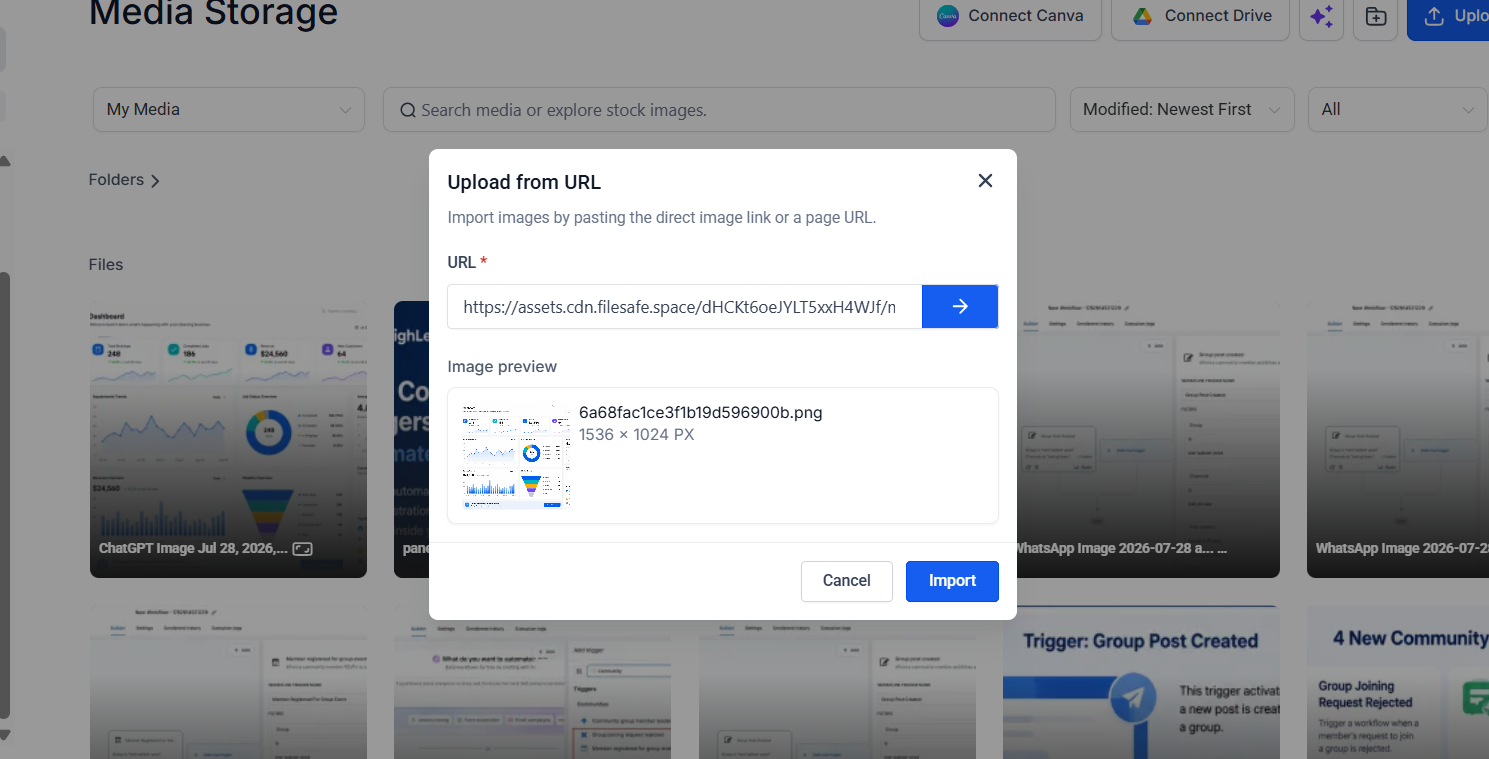
After entering a valid public image URL, GoHighLevel retrieves the image information, displays a preview, and allows users to import it directly into their current Media Storage folder.
Once imported, the image behaves just like any other file uploaded to Media Storage, making it easy to organize and use throughout your GoHighLevel account.
This enhancement streamlines one of the most common content management tasks while reducing unnecessary manual work.
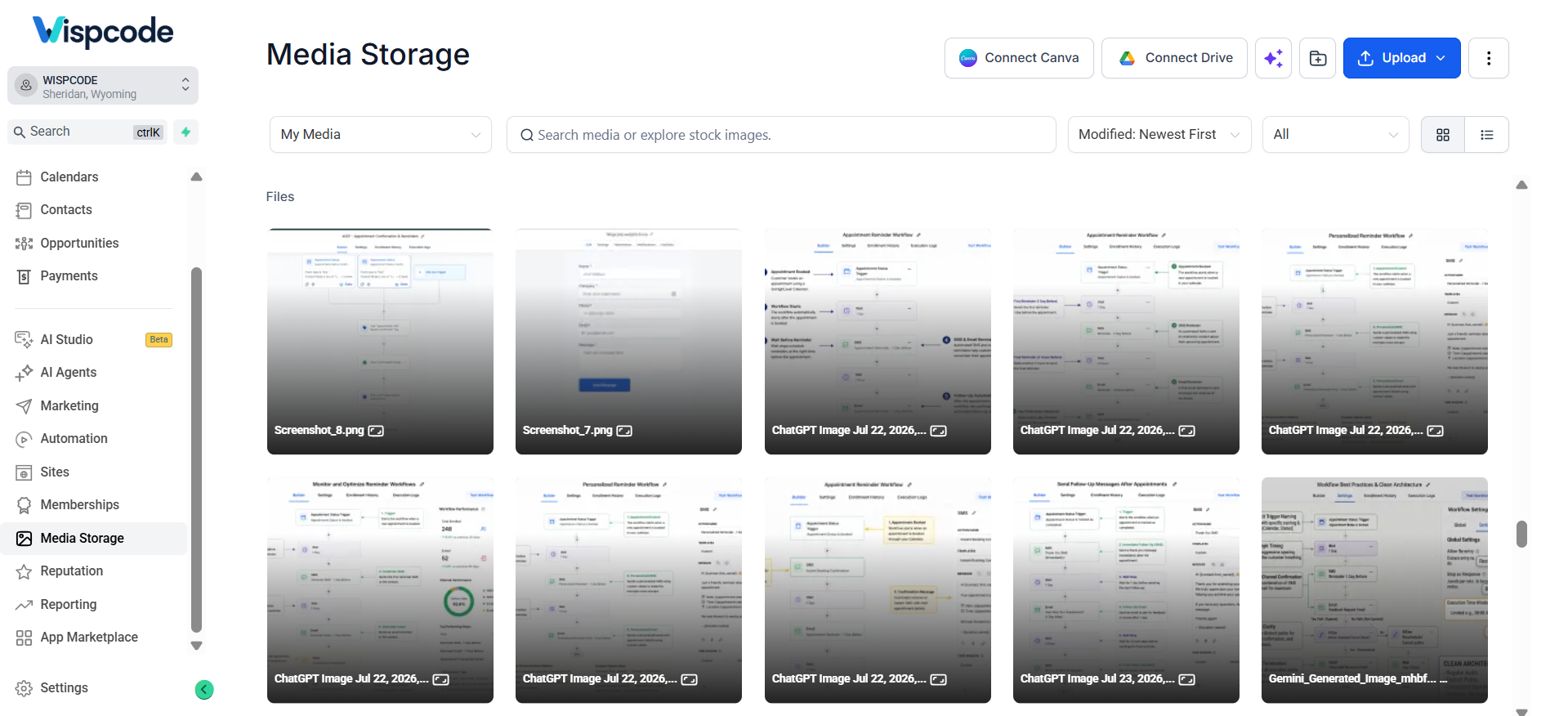
What Problems Does This Update Solve?
Before this update, adding an online image involved several manual steps:
Locate the image online.
Download it to your computer.
Open GoHighLevel Media Storage.
Upload the downloaded file.
Wait for the upload to complete.
Although simple, repeating this process throughout the day could become time-consuming, especially for agencies managing multiple client accounts or marketers working with large content libraries.
The new upload images from URL capability removes these extra steps by allowing users to import supported public images directly into Media Storage.
This creates a smoother workflow while helping teams move from finding an image to using it much more quickly.
Key Features and Improvements
The new GoHighLevel feature introduces several improvements that make image importing more convenient and reliable.
Upload Images Directly from Public URLs
Users can paste a publicly accessible image link and import the image without first saving it to their device.
This makes it easier to bring in assets from:
Public CDNs
Shared image links
Stock photo libraries
Other publicly accessible image sources
Preview Images Before Importing
Before adding the image to Media Storage, GoHighLevel displays a thumbnail preview.
This allows users to verify they selected the correct image before completing the import process, reducing mistakes and unnecessary uploads.
Automatic Image Information Detection
GoHighLevel automatically retrieves useful file information from the provided image source, including:
File name
Image dimensions
Displaying these details before importing helps users confirm the image they intend to add.
Built-In Validation
The platform performs validation checks before importing the image.
Users receive immediate feedback if the provided URL is invalid or if the image cannot be imported because of unsupported file formats or oversized files.
This helps prevent failed uploads and provides a smoother user experience.
Copyright Confirmation
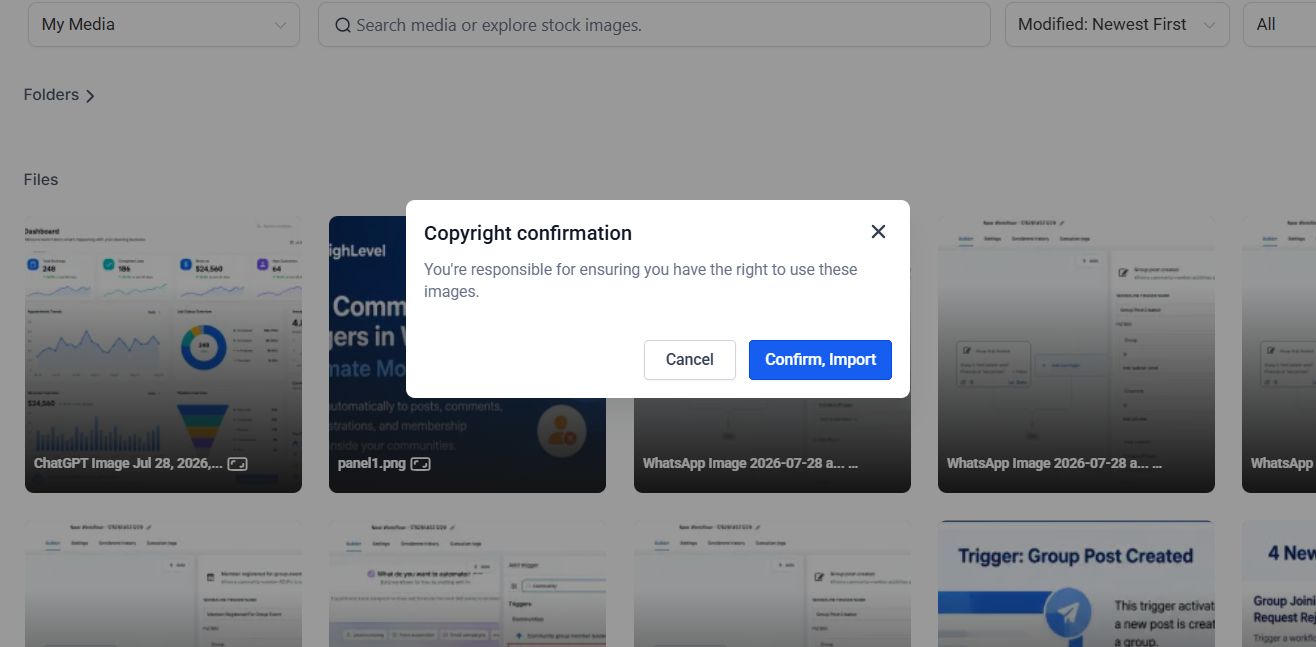
Before completing the import, users must confirm that they have permission to use the selected image.
This reminder encourages responsible use of online assets and ensures users acknowledge their ownership or usage rights before adding images to their Media Storage.
Seamless Media Library Management
Imported images are automatically saved into the currently selected Media Storage folder.
Once imported, they function like any other uploaded image, making organization simple and consistent.
How to Use Upload from URL in GoHighLevel Media Storage
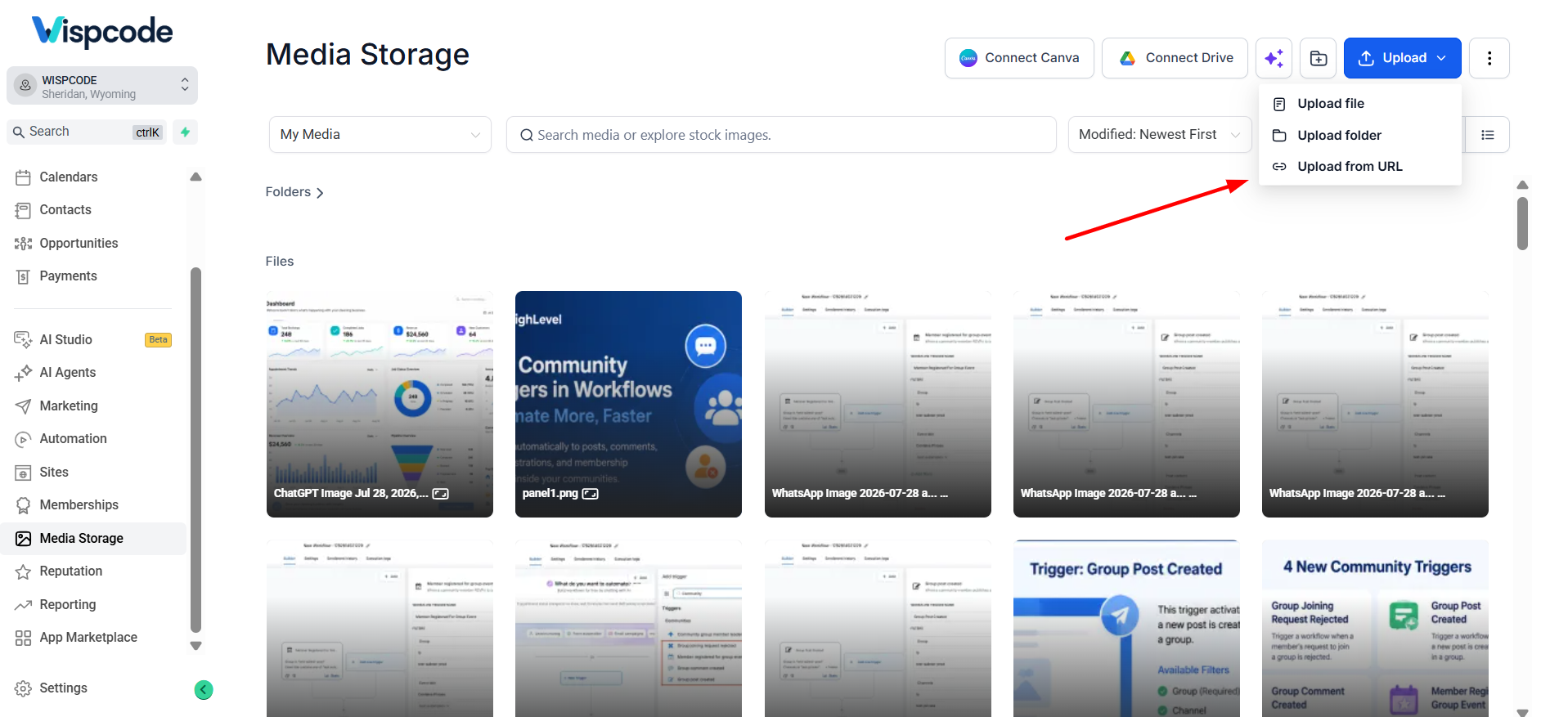
Using the feature is straightforward.
Step 1: Open Media Storage
Navigate to your GoHighLevel Media Storage area.
Step 2: Select Upload from URL
Click the Upload button and choose Upload from URL.
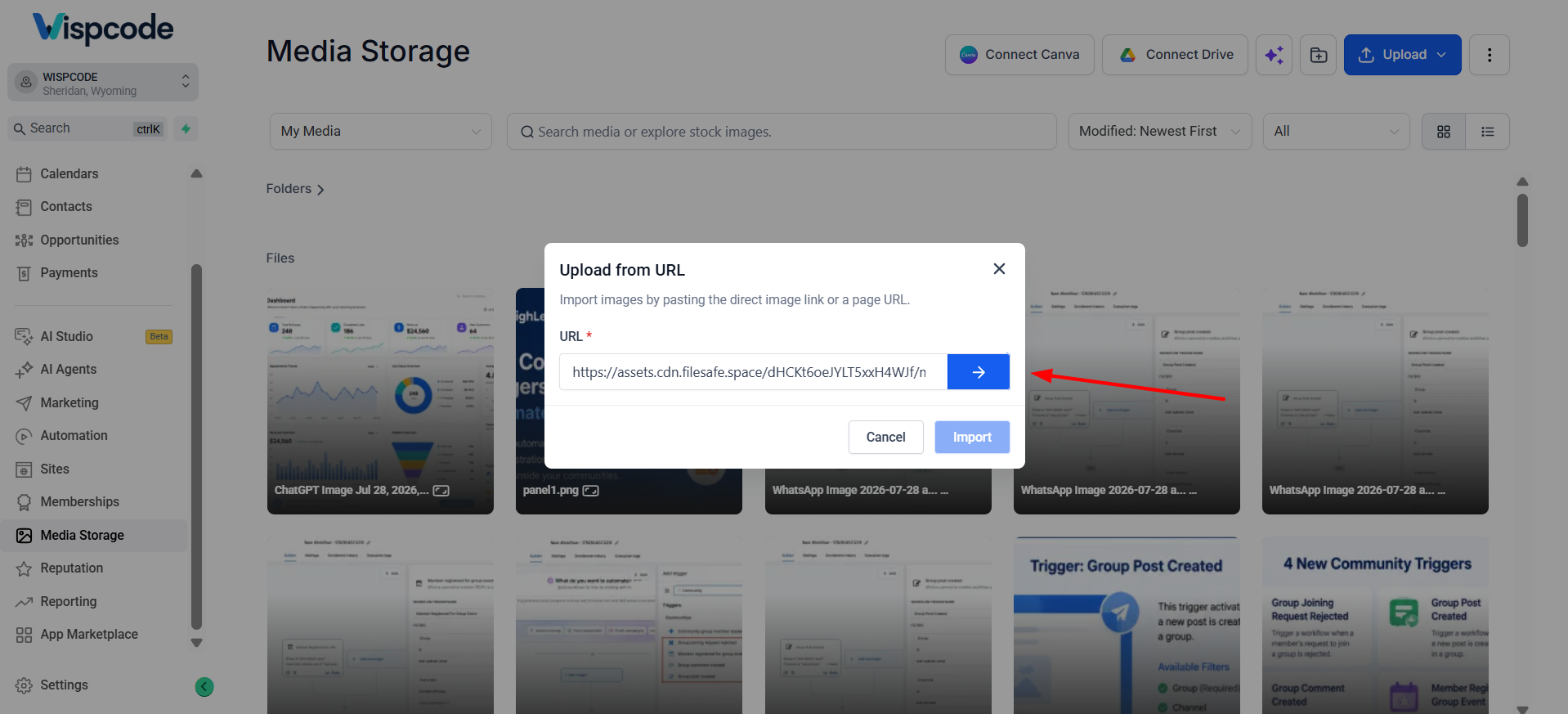
Step 3: Paste the Image URL
Copy a publicly accessible image URL and paste it into the provided field.
Then click the arrow button to continue.
Step 4: Review the Image
GoHighLevel displays:
Image preview
File name
Image dimensions
Review the information to ensure it is the correct image.
Step 5: Import the Image
Click Import to continue.
Step 6: Confirm Copyright Permission
Before the import is finalized, confirm that you have permission or the appropriate rights to use the image.
Step 7: Access Your Imported Image
After confirmation, the image is added to your current Media Storage folder and is ready for use just like any standard uploaded image.
Benefits for Agencies and Businesses
This GoHighLevel update offers practical benefits for a wide range of users.
Marketing Agencies
Agency teams frequently collect creative assets from clients, shared resources, and publicly available image libraries. Importing images directly from a URL removes repetitive download-and-upload steps, helping teams organize assets more efficiently.
Funnel Builders
When creating landing pages or sales funnels, designers often gather visuals from approved public sources. The new workflow makes it easier to bring those images into GoHighLevel Media Storage without interrupting the design process.
Business Owners
Businesses maintaining websites, promotions, or marketing campaigns can quickly add approved online images to their media library while keeping everything organized in the correct folder.
Marketing Teams
Teams working across multiple campaigns benefit from a faster content management process, allowing them to move assets into GoHighLevel more efficiently and focus on building campaigns instead of handling repetitive file management.
Frequently Asked Questions (FAQs)
1. What is GoHighLevel Upload Images from URL?
It allows users to import images into Media Storage directly from a public image URL without downloading files first.
2. How do I upload an image from a URL in GoHighLevel?
Open Media Storage → Click Upload → Select Upload from URL → Paste the image link → Review and Import.
3. What image details does GoHighLevel detect?
GoHighLevel automatically detects the image file name and dimensions before import.
4. Do I need permission to import images?
Yes, users must confirm they have permission or usage rights before importing images.
5. Where are imported images saved?
Imported images are saved in the selected Media Storage folder and work like regular uploads.
Final Thoughts
The Upload Images Directly From URL feature is a practical improvement that simplifies one of the most common tasks inside the GoHighLevel automation platform. By allowing users to import images directly from publicly accessible URLs, GoHighLevel eliminates unnecessary manual downloads while providing image previews, automatic file information, built-in validation, and copyright confirmation before import.
Although the workflow change may seem small, it can save valuable time for agencies, marketers, funnel builders, and businesses that regularly manage digital assets inside the platform.
As GoHighLevel continues enhancing its CRM and marketing platform, improvements like this help create a smoother, more efficient experience for everyday users. If your workflow regularly involves adding online images to campaigns, funnels, or websites, this new feature makes the process quicker, simpler, and more organized.
Watch This GoHighLevel Update in Action
Want a quick overview of this new GoHighLevel feature? We’ve created a short video explaining the update, its benefits, and how you can use it effectively.
Click below to watch the video and stay ahead with the latest GoHighLevel updates.
Need Expert Help with GoHighLevel?
New to GoHighLevel and ready to get started? Buy your GoHighLevel account here and launch with confidence.
Already know what you need and want our team to handle everything, from complete setup and customization to funnels, workflows, automations, CRM, and pipelines? Click here.



