


GoHighLevel Update Contact Field Action Explained
How to Keep Customer Data Updated Automatically Using the Update Contact Field Action in GoHighLevel
Introduction
Customer information changes all the time. A lead may move to a different stage, provide a new preference, complete a form, or become a customer. If these changes are not reflected in the CRM, your team can end up working with outdated information.
GoHighLevel's Update Contact Field action gives you a way to automatically update information stored on a contact record as part of a workflow.
Instead of asking a team member to manually edit a contact every time something changes, you can build an automation that updates the appropriate contact field when a specific event occurs.
For example, after a lead completes a form, a workflow could update a custom field with information collected during that process. This keeps the CRM more organized and can help other workflows use the latest available customer information.
The action is especially useful when you want your automations to do more than send messages. It allows the workflow to actively maintain the data stored on the contact record.
What Is the Update Contact Field Action?
The Update Contact Field action is a GoHighLevel workflow action used to update a field on a contact record.
It can be added after a workflow trigger and other actions when you want the automation to change information stored for that contact.
For example, imagine a lead submits a form and indicates that they are interested in a particular service. A workflow can use the information from that process to update the appropriate contact field.
This means the contact record can be kept up to date without requiring someone on your team to open the CRM and make the change manually.
The action can be useful for both standard contact information and custom fields, depending on the data you need your workflow to manage.
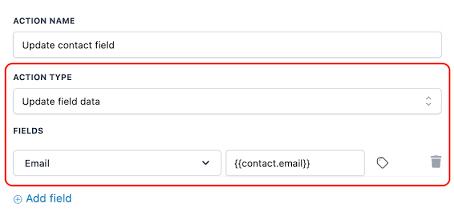
Where to Find the Update Contact Field Action
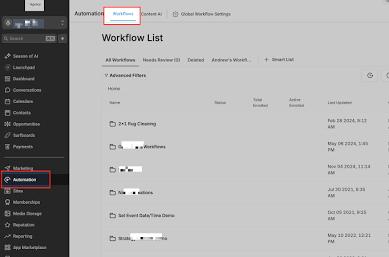
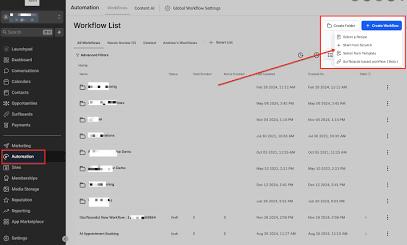
To use the action, open Automation > Workflows in your GoHighLevel account.
Create a new workflow or open an existing workflow where you want to update contact information.
After configuring your trigger, click the plus (+) icon to add a workflow action.
Search for Update Contact Field and select it.
You can then configure the contact field and the value that should be stored when the workflow reaches this step.
The trigger determines when the workflow runs, while the Update Contact Field action determines what information should be changed on the contact record.
This separation makes it possible to use the same action in many different automation scenarios.
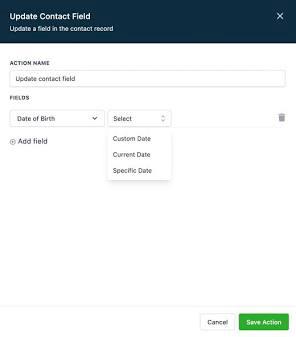
Choose the Right Contact Field
After adding the action, the next step is selecting the field that you want to update.
The field should match the information your workflow is designed to maintain.
For example, a business might have custom fields for customer preferences, lead information, service details, or other data that needs to be stored on the contact record.
Choosing the correct field is important because the workflow will write the specified value into that field when the action runs.
Before publishing your workflow, review the field selection carefully, especially if your account contains several custom fields with similar names.
Use the Action to Maintain Consistent CRM Data
One of the biggest advantages of the Update Contact Field action is consistency.
When multiple people work with the same CRM, manually updating information can lead to differences in how data is entered.
An automated workflow can apply the same rule every time the trigger conditions are met.
For example, if a particular workflow represents a completed customer onboarding step, the automation can update a contact field to reflect that status.
This gives your team a more reliable contact record and can also make it easier for other workflows to use that information later.
Use Dynamic Values When Updating Contact Fields
The Update Contact Field action becomes even more useful when the value being saved comes from information already available in the workflow.
Instead of always entering the same fixed value, you can use information from the contact or from an earlier step in the automation when the workflow setup supports it.
For example, if a customer provides information through a form, the workflow can use that information to keep the corresponding contact field updated.
This reduces duplicate data entry and helps keep information consistent across your CRM.
The important thing is to make sure the value being passed into the field matches the type of information that field is designed to store.
Build a Simple Customer Data Workflow
A basic automation can be structured like this:
Trigger → Update Contact Field → Next Workflow Action
For example, a customer completing a particular form can trigger a workflow. The automation can then update the relevant contact field and continue with another action, such as sending a confirmation message or creating a task.
This approach keeps the data update connected to the event that caused the change.
You can also use the updated information in later automation steps, depending on how the rest of your workflow is configured.
Use Custom Fields for Business Specific Information
Custom fields are particularly useful when your business needs to store information that is not covered by the standard contact fields.
For example, a company may maintain fields related to customer preferences, service details, or other information specific to its process.
The Update Contact Field action can be used to maintain these fields automatically when the appropriate workflow event occurs.
Before creating the automation, make sure the custom field already exists and has the correct purpose. Clear field names will also make your workflows easier to understand when your account contains many custom fields.
Review Your Workflow Before Publishing
Before turning the workflow on, test the complete process.
First, confirm that the trigger starts the workflow under the correct circumstances.
Then check the Update Contact Field action and make sure it is targeting the intended contact field.
Test with a contact and verify that the expected information appears correctly on the contact record.
If the workflow uses information from another step, check that the value being passed to the field is also correct.
Testing is especially important when the updated field is later used by other workflows, campaigns, or internal processes.
Conclusion
The Update Contact Field action gives GoHighLevel users a straightforward way to keep customer information updated as contacts move through automated processes.
Rather than depending entirely on manual CRM updates, businesses can connect field changes to relevant workflow events and maintain more consistent contact records.
Whether you are updating customer preferences, tracking a process milestone, maintaining custom information, or organizing data for another automation, the action can become an important part of your workflow structure.
The best results come from using clear fields, appropriate triggers, accurate values, and properly tested workflows. When these pieces work together, your CRM can stay more organized while your team spends less time making repetitive updates.
Frequently Asked Questions
1. What does the Update Contact Field action do?
It updates a selected field on a contact record when a workflow reaches that action.
2. Can I use it with custom fields?
Yes. It can be used to maintain information stored in the contact's available fields, including relevant custom fields.
3. Why should I automate contact field updates?
Automation can reduce repetitive manual data entry and help keep contact records consistent.
4. Can an updated field be used by another workflow?
Yes. Contact information maintained by one workflow can be useful to other automations, depending on how those workflows are configured.
5. Should I test the action before publishing?
Yes. Always verify that the workflow updates the intended contact field with the correct value before activating it for your customers.
Need Expert Help with GoHighLevel?
New to GoHighLevel and ready to get started? Buy your GoHighLevel account here and launch with confidence.
Already know what you need and want our team to handle everything, from complete setup and customization to funnels, workflows, automations, CRM, and pipelines? Click here.



