

GoHighLevel Transcript Generated Trigger for Lead Follow Up
How to Automate Lead Insights After a Call Transcript Is Generated Using the Transcript Generated Trigger in GoHighLevel
Introduction
A sales or support call can contain valuable information about a lead, but reviewing every conversation manually can take time. Once a call transcript is available, businesses may want to organize that information and automatically move the contact into the next stage of their follow up process.
GoHighLevel's Transcript Generated trigger is designed to start a workflow when a call or conversation transcript is created. This gives businesses a point in the workflow where they can respond to the newly available transcript and automate relevant follow up actions. ([HighLevel Support Portal][1])
For example, after a call transcript is generated, a workflow can be used to notify the appropriate team member, update the contact, add a task, or continue the lead follow up process.
The main advantage is that the workflow can begin from the transcript event itself instead of requiring someone to manually check whether a transcript has become available.
What Is the Transcript Generated Trigger?
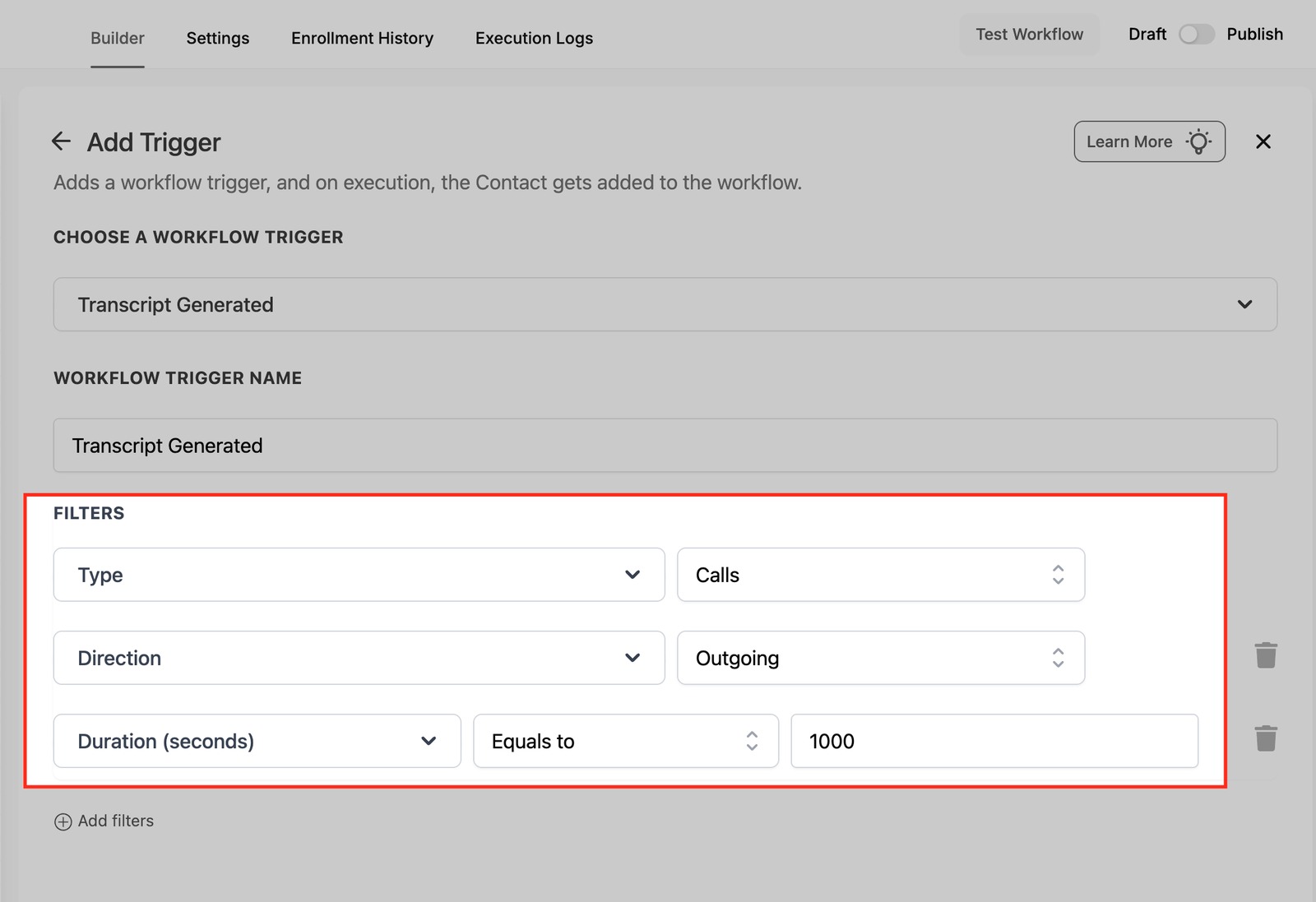
The Transcript Generated trigger is available under the Communication category in GoHighLevel's Workflow Builder.
It fires when a call or conversation transcript is created. This makes the trigger useful when the next stage of a business process depends on having a transcript available after a conversation. ([HighLevel Support Portal][1])
For example, a sales team may receive several calls from potential customers throughout the day. Once a transcript is generated, the workflow can automatically start the next part of the process.
The workflow does not have to depend on someone remembering to check the call record manually. Instead, the creation of the transcript becomes the event that starts the automation.
This can be particularly useful for businesses that want a consistent process for handling conversations after calls are completed.
How to Configure the Transcript Generated Trigger
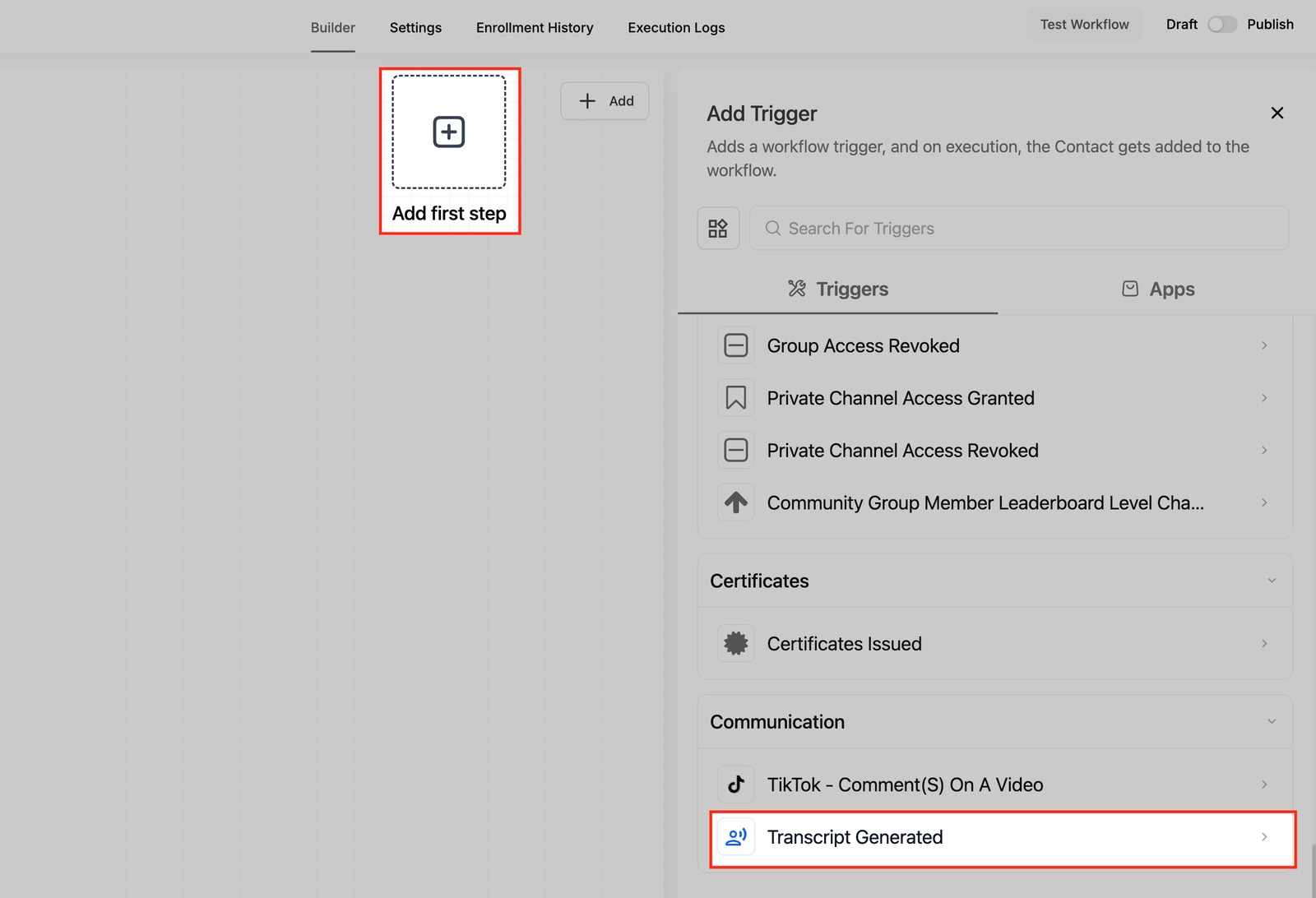
To create this type of automation, open Automation > Workflows in your GoHighLevel account.
Create a new workflow and select Add New Trigger.
Search for Transcript Generated and select the trigger from the Communication category.
Give the trigger a clear name that explains the purpose of the workflow. For example, you could call it Post Call Lead Follow Up.
After adding the trigger, review the available configuration options and make sure the workflow is designed around the event you want to automate.
Once the trigger is ready, you can add the workflow actions that should happen after the transcript is generated.
The actions you choose will depend on your process. A sales team might create a follow up task, while a support team may want to notify a specific person or update the contact record.
Turn a Generated Transcript Into a Follow Up Process
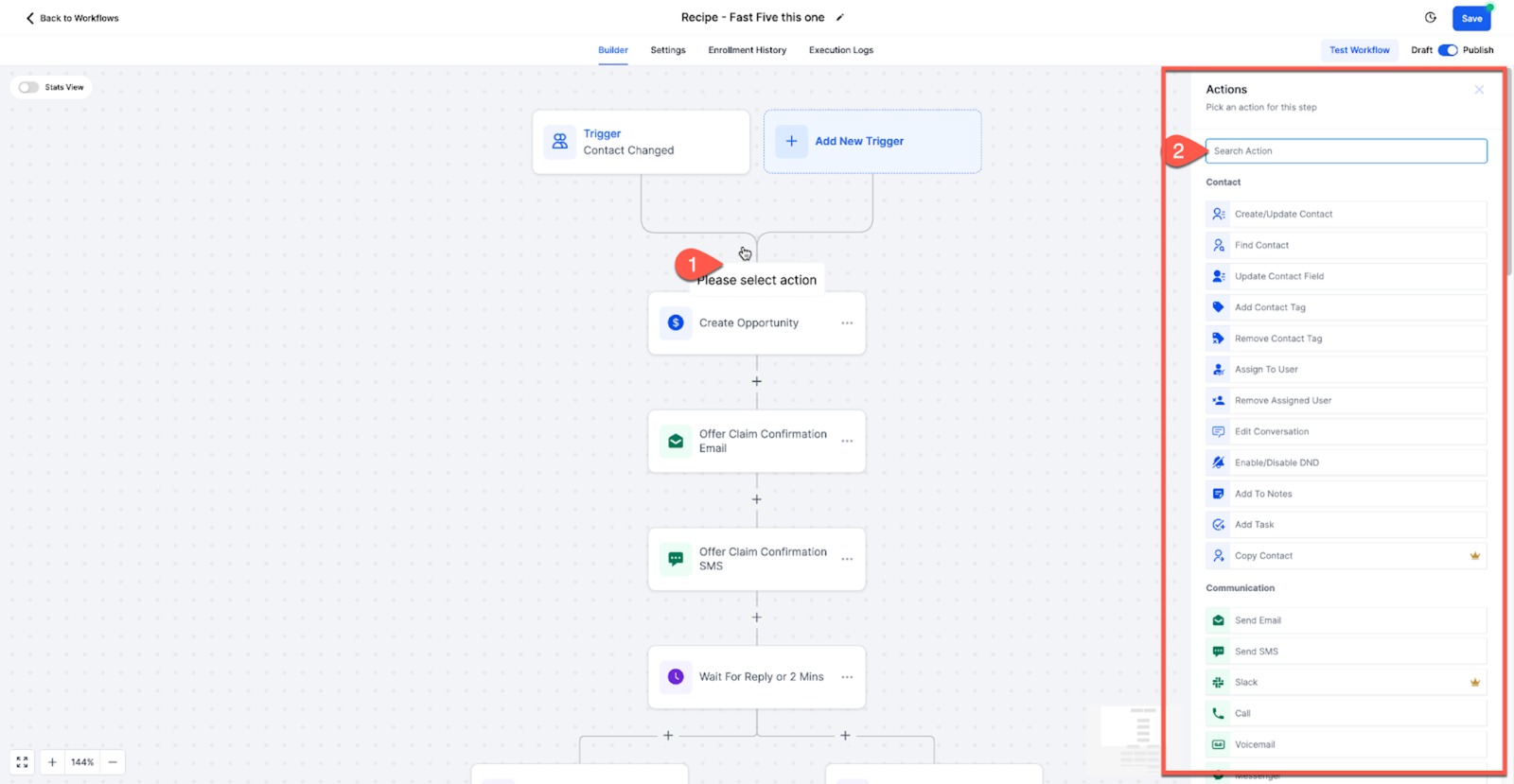
Once the Transcript Generated trigger starts the workflow, you can decide what should happen next.
For a sales team, one useful approach is to create a follow up task for the person responsible for the lead. This makes sure the conversation does not simply end after the call.
You can also use workflow actions to update the contact record, apply a relevant tag, or notify a team member that a new transcript is available.
The exact actions should depend on your existing sales process. The trigger's role is to provide the starting point when the transcript has been generated, while the actions determine how your business handles that event.
Organize Leads After the Call
A generated transcript can also be used as the point where your team organizes the contact for the next stage of the customer journey.
For example, a workflow can apply a Call Completed or Post Call Review tag to help identify contacts that have reached this stage.
The tag can then be used by other workflows or campaigns to keep your lead management process organized.
You can also create a task for a salesperson to review the conversation and determine the appropriate next step.
This creates a clear handoff between the completed conversation and the team's follow up process.
Build a Simple Post Call Automation
A straightforward workflow can keep the process easy to manage:
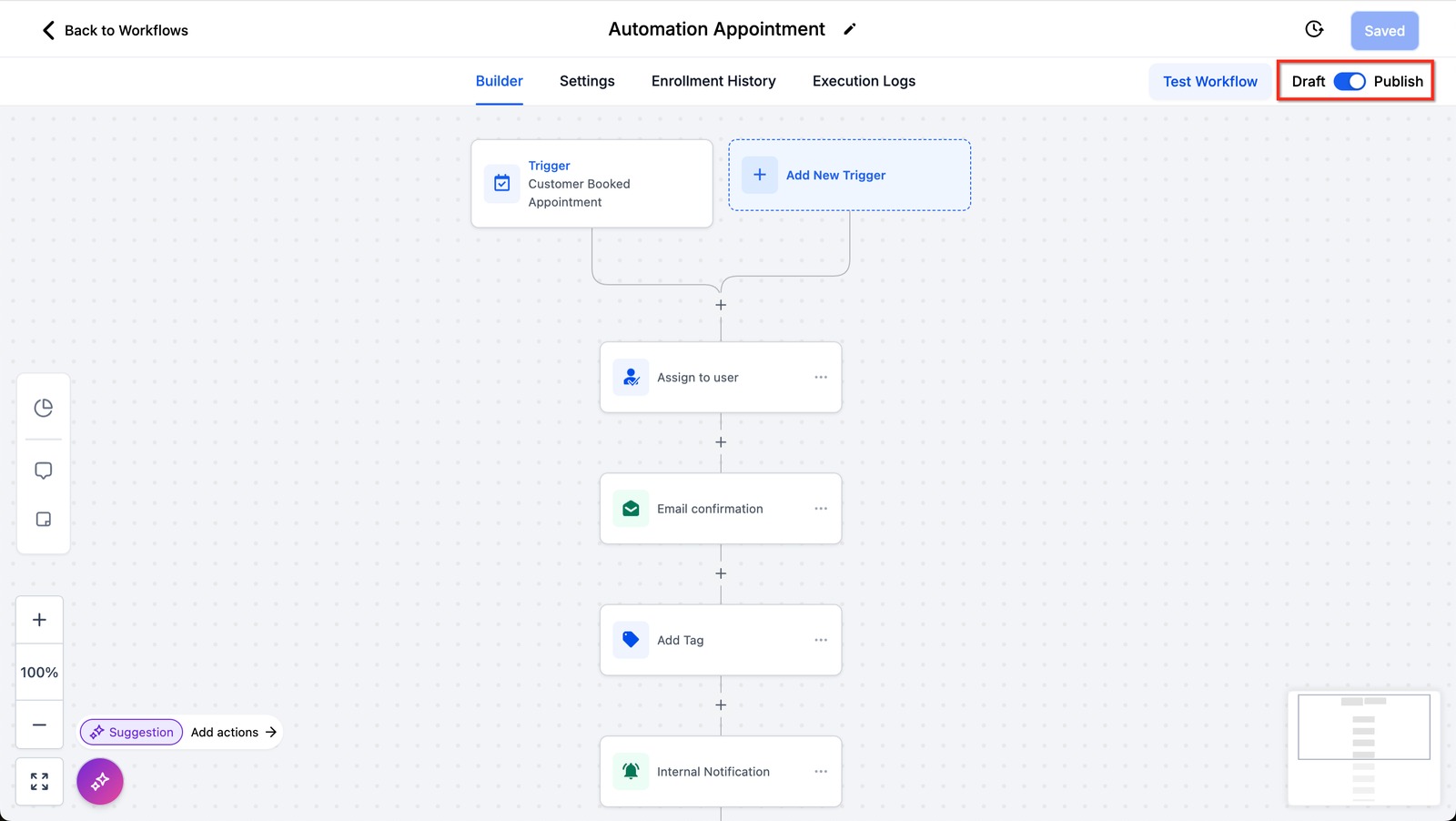
Transcript Generated → Update Contact → Create Task → Notify Team → Follow Up
The first action can organize the contact record.
The next action can create a task for the appropriate team member to review the conversation and decide what needs to happen next.
An internal notification can then make sure the team knows that the transcript is available.
The workflow can be expanded according to your business process, but keeping the basic structure simple makes it easier to maintain and troubleshoot.
Test the Workflow Before Publishing
Before publishing the workflow, test the complete process.
Make sure the Transcript Generated trigger is selected correctly and that the workflow starts when the intended transcript event occurs.
Check every action that follows the trigger. If you are creating tasks or sending internal notifications, confirm that they are going to the correct team member.
Also review any tags or contact updates used by the workflow to make sure they do not interfere with other automations.
Testing is important because the transcript event is being used as the starting point for the rest of your lead management process.
Conclusion
The Transcript Generated trigger gives GoHighLevel users a way to automate what happens after a call or conversation transcript becomes available.
Instead of relying on team members to manually notice every new transcript, businesses can use the event to start a structured post call workflow.
The automation can help organize contacts, create follow up tasks, notify team members, and keep leads moving through the appropriate process.
The best setup depends on how your business handles calls, but the basic idea remains simple: once the transcript is generated, let the workflow handle the repetitive next steps while your team focuses on reviewing the conversation and deciding what should happen next.
Frequently Asked Questions
1. What does the Transcript Generated trigger do?
It starts a workflow when a call or conversation transcript is generated.
2. Where is the Transcript Generated trigger located?
It is available under the Communication trigger category in GoHighLevel.
3. Can I create a task after a transcript is generated?
Yes. You can add an appropriate task action to your workflow so a team member can review the conversation and handle the next step.
4. Can I notify my team when a transcript is generated?
Yes. You can add an internal notification as part of the workflow.
5. Does a generated transcript automatically qualify a lead?
No. The trigger only provides an automation starting point. Your team should use the conversation information and your qualification process to determine the appropriate next step.
Need Expert Help with GoHighLevel?
New to GoHighLevel and ready to get started? Buy your GoHighLevel account here and launch with confidence.
Already know what you need and want our team to handle everything, from complete setup and customization to funnels, workflows, automations, CRM, and pipelines? Click here.



