

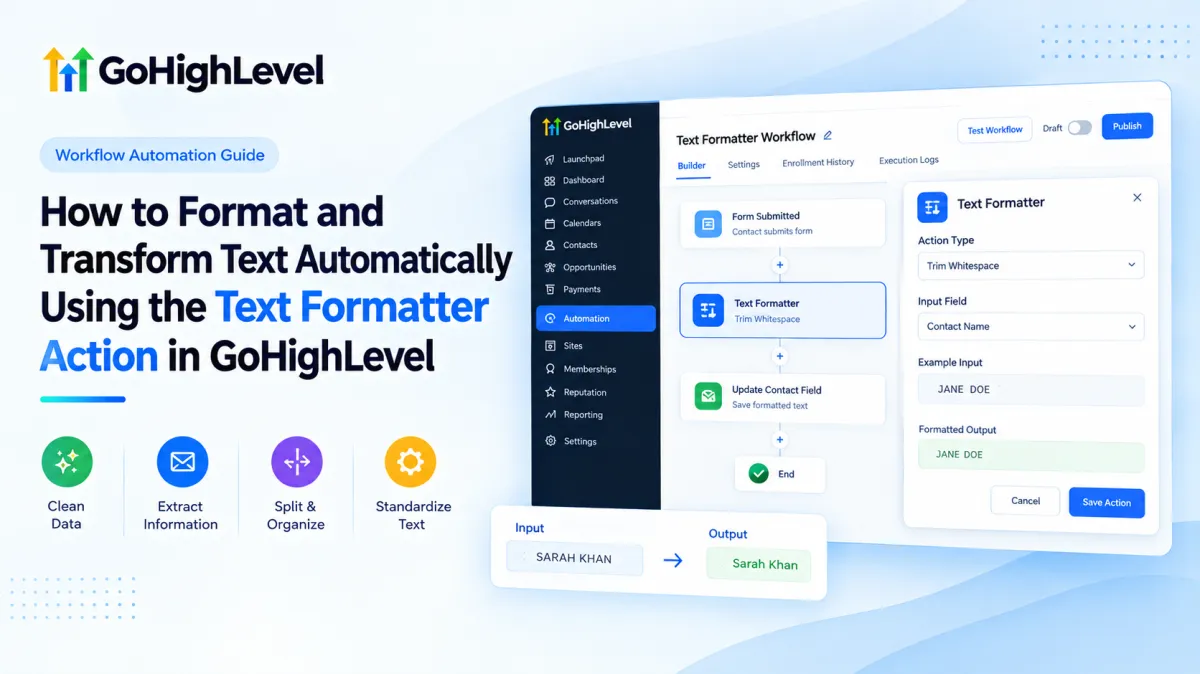
How to Use the Text Formatter Action in GoHighLevel to Format and Transform Text
How to Format and Transform Text Automatically Using the Text Formatter Action in GoHighLevel
Introduction
Clean text matters in automation. Names may arrive in all caps, form responses may contain extra spaces, imported content may include HTML, and long strings may need shortening before another step uses them. The GoHighLevel Text Formatter Action handles these jobs inside a workflow.
The logic is simple: input text → Text Formatter processing → formatted output → subsequent workflow action. Text Formatter does not collect data itself. A form, message, contact field, webhook, or earlier workflow step supplies the text; the formatter processes that value.
What Is the Text Formatter Action in GoHighLevel?
The GoHighLevel Text Formatter is an internal Workflow Action for manipulating text. HighLevel currently documents Upper Case, Lower Case, Title Case, Capitalize, Default Value, Trim, Trim Whitespace, Replace Text, Find, Word Count, Length, Split Text, Remove HTML Tags, Extract Email, and Extract URL.
Its purpose is processing existing text and returning a result for later workflow steps.
Why Use Text Formatter in a Workflow?
Automation often receives inconsistent text. A lead may submit SARAH KHAN instead of Sarah Khan, a message may contain an email inside a sentence, or a URL may contain a referral identifier that needs separating.
Text Formatter helps standardize or extract these values before another action depends on them. Typical uses include cleaning lead data, extracting an email or URL, shortening responses, and providing a fallback when a value is blank.
How to Set Up the Text Formatter Action
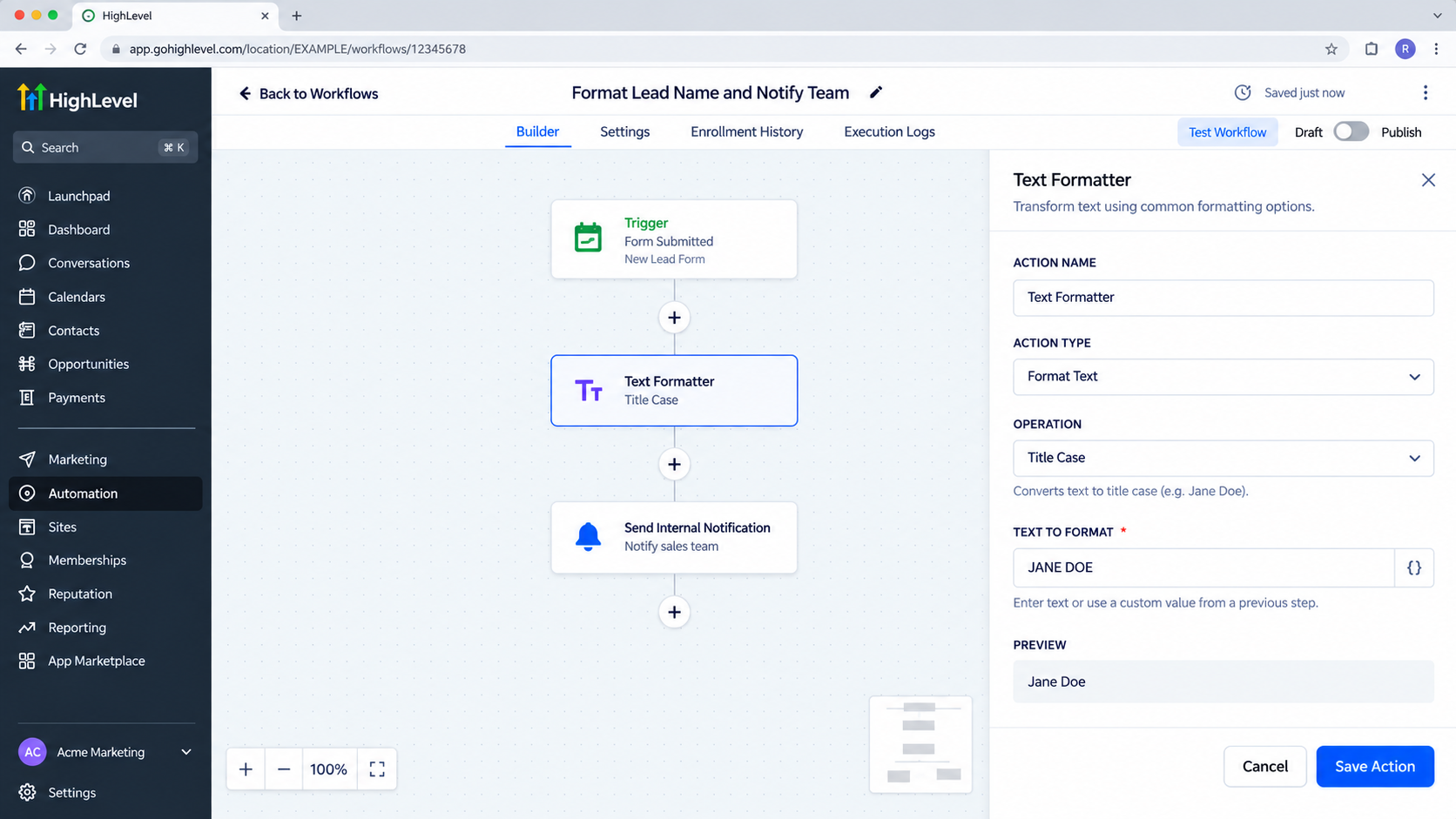
Open Automation > Workflows, create or edit a workflow, then click the + icon where the formatting step should run. Search for Text Formatter, add it, choose an Action Type, and select the input field. Additional settings appear based on the operation.
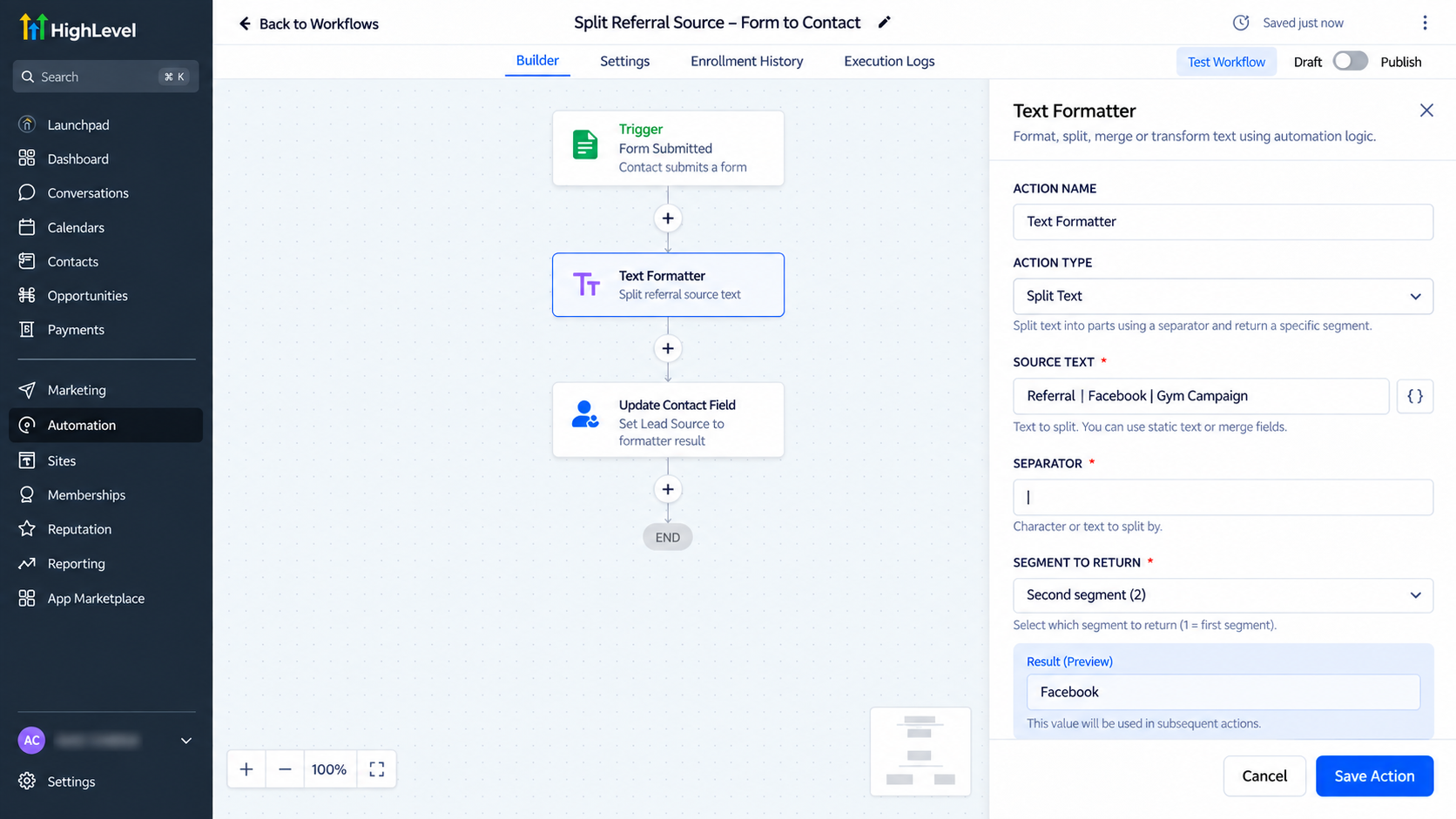
For example, Trim uses a maximum length and can optionally remove characters from the beginning or add ellipses. Split Text requires a separator and lets you return the first, second, second-to-last, or last segment.
Supported input data shown in HighLevel’s field picker includes contact, user, message, account, attribution, custom-field, and custom-value data.
Understanding Text Formatting and Transformation
Case operations control capitalization. Trim Whitespace removes leading and trailing spaces. Replace Text swaps every exact occurrence of specified text with another value. Default Value returns a fallback when the selected text is empty.
Other operations return information instead of visually changing the string. Find returns the position of the first match, or -1 if none exists. Length returns character count; Word Count returns word count. Extract Email and Extract URL return the first matching email address or URL, while Remove HTML Tags converts HTML-marked content to plain text.
The formatted result can then be referenced in a later workflow step. For example, a Split Text result can be passed to a subsequent Update Contact Field action rather than using the original raw string.
Practical Automation Examples
Clean a Lead Name Before Communication
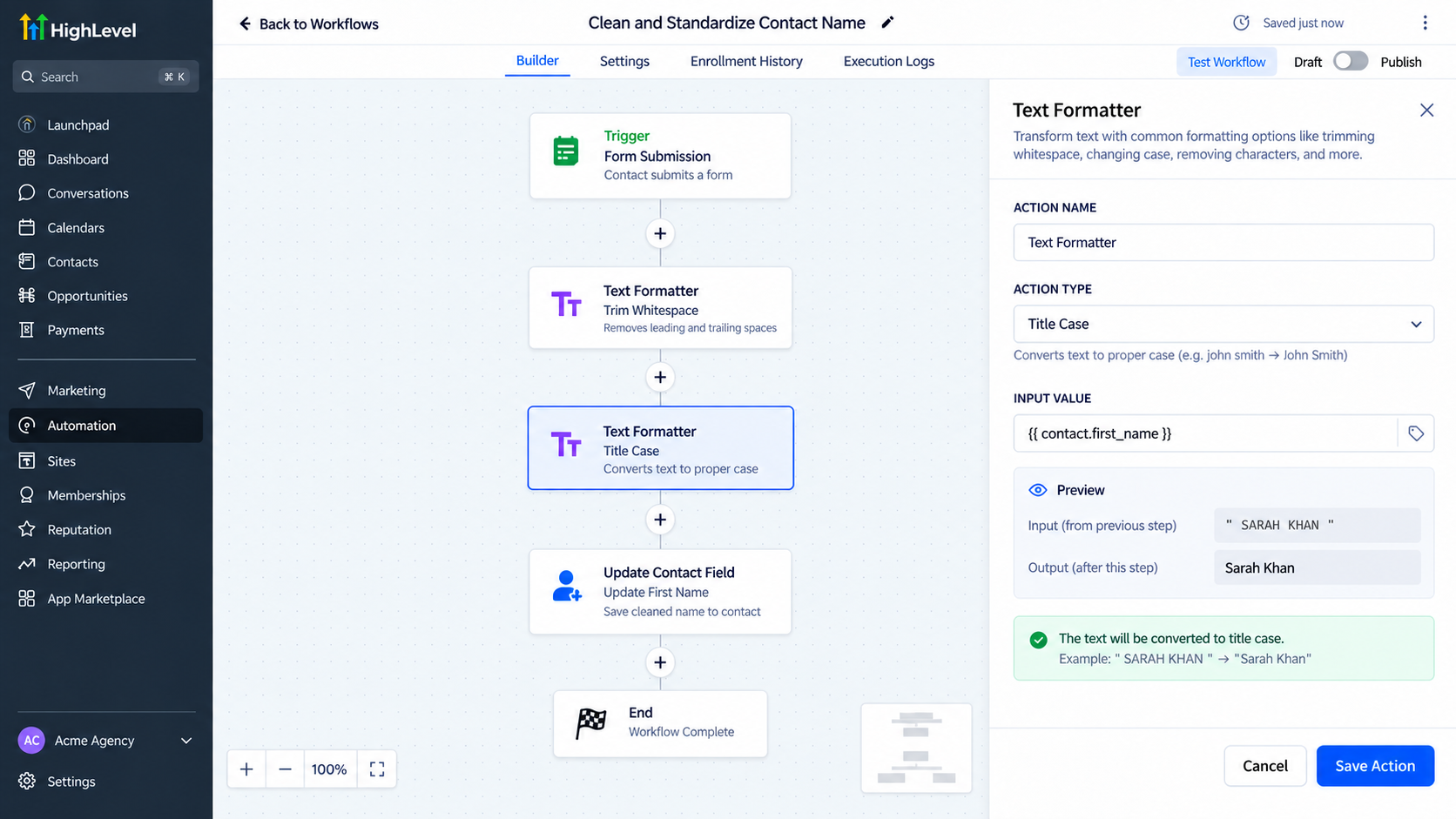
A form submits JANE DOE . Use Trim Whitespace, then a second Text Formatter step with Title Case. The output becomes Jane Doe, ready for a later message or data step.
Extract an Email From an Inbound Message
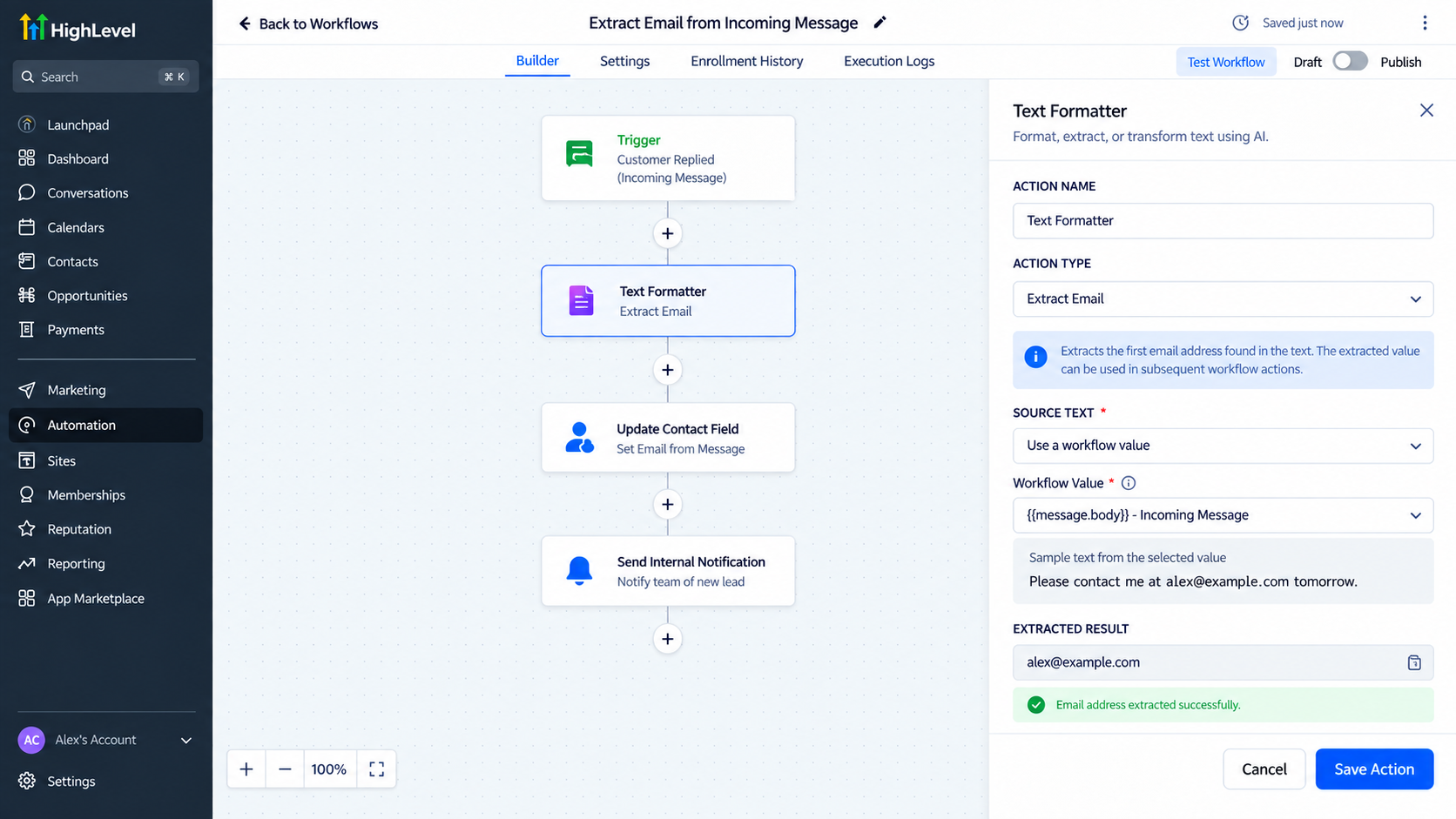
If a message says Please contact me at [email protected] tomorrow, Extract Email returns [email protected]. A later workflow action can use that extracted result.
Pull an Identifier From a URL
If a captured URL contains a referral value after a consistent separator, Split Text can divide the string and return the required segment. This is useful for predictable lead-source or referral URLs.
Common Mistakes to Avoid
Do not treat Text Formatter as a storage action. Processing a value and permanently updating a CRM field are separate responsibilities. Also avoid using it for true numeric formatting; HighLevel provides a separate Number Formatter action for numeric conversion and formatting.
With Split Text, an incorrect separator or segment produces the wrong result. Test realistic inputs before publishing. Also remember that Extract Email and Extract URL return the first matching value, not every match.
Best Practices
Use descriptive action names such as Trim Lead Name or Extract Email from Message. Keep transformations small and explicit. HighLevel supports chaining multiple Text Formatter actions, which makes multi-step cleanup easier to understand and troubleshoot.
Test blank values, unusual capitalization, extra spaces, and unexpected separators. Preserve raw source text when useful, and make sure the next action expects the formatter’s output.
Conclusion
The GoHighLevel Text Formatter Action is a focused utility for cleaning, standardizing, extracting, counting, splitting, and transforming text inside a GoHighLevel Workflow. It does not replace data collection, CRM updates, AI, or branching logic. Its value is precise: take existing text, process it predictably, and pass a cleaner or more useful result to the next automation step.
FAQ
Can Text Formatter update a contact field by itself?
No. It processes text. Use the appropriate CRM workflow action if you want to store the formatted result in a contact field.
Can I use more than one Text Formatter action?
Yes. Formatter actions can be chained when text needs multiple transformations.
Can Text Formatter remove HTML?
Yes. Remove HTML Tags strips HTML tags and returns plain text.
Does Text Formatter work with numbers?
If numbers are stored as text, text operations can affect them as characters. For numeric conversion or formatting, use Number Formatter.
Need Expert Help with GoHighLevel?
New to GoHighLevel and ready to get started? Buy your GoHighLevel account here and launch with confidence.
Already know what you need and want our team to handle everything, from complete setup and customization to funnels, workflows, automations, CRM, and pipelines? Click here.



