

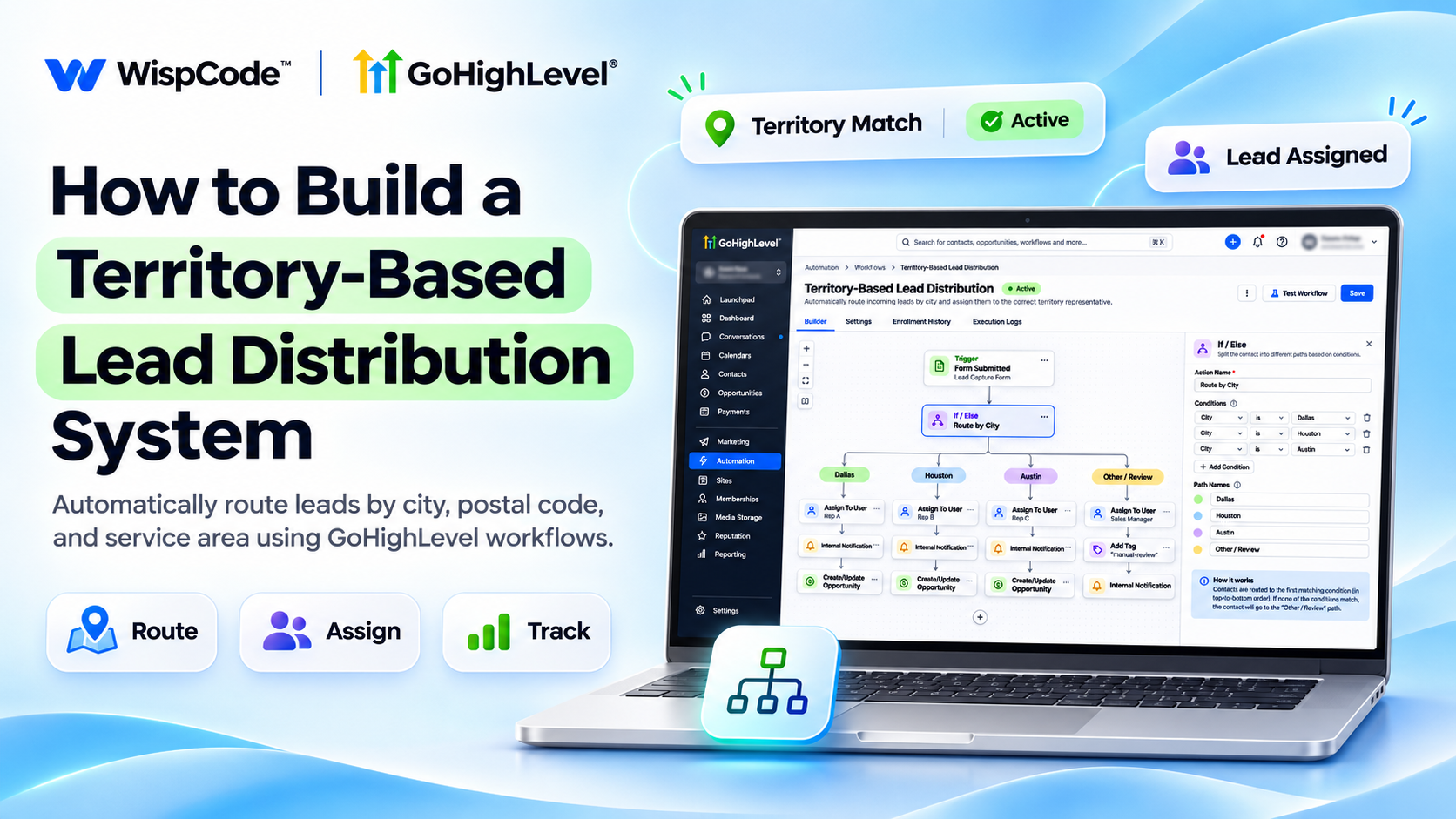
How to Build Territory-Based Lead Routing in GoHighLevel
How to Build a Territory-Based Lead Distribution System in GoHighLevel
A home services company receives leads from several cities, but its sales representatives keep receiving inquiries outside their assigned service areas. Some leads require reassignment, while others wait too long for a response.
The problem isn't lead generation. It's inefficient lead distribution.
GoHighLevel helps businesses solve this through CRM workflows, location-based conditions, automated user assignments, and internal notifications.
With a territory-based lead distribution system, businesses can route incoming inquiries to the right representatives based on geographic information and maintain a more organized sales process.
How Territory-Based Lead Distribution Works in GoHighLevel
Territory-based lead distribution assigns leads according to geographic details such as state, city, or postal code.
GoHighLevel workflows use triggers to capture new leads and conditional logic to evaluate their location.
The Assign To User action then assigns qualifying contacts to designated sales representatives.
For example, a roofing company operating in Dallas, Houston, and Austin can create separate routing rules for each service area.
GoHighLevel also supports round-robin assignment among multiple selected users, allowing teams to distribute leads within the same territory.
The system depends on accurate location information and properly configured routing conditions.
What You Need Before Creating the Distribution System
Before starting, make sure you have:
Access to the appropriate GoHighLevel sub-account.
Sales representatives added under Settings → My Staff.
Defined territories with clear geographic boundaries.
Lead forms collecting the required location information.
A sales pipeline configured for incoming leads.
Permission to create and publish CRM workflows.
A fallback process for leads outside supported territories.
These requirements help prevent incorrect assignments and overlooked inquiries.
How to Build a Territory-Based Lead Distribution System in GoHighLevel
Follow these six steps to configure your routing system.
Step 1: Define Your Sales Territories
Start by identifying the geographic areas each representative should manage.
For example, a Texas-based service business might organize territories as follows:
Dallas Area: Sales Representative A
Houston Area: Sales Representative B
Austin Area: Sales Representative C
Other Locations: Sales Manager
Use city, state, or postal code boundaries depending on your business requirements.
For overlapping service areas, establish a clear assignment priority.
Document these rules before configuring automation.
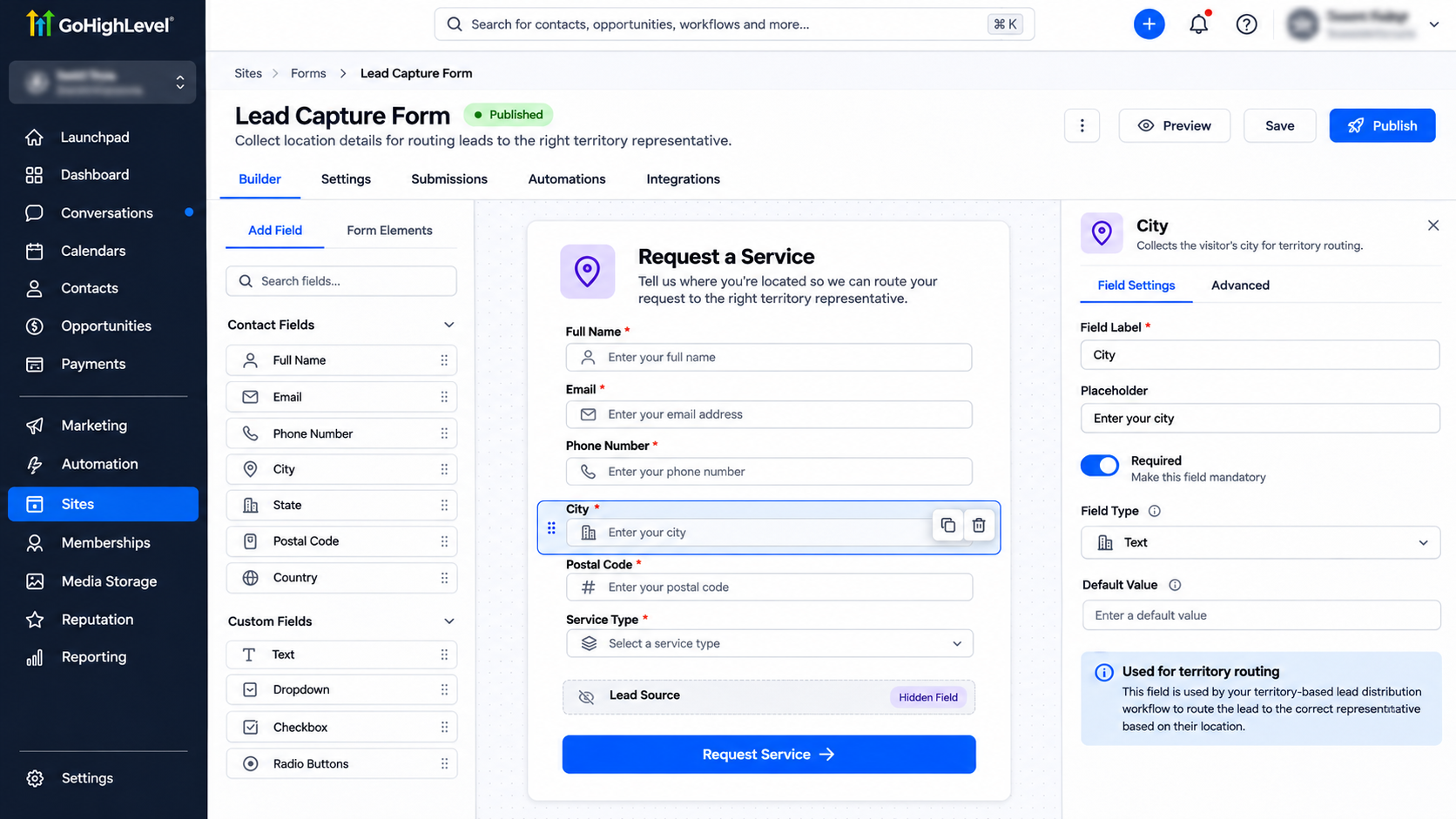
Step 2: Capture Lead Location Information
Navigate to Sites → Forms and open the form used for lead generation.
Ensure it collects the geographic information required for routing.
For example, include a city or postal code field alongside the customer's contact details.
GoHighLevel forms support standard contact fields and custom fields.
If your business requires a dedicated Service Territory field, create an appropriate contact custom field under Settings → Custom Fields.
Make sure the submitted values are consistently formatted.
For example, inconsistent entries such as "Dallas" and "Dallas, TX" may require additional routing conditions.
Step 3: Create a Lead Distribution Workflow
Navigate to Automation → Workflows → Create Workflow.
Select Start from Scratch.
Name your workflow "Territory-Based Lead Distribution."
Click Add New Trigger and select Form Submitted.
Choose the relevant lead generation form using the available trigger filters.
Save the trigger.
For leads entering through integrations or manual CRM entry, consider using Contact Created or another appropriate trigger.
Avoid configuring overlapping triggers that repeatedly assign the same lead.
Step 4: Configure Geographic Routing Conditions
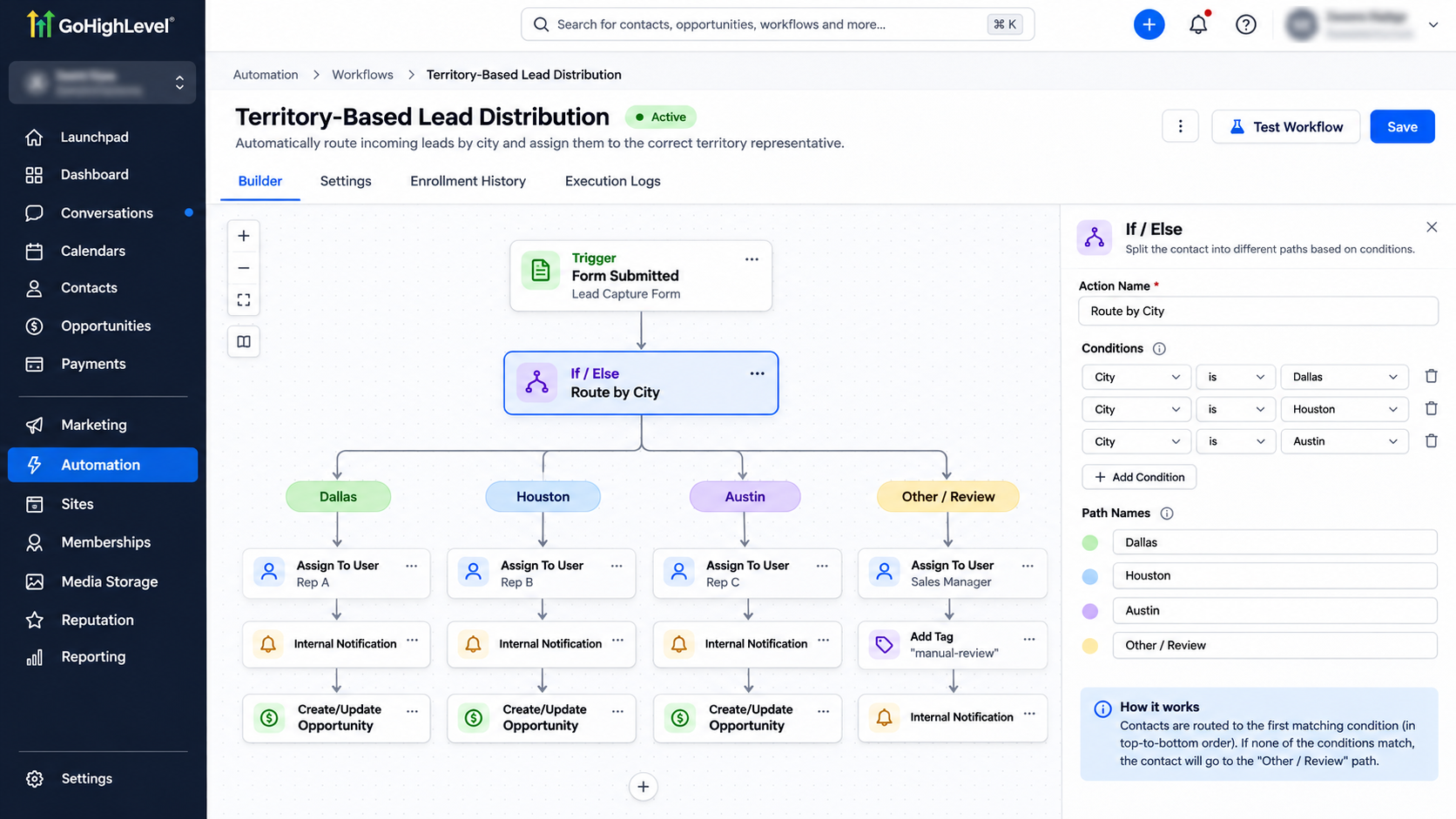
Click the plus icon beneath your trigger and add an If/Else action.
Configure conditions using the relevant contact location field.
For example:
Dallas Branch: City matches Dallas.
Houston Branch: City matches Houston.
Austin Branch: City matches Austin.
None Branch: Route unmatched leads for manual review.
If/Else evaluates matching conditions and sends contacts through the first applicable branch.
For postal-code territories, define the accepted codes explicitly rather than assuming the system understands geographic boundaries automatically.
Step 5: Assign Leads to Sales Representatives
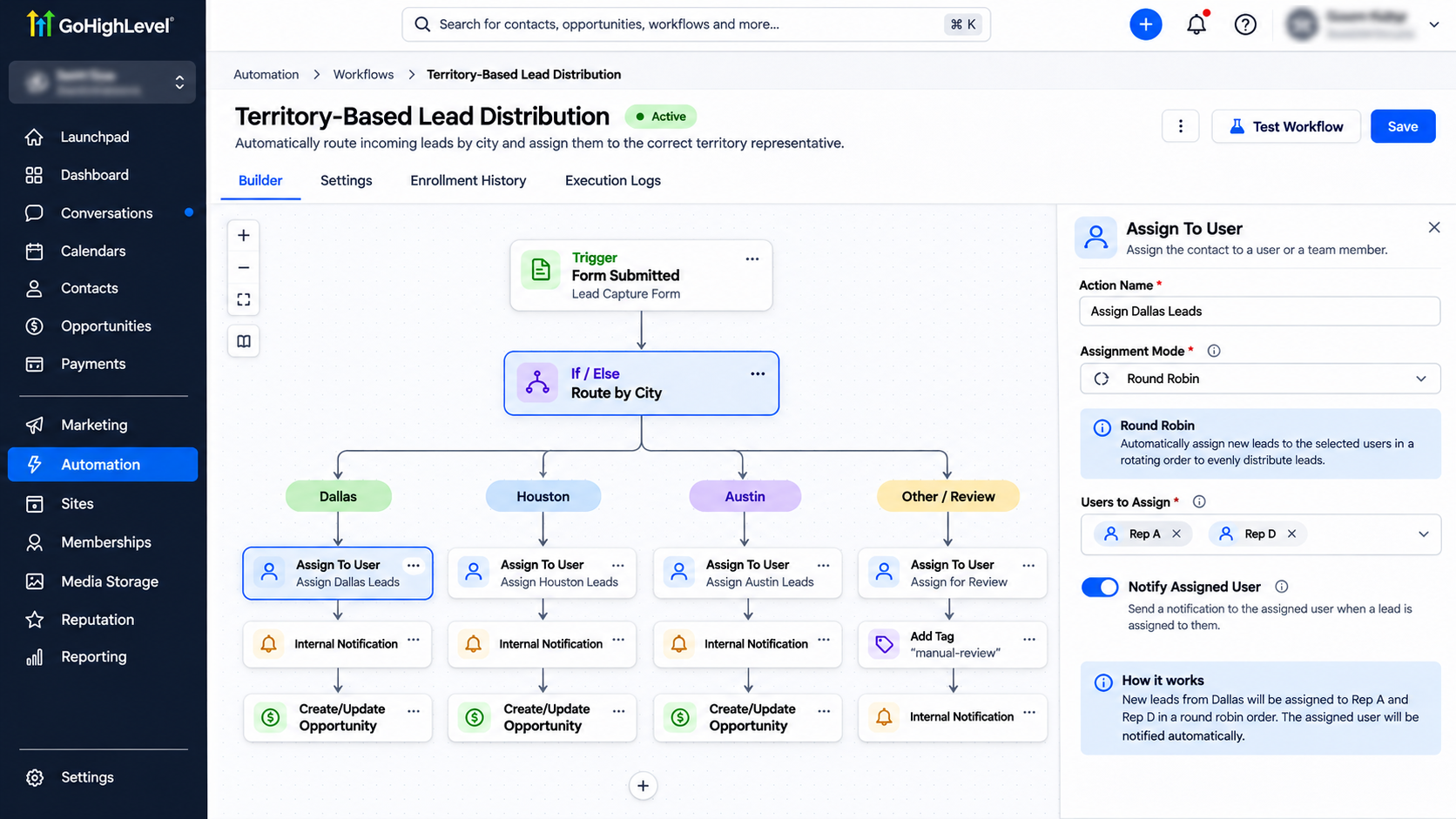
Under each geographic branch, add the Assign To User action.
Select the representative responsible for that territory.
For example, assign Dallas inquiries to Representative A and Houston inquiries to Representative B.
If multiple representatives cover the same territory, select the appropriate users and configure the available round-robin assignment settings.
Add an Internal Notification action to alert the assigned representative.
Include the lead's name, contact information, requested service, and location where appropriate.
This helps representatives respond without manually reviewing every incoming inquiry.
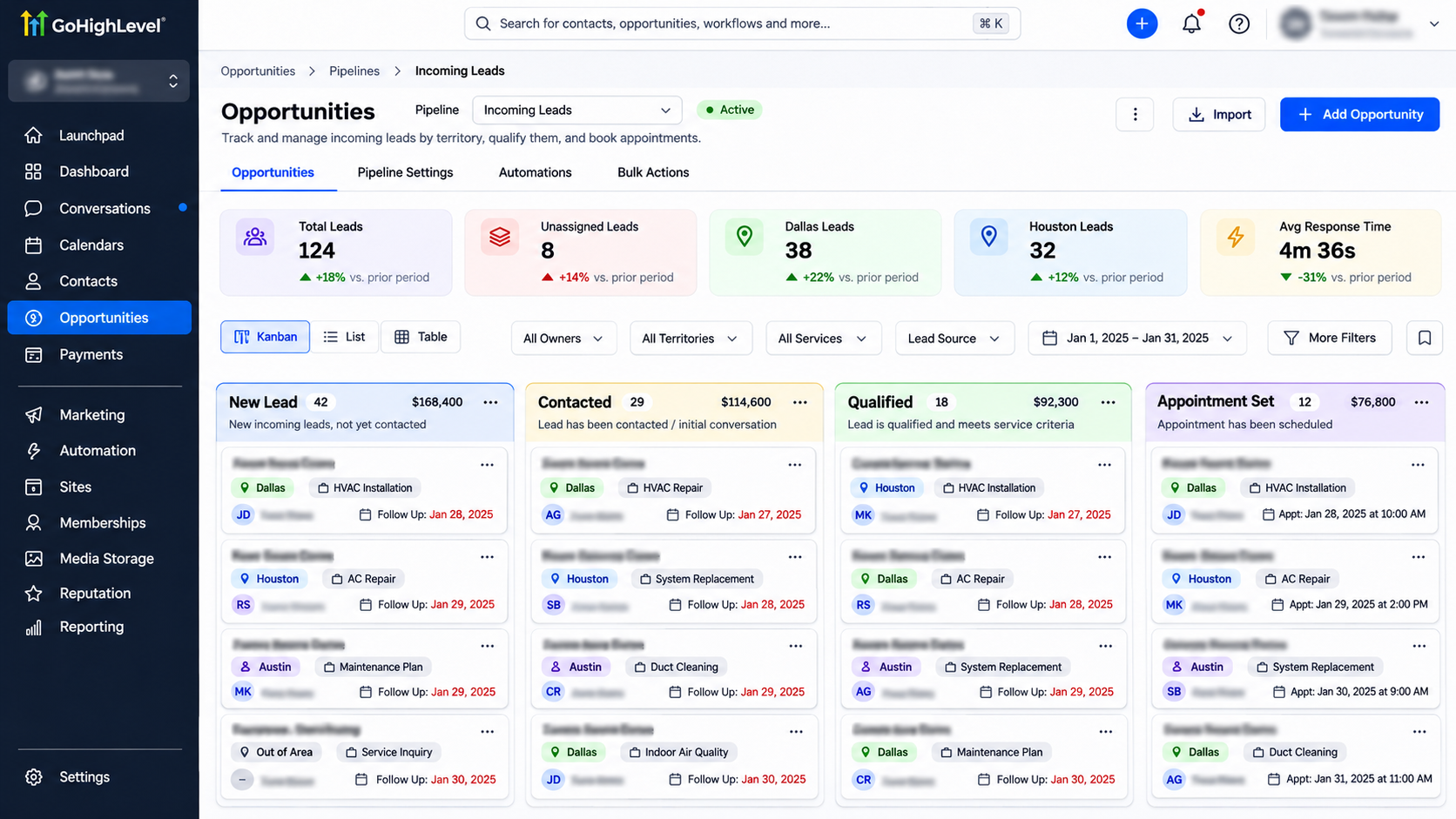
Step 6: Organize Leads in Your Sales Pipeline
Add a Create/Update Opportunity action where appropriate.
Select the relevant pipeline and starting stage, such as New Lead.
Ensure the opportunity is associated with the correct contact and avoid unnecessary duplicate records.
Remember that contact ownership and opportunity ownership can be managed separately.
If your process requires opportunity-level assignment, configure the relevant opportunity owner action or settings.
Publish the workflow after reviewing its complete logic.
Test Your Territory-Based Lead Distribution
Create test leads using locations from each configured territory.
Verify that every lead enters the correct workflow branch and receives the intended assignment.
Test postal-code variations, missing location information, and unsupported service areas.
Review workflow execution logs to confirm that notifications and CRM actions execute correctly.
Common Lead Distribution Problems and Fixes
Incorrect assignments: Review geographic conditions and overlapping territory rules.
Workflow not triggering: Verify publication status and lead source filters.
Missing location information: Check form fields and contact data mapping.
Uneven distribution: Review selected users and round-robin configuration.
Duplicate opportunities: Check workflow re-entry and opportunity creation settings.
Best Practices for Territory-Based Lead Routing
Use consistent geographic data and maintain clearly documented territory boundaries.
Create fallback rules for unmatched leads and review assignments regularly.
Monitor lead response times and update routing conditions whenever service areas or team responsibilities change.
Conclusion
Territory-based lead distribution helps businesses reduce manual assignments, improve response coordination, and keep sales responsibilities organized.
GoHighLevel workflows connect geographic lead information with automated routing, representative assignments, and CRM updates.
Need help automating your lead distribution? WispCode provides GoHighLevel CRM automation, lead routing, and workflow solutions tailored to your sales operations.
Frequently Asked Questions (FAQs)
1. Can GoHighLevel assign leads based on location?
Yes. Workflows can evaluate supported contact location fields and assign leads through configured conditions.
2. Can multiple representatives share one territory?
Yes. The Assign To User action supports round-robin distribution among selected users.
3. Can GoHighLevel route leads using postal codes?
Yes. You can configure conditions using available postal code information or suitable custom fields.
4. What happens when a lead doesn't match any territory?
You can configure a fallback branch that notifies a manager or assigns the lead for manual review.
5. Can territory-based routing update sales opportunities?
Yes. Workflow actions can create or update opportunities in the relevant sales pipeline.
Need Expert Help with GoHighLevel?
New to GoHighLevel and ready to get started? Buy your GoHighLevel account here and launch with confidence.
Already know what you need and want our team to handle everything, from complete setup and customization to funnels, workflows, automations, CRM, and pipelines? Click here.