

GoHighLevel Calendar Setup for Teams With Different Hours
How to Design a Calendar System for Teams With Different Availability
Managing appointments becomes complicated when employees work different shifts, operate across time zones, or handle different responsibilities. A sales representative might be available in the morning, while another handles afternoon consultations. Without properly configured scheduling, businesses risk double bookings, missed appointments, and unnecessary administrative work.
A well-designed GoHighLevel calendar system for teams helps coordinate individual schedules while giving customers access to appropriate booking slots.
This guide explains how to structure calendars, configure team availability, manage appointment distribution, and test your scheduling system before publishing it.
1. Understand Your Team's Scheduling Requirements
Before setting up calendars in GoHighLevel, take a closer look at how your team actually works. Not everyone follows the same schedule, and your booking system needs to reflect those differences.
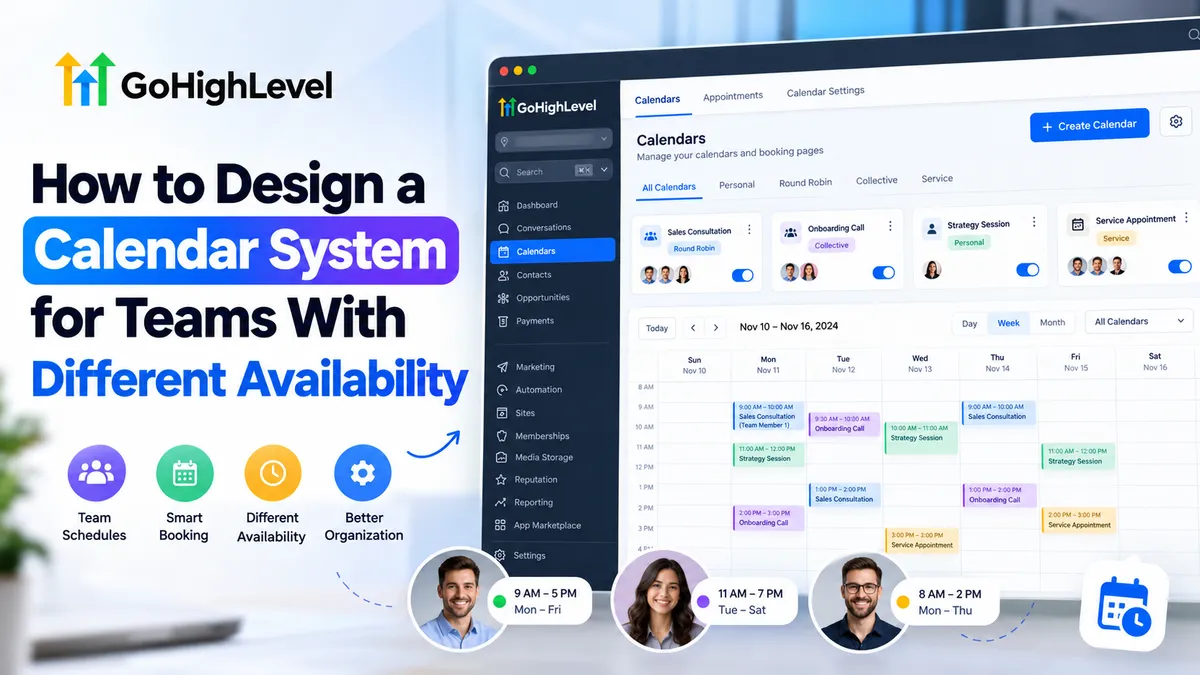
For example, imagine a consulting agency where one employee works from 9 AM to 5 PM on weekdays, another handles appointments from 11 AM to 7 PM Tuesday through Saturday, and a third is available only from 8 AM to 2 PM Monday through Thursday.
If all three employees share the same booking hours, customers could end up scheduling appointments when the assigned person isn't working.
To avoid this, identify each team member's working days, available hours, time zone, and appointment responsibilities. Also, consider whether certain meetings require a specific employee or multiple team members.
Once you have a clear picture of everyone's availability, choosing the right GoHighLevel calendar structure becomes much easier.
2. Choose the Right GoHighLevel Calendar Type
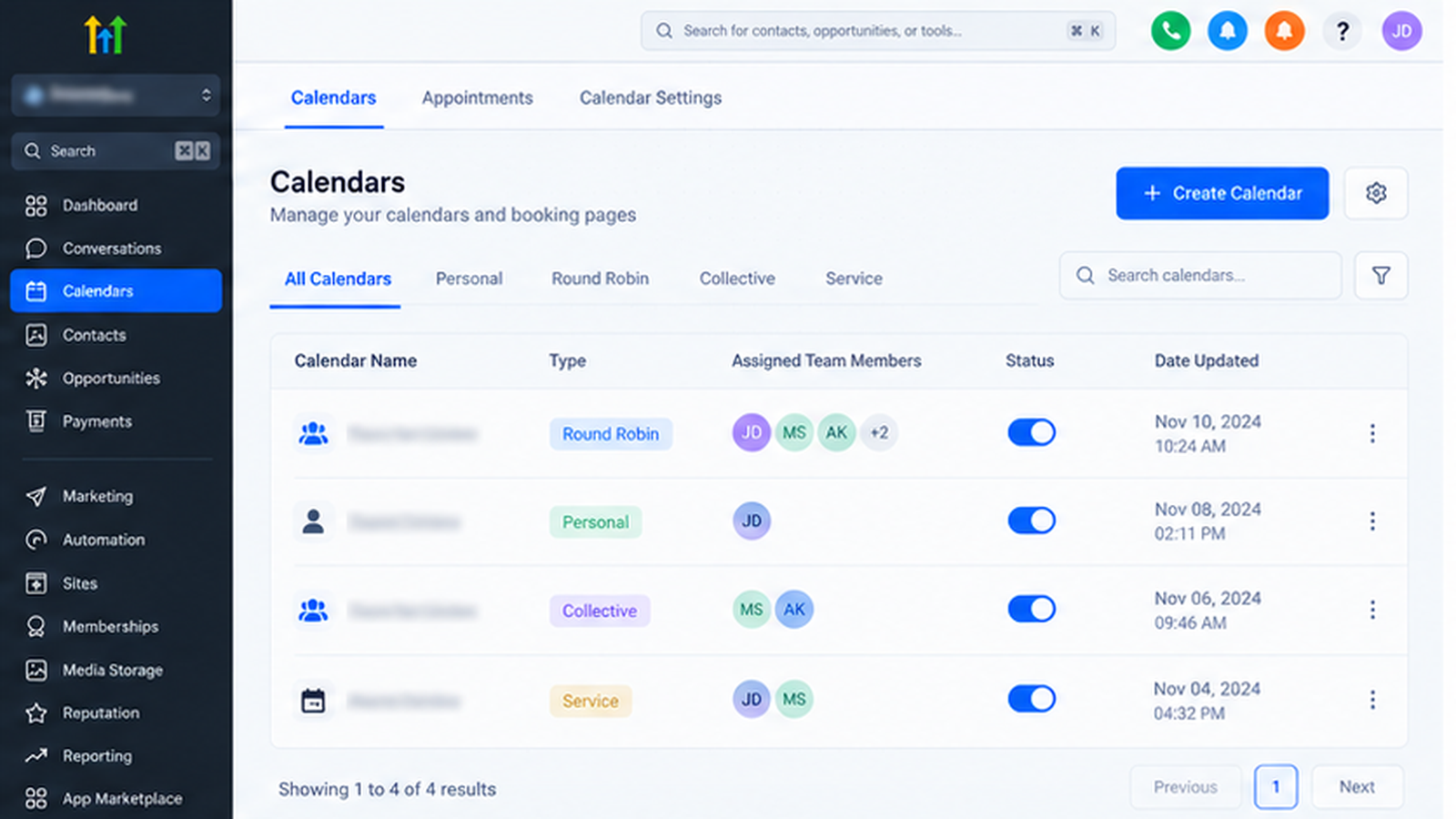
GoHighLevel offers several calendar structures designed for different booking requirements.
Personal Booking Calendar
A Personal Booking Calendar supports individual appointments with one assigned team member.
Use it for dedicated account managers, individual consultations, or personal client meetings.
Round Robin Calendar
A GoHighLevel Round Robin calendar distributes appointments among multiple assigned employees based on availability and the selected distribution method.
For example, the consulting agency could use one Round Robin calendar for sales consultations, allowing customers to book an eligible representative without selecting someone manually.
Collective Booking Calendar
Collective Booking schedules meetings requiring multiple employees simultaneously.
For example, an onboarding session involving both an account manager and implementation specialist can be booked when all required participants are available.
Service Calendar
Service Calendars suit service-based appointments, particularly where staff assignments, service durations, and locations matter.
A business offering in-person consultations or treatments may benefit from this structure.
Practical recommendation: Use separate calendars for sales consultations, collaborative onboarding sessions, and specialized services when their booking requirements differ.
3. Configure Individual Team Member Availability
Accurate availability configuration is the foundation of reliable GoHighLevel appointment scheduling.
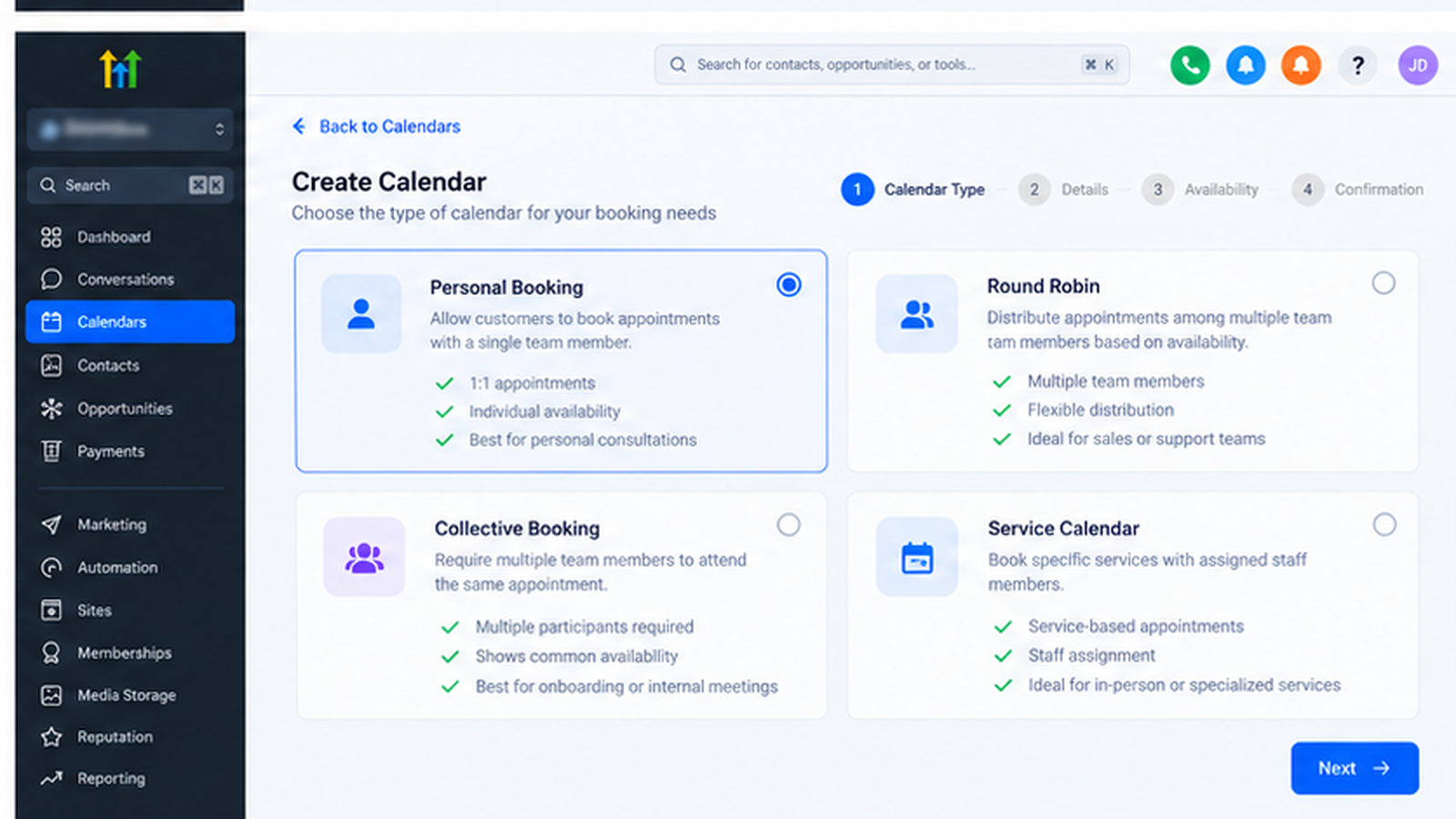
HighLevel's centralized Schedules feature lets administrators create reusable working-hour schedules and associate them with calendars.
Step 1: Open Availability Settings
Navigate to:
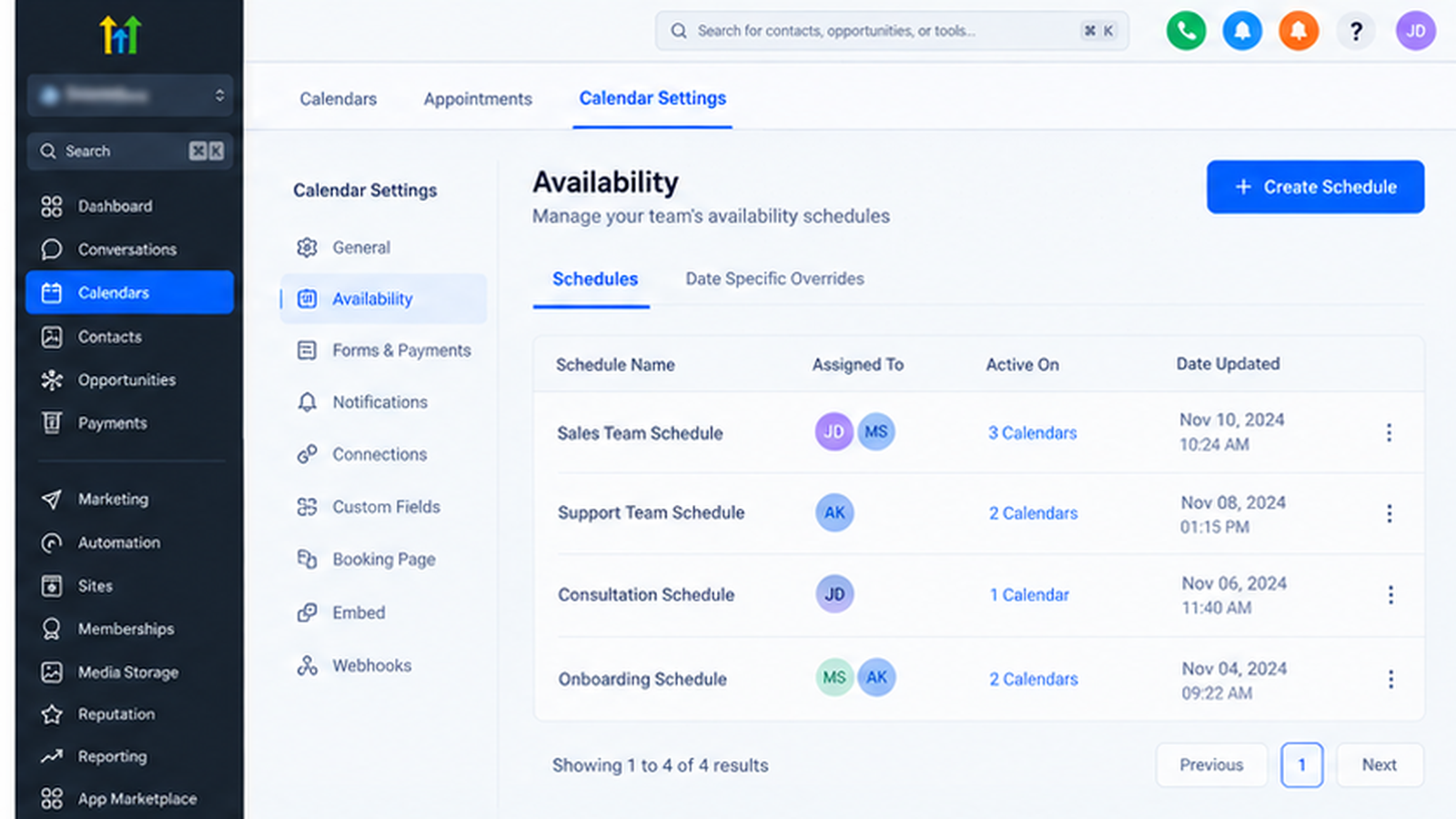
Calendars → Calendar Settings → Availability
Alternatively, access Settings → Calendars → Availability.
If centralized Schedules are unavailable, check whether the feature requires activation under Agency Settings → Labs → Sub-Account.
Step 2: Select the Team Member
Use the user dropdown to select the employee whose schedule you want to configure.
Each employee can have multiple schedules for different appointment responsibilities.
Step 3: Create a Schedule
Click Create Schedule, enter a descriptive name such as "Sales Consultation Availability," and select Create.
Configure the employee's recurring Weekly Working Hours.
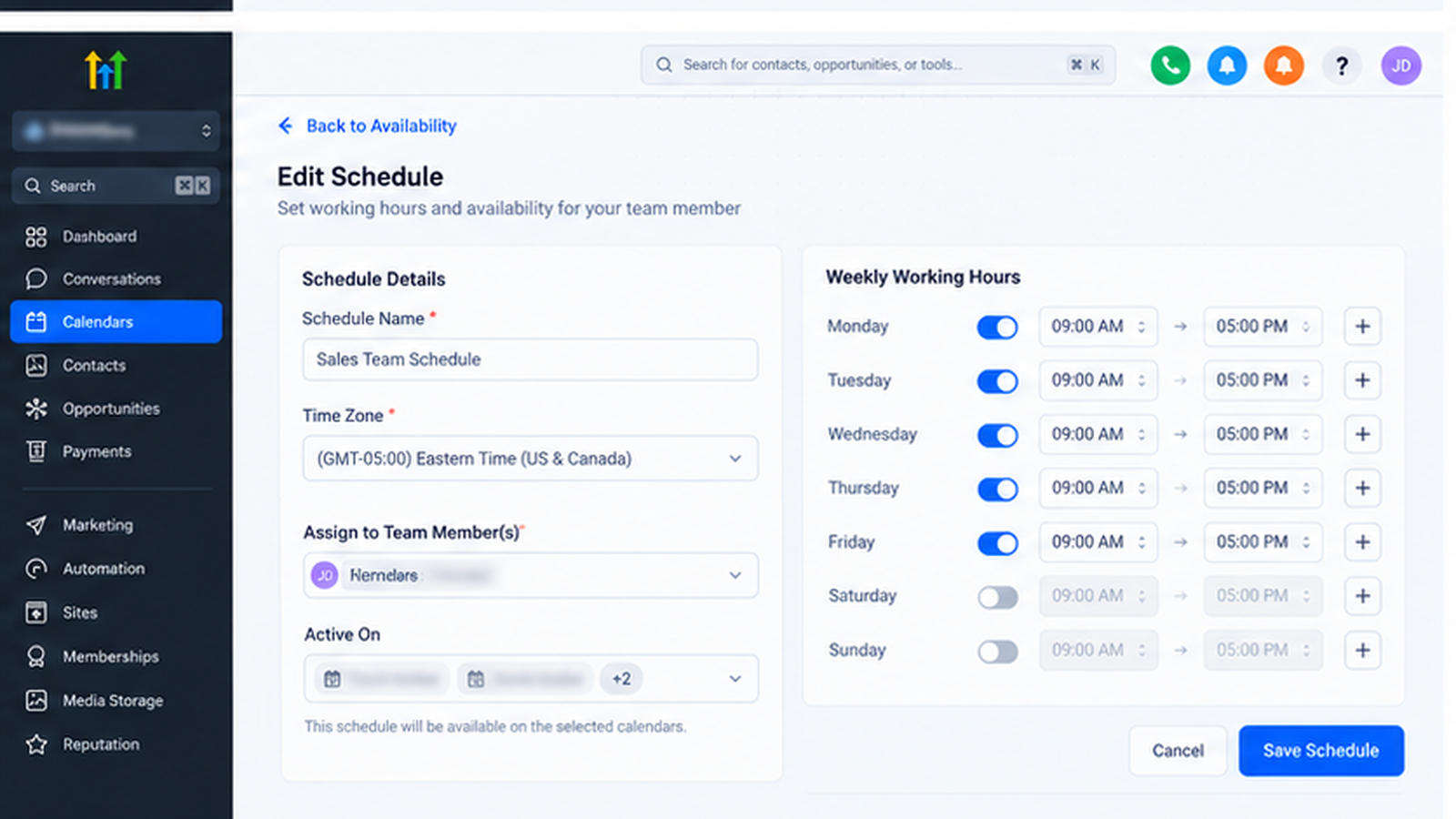
For Employee A, enable Monday through Friday and enter 9 AM–5 PM.
Repeat the process using each employee's actual schedule.
Step 4: Configure Time Zones
Set the schedule's appropriate time zone.
This is especially important when employees operate internationally. HighLevel's booking widget converts available appointment times into the visitor's browser time zone.
Step 5: Add Date-Specific Overrides
Use Date-Specific Overrides to accommodate holidays, leave, extended shifts, or exceptional working hours.
Remember that date-specific availability replaces the recurring weekly schedule for that particular date.
If an employee normally works 9 AM–5 PM but works until 7 PM on one date, configure the complete 9 AM–7 PM interval.
Step 6: Assign Schedules to Calendars
Use the Active On dropdown to associate the schedule with the appropriate calendars for that employee.
Save your changes and review the assignments.
For calendar-specific exceptions, open the calendar's Availability tab and configure a Custom Schedule instead.
Updating a centralized schedule affects calendars linked to it, while a Custom Schedule applies only to its particular calendar.
4. Configure Appointment Distribution and Booking Rules
Once individual schedules are configured, determine how appointments should be allocated.
For Round Robin Calendars, GoHighLevel provides two primary distribution options:
Optimize for Availability: Prioritizes available employees when customers select appointment times.
Optimize for Equal Distribution: Attempts to balance bookings across employees using its distribution logic.
Equal Distribution works with the "Any Available" selection and is generally more suitable when employees have comparable availability.
For teams with substantially different schedules, availability-based distribution may offer greater booking flexibility.
Next, review your calendar's booking rules.
Configure appropriate appointment durations, time-slot intervals, buffer periods, minimum scheduling notice, and how far in advance appointments can be booked.
Connect supported external calendars and review their conflict-checking settings to help prevent overlapping commitments.
Remember that an available working hour does not automatically guarantee a bookable appointment. Existing meetings, buffers, booking restrictions, and calendar-specific settings can reduce available slots.
5. Test Your Calendar System Before Publishing
Never assume your configuration is correct simply because the calendar displays available appointments.
Perform these checks before sharing booking links:
Check individual availability: Confirm each employee appears only during their configured working hours.
Test unavailable dates: Verify that holidays and approved leave do not display bookable slots.
Validate time zones: Open the booking widget using different time-zone settings and inspect displayed appointment times.
Test appointment conflicts: Create test bookings and confirm occupied slots are handled appropriately.
Verify Round Robin allocation: Book several appointments and inspect which employees receive assignments.
Test Collective Booking: Confirm appointments appear only when every required participant is available.
Review the customer experience: Complete a test booking and inspect the appointment confirmation.
If expected slots are missing, review assigned team members, schedule overrides, meeting duration, buffer settings, and external calendar conflicts.
Conclusion
Designing an effective GoHighLevel scheduling system starts with understanding how your employees actually work.
By selecting appropriate calendar types, configuring individual availability, establishing sensible booking rules, and testing appointment assignments, businesses can reduce scheduling friction without forcing everyone into identical working hours.
The goal is not simply to automate bookings. It is to build a dependable scheduling process that accommodates changing team availability while remaining practical as the business grows.
Frequently Asked Questions (FAQs)
1. Can I set different working hours for each team member in GoHighLevel?
Yes. GoHighLevel allows you to configure individual availability schedules for team members. You can define their working days, hours, time zones, and date-specific overrides to ensure customers only see appointment slots that match the relevant employee's availability.
2. Which GoHighLevel calendar is best for teams with different availability?
A Round Robin Calendar is often the best option when customers need to book with any available team member. It can distribute appointments based on staff availability and the selected distribution settings. If multiple employees must attend the same appointment, a Collective Booking Calendar is more appropriate.
3. How does GoHighLevel prevent double bookings?
GoHighLevel can check connected calendars for scheduling conflicts and restrict unavailable appointment slots. Properly configuring conflict calendars, existing appointments, buffer times, and booking rules helps prevent overlapping meetings.
4. Can GoHighLevel manage appointment bookings across different time zones?
Yes. GoHighLevel supports time-zone-aware scheduling. You can configure availability according to the relevant schedule's time zone, while the booking widget can display appointment times based on the customer's browser time zone. This makes scheduling easier for remote and international teams.
5. Can I change a team member's availability without affecting other calendars?
Yes. You can use calendar-specific Custom Schedules to manage availability independently. However, if multiple calendars use the same centralized availability schedule, changes to that shared schedule can affect all linked calendars. Always review schedule assignments before making updates.
Need Expert Help with GoHighLevel?
New to GoHighLevel and ready to get started? Buy your GoHighLevel account here and launch with confidence.
Already know what you need and want our team to handle everything, from complete setup and customization to funnels, workflows, automations, CRM, and pipelines? Click here.



