

GoHighLevel Split Action: Create Random Workflow Paths step by step guide
How to Create Personalized Workflow Paths Using the Split Action in GoHighLevel
Introduction
Automation becomes much more powerful when you can give contacts different experiences without building completely separate workflows. In GoHighLevel, the Split Action makes this possible by dividing contacts into multiple workflow paths using a random percentage-based distribution.
For example, you could send 50% of leads through one follow-up sequence and the other 50% through a different sequence. You can then compare the results and determine which approach performs better.
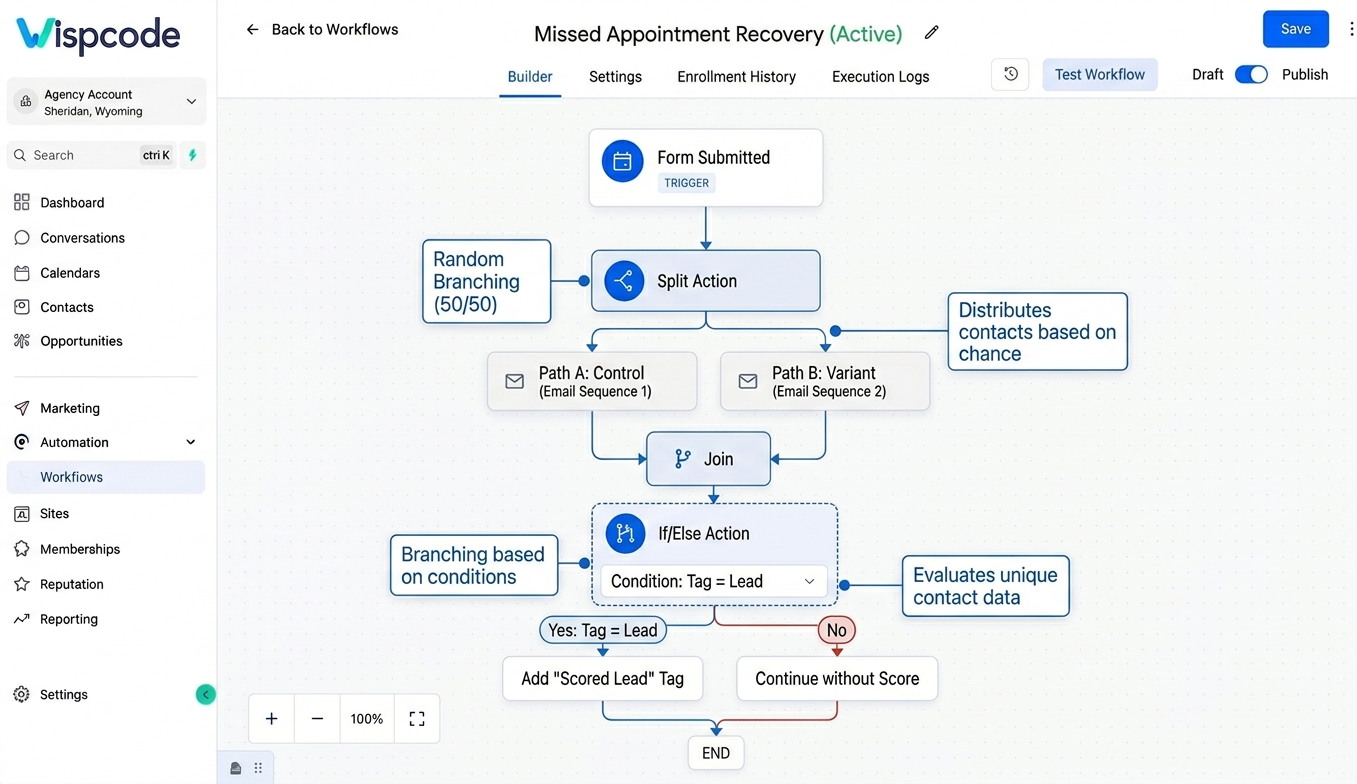
However, there is an important distinction to understand before using it: Split Action is not a condition-based branching tool. It randomly assigns contacts to paths according to the percentages you configure. If you want to send contacts down different paths based on information such as their location, lead score, purchase value, or appointment status, you should use If/Else instead.
In this guide, we’ll explain how the Split Action works, how to configure it, practical ways to use it, and the mistakes to avoid when building split workflows.
What Is the Split Action in GoHighLevel?
The Split Action is a workflow action that divides contacts into multiple paths using a Random Split distribution.
You can create up to five paths and assign a percentage to each path. The percentages must total exactly 100% before the action can be saved.
Imagine you have 1,000 leads entering a workflow and configure:
Path A — 50%
Path B — 50%
Each contact is randomly assigned to one of the two paths.
You could then place different emails, SMS messages, wait steps, offers, or other workflow actions inside each path.
This makes Split Action particularly useful for A/B testing, campaign experimentation, and workload distribution.
Split Action vs. If/Else
This is one of the most important concepts for beginners.
Split Action asks:
“Which randomly assigned path should this contact follow?”
If/Else asks:
“Which path should this contact follow based on a condition?”
For example, suppose you want customers with a purchase value above $1,000 to receive a premium follow-up.
That is a condition-based decision, so If/Else is appropriate.
But if you want to test two different follow-up sequences and randomly expose contacts to each version, Split Action is appropriate. GoHighLevel specifically notes that Split Action uses random distribution and recommends If/Else when the split should be based on criteria.
Why Use Split Action in a Workflow?
A standard workflow usually moves contacts through the same sequence of actions.
For example:
Trigger → Email → Wait → SMS → Follow-up
That works well when every contact should receive the same journey.
But sometimes you want to test alternatives.
For example:
Trigger → Split Action
Then:
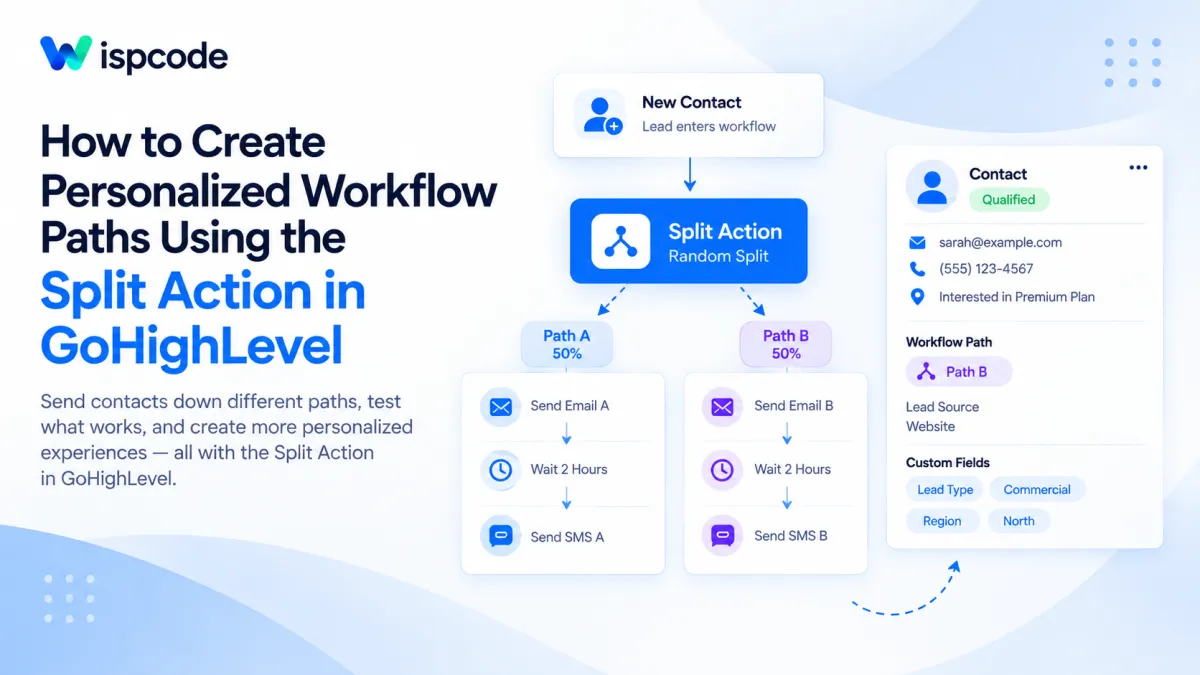
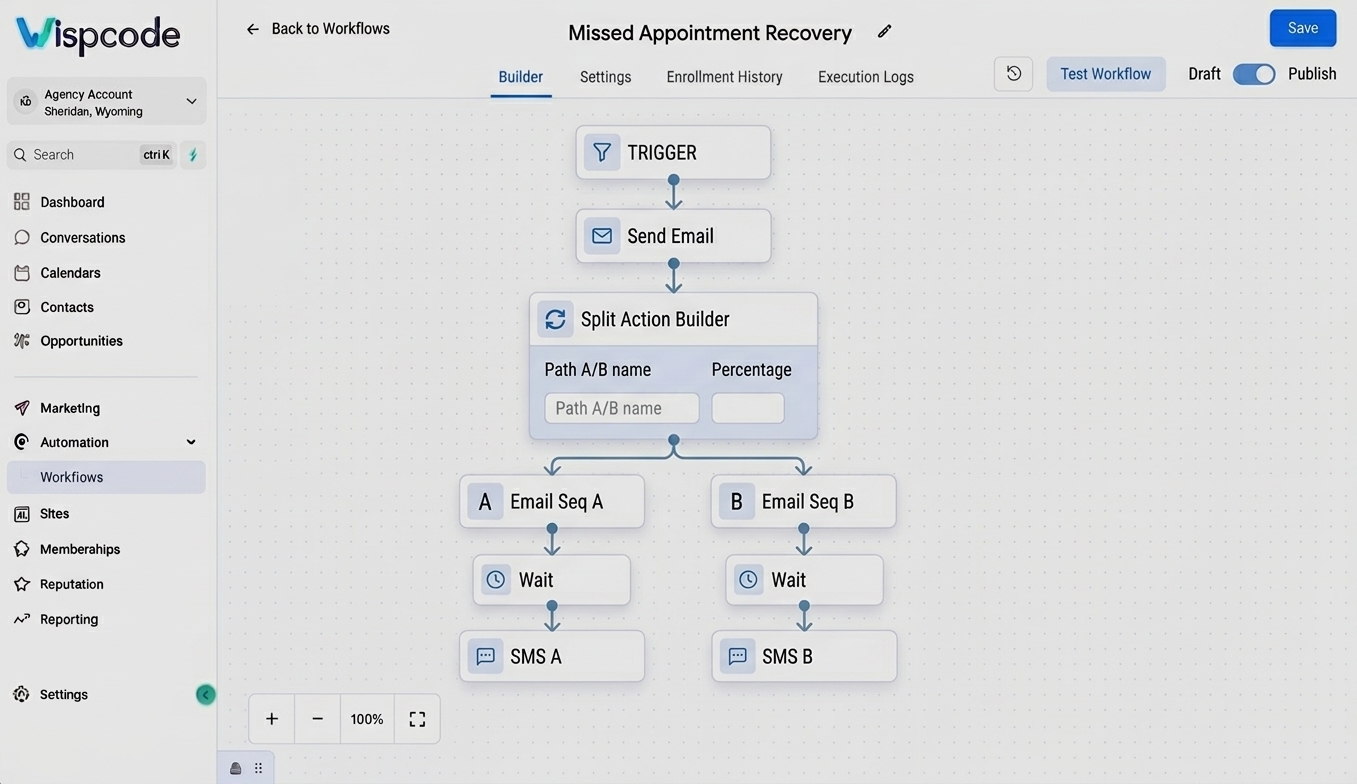
Path A → Email Version A → Wait → SMS A
Path B → Email Version B → Wait → SMS B
Now you can compare how the different paths perform.
This approach can help marketers experiment with:
Different email messages
Different SMS follow-ups
Different offers
Different communication sequences
Different lead-routing approaches
Different campaign strategies
GoHighLevel also provides statistics for the Split Action so you can see how many contacts entered each path.
How to Add the Split Action in GoHighLevel
Adding a Split Action is straightforward once your workflow has a trigger and the preceding steps configured.
Step 1: Open Your Workflow
Go to your GoHighLevel sub-account and open the Workflows section.
You can either create a new workflow or open an existing workflow where you want to introduce a random split.
Remember that a workflow starts with a trigger, while actions determine what happens after that trigger fires.
For example:
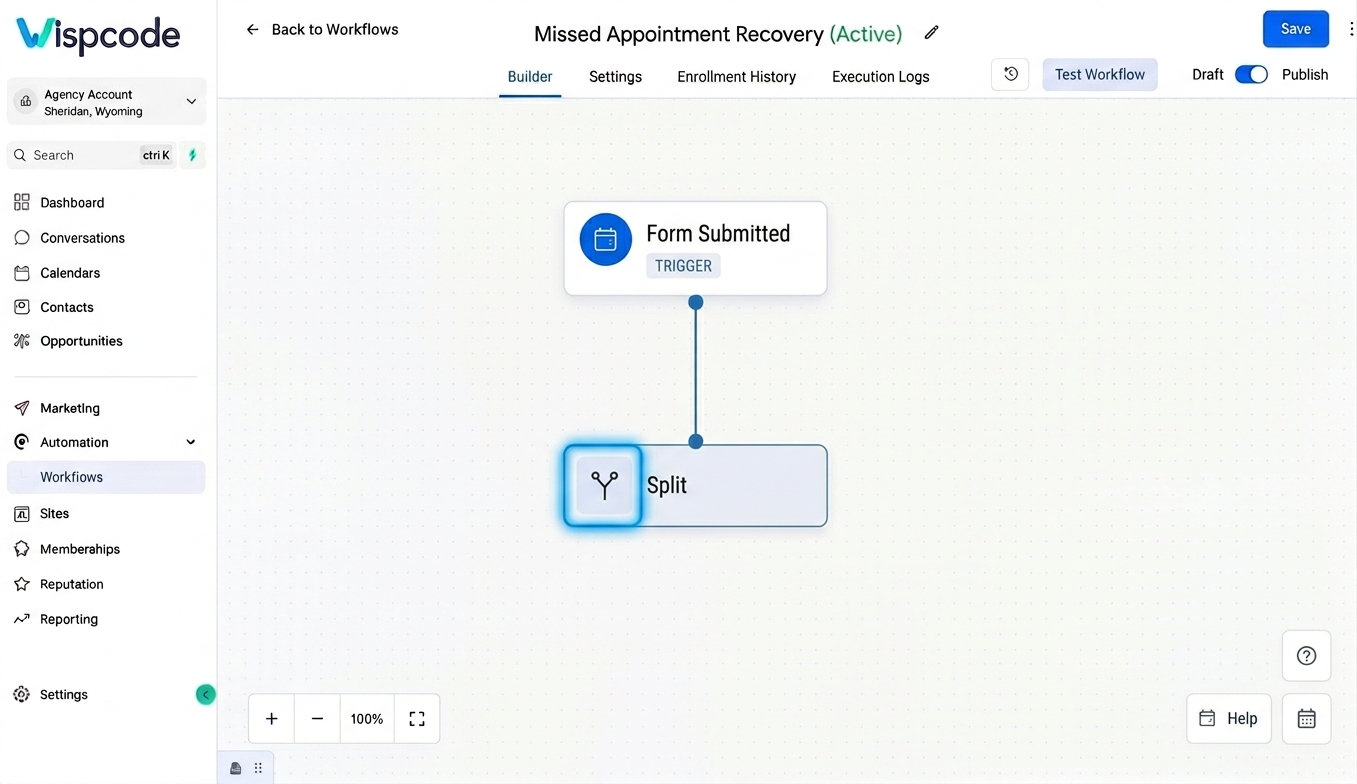
Trigger: Form Submitted
Then you might add:
Action: Send Confirmation Email
And after that:
Action: Split
Step 2: Add the Split Action
Inside the Workflow Builder, click the + button where you want the split to occur.
Search for Split and select the Split Action from the available workflow actions.
GoHighLevel places Split within its workflow's internal tools/actions.
The Split configuration panel will open.
Step 3: Select Random Split
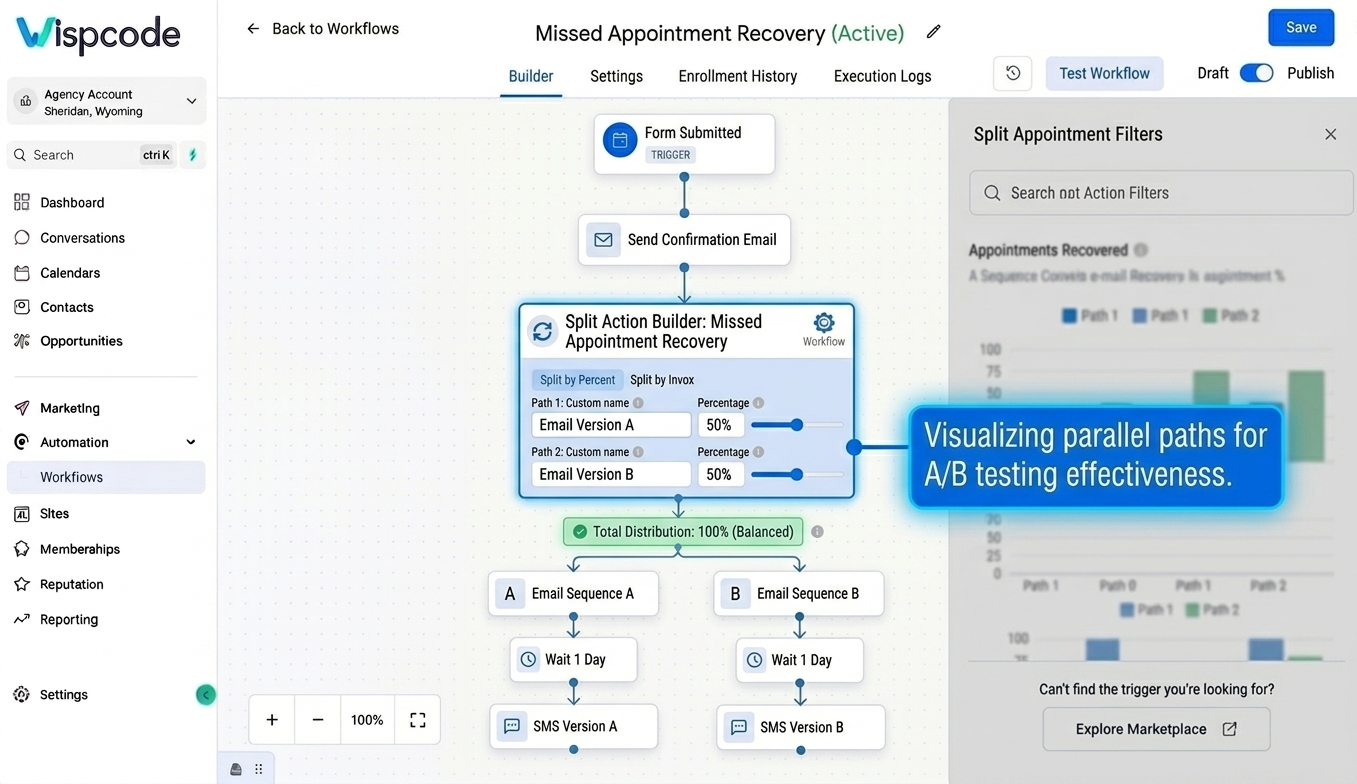
The current Split Action uses Random Split as its distribution type.
This means contacts are not evaluated according to a custom condition. Instead, they are distributed randomly according to the percentages you define.
Step 4: Configure Your Paths
GoHighLevel initially provides paths that you can customize.
You can:
Rename paths
Add additional paths
Remove paths
Set the percentage assigned to each path
You can create up to five paths within a Split Action.
Instead of leaving them as generic names such as “Path A” and “Path B,” use descriptive names.
For example:
Email Version A
Email Version B
Or:
Sales Team A
Sales Team B
Clear naming makes larger workflows much easier to understand later.
Step 5: Make the Percentages Total 100%
The percentages assigned to your paths must add up to exactly 100%.
For example:
Two-path test
Path A — 50%
Path B — 50%
Three-path test
Path A — 40%
Path B — 35%
Path C — 25%
Both examples total 100%.
If your percentages total more or less than 100%, GoHighLevel will prevent you from saving the configuration until the distribution is corrected.
You can also configure a path with a 0% allocation, provided the overall percentages still total 100%. This can be useful when designing or temporarily disabling a path without deleting it.
Practical Example: A/B Testing a Lead Follow-Up
Suppose you run a marketing campaign that generates leads through a form.
Your goal is to discover which follow-up sequence produces better engagement.
Your workflow could look like this:
Form Submitted
↓
Send Initial Confirmation
↓
Split Action
Path A — 50%
Send Email A
Wait
Send SMS A
Continue follow-up
Path B — 50%
Send Email B
Wait
Send SMS B
Continue follow-up
The two paths can contain completely different messaging strategies.
For example, Path A could use a direct sales message while Path B uses an educational message.
The important point is that the Split Action itself does not decide which message is more suitable for a particular contact. It randomly assigns the contact to one of your configured paths.
You can then review the statistics and compare the outcomes of the different paths.
Practical Example: Distributing Leads Between Teams
Split Action can also be useful when you want to distribute contacts between different teams or approaches.
Imagine a company has two sales groups:
Sales Team A
Sales Team B
You could configure:
Sales Team A — 70%
Sales Team B — 30%
The contacts would be randomly distributed according to those percentages.
You could then place the appropriate workflow actions inside each path.
For more specific assignment requirements, GoHighLevel also provides dedicated assignment functionality. The Assign To User action, for example, supports distributing contacts among selected users using assignment methods and traffic distribution settings.
Therefore, Split Action should be selected because you specifically want a randomized workflow split—not simply because you need to assign a contact to a team member.
How to Monitor Split Path Performance
After contacts begin moving through your workflow, you can review the statistics associated with the Split Action.
GoHighLevel provides statistics showing how contacts are distributed across the paths. Statistics can also be viewed through the workflow's Stats View.
This is especially useful for experiments.
For example, suppose you create:
Path A — 50%
Path B — 50%
After contacts have entered the workflow, you can inspect the number of contacts that entered each path.
The statistics help you understand how your workflow traffic is being distributed.
However, remember that the Split Action statistics tell you about path distribution. If you want to determine which marketing strategy performed better, you should also define and monitor the relevant business outcome, such as replies, bookings, conversions, or another measurable result available in your overall workflow setup.
An Important Behavior: Contacts Stay With Their Assigned Path
There is another Split Action behavior beginners should understand.
Once a contact is assigned to a path, they remain associated with that path. If the contact re-enters the workflow, GoHighLevel's documentation states that the contact will not be randomly assigned to a different path; they will continue down the same path.
This matters when designing recurring or re-entry workflows.
For example, if a contact was originally assigned to Path A, you should not assume that another workflow entry will automatically place them into Path B for another test.
Plan your workflow logic with this behavior in mind.
Best Practices for Using Split Action
1. Use descriptive path names
Avoid generic names such as “Path A” and “Path B” when the workflow becomes complex.
Use names such as:
“Short Follow-Up”
“Long Follow-Up”
“Offer A”
“Offer B”
This makes your automation easier to maintain.
2. Keep your experiment focused
If you are using Split Action for testing, avoid changing too many variables at once.
For example, if you are testing two email approaches, make the difference between the paths clear enough that the result is meaningful.
3. Always check the percentage total
Before saving the action, make sure all path percentages add up to exactly 100%.
This is required by the Split Action configuration.
4. Use If/Else for condition-based personalization
This is perhaps the most important best practice.
If your requirement is:
“Send high-value customers down Path A and everyone else down Path B.”
Do not use Split Action.
Use If/Else because the routing decision depends on contact information or another condition rather than random distribution.
5. Think about re-entry before publishing
Because contacts remain associated with their original Split path, consider how workflow re-entry will affect your automation before turning it on.
This is particularly important for workflows that contacts may enter multiple times.
Common Mistakes to Avoid
Treating Split Action like If/Else
A Split Action does not evaluate conditions such as:
Lead score
Contact location
Pipeline stage
Purchase amount
Appointment status
when determining the path.
It randomly distributes contacts according to the configured percentages.
Using percentages that do not equal 100%
A configuration such as 60% + 30% = 90% will not satisfy the Split Action's requirement.
Always make the total exactly 100%.
Creating too many unnecessary paths
Although up to five paths are supported, more paths do not automatically create a better workflow.
Use only the number of paths necessary for the test or distribution strategy.
Assuming the split is perfectly equal every time
A 50/50 split represents the configured probability distribution; it does not mean every small group will contain exactly half Path A and half Path B.
Random distribution can naturally vary.
Ignoring path persistence
Do not assume a contact will receive a new random path every time they re-enter the workflow. GoHighLevel states that contacts remain on their originally assigned path.
Frequently Asked Questions(FAQ'S)
1. Is Split Action the same as If/Else in GoHighLevel?
No. Split Action uses random distribution based on percentages, while If/Else evaluates conditions and directs contacts according to whether those conditions are met.
2. How many paths can I create with Split Action?
You can create up to five paths within one Split Action.
3. Do Split Action percentages have to equal 100%?
Yes. The configured path percentages must total exactly 100% before the action can be saved.
4. Can I use Split Action for A/B testing?
Yes. A/B testing is one of the primary use cases for the action. You can randomly distribute contacts between different workflow variations and compare their performance.
5. Can a contact move to a different path if they re-enter the workflow?
According to GoHighLevel's documentation, no. Once a contact is assigned to a Split Action path, they remain on that path if they re-enter the workflow.
Conclusion
The Split Action in GoHighLevel gives marketers and businesses a practical way to create different workflow experiences without building completely separate automation systems.
Its biggest strength is random distribution. You can create up to five paths, assign percentages to each, and use those paths to test different messages, follow-up strategies, or workflow approaches.
The key is understanding what Split Action is—and what it is not.
Use Split Action when you want random, percentage-based distribution. Use If/Else when the path should depend on a specific condition or contact attribute.
Once you understand that distinction, you can use both tools strategically to build cleaner, more flexible GoHighLevel workflows and make your automation easier to test and optimize.
Need Expert Help with GoHighLevel?
New to GoHighLevel and ready to get started? Buy your GoHighLevel account here and launch with confidence.
Already know what you need and want our team to handle everything, from complete setup and customization to funnels, workflows, automations, CRM, and pipelines? Click here.



