

How to create workflows with Social Planner Posts in GoHighLevel
Create Workflows with Social Planner Posts in GoHighLevel
Managing social media publishing involves more than preparing content and choosing a publication date. Posts may require approval, get rejected, remain scheduled, or fail to publish. Without a structured process, teams must repeatedly check publishing activity and manually coordinate the next steps. The new GoHighLevel Social Planner Posts trigger helps address this challenge by connecting post statuses and publishing events with GoHighLevel Workflows.
This update gives agencies, social media managers, and marketing teams a way to automate actions around the social publishing lifecycle. By configuring relevant conditions, teams can reduce manual monitoring and respond more consistently to important post events.
What Is the Social Planner Posts Workflow Trigger?
The Social Planner Posts trigger is a new option in GoHighLevel Workflows that allows automation to begin when a Social Planner post meets specified conditions.
Instead of manually checking every post to determine its current status, teams can configure workflows to respond to events such as approval requests, successful publishing, or failed posts. These workflows can initiate appropriate actions based on the selected conditions.
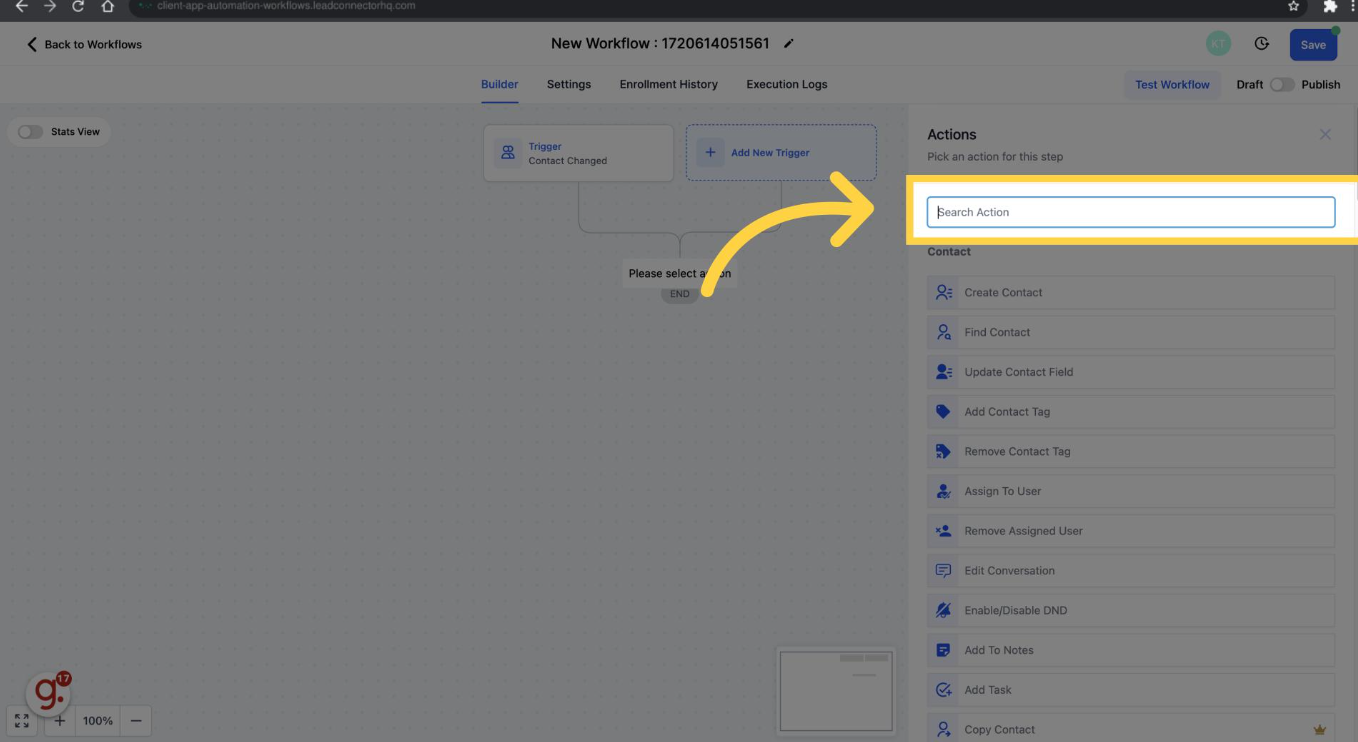
This makes GoHighLevel social media automation more closely connected to everyday publishing operations. Rather than treating scheduling and publishing as isolated tasks, teams can establish processes around the different stages a post passes through.
Automate Different Stages of Social Media Publishing
The trigger supports six post statuses, allowing teams to build workflows around different publishing events.
Approval Requested: Initiate workflow actions when a post is submitted for approval. This can help teams coordinate the approval process.
Approved: Trigger actions when a post receives approval, allowing the next relevant workflow step to begin.
Approval Rejected: Initiate appropriate actions when a post's approval is rejected. For example, a workflow can use an internal notification to inform the team.
Scheduled: Start workflow actions when a post is scheduled for publishing, helping teams keep relevant stakeholders informed.
Published: Trigger follow-up actions after a post is successfully published, supporting the team's established publishing process.
Failed: Alert the team when a post fails to publish so the issue can be investigated and corrective action considered.
These statuses provide a foundation for GoHighLevel post status automation. However, the trigger does not guarantee successful publishing or automatically resolve rejected posts and publishing failures. Teams must still review issues and take any necessary corrective action.
Filter Workflows by Platform, Category, and Post Type
Not every social media post requires the same response. GoHighLevel provides filters that help teams target specific publishing activity rather than applying identical workflow logic to every post.
Categories allow workflows to focus on content groups such as promotions, announcements, and educational posts. This helps teams organize automation around the purpose of their content.
Platforms determine which supported social platform the workflow should target. The available platforms are Facebook, Instagram, Bluesky, Google Business Profile (GBP), LinkedIn, Pinterest, Threads, TikTok, and YouTube.
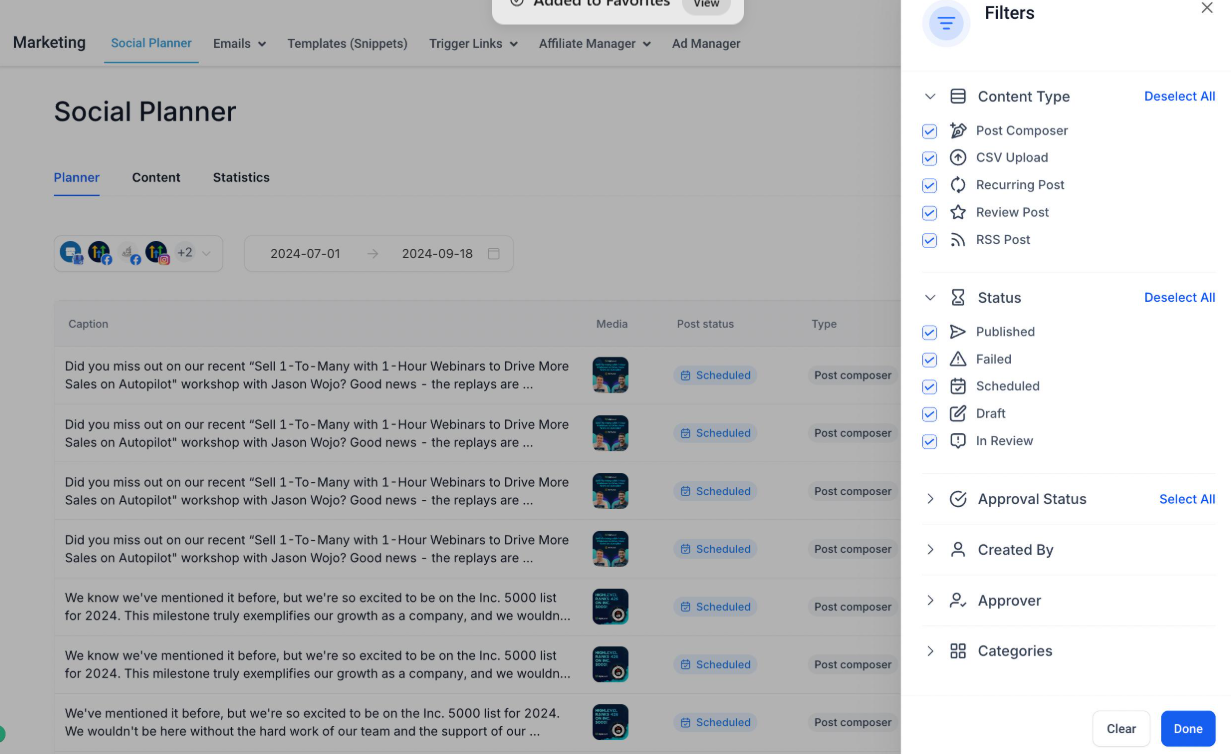
Post types allow teams to distinguish between Carousels, Posts, Reels, Shorts, and Stories.
These filters are particularly useful for agencies managing multiple campaigns. For example, a team may configure a workflow to respond to failed publishing events for a selected platform or focus on a particular category of content. The workflow responds according to its configured conditions.
Target Specific Social Accounts and Post Tags
Agencies often manage several clients, brands, and social profiles within their publishing operations. A workflow intended for one client's content may not be appropriate for another client's posts.
The Social Planner Posts trigger supports targeting connected Social Planner accounts and existing post tags. These options help teams narrow the publishing activity that a workflow should address.
For example, an agency can use its account selection and existing tagging structure to organize workflows around relevant client profiles or categories of content. This makes automation more specific to the team's publishing requirements without assuming that every account or post needs the same treatment.
How to Set Up the Social Planner Posts Trigger
Follow these steps to configure the trigger in GoHighLevel:
Navigate to Automation → Workflows.
Create a new workflow or open an existing one.
Add the Social Planner Posts trigger.
Configure the relevant filters, including category, platform, post status, post type, social account, and tags.
Add appropriate workflow actions, such as internal notifications or follow-up actions.
Save and publish the workflow.
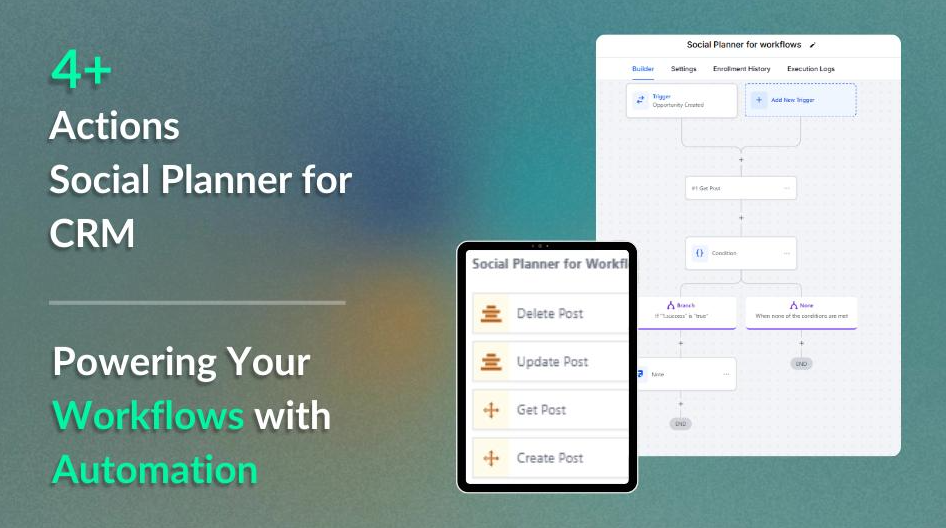
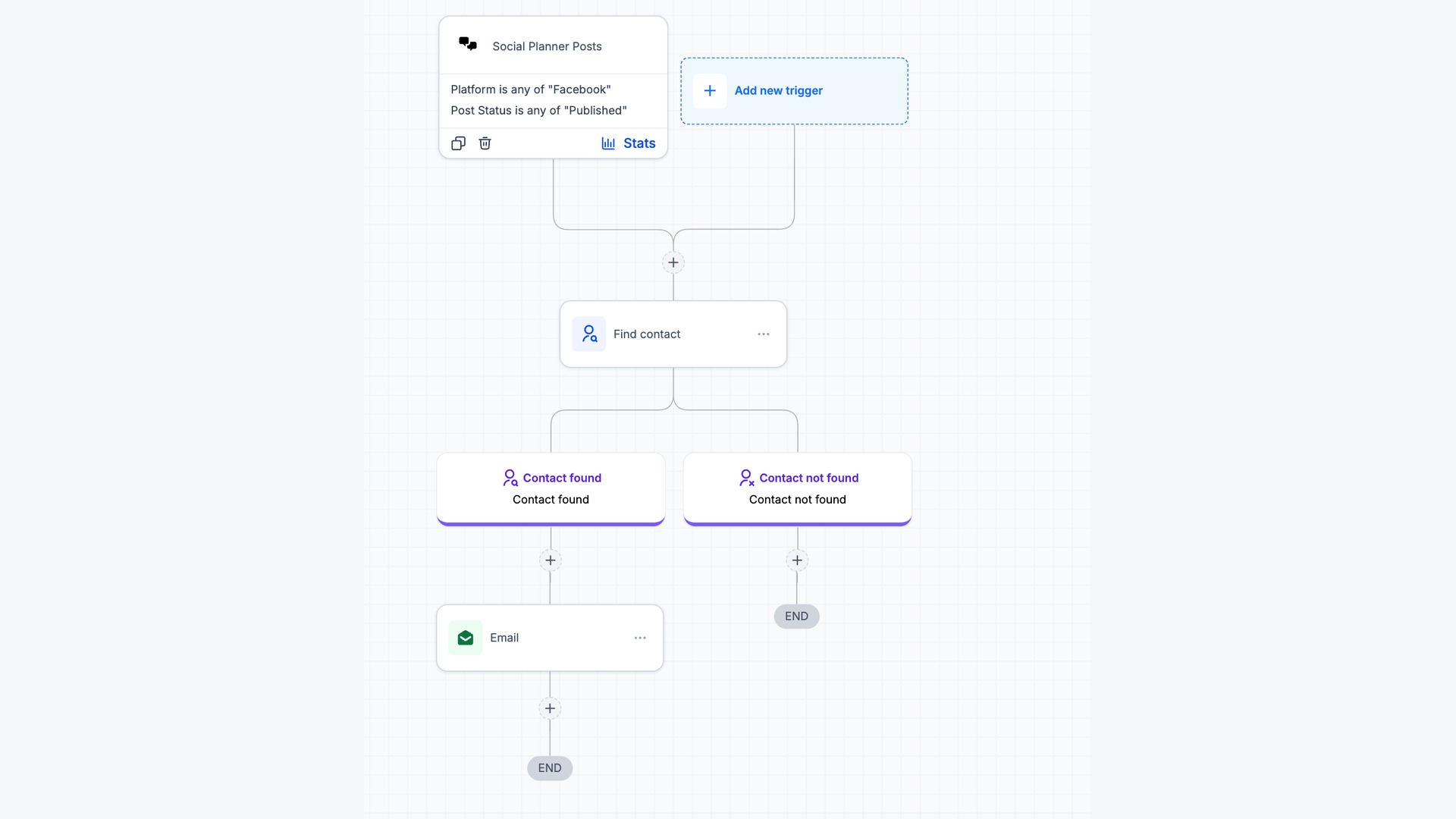
Connect the Social Planner Posts trigger to workflow actions and use conditional branches to determine what happens next.
Once configured, the workflow triggers when a Social Planner post meets the selected conditions. The resulting actions depend on the workflow you build, so choose conditions and actions that match your team's actual publishing process.
Why This Update Matters for Agencies and Marketing Teams
The main benefit of this update is reduced dependence on manual monitoring. Teams no longer need to rely exclusively on repeatedly checking post statuses to identify events that require attention.
Approval-related workflows can support coordination between content creators and reviewers. Failed-post workflows can help teams identify publishing problems sooner and begin investigating them. Published-status workflows can initiate appropriate follow-up actions, while account and category filters help agencies organize automation across different clients and campaigns.
These capabilities can make GoHighLevel social media publishing easier to manage as the number of posts and accounts increases. However, automation supports the process rather than replacing human judgment. Teams still need to review rejected content, investigate failed posts, and decide what corrective action is appropriate.
Important Limitations to Know
The most important limitation concerns how social accounts are connected.
Only social accounts connected through Social Planner are supported by this update. Accounts connected through Integrations are not supported yet, and support is in progress.
Therefore, before building workflows around a particular social profile, confirm that it falls within the supported connection method. The trigger operates according to its configured filters and the Social Planner post conditions that are met. It should not be treated as a universal trigger for every social account connected to GoHighLevel.
Frequently Asked Questions
1. What is the Social Planner Posts trigger in GoHighLevel?
It is a workflow trigger that allows automation to respond when Social Planner posts meet configured conditions, including specific post statuses and publishing events.
2. Which post statuses can trigger workflows?
The six supported statuses are Approval Requested, Approved, Approval Rejected, Scheduled, Published, and Failed.
3. Which social media platforms are supported?
The available platform filters include Facebook, Instagram, Bluesky, Google Business Profile, LinkedIn, Pinterest, Threads, TikTok, and YouTube.
4. Can agencies target specific social accounts and post tags?
Yes. Workflows can use connected Social Planner accounts and existing post tags to target relevant publishing activity across clients, brands, and social profiles.
5. Are social accounts connected through Integrations supported?
No. Only accounts connected through Social Planner are currently supported. Integration-connected accounts are not supported yet, and support is in progress.
Conclusion
The GoHighLevel Social Planner Posts trigger gives agencies and marketing teams a more structured way to manage social publishing through automation. By responding to six post statuses and using filters for platforms, categories, post types, accounts, and tags, teams can coordinate approvals, identify publishing failures, and initiate relevant follow-up actions. When configured around a clear publishing process, this trigger can reduce manual monitoring and help teams manage social media operations more consistently.
Need Expert Help with GoHighLevel?
New to GoHighLevel and ready to get started? Buy your GoHighLevel account here and launch with confidence.
Already know what you need and want our team to handle everything, from complete setup and customization to funnels, workflows, automations, CRM, and pipelines? Click here.



