

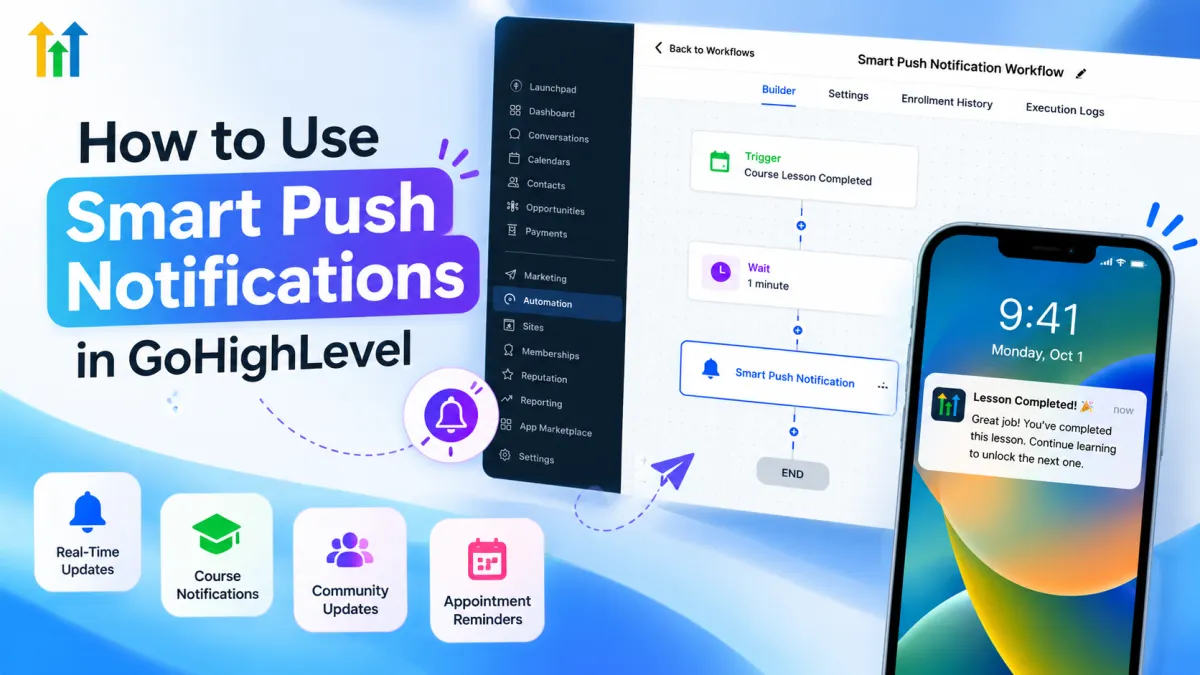
How to Use Smart Push Notifications in GoHighLevel
How to Send Smart Push Notifications Automatically Using the Smart Push Notifications Action in GoHighLevel
A customer joins your online community, a student reaches an important point in a course, or you publish an update that members should see. The information is useful, but manually contacting every user is not practical as your audience grows.
This is where GoHighLevel Smart Push Notifications can become part of a well-designed automation strategy.
The Smart Push Notification Action in GoHighLevel lets businesses send personalized push notifications to registered Client Portal users through workflows. Notifications can include a custom title and message and direct the recipient to supported areas such as Communities or Courses.
Instead of treating push notifications as another channel to send more messages, the better approach is to use them when a timely notification gives the user a clear reason to return to the Client Portal.
What Is the Smart Push Notifications Action in GoHighLevel?
Smart Push Notification is an action available inside GoHighLevel workflow automation.
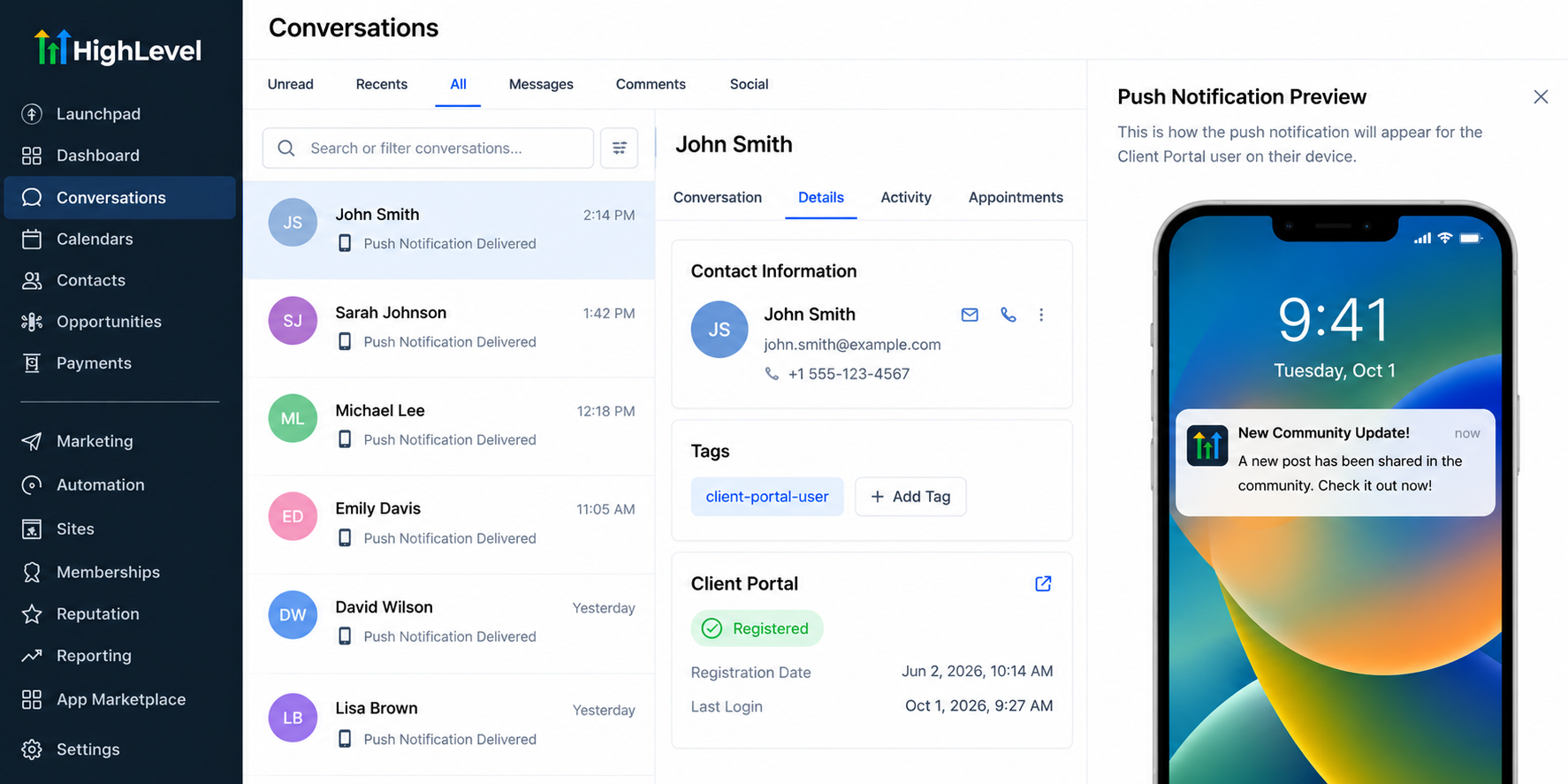
When a contact reaches this action within a workflow, GoHighLevel can send that contact a push notification through the Client Portal experience. According to HighLevel's documentation, the action supports a customizable title, message body, personalization using placeholders, and redirection to either Communities or Courses.
One important limitation should be understood before building an automation: only registered Client Portal users can receive these notifications. Contacts who are not registered Client Portal users will not receive them.
That makes Smart Push Notifications particularly relevant for businesses using HighLevel's community or course functionality.
How Smart Push Notifications Work Inside a GoHighLevel Workflow
The basic automation structure is straightforward:
Workflow Trigger → Workflow Logic → Smart Push Notification → Client Portal User Receives Notification
A workflow trigger determines when the automation begins. From there, you can build the appropriate workflow logic and place the Smart Push Notification action at the point where the notification should be delivered.
For example, a workflow designed around community activity could send a notification encouraging an eligible Client Portal user to check a relevant community update.
HighLevel describes Smart Push Notification as a workflow action, so the surrounding trigger and automation structure can be designed according to the specific process being automated.
How to Set Up the Smart Push Notifications Action in GoHighLevel
HighLevel's documented configuration process is relatively simple.
1. Open Your Workflow
Navigate to Automation > Workflows in GoHighLevel.
Create a new workflow or open an existing workflow where the push notification should be added.
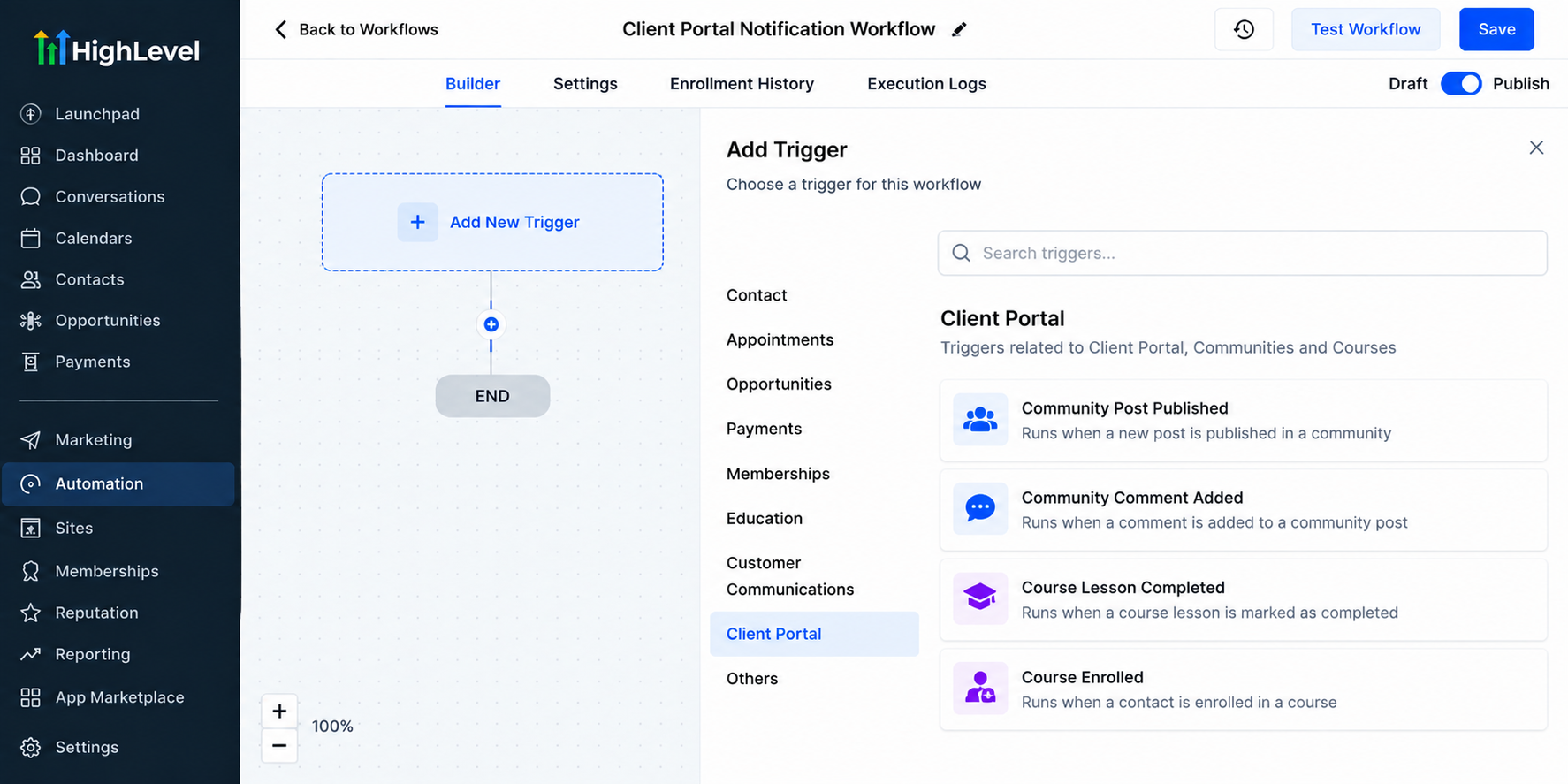
2. Configure the Workflow Trigger
Choose a trigger that matches the event you want the workflow to respond to. The appropriate trigger will depend on your automation and business process.
3. Add Smart Push Notification
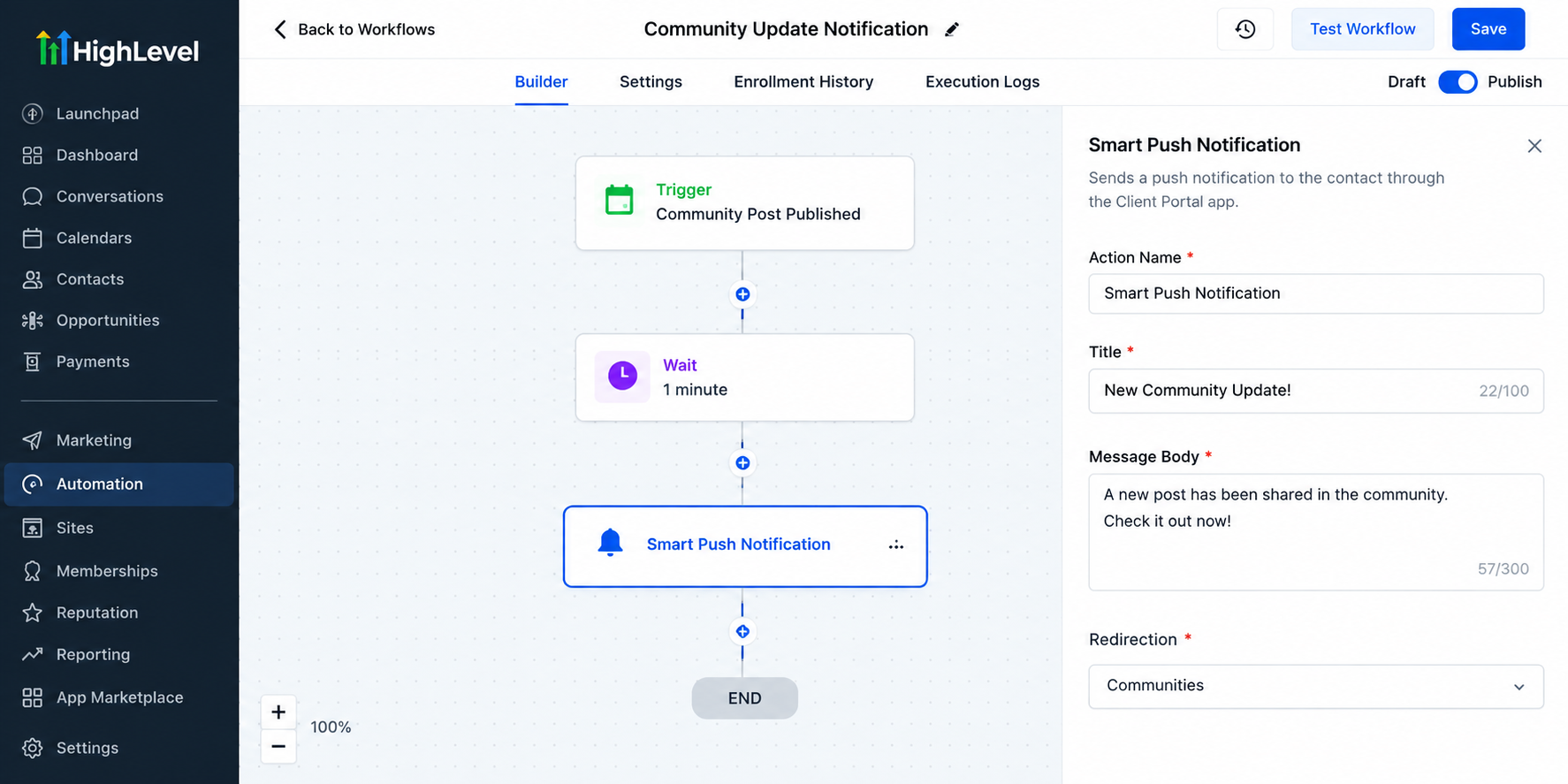
Click + Add Action, search for “Smart,” and select Smart Push Notification.
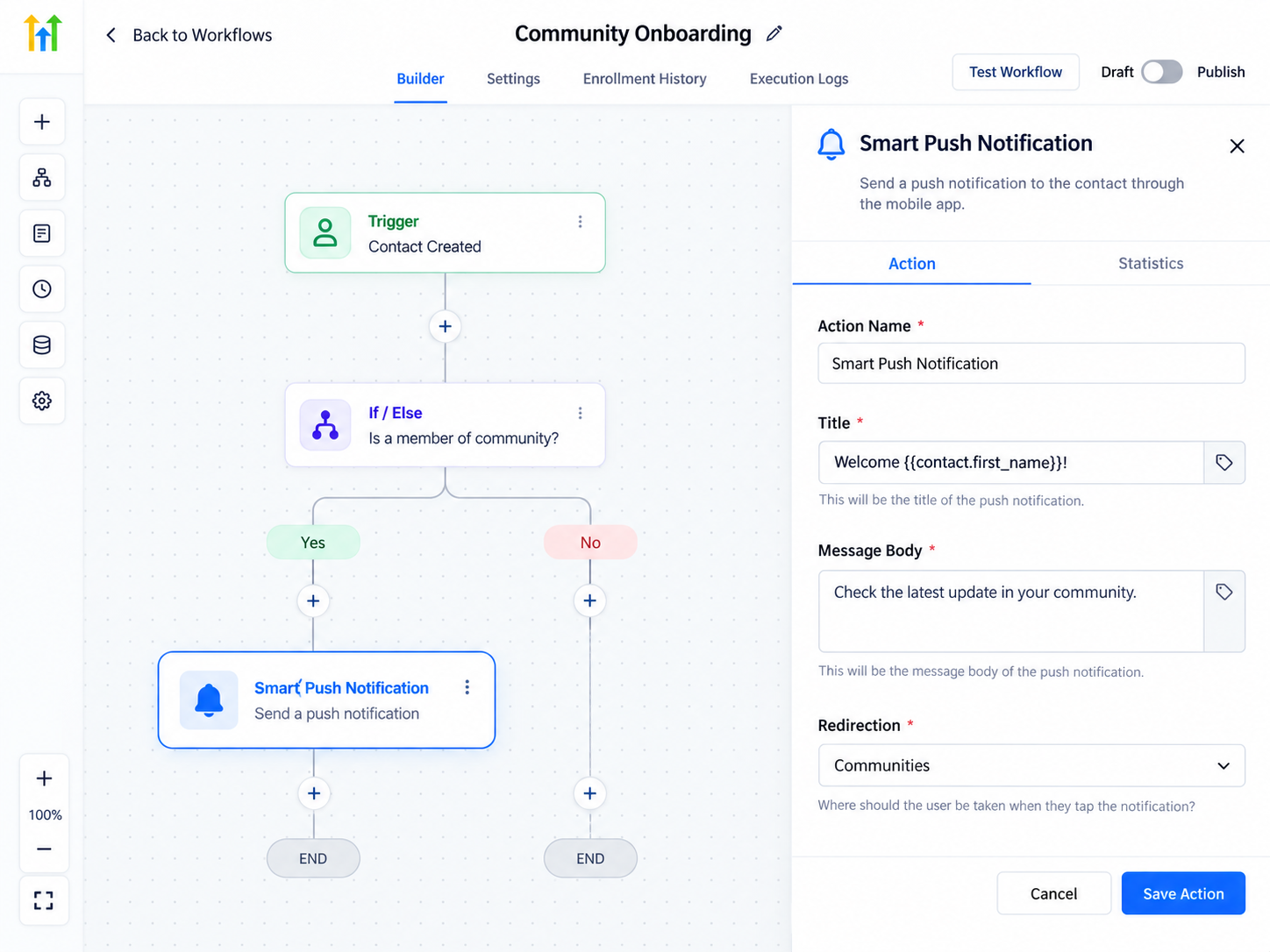
4. Configure the Notification
HighLevel currently documents three main required configuration fields:
Title: The notification headline, with a maximum of 100 characters.
Message Body: The notification content, with a maximum of 300 characters.
Redirection: The destination opened when the recipient interacts with the notification. Documented options are Communities and Courses.
The Title and Message Body can also use placeholders for personalization, such as contact information.
5. Save and Test
Save the action and review the complete workflow.
HighLevel recommends testing the workflow with a sample contact before activating it. This helps you confirm that the notification copy, personalization, workflow logic, and destination behave as intended.
Once testing is complete, activate the workflow.
Practical Uses for GoHighLevel Smart Push Notifications
Because Smart Push Notifications are designed for Client Portal users, the strongest use cases involve experiences connected to Communities and Courses.
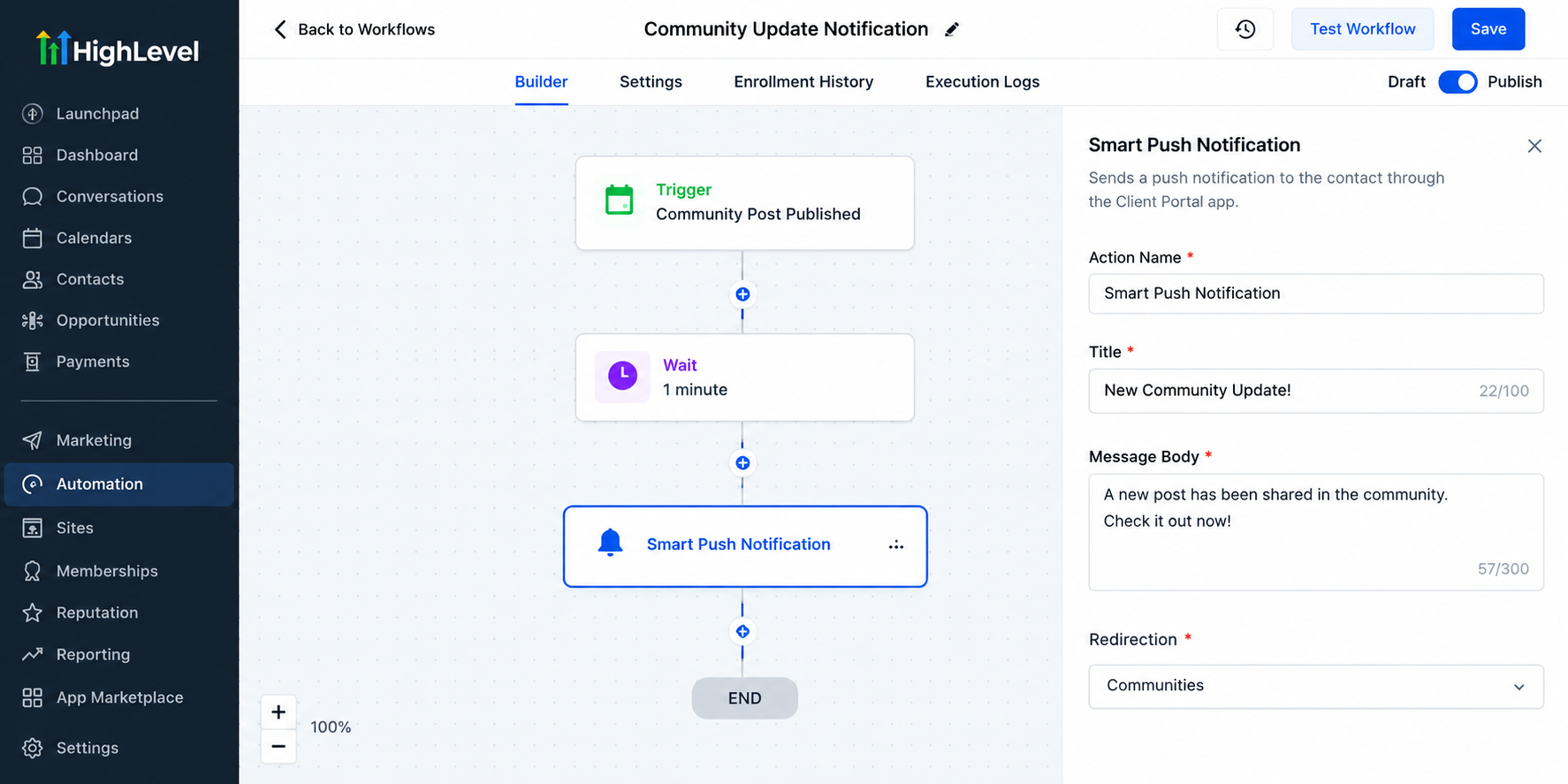
Community Updates
A business running a member community could use an automated push notification to bring users back when there is an important update.
For example:
Relevant Trigger → Smart Push Notification → Redirect to Communities
This provides a direct path from the notification back into the community experience.
Course Communication
Businesses delivering training or educational content through GoHighLevel Courses can incorporate push notifications into relevant course-related workflows.
A concise message can remind users that something requires their attention and direct them back to Courses.
Important Member Announcements
Smart Push Notifications can also support time-sensitive Client Portal communication, provided the workflow trigger and audience are appropriate.
The key is relevance. A notification should have a clear purpose rather than simply becoming another automated touchpoint.
Smart Push Notifications vs. Email and SMS
Smart Push Notifications should not be confused with SMS or email.
Email works well when you need space for detailed information. SMS can be useful for direct text-based communication where the recipient has provided the appropriate consent.
Smart Push Notifications, by contrast, are connected to registered Client Portal users and can direct them into supported Client Portal destinations such as Communities or Courses.
These channels do not have to compete with one another. The right choice depends on the audience, message, urgency, destination, and communication permissions involved.
Best Practices for Smart Push Notification Workflows
Keep the notification short enough that users can quickly understand why it matters. The title should communicate the subject, while the message body should explain what the recipient should know or do next.
Personalization can make messages more relevant, but only use placeholders that serve a real purpose.
Also pay attention to frequency. Creating several workflows that notify the same person about similar events can quickly produce unnecessary noise.
Most importantly, test your Smart Push Notification workflow before activating it. Verify the trigger, notification copy, personalization, and redirection rather than assuming every part of the automation will behave as expected.
Common Mistakes to Avoid
One common mistake is designing Smart Push Notifications as though they can reach every CRM contact. Remember that HighLevel specifies that recipients must be registered Client Portal users.
Another mistake is using vague copy such as “Check this out!” without telling users why the notification matters.
Businesses should also avoid overlapping workflows, excessive notification frequency, and choosing push notifications when email or SMS better matches the communication objective.
Finally, don't assume unsupported destinations or settings exist. Build around the options available in the Smart Push Notification action and test the actual workflow before launch.
Conclusion
The Smart Push Notifications Action in GoHighLevel gives businesses another way to connect workflow automation with their Client Portal experience.
With personalized titles and messages, workflow-based delivery, and supported redirection to Communities or Courses, GoHighLevel Smart Push Notifications can help businesses make relevant Client Portal communication more timely and actionable.
The best strategy is not to automate as many notifications as possible. Instead, identify the moments when a notification genuinely helps a user notice something important or return to the right area of your Client Portal. When every notification has a clear purpose, Smart Push Notifications become a useful part of a broader GoHighLevel automation strategy.
Frequently Asked Questions
1. What is the Smart Push Notifications Action in GoHighLevel?
The Smart Push Notifications Action is a workflow action that allows businesses to automatically send push notifications to registered Client Portal users. These notifications can include a custom title, message, personalization, and supported redirection to areas such as Communities or Courses.
2. Who can receive Smart Push Notifications in GoHighLevel?
Smart Push Notifications can be delivered to contacts who are registered Client Portal users. Contacts who are not registered for the Client Portal will not receive these notifications.
3. Can Smart Push Notifications redirect users to a specific destination?
Yes. GoHighLevel currently supports redirection to Communities or Courses within the Smart Push Notification action. The destination should be selected based on the purpose of the workflow.
4. Can I personalize Smart Push Notifications in GoHighLevel?
Yes. GoHighLevel supports placeholders in the notification title and message body, allowing businesses to personalize notifications with relevant contact information when appropriate.
5. Are Smart Push Notifications the same as SMS or email?
No. Smart Push Notifications are different from SMS and email. They are designed for registered Client Portal users and are delivered as push notifications connected to the Client Portal experience. Email and SMS remain separate communication channels with their own use cases and requirements.
Need Expert Help with GoHighLevel?
New to GoHighLevel and ready to get started? Buy your GoHighLevel account here and launch with confidence.
Already know what you need and want our team to handle everything, from complete setup and customization to funnels, workflows, automations, CRM, and pipelines? Click here.



