

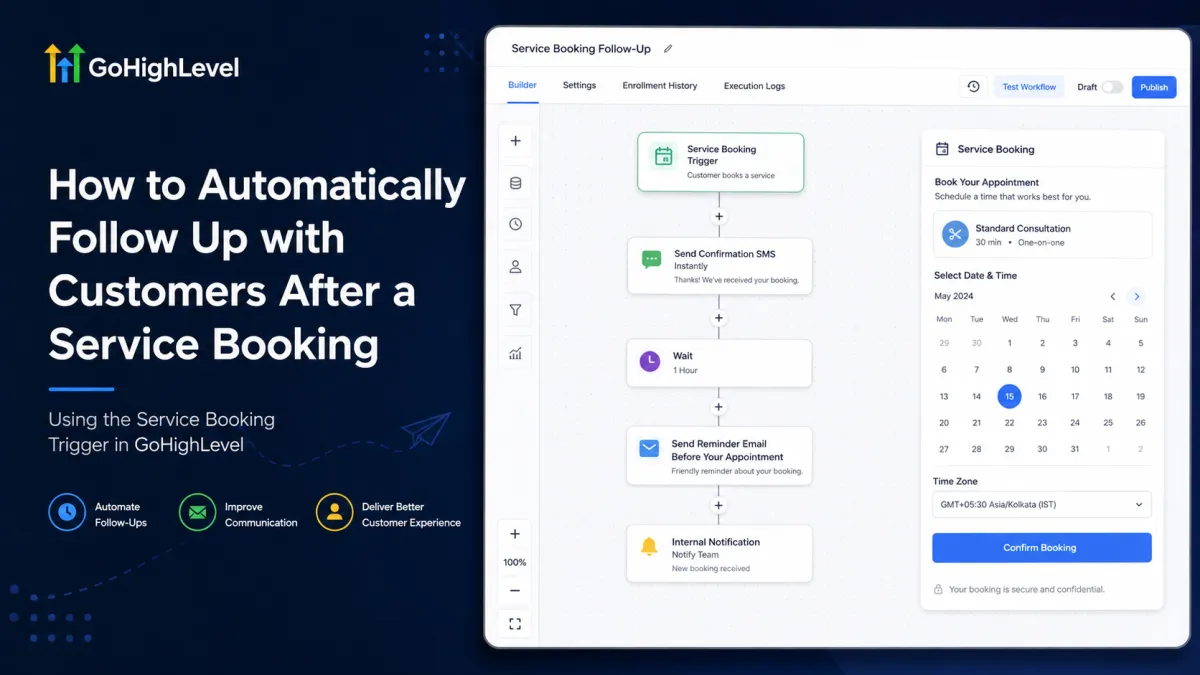
Service Booking Follow-Up Automation in GoHighLevel
How to Automatically Follow Up with Customers After a Service Booking Using the Service Booking Trigger in GoHighLevel
A customer books a service, but the work does not stop there. Staff may still need to send confirmation details, preparation instructions, reminders, or an internal alert. When that follow-up is manual, messages can be delayed or missed.
The GoHighLevel Service Booking Trigger can start a workflow from a booking in Services (v2), giving service businesses a precise starting point for automated customer follow-up.
Why Service Booking Follow-Up Matters?
Service booking automation is mainly about timing and consistency.
A GoHighLevel follow-up workflow can send immediate communication, pause until a useful point before the service, and notify the team when manual attention is needed. The goal is not more messages. It is better-timed communication. HighLevel currently supports communication and internal workflow actions such as email, SMS, internal notifications, and tasks.
What Is the Service Booking Trigger in GoHighLevel?
The Service Booking Trigger is a workflow trigger for Services (v2). HighLevel documents it as operating at the overall booking level rather than the individual appointment level. If one customer books multiple services together, the workflow triggers once for the booking instead of once for each service.
That differs from Appointment Status, which works at the calendar-appointment level. HighLevel also lists Customer Booked Appointment separately. These triggers are not interchangeable.
The Service Booking trigger is available only when Services (v2) is enabled for the sub-account.

How the Service Booking Trigger Works
HighLevel states that the trigger can respond when a Service Booking is created or updated. New bookings can come from the customer booking page or be created manually by a user.
Verified trigger filters include Appointment Status, Created By / Modified By, Has Tag, In Service, In Service Category, and In Service Location. If a workflow should run only for one service, location, or booking state, configure that condition at the trigger instead of allowing every service booking to enter.

How to Set Up a Service Booking Follow-Up Workflow
Create the workflow
Go to Automation, open Workflows, then create a workflow or open an existing one. A dedicated workflow is easier to test and maintain. HighLevel’s documented setup process starts from the Automation area and Workflow Builder.
Add and configure the Service Booking trigger
Click Add New Trigger, search for Service Booking, and select it. Add only the filters required for the use case. For example, use In Service for one specific service or In Service Location when locations require different instructions.
Save the trigger after configuration.
Add follow-up actions
Add the actions that should run after the booking enters the workflow. Current HighLevel actions include Send Email, Send SMS, Send Internal Notification, and Add Task.
Service Booking data can be inserted into communications, including service name, price, duration, date and time, timezone, assigned staff, and selected add-ons.
HighLevel also documents Update Appointment Status and Create Appointment Note as supported with Service Booking, while Book Appointment is not supported in this context. Do not assume every appointment action is compatible.

Control timing with Wait actions
Do not place every message immediately after the trigger. HighLevel's Wait action supports fixed delays and can also wait relative to an upcoming Service Booking. This lets a reminder run before or after the scheduled booking instead of relying on a generic delay.
HighLevel provides fallback options when the target booking time has already passed, so configure that behavior deliberately.

Test before publishing
Use Test Workflow with a test contact and review each action. HighLevel notes that contact-based testing is not perfect, particularly when the same contact is reused, so a controlled real booking test is also sensible.
Keep the workflow in draft while checking the trigger, filters, messages, booking values, and timing. Publish only after the full path behaves correctly. Draft workflows do not trigger real workflow actions, while published workflows do.
Example of a Complete Service Booking Follow-Up Automation
Consider a home-service company offering air-conditioning maintenance:
Service booked → Service Booking Trigger fires → confirmation SMS → internal notification → wait until one day before the Service Booking → reminder email.
The SMS confirms the booking was received. The internal notification alerts the team. The Wait step holds the customer until the appropriate pre-service time, then the reminder can include Service Booking details. These communication actions, internal notifications, Service Booking values, and booking-relative Wait steps are supported in current HighLevel workflows.
If the company offers several services, filter the trigger so this sequence runs only for air-conditioning maintenance.

Best Practices for Service Booking Automations
Use the narrowest filters that match the workflow's purpose. Personalize messages with actual Service Booking data, and avoid overlapping workflows that send similar confirmations for the same booking.
Remember that multi-service bookings are handled at the booking level. Also review what should happen when a booking is updated or cancelled so outdated reminders do not continue unnecessarily. HighLevel exposes booking status filtering, including cancelled status, specifically so workflows can be scoped around booking state.

Common Mistakes to Avoid
The biggest mistake is choosing the wrong trigger. Do not substitute Appointment Status, Customer Booked Appointment, or Order Submitted when the automation is specifically meant to respond to a Services (v2) booking. HighLevel treats these as distinct triggers, and orders automatically generated from Service Bookings have specific Order Submitted behavior designed to avoid duplicate automation.
Other mistakes include leaving the trigger too broad, sending several messages with no timing controls, failing to test booking values, and publishing before validating the complete path.
Frequently Asked Questions About the GoHighLevel Service Booking Trigger
What is the Service Booking Trigger in GoHighLevel?
The Service Booking Trigger is a workflow trigger designed for Services (v2). It allows a GoHighLevel workflow to start when a service booking is created or updated, depending on how the trigger is configured.
When does the GoHighLevel Service Booking Trigger fire?
The trigger can run when a Service Booking is created or updated. This can include bookings made by customers through a service booking page or bookings created manually by a user inside GoHighLevel.
Is the Service Booking Trigger the same as Customer Booked Appointment?
No. Service Booking and Customer Booked Appointment are separate workflow triggers. The Service Booking Trigger is specifically designed for bookings made through Services (v2), while appointment-related triggers operate around calendar appointments.
Can I trigger a workflow only for a specific service?
Yes. The Service Booking Trigger supports filters that can narrow the automation to specific bookings. For example, you can use In Service, In Service Category, or In Service Location to make sure the workflow runs only for the appropriate service or location.
What actions can I run after a service booking?
After the trigger fires, you can add supported workflow actions such as Send SMS, Send Email, Send Internal Notification, and Add Task. This makes it possible to automate customer confirmations, preparation instructions, reminders, and internal team follow-up.
Can I send reminders before the booked service takes place?
Yes. You can use a Wait action to control when the next workflow step happens. GoHighLevel supports waiting relative to an upcoming Service Booking, which can be useful for sending reminders at a specific point before the scheduled service.
Final Thoughts
The GoHighLevel Service Booking Trigger gives service businesses a clean way to start automated customer follow-up from Services (v2). Used correctly, it can confirm the booking, deliver relevant instructions, coordinate internal follow-up, and time reminders around the actual service.
The key is disciplined configuration: use the correct trigger, filter it to the intended bookings, add useful actions, control timing with Wait steps, and test before publishing.
Need Expert Help with GoHighLevel?
New to GoHighLevel and ready to get started? Buy your GoHighLevel account here and launch with confidence.
Already know what you need and want our team to handle everything, from complete setup and customization to funnels, workflows, automations, CRM, and pipelines? Click here.



