

GoHighLevel Send SMS Action for Automated Customer Updates
How to Deliver Time-Sensitive Customer Updates Using the Send SMS Action in GoHighLevel
Introduction
When a customer needs an important update, waiting for them to check their email may not always be ideal. Appointment reminders, order updates, event changes, and other time-sensitive information can often benefit from direct communication through text messages.
GoHighLevel's Send SMS action allows businesses to send personalized text messages automatically as part of a workflow. The message is sent when the workflow reaches the Send SMS action, based on the trigger, conditions, and any wait steps configured earlier in the workflow.
This makes the action useful for businesses that want to communicate with customers at specific moments without manually sending every message.
For example, a business can trigger a workflow when an appointment is booked and then send an SMS reminder at the appropriate time. Similarly, order updates, event notifications, and other customer communications can be incorporated into automated workflows.
What Is the Send SMS Action?
The Send SMS action is a communication workflow action that sends a text message to a contact when the workflow reaches that step.
Unlike a one-time bulk SMS, a workflow SMS is connected to an automated customer journey. The workflow trigger determines which contacts enter the process, while the Send SMS action delivers the message at the point defined in the workflow.
HighLevel lists several examples for this action, including appointment reminders, promotional campaigns, order updates, and event notifications.
This makes Send SMS flexible enough for both simple notifications and multi-step customer communication sequences.
How to Add the Send SMS Action to a Workflow
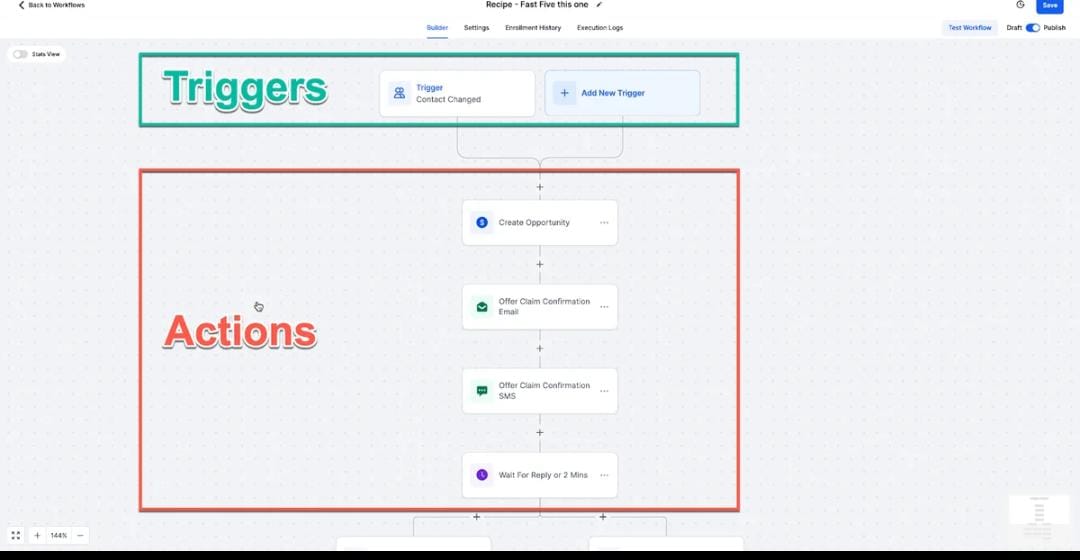
To begin, open Automation > Workflows in your GoHighLevel account.
Create a new workflow or open an existing workflow where you want to send an automated SMS.
First, configure the trigger that should start the workflow. This could be an appropriate customer event such as a form submission, appointment booking, opportunity update, or another supported event.
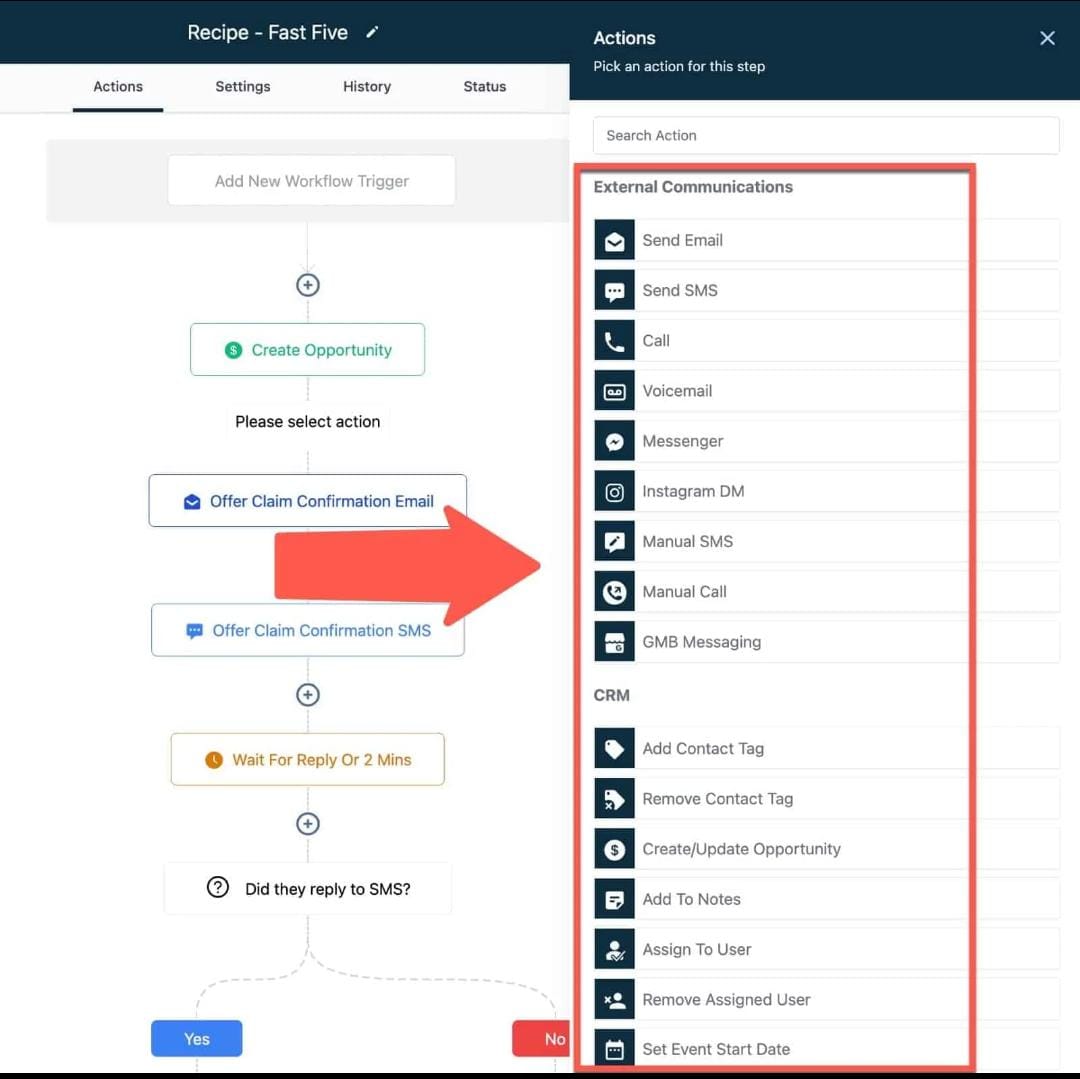
Once the trigger is configured, click the plus (+) icon to add a workflow action.
Search for Send SMS and select it.
You can place the action directly after the trigger or after another step, such as a Wait action or condition, depending on when the message should be delivered.
HighLevel's documentation confirms that the Send SMS action is added to the workflow after the desired trigger or condition.
Write a Personalized SMS Message
The next step is to write the message your customer should receive.
Keep the message concise and focused on the reason for the communication. Since SMS is often used for time-sensitive information, the recipient should be able to understand the important detail quickly.
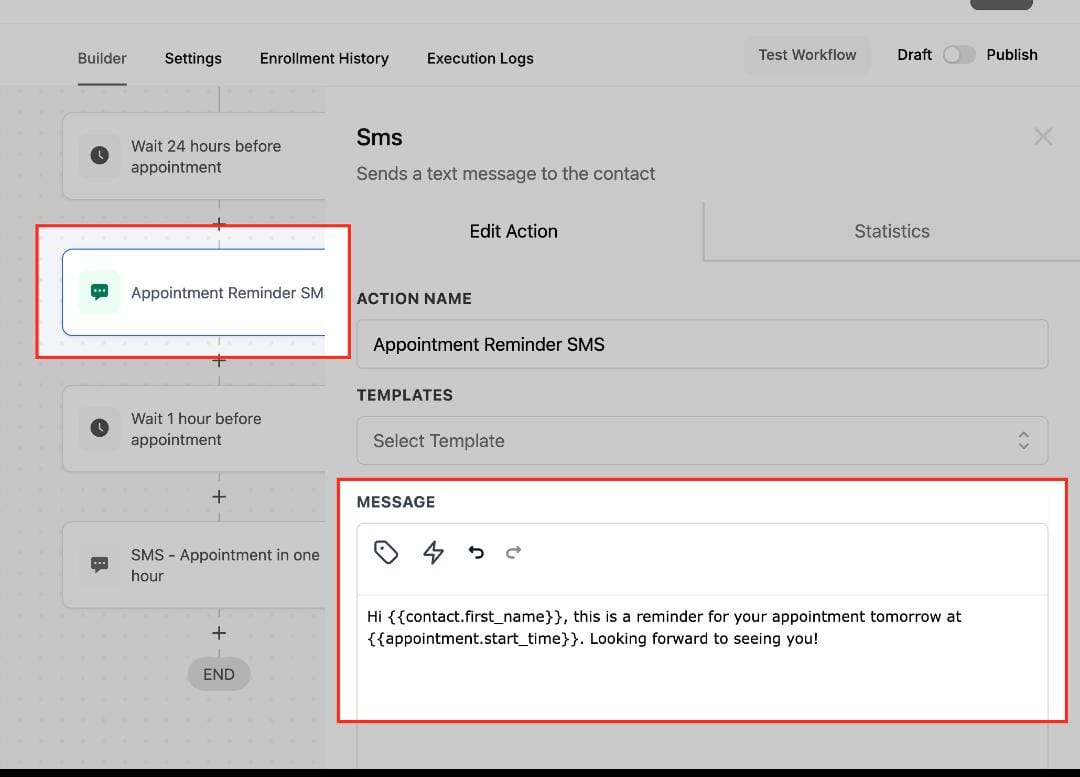
GoHighLevel supports dynamic fields in the Send SMS action. For example, you can personalize a message using the contact's first name or relevant appointment information.
A simple appointment reminder could look like:
Hi {{contact.first_name}}, this is a reminder for your appointment tomorrow at {{appointment.start_time}}. We look forward to seeing you!
Using available dynamic information can make an automated message feel more relevant than a generic text.
Use Wait Steps to Control Message Timing
One of the biggest advantages of using the Send SMS action inside a workflow is that you can control when the message reaches the customer.
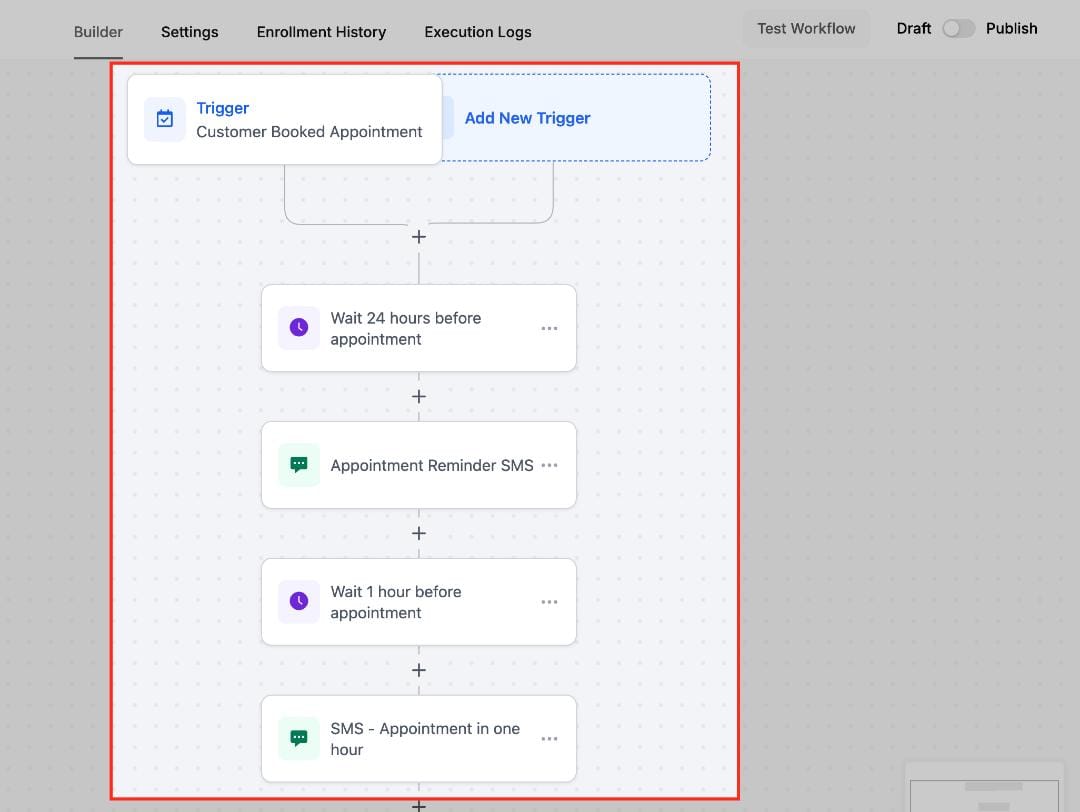
You do not have to send the SMS immediately after the workflow starts. You can place Wait steps before the Send SMS action so the message is delivered at the appropriate point in the customer journey. HighLevel's official example uses wait periods to send appointment reminders at specific times before an appointment.
For example:
Appointment Booked → Wait → Send SMS → Wait → Send SMS
This approach can be useful for appointment reminders, event updates, follow-ups, and other communications where timing matters.
Send Important Updates at the Right Moment
The Send SMS action is particularly useful when a customer needs information quickly.
HighLevel specifically identifies appointment reminders, promotional campaigns, order updates, and event notifications as examples of situations where Send SMS can be useful.
For example, an event workflow could send an initial confirmation message and later send an update if the customer needs important information before the event.
The message should always match the reason the workflow was triggered. A customer receiving an appointment reminder should immediately understand the appointment details, while an order update should focus on the relevant order information.
Add Links and Resources to Your SMS
Sometimes a customer needs more than a short text message.
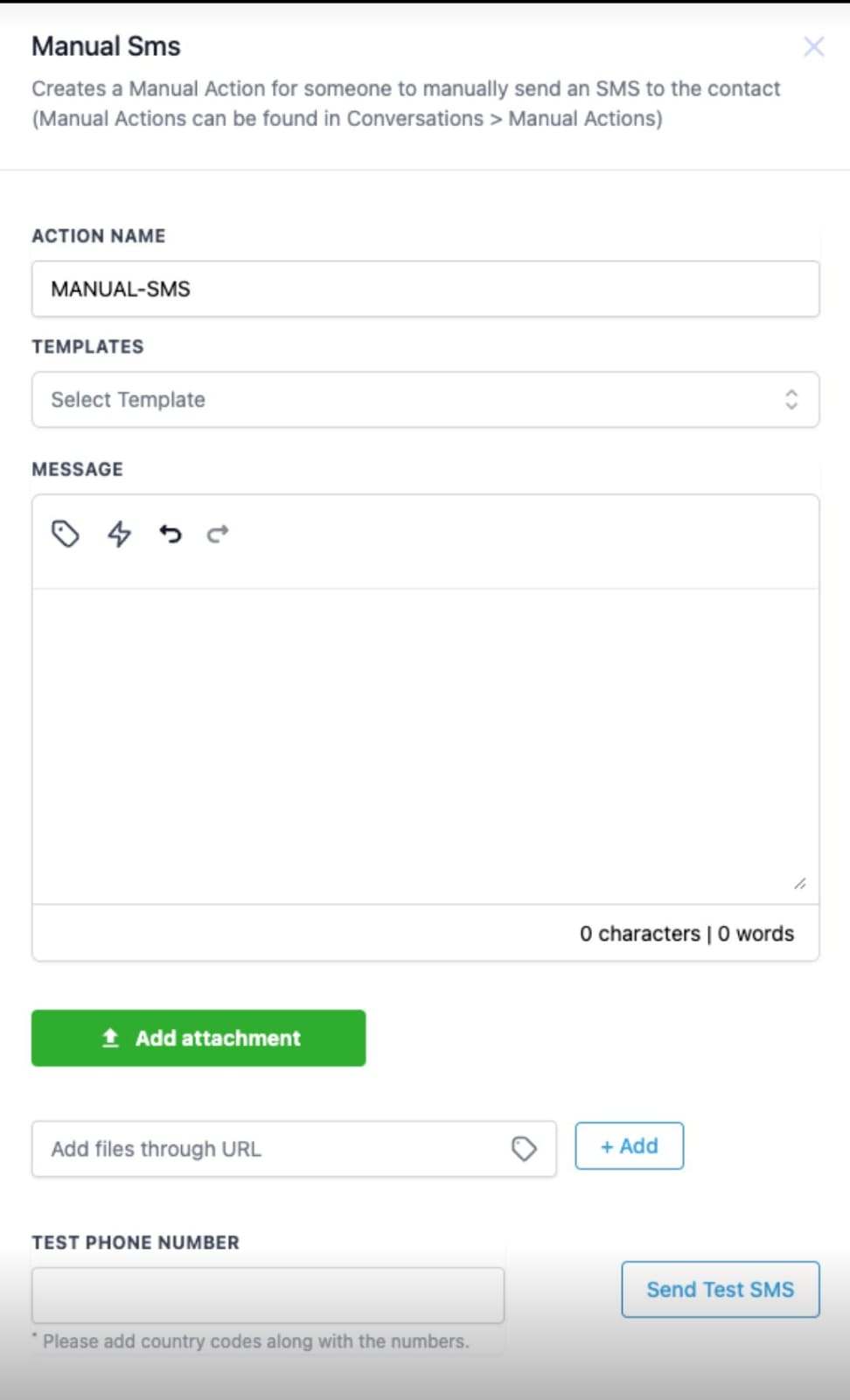
HighLevel's Send SMS action supports adding resources through URLs. These can be useful for maps, tickets, instructions, documents, or other online resources. Direct file attachments are not sent through SMS itself; instead, a URL can be included in the message.
For example:
Hi {{contact.first_name}}, your event starts tomorrow. View your ticket here: [link]
This keeps the SMS short while giving the customer access to additional information.
Test the SMS Before Publishing
Before activating the workflow, test the SMS carefully.
HighLevel provides a Test Phone Number field inside the Send SMS action. You can enter a phone number and send a test SMS to review the message before the workflow goes live.
Check the message for:
Correct personalization
Correct links
Clear wording
Appropriate timing
Missing or incorrect information
HighLevel also explains that the country flag beside the test phone number determines the selected country format, so you should make sure the correct country is selected before testing.
Conclusion
The Send SMS action gives GoHighLevel users a practical way to deliver automated customer communication at the right moment. It can support appointment reminders, order updates, event notifications, promotional communication, and other time-sensitive customer journeys.
By combining Send SMS with triggers, Wait steps, personalization, links, and other workflow actions, businesses can create communication sequences that keep customers informed without requiring manual messages every time.
The best approach is to keep each message focused, make the timing intentional, test the workflow carefully, and ensure recipients are eligible to receive SMS communication.
Frequently Asked Questions
1. What does the Send SMS action do?
It sends a text message to a contact when the workflow reaches the Send SMS action.
2. Can I personalize an automated SMS?
Yes. HighLevel supports dynamic fields such as contact information and appointment details for personalization.
3. Can I control when an SMS is sent?
Yes. You can use workflow triggers, conditions, and Wait steps to control when the workflow reaches the Send SMS action.
4. Can I include a document in an SMS?
SMS does not support direct file attachments in the same way as email. You can include a URL that directs the customer to a document, map, ticket, or other online resource.
5. Can I test an SMS before publishing the workflow?
Yes. The Send SMS action includes a Test Phone Number field and a Send Test SMS option.
Need Expert Help with GoHighLevel?
New to GoHighLevel and ready to get started? Buy your GoHighLevel account here and launch with confidence.
Already know what you need and want our team to handle everything, from complete setup and customization to funnels, workflows, automations, CRM, and pipelines? Click here.



