

How to Send Invoices Automatically Using the Send Invoice Action in GoHighLevel
How to Send Invoices Automatically Using the Send Invoice Action in GoHighLevel
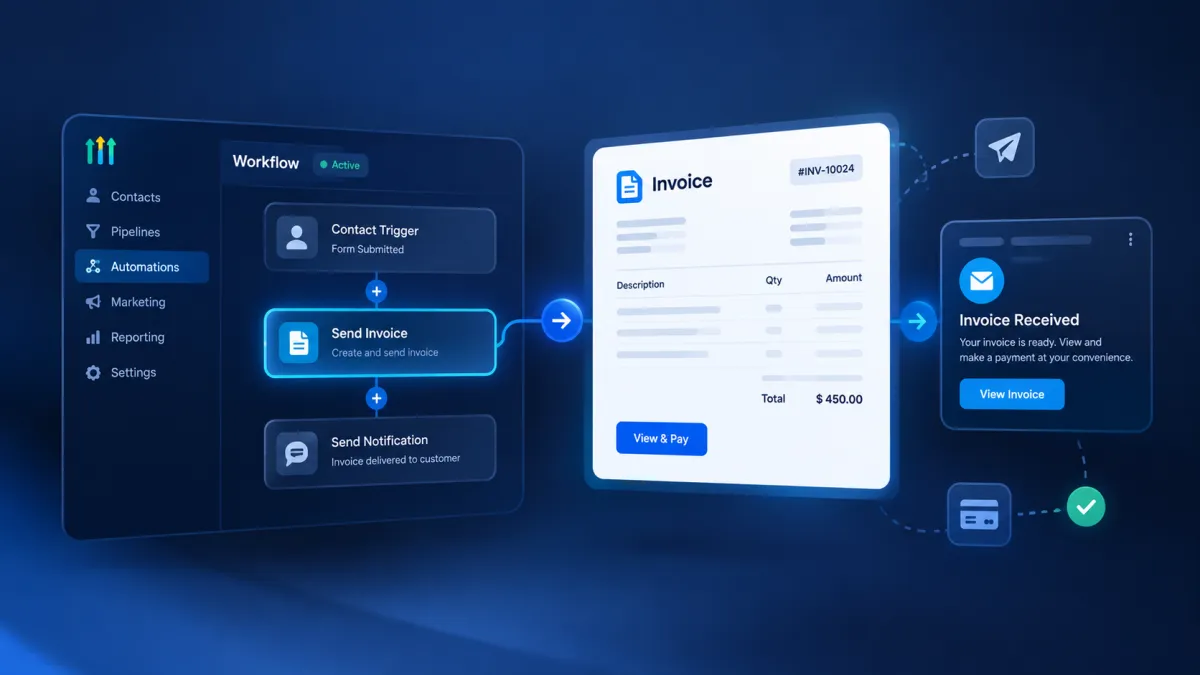
A client agrees to move forward, the work is ready to begin, and then someone has to stop everything to create and send an invoice manually. If that step gets delayed, payment can be delayed too. For businesses handling multiple customers, repeating the same invoicing task can quickly become unnecessary administrative work. The GoHighLevel Send Invoice Action helps solve this by allowing a workflow to create and deliver a one time invoice automatically when the workflow reaches that step.
What Does the Send Invoice Action Do?
The GoHighLevel Send Invoice Action is a workflow action designed to automate the delivery of one time invoices. When a contact reaches this action inside a workflow, GoHighLevel creates and sends the invoice using the configuration selected in the action.
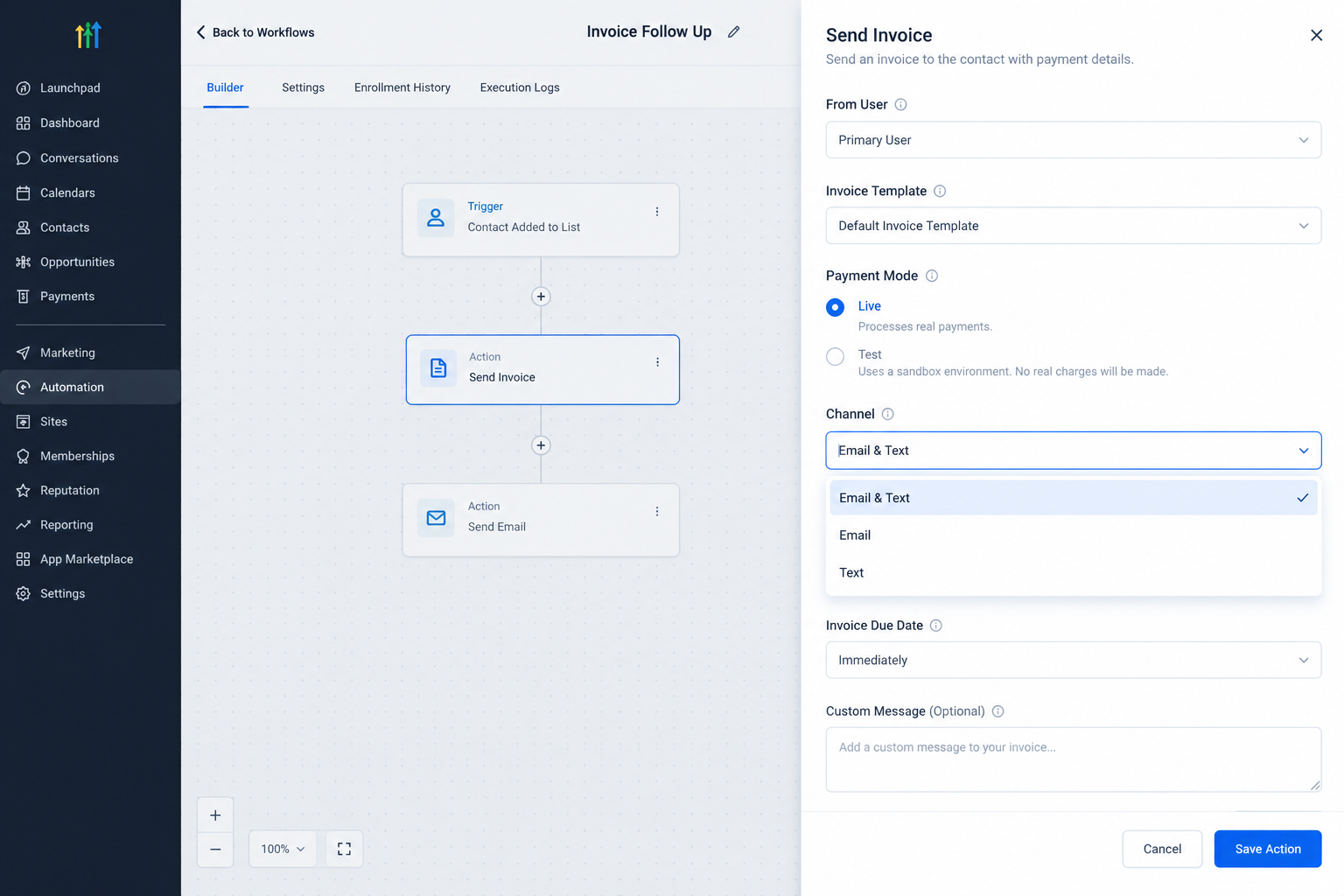
The action allows you to select an invoice template, choose the user the invoice is sent from, select the payment mode, and choose the delivery channel. The available delivery options are Email, Text, or Email and Text.
This makes the action useful when invoice delivery needs to happen as part of an existing business process rather than as a separate manual task.
Why Send Invoices Automatically?
Manual invoice sending is not always difficult, but it becomes inefficient when the same process happens repeatedly.
With GoHighLevel invoice automation, a business can connect invoice delivery to a relevant workflow event. For example, a business may want an invoice to be sent when a customer reaches a particular stage of its sales process or completes an important step in the customer journey.
The main benefit is consistency. Instead of relying on someone to remember when an invoice needs to be sent, the workflow can handle the delivery when the contact reaches the relevant point.
HighLevel also supports tracking the workflow execution and invoice status, allowing businesses to check whether the action ran and review the invoice record afterward.
How the Send Invoice Action Works in a Workflow
The Send Invoice Action works as one step inside a GoHighLevel workflow.
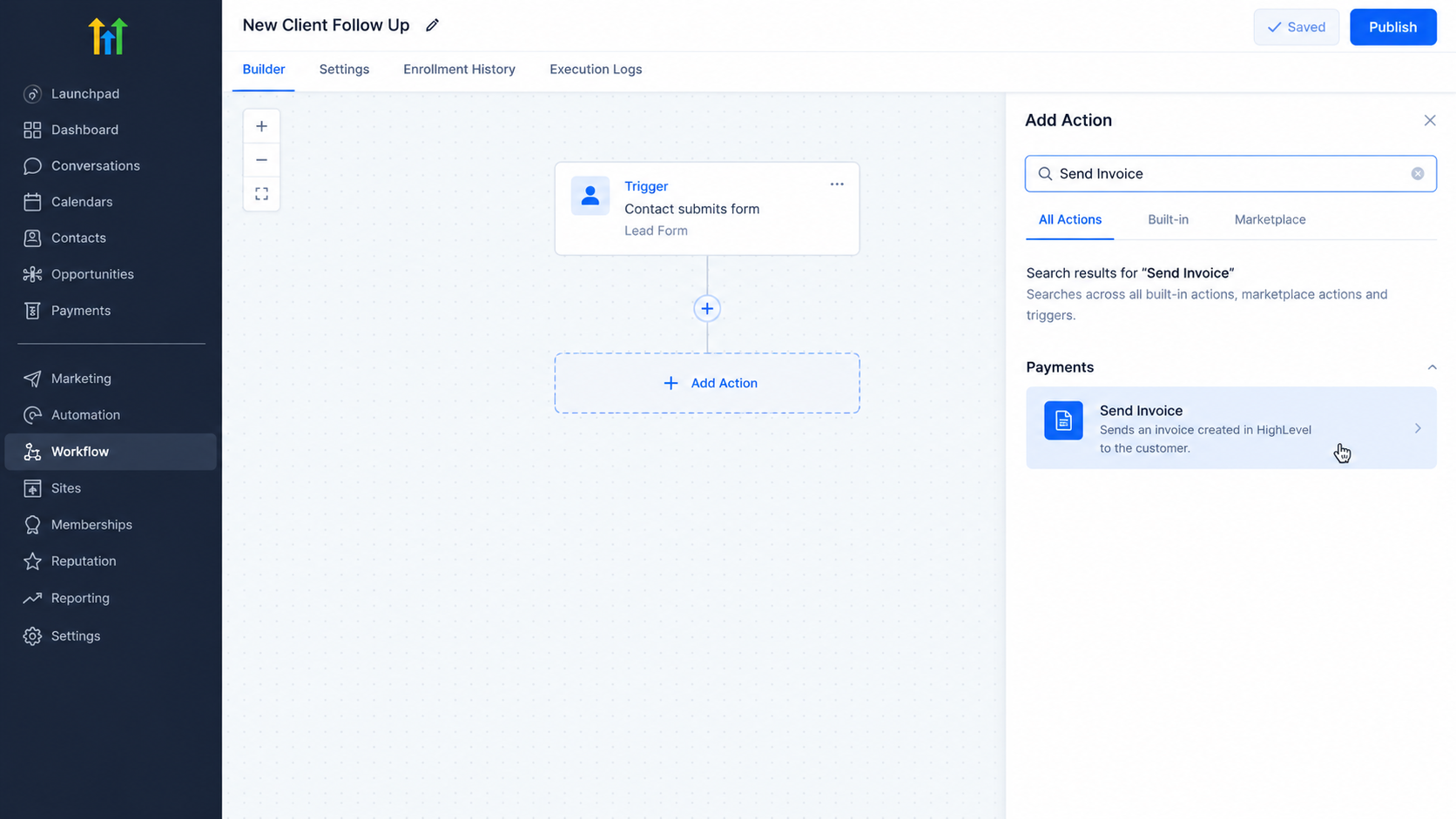
First, the workflow needs a trigger that determines when the automation should begin. The trigger should match the business event that makes invoice delivery appropriate.
After opening or creating the workflow, add an action and search for Send Invoice. The action configuration includes the following important choices:
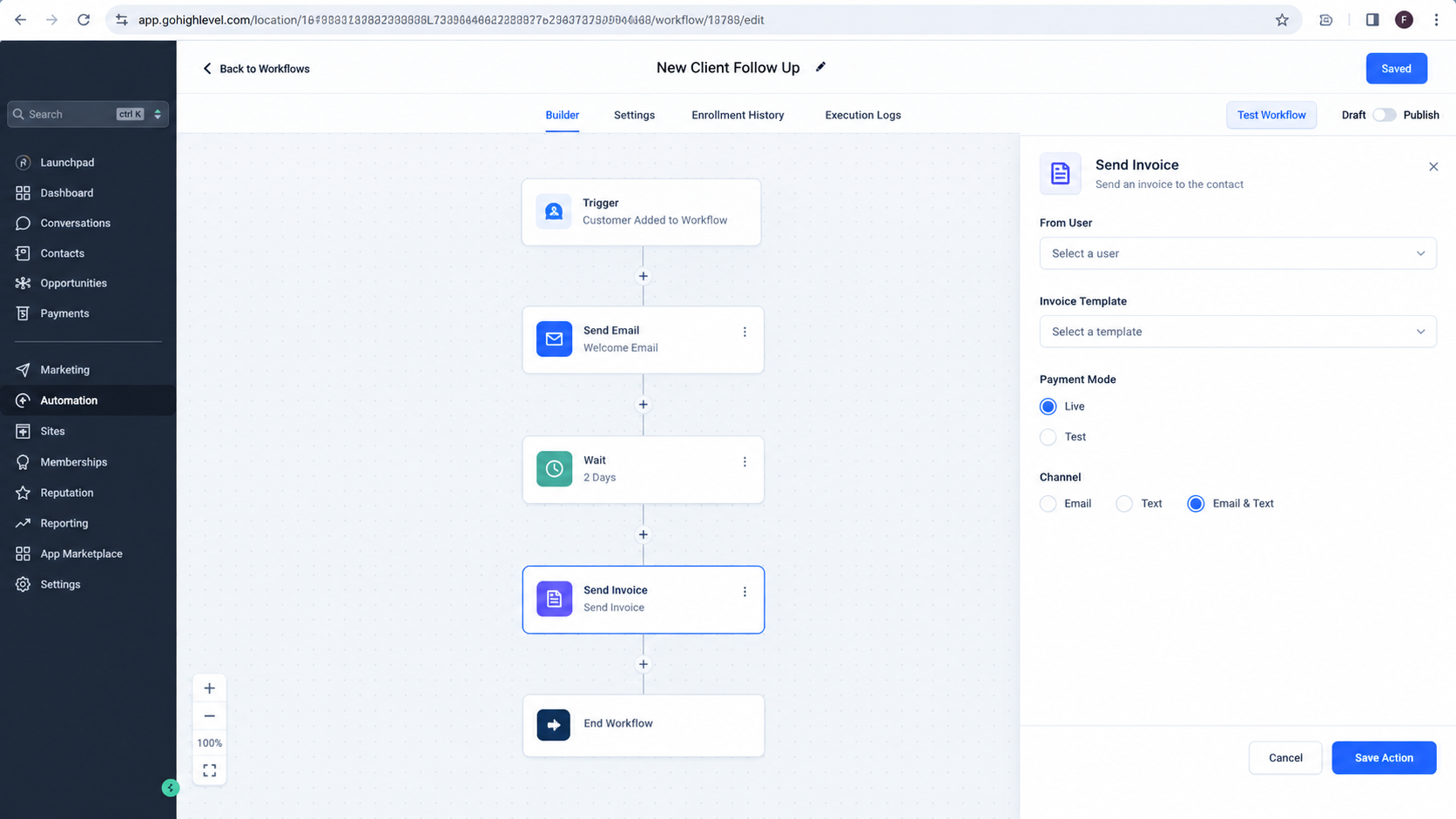
• From User, which determines who the invoice is sent from.
• Invoice Template, which determines the invoice template used by the action.
• Payment Mode, where Live mode is used for real payments and Test mode is available for validation without charging customers.
• Channel, where you can choose Email, Text, or Email and Text.
Once the action is configured, save it and test the workflow before publishing it for real customer activity.
It is also important to make sure the contact has the appropriate delivery information. If Email and Text are selected but the contact only has an email address, HighLevel can send through the available channel.
Practical Use Cases
The Send Invoice Action can support many business processes where a one time invoice needs to be delivered automatically.
For example, a service business could use a workflow that reaches the invoice step after a qualified opportunity reaches the appropriate stage. Once the workflow reaches Send Invoice, the customer receives the invoice without requiring a team member to manually send it.
Another example is an onboarding process. If a new customer reaches the stage where an initial payment is required, the workflow can send the appropriate invoice template at that point.
Businesses can also use different invoice templates for different situations. When workflow conditions lead contacts into different paths, separate Send Invoice actions can be configured with the appropriate templates.
The important principle is simple: the invoice should be sent when a clearly defined business event makes it appropriate.
Important Things to Keep in Mind
Before using the Send Invoice Action in a live workflow, review the invoice setup carefully.
First, make sure the required invoice template is available and configured correctly. HighLevel recommends explicitly selecting the template in the action so the intended invoice is used.
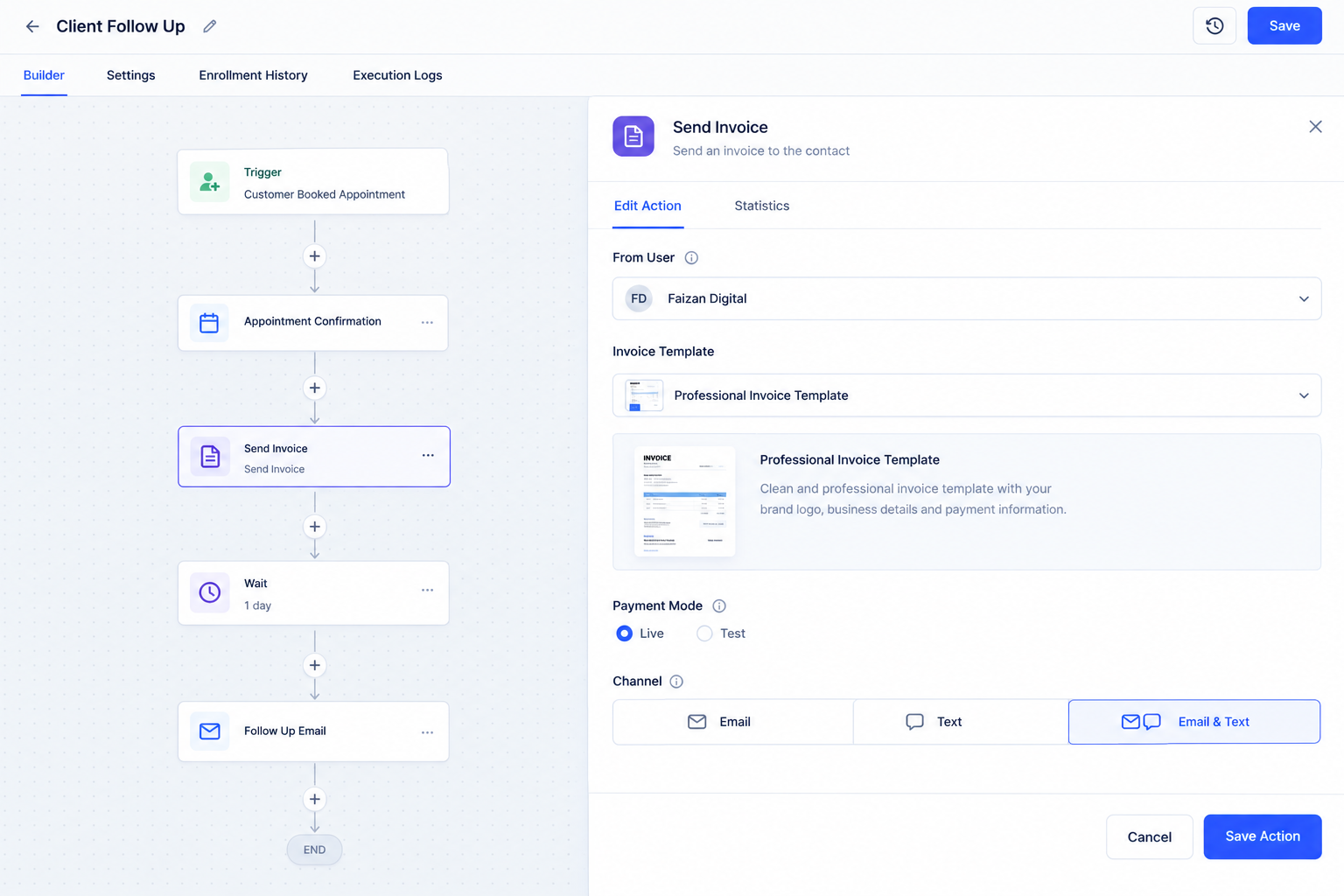
Second, choose the correct payment mode. Live mode is intended for real payments, while Test mode is intended for testing and validation. Testing the workflow before using it with real customers can help identify configuration problems.
Third, verify the contact information required for the selected delivery channel. An invoice cannot be delivered through a channel for which the contact does not have usable information.
Finally, review the workflow execution and invoice record after testing. HighLevel provides workflow execution information and invoice status within the relevant areas of the platform.
Frequently Asked Questions
1. What does the GoHighLevel Send Invoice Action send?
It creates and delivers a one time invoice to the contact when the workflow reaches the action.
2. Can the Send Invoice Action send invoices by SMS?
Yes. The action supports Email, Text, or Email and Text as delivery options.
3. Can I test the Send Invoice Action?
Yes. Test mode is available for validating the workflow without using a real charge.
4. Can different workflows use different invoice templates?
Yes. You can select the appropriate invoice template within the Send Invoice Action for the workflow scenario.
5. Where can I check the invoice status?
You can review the workflow execution for the action and check the invoice status in Payments and Invoices.
Need Expert Help with GoHighLevel?
New to GoHighLevel and ready to get started? Buy your GoHighLevel account here and launch with confidence.
Already know what you need and want our team to handle everything, from complete setup and customization to funnels, workflows, automations, CRM, and pipelines? Click here.



