

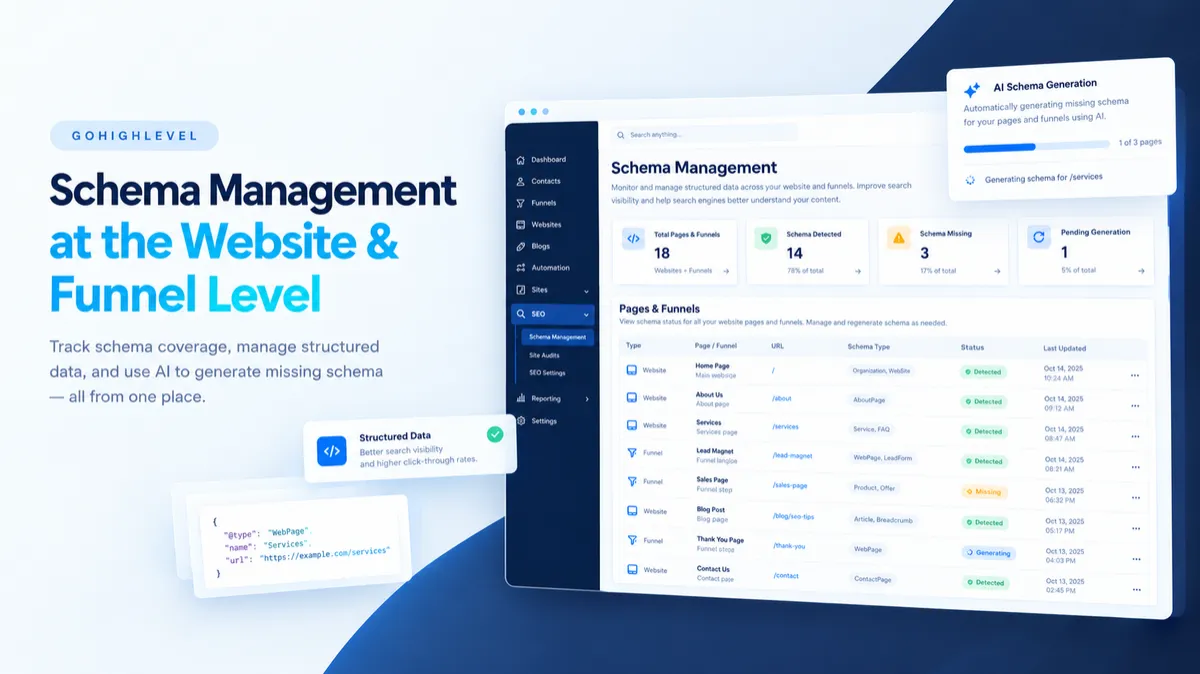
GoHighLevel Schema Updates
GoHighLevel Schema Management: Manage Website and Funnel Schema From One Dashboard
Maintaining schema across a website or funnel can become time-consuming as the number of pages grows. You may have schema on some pages, missing structured data on others, or existing markup that no longer reflects recently updated content. Checking every page individually makes it harder to keep everything organized.
GoHighLevel is addressing this challenge with a centralized schema management dashboard inside the new SEO & AEO tab. Instead of opening each page in the builder to inspect or update its schema, users can review schema coverage, identify pages that may need attention, generate schema with AI, and manage changes from one place.
For businesses and agencies managing multiple website and funnel pages, this update offers a more organized way to maintain structured data without changing the existing page-building workflow.
What Is New in GoHighLevel Schema Management?
The new GoHighLevel schema management dashboard is available at the website and funnel level. It provides an overview of schema coverage and lets users review individual pages without navigating through each page separately.
Every website and funnel now includes an SEO & AEO tab, where users can access the schema dashboard.
The main improvement is visibility. Users can quickly identify which pages have existing schema, which pages have no schema, and which pages may need their structured data reviewed. They can then take action on individual pages or select multiple pages for AI schema generation.
This centralized approach makes routine website schema and funnel schema maintenance easier to organize, particularly when managing larger sites.
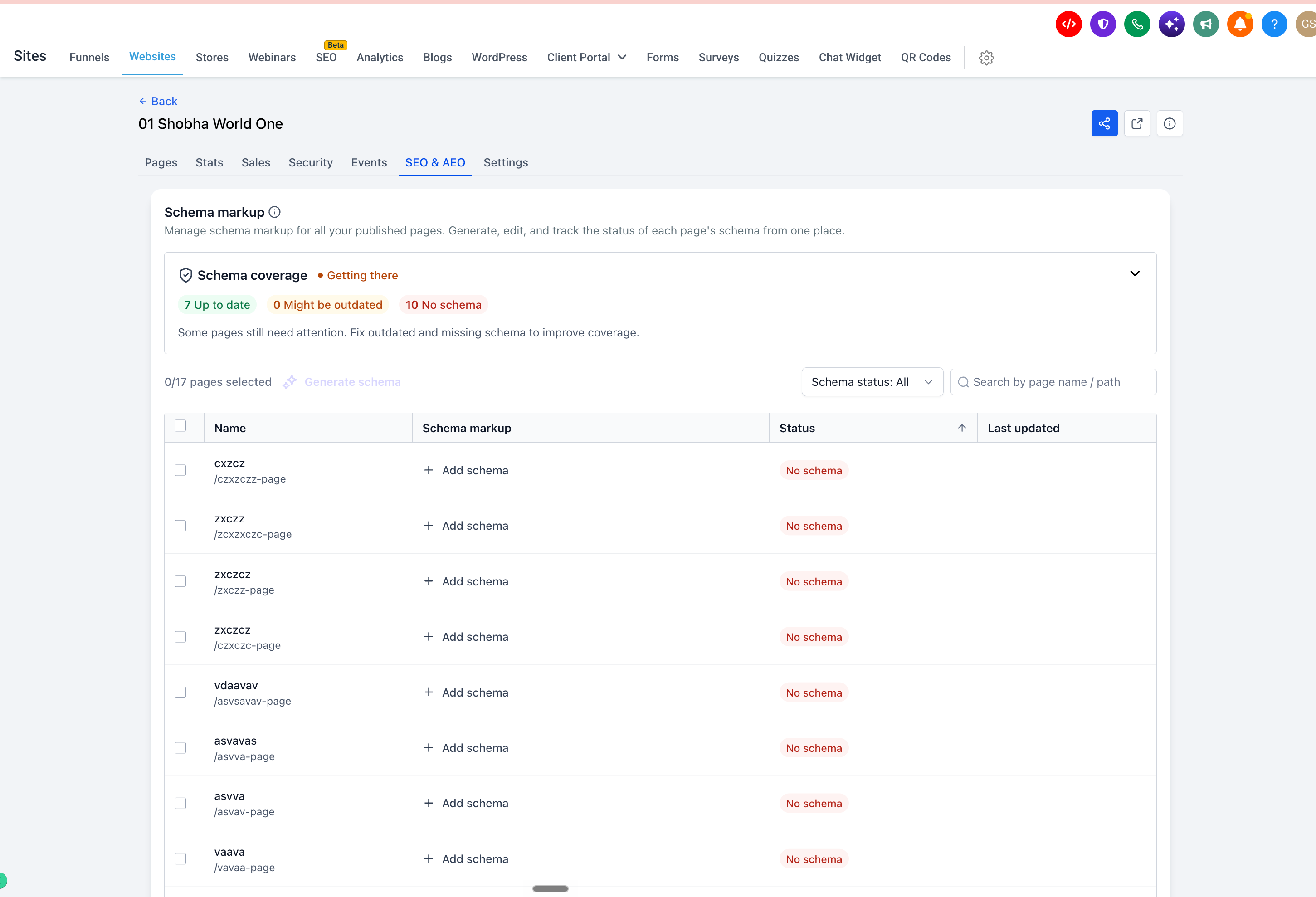
Key Features of the New Schema Dashboard
1. Monitor Overall Schema Health
The Schema coverage card provides a quick overview of a website or funnel's schema status. It categorizes overall health as Needs work, Getting there, Good, or Excellent.
The card also displays counts for three categories:
Up to date: Pages whose schema is considered current.
Might be outdated: Pages flagged for a potential schema review.
No schema: Pages without schema.
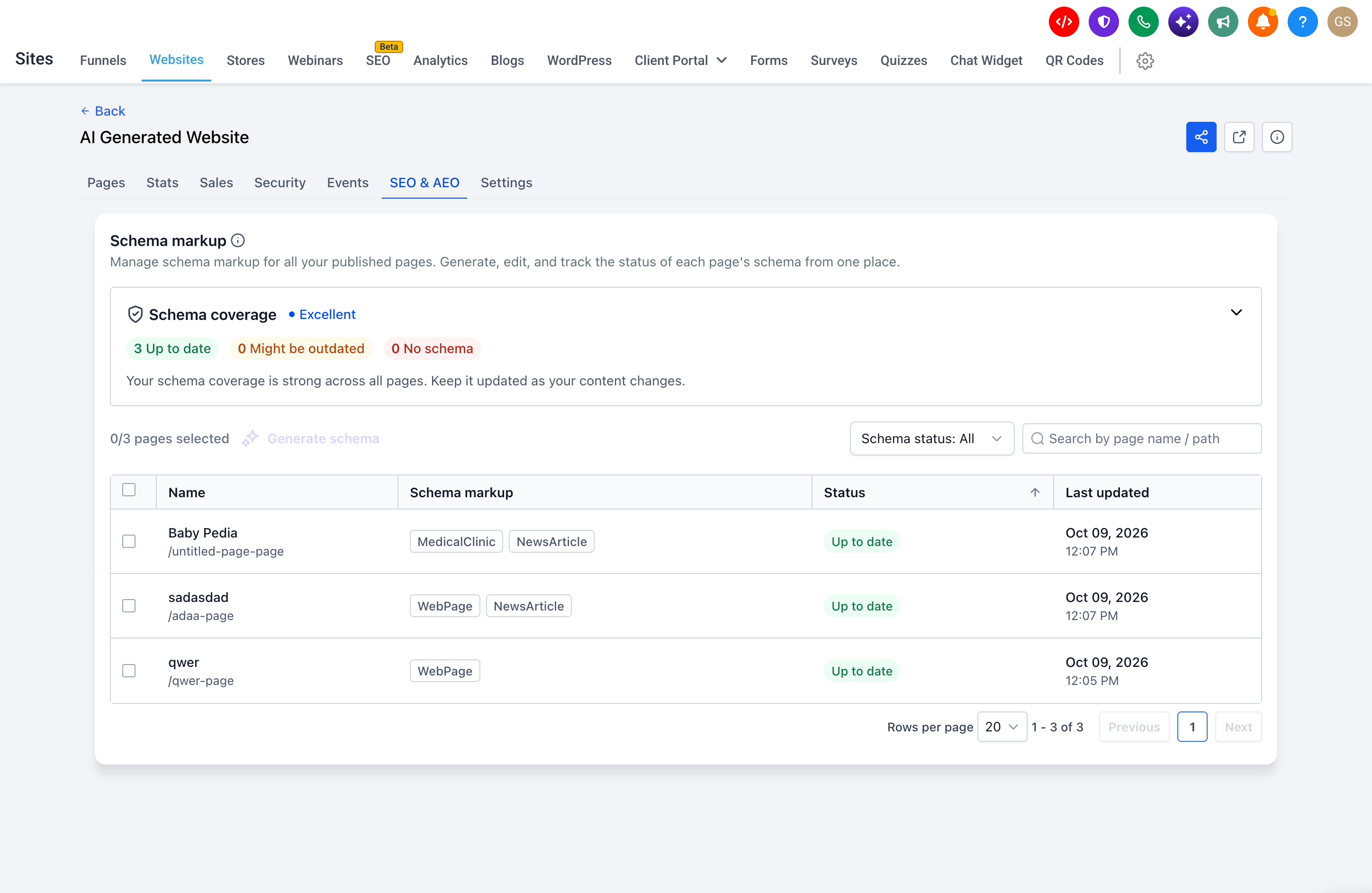
The Schema coverage card summarizes overall schema health and helps users identify whether pages need attention.
These indicators help users prioritize their work instead of checking every page manually. They provide a useful starting point for reviewing structured data coverage across the site.
2. Review Schema Status for Individual Pages
The dashboard lists individual pages along with their schema types, current status, and last updated information.
Page statuses include Up to date, Might be outdated, No schema, Unpublished, and Unsaved.
This makes it easier to identify where attention is needed. For example, a page marked No schema can be reviewed to determine whether structured data is appropriate for its content. A page marked Might be outdated can be checked to confirm whether its existing schema still accurately represents the page.
GoHighLevel flags pages as potentially outdated when they have been edited and republished two or more times since their schema was created. This flag identifies a reason to review the schema; it does not automatically mean the markup is incorrect.
3. Generate Schema With AI
The dashboard introduces AI schema generation for selected pages. Users can select one page or multiple pages and click Generate schema.
The interface displays generation progress, and the resulting schema is available for review before publication.
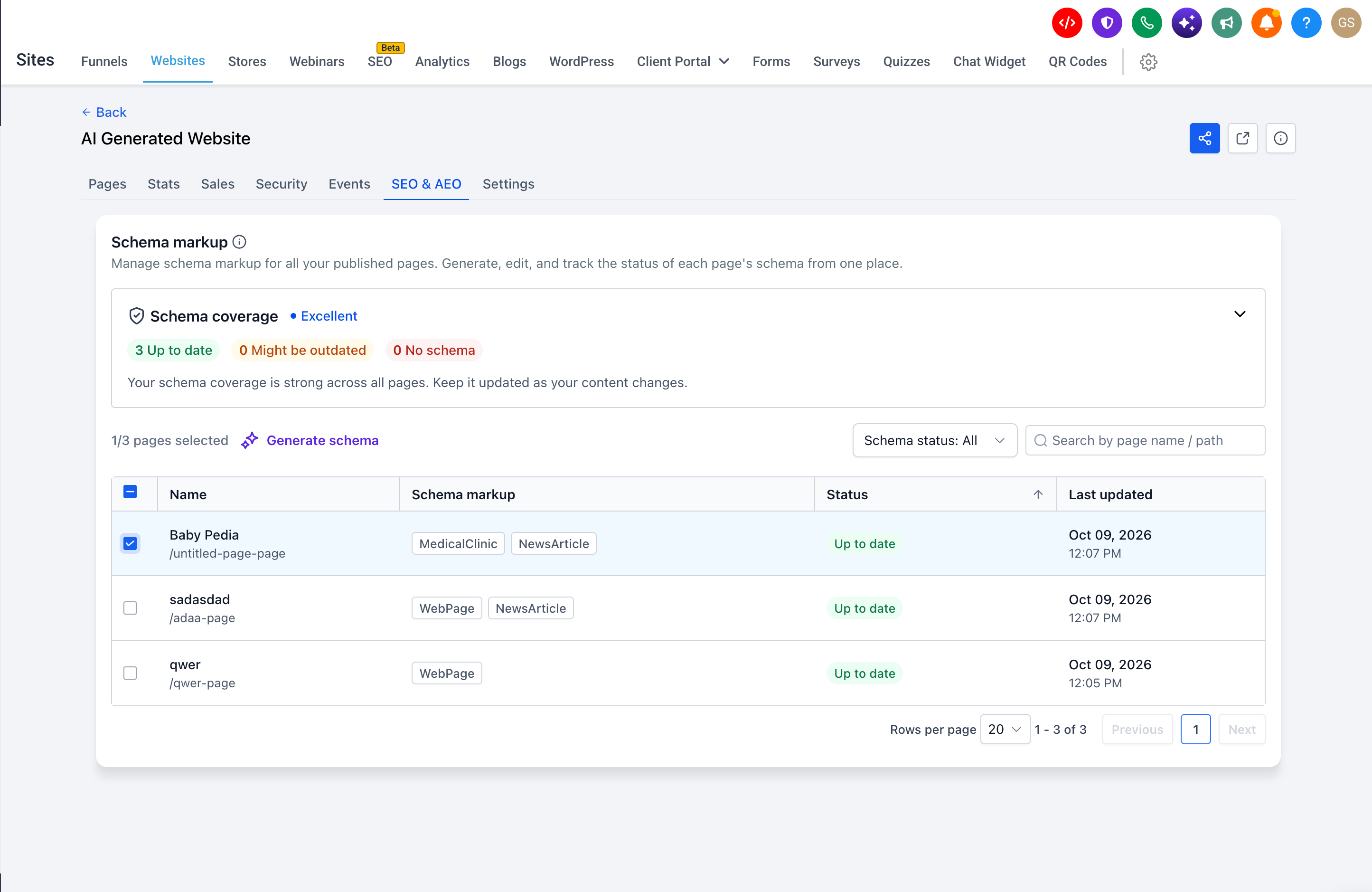
This can reduce the manual effort involved in addressing missing schema across several pages. However, generating schema is only one part of the process. Users should still review the output to ensure it accurately represents the page content before publishing it.
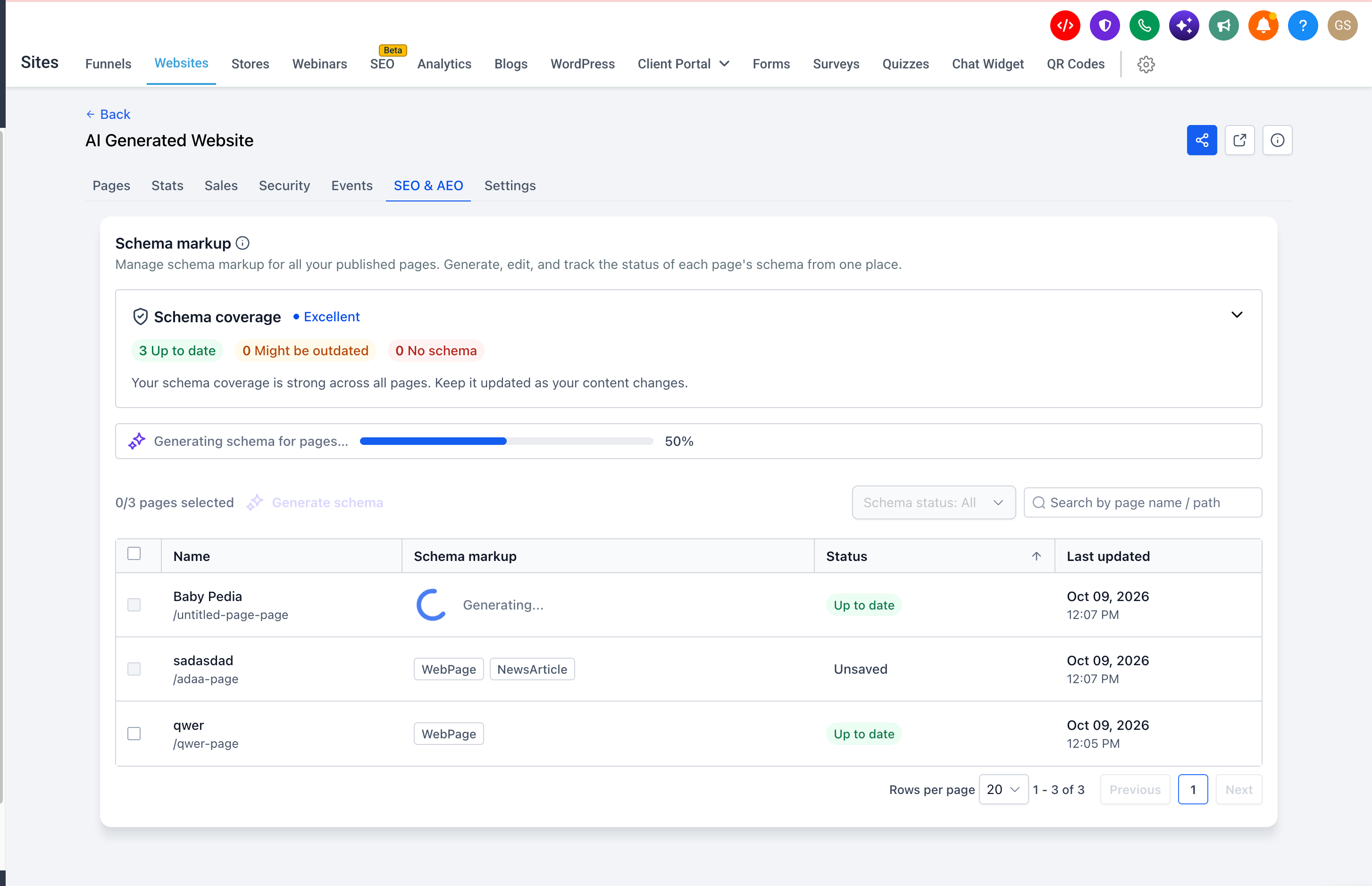
Important: If a selected page already has schema, clicking Generate schema replaces the existing schema entirely. Review the generated result carefully before clicking Save and publish.
4. Add or Edit Schema Manually
AI generation is not the only option. Users can click + Add schema on pages without schema or click an existing schema tag to open the editor.
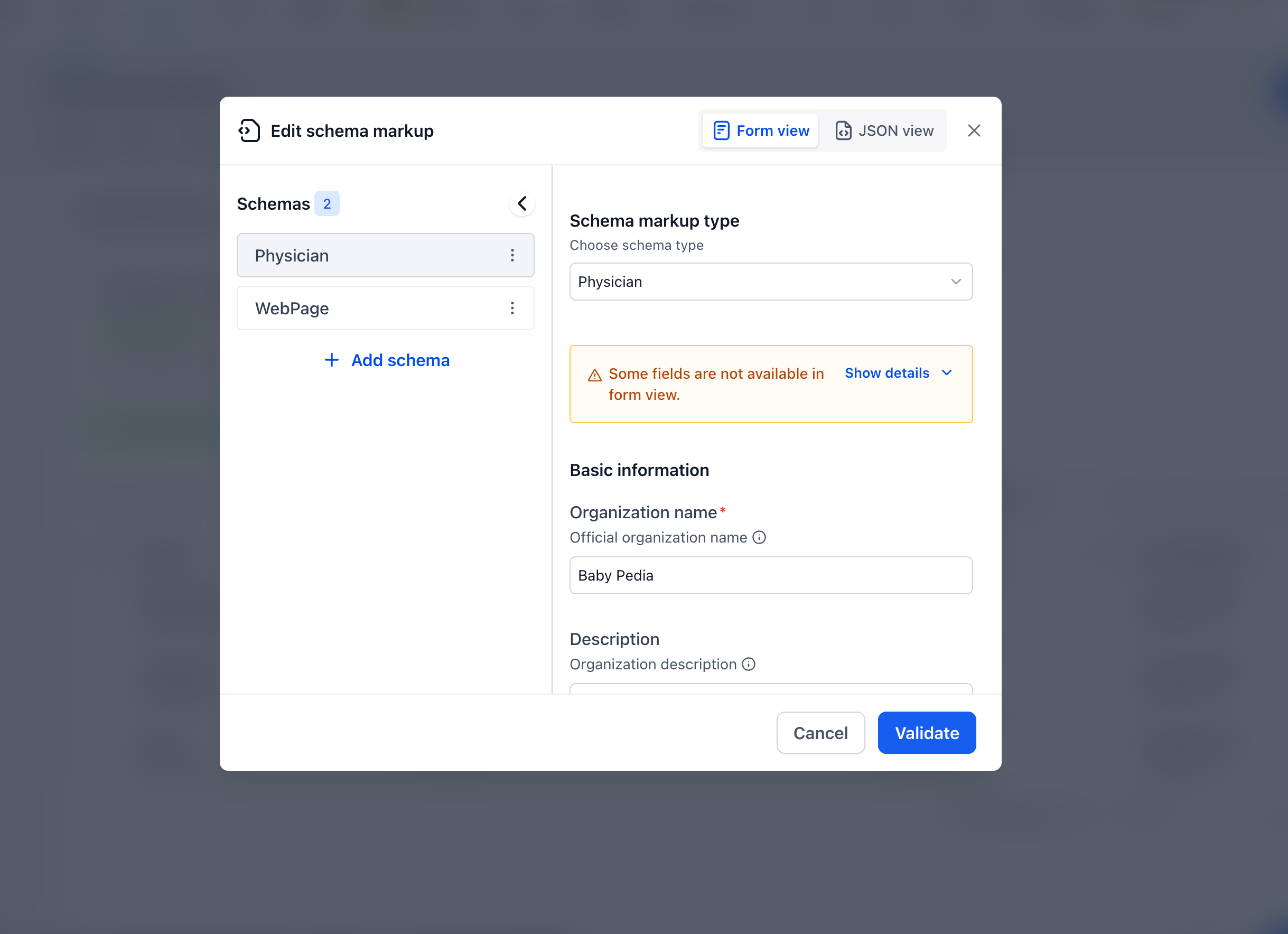
This gives users a direct way to add or adjust structured data when they prefer manual editing or need to make specific changes.
The dashboard also supports searching pages by name or path and filtering by schema status. These controls help users locate relevant pages without scrolling through the entire list.
5. Review Changes Before Publishing
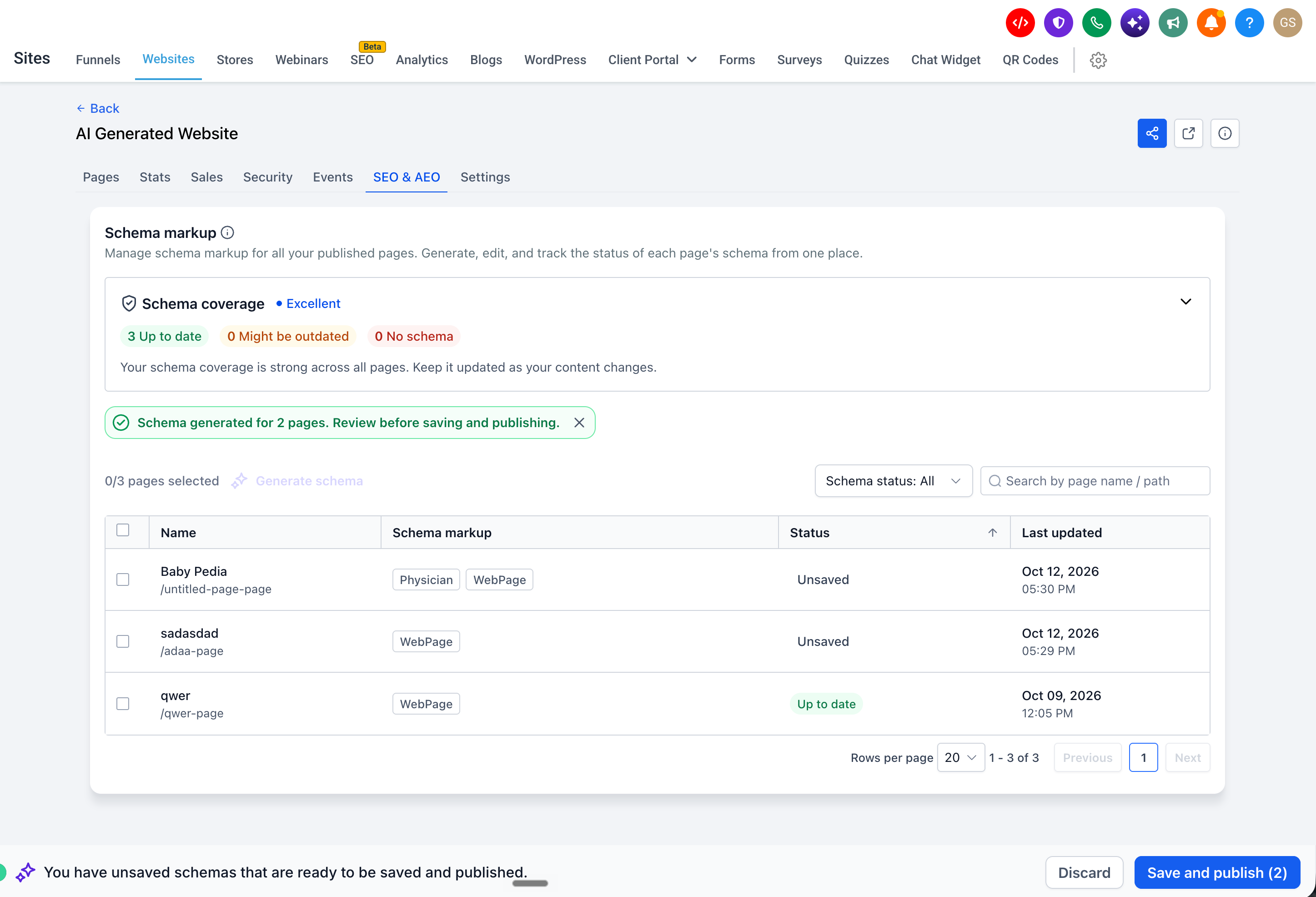
Generated or edited schema remains marked Unsaved until the user clicks Save and publish.
Users can review their changes before publishing or discard them if they decide not to proceed. This separation between generation, review, and publication gives users an opportunity to catch inaccurate or unnecessary markup before making it live.
Why This Update Matters for SEO and AEO
Structured data helps describe page content in a format that search engines can interpret. When the markup is valid, relevant, and supported by the page content, it can help search engines understand information and may make eligible pages qualify for supported Google rich results. Eligibility does not guarantee that rich results will appear.
Structured data can also help AI answer engines interpret business and page information. However, adding schema does not guarantee better rankings, increased traffic, or citations in AI-generated answers.
The practical value of the GoHighLevel SEO & AEO dashboard is that it makes schema maintenance easier to monitor. Users can identify gaps, review potentially outdated markup, and manage appropriate changes from a centralized interface.
Not every page necessarily needs schema. The goal should be to use relevant structured data where it makes sense, rather than adding markup simply to eliminate every No schema status.
What Existing GoHighLevel Users Need to Know
Existing users do not need to take action to access the new dashboard, and no existing data is lost as part of the update. Current schema appears in the dashboard automatically.
Schema editing inside the page builder continues to work as before. Changes made in the dashboard and page builder remain synchronized, so users can continue working through either location.
The most important consideration is the behavior of Generate schema. Because it completely replaces existing schema on the selected page, users should not run generation without checking whether that page already contains markup they want to preserve.
Reviewing the result before publication is especially important when replacing schema on established pages.
How to Use Schema Management in GoHighLevel
Follow these steps to review and manage schema on your website or funnel:
Open your website or funnel: Navigate to Sites → Websites/Funnels → select a website or funnel → SEO & AEO.
Review schema coverage: Check the Schema coverage card to understand the current status across your pages.
Find pages that need attention: Filter by No schema or Might be outdated. You can also search by page name or path.
Choose how to manage schema: Select one or multiple pages and click Generate schema, or use + Add schema for a page without schema. To edit existing markup, click its schema tag.
Review the changes: Check the generated or manually edited schema before publishing. Pay particular attention to pages where generation will replace existing schema.
Publish or discard: Click Save and publish to publish your changes, or discard them if they are not ready.
Following this process helps keep schema maintenance organized while giving you control over what gets published.
Final Thoughts
The new GoHighLevel schema management dashboard brings website and funnel schema into one centralized view. Its coverage indicators, page-level statuses, AI schema generation, manual editing options, and publishing controls make it easier to identify and manage structured data across multiple pages.
The best approach is to use the dashboard as a practical maintenance tool: review missing and potentially outdated schema, add structured data where relevant, and verify changes before publishing. With careful review, GoHighLevel users can maintain a more organized schema workflow without abandoning the page builder they already use.
Frequently Asked Questions (FAQs)
1. What is GoHighLevel Schema Management?
GoHighLevel Schema Management is a centralized dashboard available under the SEO & AEO tab at the website and funnel level. It allows users to review schema coverage, identify pages with missing or potentially outdated schema, and manage structured data without opening each page individually.
2. How can I generate schema using AI in GoHighLevel?
Navigate to Sites → Websites/Funnels → select a website or funnel → SEO & AEO. Select one or multiple pages and click Generate schema. Review the generated results before clicking Save and publish to publish your changes.
3. Does GoHighLevel Schema Management replace existing schema?
Yes. Clicking Generate schema on a page that already has schema replaces its existing schema entirely. Review the generated output carefully before publishing to ensure the new schema accurately represents the page content.
4. Can I edit schema manually in GoHighLevel?
Yes. You can click + Add schema for pages without schema or click an existing schema tag to open the editor. You can also continue editing schema inside the page builder, and both editing locations remain synchronized.
5. Does adding schema guarantee better Google rankings or AI search visibility?
No. Relevant, valid structured data can help search engines understand page content and may make eligible pages qualify for supported Google rich results. However, schema does not guarantee higher rankings, rich results, increased traffic, or citations in AI-generated answers.
Need Expert Help with GoHighLevel?
New to GoHighLevel and ready to get started? Buy your GoHighLevel account here and launch with confidence.
Already know what you need and want our team to handle everything, from complete setup and customization to funnels, workflows, automations, CRM, and pipelines? Click here.



