

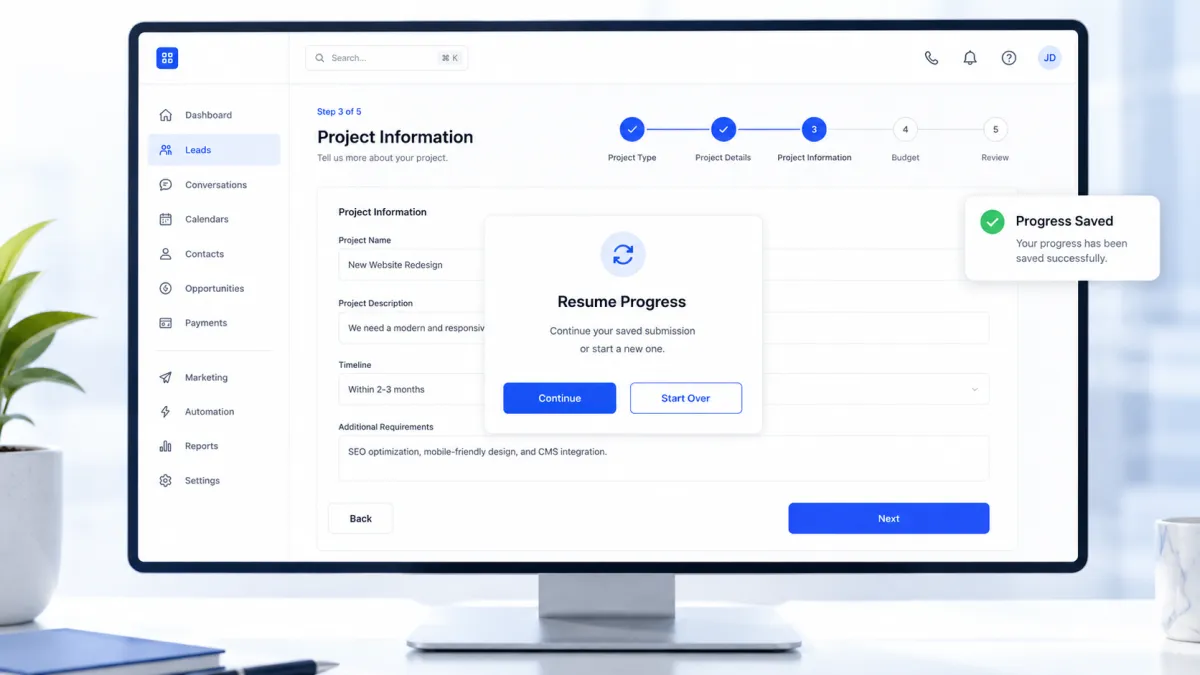
Save Progress Feature
GoHighLevel Save Progress Feature Makes Multi-Step Forms Easier to Complete
Introduction
GoHighLevel continues to refine the experience of building and completing online forms with the introduction of the new Save Progress Feature. This update is designed for multi-step Forms, Surveys, and Quizzes, giving respondents the ability to leave before submitting and return later to continue from where they stopped.
Instead of requiring users to complete every step in one session, GoHighLevel now allows progress to be automatically saved when the feature is enabled. The update is simple to activate through a new setting, while respondents receive a seamless experience when they return to continue their submission.
If you use GoHighLevel Forms, GoHighLevel Surveys, or GoHighLevel Quizzes, this official GoHighLevel Update introduces an easy way to make longer multi-step experiences more user-friendly.
What Is the New Save Progress Feature?
The Save Progress Feature is a new option available for multi-step Forms, Surveys, and Quizzes in GoHighLevel.
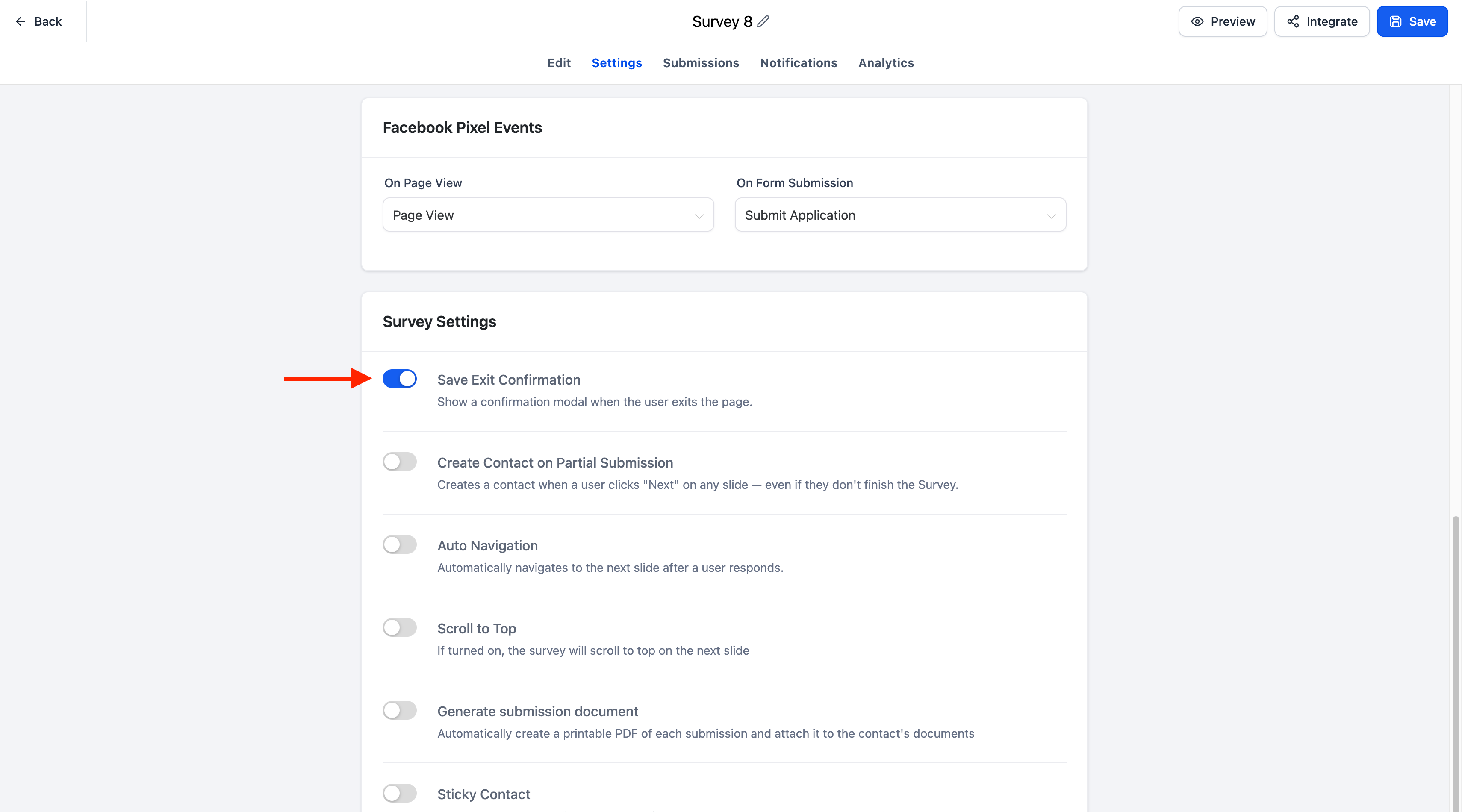
A new Save exit confirmation toggle has been added to the Settings tab. Once enabled, respondents' progress is automatically saved if they leave before submitting their response.
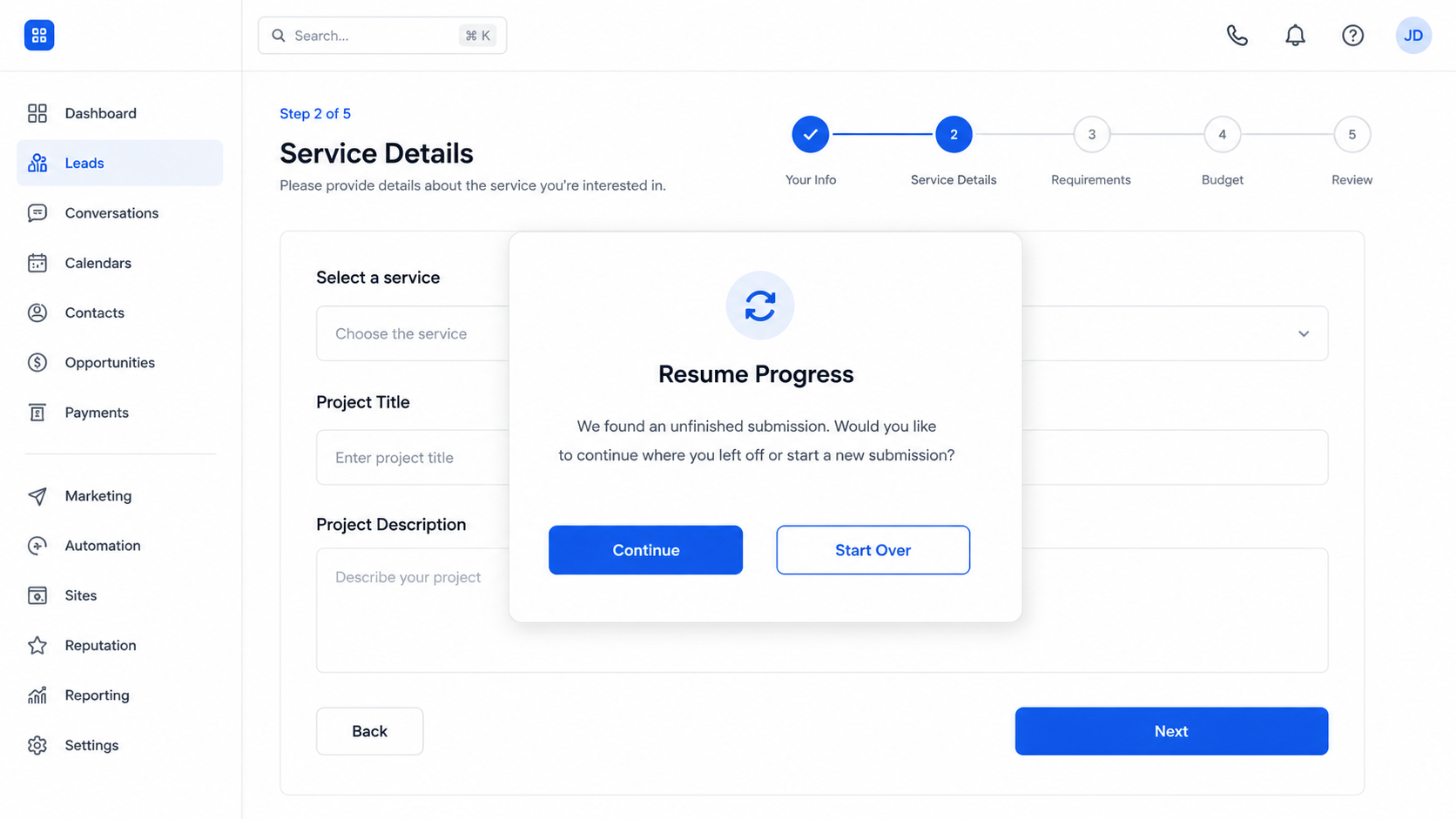
When they return to the same multi-step Form, Survey, or Quiz, GoHighLevel displays a Resume Progress modal that allows them to either continue where they left off or begin a new submission.
The feature is optional and only becomes active after the Save exit confirmation toggle has been enabled.
What's New in This Update
This update introduces several improvements that work together to make multi-step submissions easier to continue.
A new Save exit confirmation toggle is now available within the Settings tab for:
Forms
Surveys
Quizzes
After enabling the feature:
Progress is automatically saved if a respondent leaves before submitting.
Respondents can return later and continue their existing submission.
A Resume Progress modal appears when they revisit the same Form, Survey, or Quiz.
The modal gives respondents the choice to continue their saved progress or start over with a new submission.
In addition, the Resume Progress modal automatically follows the branding already configured for the Form, Survey, or Quiz. The CTA button color inherits the configured footer color, while the text font matches the configured label font.
The feature is also fully supported across both desktop and mobile experiences.
Key Highlights
The official GoHighLevel update includes the following highlights:
Automatic Progress Saving
When the feature is enabled, progress is automatically saved for multi-step Forms, Surveys, and Quizzes if respondents leave before submitting.
Simple Enable or Disable Option
The functionality is controlled through the Save exit confirmation toggle located in the Settings tab, making it easy to turn the feature on or off.
Resume Progress
When respondents return to the same multi-step experience, they are presented with a Resume Progress modal where they can:
Continue where they previously left off.
Start over with a new submission.
Branding Matches Your Form
The Resume Progress modal automatically matches the branding of the associated Form, Survey, or Quiz.
Specifically:
The CTA button color inherits the configured footer color.
The text font matches the configured label font.
Desktop and Mobile Support
The Save Progress Feature is fully supported across desktop and mobile experiences.
How Save Progress Works
Using the new feature involves only a few steps.
Step 1: Open the Settings Tab
Open the Settings tab for the Form, Survey, or Quiz you want to update.
Step 2: Enable the Save Exit Confirmation Toggle
Turn on the new Save exit confirmation toggle.
Step 3: Respondents Begin the Multi-Step Submission
Respondents complete the multi-step Form, Survey, or Quiz as usual.
Step 4: Progress Is Saved
If a respondent closes the browser, refreshes the page, or navigates away before submitting, their progress is automatically saved.
Step 5: Resume Later
When the respondent returns to the same Form, Survey, or Quiz, a Resume Progress modal appears.
They can then choose to:
Continue where they left off.
Start Over with a new submission.
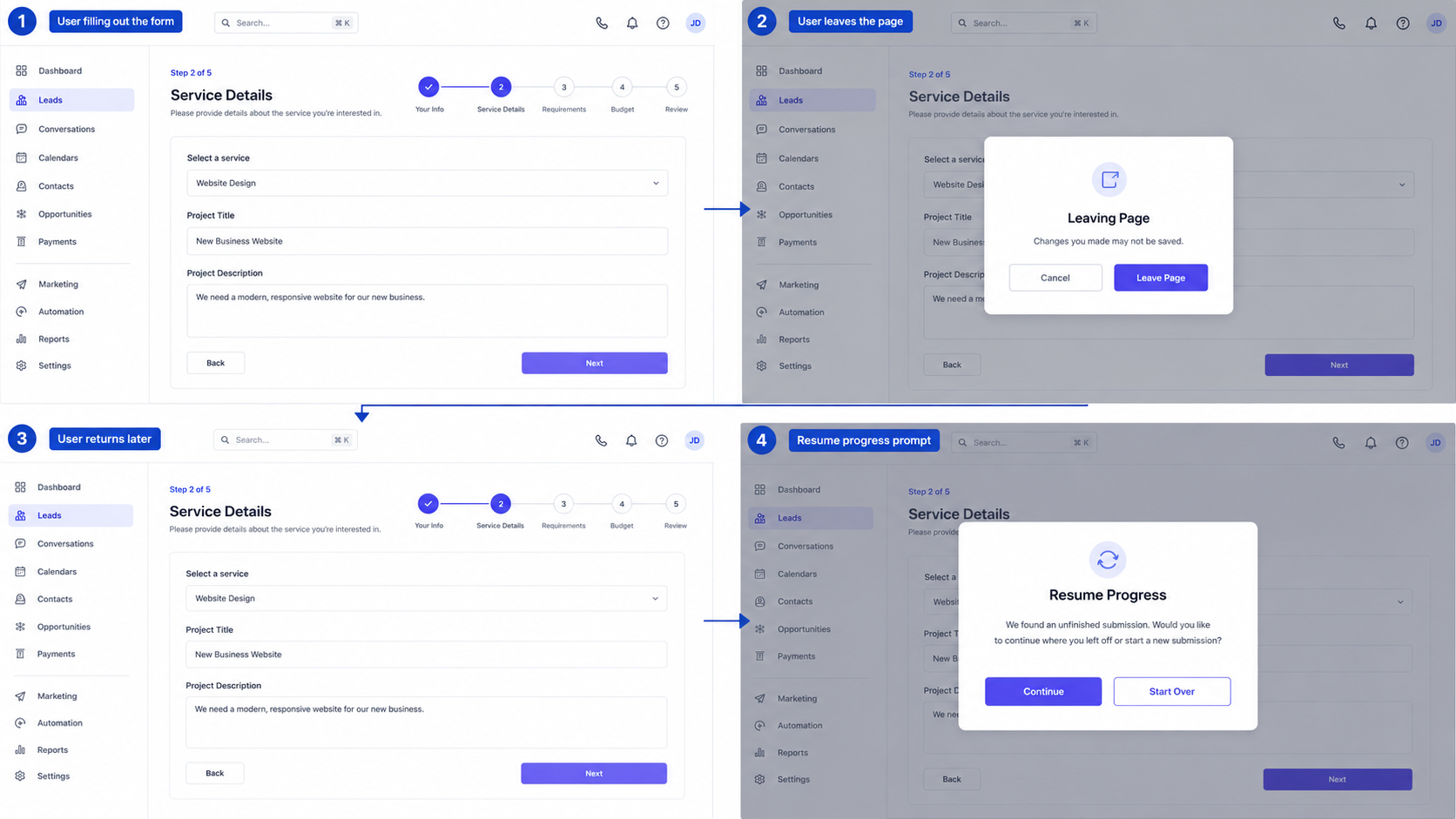
Save Progress automatically stores a respondent's progress and allows them to continue later when they revisit the same Form, Survey, or Quiz.
Important Notes
There are several details to keep in mind about this update.
Save Progress is available only for multi-step Forms, Surveys, and Quizzes.
The feature is managed through the Save exit confirmation toggle in the Settings tab.
Progress is automatically saved only after the feature has been enabled.
The Resume Progress modal automatically follows the branding configured for the Form, Survey, or Quiz.
Existing Forms, Surveys, and Quizzes remain unchanged until the Save Progress Feature is explicitly enabled.
Why This Update Improves the User Experience
The new Save Progress Feature makes multi-step Forms, Surveys, and Quizzes easier to continue by allowing respondents to leave before submitting and return later to resume their progress.
Instead of starting again after leaving a multi-step submission, respondents are presented with a Resume Progress modal that gives them a clear choice to continue from where they stopped or begin a new submission.
The experience also remains visually consistent because the Resume Progress modal automatically matches the branding of the existing Form, Survey, or Quiz. With support across desktop and mobile experiences, the feature provides the same functionality regardless of the device being used.
Because the feature is controlled with a simple toggle in the Settings tab, it can be enabled whenever needed, while existing Forms, Surveys, and Quizzes remain unchanged until it is turned on.
Final Thoughts
The latest GoHighLevel Update introduces a practical enhancement for anyone using GoHighLevel Forms, GoHighLevel Surveys, or GoHighLevel Quizzes.
With the new Save Progress Feature, users can enable automatic progress saving for multi-step submissions through a simple Settings toggle. Respondents who leave before submitting can later return to the same Form, Survey, or Quiz and use the Resume Progress modal to continue where they left off or start over with a new submission.
Combined with branding that automatically matches the existing Form, Survey, or Quiz and full support across desktop and mobile experiences, this update provides a straightforward way to improve the experience of completing multi-step submissions within GoHighLevel CRM.
Frequently Asked Questions (FAQs)
1. What is the GoHighLevel Save Progress feature?
The Save Progress feature allows respondents to leave a multi-step Form, Survey, or Quiz before submitting and return later to continue where they left off.
2. How do I enable Save Progress in GoHighLevel?
Open the Settings tab of your Form, Survey, or Quiz and enable the Save exit confirmation toggle.
3. Which GoHighLevel items support the Save Progress feature?
The feature is available for multi-step Forms, Surveys, and Quizzes.
4. What happens when a respondent returns to the same form?
A Resume Progress modal appears, allowing the respondent to either continue their saved submission or start over with a new one.
5. Does the Resume Progress modal match my form's branding?
Yes. The Resume Progress modal automatically matches your Form, Survey, or Quiz branding, including the configured button color and label font.
Watch This GoHighLevel Update in Action
Want a quick overview of this new GoHighLevel feature? We’ve created a short video explaining the update, its benefits, and how you can use it effectively.
Click below to watch the video and stay ahead with the latest GoHighLevel updates.
Need Expert Help with GoHighLevel?
New to GoHighLevel and ready to get started? Buy your GoHighLevel account here and launch with confidence.
Already know what you need and want our team to handle everything, from complete setup and customization to funnels, workflows, automations, CRM, and pipelines? Click here.



